Background
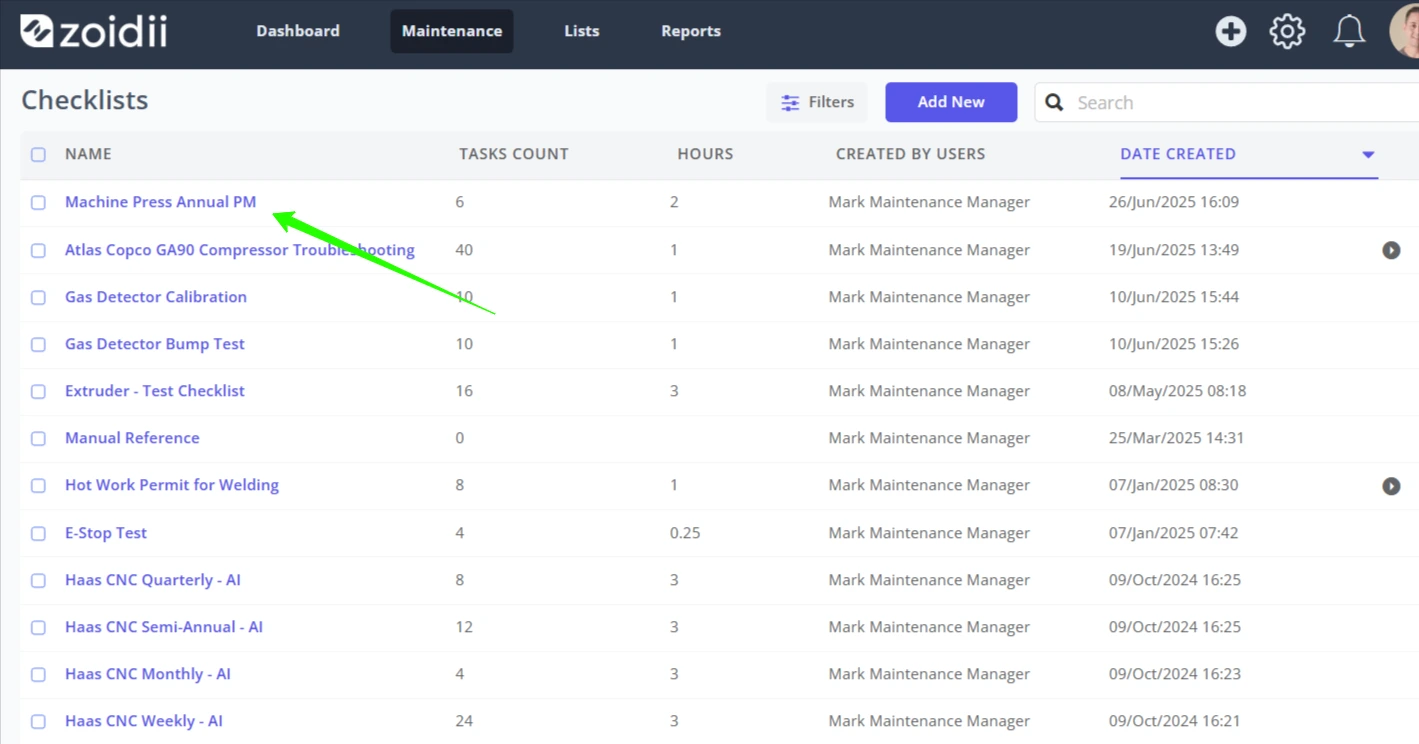
Checklists are lists of items to do during a PM or work order. Sometimes called Task Groups, Procedures, SOPs, standard operating procedures for maintenance, or worksheets.
Procedure
1. Click Maintenance in the top navigation bar, and select Checklists from the dropdown
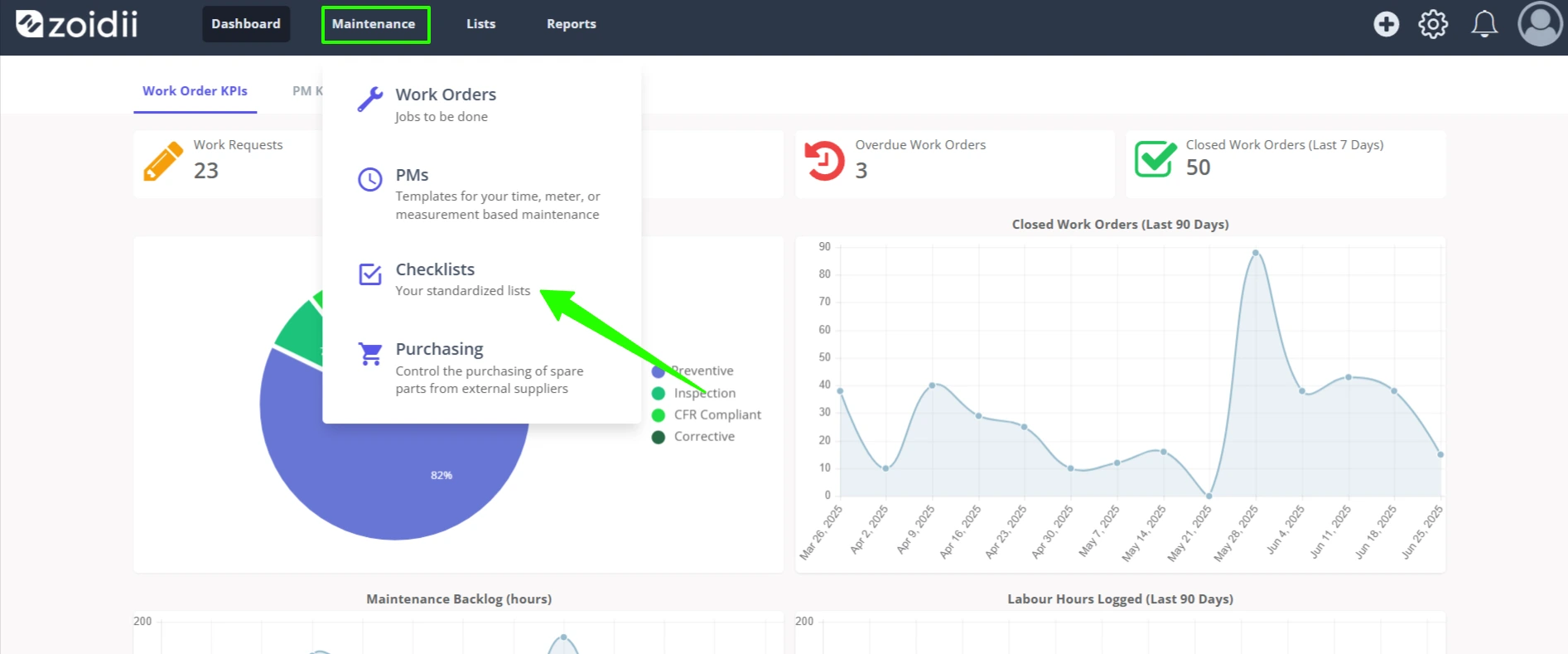
2. On the Checklists screen, click Add New
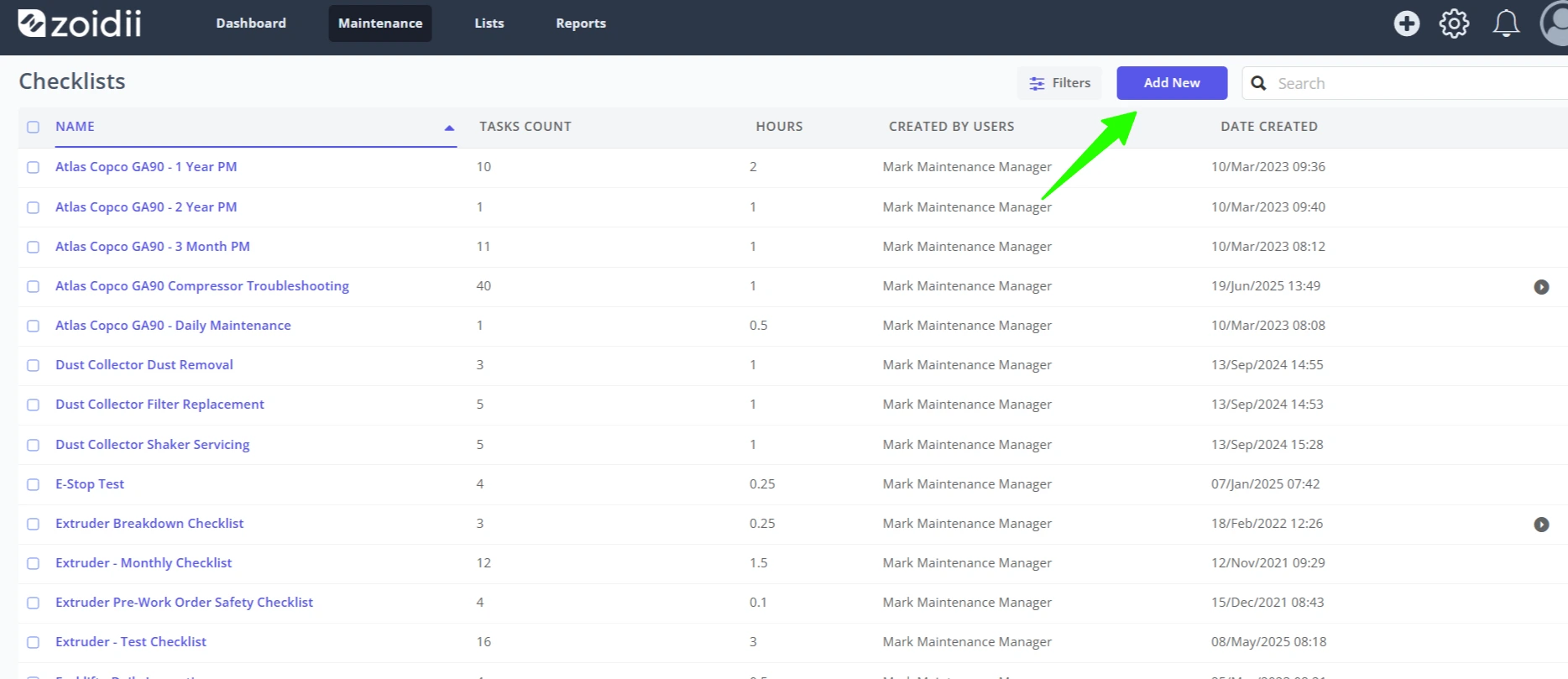
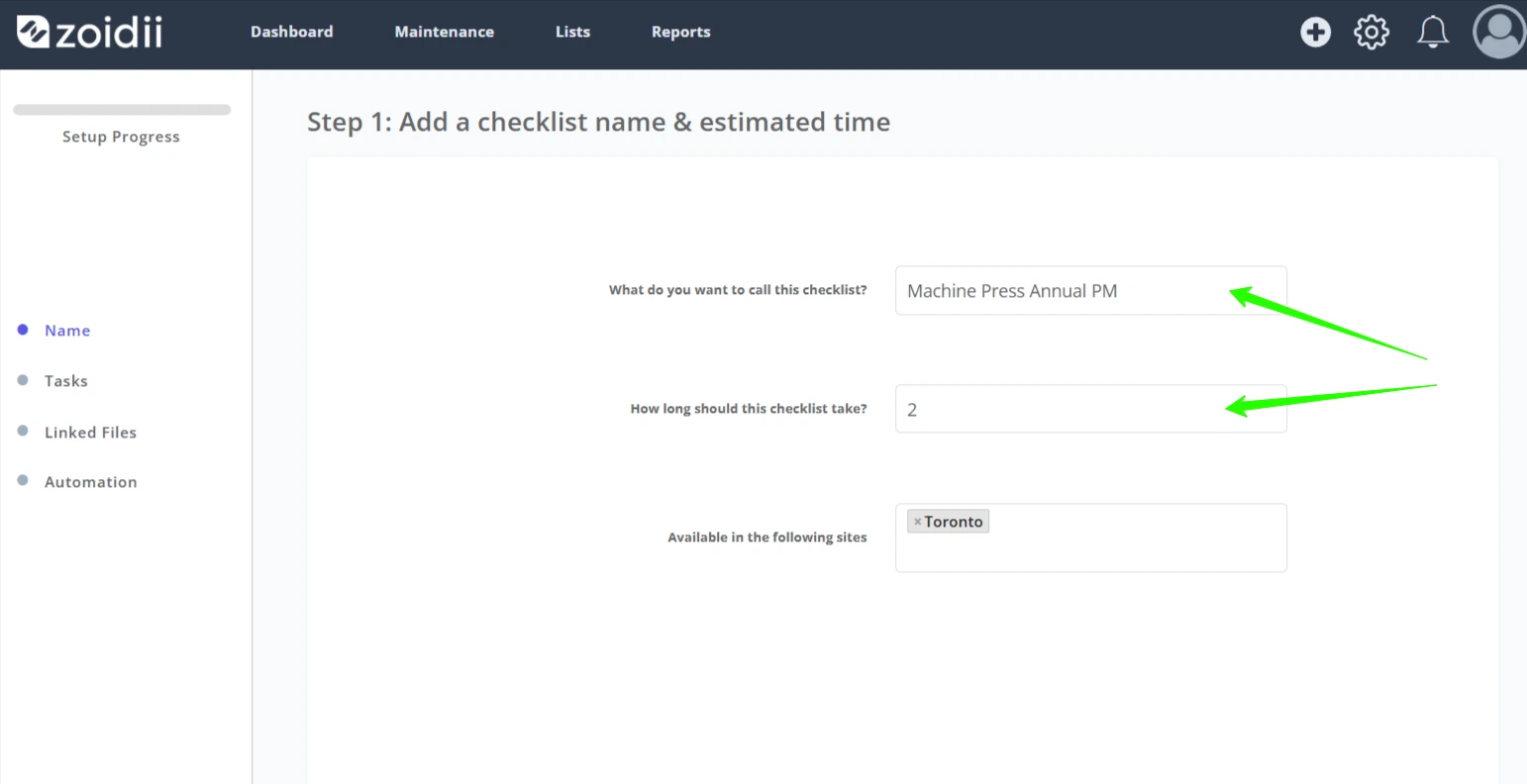
3. Add a checklist name and the estimated time, and click Next on the lower right-hand side of the page
4. In step 2, enter the task details for the first work task and click Add
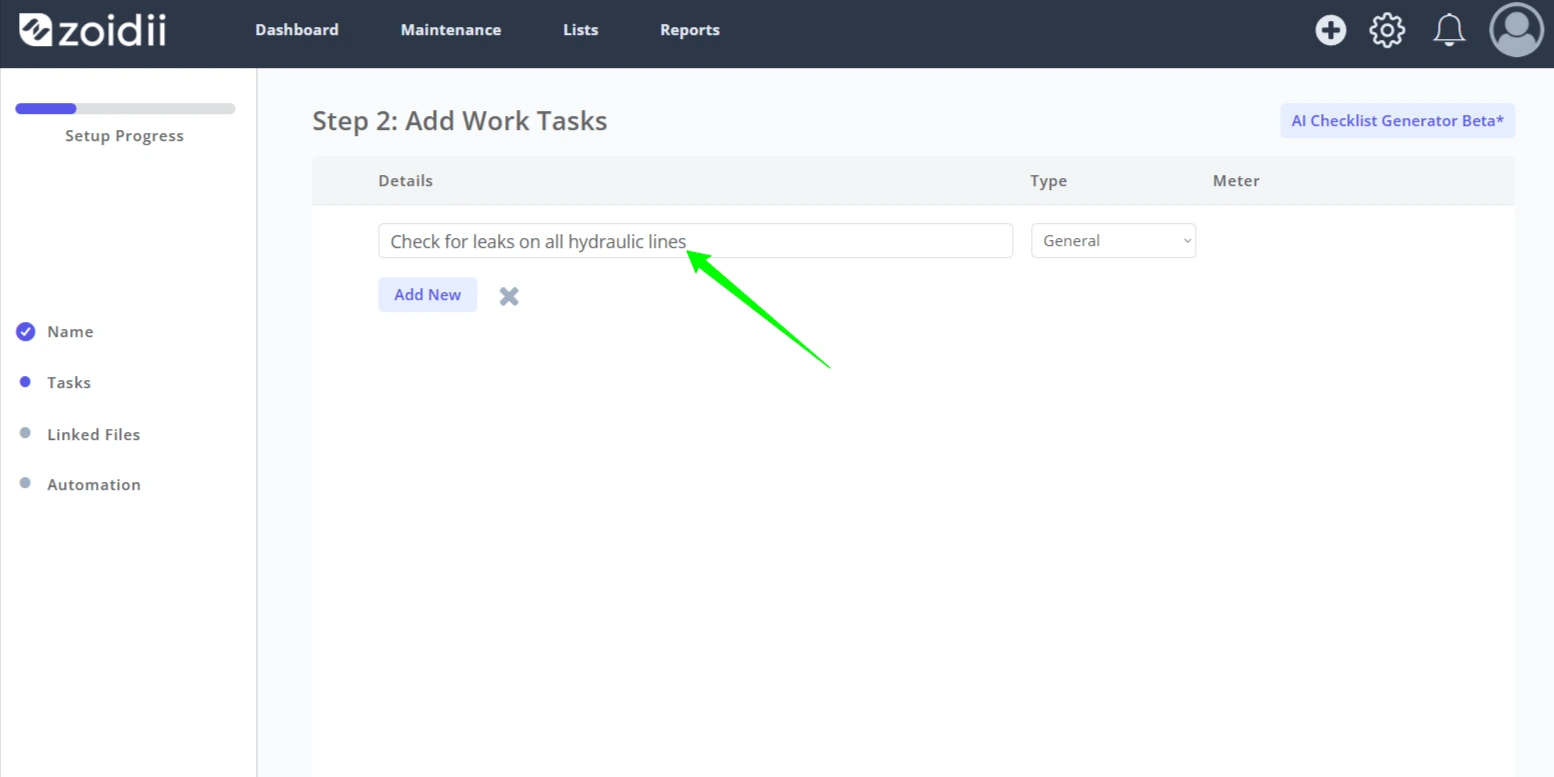
5. Repeat the process for all tasks as needed
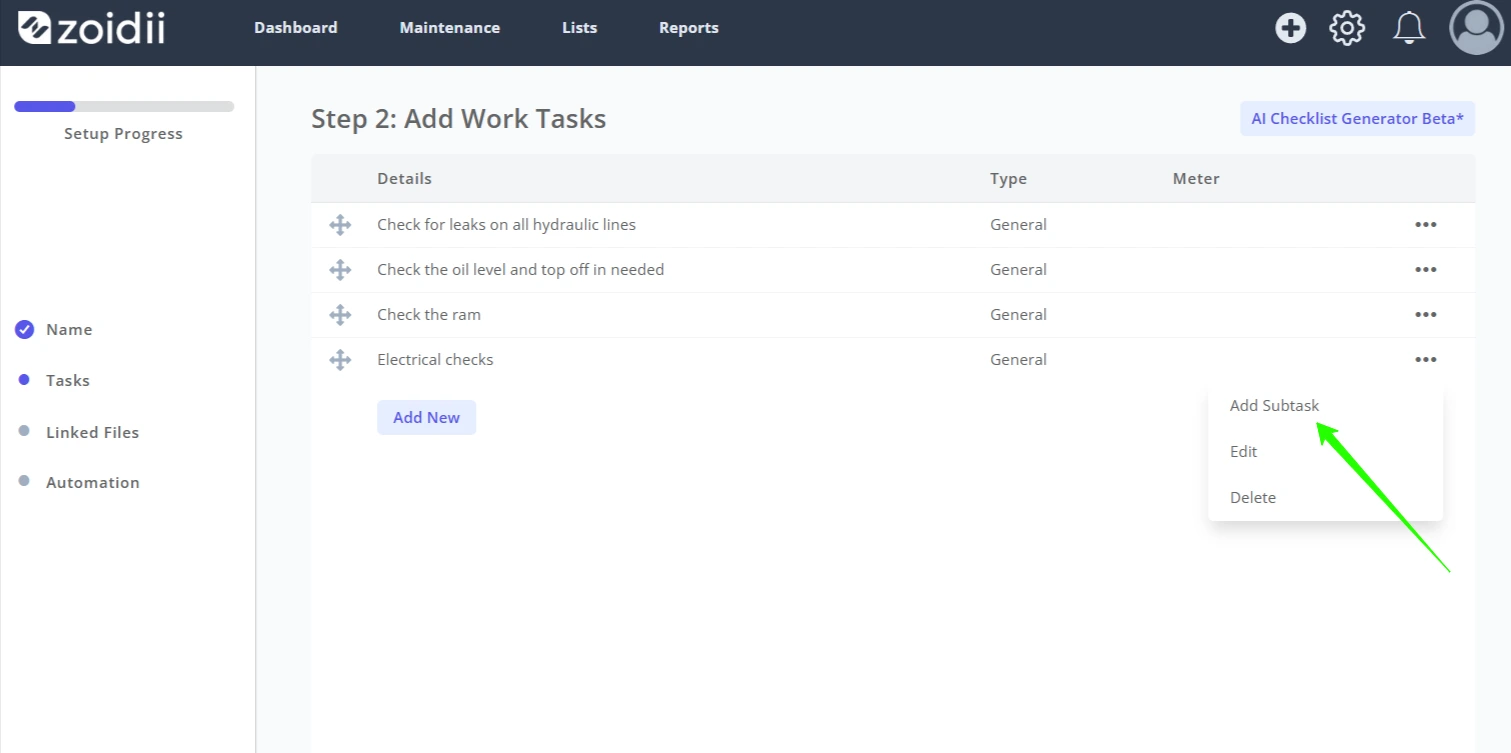
6. To add a subtask to a task, click the more icon on the line item and click Add Subtask
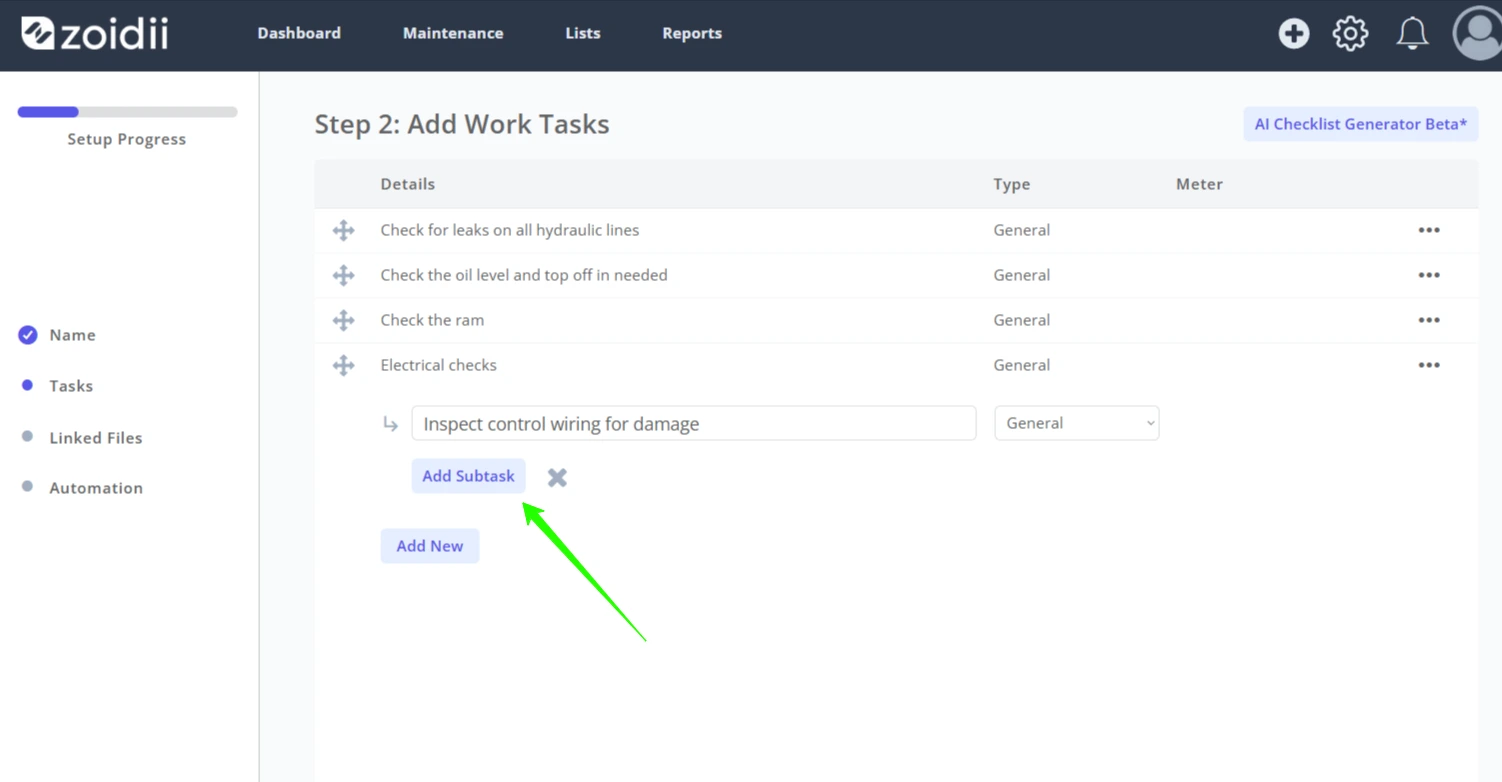
7. Add the subtask details, and click Add Subtask
8. To add a meter reading to the checklist, change the Task Type to Meter, select the meter type from the dropdown, and click to add
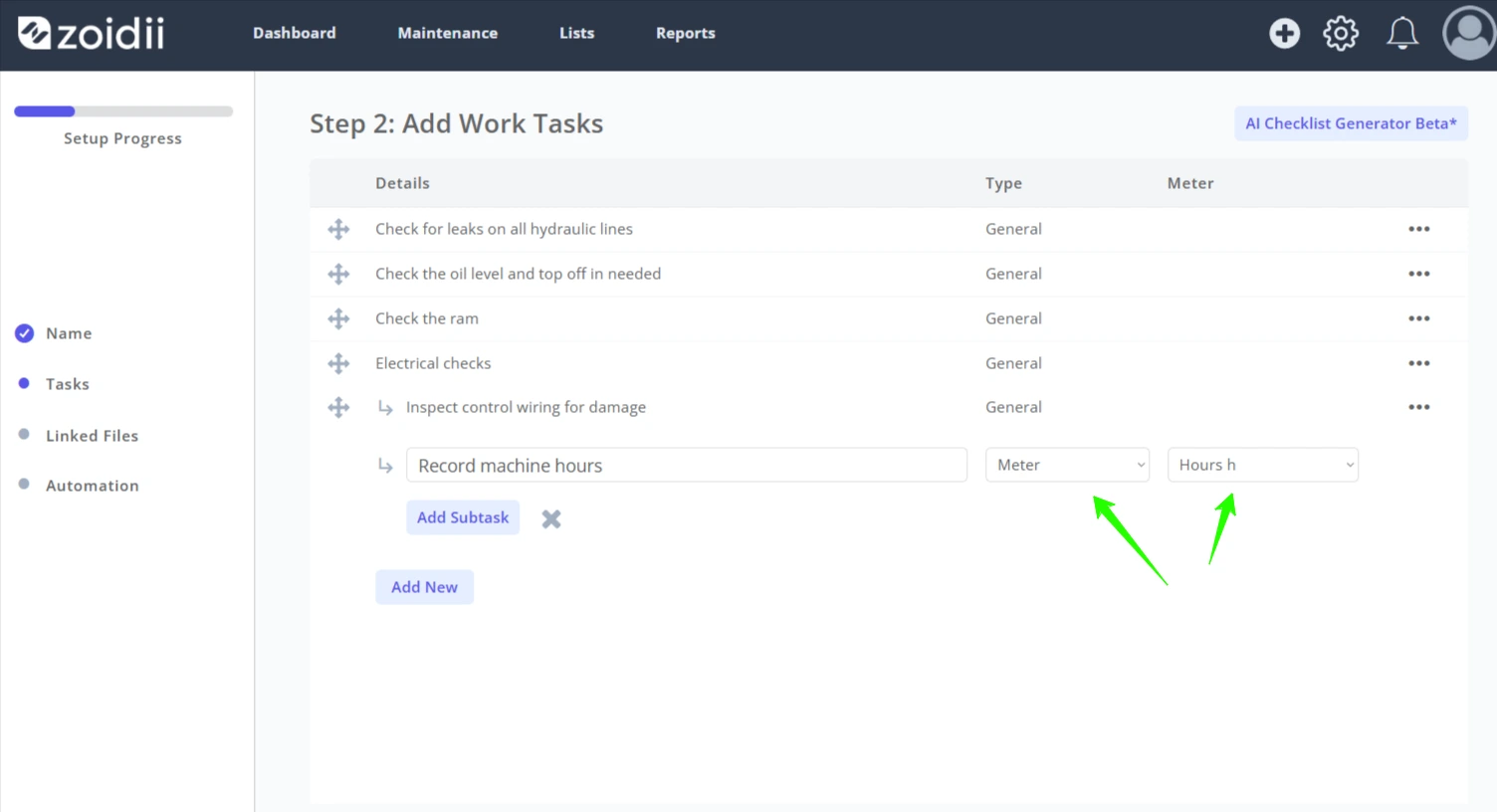
9. When finished adding subtasks, click the X icon
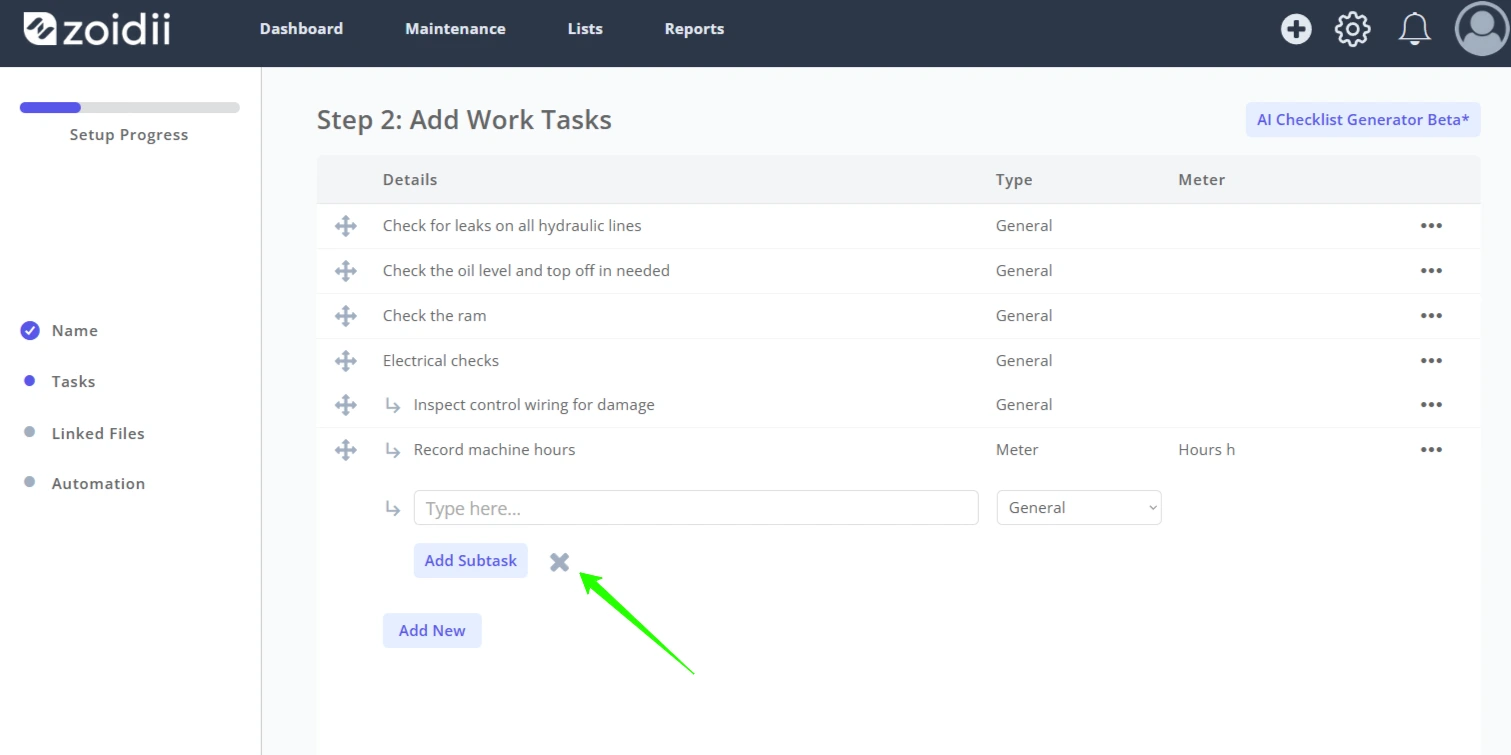
10. Continue adding tasks and subtasks until the checklist is complete. Use drag and drop to reorder items if needed. Click Next when done
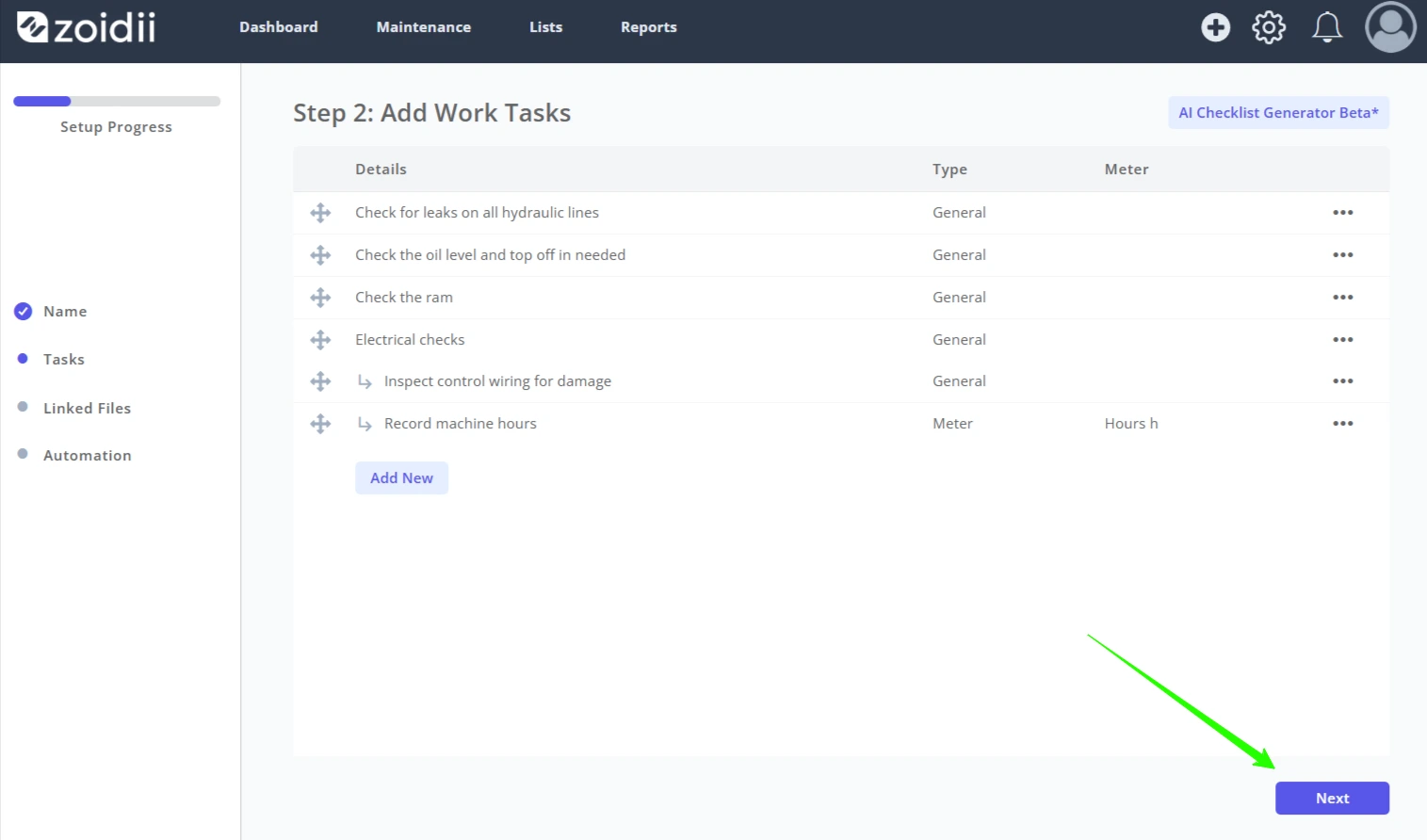
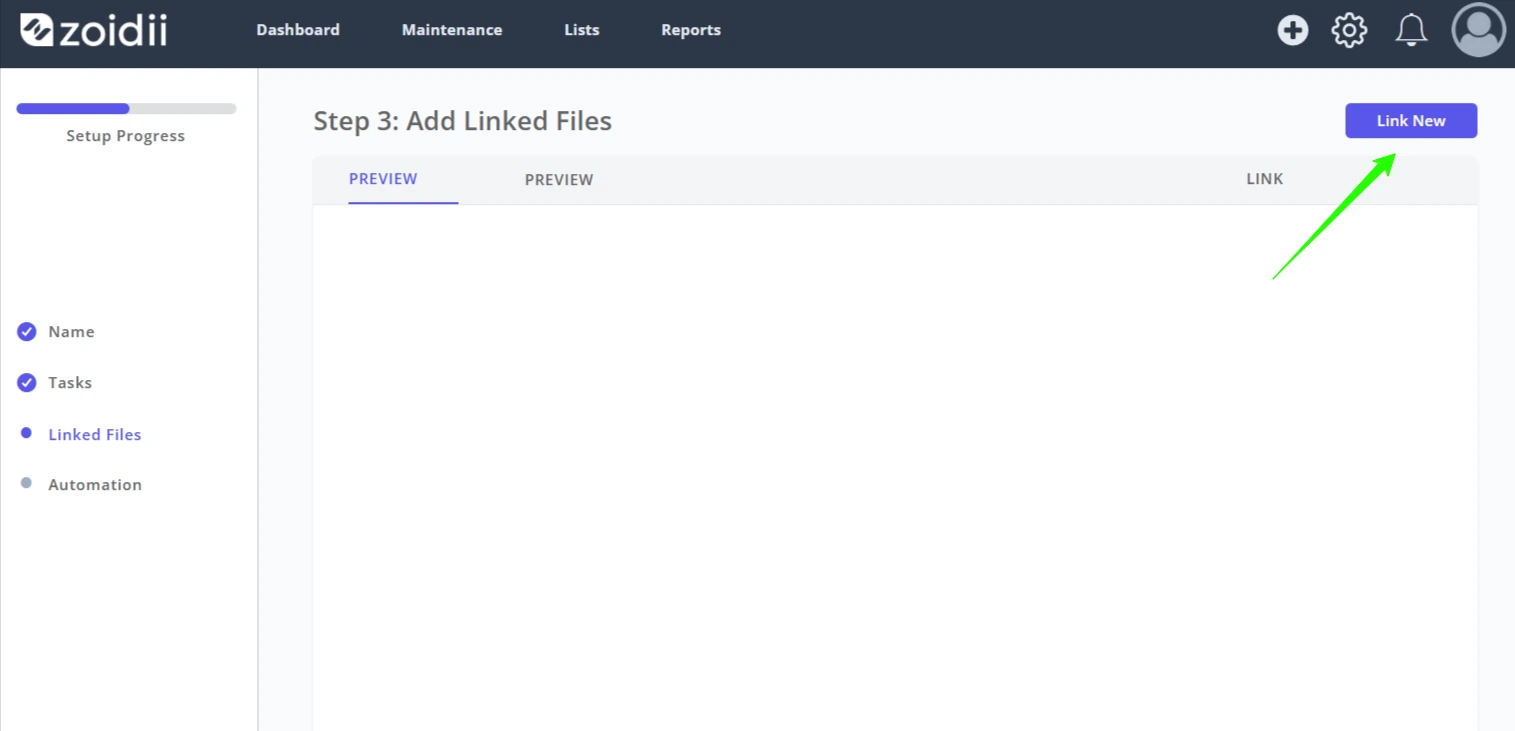
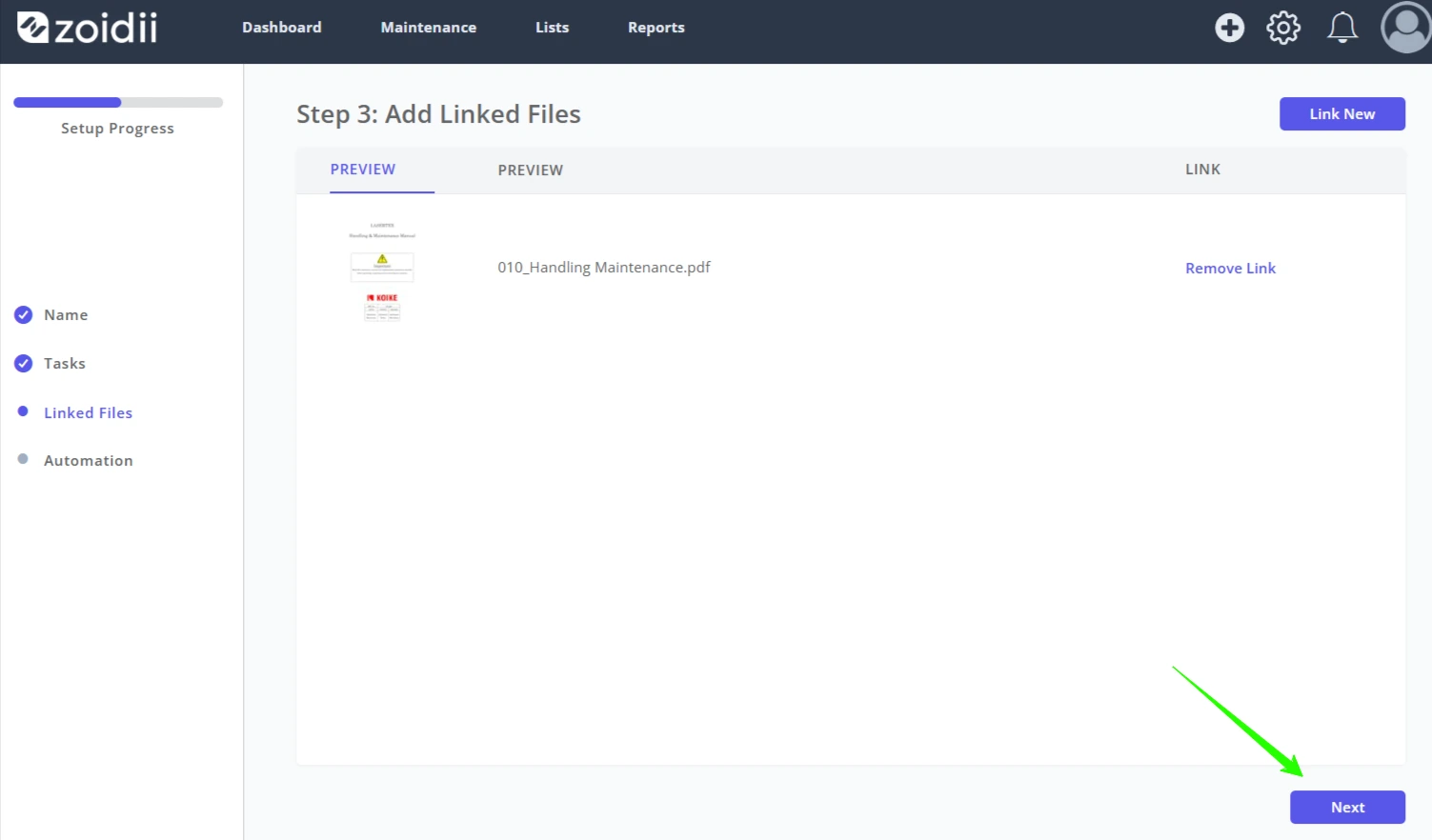
11. In step 3, you can link files to the checklist. Any linked files will be linked to the subsequent PMs or work orders. For example, link an MSDS sheet to the checklist for completion during each PM. Click Link New to add a file
12. Click Next when done adding files
13. Step 4 is available with the Enterprise tier only. In this step, users can configure triggers to automatically add the checklist when a user creates a work order. Here are some examples of when you could use auto checklists:
- Automatically adding a safety pre-check to each work order
- Reminding technicians to de-energise equipment when performing electrical work
- Adding a checklist with meter readings to each work order on a particular machine type
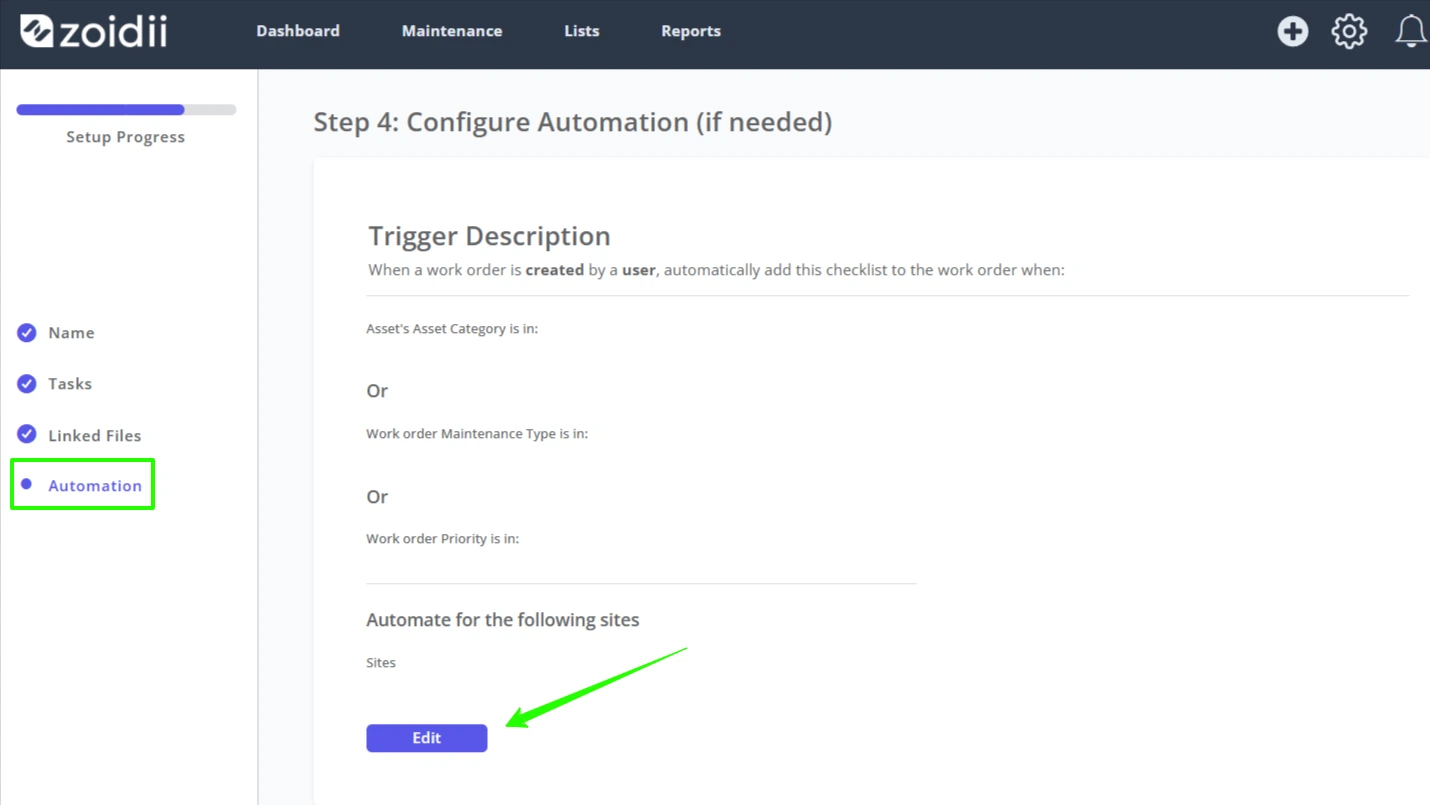
14. Add your triggers. Note that the automation uses the OR function - the checklist will be pushed to the work order if any trigger fires. In this example, every time a user creates a work order on the machine press, we'll pre-populate the work order with this checklist
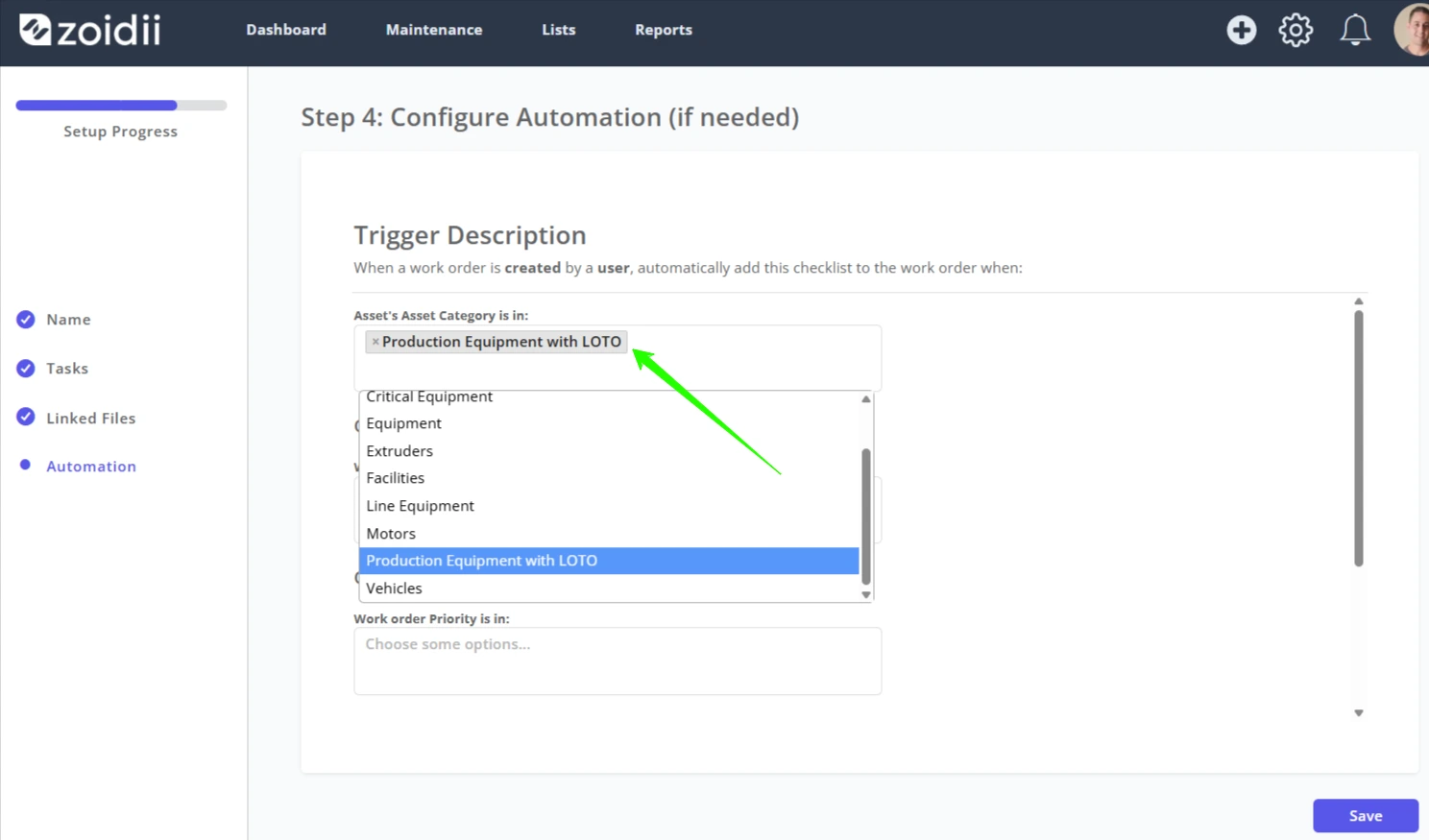
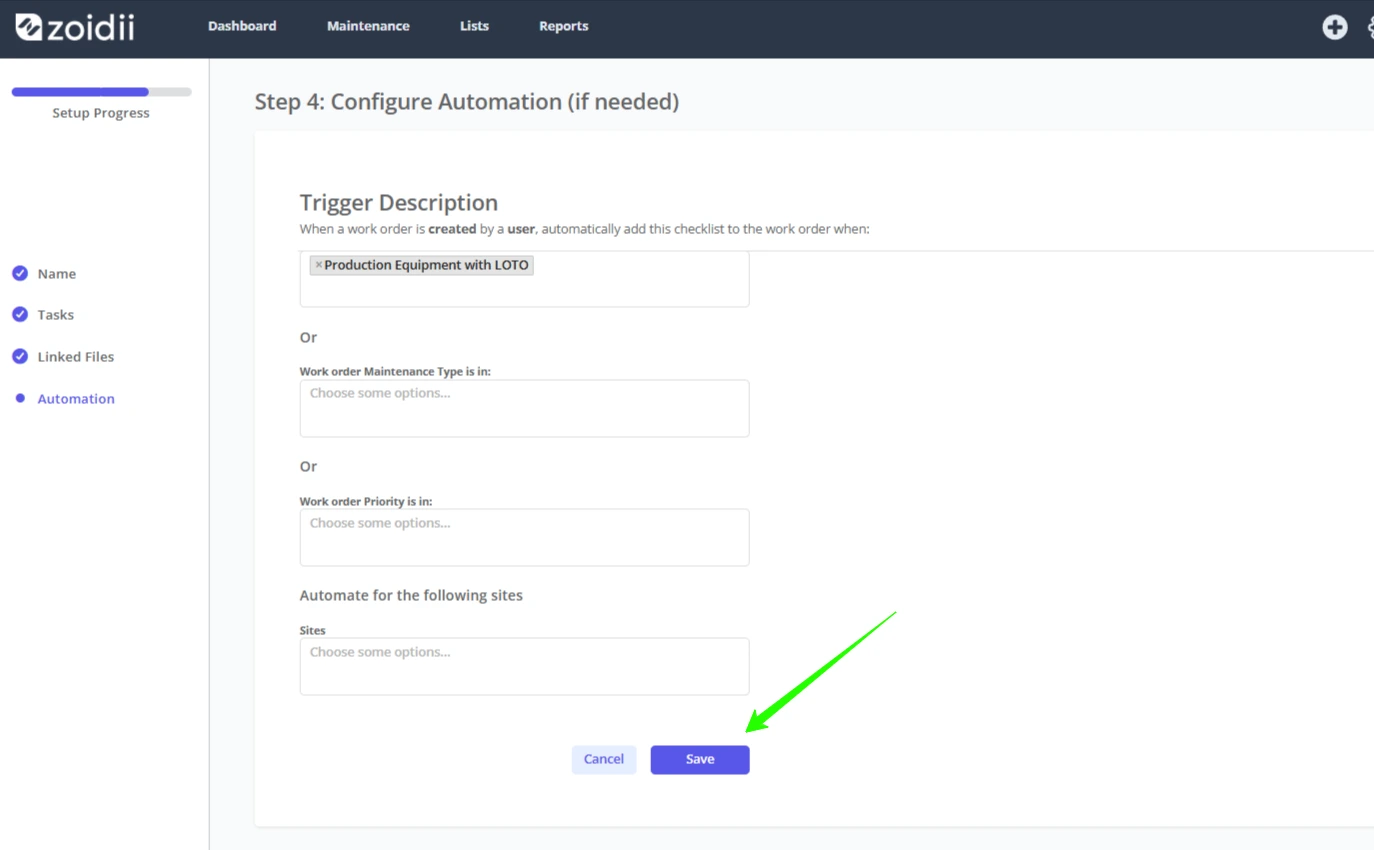
15. Click Save when done.
16. Click Save when the checklist is complete. You can always go back in and edit the checklist later if needed.
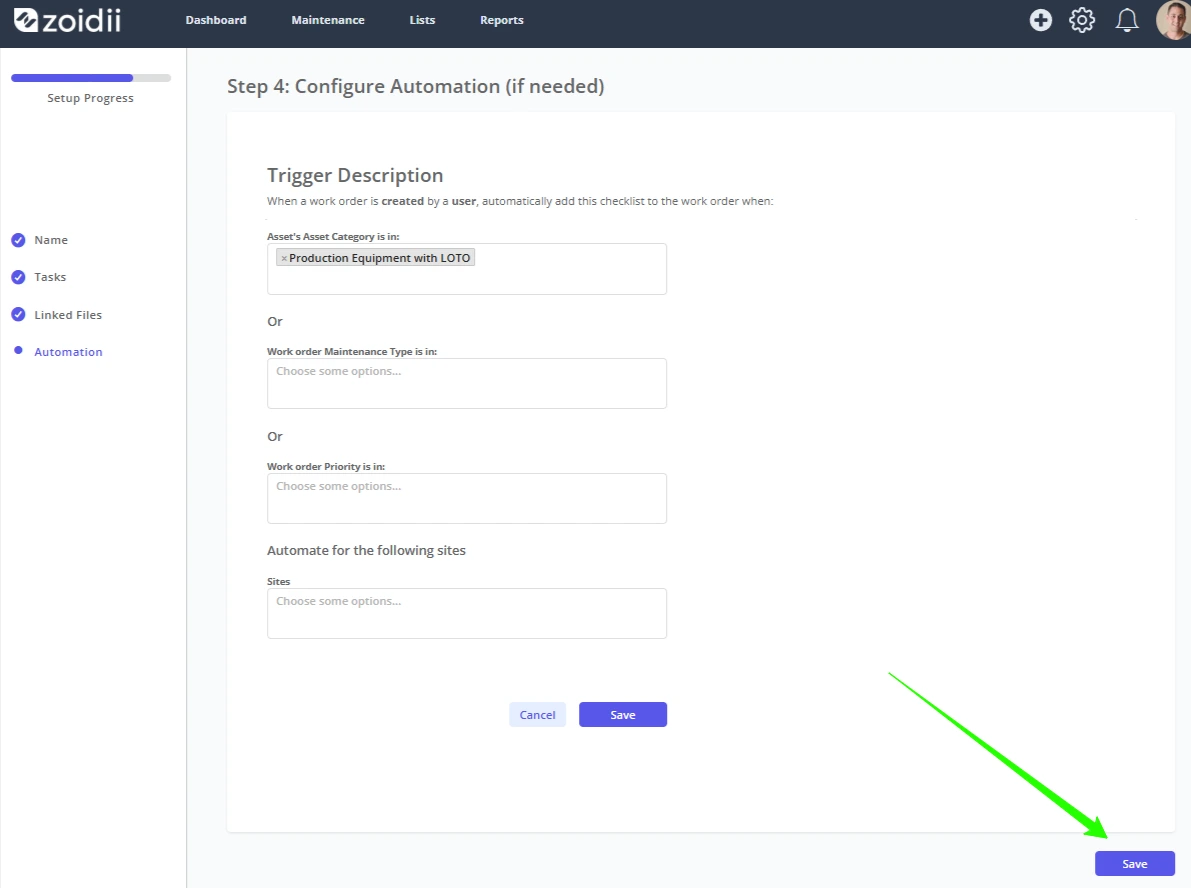
17. The new checklist is now ready to be added to PMs or work orders