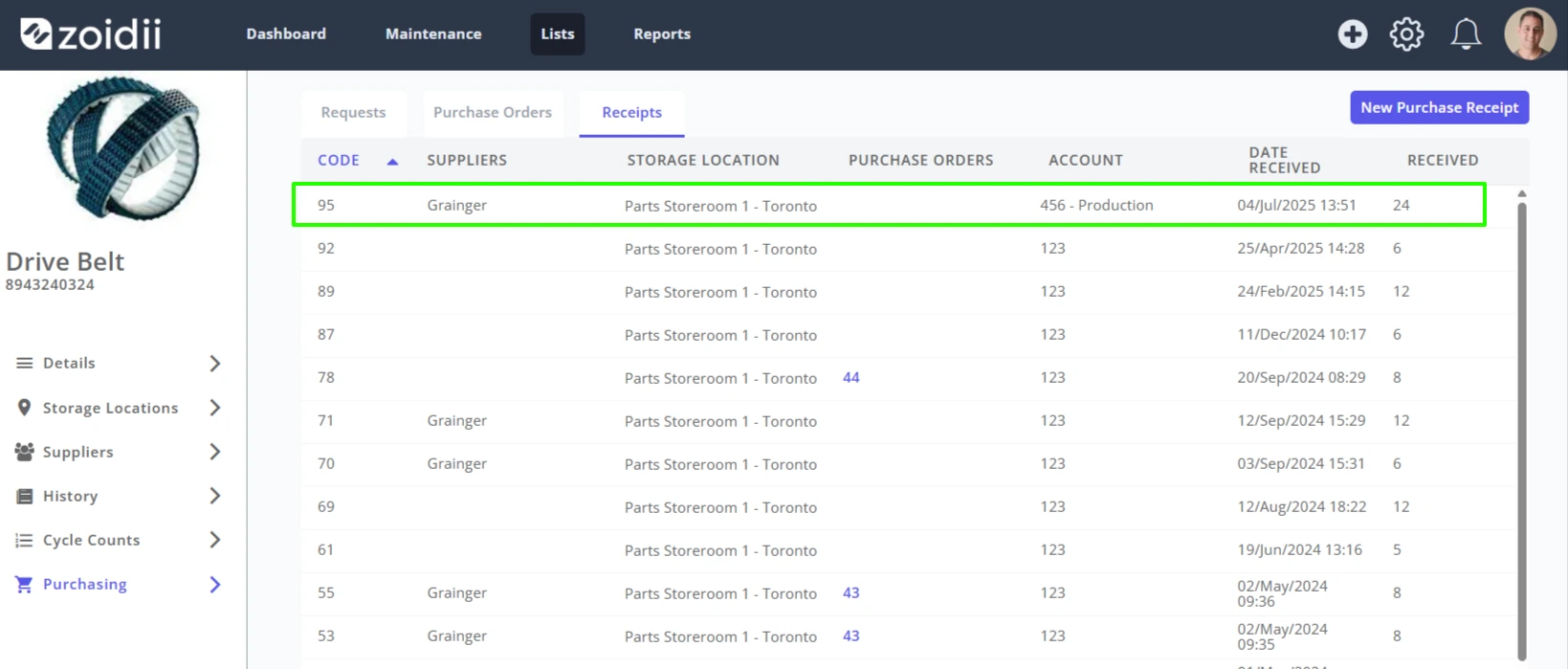
Receiving inventory into stock can be done in two ways:
1. Navigate to the part record and select the Storage Locations tab 2. Navigate to the part record and select the Purchasing tab (this is only available for organizations that have the Purchasing module)
1.Receiving inventory via the Storage Locations tab
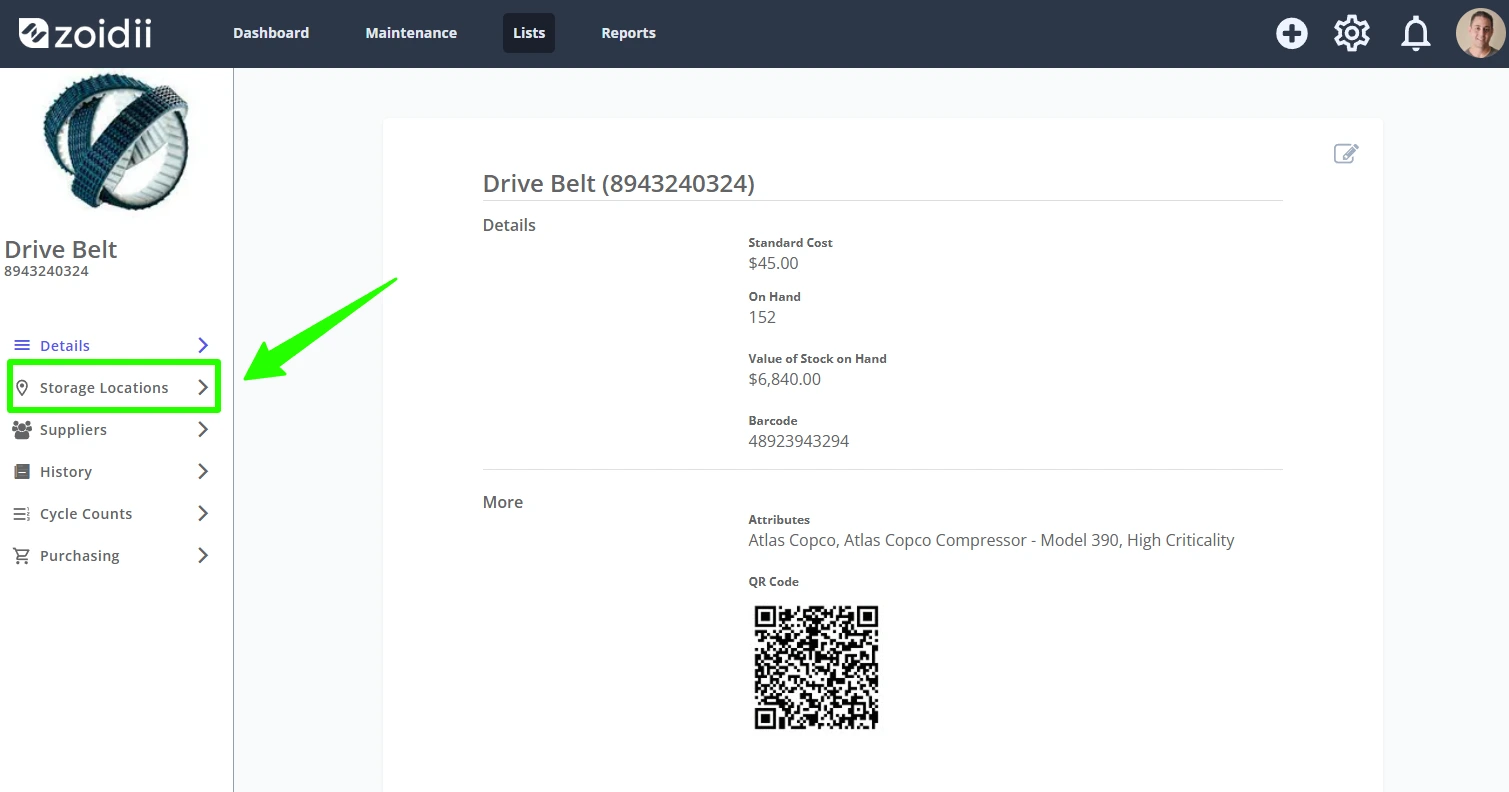
1.1 Open the part record and click Storage Locations
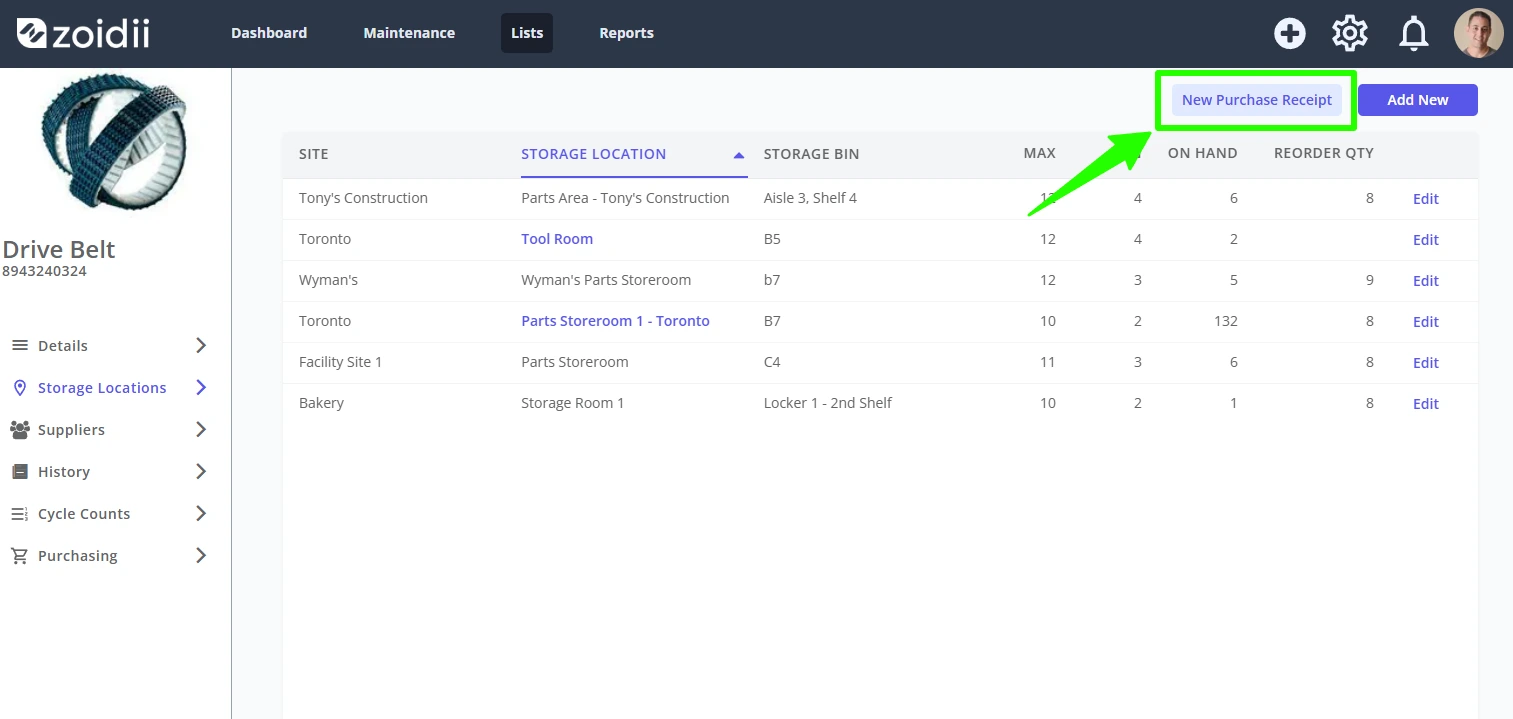
1.2 Click New Purchase Receipt
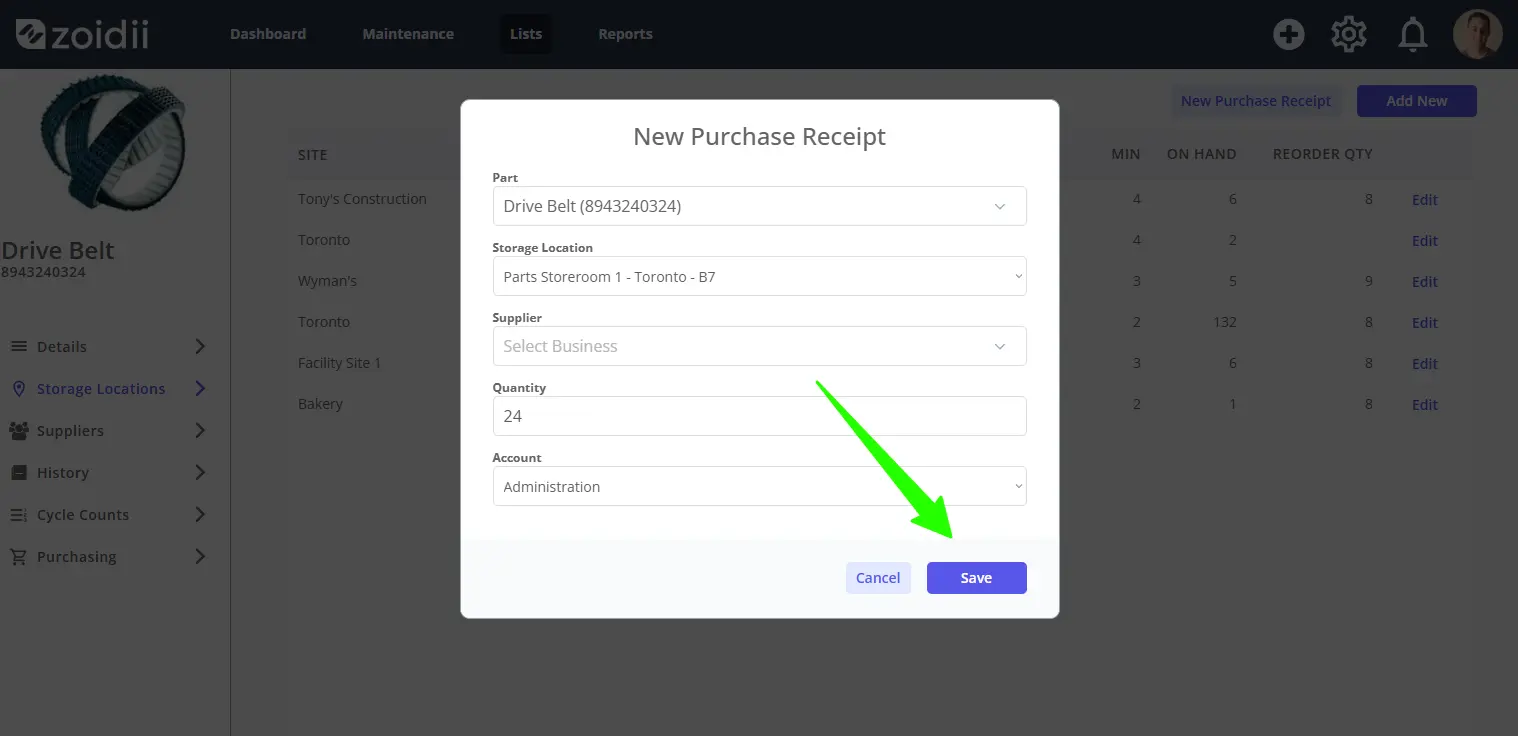
1.3 The part information is automatically loaded into the part field
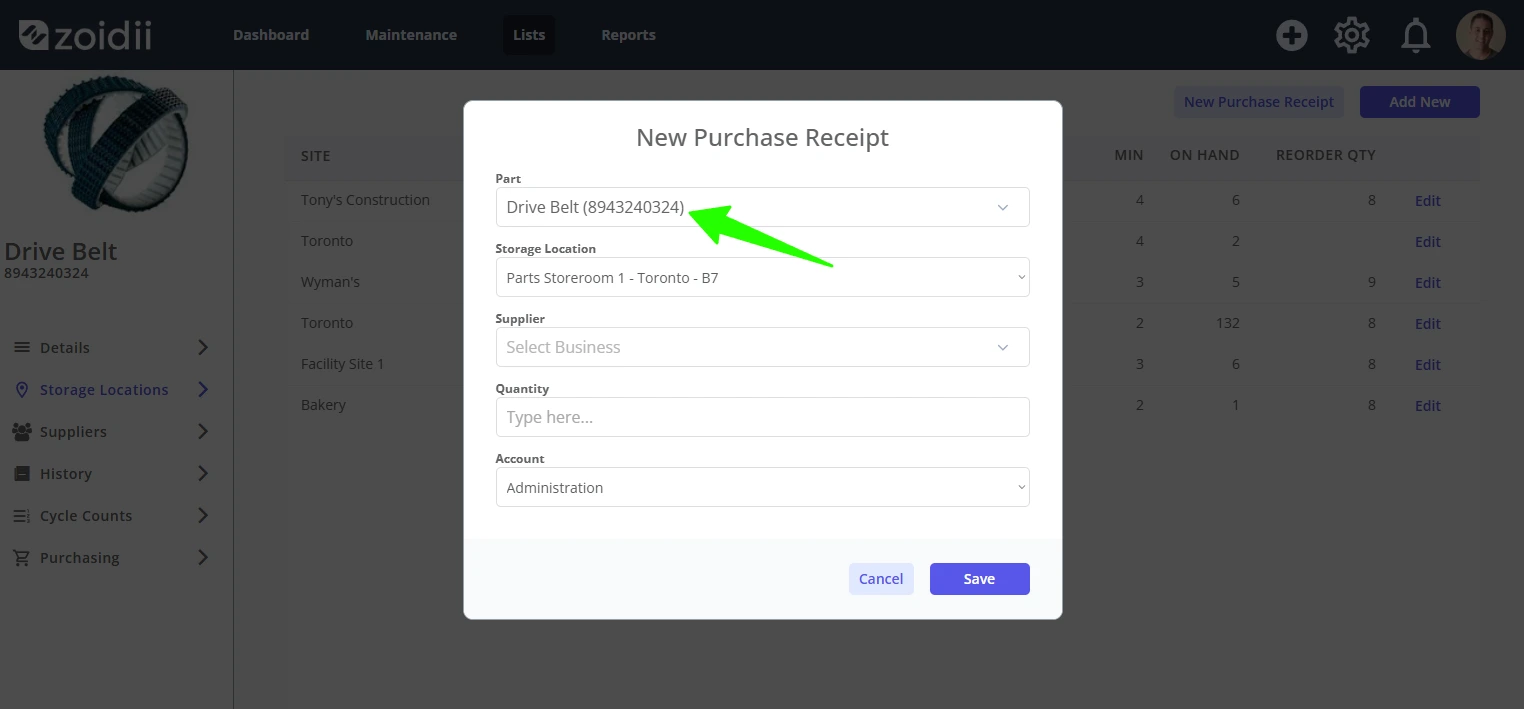
1.4 Choose the Storage Location (The available storage locations must already be configured for the part)
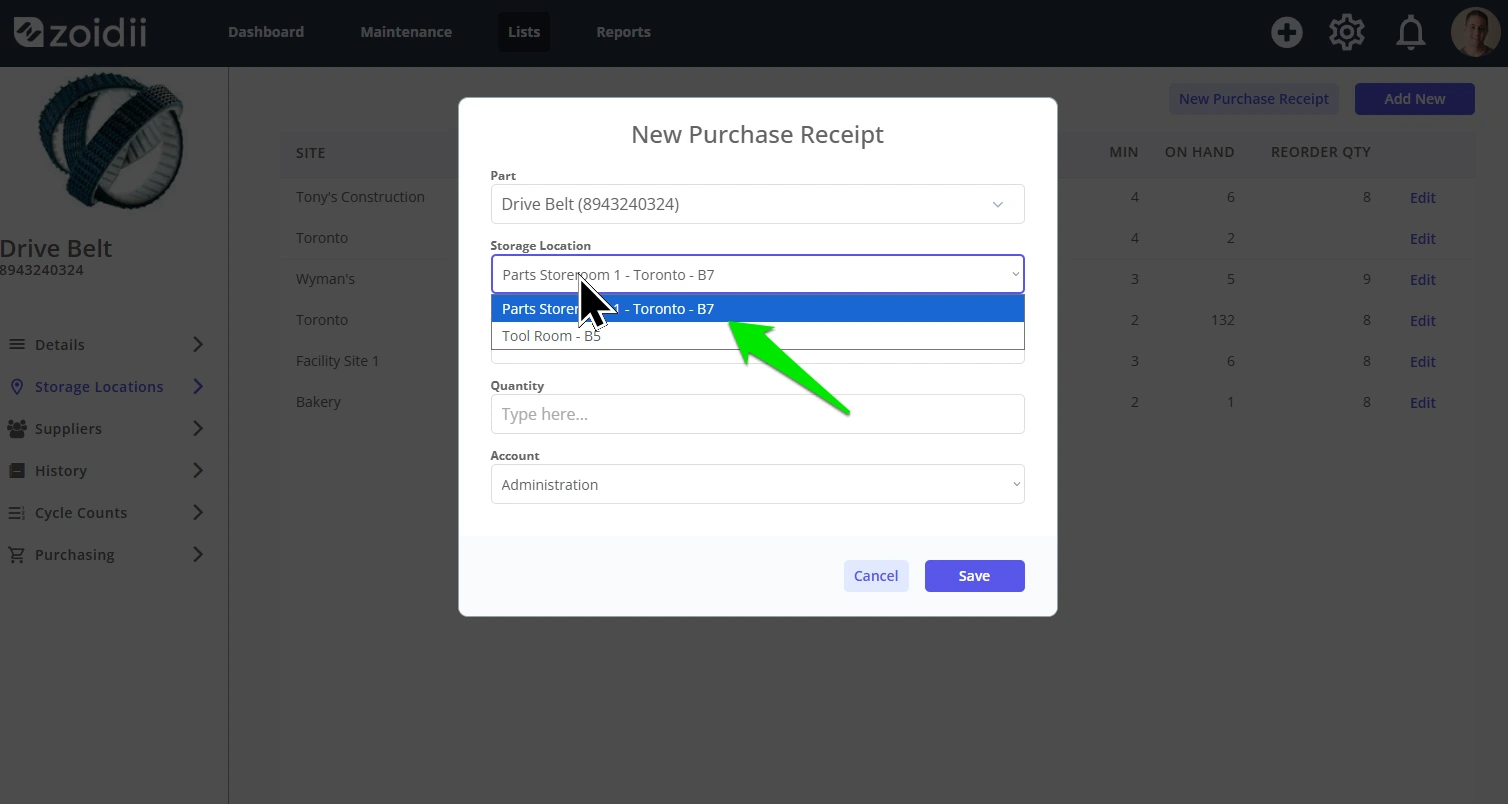
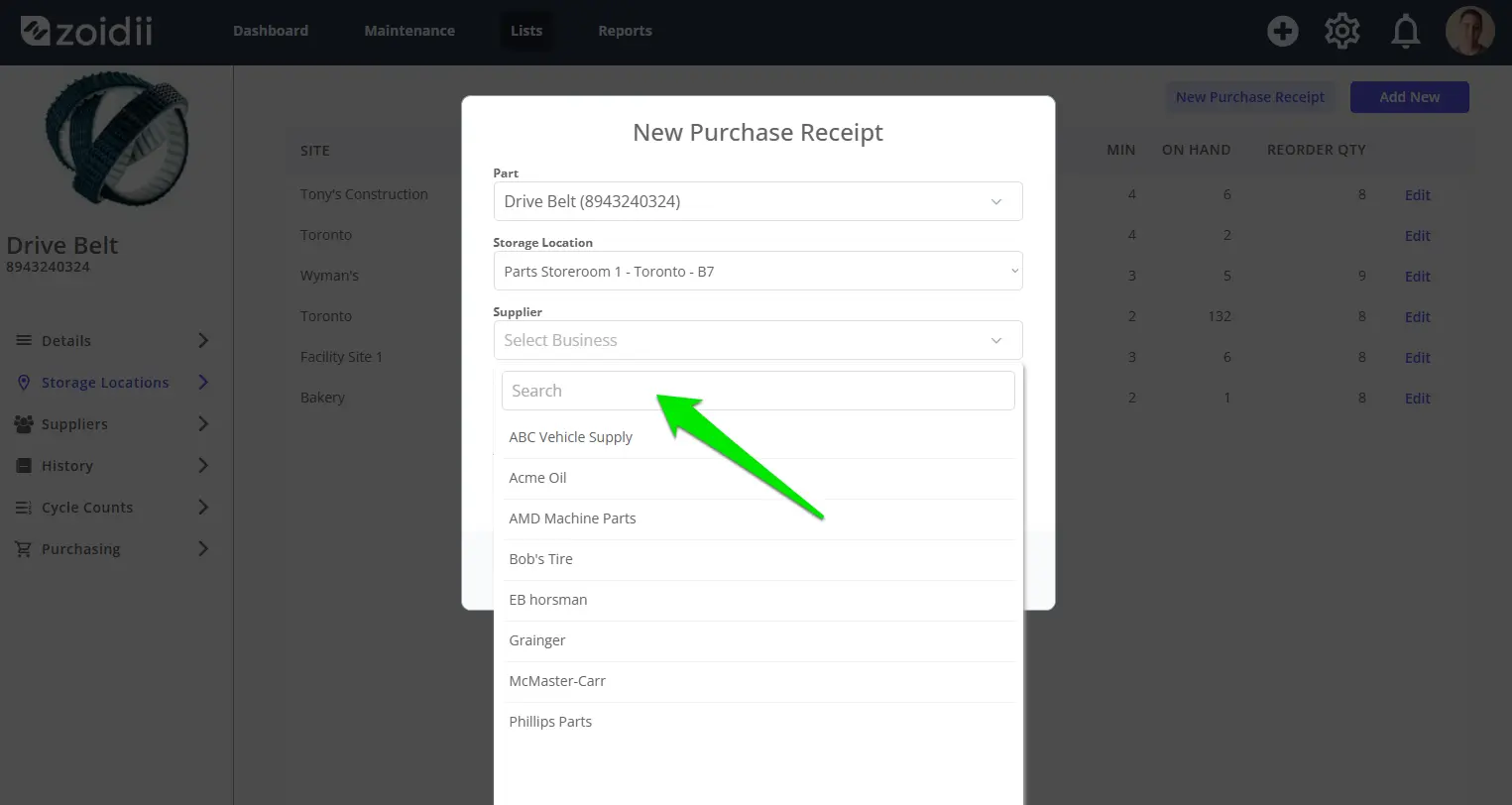
1.5 Select the Supplier from the list (optional)
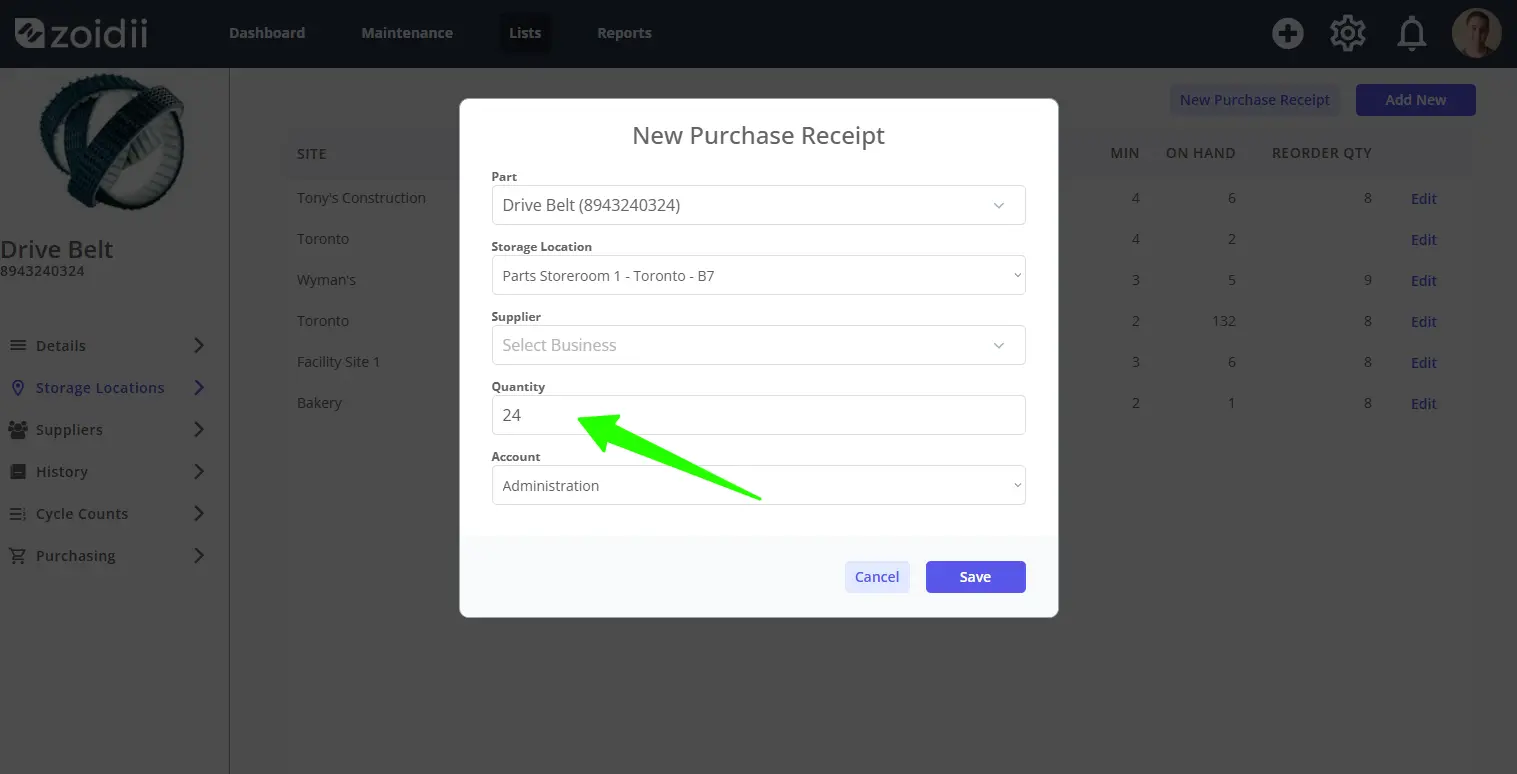
1.6. Input the Quantity Received
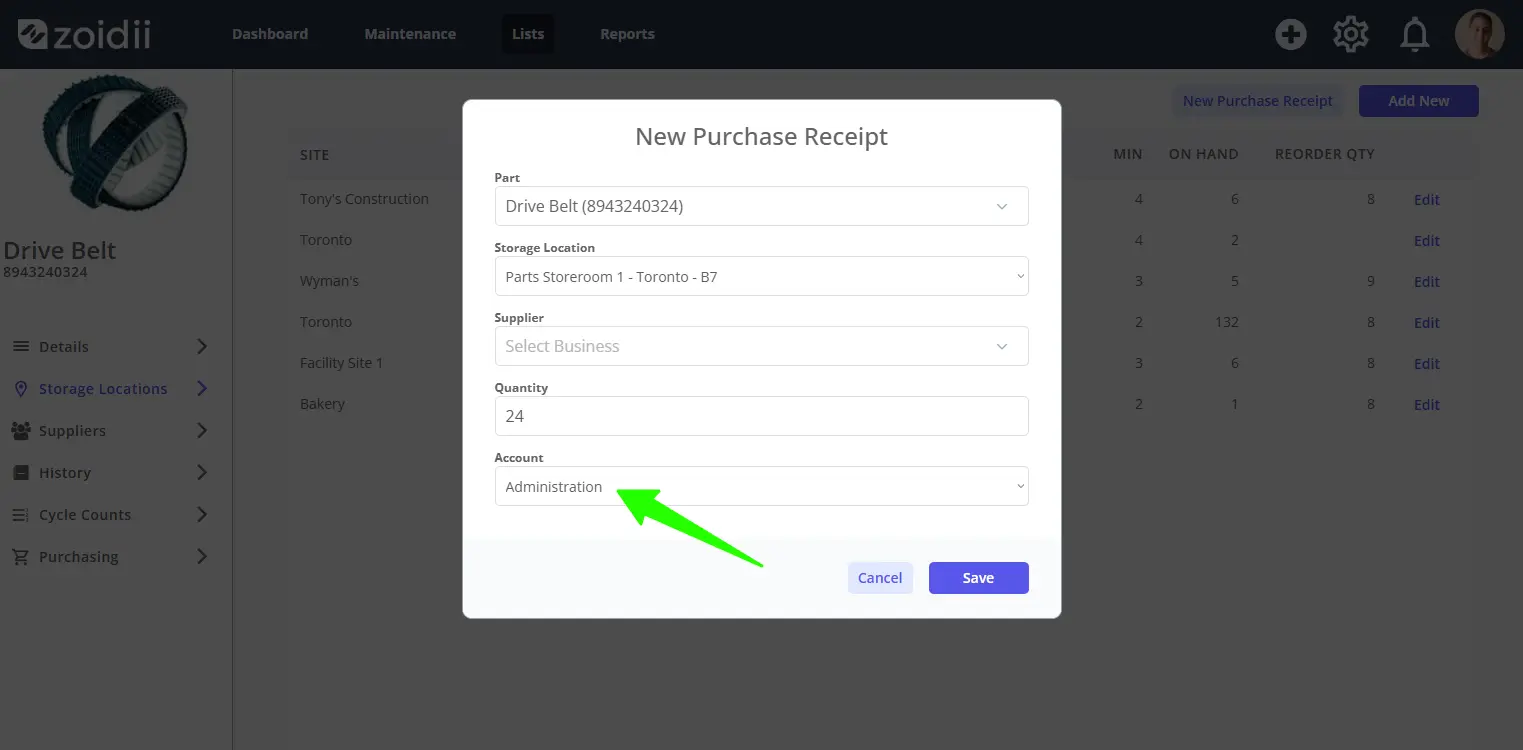
1.7 Select the relevant Account
1.8 Click Save
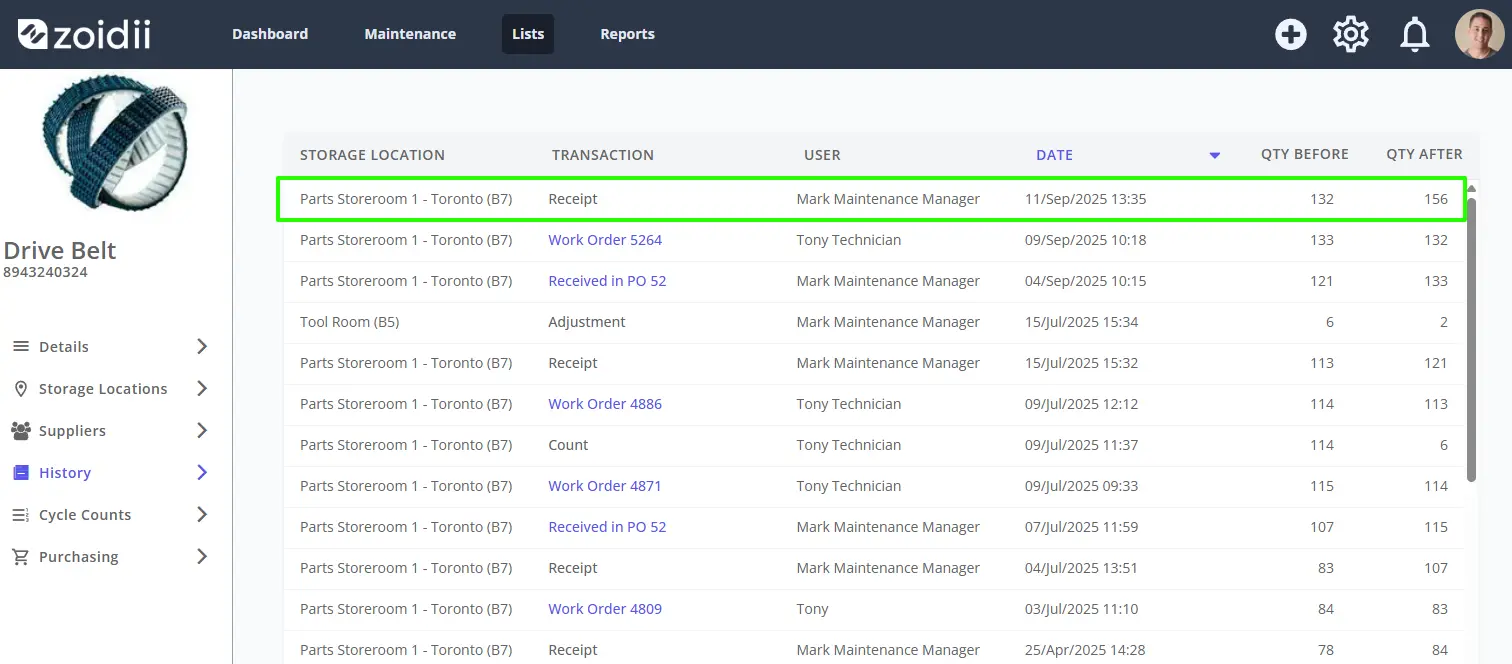
1.9 The parts are received into stock. The part stock is incremented accordingly.
2. Receiving inventory via the Purchasing tab
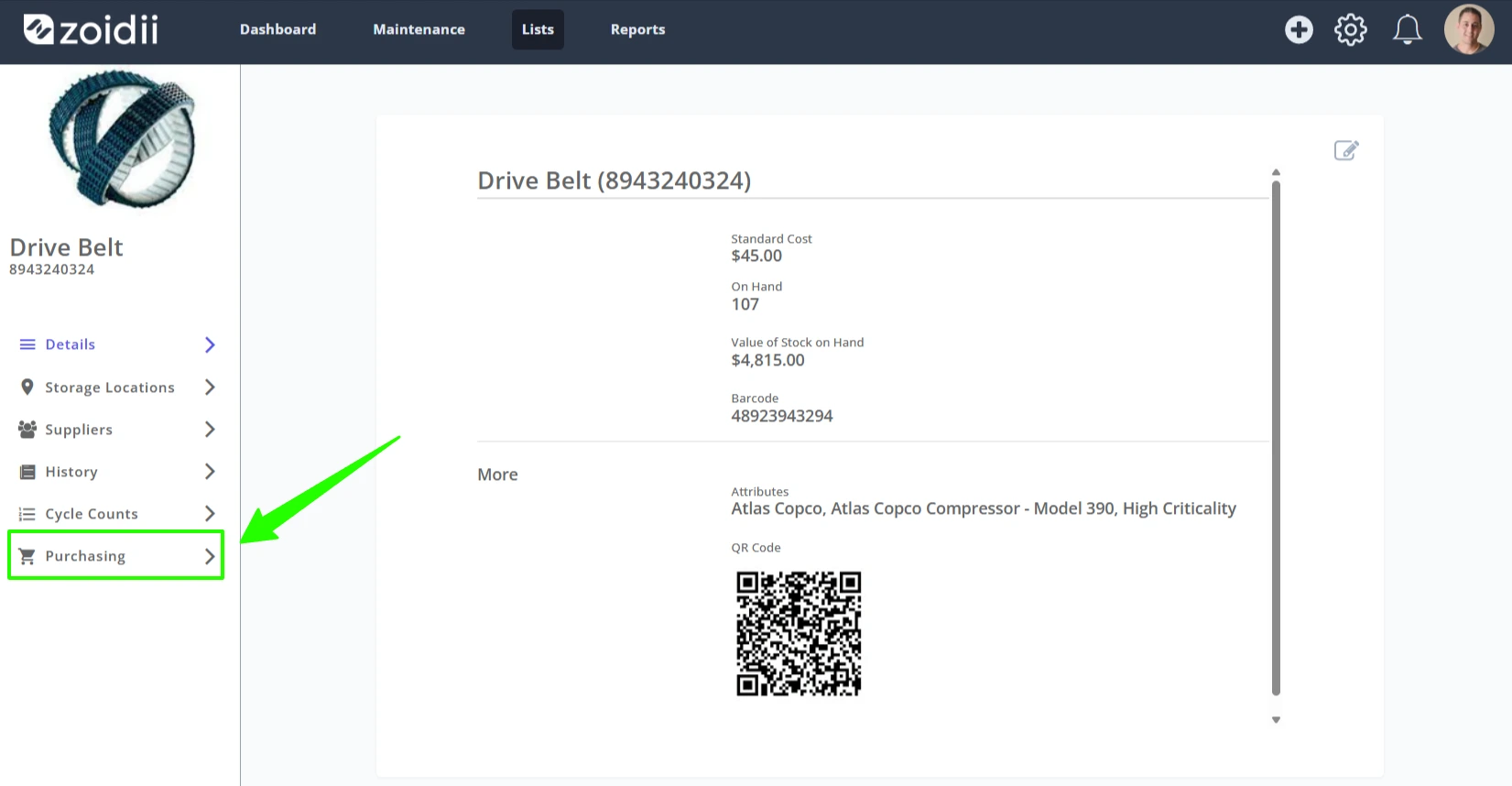
2.1 Open the part record and click Purchasing
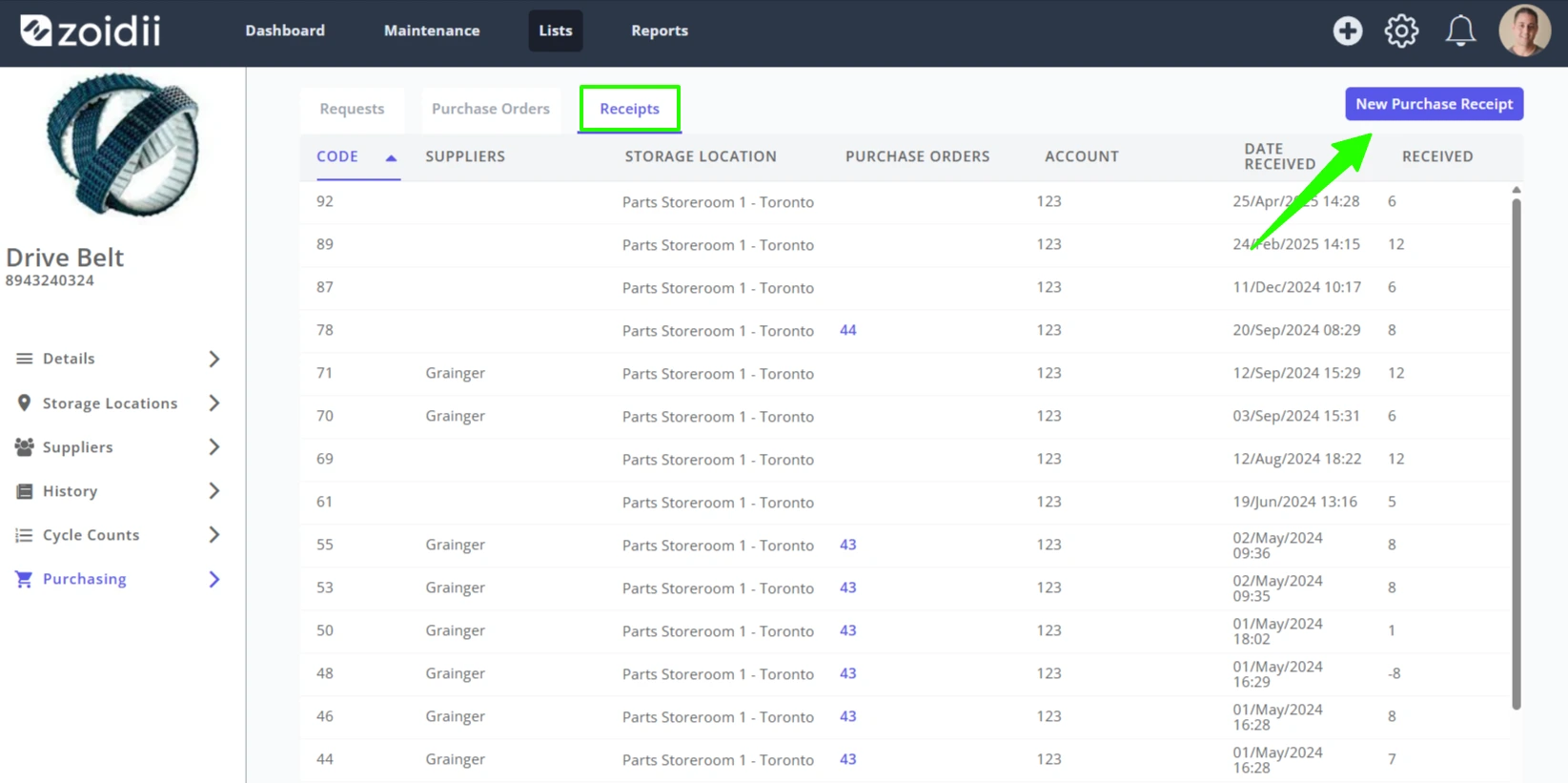
2.2 In the Receipts tab, click New Purchase Receipt
2.3 The part information is automatically loaded into the part field
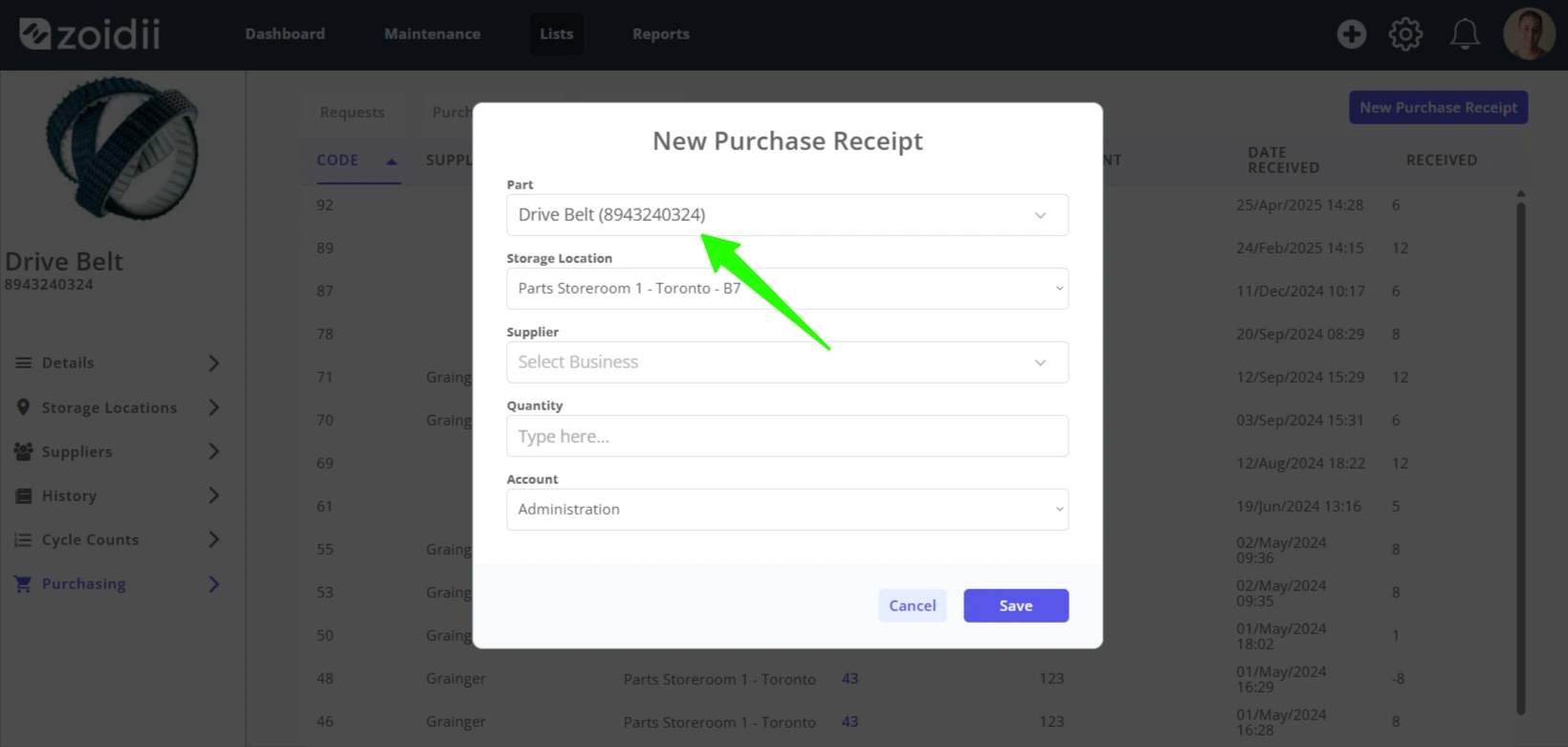
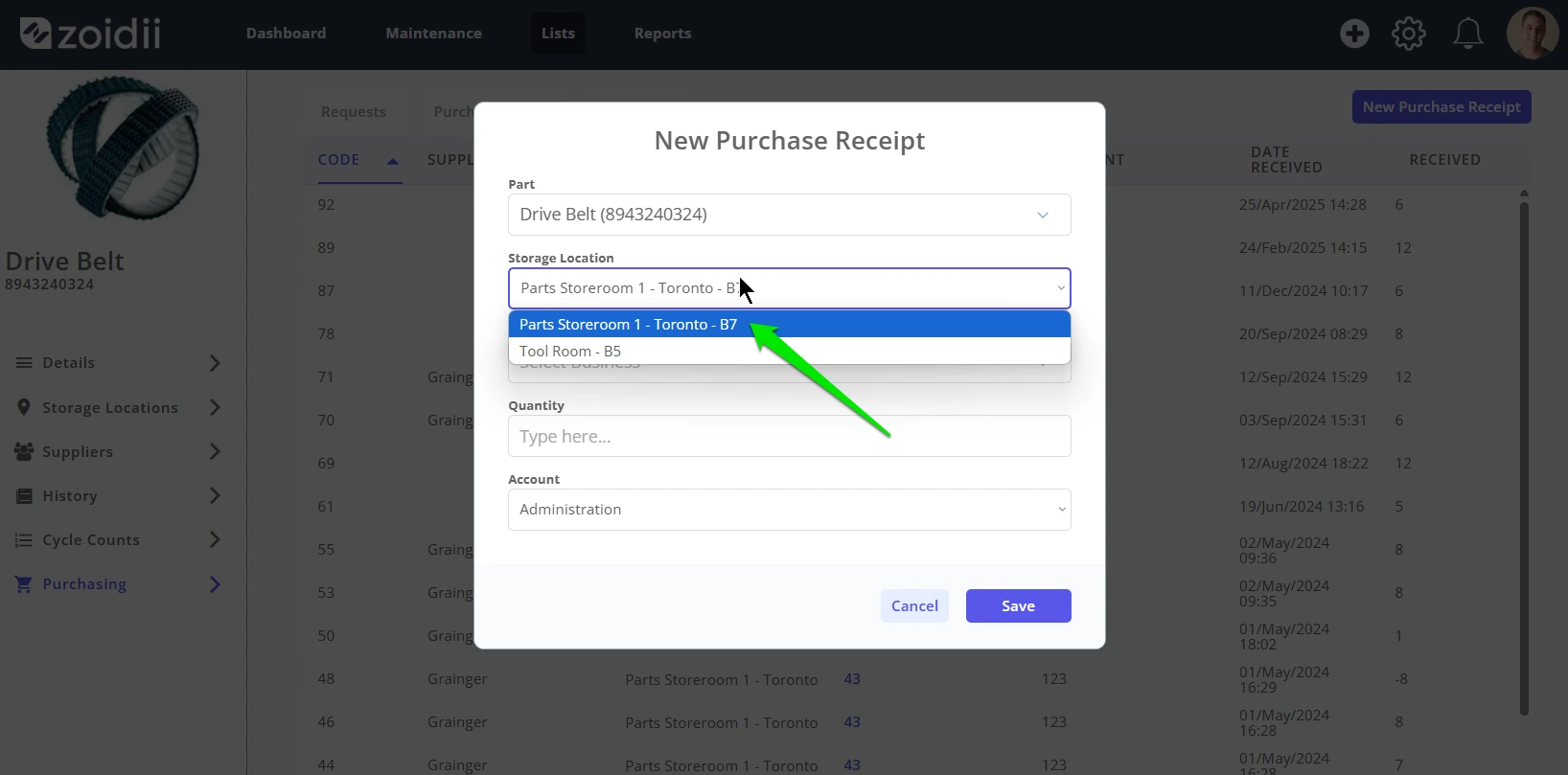
2.4 Choose the Storage Location (The available storage locations must already be configured for the part)
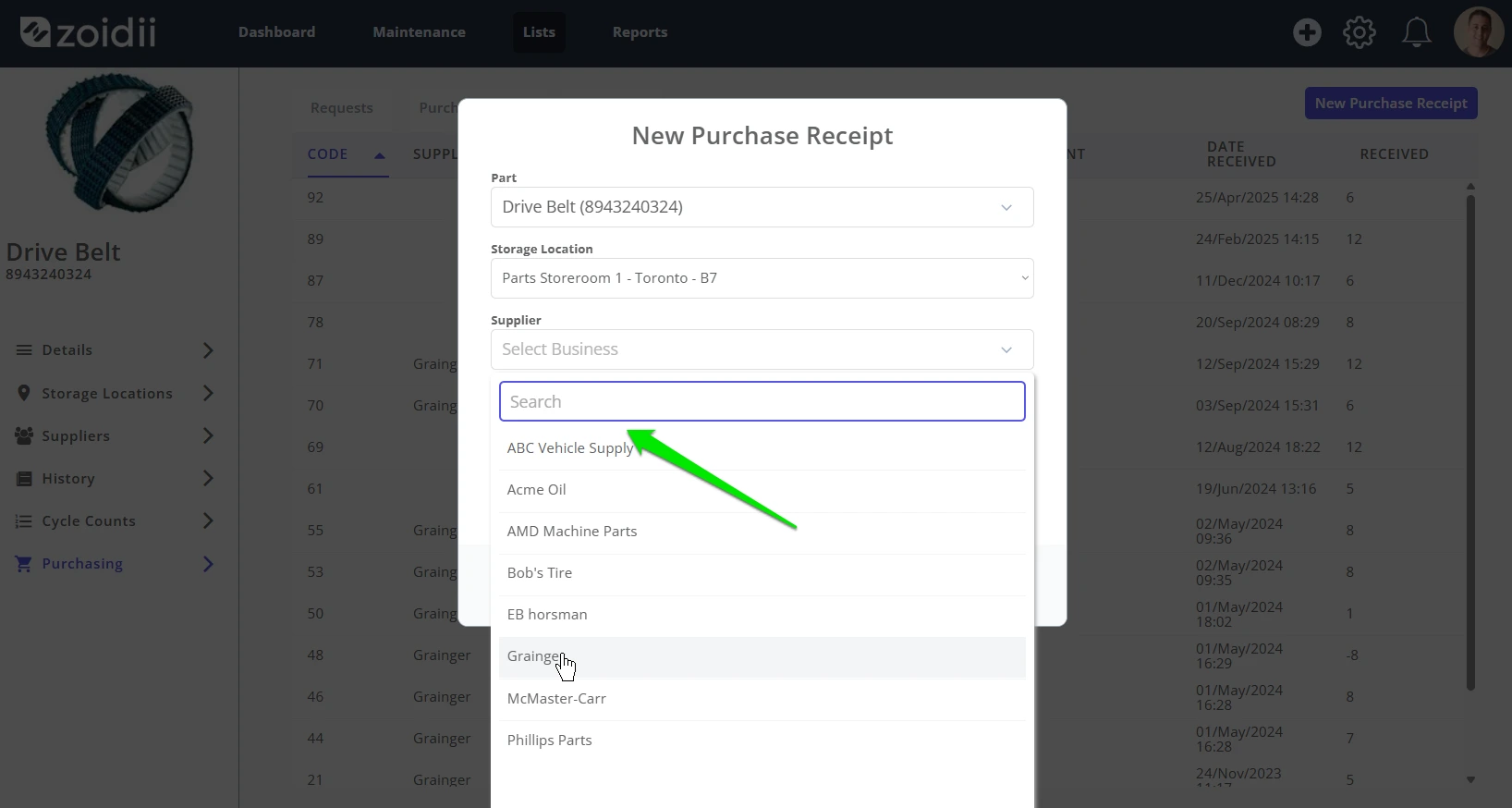
2.5 Select the Supplier from the list (optional)
2.6. Input the Quantity Received
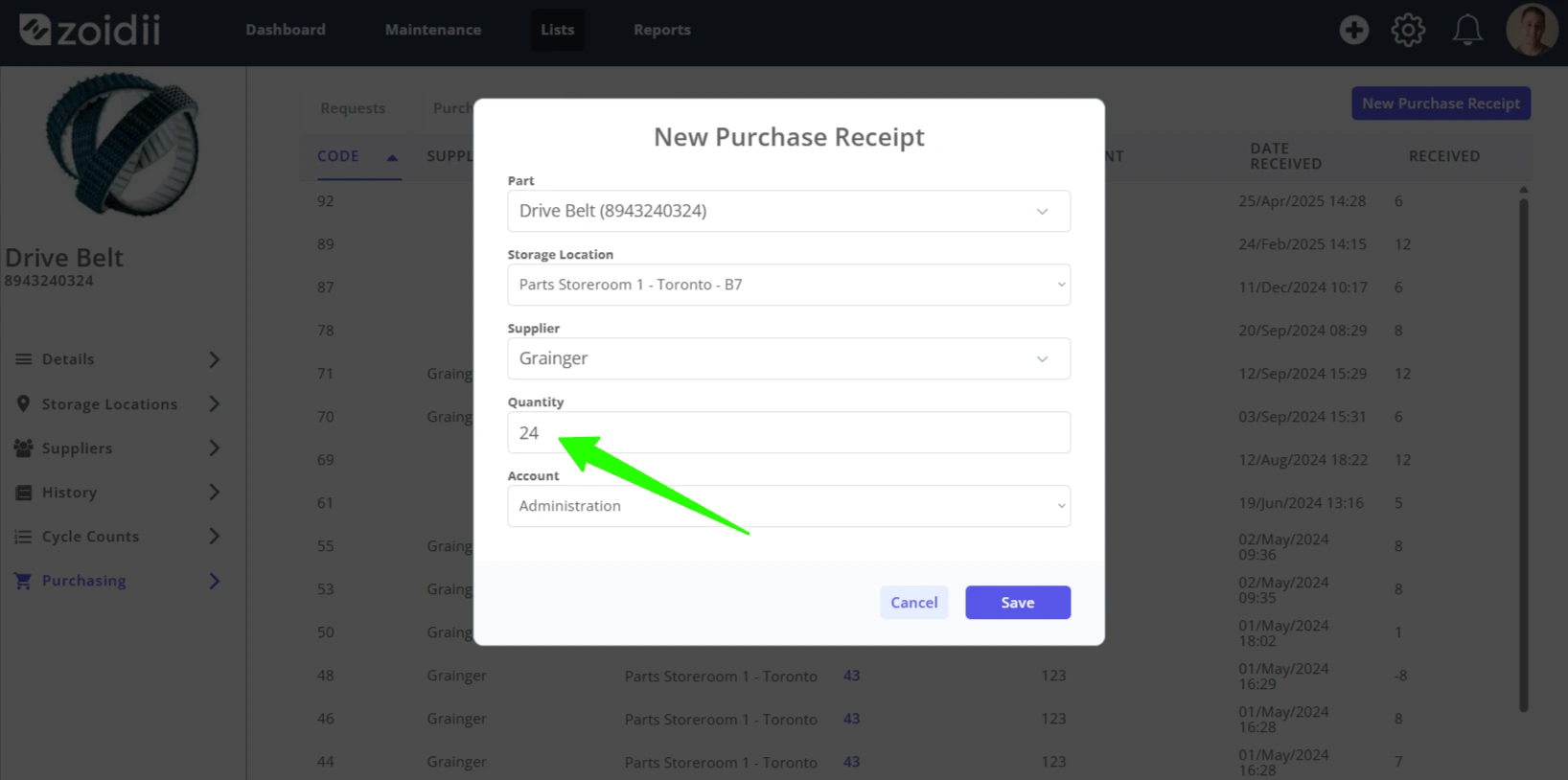
2.7 Select the relevant Account
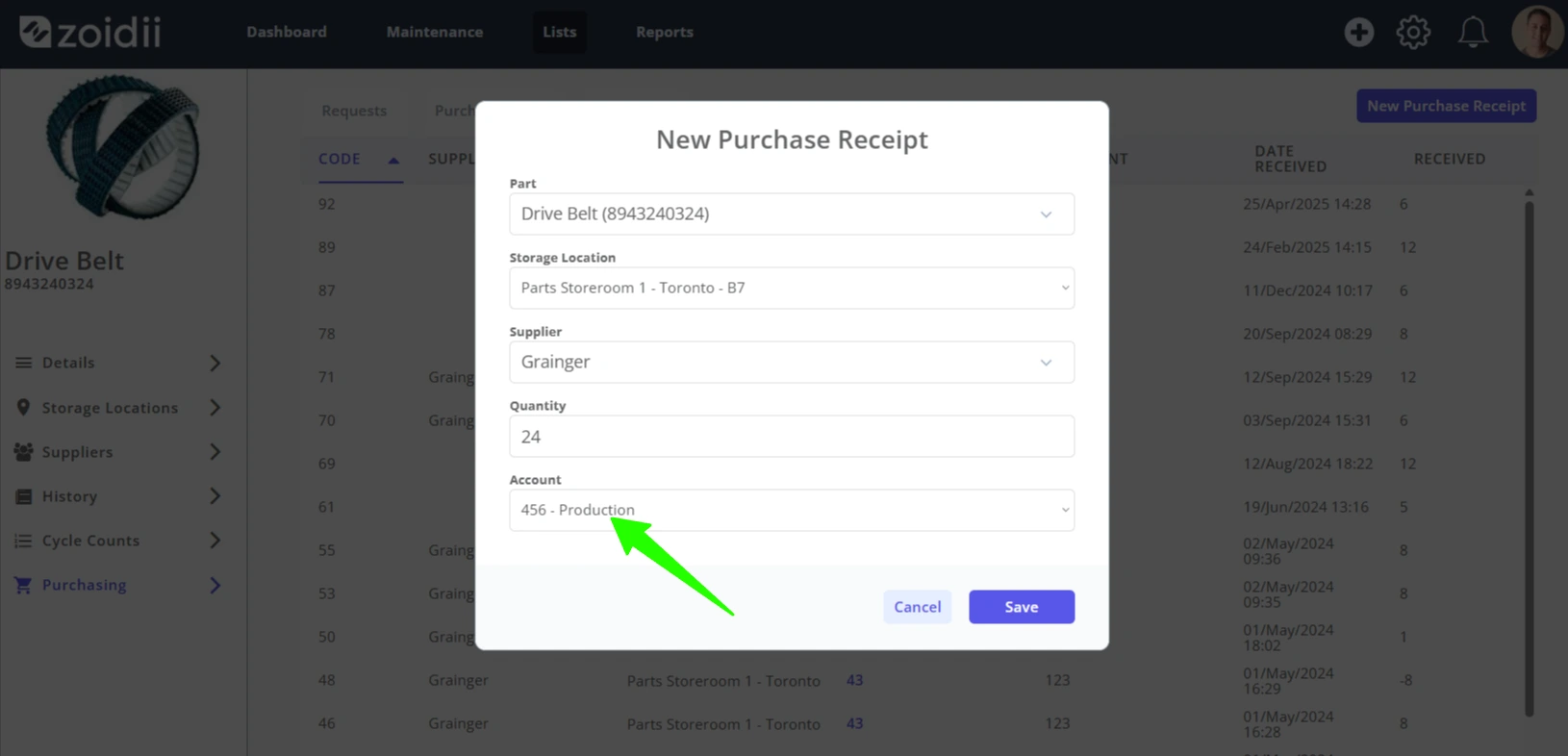
2.8 Click Receive
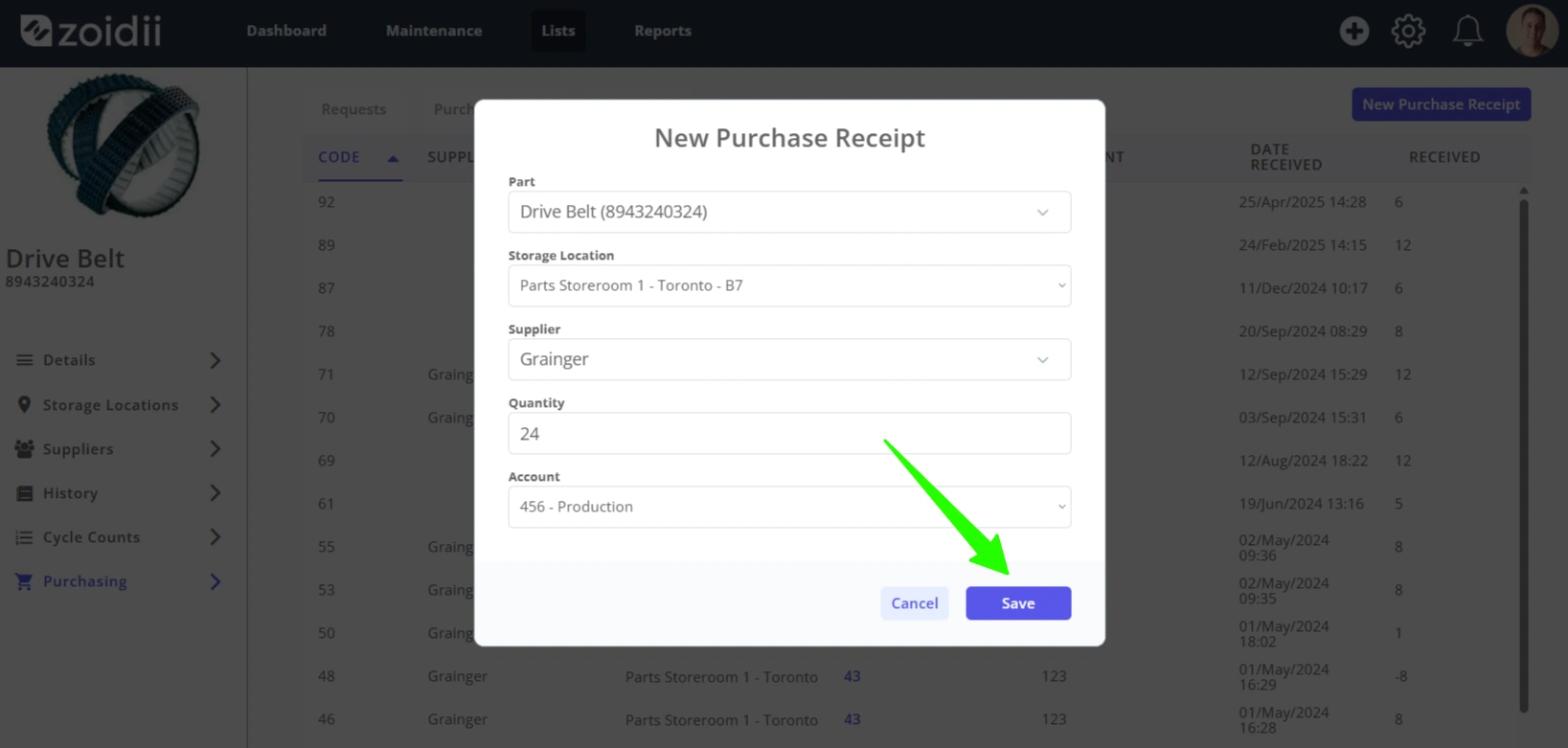
2.9 The parts are received into stock. The part stock is incremented accordingly.