Background
Stock counts are completed on the mobile app.
Prerequisites
- Create a stock count as per the Create a Stock Count procedure
Procedure
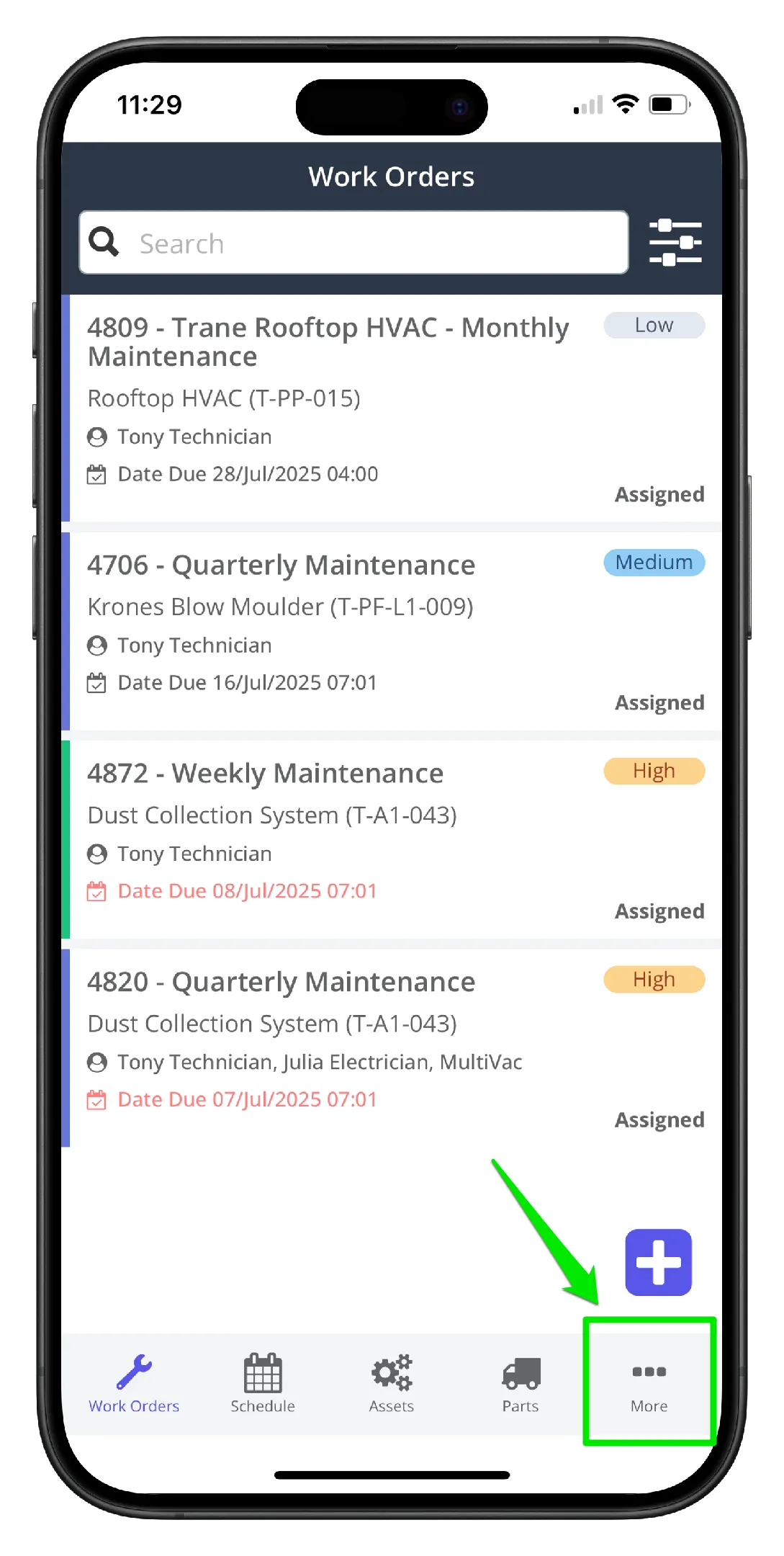
1. Open the mobile app home screen and click the More icon on the bottom right hand side
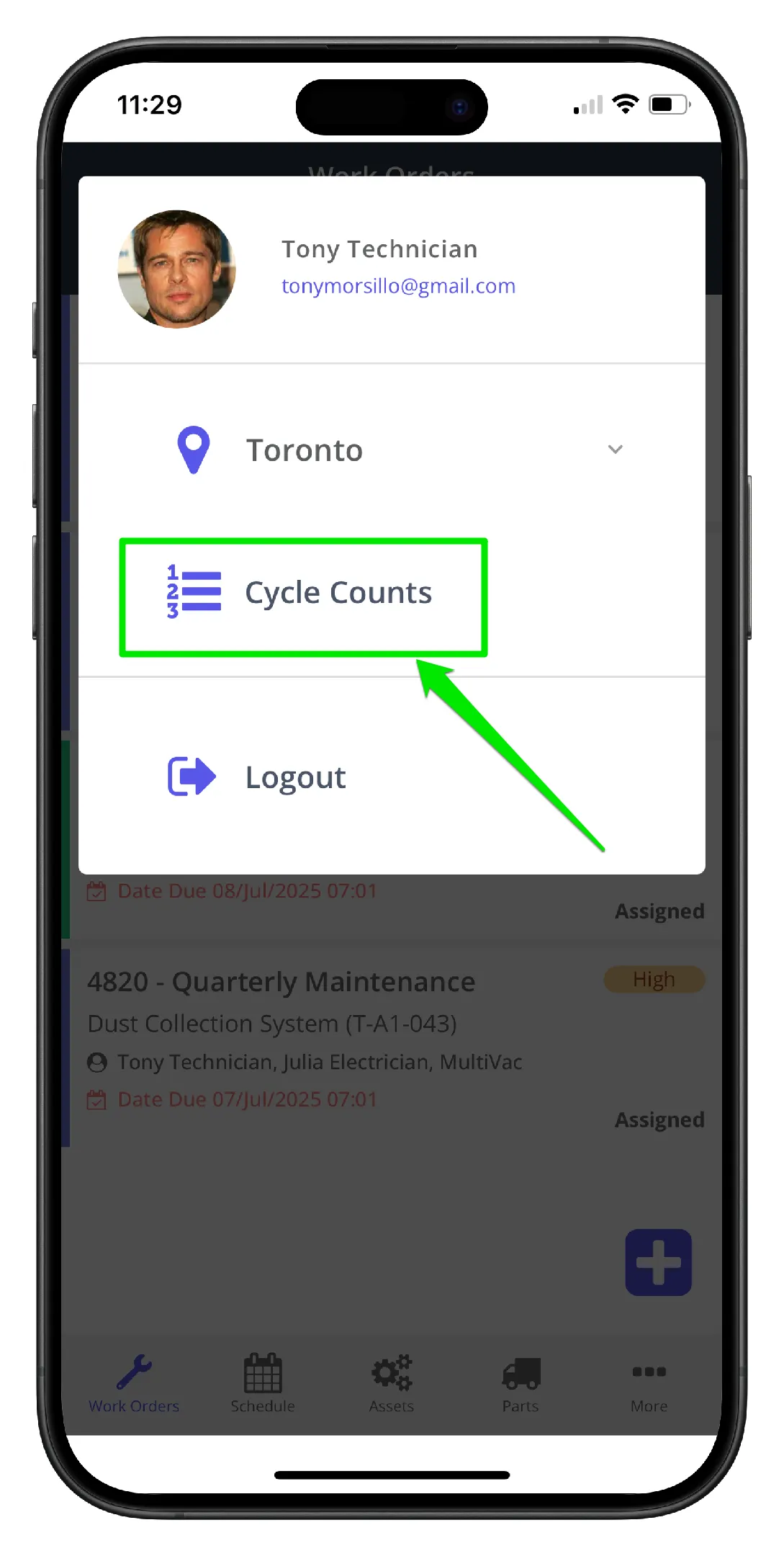
2. Click Cycle Counts
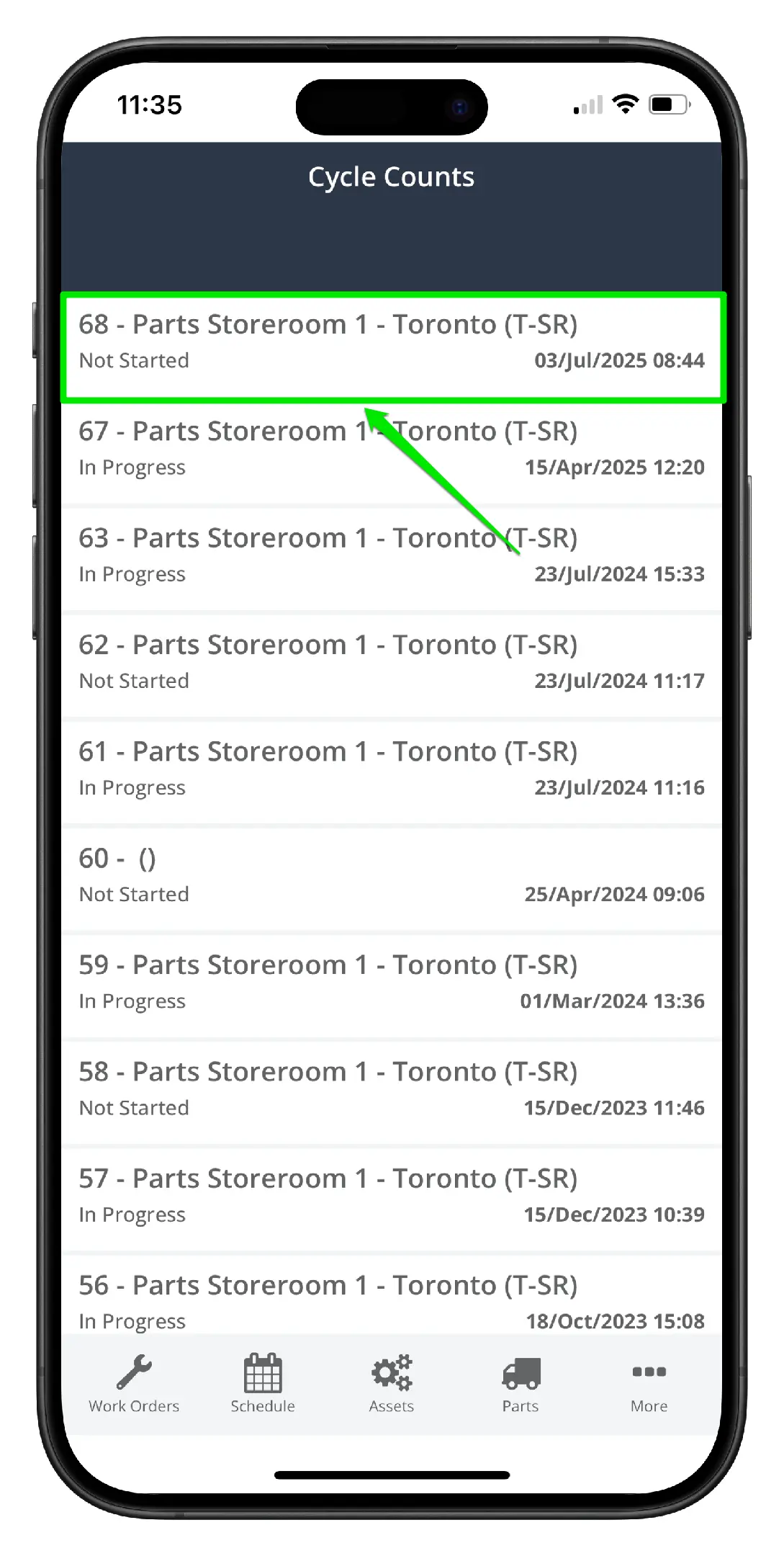
3. The screen displays a list of open stock counts. Click the relevant open stock count that is to be completed
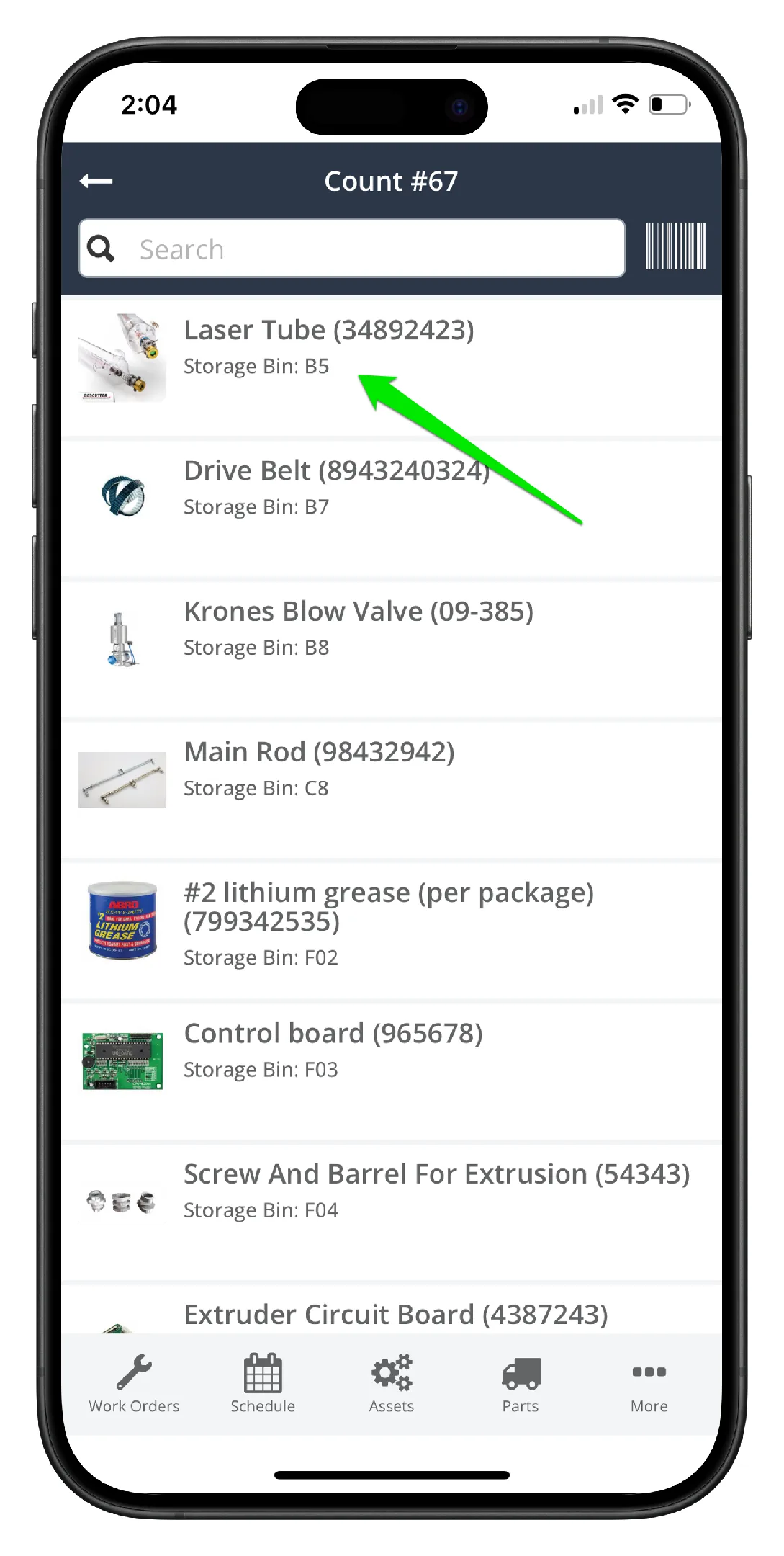
4. The parts list is sorted alphabetically by the storage bin field. Click the part to be counted.
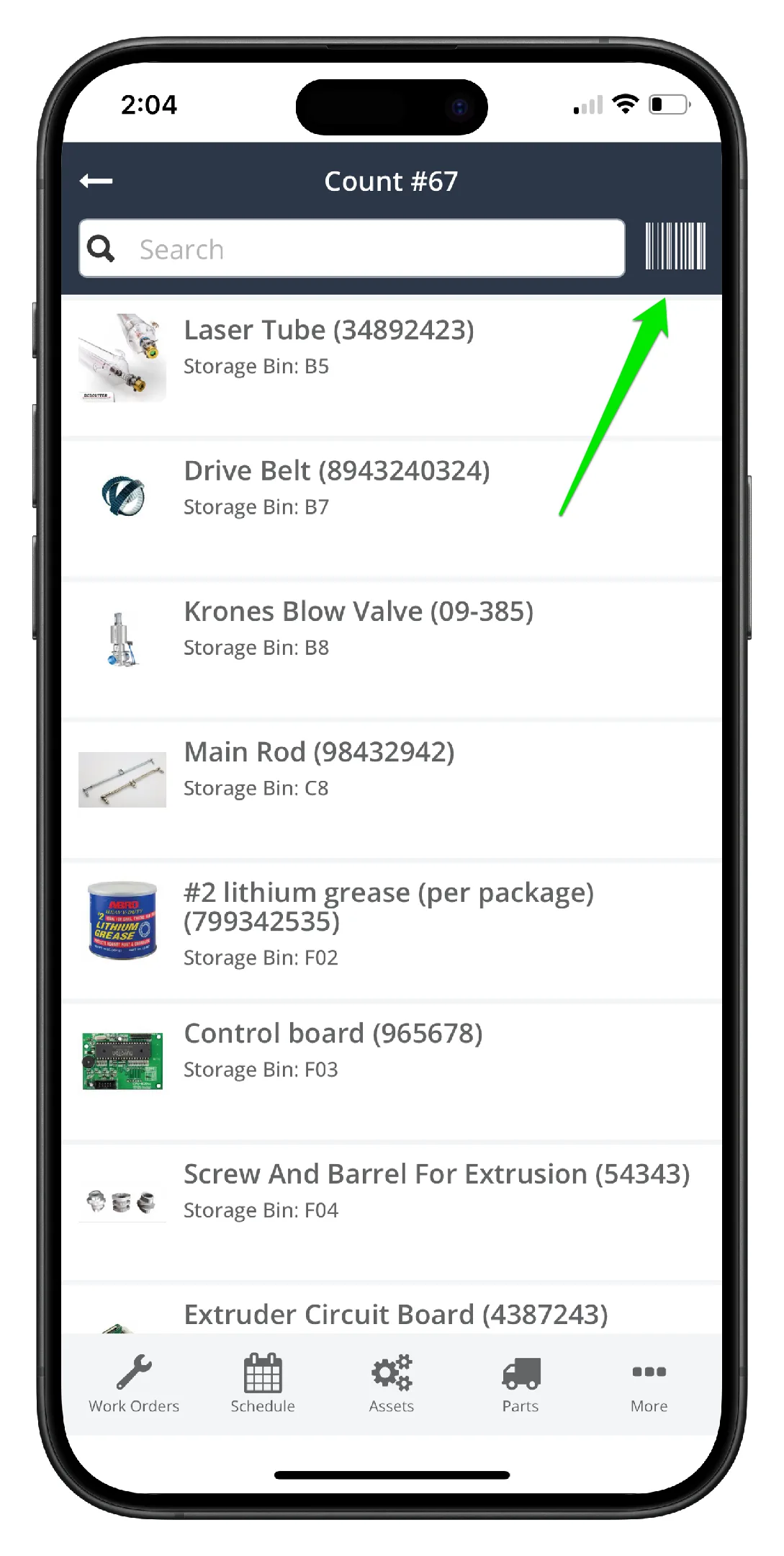
5. Alternatively, click the scanner icon to turn on the QR code scanner and scan the part label. By scanning the label, the system will automatically locate the part in that storage location and prompt for a count
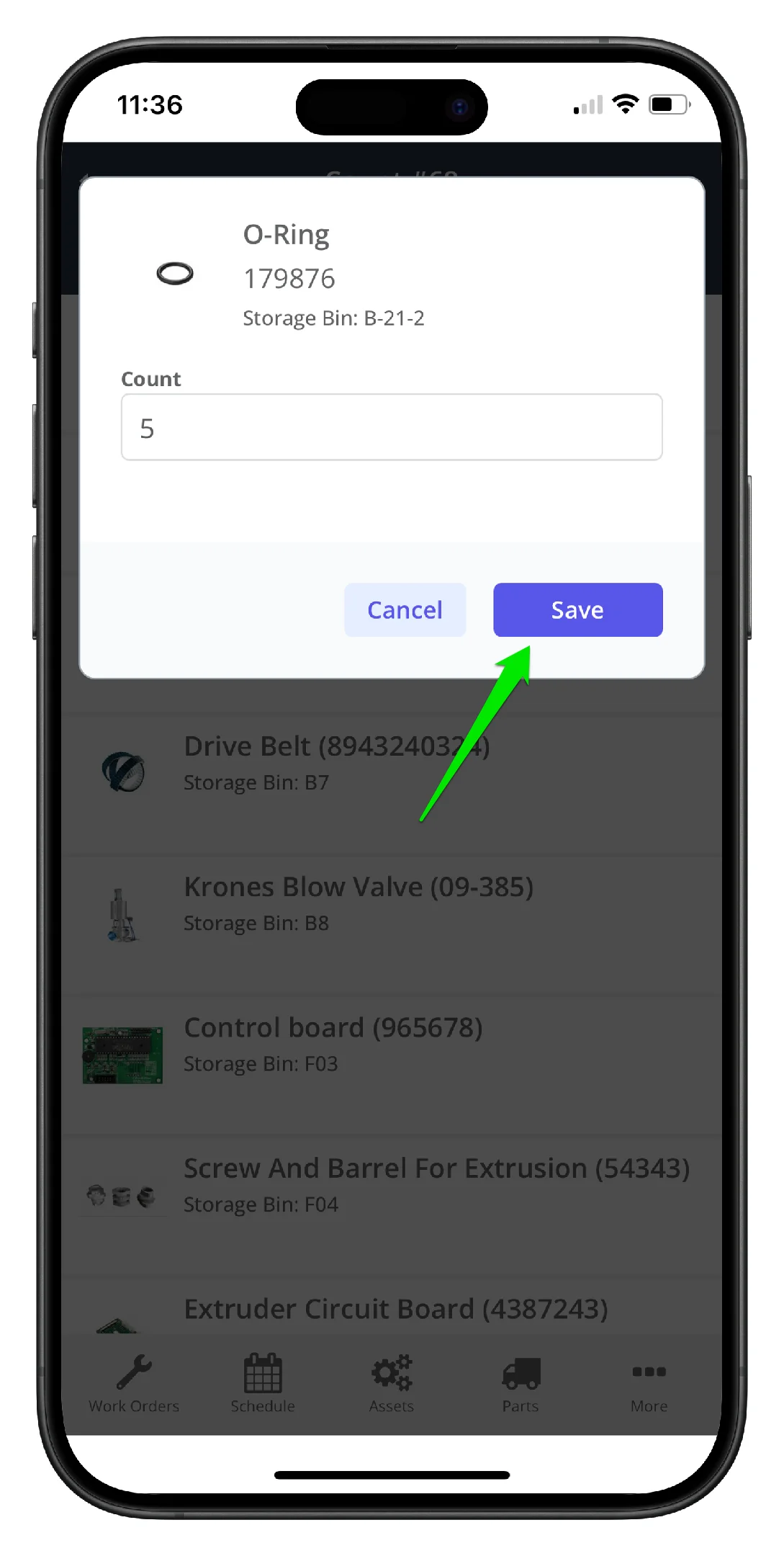
6. Add the part count, and click Save
7. Repeat the process for all remaining stock items
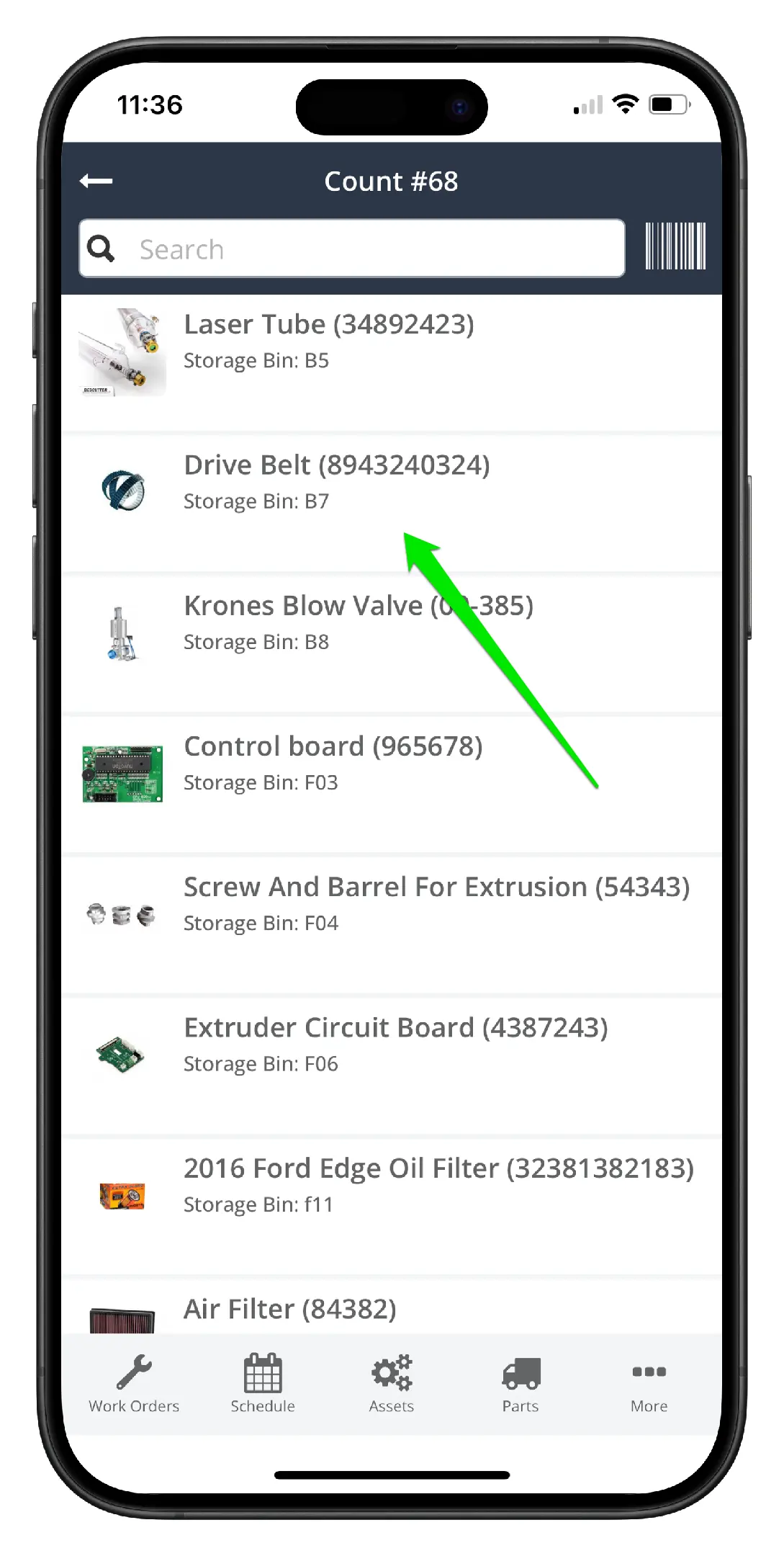
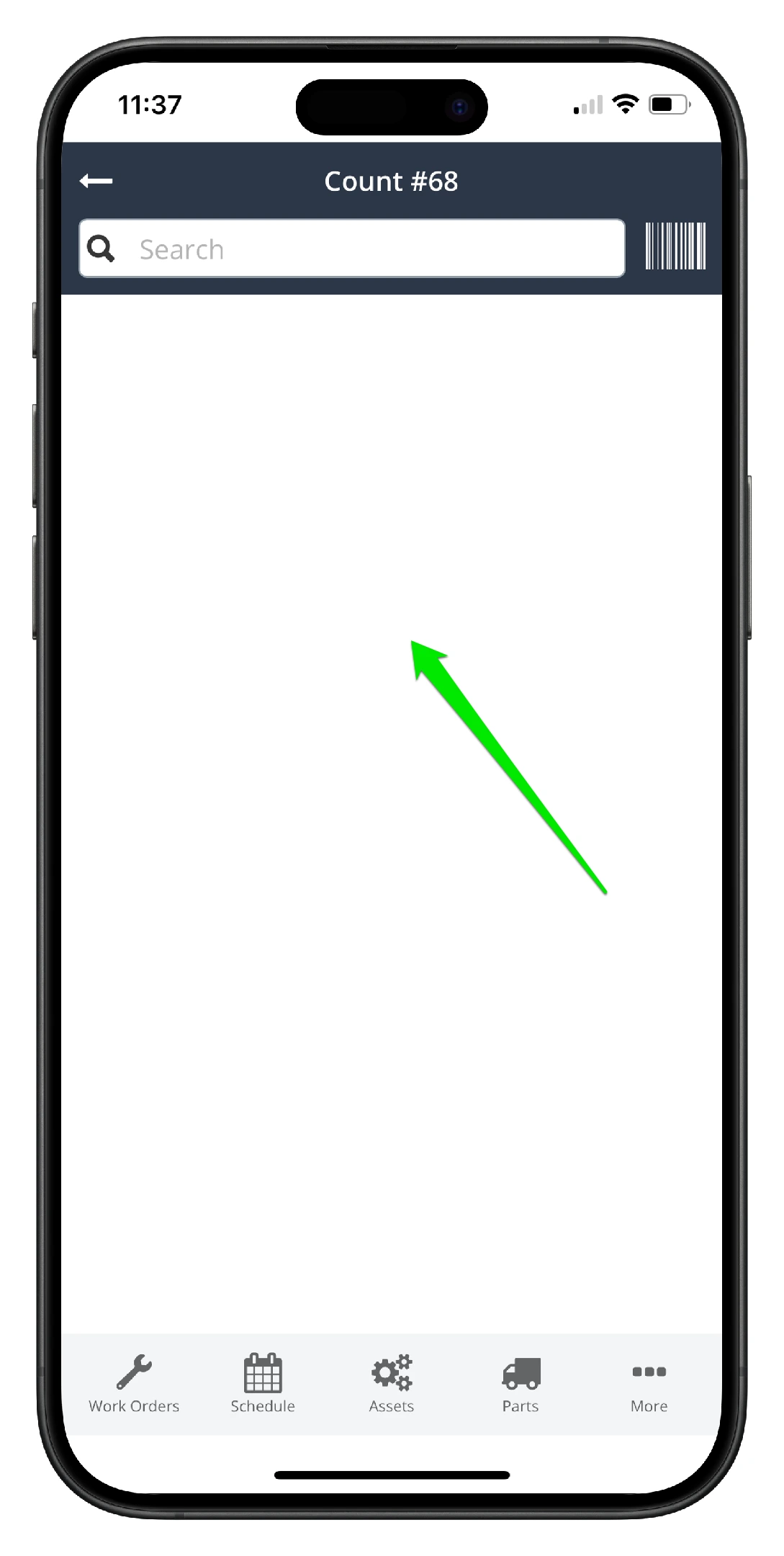
8. The stock list depletes as the items are counted. When the list is empty, all counts have been entered:
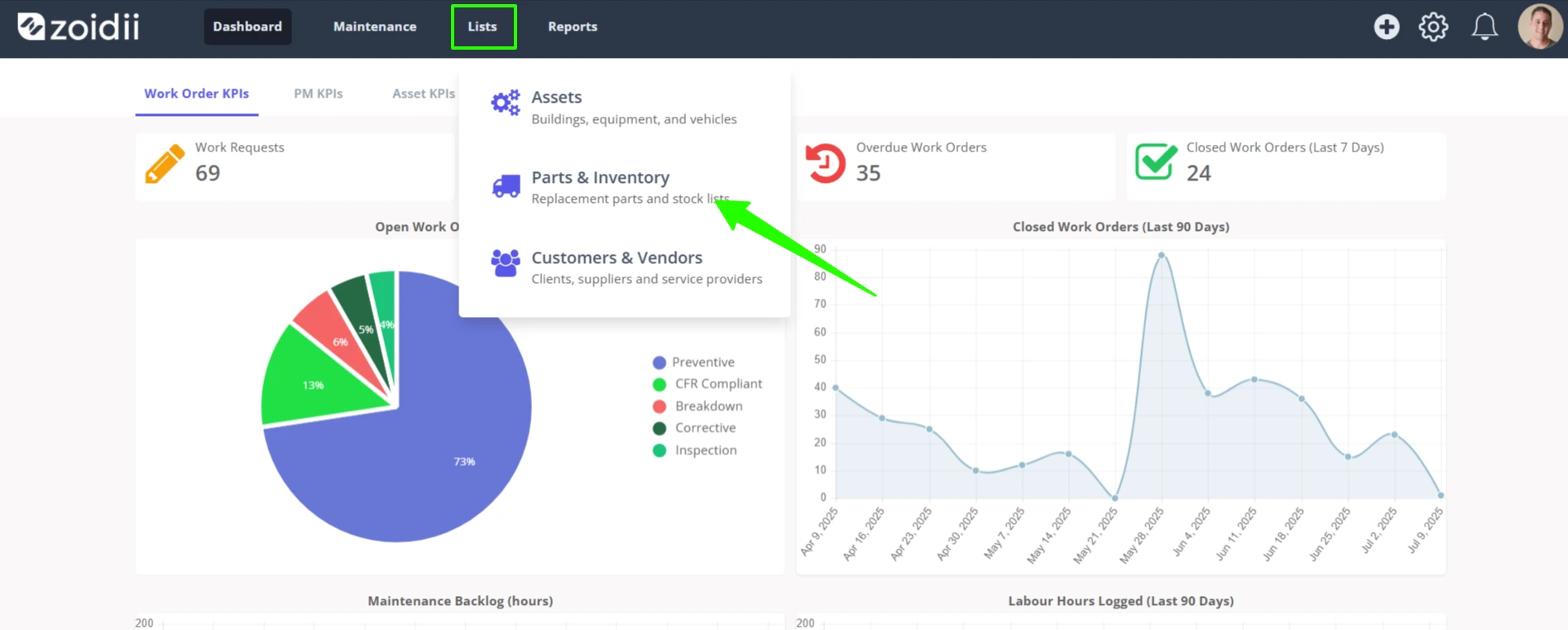
9. To review the stock count, open the web app and select Parts & Inventory from the main navigation bar
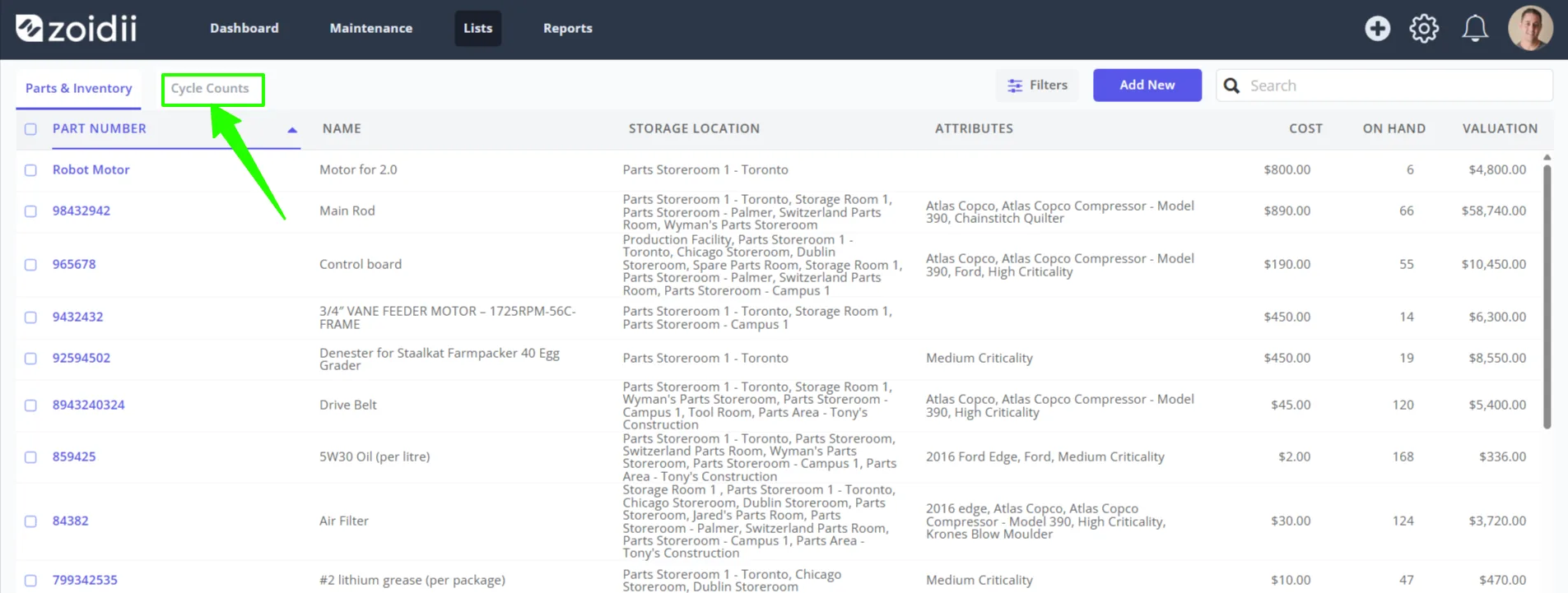
10. Click Counts
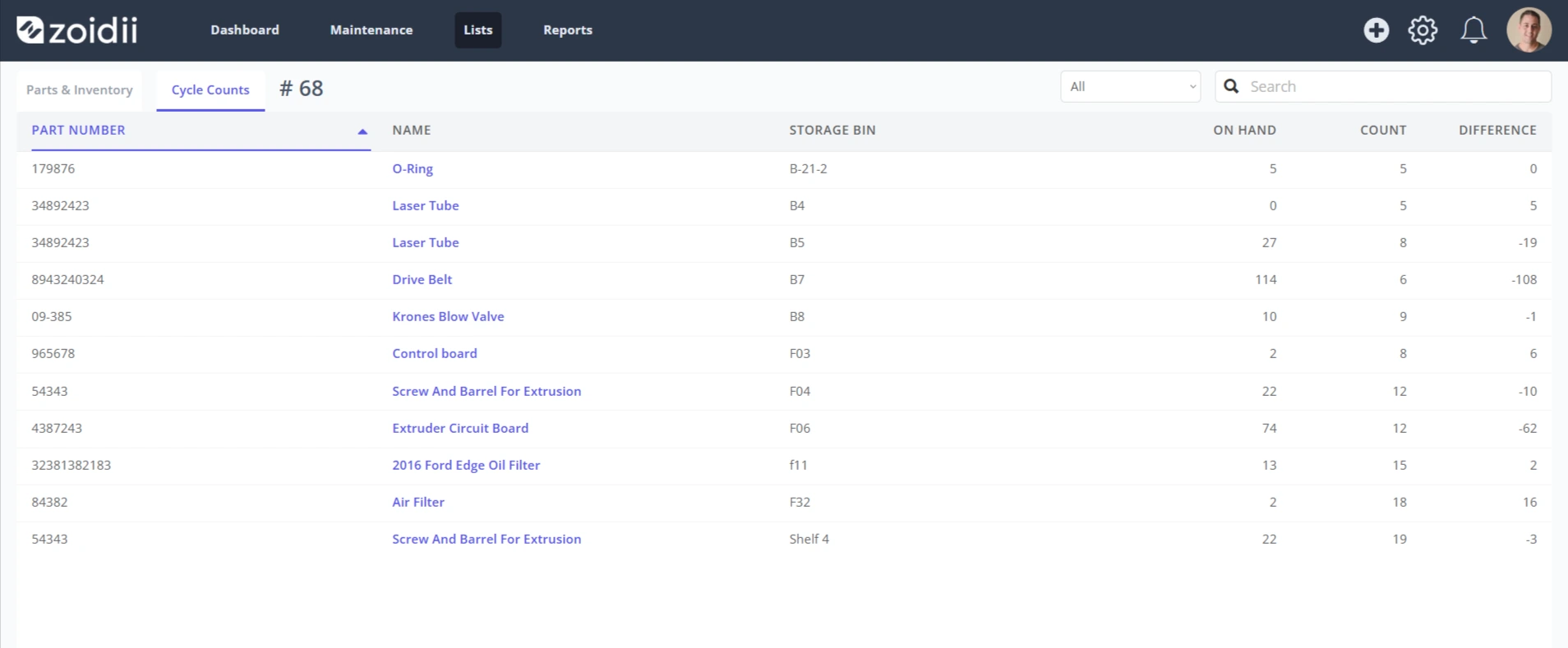
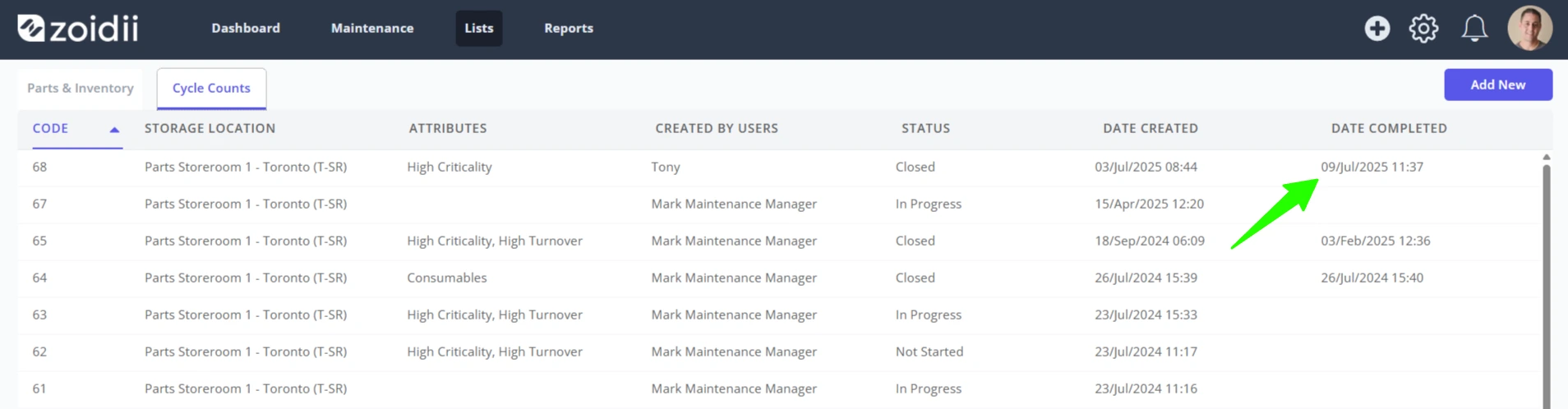
11. Select the relevant count in the inventory stock count list. In this case, count 68 was completed
12. The count list details the part count and the difference/variance.