Background The Purchasing module ships with the enterprise tier CMMS.
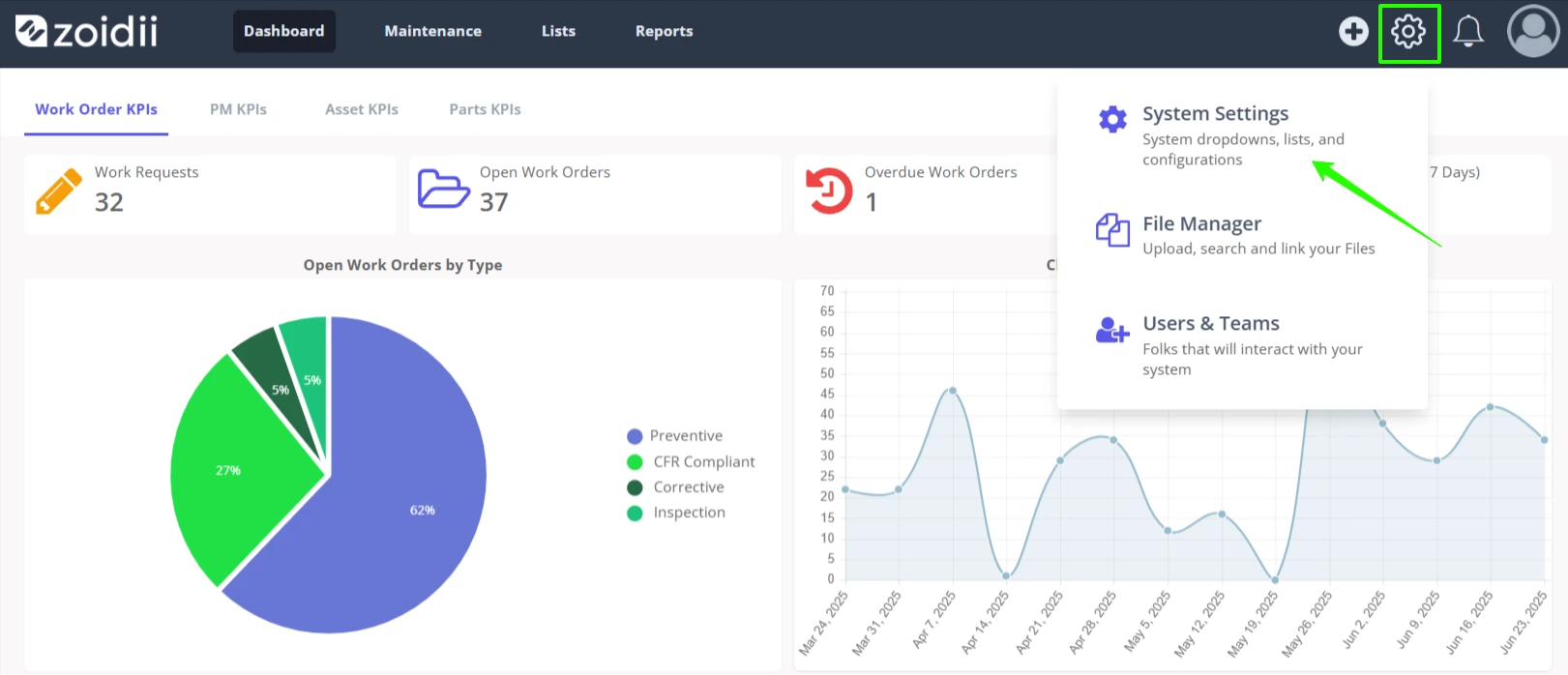
Procedure 1. In the top right hand side of the application, click Settings and select System Settings from the list
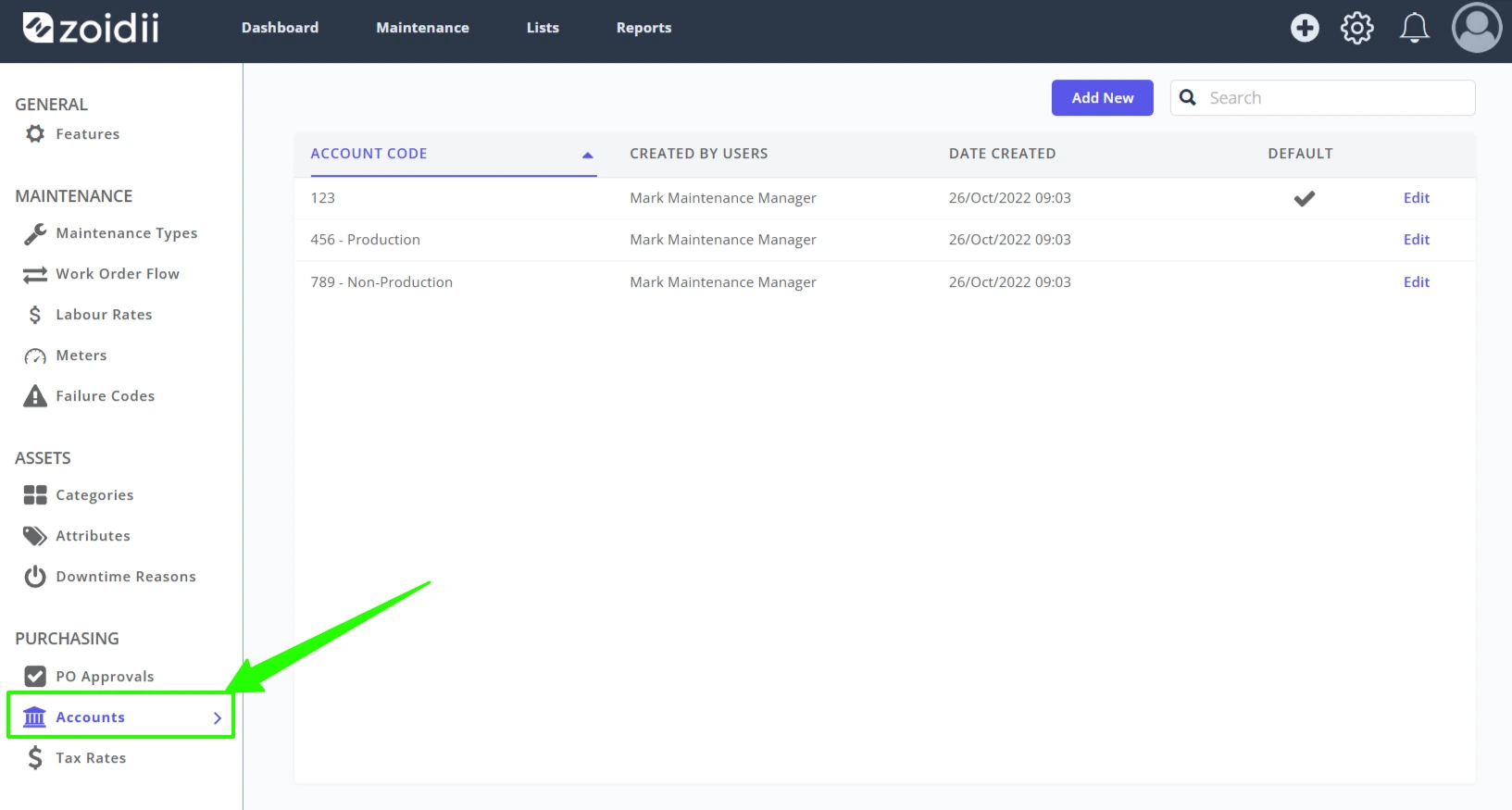
2. Select Accounts from the purchasing settings menu
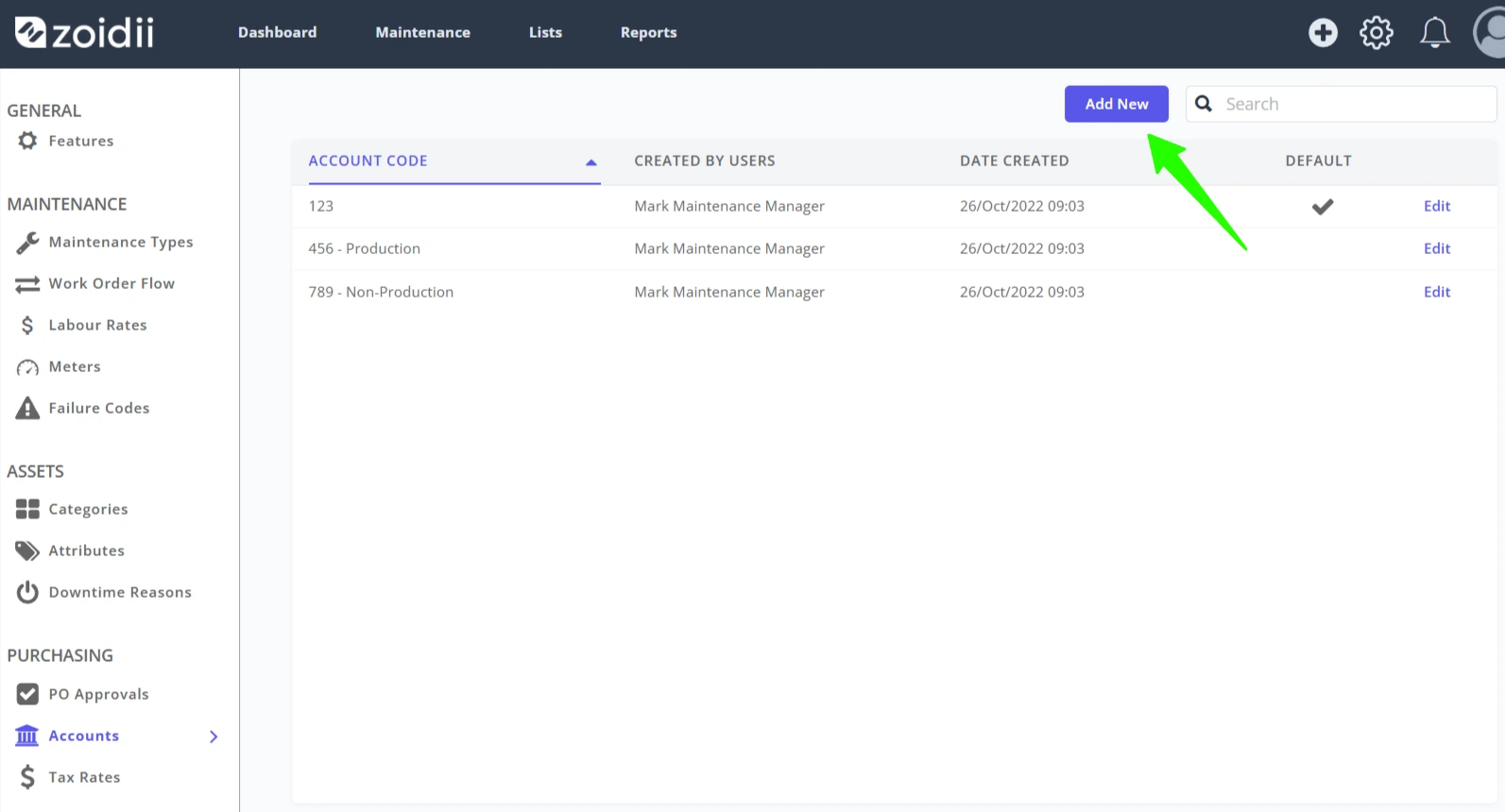
3. Click Add New
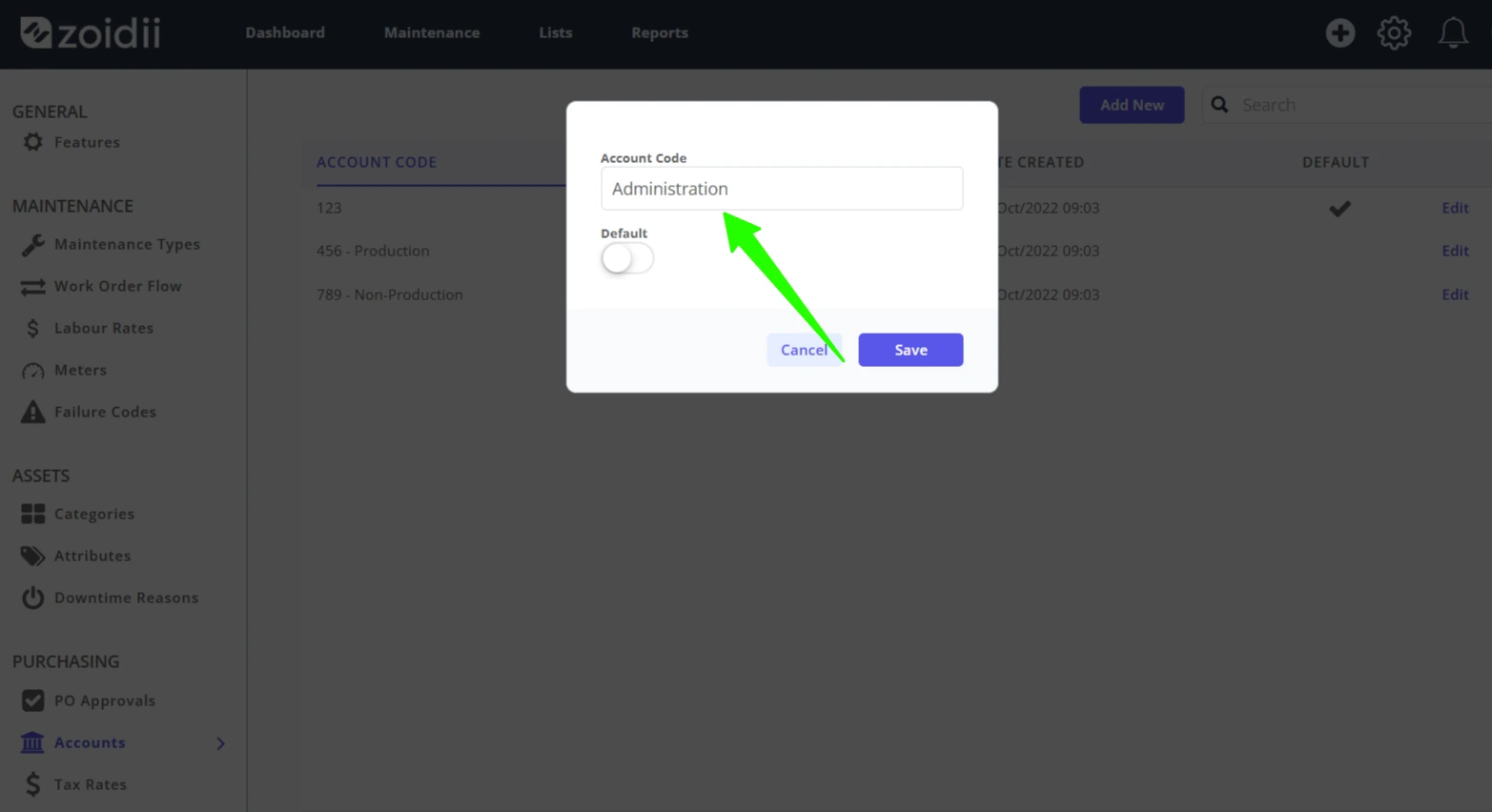
4. Add the new Account Code details in the input field
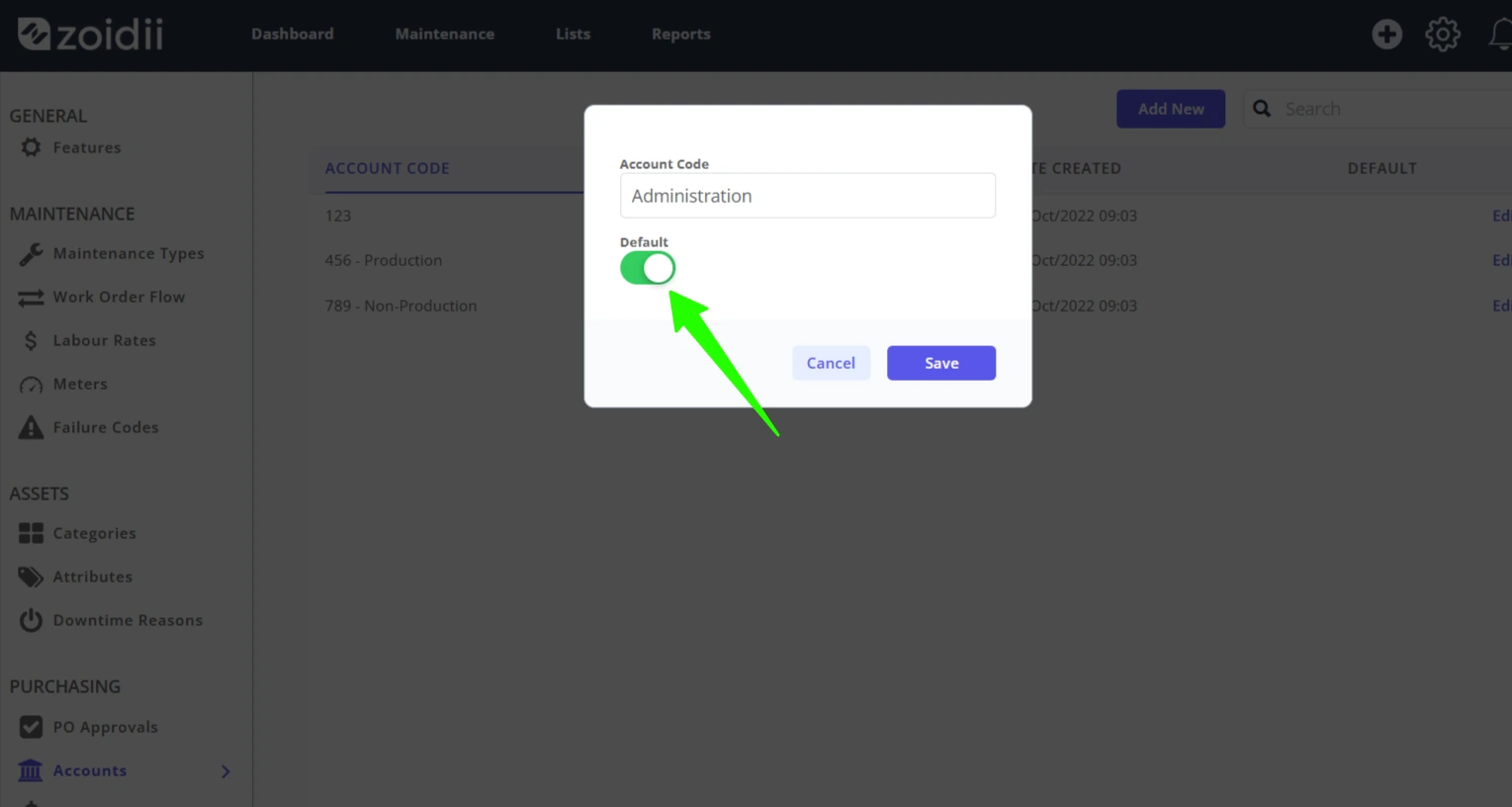
5. To make this new account code the default account code, click the default toggle. When a user edits a purchase order line item, this account code will be inserted by default.
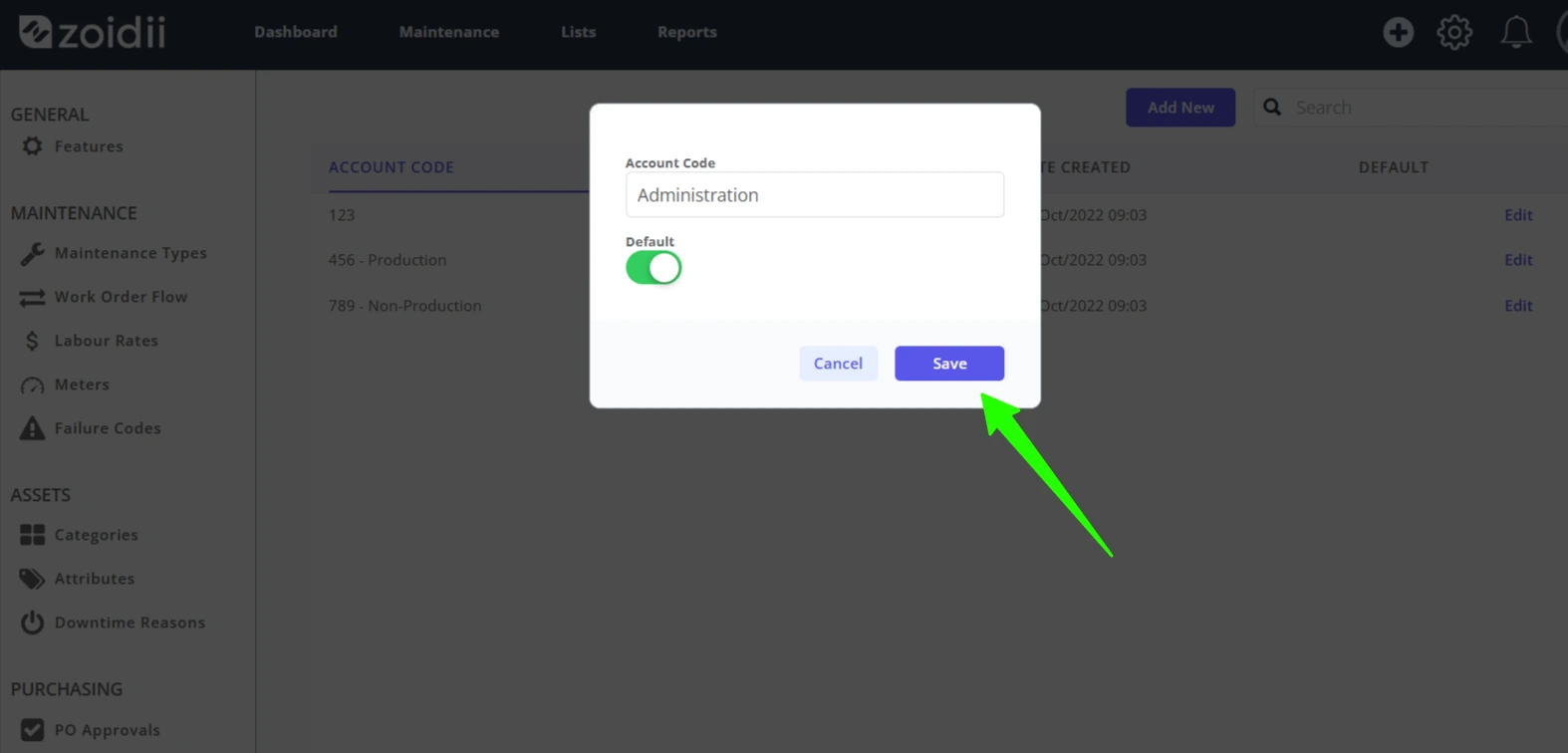
6. Click Save when done
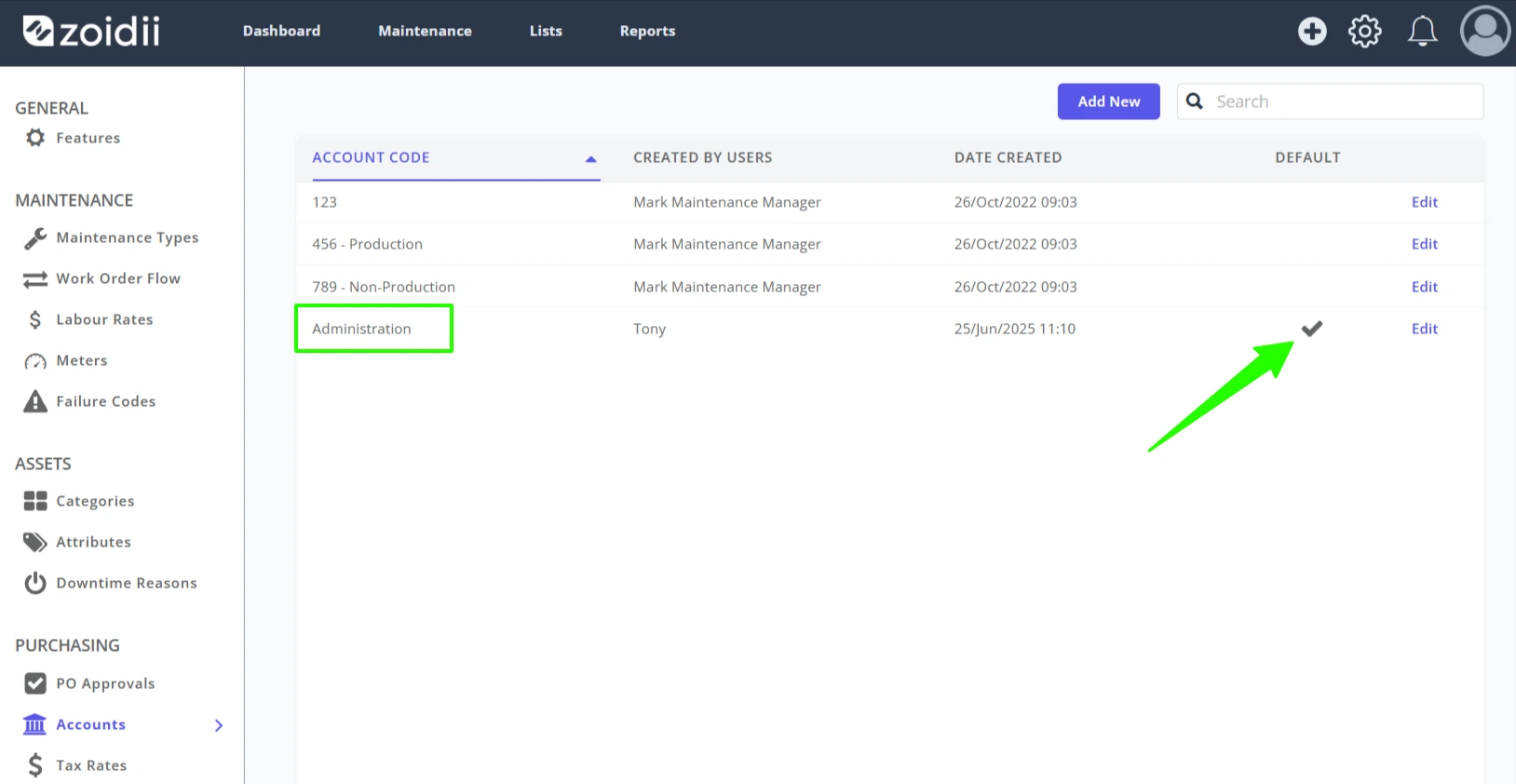
7. The new account code is available for selection from the list. In addition, in this example, this new Account Code has been marked as the default account code.