

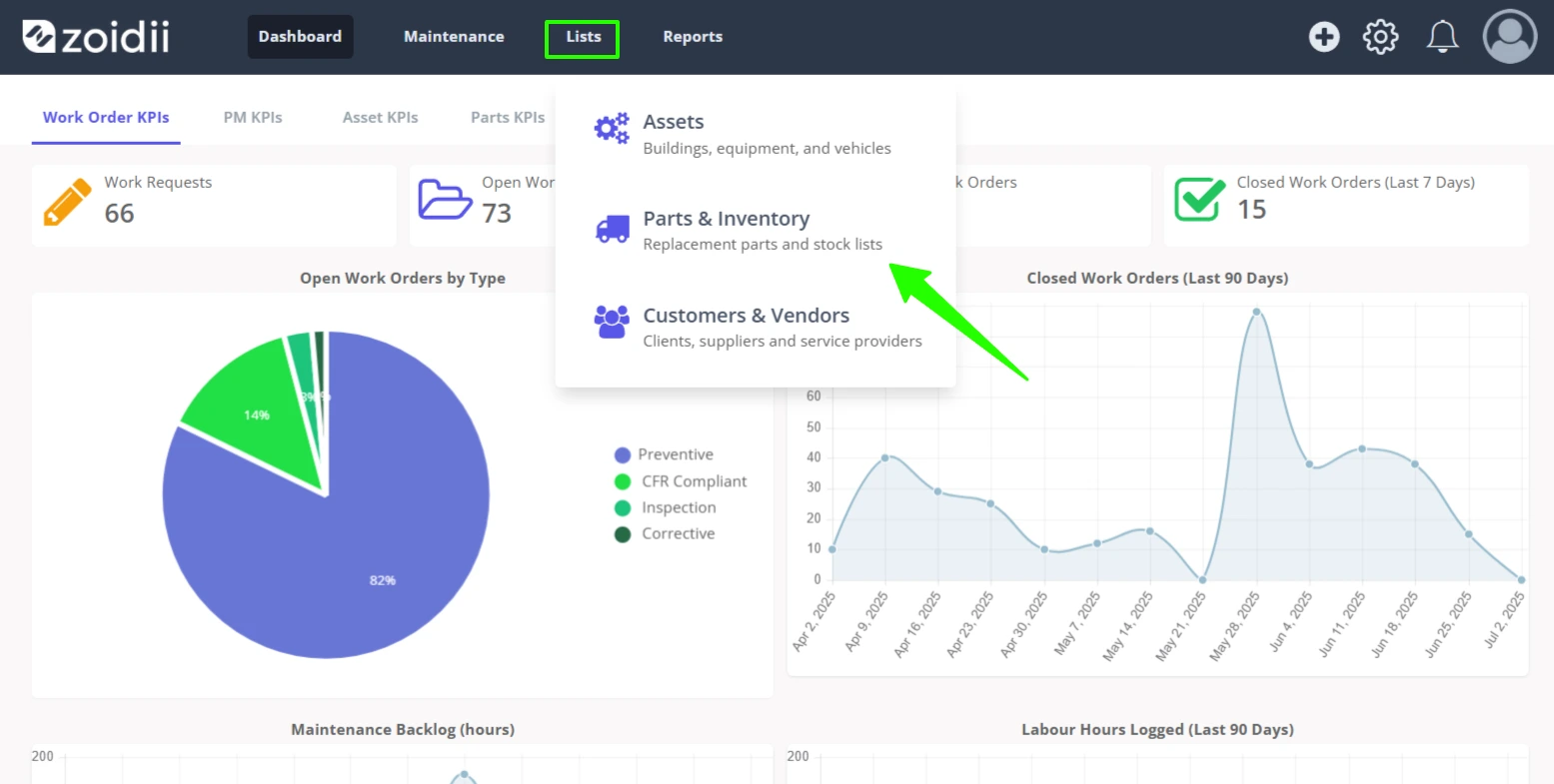
1. Click Lists from the top navigation bar, and click Parts & Inventory
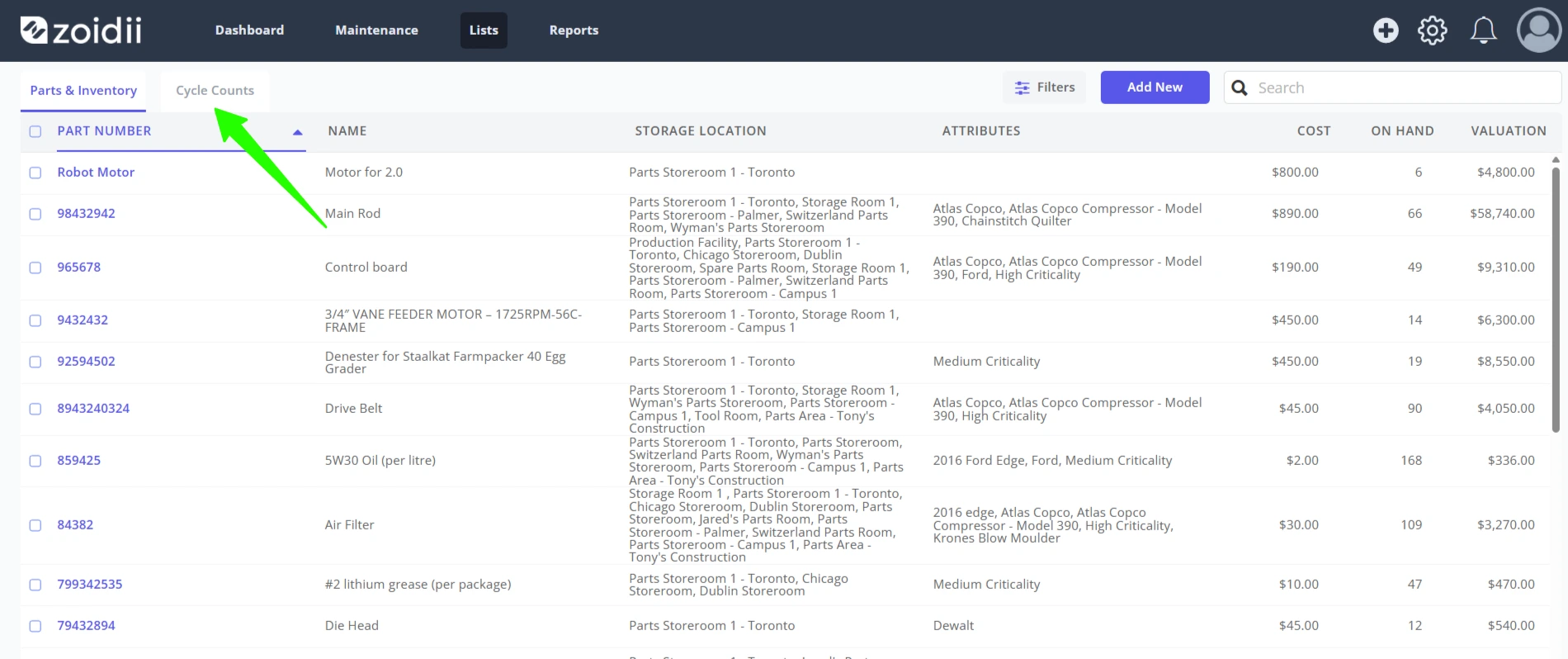
2. In the Parts & Inventory screen, click Stock Counts
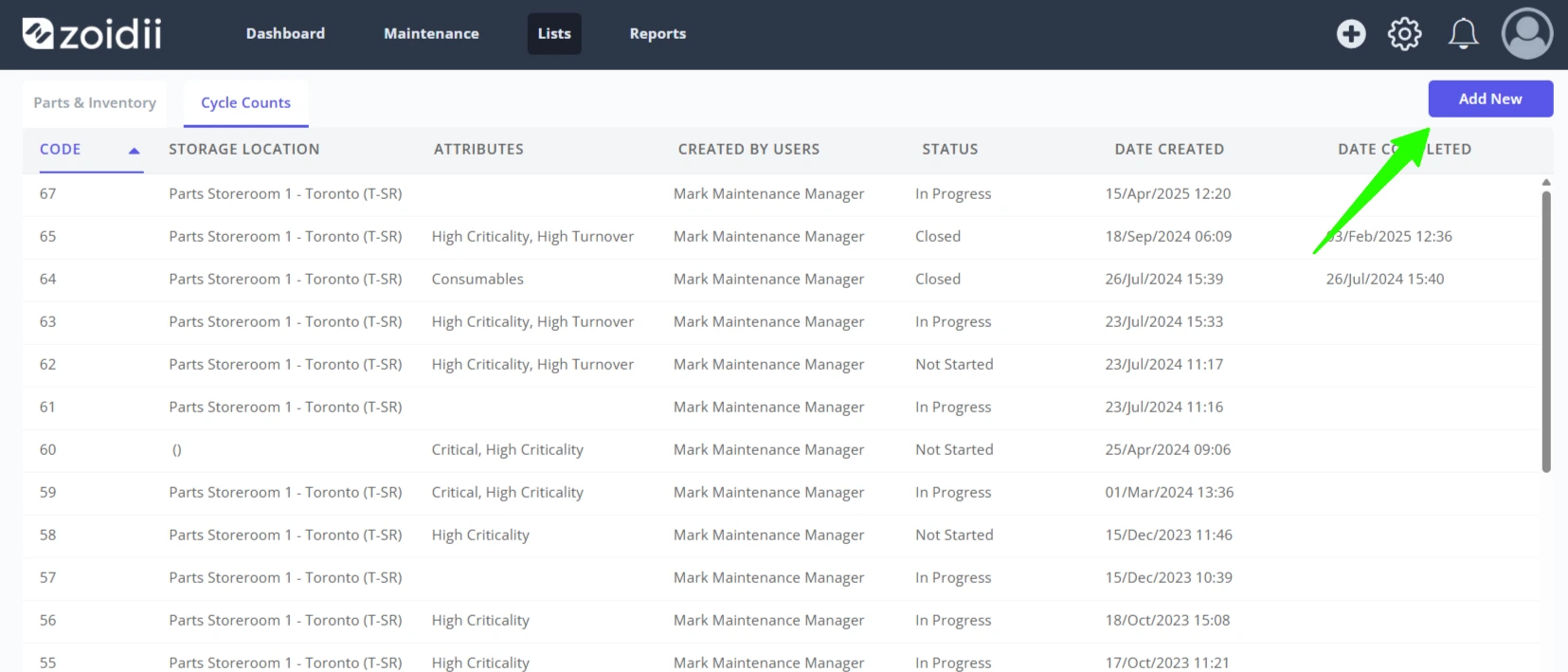
3. In the Inventory Cycle Counts screen, click Add New
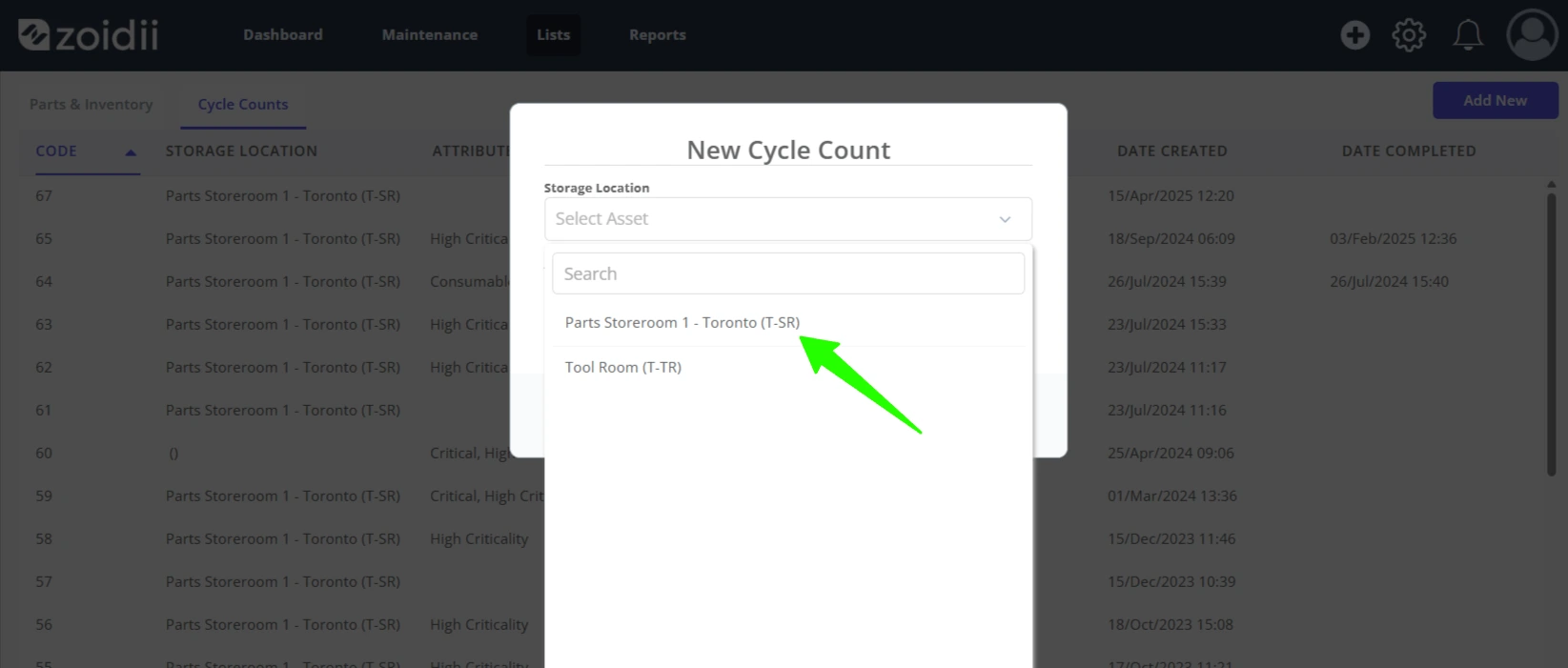
4. Select the storage location from the asset list dropdown
5. To count all parts, leave the Attributes section blank.
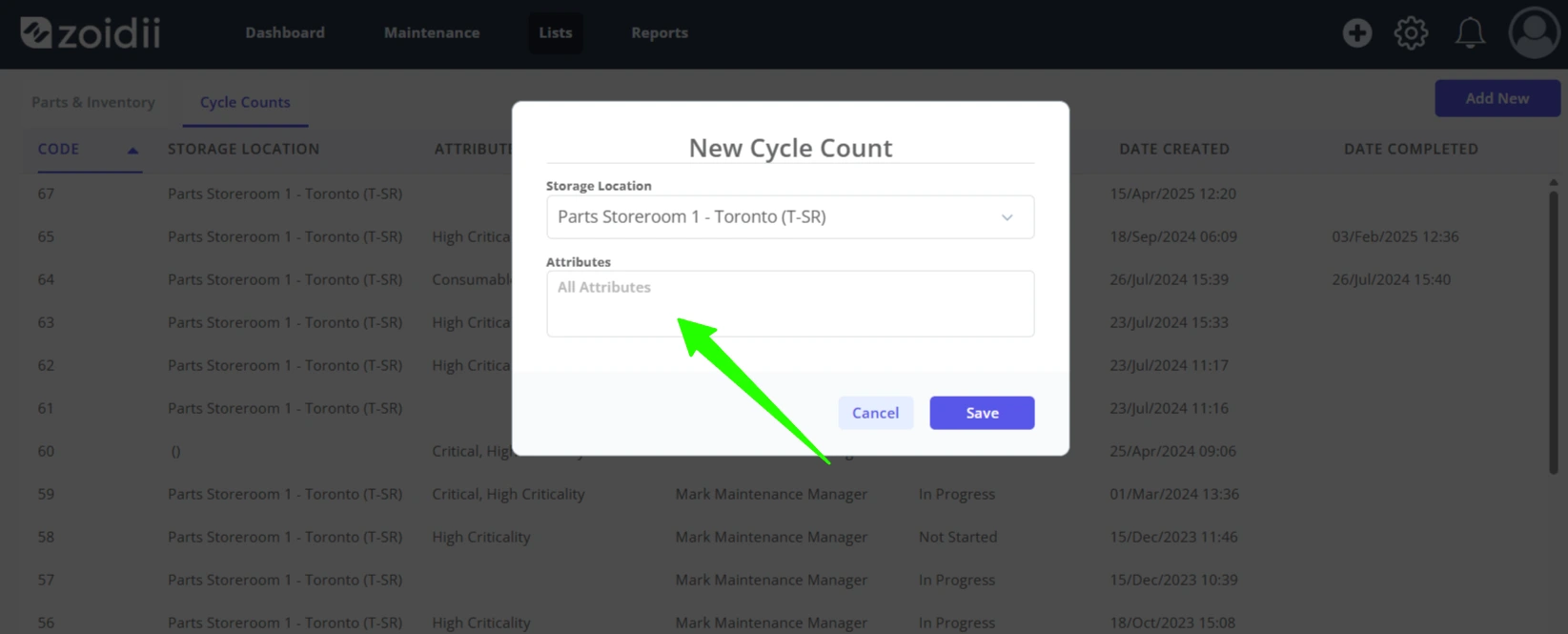
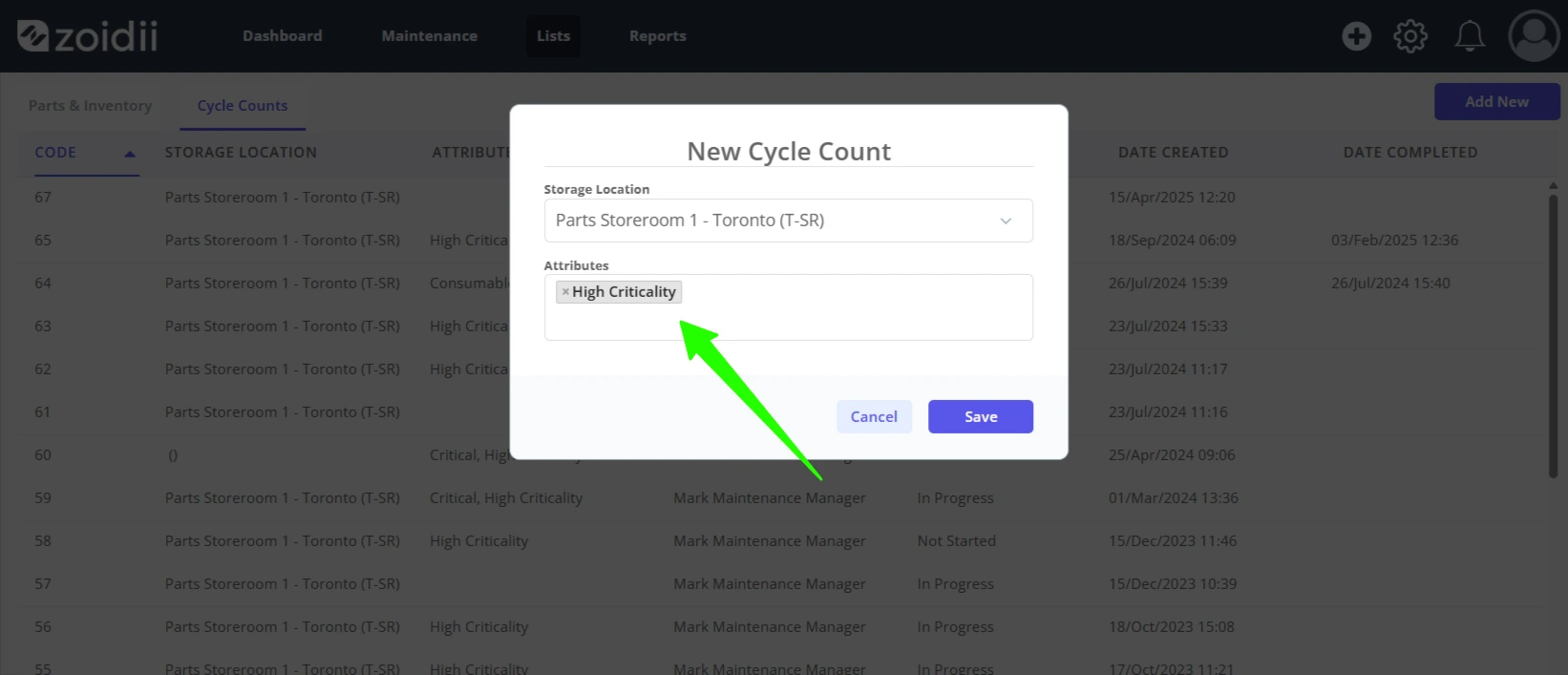
6. To count a subset of your parts, select the attributes from the list. When the count is created, the system will only pull parts tagged with that attribute. In this example, we'll only count High Criticality parts
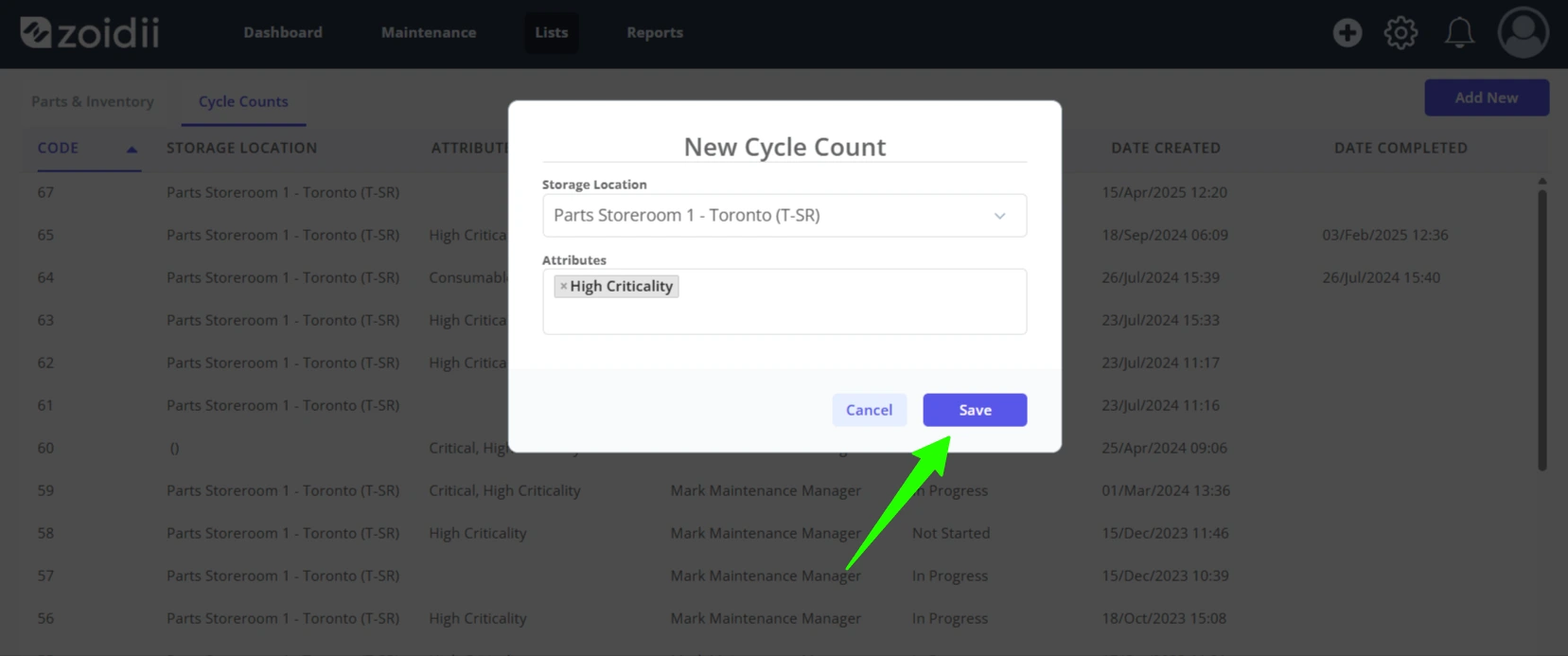
7. Click Save
8. The system will generate the parts count list. When complete, the new stock count appears at the top of the list:
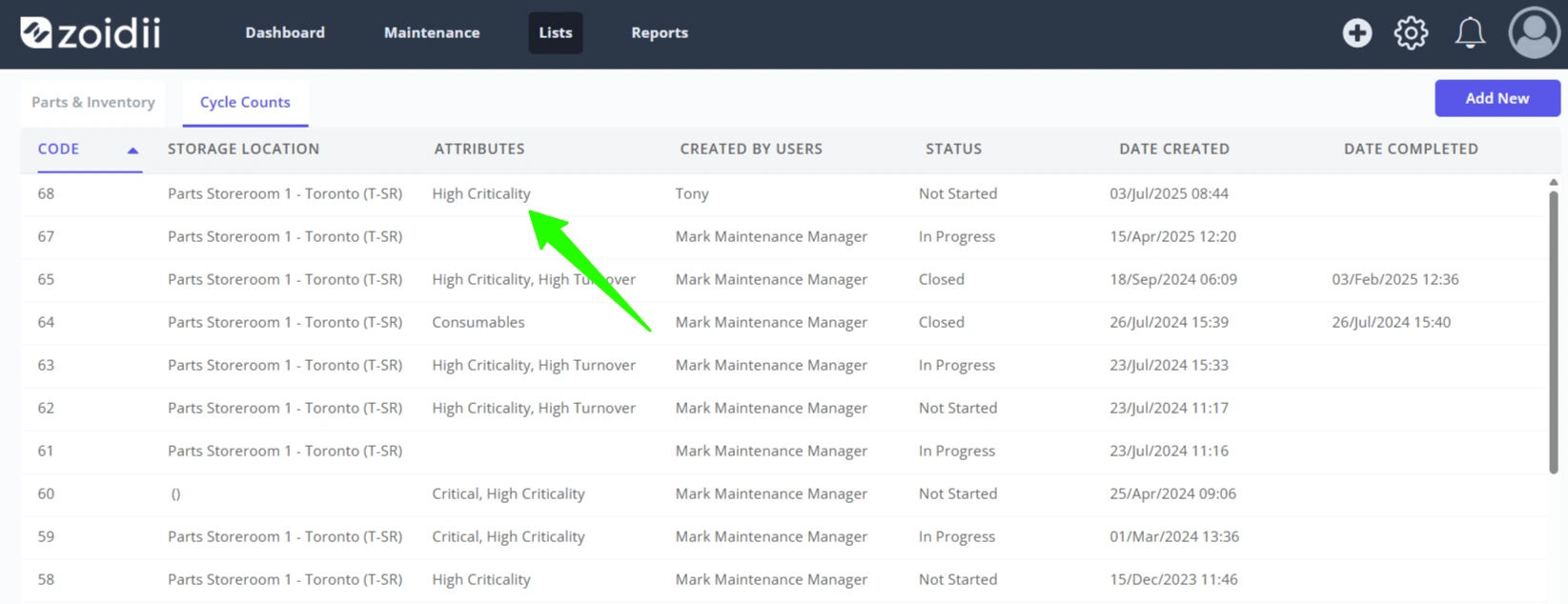
9. Click the stock count line item to open the count and see the parts to be counted
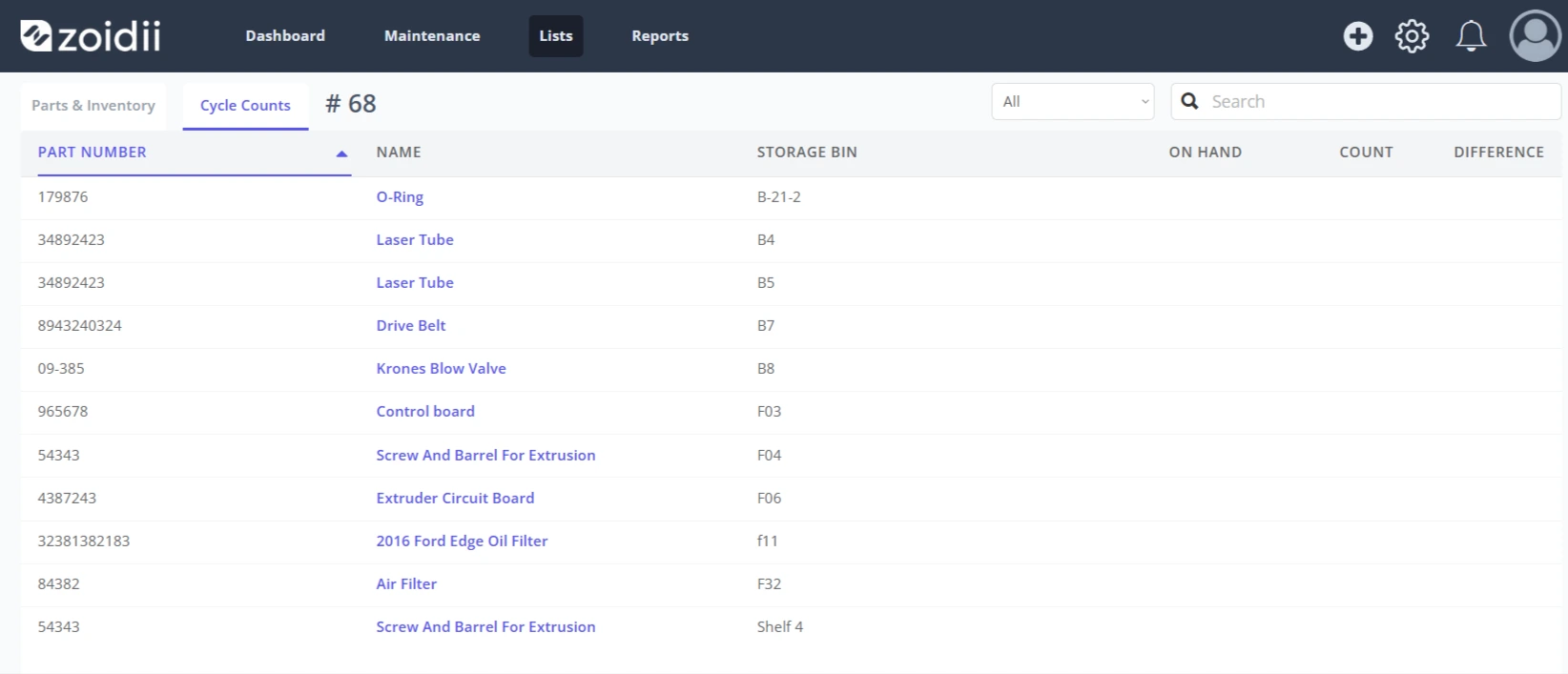
10. The new stock count is ready to be executed. We recommend counting the parts using the count functionality in the CMMS mobile app.