Background
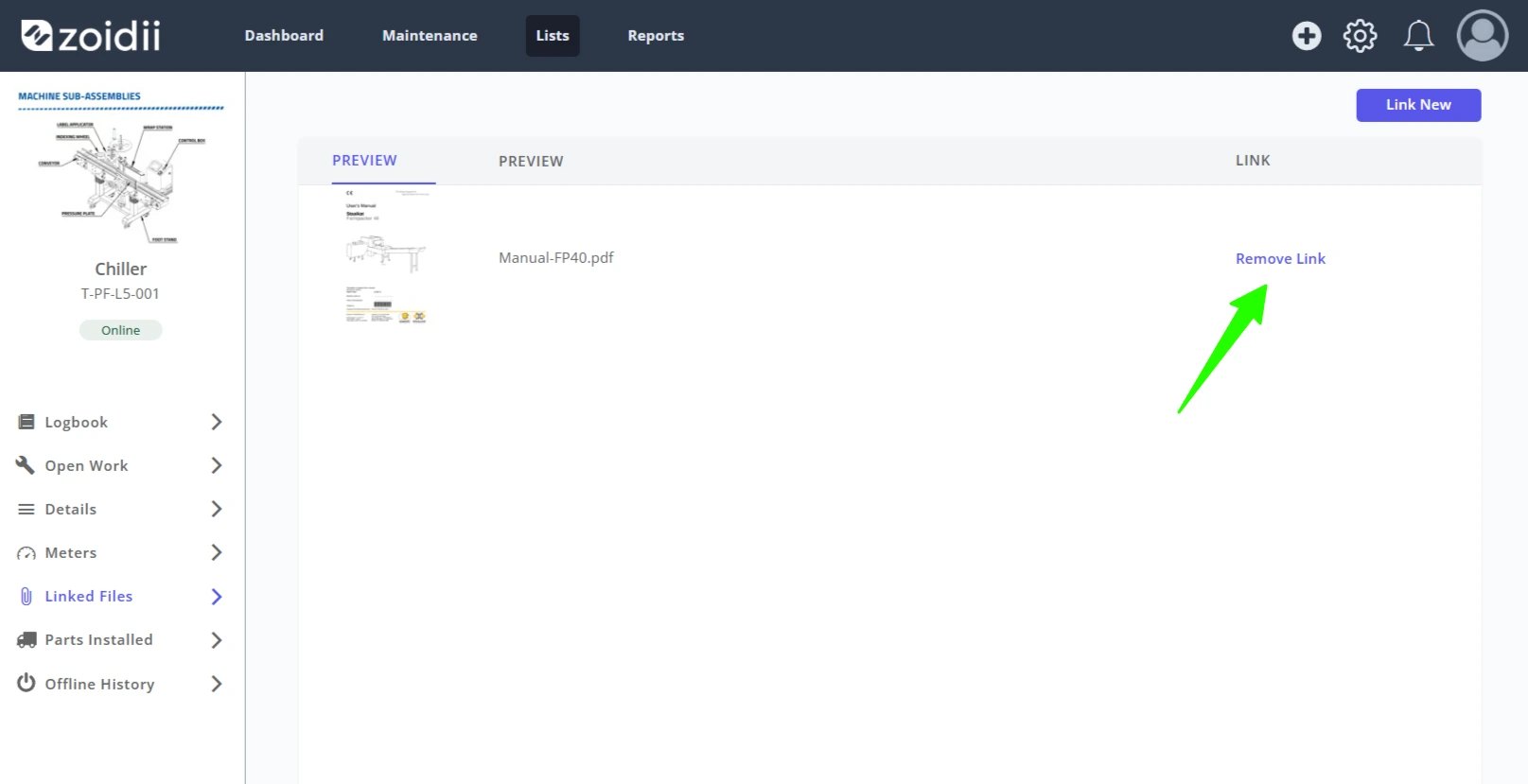
In Zoidii, files are not uploaded to the asset, PM, checklist, or work order. Rather the files are uploaded to a central file store and then linked to the asset, PM, checklist, or work order. That way the file can be swapped out quickly for a newer version if needed.
Prerequisites
See Upload Files to File Manager procedure
Procedure for Linking a File to an Asset
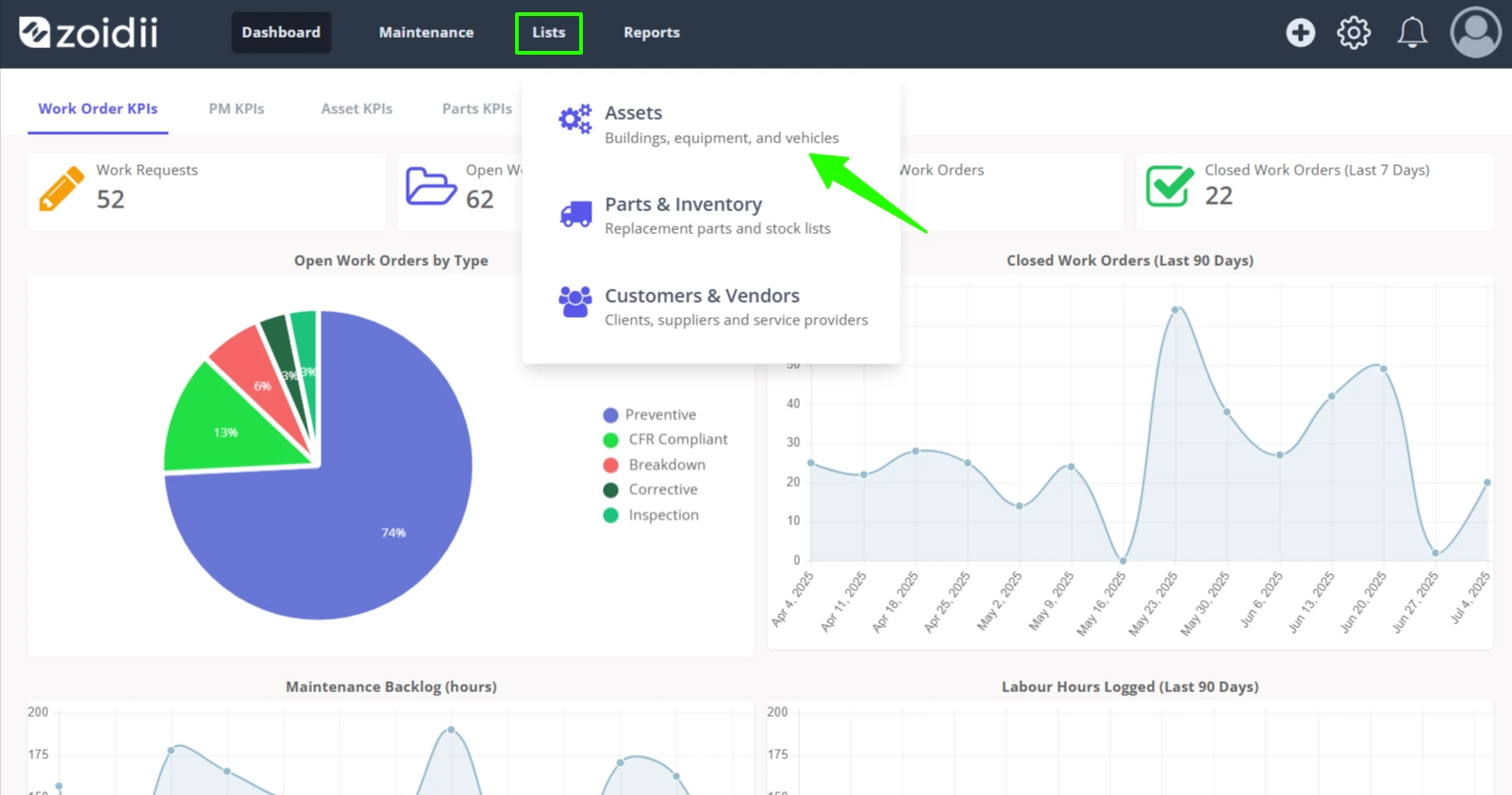
1. In the top navigation bar, click Lists and select Assets from the dropdown
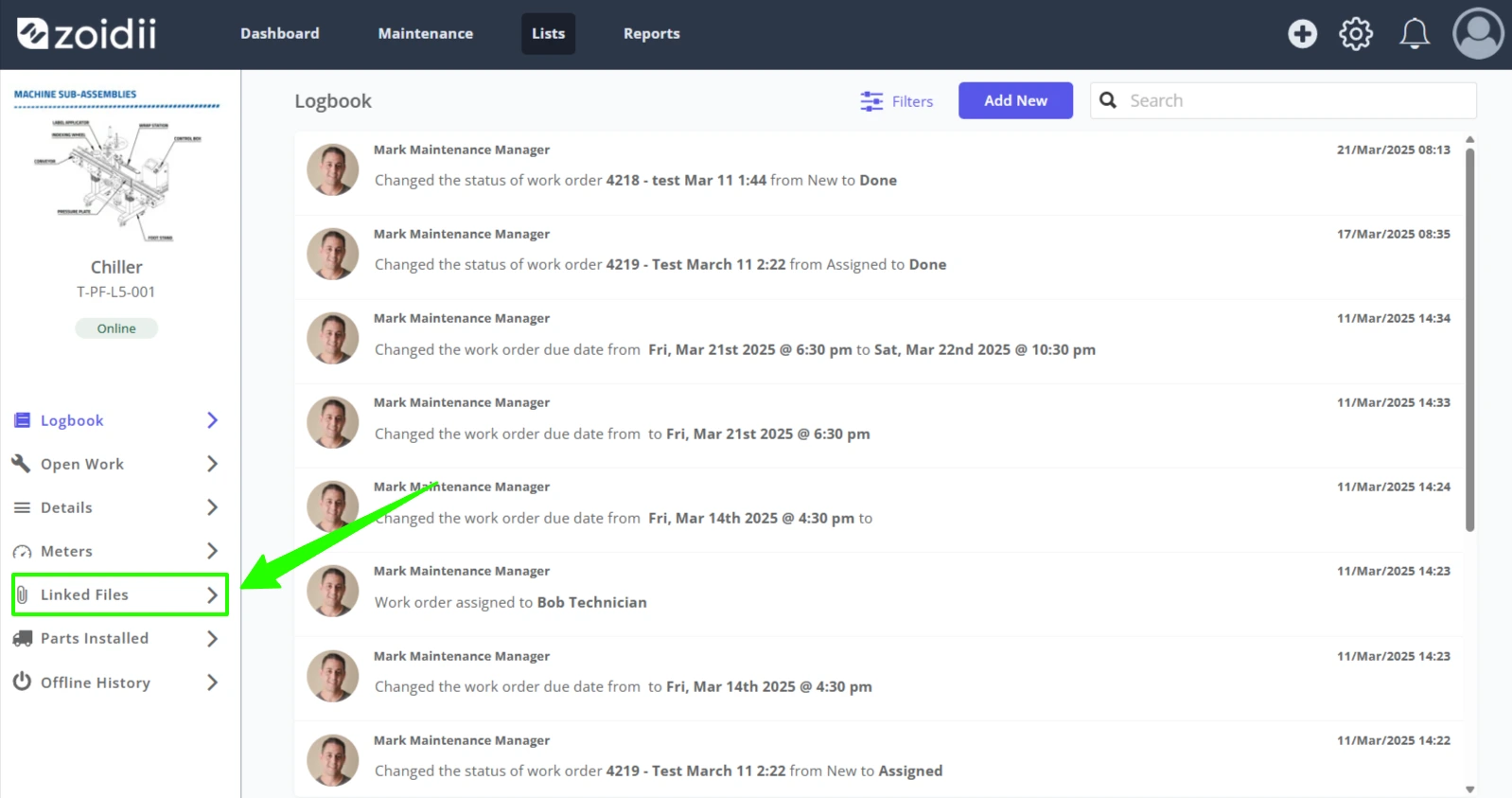
2. Open the asset record and select the Files tab
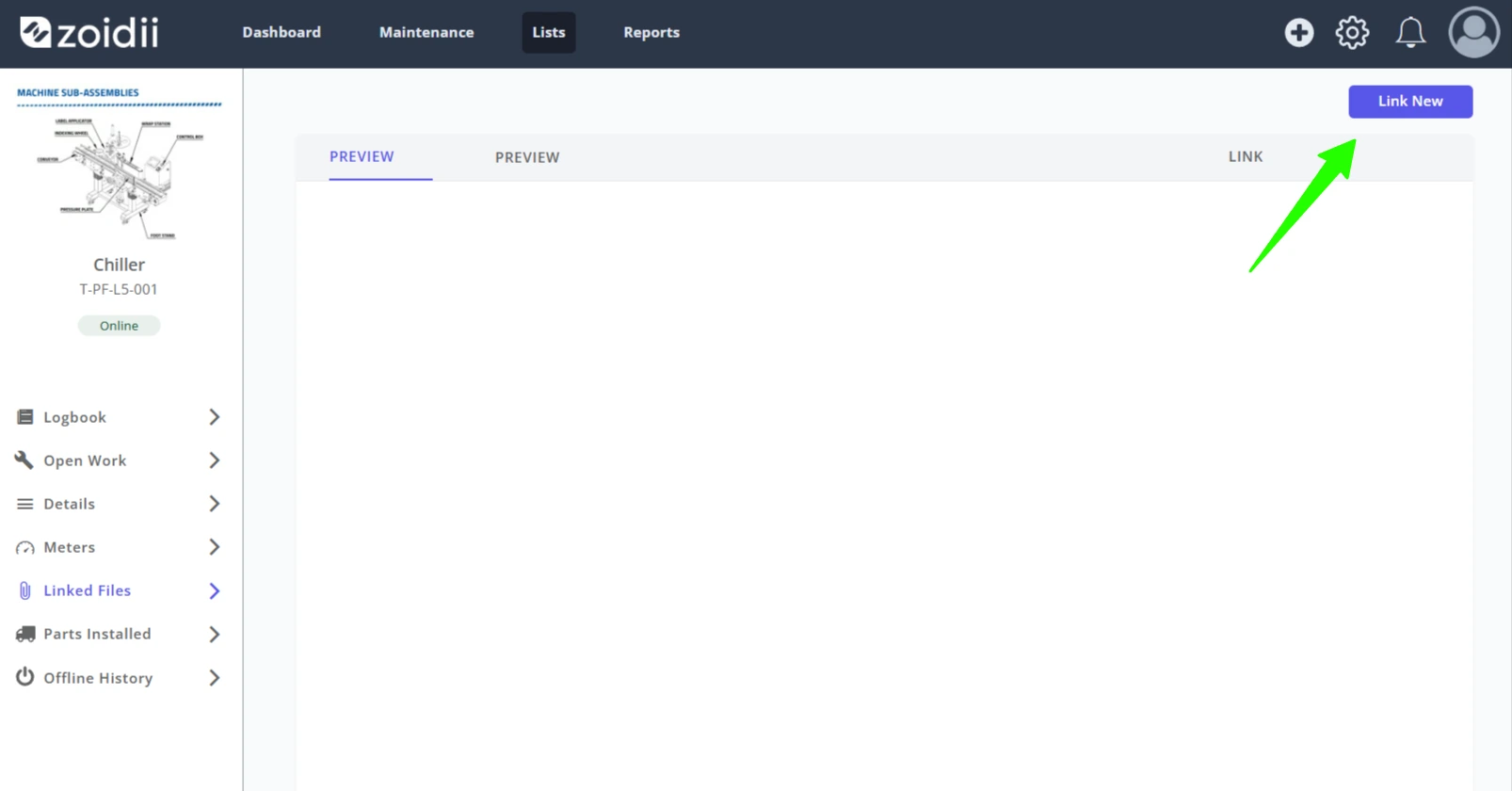
3. Click Link New
4. Use the search function to find the file in File Manager
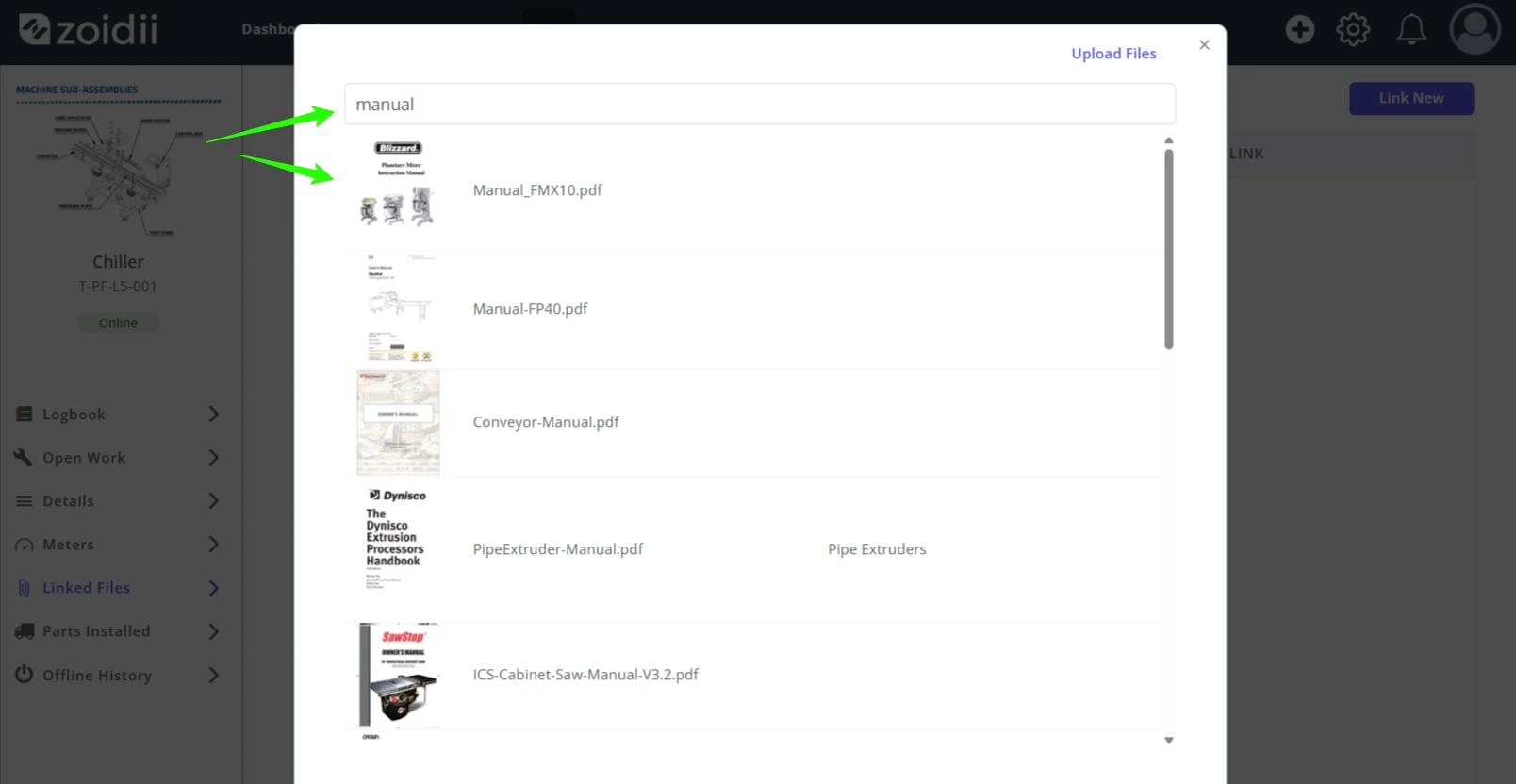
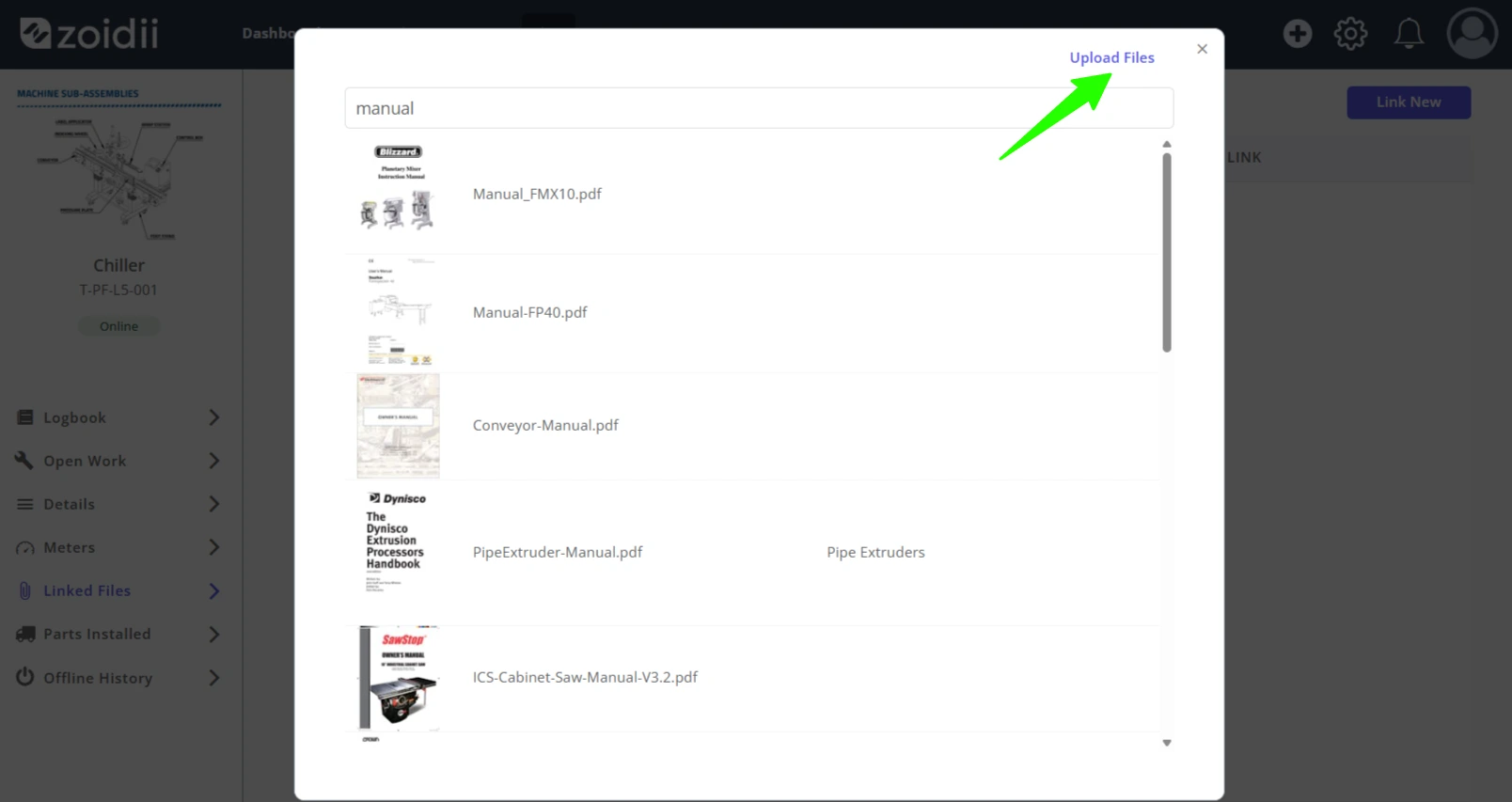
5. If needed, Click Upload New to add a new file to File Manager on the fly
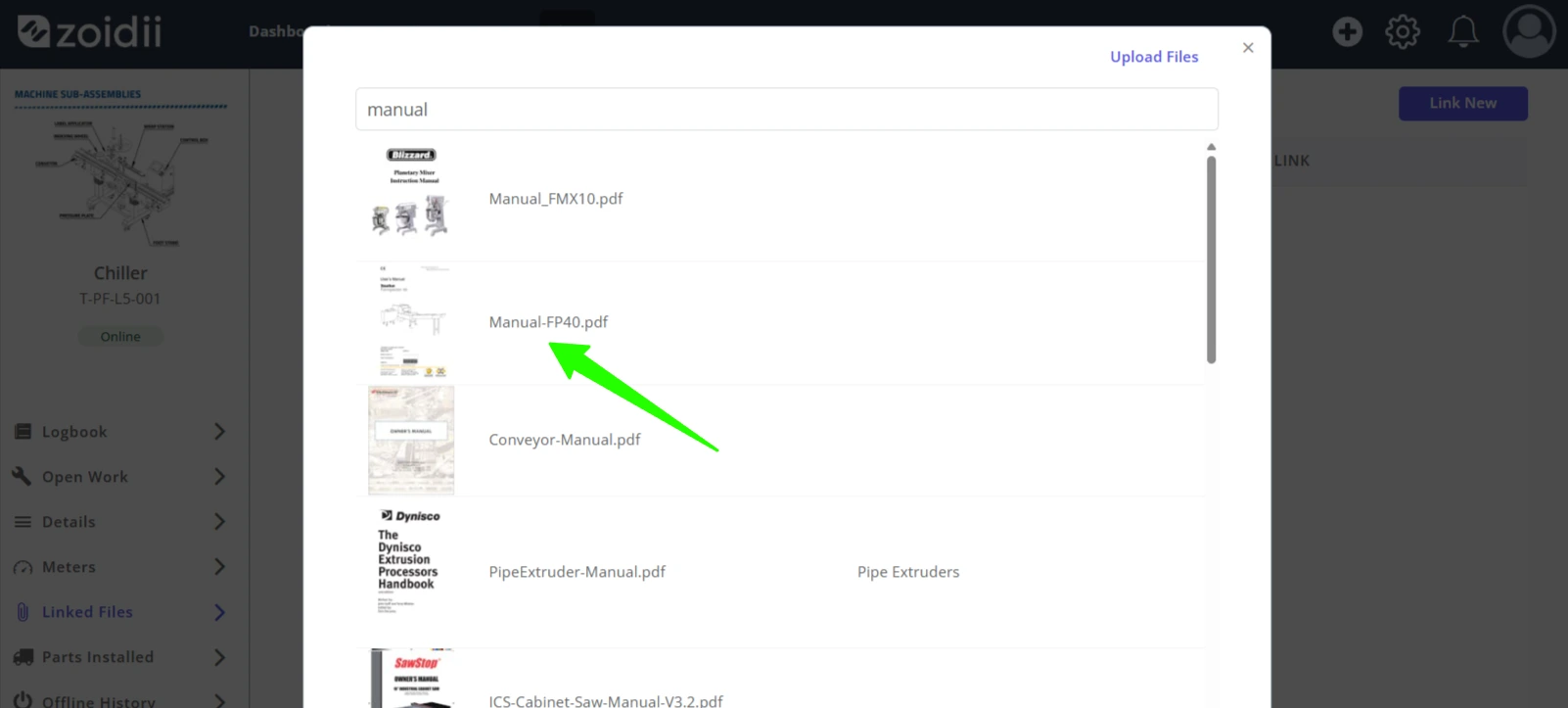
6. Once the file is located, click the file it to link to the asset record
7. The file is now linked to the asset
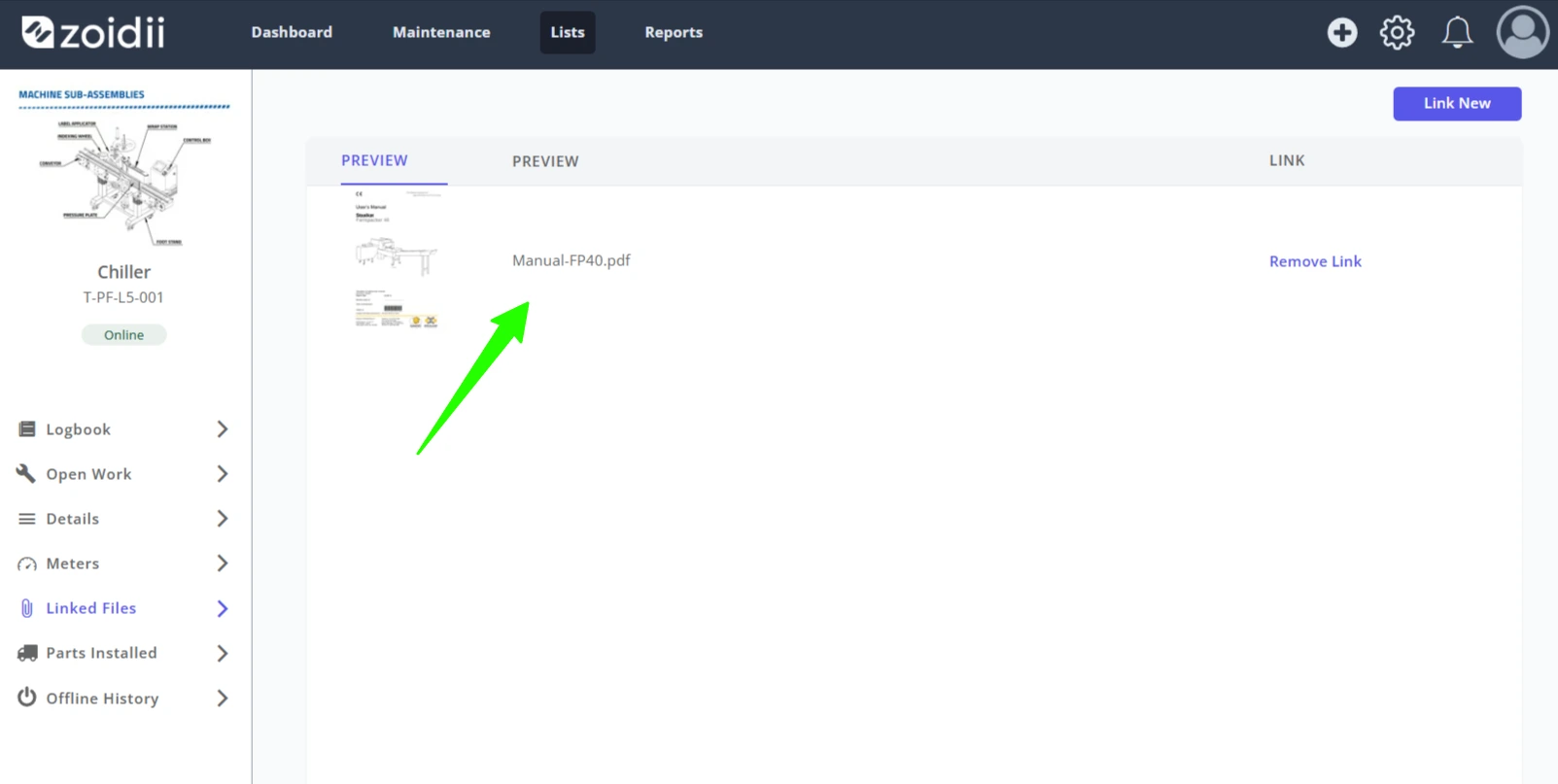
8. To remove a file linked to an asset, click Remove Link on the right-hand side.