Q1. How do I access the scheduler?
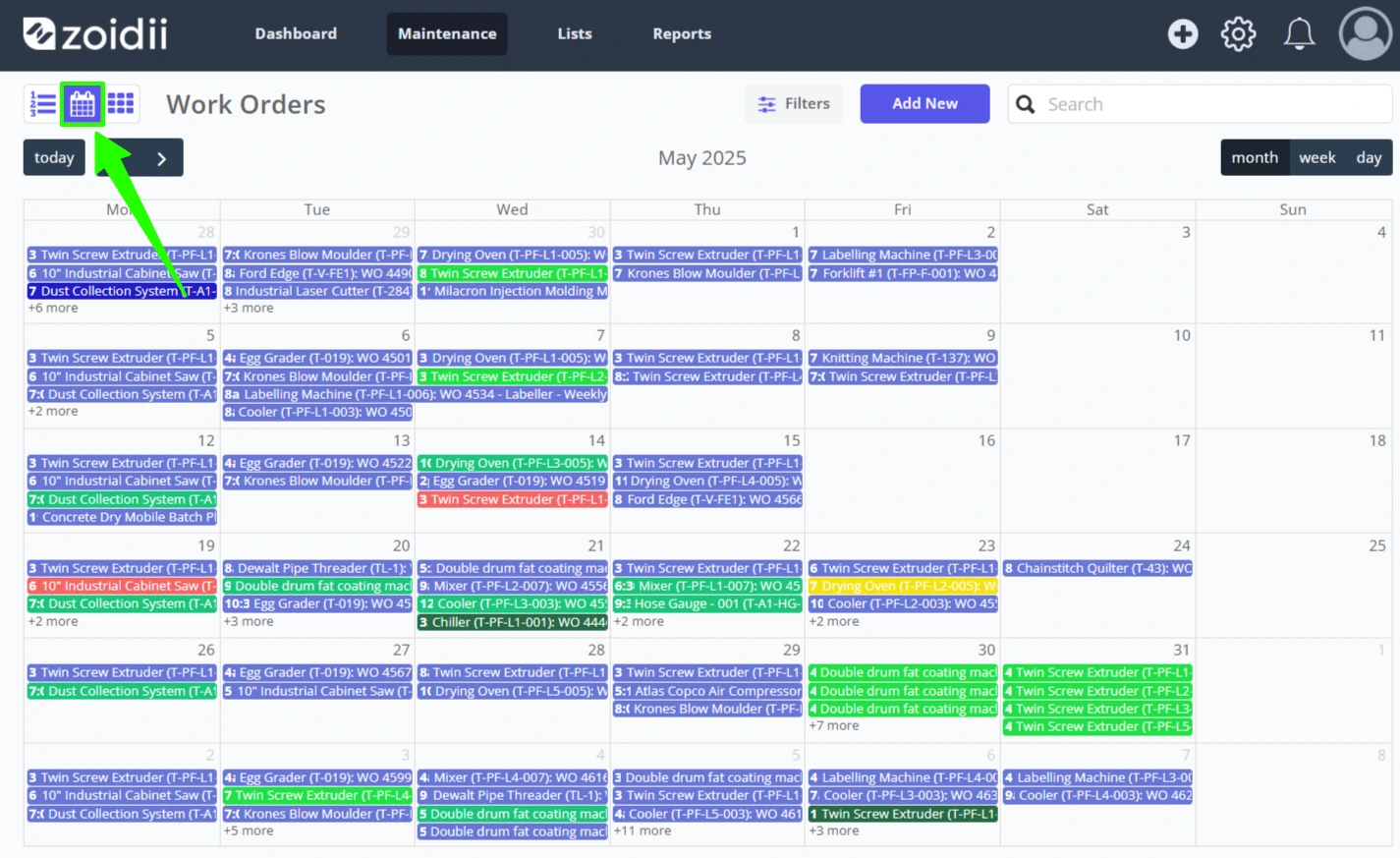
A. The work order scheduler is available on the Enterprise CMMS tier only and accessed by clicking the calendar icon on the work order page:
Q2. Who can schedule work orders?
A. System administrators and site supervisors can schedule work orders. Users with technicians permissions have read-only access to the scheduler.
Q3. What items show up on the scheduler?
A. The following items appear on the scheduler:
- Work orders that have been scheduled
- PM work orders
- The next due PM
Q4. How do I change the colours?
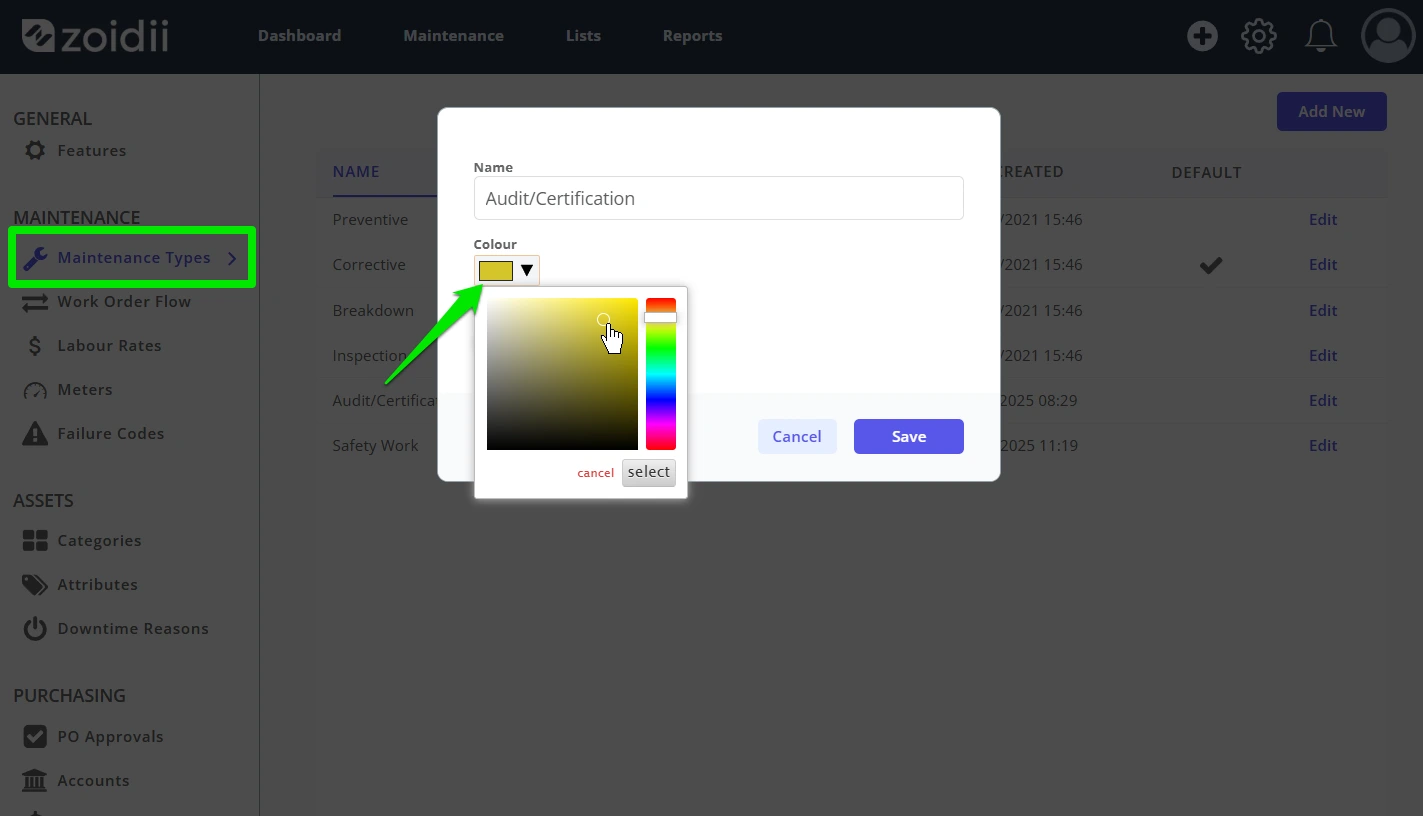
A. The colours are determined by your maintenance types. If the colour for breakdown maintenance is red in your maintenance type settings, then a scheduled breakdown work order will appear red in the calendar.
To change the colours, open Maintenance Type settings and click Edit to change the background colour for each type.
Q5. I cannot see all my future PMs in the scheduler
A. Remember, the scheduler is designed as a work order scheduler. However, the work order scheduler gives visibility on each next due PM.
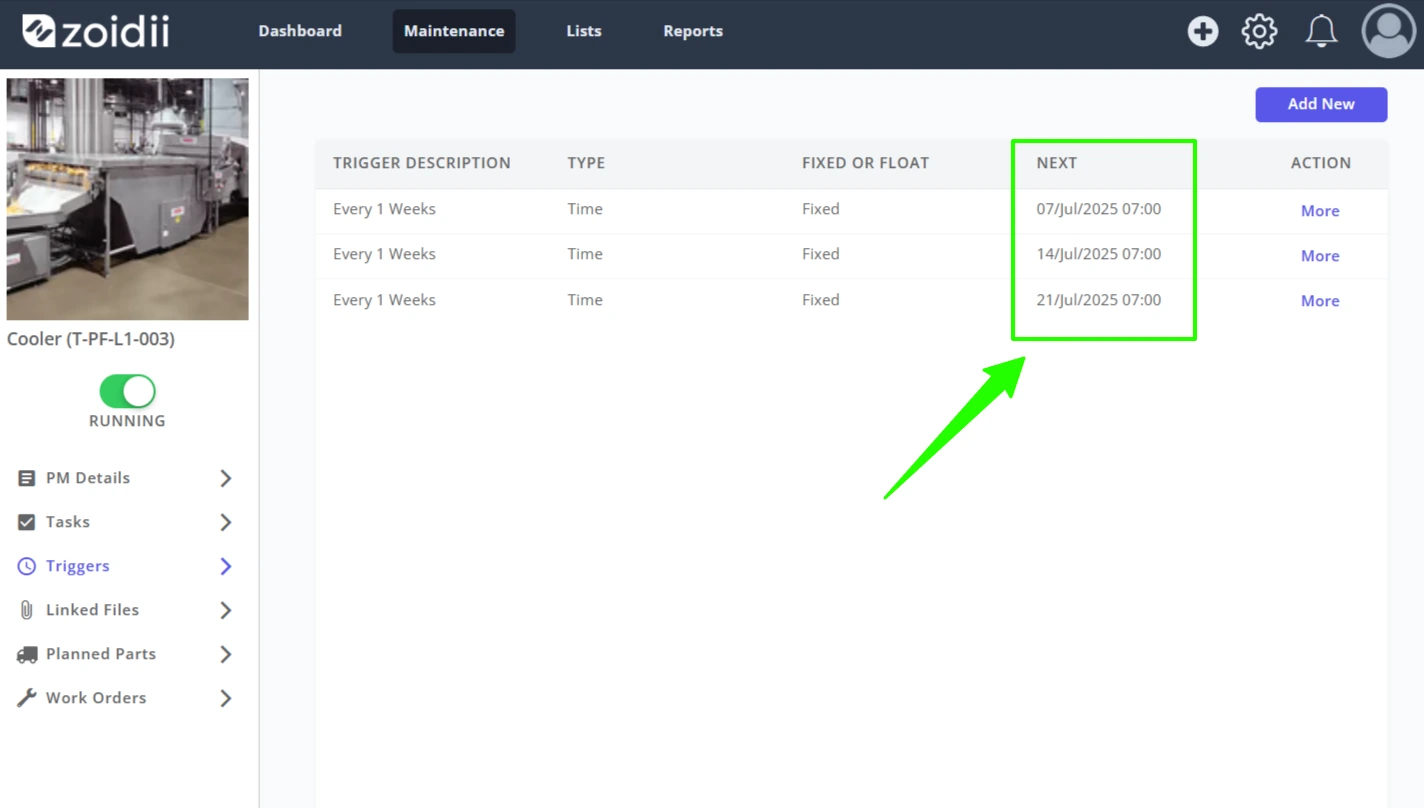
Q6. I want to show more PMs on my scheduler, or I want to have a look out further into the future
A. By design, the scheduler pulls the next due PM date from the trigger in each PM. However, looking out further with standard PMs (not nested PMs) is technically possible. If you want to show more next-due PMs, add more triggers to your PM.
For example, let's say you have a weekly PM but would like to see your weekly PMs on your schedule 3 weeks into the future. To achieve this, configure your PM with 3x triggers that trigger every three weeks, staggered by one week each.
Please reach out to Zoidii support for help configuring this. Support@zoidii.com