Prerequisites
1. Read and understand the Guest Request FAQ's 2. Turn on the Guest Request system via the System Settings section of the CMMS
Procedure
1. Open the guest user login page using the unique guest URL for your company.
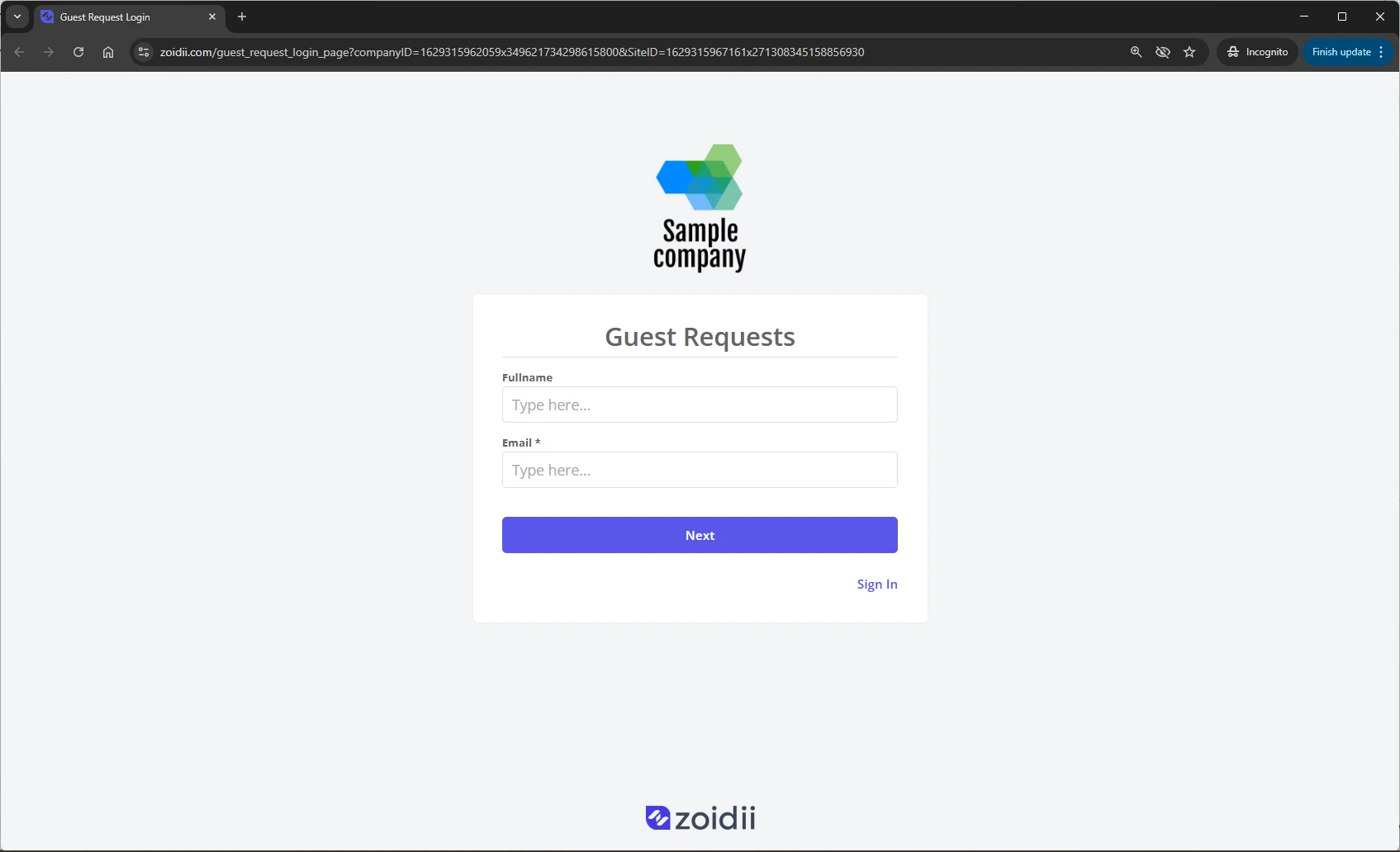
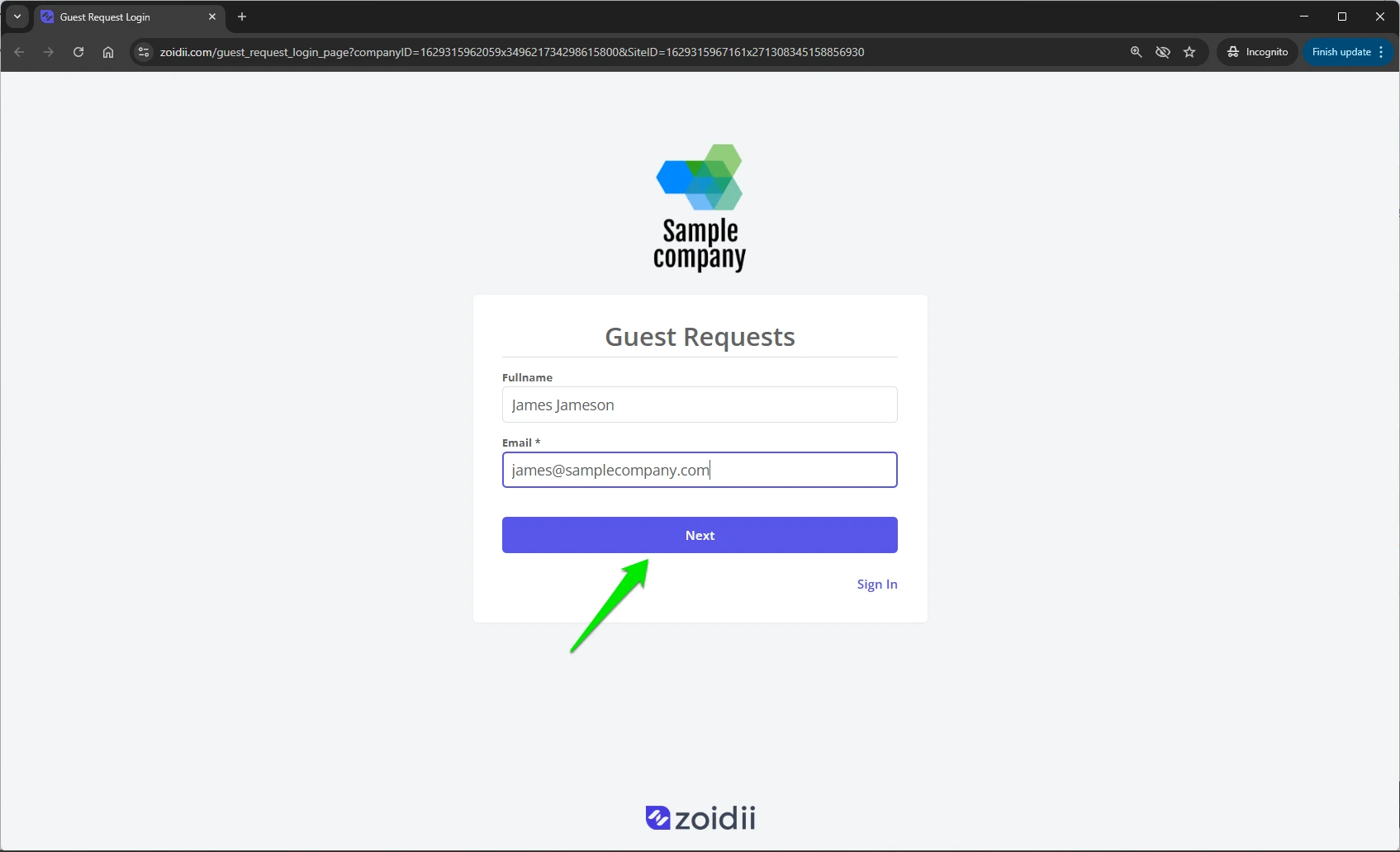
2. Add a name and email address and click Next
3. In the guest user portal, the guest user can either create a new work request or check their existing requests
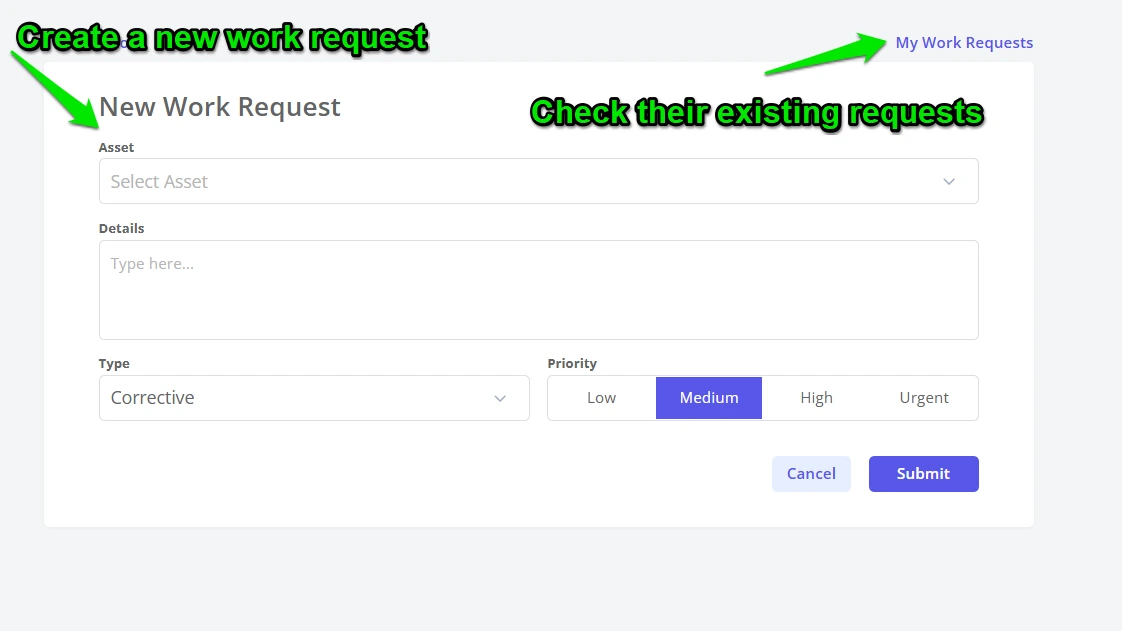
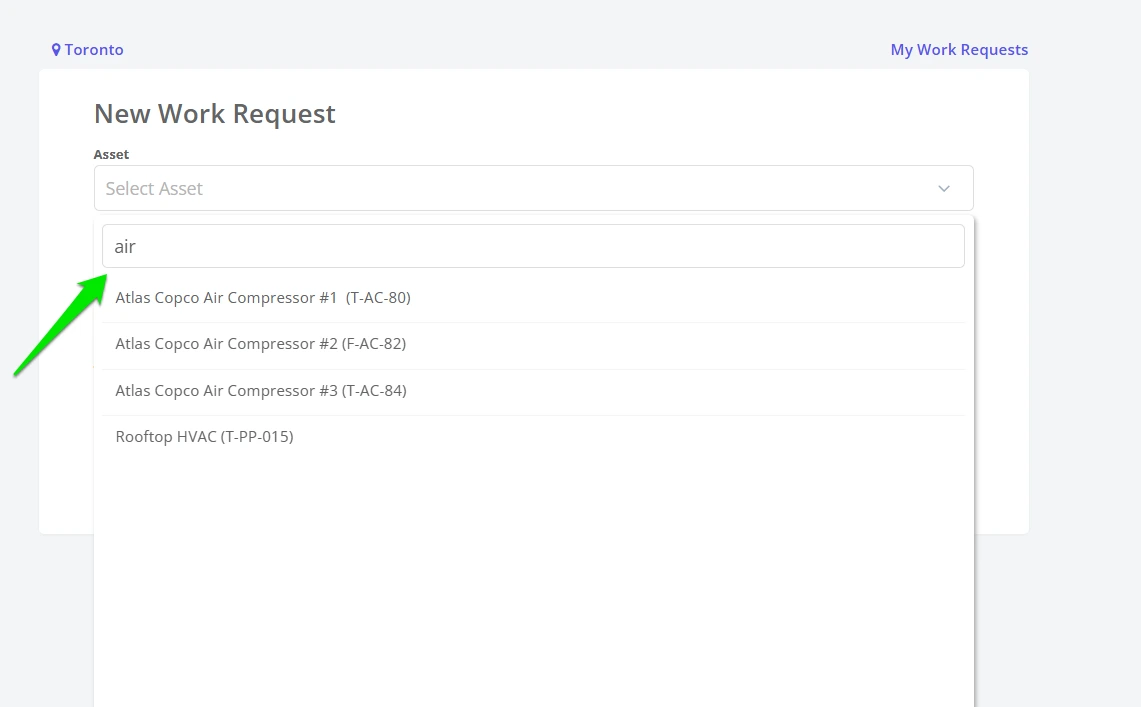
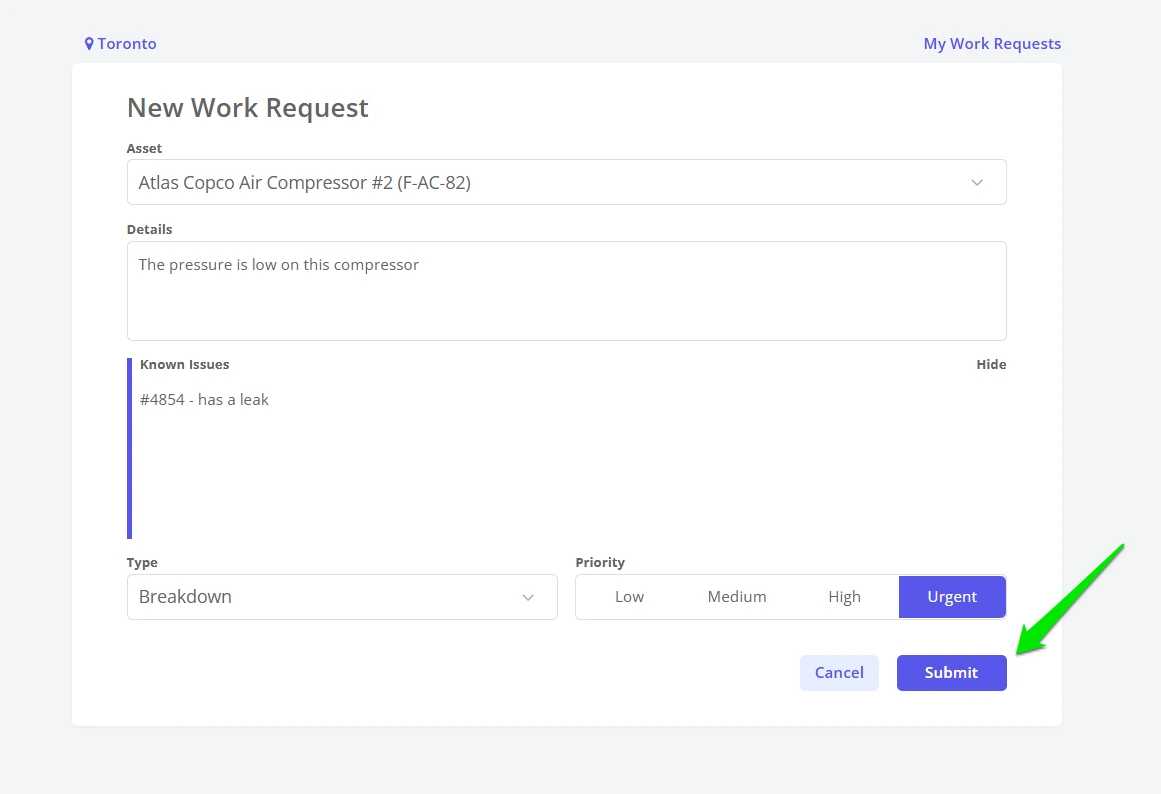
4. To create a new work request, select the asset from the dropdown. Use the search feature to find the asset quickly
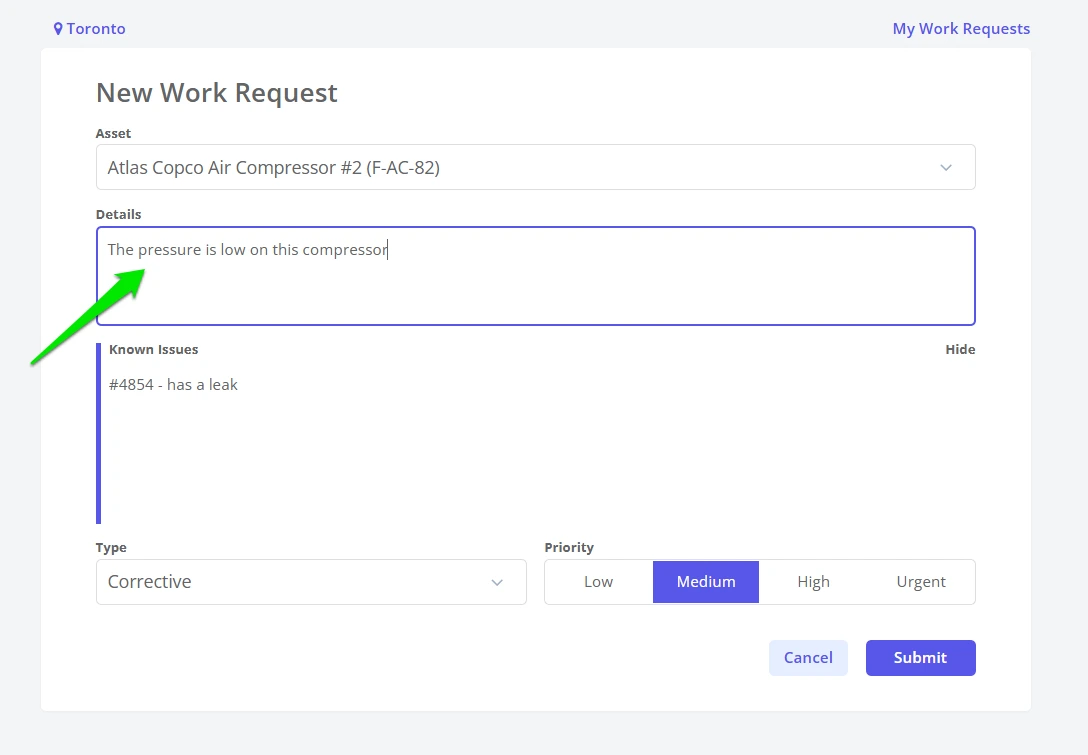
5. Add a description of the issue. The more detailed, the better for the maintenance team. Use bullets, not a paragraph.
- Symptom: What you see/hear/measure (no diagnoses yet).
- Context: When/frequency, operating state, load/speed.
- History: Last maintenance or similar issue (if known).
- Impact: Safety/quality/throughput; note if equipment is running/stopped.
- Evidence: Photos/videos/measurements attached.
“Pump broken—please fix ASAP.”
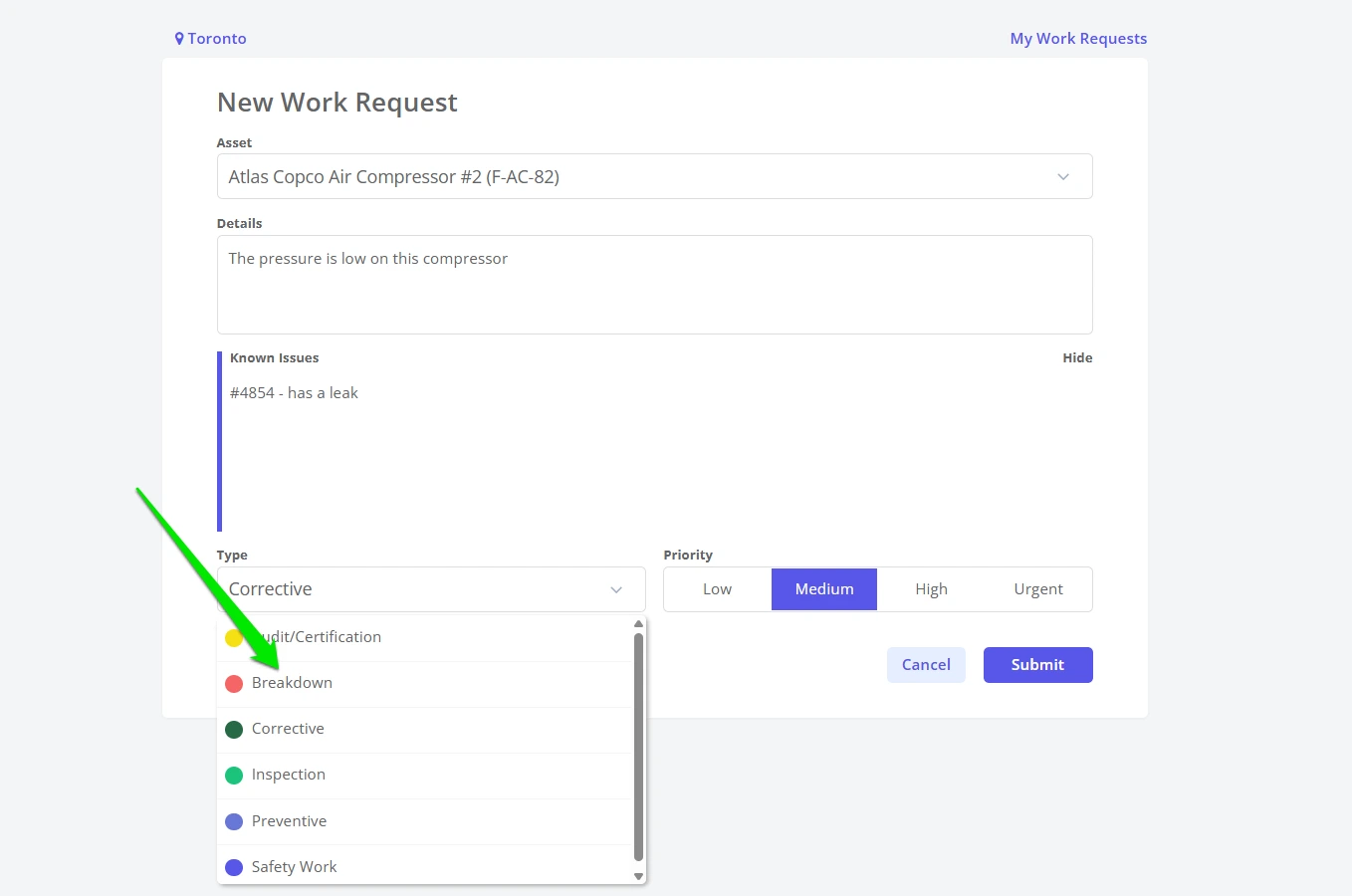
6. By default, the default guest request maintenance type is Corrective. Change if needed
7. By default, the default guest request Priority is Medium. Change if needed
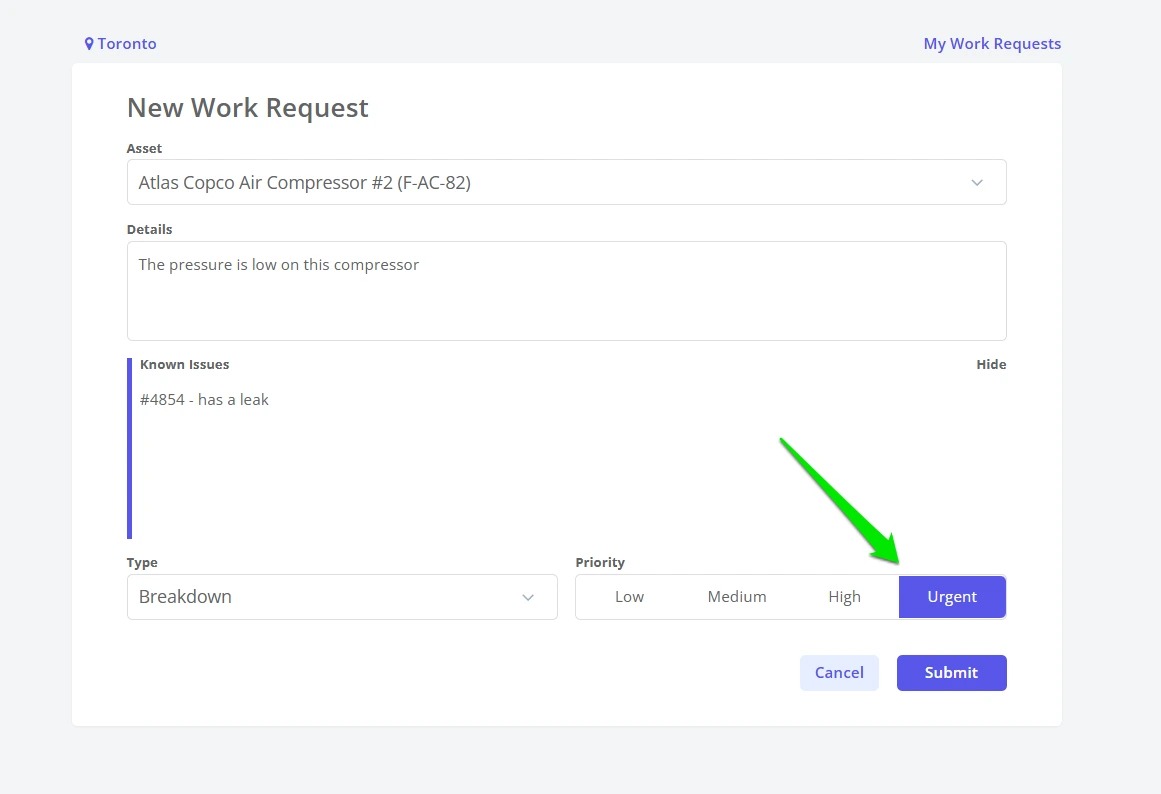
8. Click Submit to add the work request to the maintenance queue
9. Check your email for confirmation the work request has been received
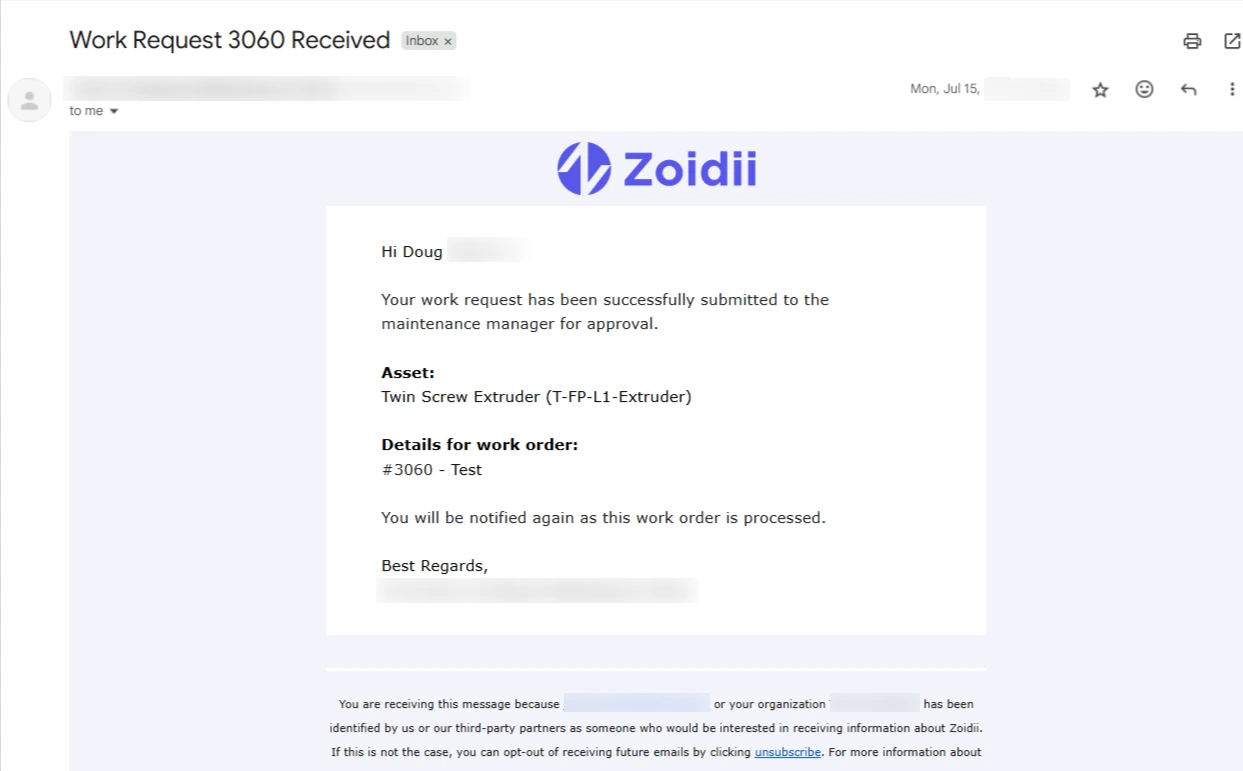
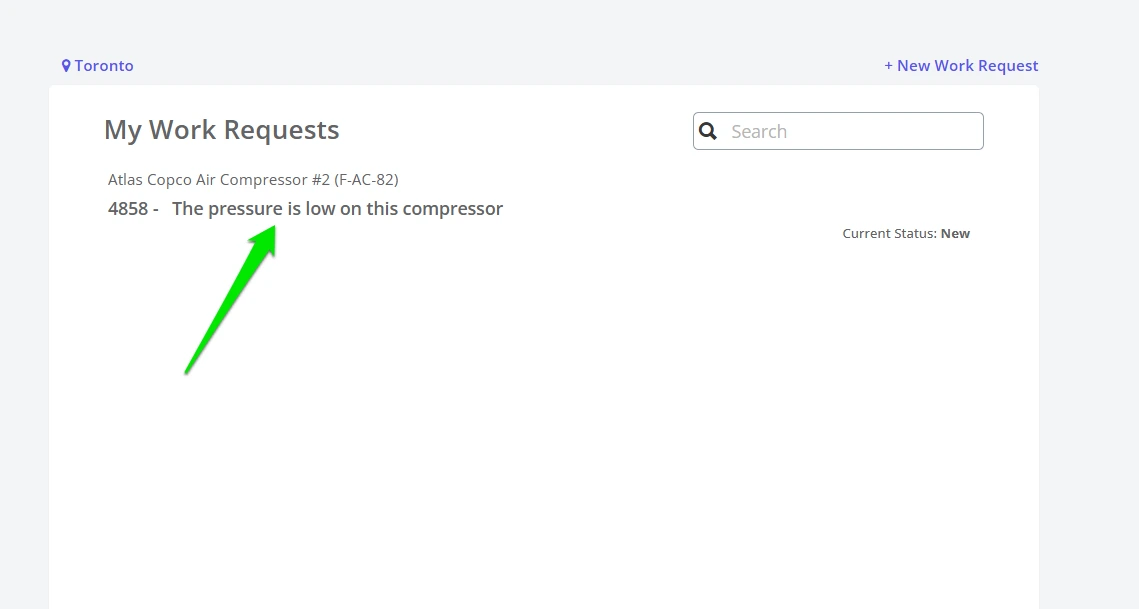
10. Guest users get updated via email as the work order transitions through the work order flow. If needed, to view the progress on the work order, click My Work Request
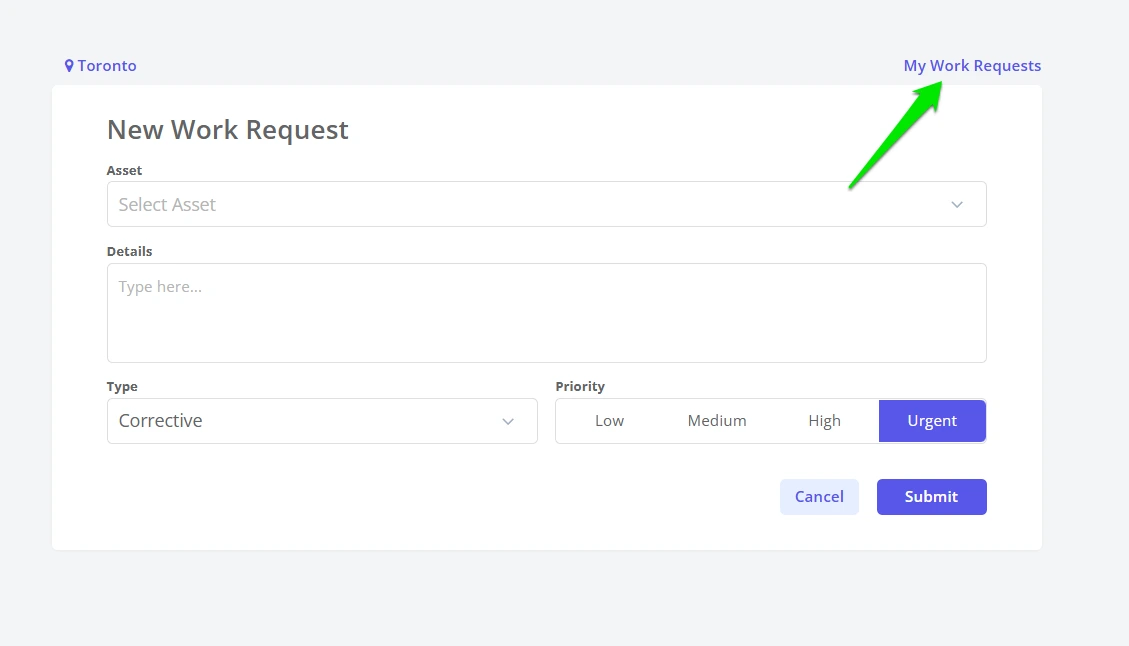
11. The work request submitted will be top of the My Work Requests list