Our Cloning feature will save you time and make your CMMS implementation just a little bit easier.
Cloning or copying is ideal for organizations with like-for-like equipment or facilities. System administrators or site managers can copy assets, asset hierarchies, PMs, checklists, or work orders as needed within the same site or to another location.
For example, cloning an asset allows you to create a similar asset without having to add everything from scratch. Duplicating asset and PM records significantly speeds up the CMMS implementation process.
Sample scenario
Bob works for a company that makes frozen pizza in twelve plants across the United States. The twelve plants are very similar, with some identical lines and equipment.
Procedure:
- Bob implements the CMMS at one site. He configures the CMMS at the first site, including asset hierarchy, checklists, and all associated preventive maintenance (PM) tasks.
- Bob uses the clone functionality to replicate the asset hierarchy and associated PMs from one location to another, eliminating a significant amount of manual work and saving valuable implementation time.
What can be copied?
1. Assets
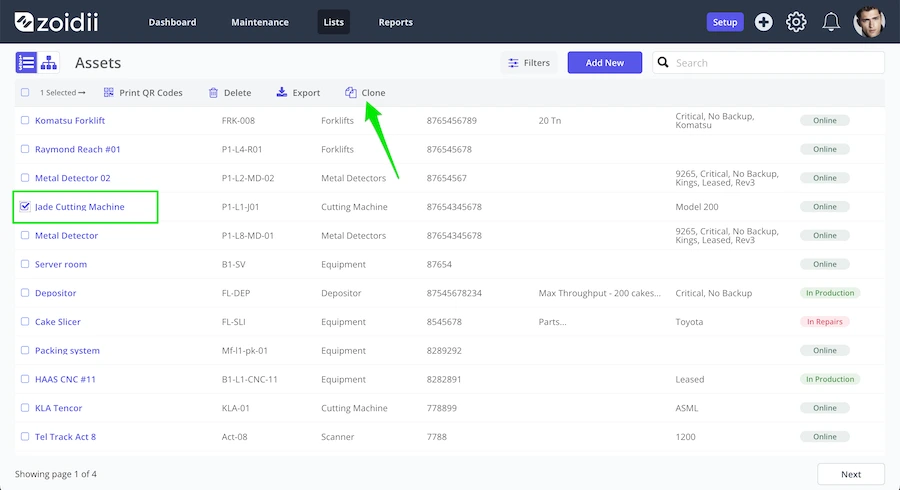
Cloning can be helpful if you want to create a new asset similar to an existing one. Assets can be copied one at a time within the same or different locations. Except for the unique asset code and serial number, all key fields are copied, including asset names, categories, attributes, and linked files. In addition, system administrators can copy associated PMs.To copy an asset record: 1. Go to the asset list page in the CMMS software. 2. Find the asset record that you want to copy, and check the checkbox on the left-hand side 3. In the header, click Clone 4. Confirm the cloning action in the popup window 5. The asset record is copied. Open the new asset record and make the necessary changes, such as assigning the new asset a serial number, then click Save when done.
2. Assets & child assets
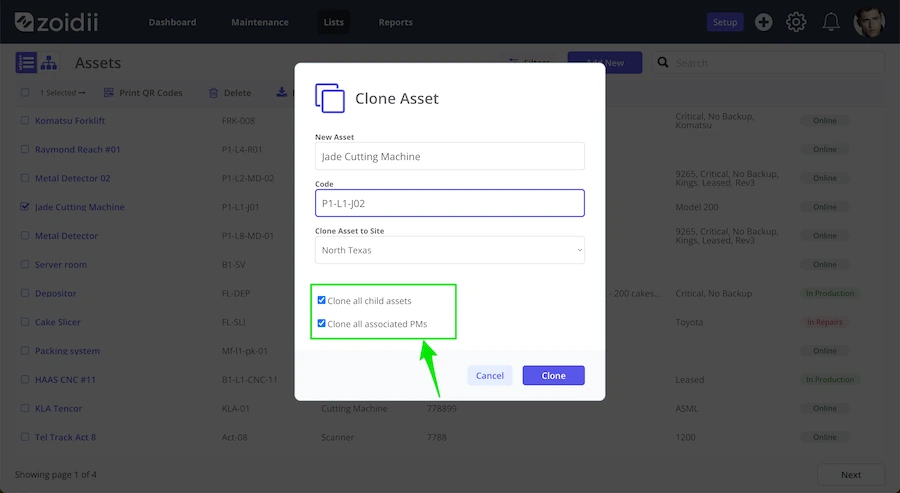
In addition to copying single assets, system administrators can copy an asset hierarchy of many levels in one go, including all the essential fields outlined in #1 above. System administrators can also copy associated PMs for all copied assets.To copy an asset hierarchy, select a parent asset from the asset list and clone it as above. Check the checkbox to include all child assets.
3. Checklists
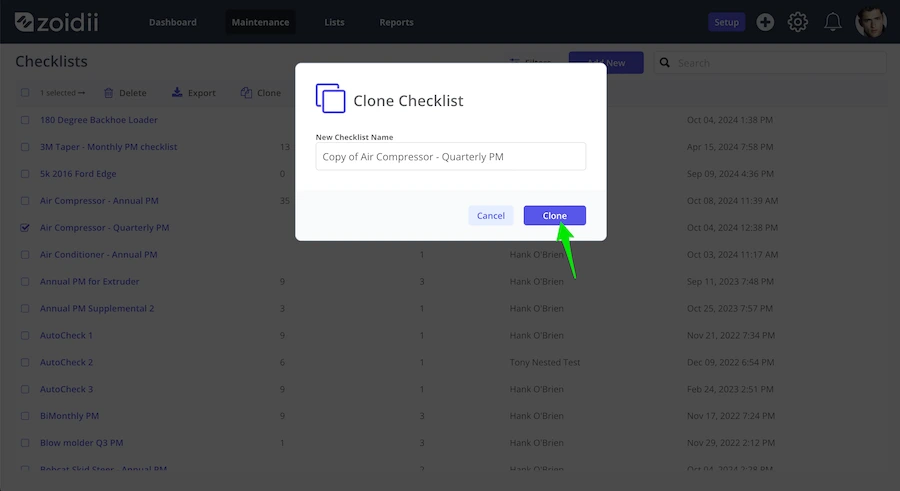
For best practices, standardize checklists across the organization. That ensures all sites and users complete the same work in the same way. However, certain situations where the process or environment differs may necessitate a separate checklist. System administrators can copy the checklist and add, edit, or delete tasks in the copied checklist.To copy a checklist: 1. Go to the checklists page in the CMMS software. 2. Find the checklist that you want to copy, and check the checkbox on the left-hand side 3. In the header, click Clone 4. Confirm the cloning action in the popup window 5. The checklist is copied. Open the new checklist and make any necessary changes, such as adding additional tasks. Then, click Save when you are done.
4. PMs
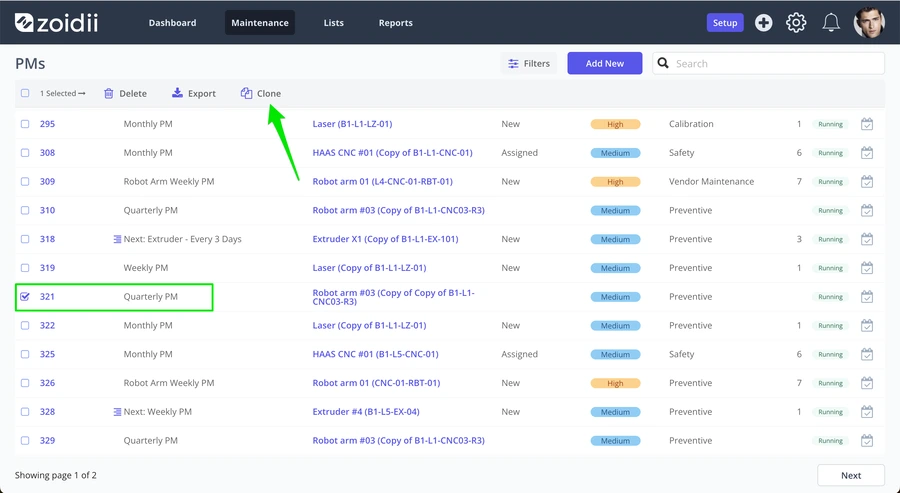
Typically, in any CMMS, PMs will take time to configure. System administrators or site managers can significantly speed up the process by copying preventive maintenance activities to another asset at the same site or to an asset at another location.To copy a PM: 1. Go to the PM list page in the CMMS software. 2. Find the PM that you want to copy, and check the checkbox on the left-hand side 3. In the header, click Clone 4. Confirm the cloning action in the popup window and assign the copied PM to the new asset. 5. The PM is copied. Open the new PM, make necessary changes, and click Save when done.
5. Work Orders
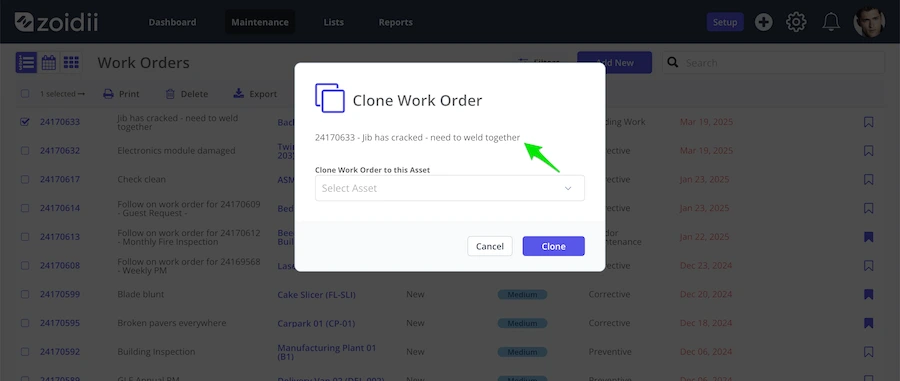
The new cloning feature is also available on the work order page. Users can copy existing work orders to other assets. Coping work orders does not make sense when creating simple work orders. Copying work orders makes sense when the repair involves many tasks or parts.To copy a work order in the CMMS software: 1. Go to the Work Order list page in the CMMS software. 2. Find the work order that you want to copy, and check the checkbox on the left-hand side 3. In the header, click Clone 4. Confirm the cloning action in the popup window and assign the copied work to the new asset. 5. The work is copied. Open the new work and make the necessary changes, such as configuring a due date and assigning users 6. Click Save when done.
What organizations benefit from copying CMMS records?
The new cloning feature will benefit any organization with similar assets, whether implementing the system for the first time or adding like-for-like assets when the system is live. Some examples of organizations that would benefit in a big way include:
- Manufacturing organizations with similar lines or equipment in their manufacturing plants
- Facilities with similar equipment in each room, such as care homes, schools, or universities
- Restaurant chains and franchise owners
- Filling station and carwash chains
Advantages of cloning assets in CMMS software:
1. Increased Efficiency
Copying records can help speed up data entry by eliminating the need to manually enter information into each field. When you copy records in a software application, you can quickly and easily create new records that are identical to existing ones. Copying saves you time and effort, especially when you need to create multiple records with the same information.2. Reduced Errors
Copying records can also help to reduce errors. If you manually enter data into each new record field, there is more potential for mistakes. However, copying an existing record and then editing the necessary fields will help ensure that all of the information is accurate.3. Improved consistency
Copying records in a software application ensures consistency by populating all required data fields in the new record.Our new copying feature allows you to quickly and easily transfer data between documents, making your work faster and easier than ever.