

1. Close only when the scope is truly finished
Before touching the Complete/Close buttons, confirm that the original scope (plus any approved scope changes) is done and the asset is back in its defined functional state.
If anything remains (parts on order, access pending, vendor follow-up), keep the work order In Progress with a clear reason or create a linked follow-up WO and reference it in your notes.
Quick check:
- Acceptance criteria met?
- Asset tested under normal operating conditions?
- Requester agrees it’s resolved (when applicable)?
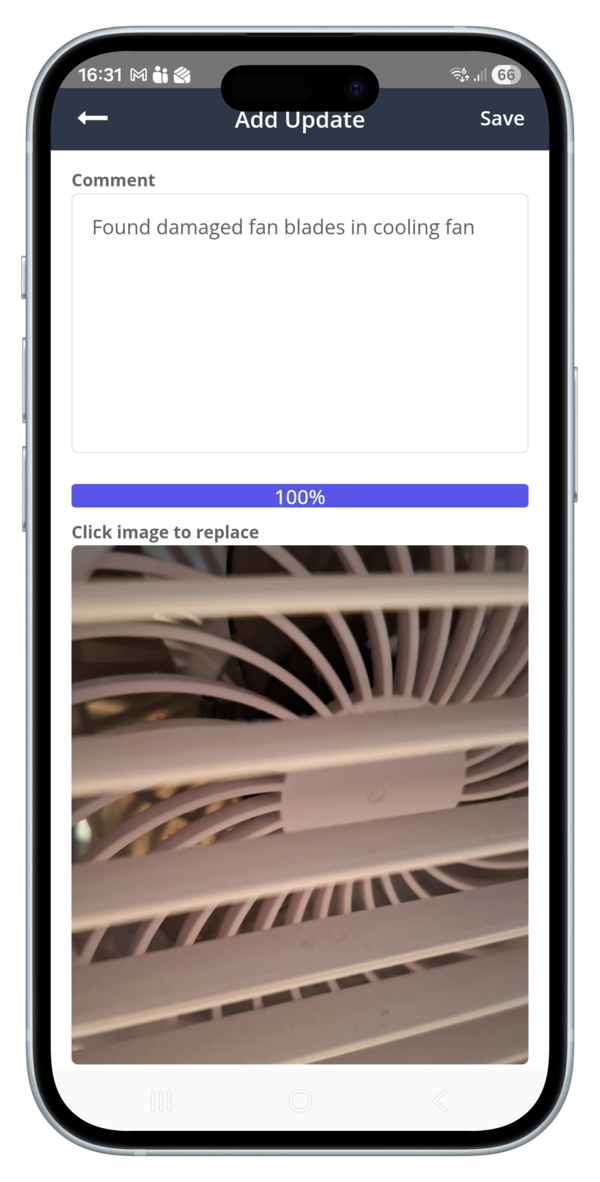
2. Capture clear “as-found” and “as-left” notes in the Activity Feed
Zoidii’s activity updates are your future memory. They can be used to solve problems further down the line. Make them short, factual, and searchable.
As-found (what you saw):
- Symptom, meter readings, error or alarm codes, unusual sounds/odours, and environmental conditions.
- Context: when it occurs, machine operator, frequency, loads/speeds, and last maintenance.
- Actions taken, adjustments, parts replaced, calibrations performed, torque values, setpoints.
- Test results and verification steps (e.g., 30-minute run-in, no alarms).
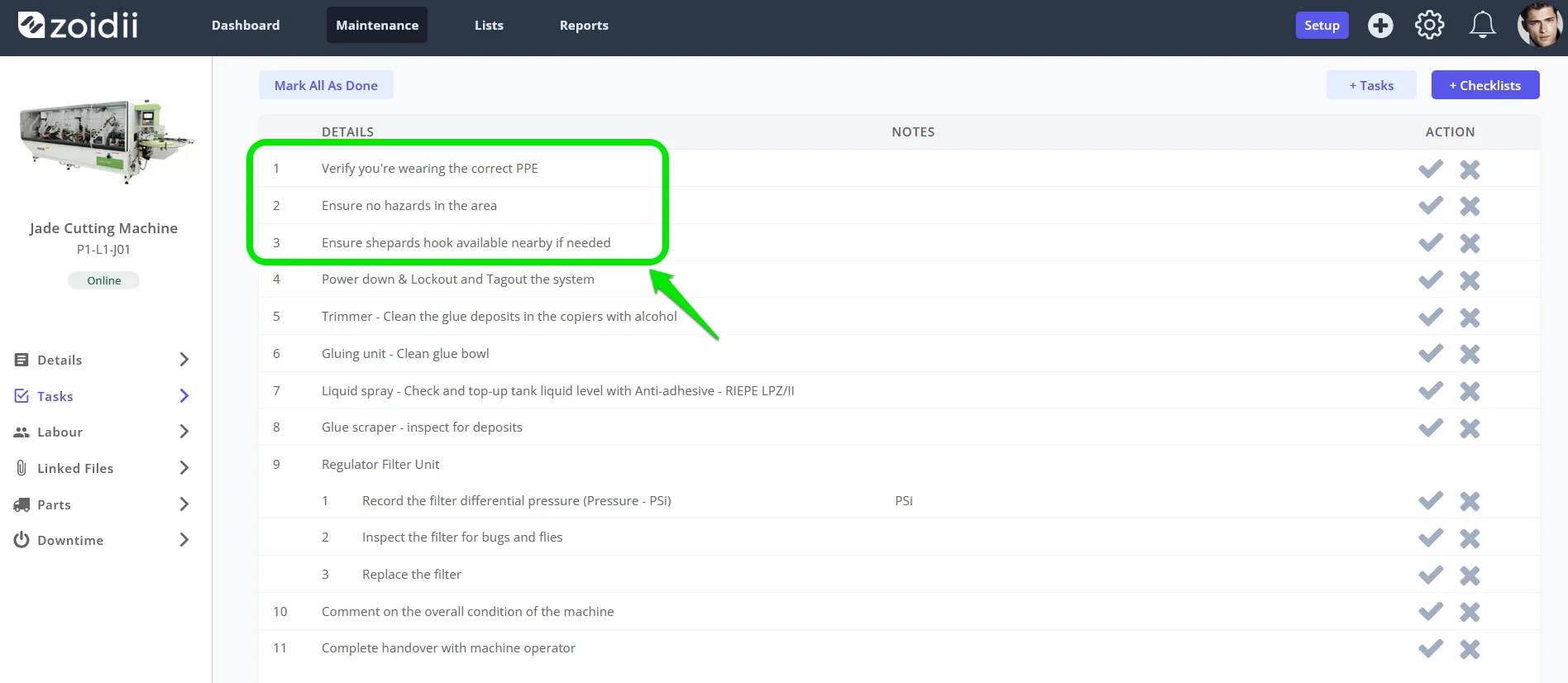
3. Close all tasks & checklist items
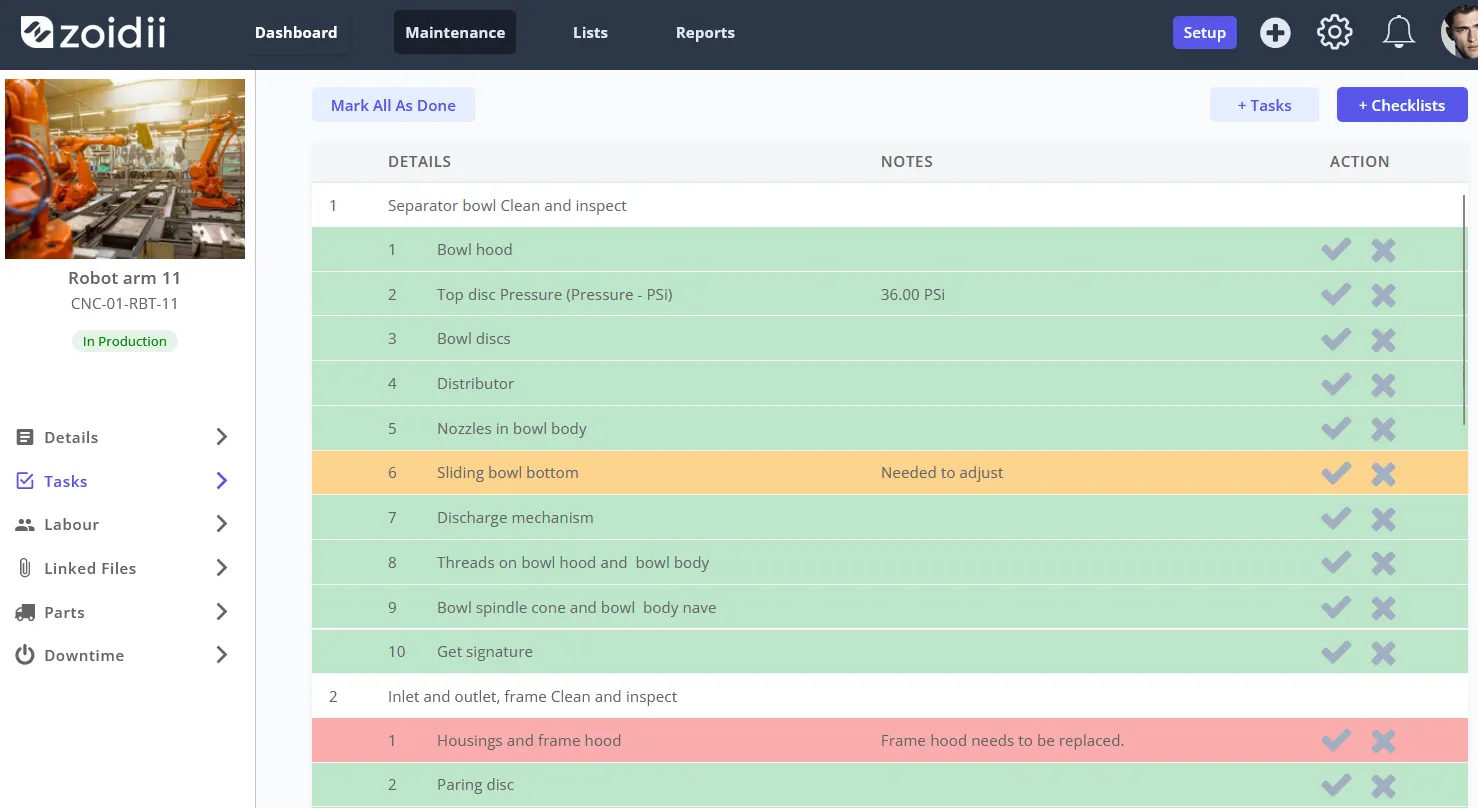
Ensure every task and checklist item tied to the order is properly closed in Zoidii. This ensures traceability, drives schedule compliance accuracy, and prevents “ghost” work from being reported.
Task status: Each task is marked Done (Passed or failed)—not left blank.
- Add comments entered for Fail/Not OK.
- Any required measurements when it's a meter reading
Partial completion: If a multi-part task is partially done, split the remainder into a follow-up WO and close the current task with clear notes: what’s done, what remains, risk level.
4. Log actual labor accurately
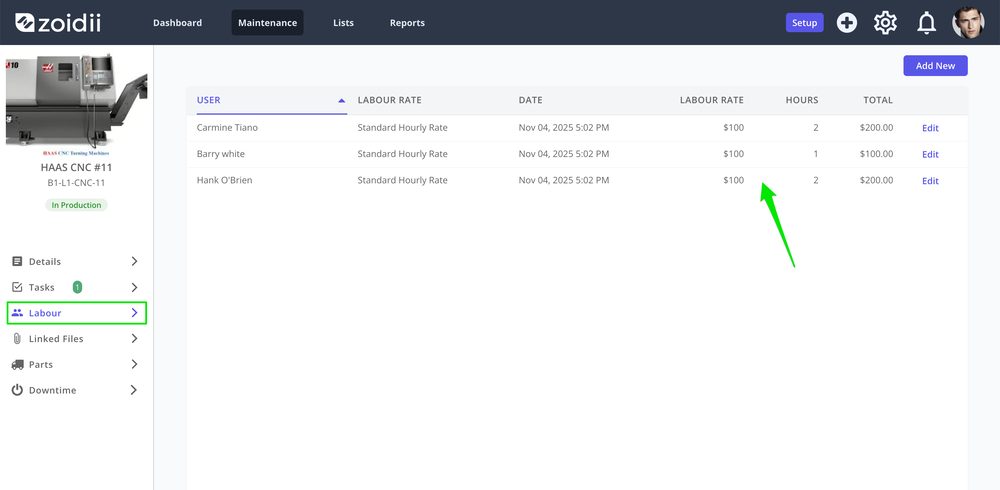
Labour hours are key to understanding the total cost of ownership of an asset. They are multiplied by the hourly rate to understand labor costs.
Enter total labor hours per craft/technician. Round to 0.25 hours (nearest 15 minutes) and include travel or waiting time if it was part of the job. Labor accuracy drives cost reports, wrench-time analysis, and planning estimates.
Tip: If multiple techs worked the job, each person should record their own time entry in Zoidii, not a single lump sum.
5. Record all parts used on the WO
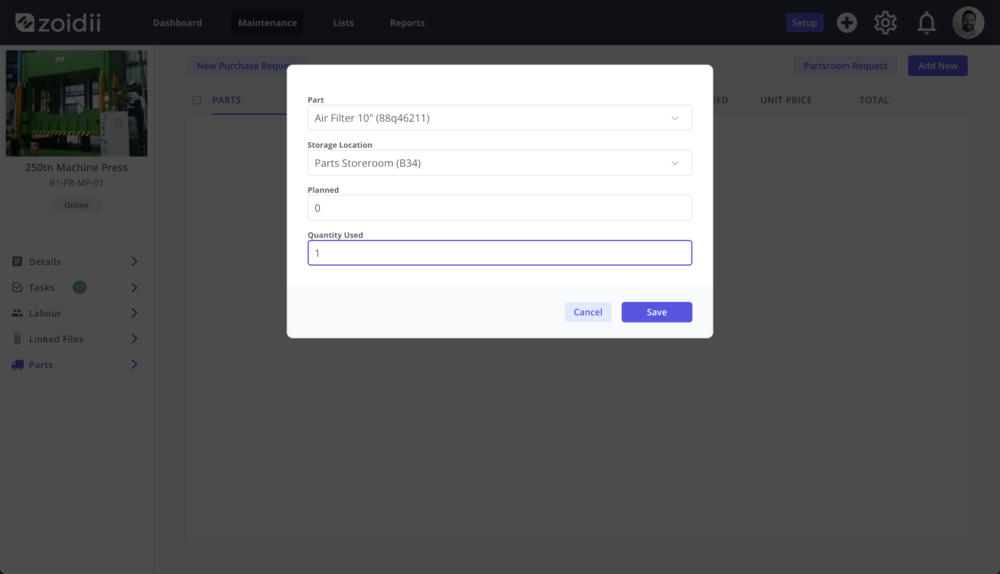
Parts costs live on the WO. When the parts are consumed on the work order, they are immediately depleted from inventory levels.
- Issue all consumed parts and quantities.
- Note substitutions used if the exact part number differed.
- If you kitted extra items but didn’t use them, return them to stock and adjust the WO accordingly.
6. Verify safety and compliance closure items
For work touching safety systems, energy isolation, or compliance:
- Confirm LOTO removed and equipment returned to service per procedure.
- Attach calibration certificates, MSDS sheets, test sheets, permits.
- For regulated assets, ensure the WO includes the required regulatory reference and the eSignature sign-off field Zoidii tracks.
7. Add Failure codes for Reactive Work
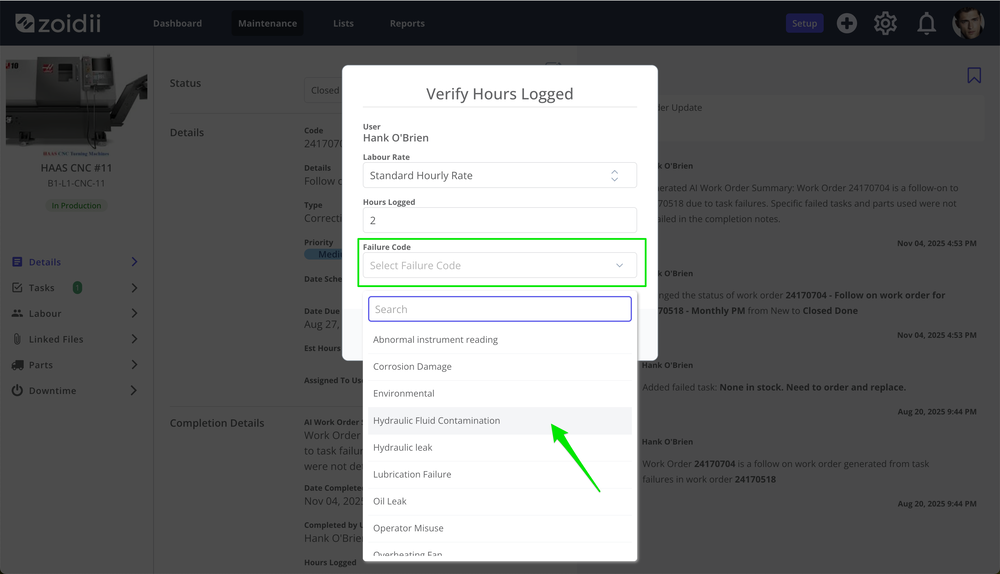
Don’t skip failure codes—they turn your fix into intelligence. Selecting a clear failure code in Zoidii takes seconds and pays off for everyone. Reliability can use failure codes to spot repeaters, bad actors, and PM gaps. Supervisors see true downtime drivers. Without codes, the job appears as random noise, and we repeat the same firefighting efforts.
Tip: choose the closest option, then reinforce it with a one-line Problem/Cause/Action note. When in doubt, ask. Complete codes today prevent breakdowns tomorrow. Your future self will thank you for it.
8. Create follow-up work the moment you spot it
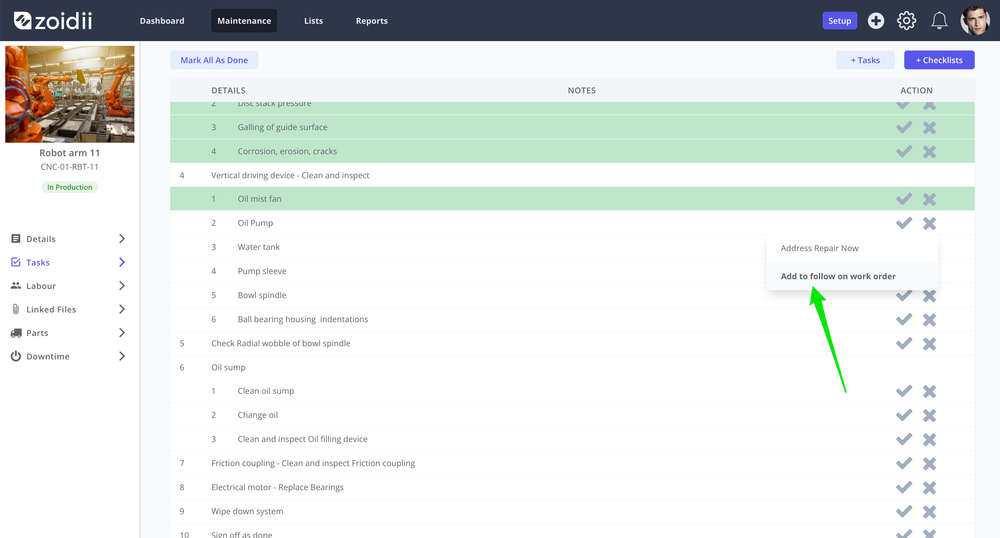
Don’t bury future risk in notes. If you found a secondary defect, create a follow-up WO on the spot. The follow-on work order can be made by failing a task, or by creating a brand new, separate work order.
- Remaining risk/items deferred due to time or parts
- Condition-based recheck (e.g., vibration in 2 weeks)
- Permanent fix after a temporary repair
- Improvement opportunity (guarding, PM change, redesign)
9. Record downtime precisely (if applicable)
If the asset is unavailable, add the start/stop times and the reason for downtime. Use the correct asset node in the hierarchy.
Downtime accuracy affects OEE, production reporting, and reliability studies—don’t estimate if you can avoid it.
10. Requester communication
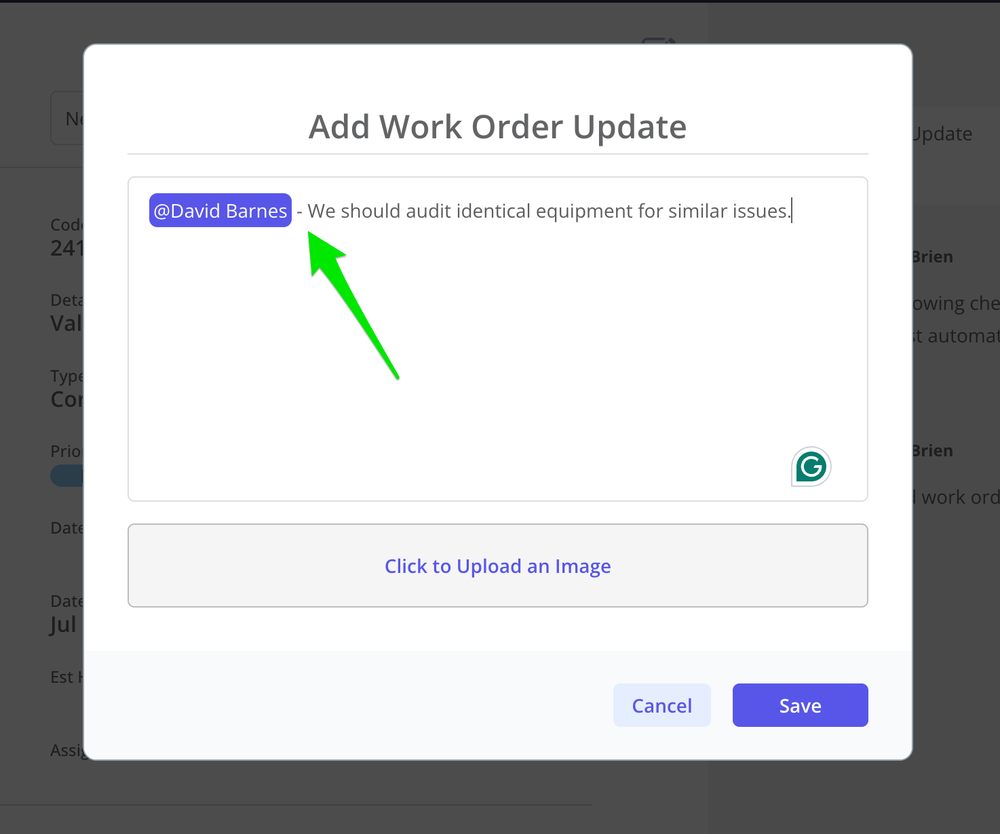
If the WO originated from operations or a requestor, they will be notified as the work order changes status through to Closed Done. If the requester needs additional context, tag them on the work order activity and include specific text for their reference.
They will receive the following email notification with the tagged comments.
11. Quality Review when Closing
A high-quality close-out in Zoidii is less about button clicks and more about complete, structured information. Done right, it speeds future troubleshooting, strengthens planning accuracy, stabilizes inventory, and gives reliability engineering the data it needs to reduce repeat failures.
To ensure completeness, perform a quick quality review to ensure
- Ensure as-found and as-left notes entered
- Are the notes present and understandable?
- Labor, parts, and downtime entered?
- Failure codes present for corrective work?
- Photos/attachments included where useful?
- Follow-ups created for anything deferred?
Mobile workflow tips (faster, better data)
- Start the WO on your phone as soon as you arrive; start time is captured in real time.
- Use voice-to-text for notes, then proofread.
- Take photos in the app so they auto-attach to the correct WO.
- If you’re blocked (no parts/access), set the work order status to “Waiting Parts” or return it to “Assigned” with the reason—don't leave the work order in “In Progress” all day.
Common pitfalls to avoid
- “Fixed” with no cause captured → hurts reliability analysis.
- Parts installed but not issued → inventory drift and missing costs.
- Downtime left blank when production was stopped → underreported impact.
- Long paragraphs of text with no bullets or data → hard to search, hard to learn from.
- Closing without follow-ups for known defects → surprises later.