

1. Purpose
Provide a clear, repeatable process for small and medium sized businesses when creating, triaging, planning, executing, and closing work orders (WOs) in Zoidii so that:
- Safety and asset uptime are prioritized
- Data quality enables reliability analysis and PM optimization
- KPIs (Downtime hours, backlog health, schedule compliance, wrench time, cost accuracy) can be trusted
2. Roles and ownership
- Requester: Reports the problem or need.
- Supervisor/Coordinator: Clarifies scope, materials, skills, and time estimate. Prioritizes and assigns resources.
- Technician: Executes the job and records results.
- Stores/Buyer (as needed): Prepares parts and coordinates vendors.
3. Definitions
- Work Request (WR): Unscreened request submitted by users.
- Work Order (WO): Approved and planned job with a unique ID and status lifecycle.
- Priority (P#): Defines urgency.
4. Prerequisites (System & Data)
- Asset registry with a hierarchy (Site > Area > Line > Asset) and asset criticality levels.
- Solid asset naming convention that helps quickly identify assets
- Standard status model configured in Zoidii
- Standardized defaults: maintenance type, failure codes, downtime reason, teams, or shifts.
- Parts catalog with part-asset relationships configured through Attributes; min/max levels.
5. Simplified End-to-End Process
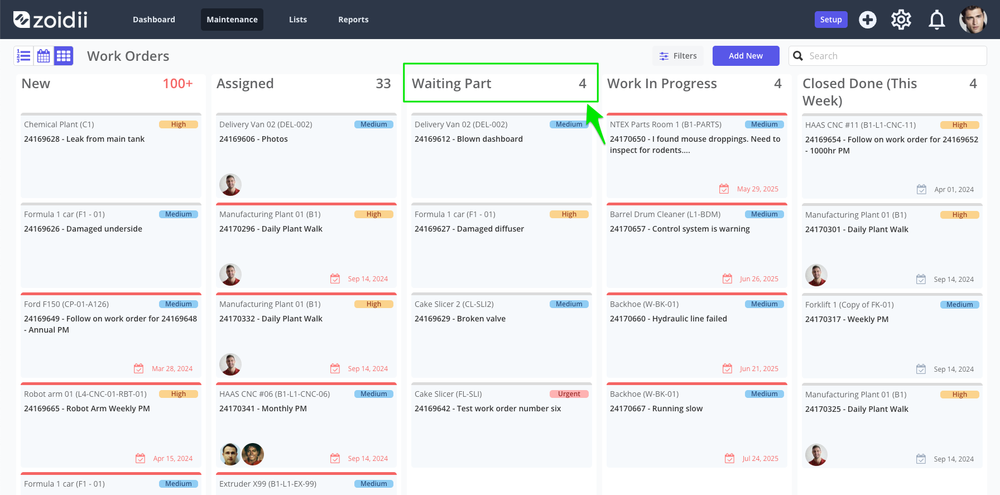
Simple work order flow: Request → Triage & Assign → Execute → Close
Suggestion: add a "waiting part" work order status to park work orders you cannot address due to inventory shortages.
6. Intake: start with a good work request
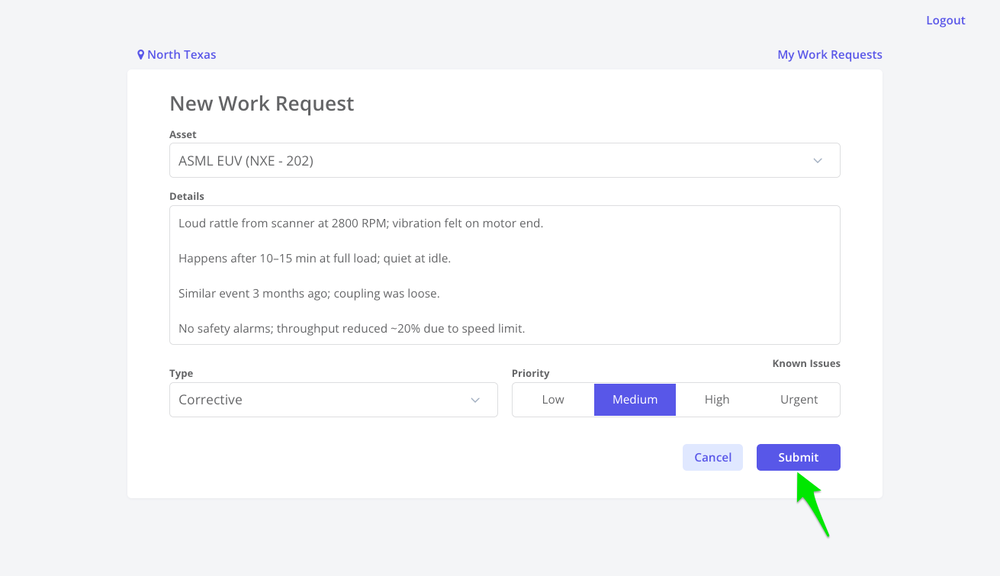
Capture only the essentials so nothing important is missing:
- Asset/equipment and location
- Symptom/issue (avoid diagnosing in the request)
- Type of work (breakdown, safety, clean etc)
- Operational impact & urgency (safety, production, compliance)
- Photos/attachments if helpful
Don’t: Write “ASAP/urgent” without impact details.
For more information, see the best practices for creating a work request in Zoidii.
7. Triage & Assign
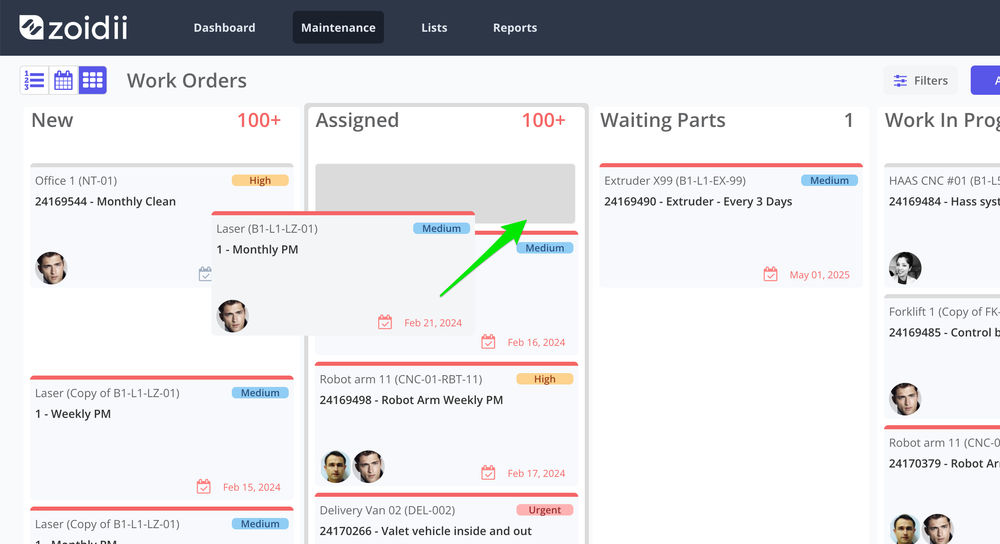
For approved requests, the maintenance supervisor/coordinator prepares the work order:
Work Order Details Tab
- Work Order Details / Scope: What’s in/out; attach procedures or job steps
- Assign Resources: Skills, estimated labor hours, tools
- Priority: Review/adjust Priority Use a simple, shared scale (e.g., P1–P4) based on risk & impact:
- P1 – Critical: Safety or major production stop
- P2 – High: Significant degradation or regulatory risk
- P3 – Medium: Normal corrective work
- P4 – Low/Planned: Minor or improvement tasks
- Time window: Add estimated duration and due by date
- Checks: Add forms/checklists to standardize quality
- Safety & permits: Add Lockout/tagout, PPE, isolations checklists
- Parts & materials: Add parts to the work order parts tab if known
8. Execute with discipline
Technicians should:
- Review the WO, hazards, and checklist before starting.
- Record start/stop times, labor, and parts used.
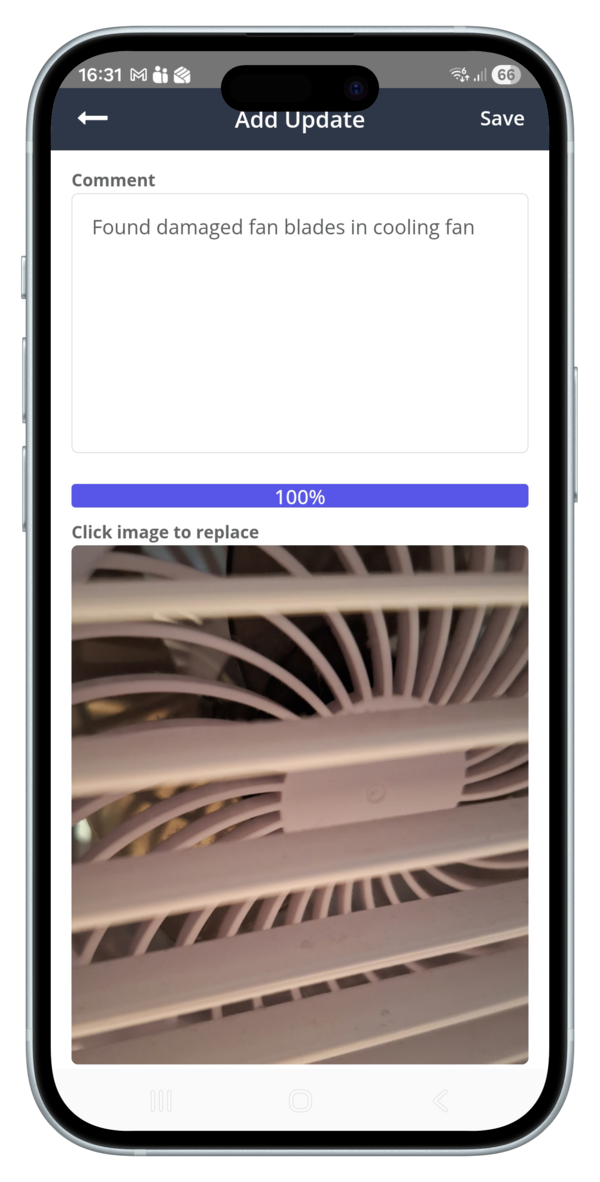
- Capture notes, photos, readings, and downtime (if any).
- Use failure/cause codes where applicable.
- Flag anything that needs a follow‑up WO.
9. Closeout & quality
Before closing, ensure the WO has:
- Actual labor hours and parts consumed
- Completion notes and test results
- Root cause/failure code (when known)
- Attachments (photos, permits, as‑found/as‑left)
- Follow‑ups created (e.g., condition recheck, PM change)
10. Continuous improvement & reporting
Review weekly:
- Backlog health: age and weeks of backlog by priority
- Schedule compliance: planned vs. completed
- On‑time completion and response time by priority
- Recurring failures by asset/class and top downtime drivers
- MTTR/MTBF (where data supports it)
- Convert repeated corrective work into PM/inspection tasks.
- Update checklists and standard jobs after RCAs.
- Tidy old or duplicate work orders; keep data clean.