Background
System administrators can delete assets in the asset list section of the CMMS. As assets have related history in the database, they are soft deleted and can be recovered. In effect, Zoidii simply turns off and hides the asset. It is no longer available to select when creating new work orders. However, it can still be seen in historical work orders.
Procedure
1. Navigate to the asset list screen by clicking Assets in the Lists main menu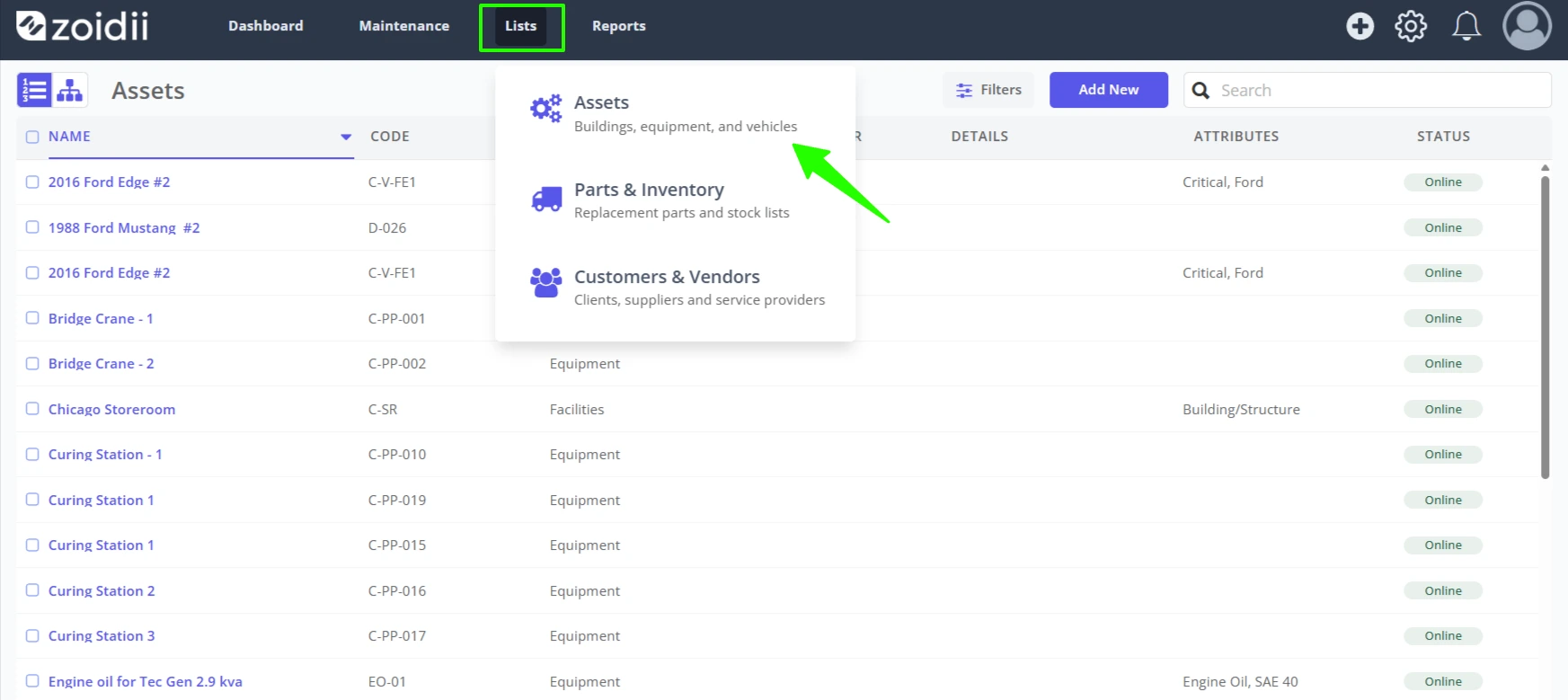
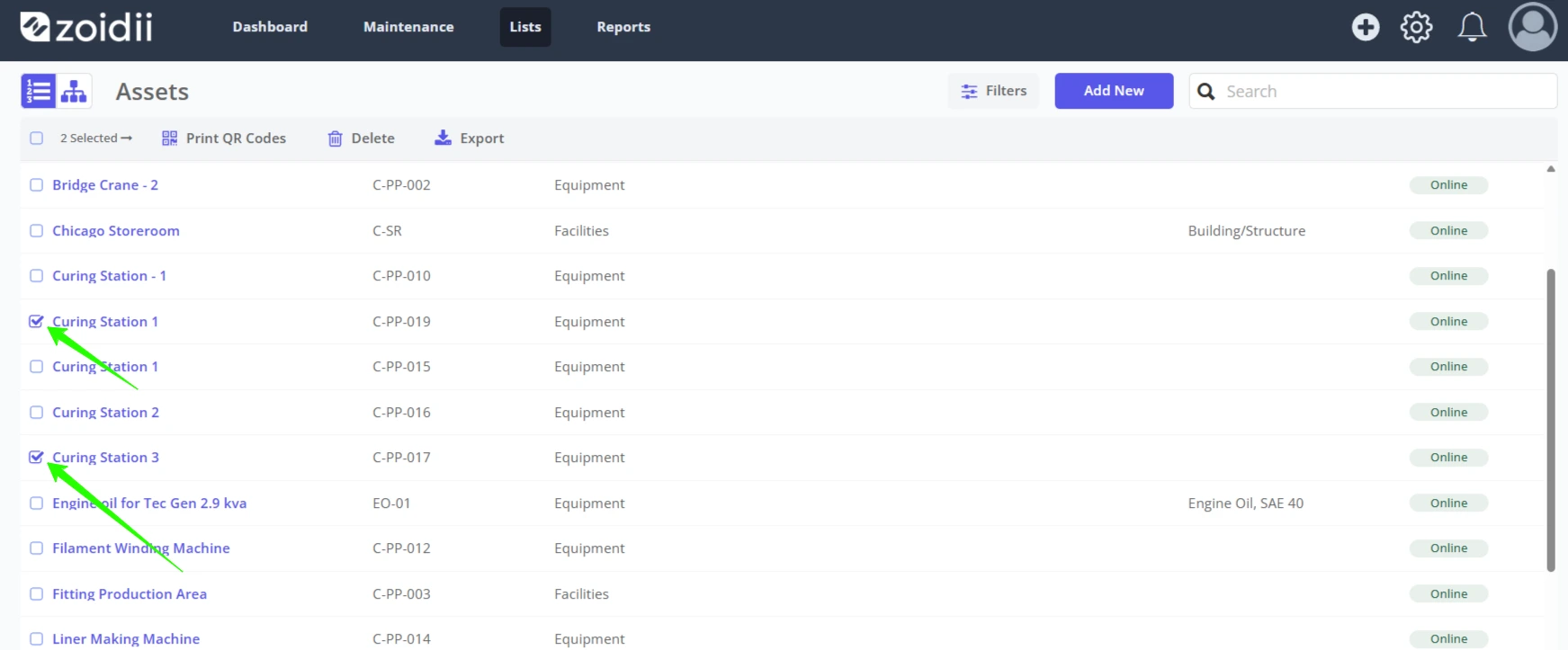
2. Check the checkboxes for the asset or assets to be deleted
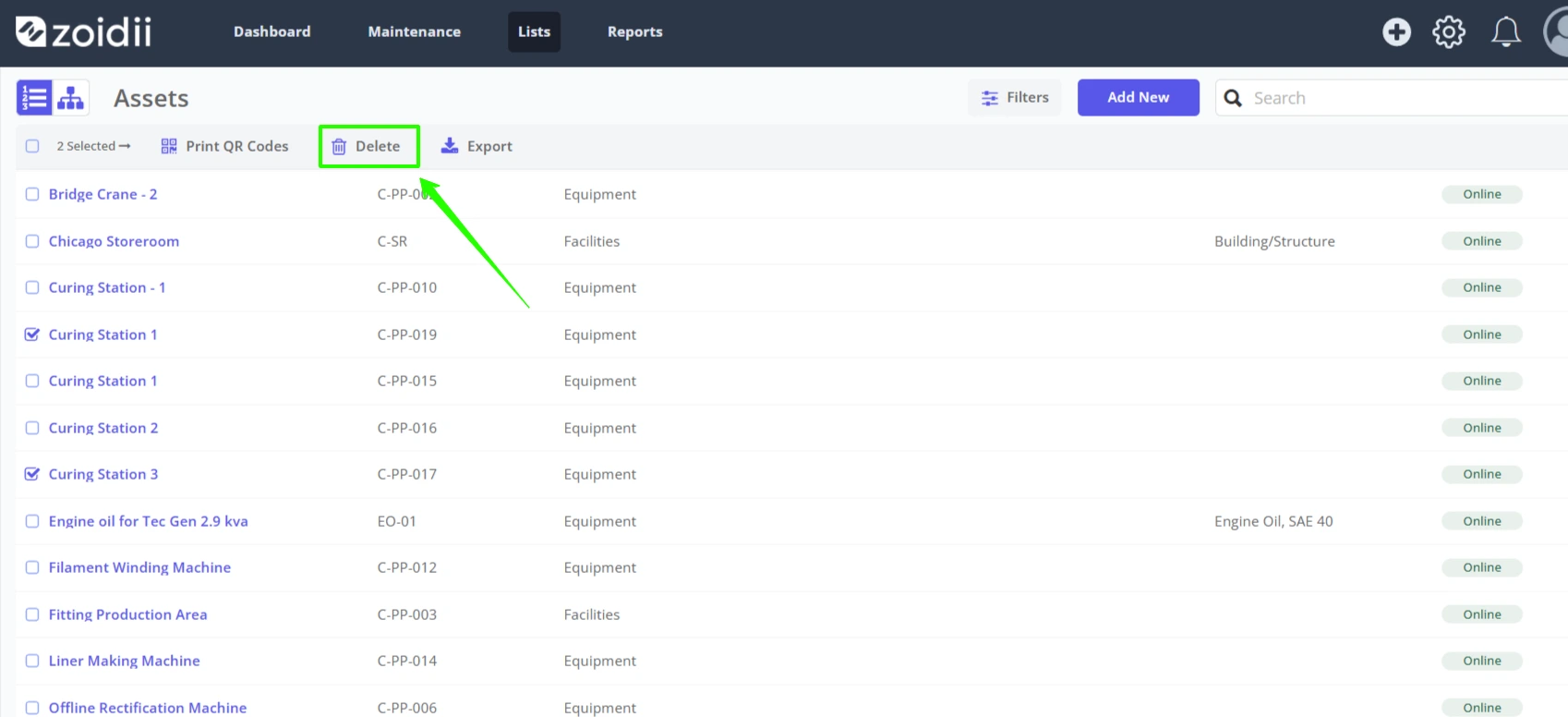
3. Click Delete
4. Confirm the delete action by clicking the red Delete button
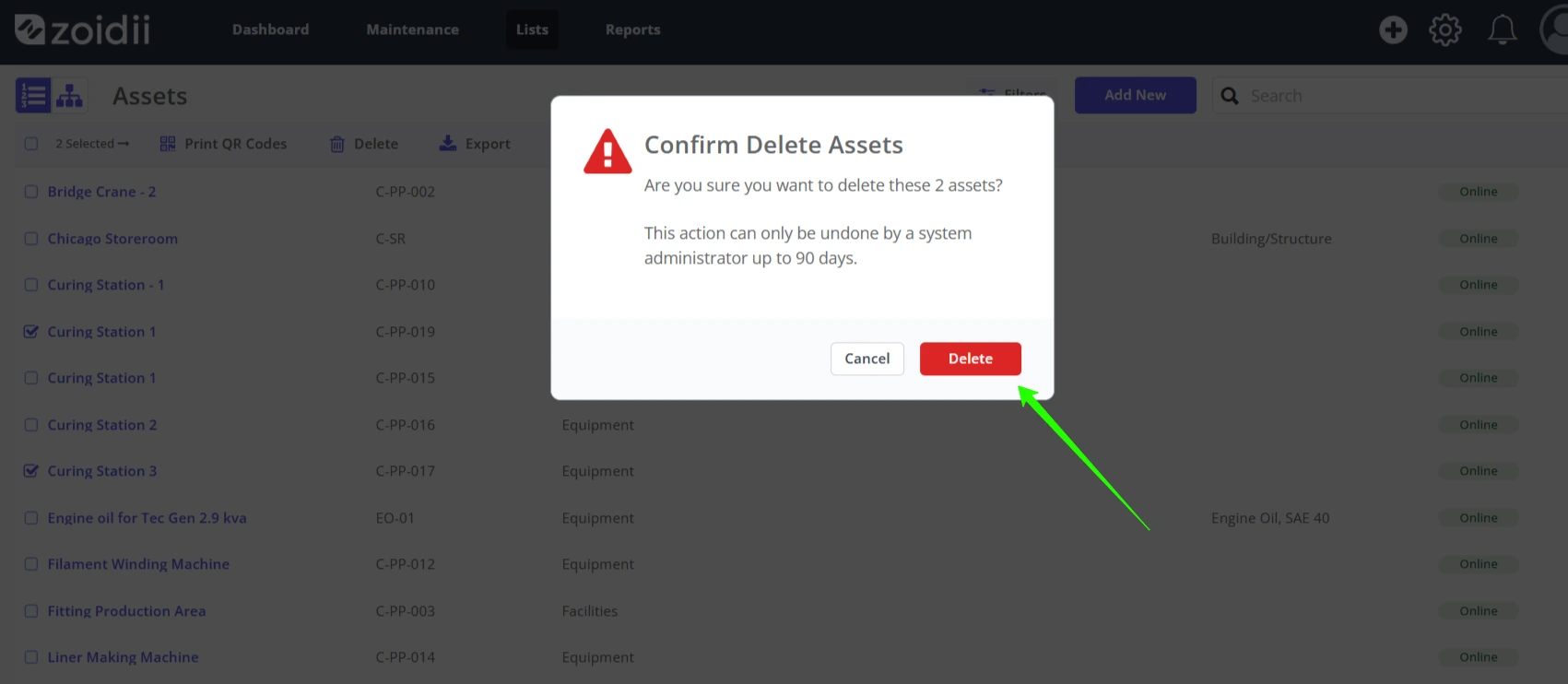
5. The assets are now soft deleted in the system. They are not available to view on the asset lists.
6. To view, or recover the deleted assets, open the filters on the asset list screen and set the Is Deleted filter to Deleted
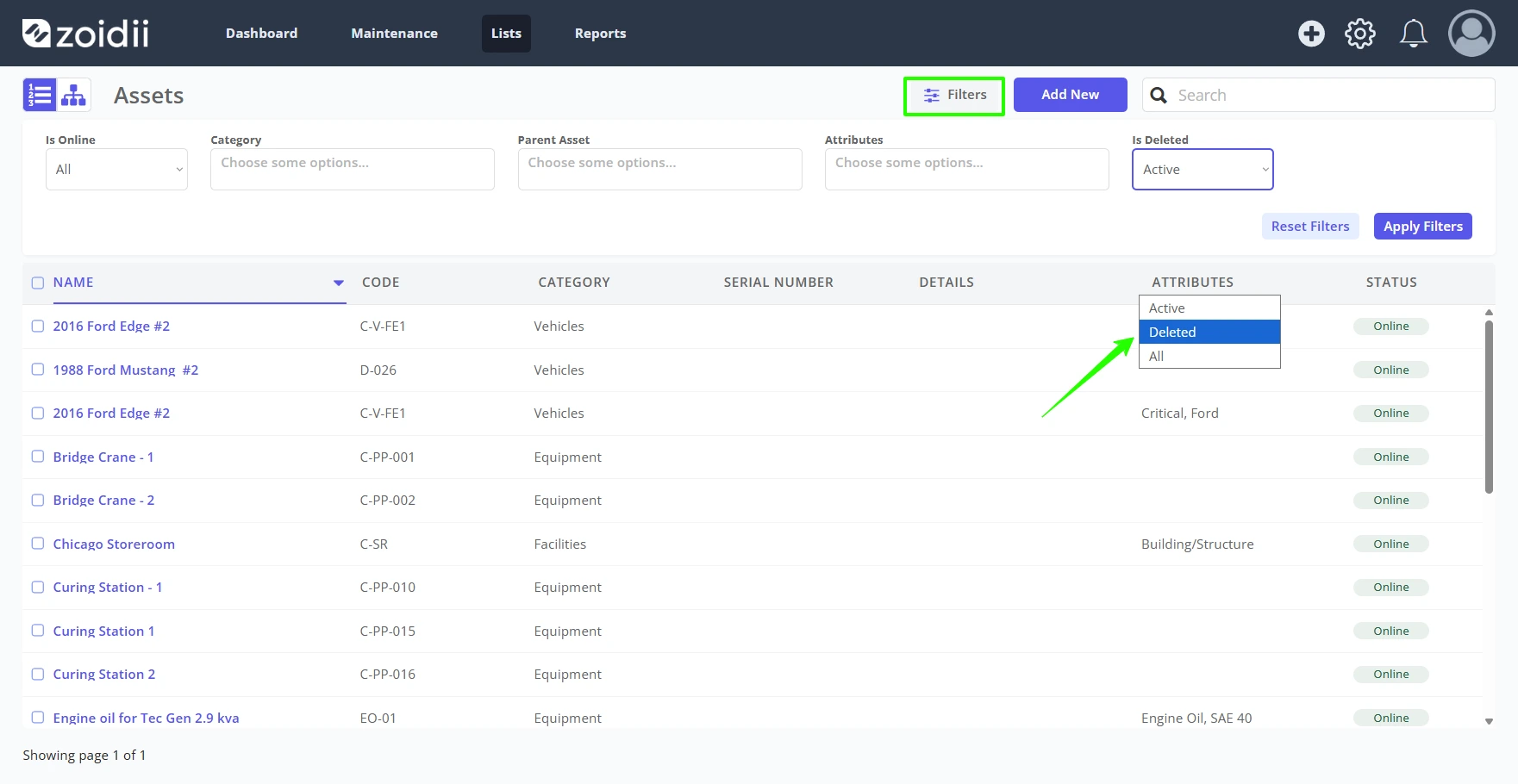
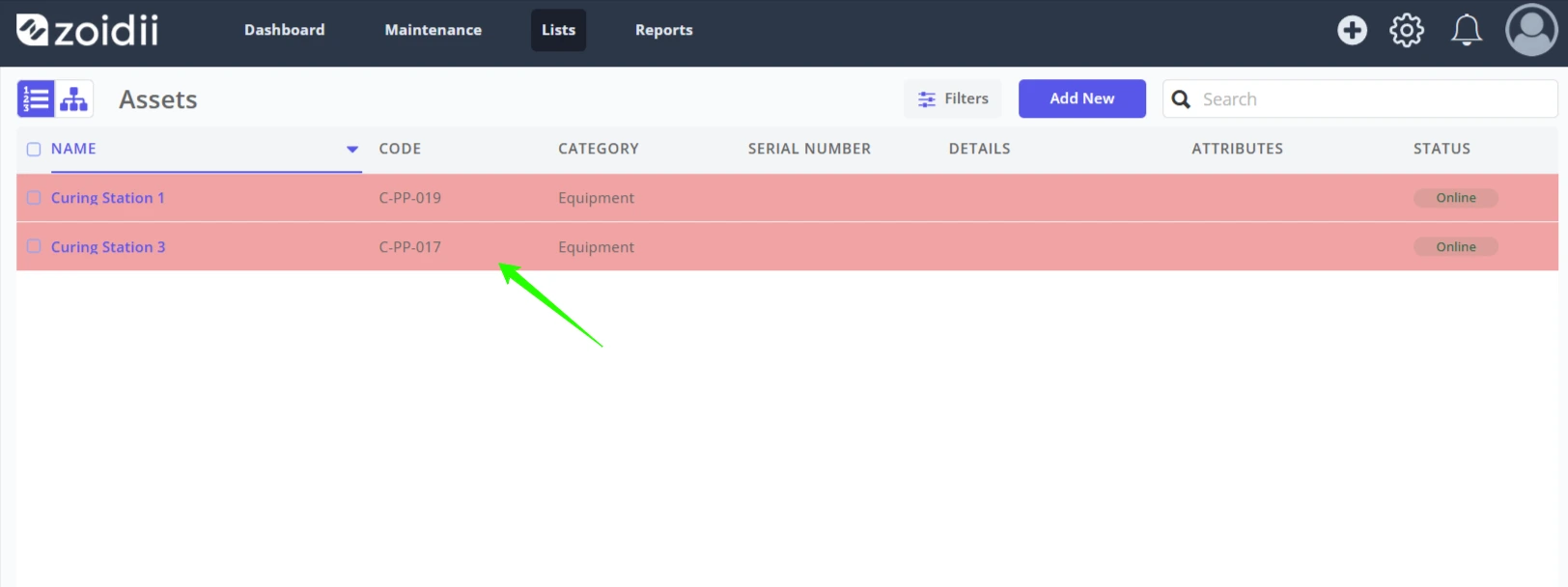
7. The deleted assets are visible in the asset list. They are marked red as they are deleted.