

Background
Each list page features a search box on the top right hand side. The search box can be used in conjunction with the page filters to find records of interest. The following FAQ article outlines the record fields searched by the system when looking for a match.
In addition, note that the Zoidii search function is incremental search meaning the more you type, the better the result. Just like searching on Google. The search is also looking for a 90% match.
Asset Page
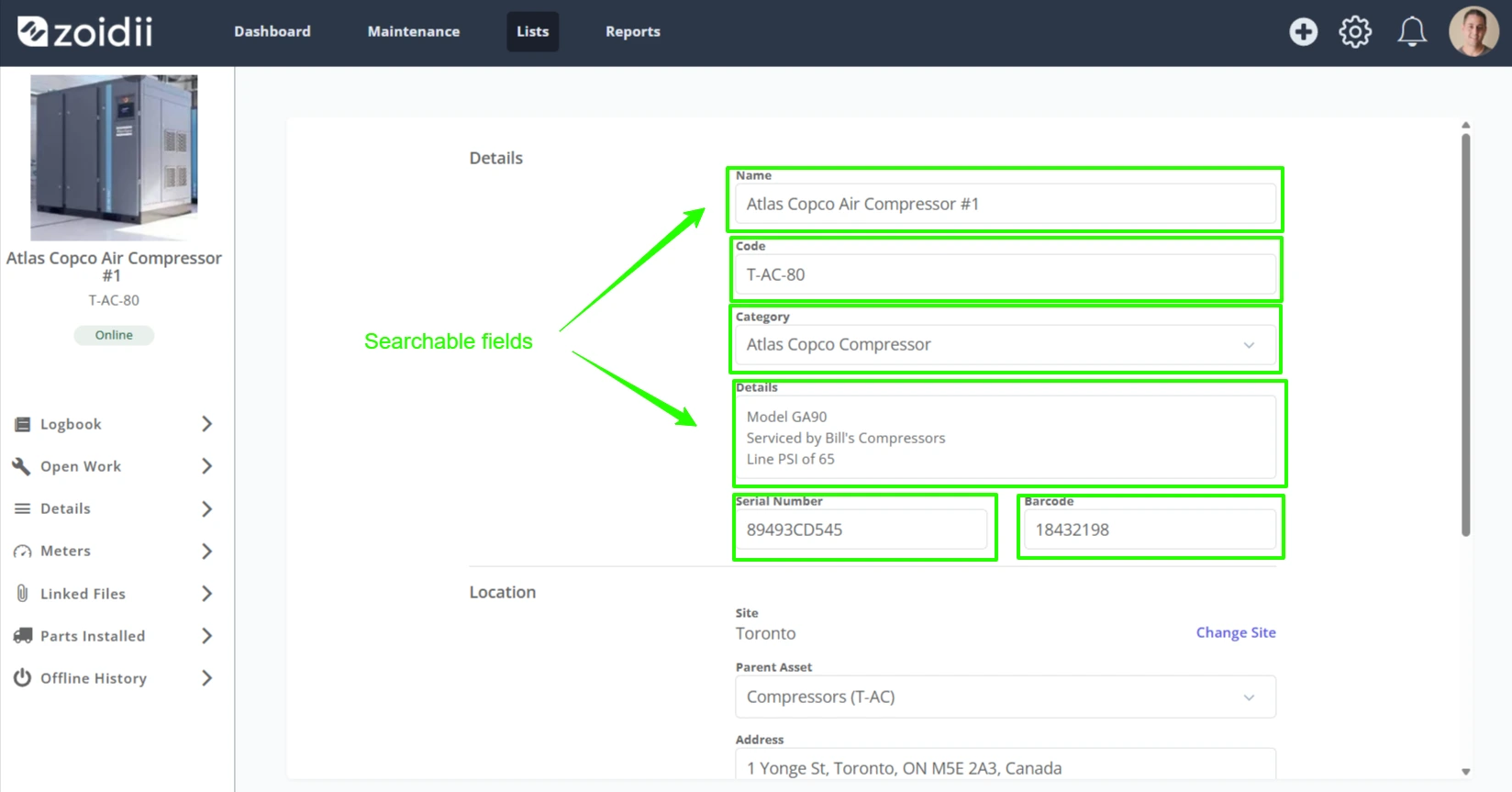
1. Asset record fields - asset name, asset code, asset description, serial number, barcode
2. Asset Category record fields - asset category Name
For example, let's say we have an air compressor as follows:
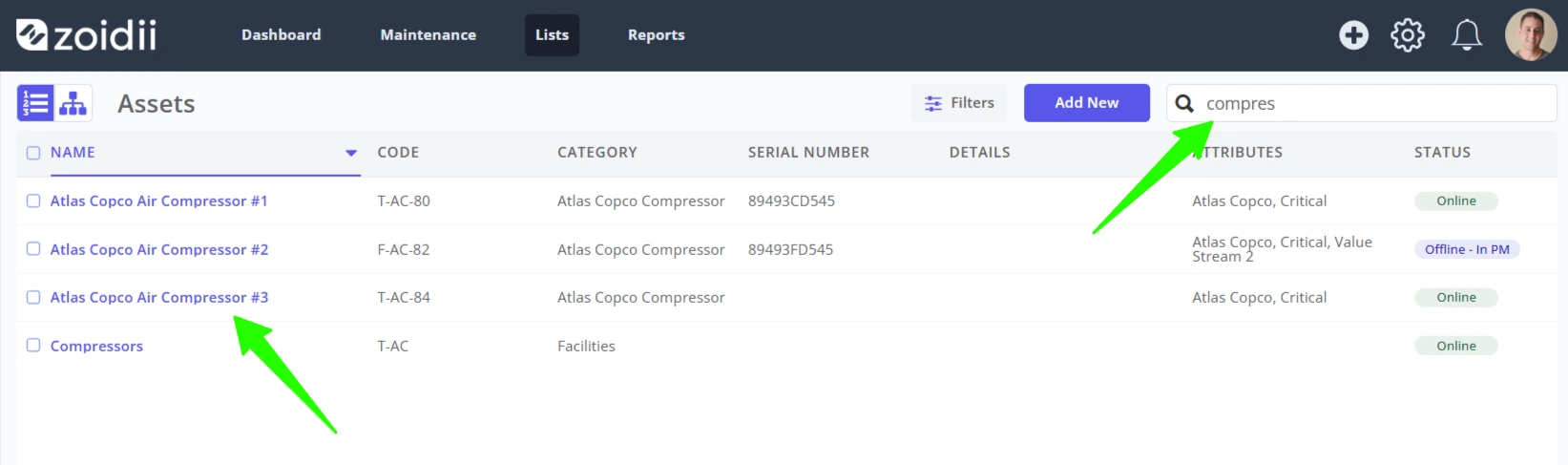
If we type in "compres", it will search all those asset or asset category record fields for a match. In this case, we have found 4 assets:
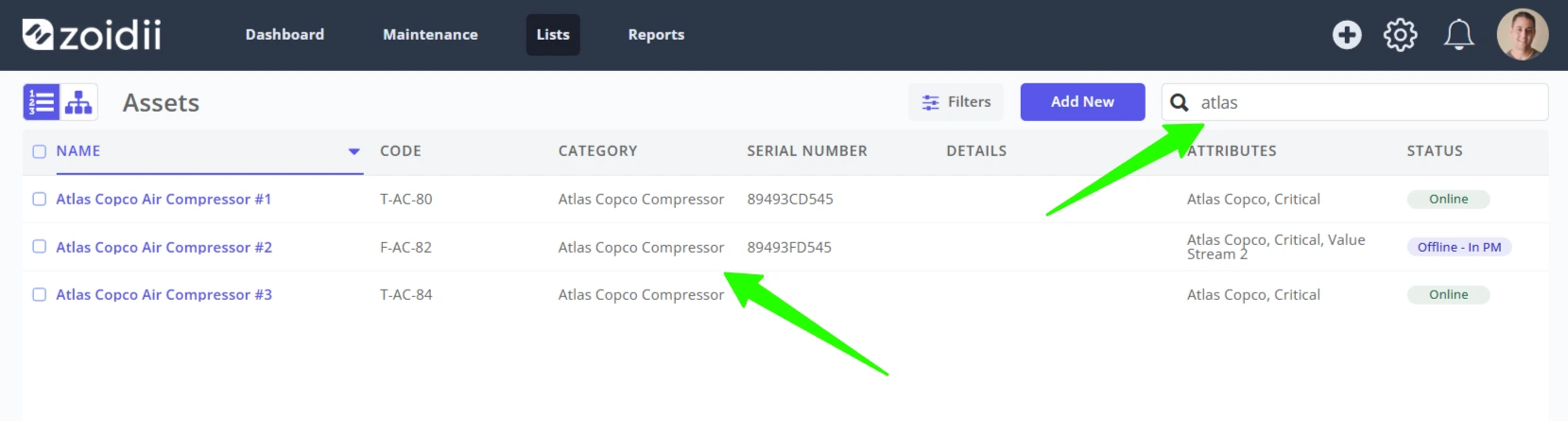
Similarly, when we search for "atlas", it finds an asset category name called Atlas Copco Compressor and lists all those assets in that category:
Work Orders Page
1. Work order record fields - description, code, completed by users, assigned users
2. Asset record fields - asset name, code, description, serial number, barcode
Planned Maintenance Page
1. PM record fields - PM description
2. Asset record fields - asset name, code, description, serial number, barcode
Checklists Page
1. Checklist record fields - checklist name
Parts Page
1. Part record fields - part description, part number, barcode
Users Page
1. User record fields - full name, email, username, phone number, title.