

Background
Guest users are inactive and not assigned to any sites. They do not have a user password either.
The situation may arise when a guest user needs to be upgraded to a full access user in the system. It is not possible to create two accounts with the same email address, so their guest account must be upgraded to an active account.
Procedure
1. Navigate to the Settings menu and click Users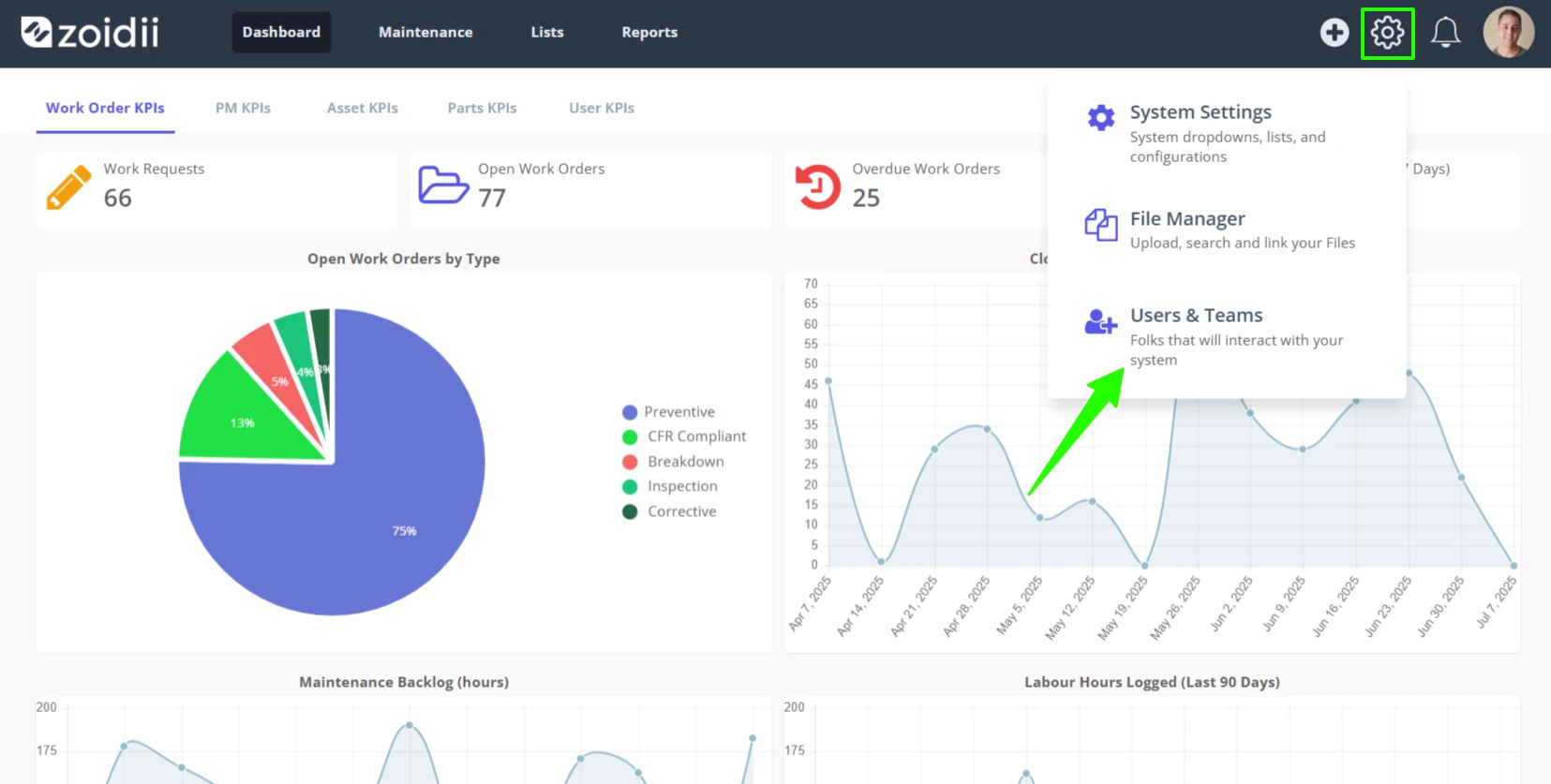
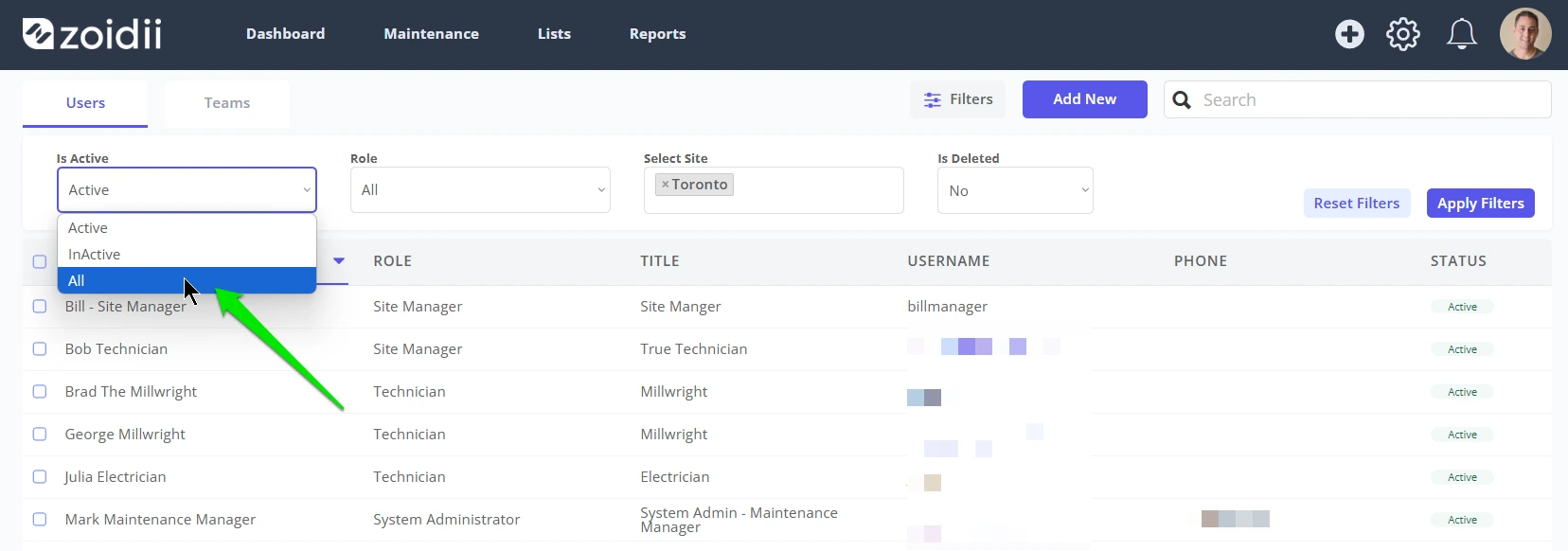
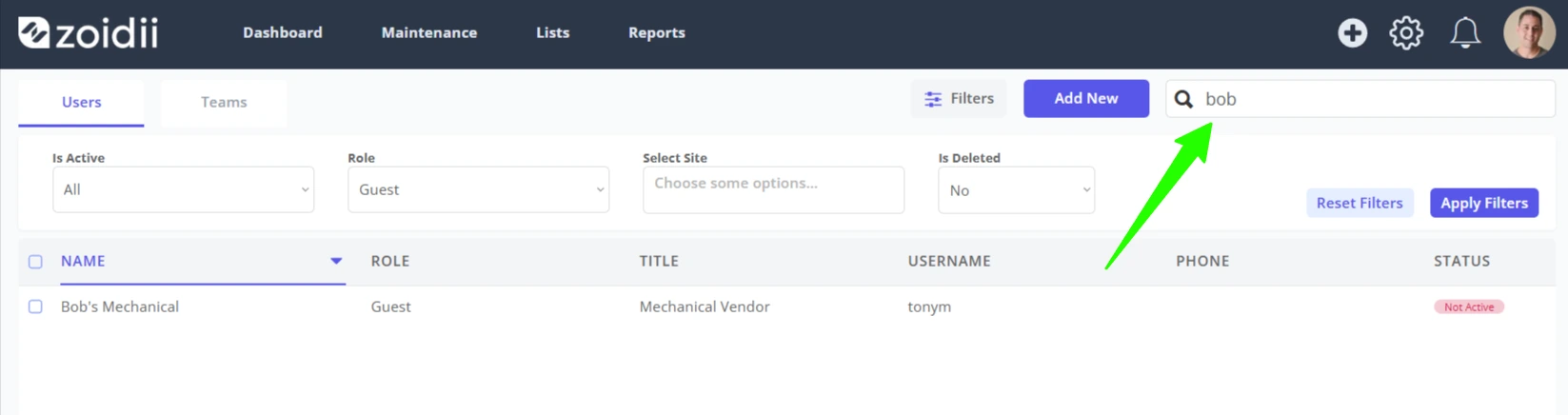
2. Open the user filters and toggle the Is Active filter to All
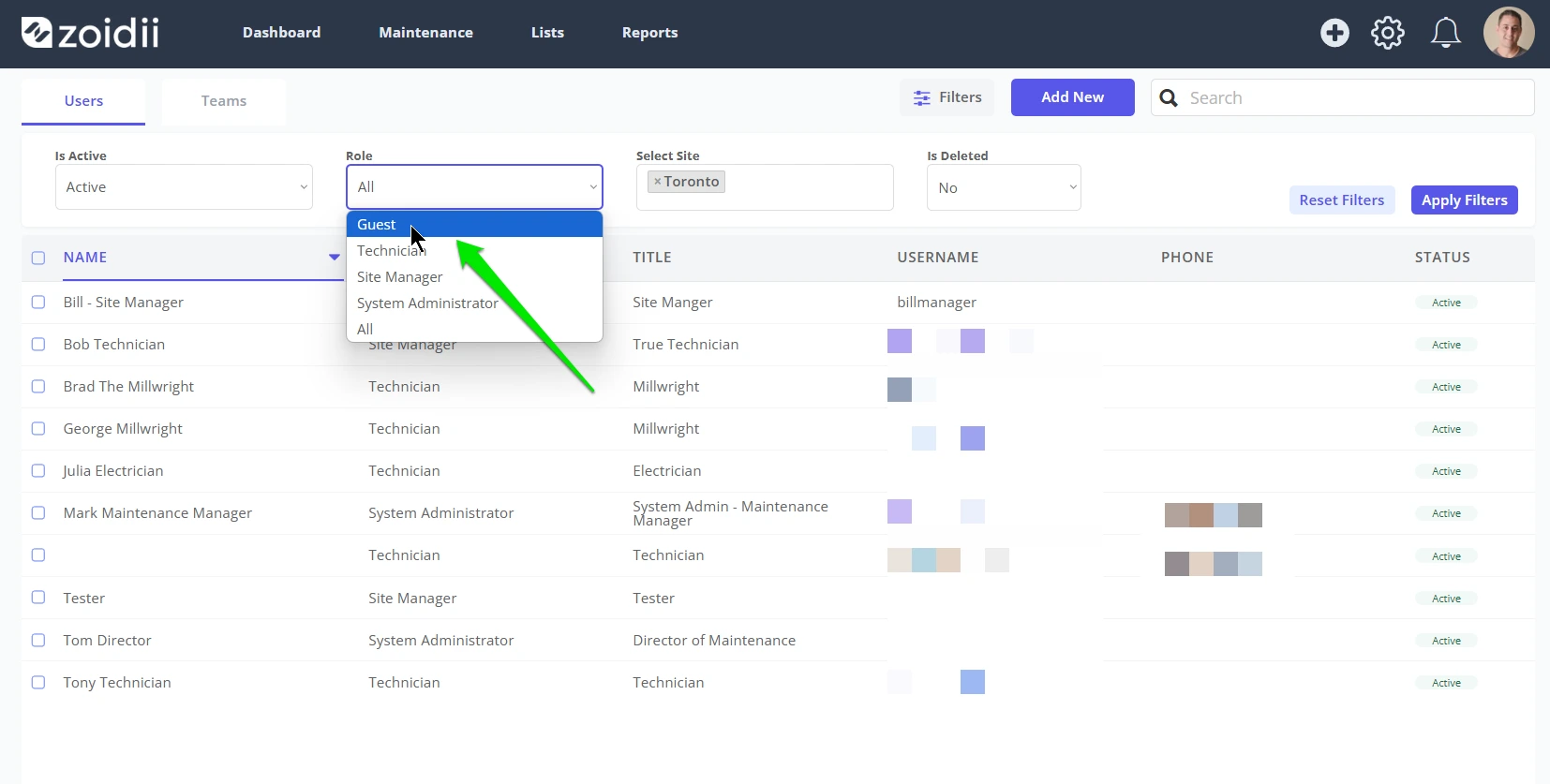
3. Toggle the Role filter to Guest
4. Uncheck all sites in the Site filter
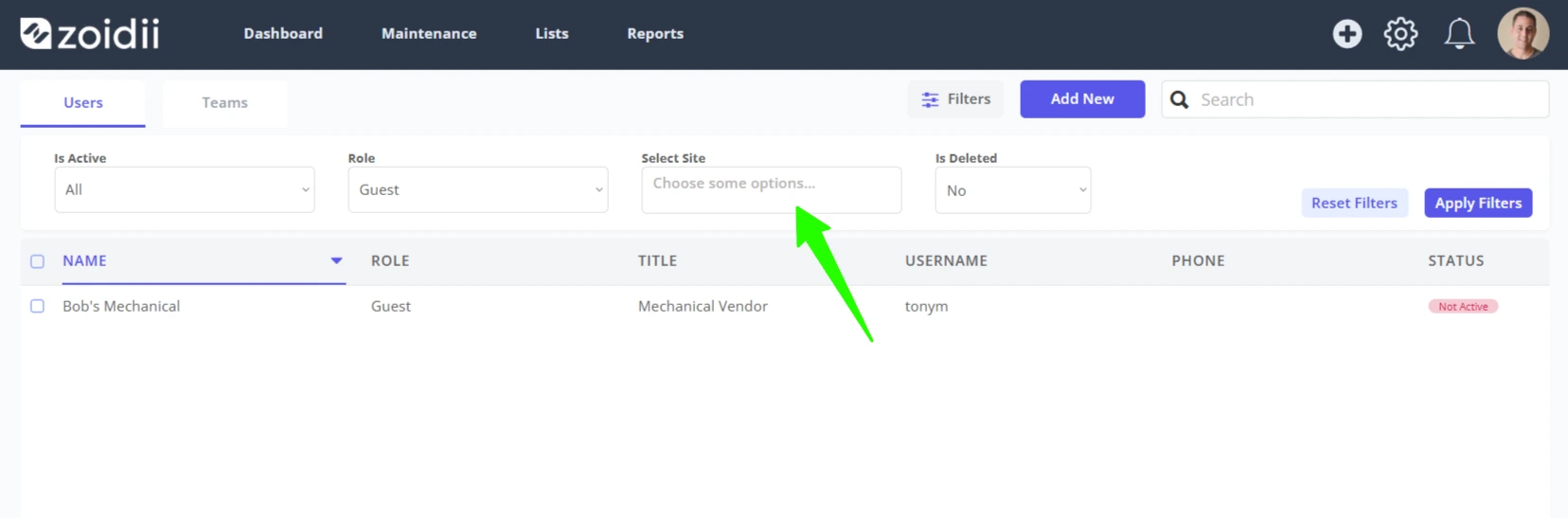
5. Use the search if needed to find the guest user quickly
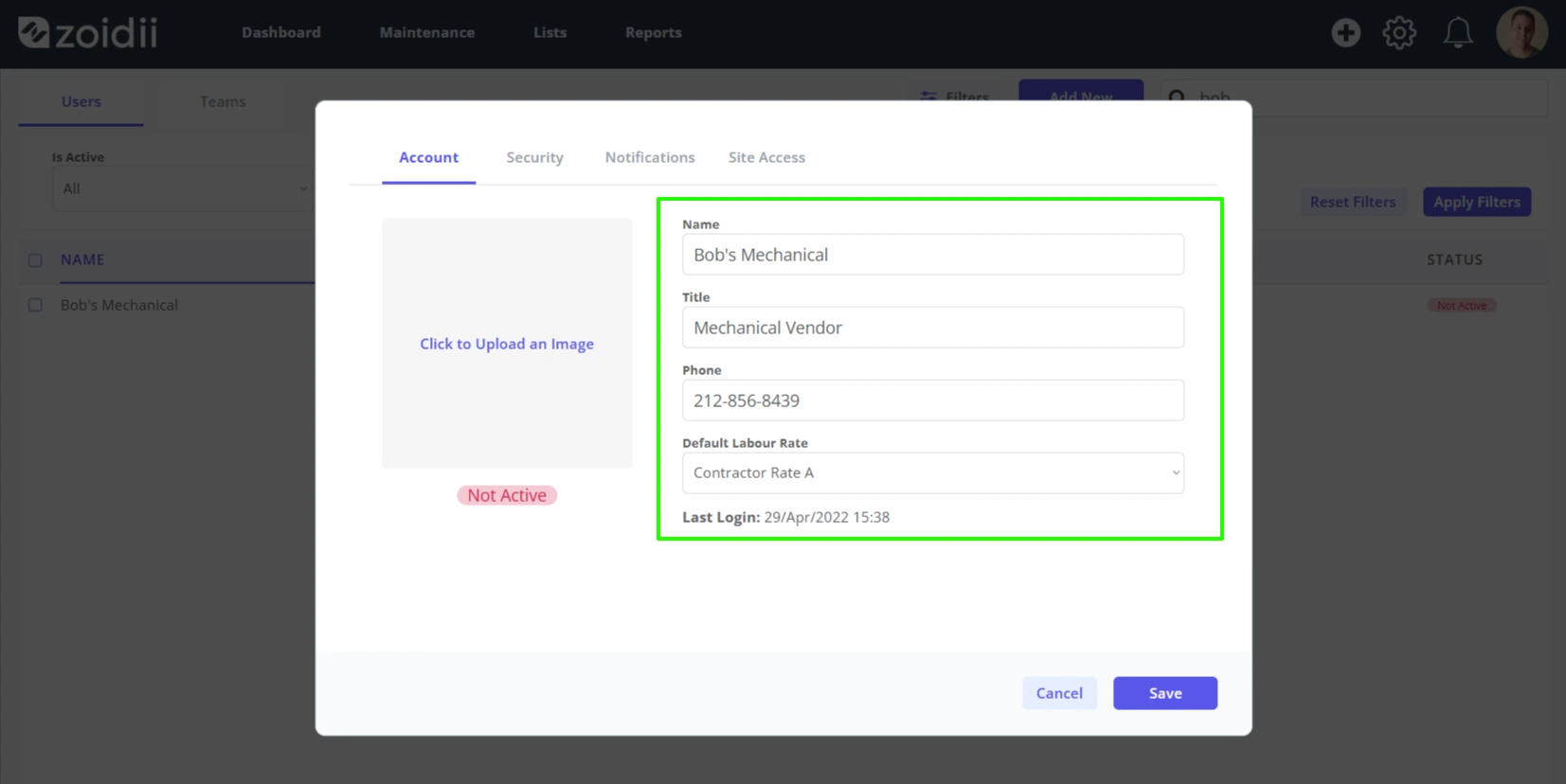
6. In the Account tab, fill in the details such as title, phone, default image, and default labour rate
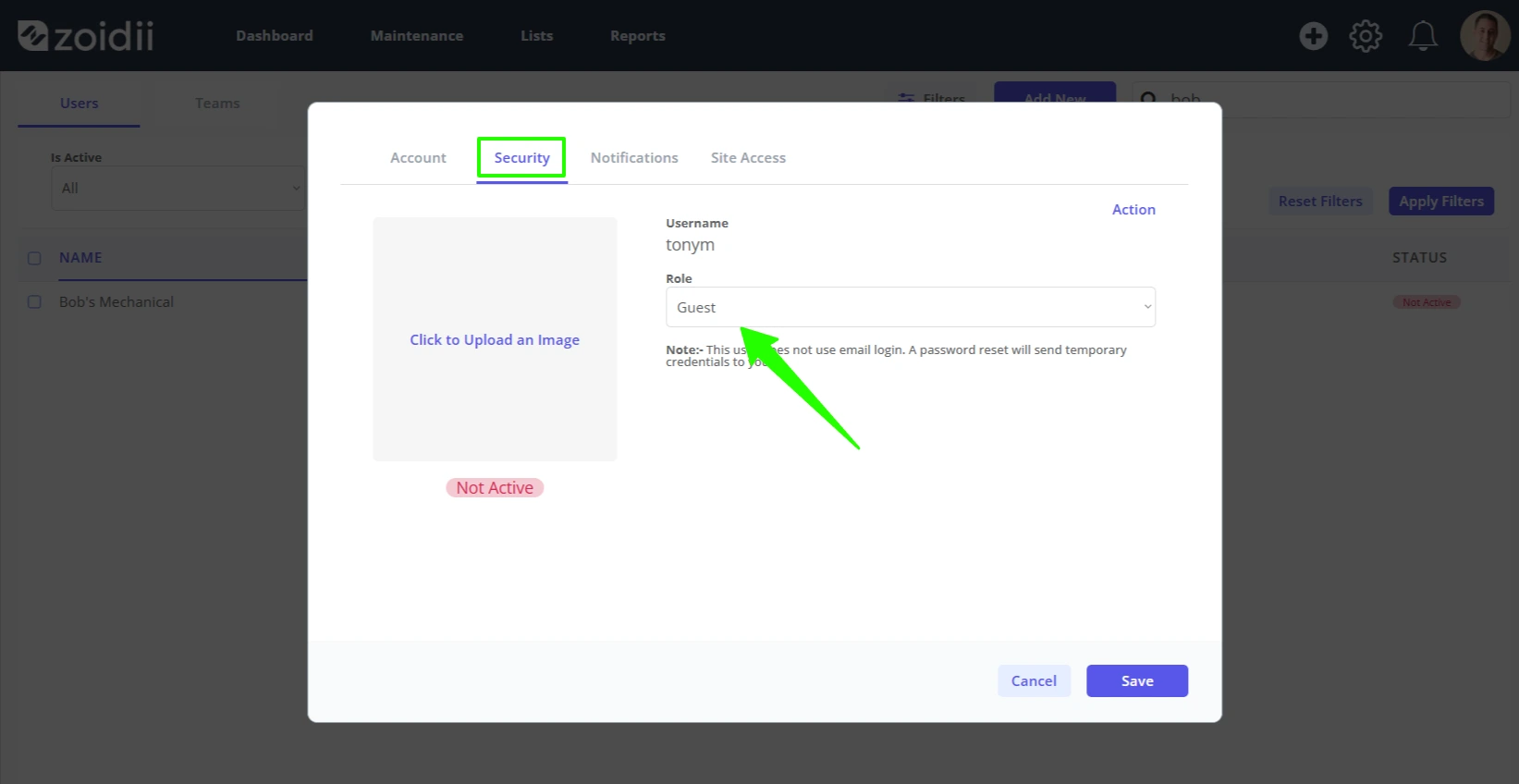
7. Open the Security Tab
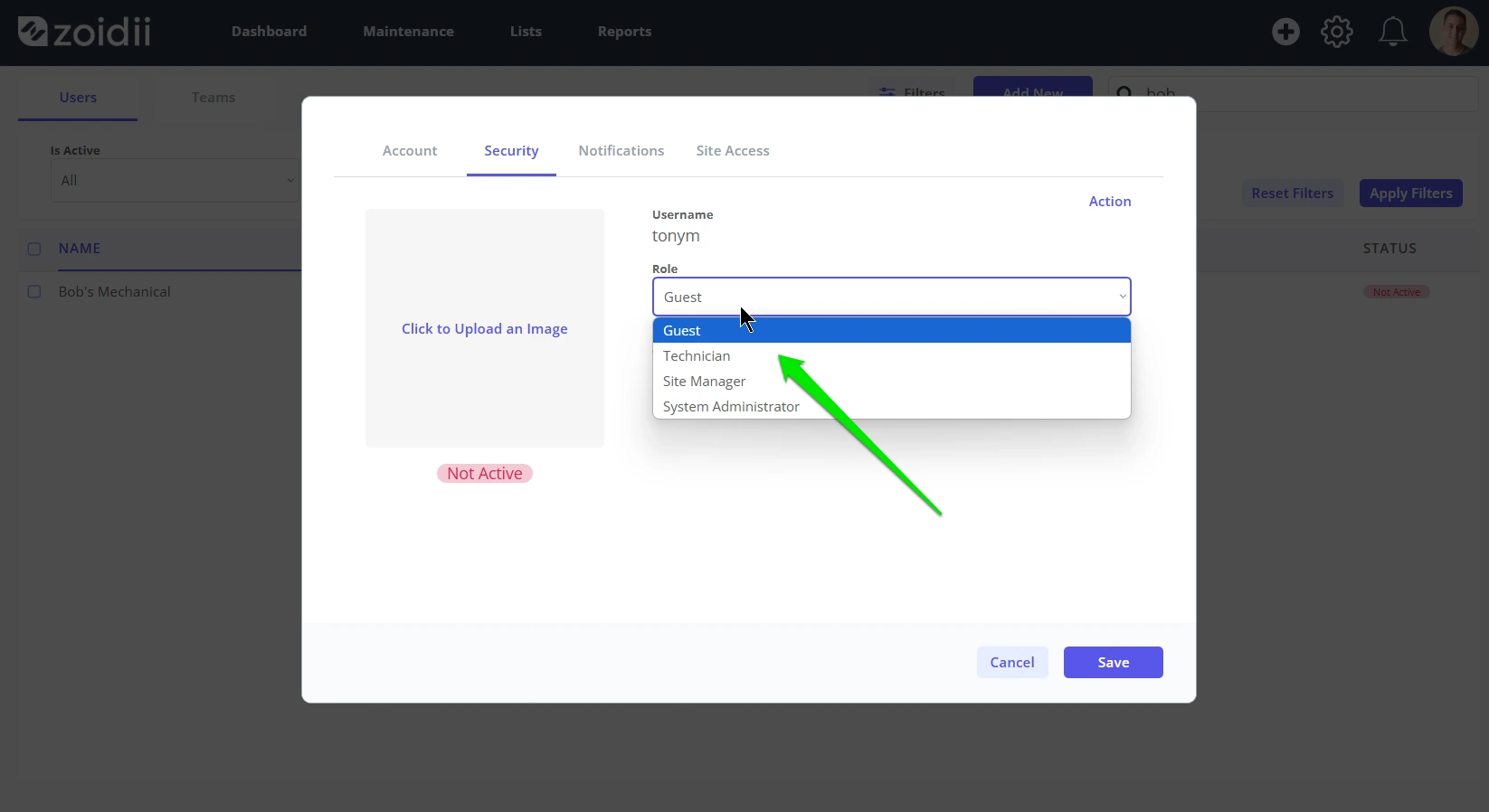
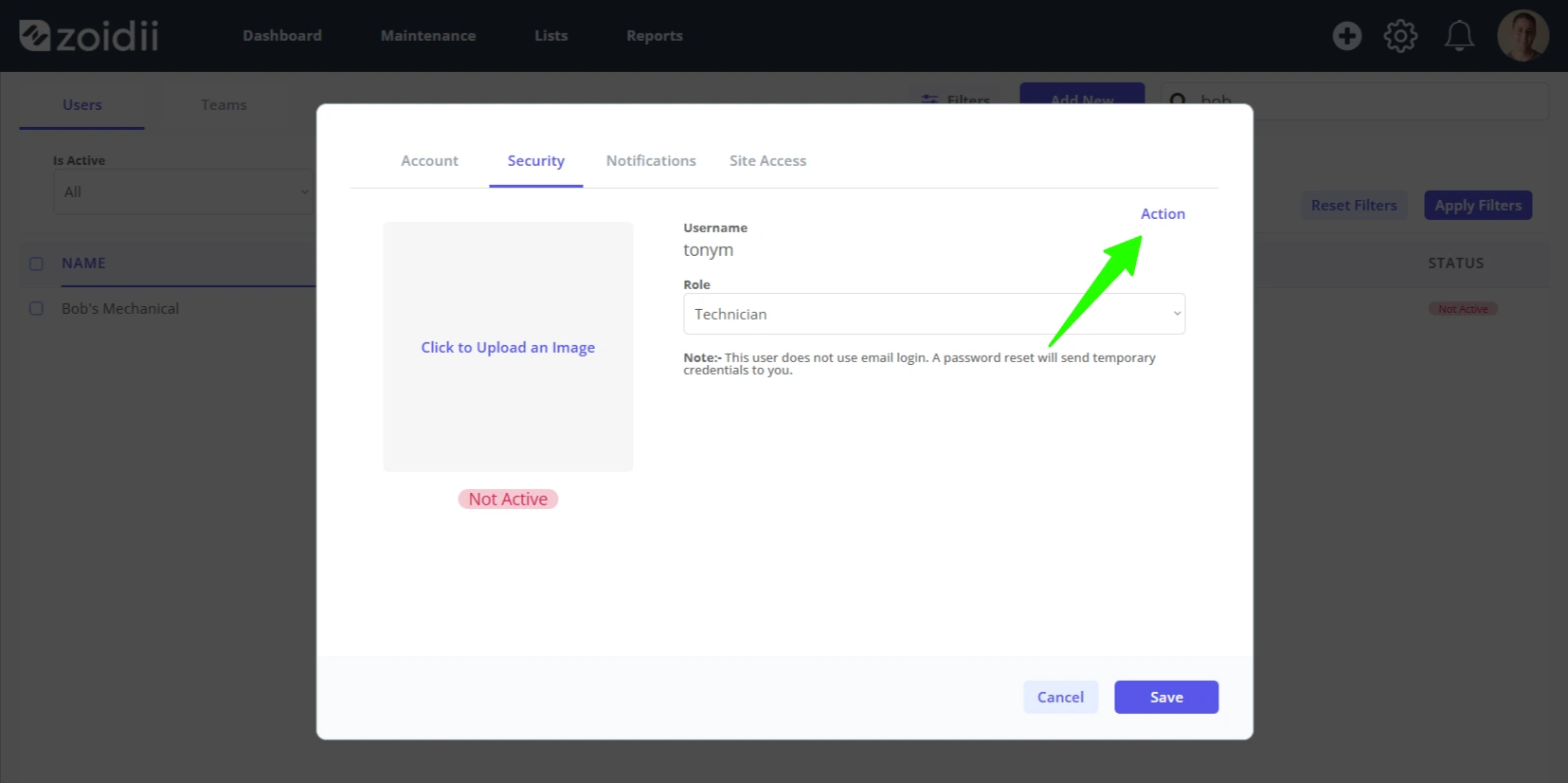
8. Upgrade the user role to an active role - Technician, Site Manager, or System Administrator
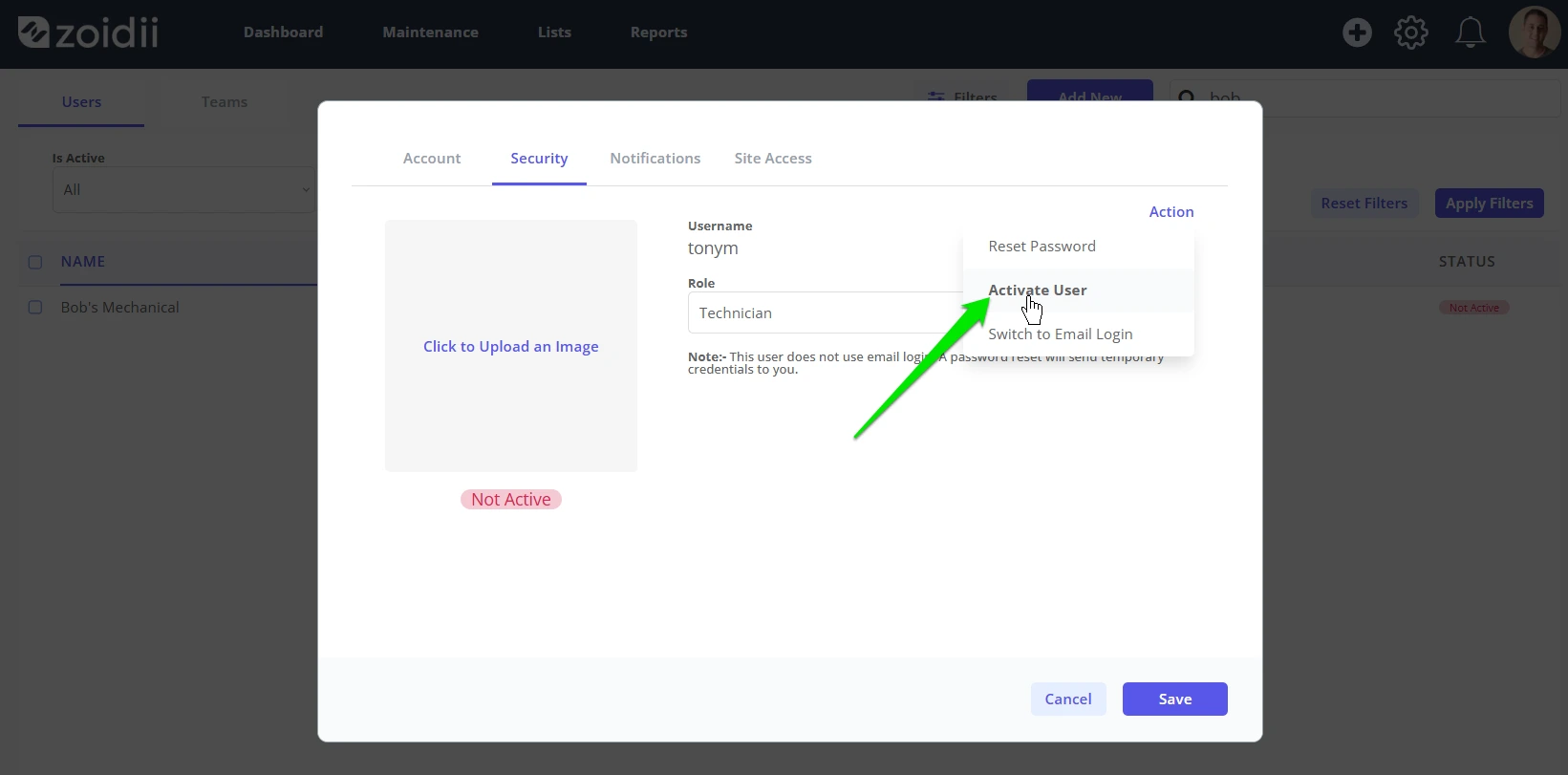
9. Activate the user by clicking Action
10. Select Activate User from the dropdown
11. Navigate to the Site Access tab
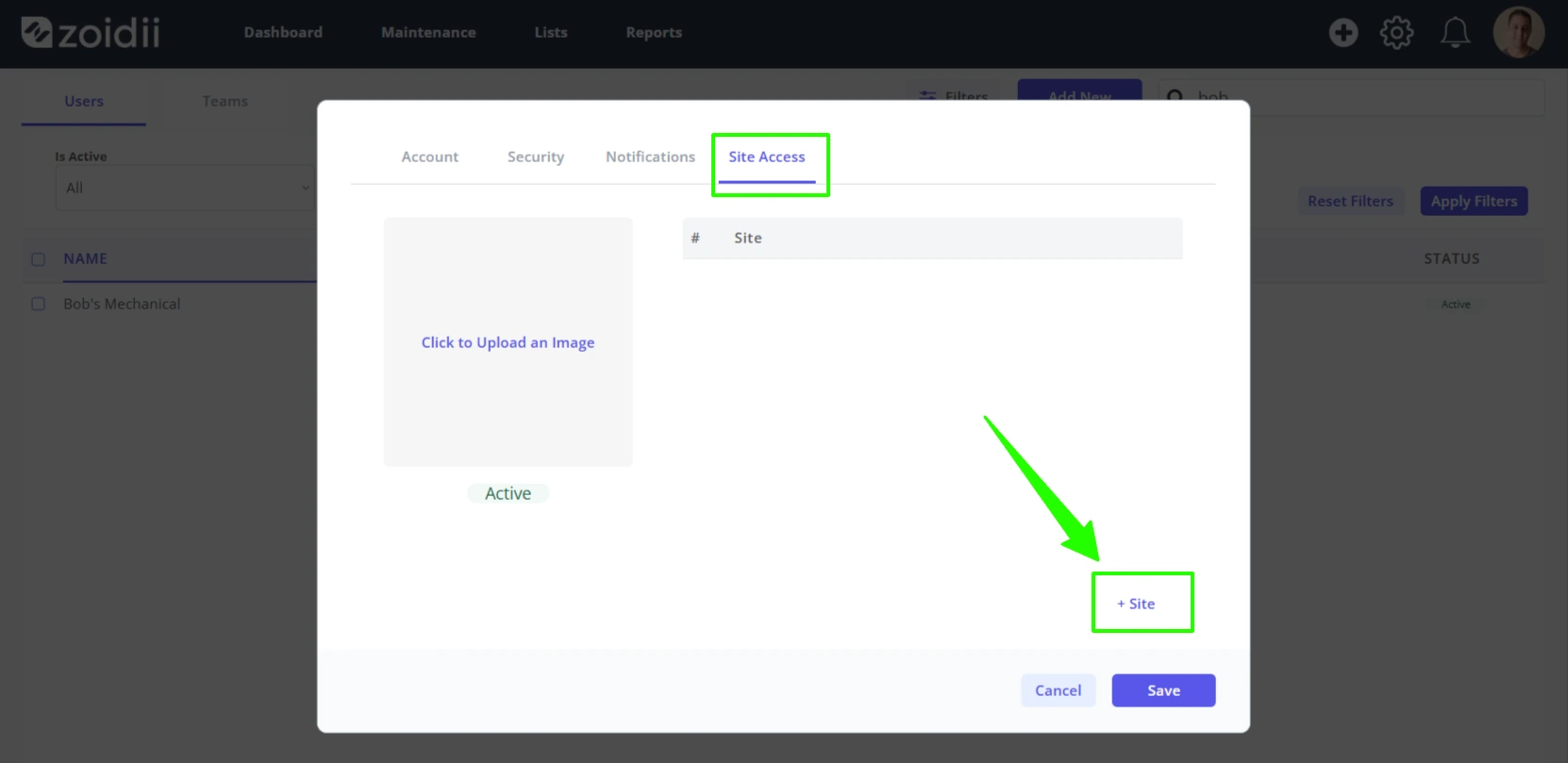
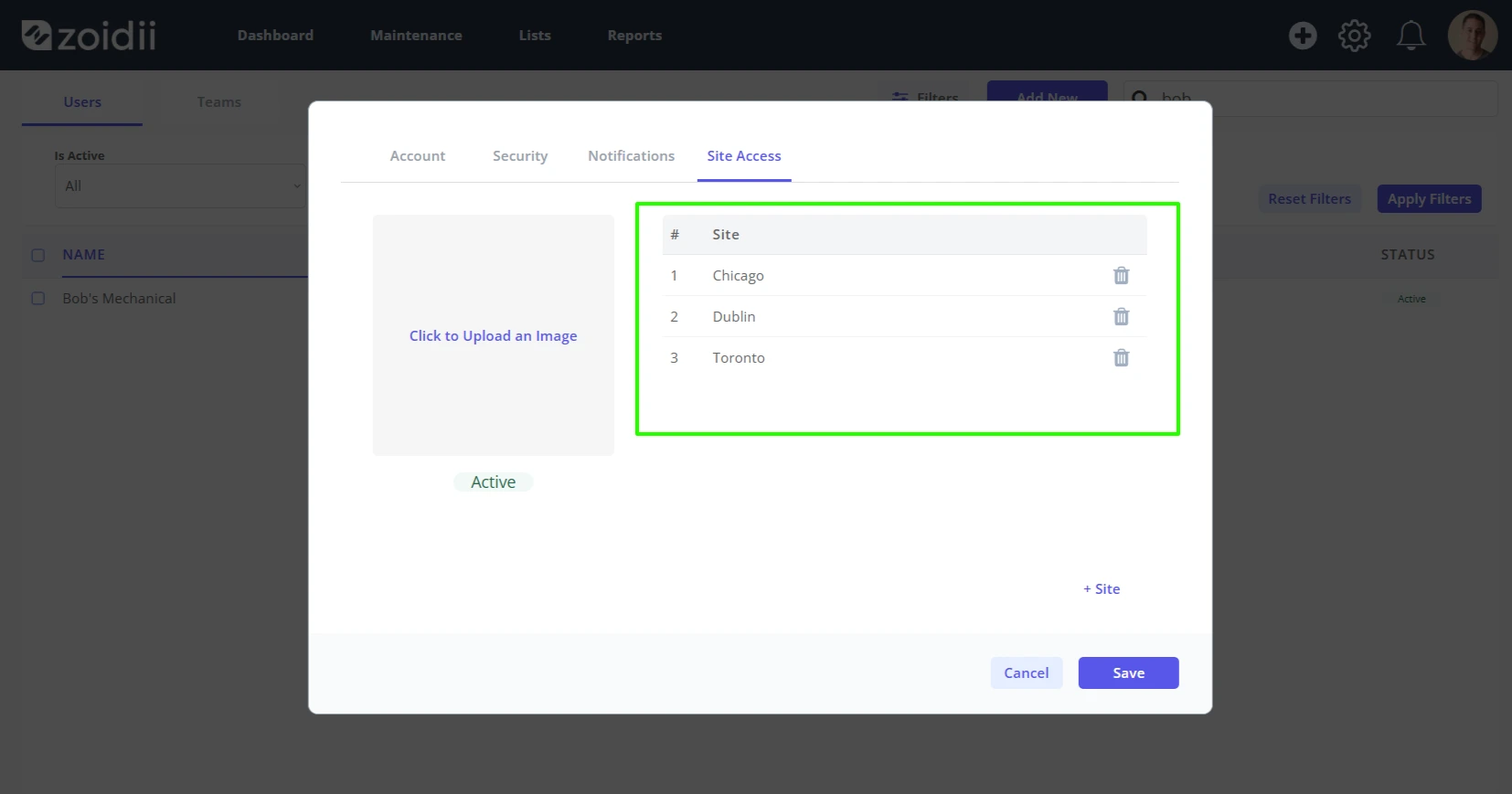
12. Click Add Site to add the user to sites. Repeat this step until the user is added to all the sites they need access to
13. The user needs a password. Navigate back to the security tab and click Action -> Forget Password
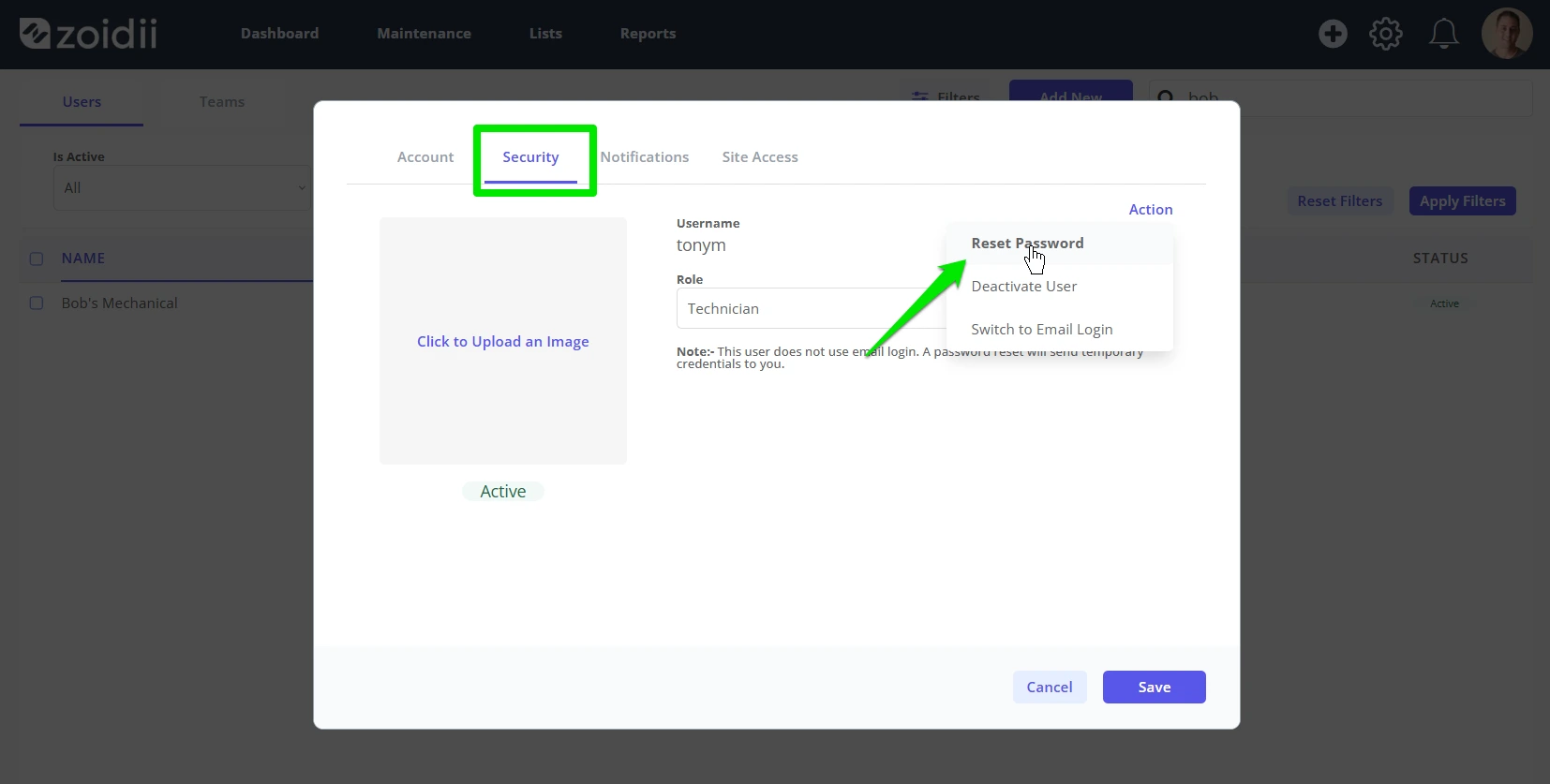
14. The user will receive a link to create a new password.