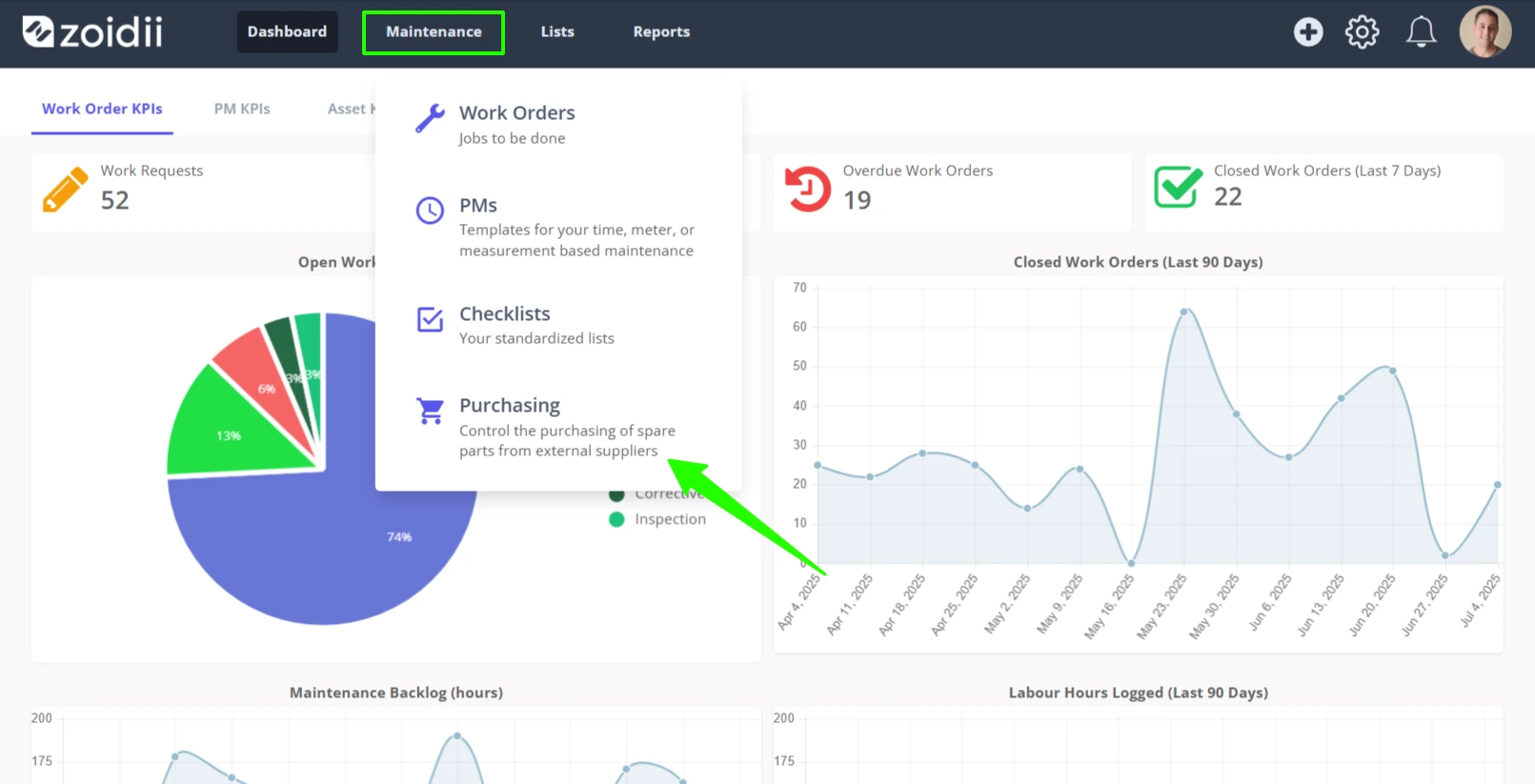
1. In the top navigation bar, click Maintenance and select Purchasing from the dropdown menu
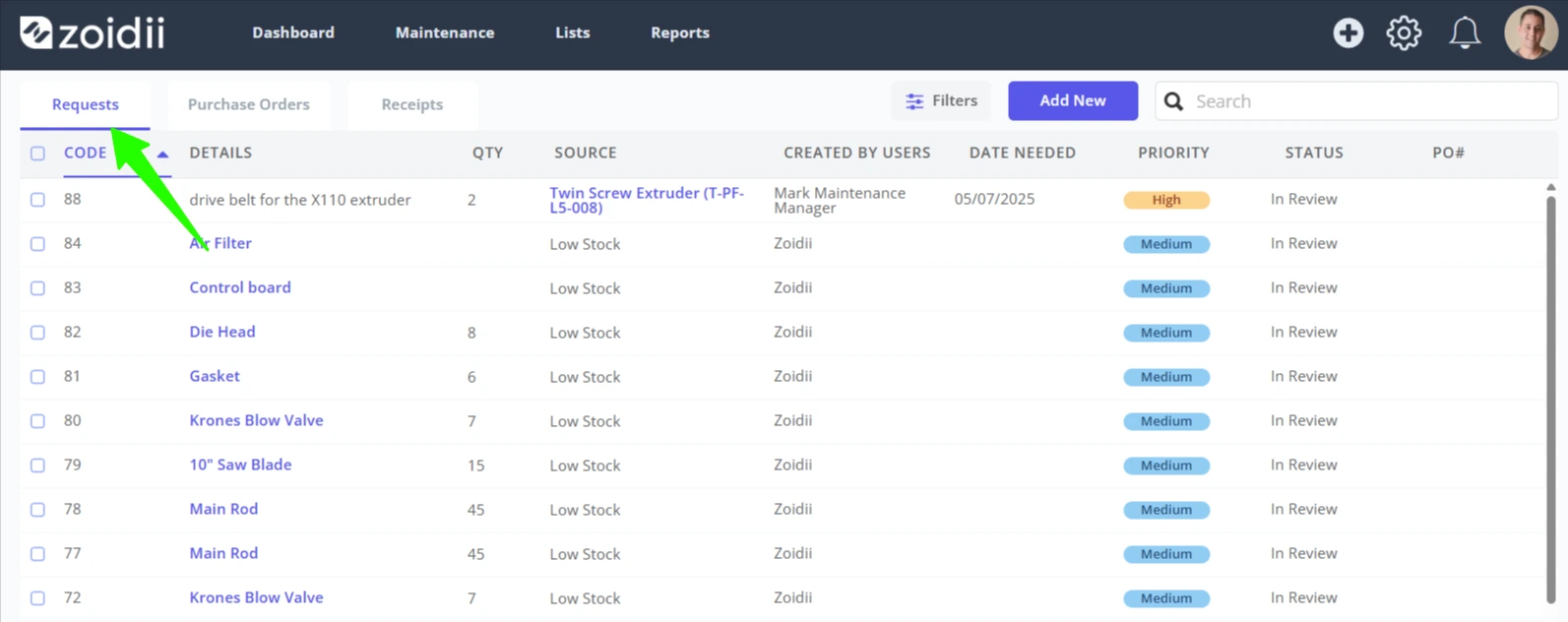
2. On the purchasing page, select Requests
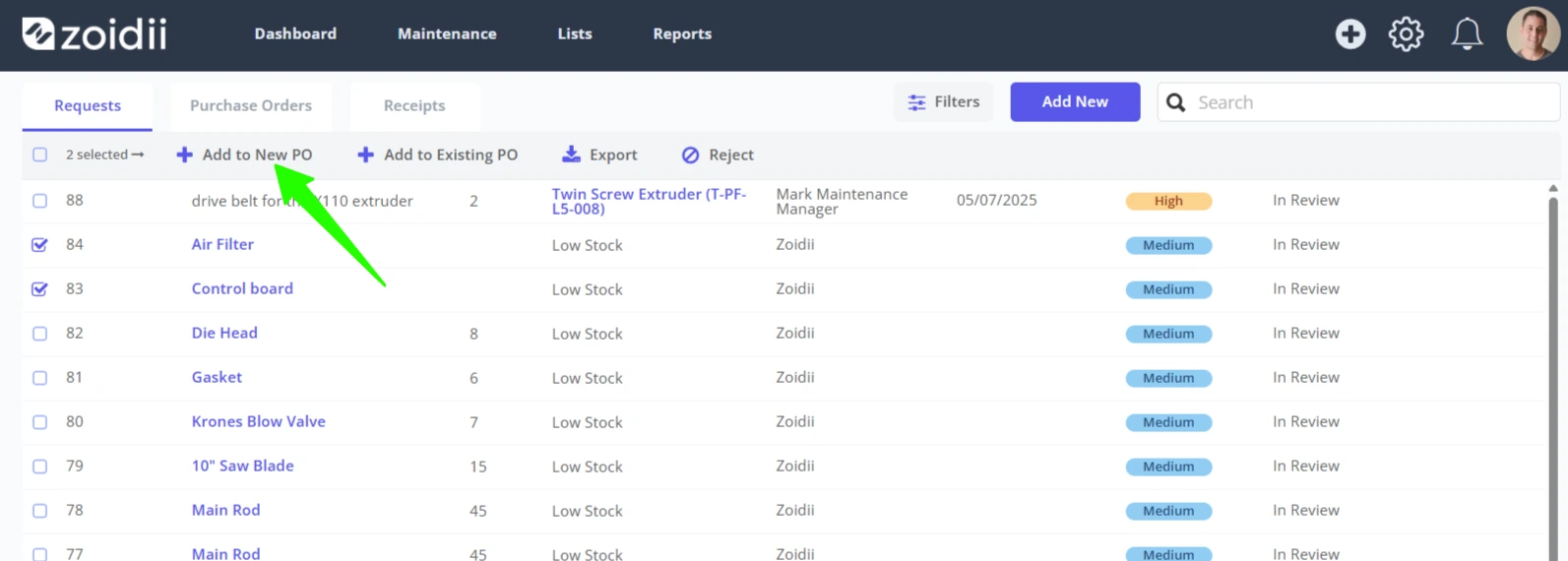
3. Select the purchase requests line items to add to the new purchase order by marking the checkboxes
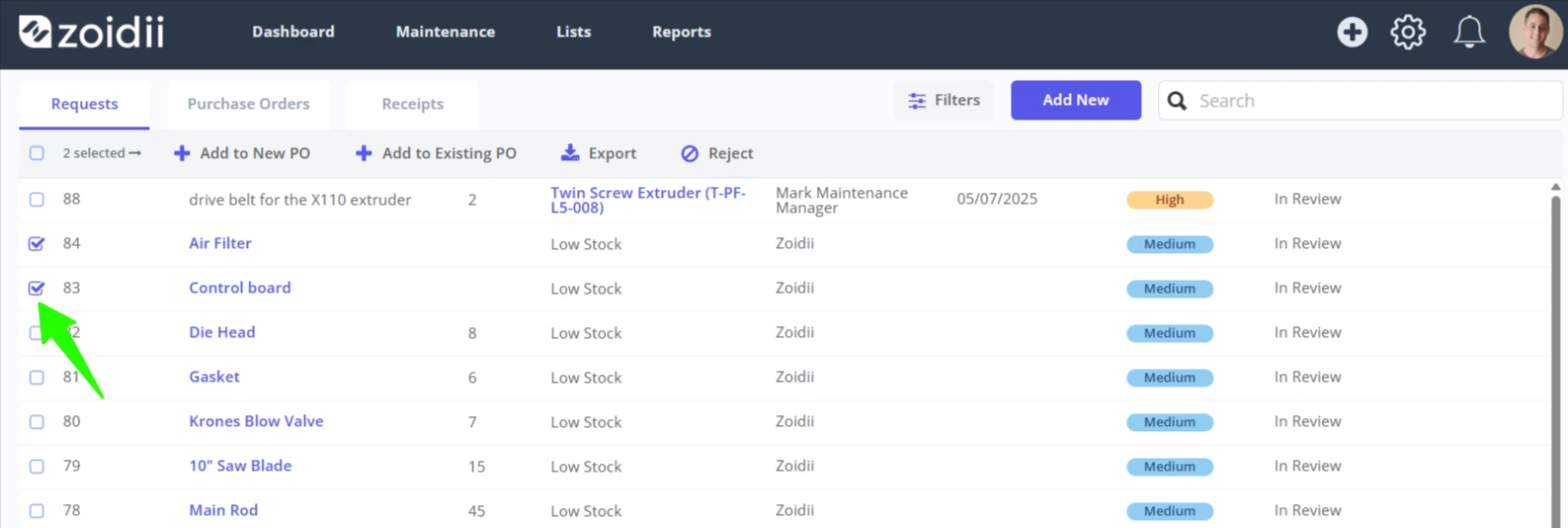
4. Click Add to New PO in the header menu
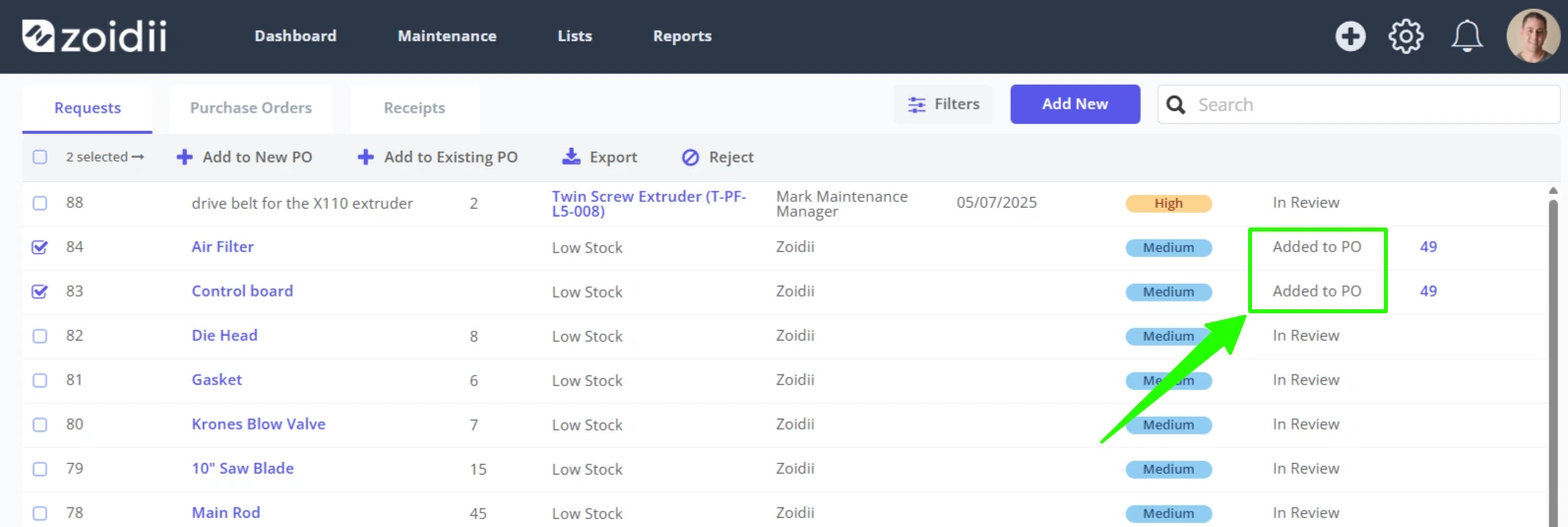
5. The purchase request line items status is changed to Added to PO
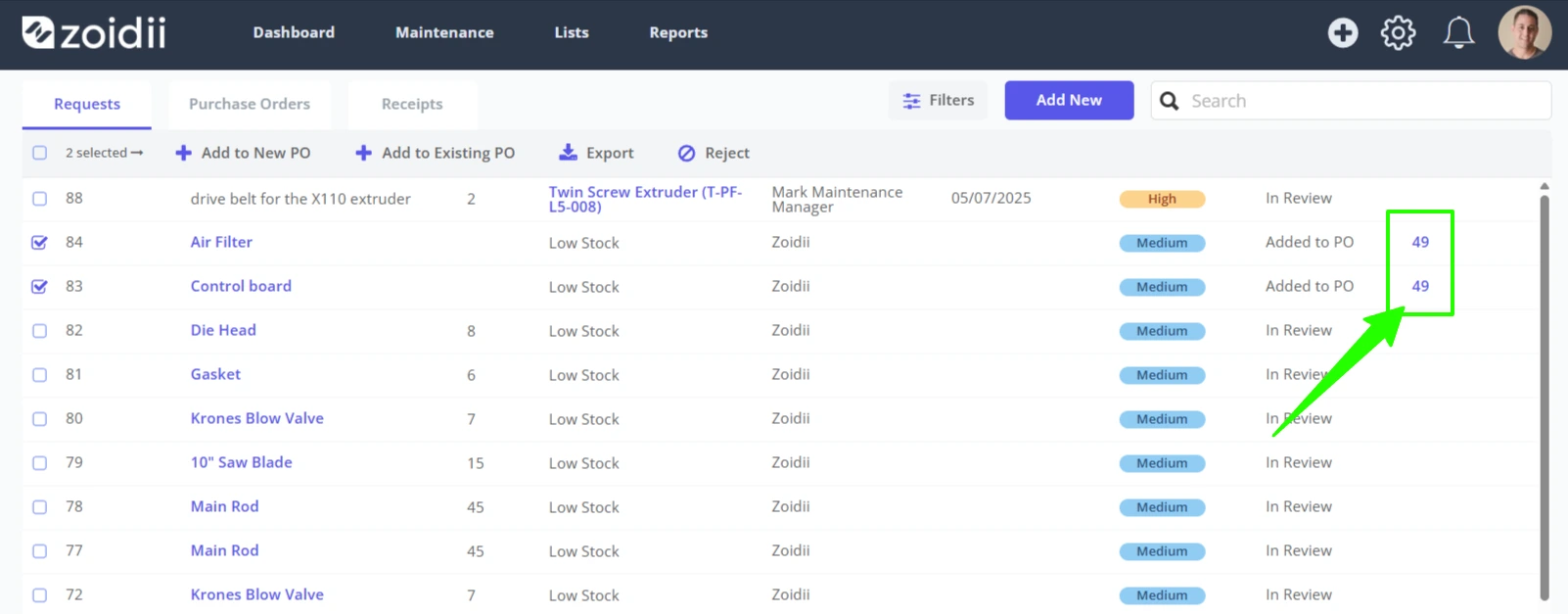
6. Zoidii generates a new purchase order, add those purchase request line items to the new purchase order. In this case, purchase request line items 75 and 76 have been added to new purchase order 51.
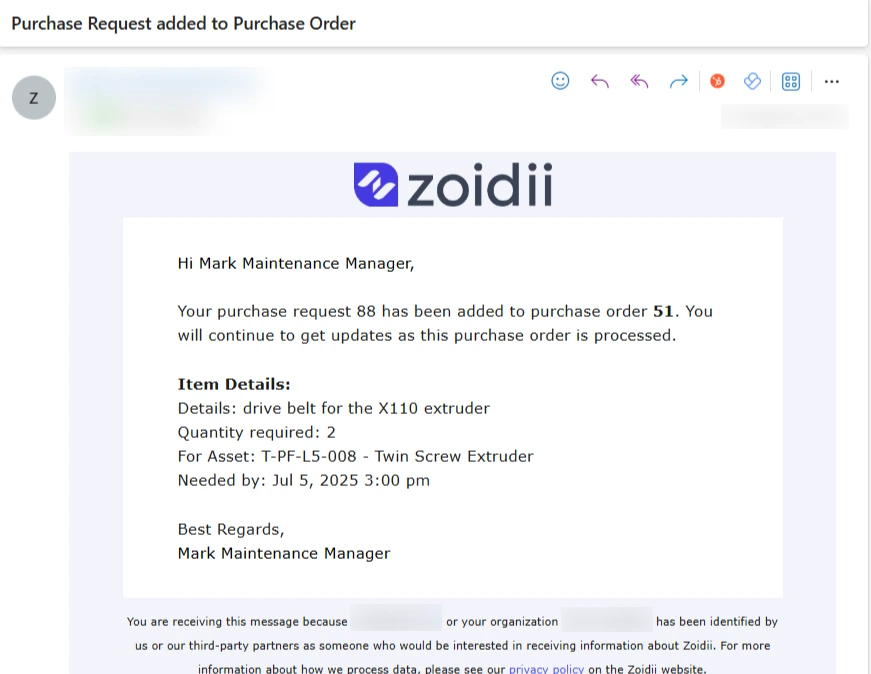
7. Zoidii sends a notification to those users that submitted the purchase requests letting them know their request has been added to a purchase order.