

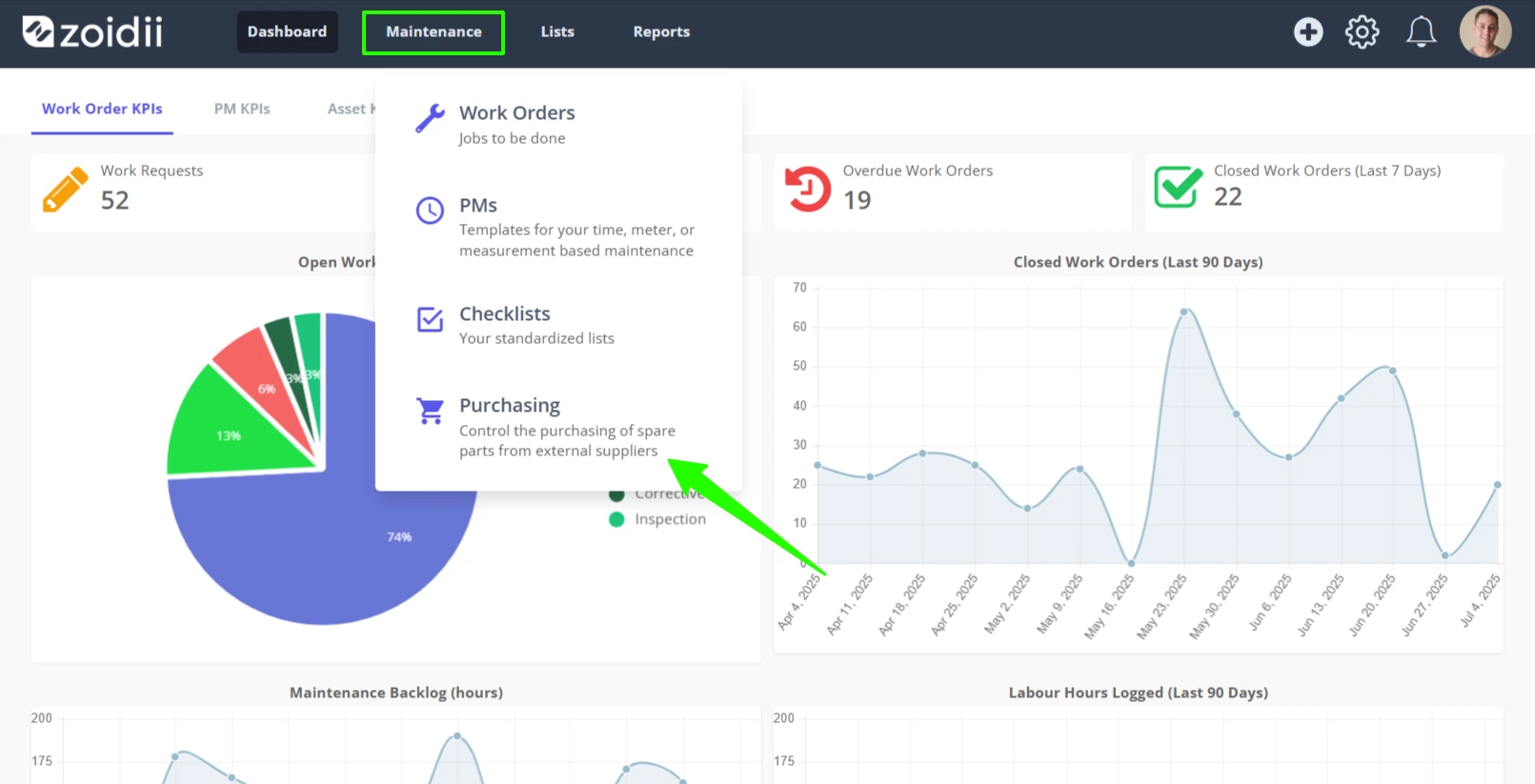
1. Navigate to the Maintenance menu, and click Purchasing
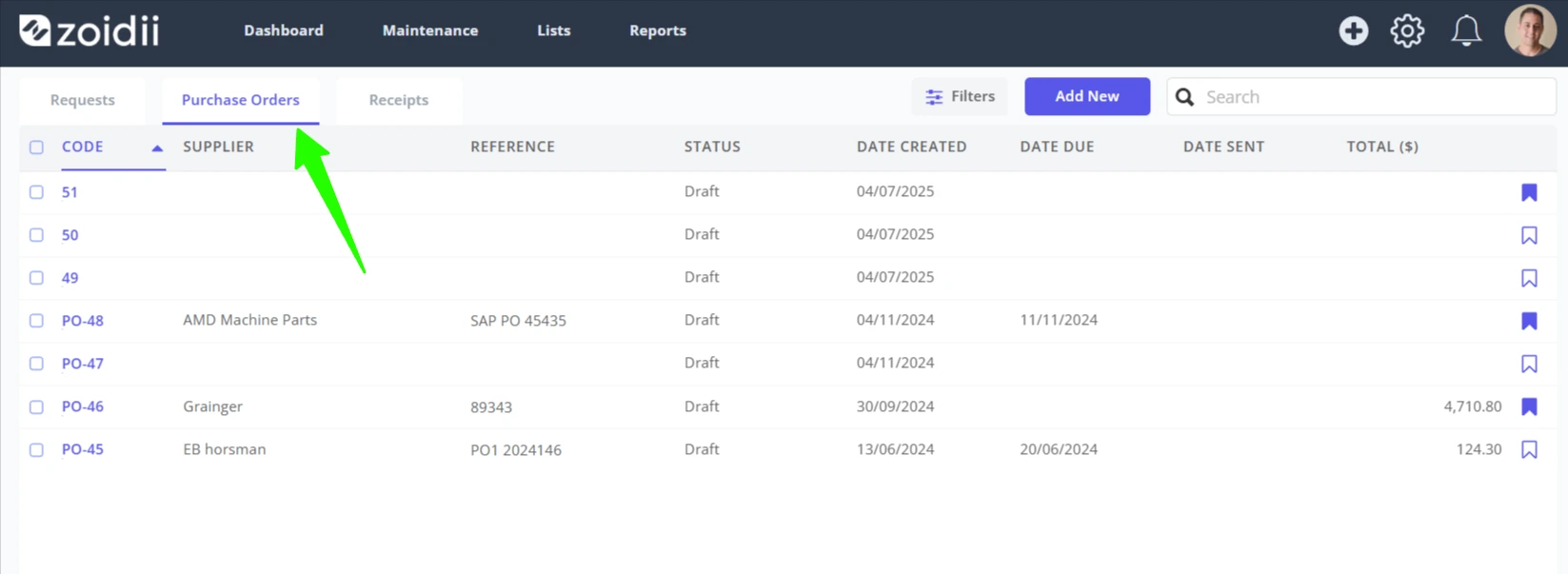
2. In the purchasing screen, select the Purchase Order tab
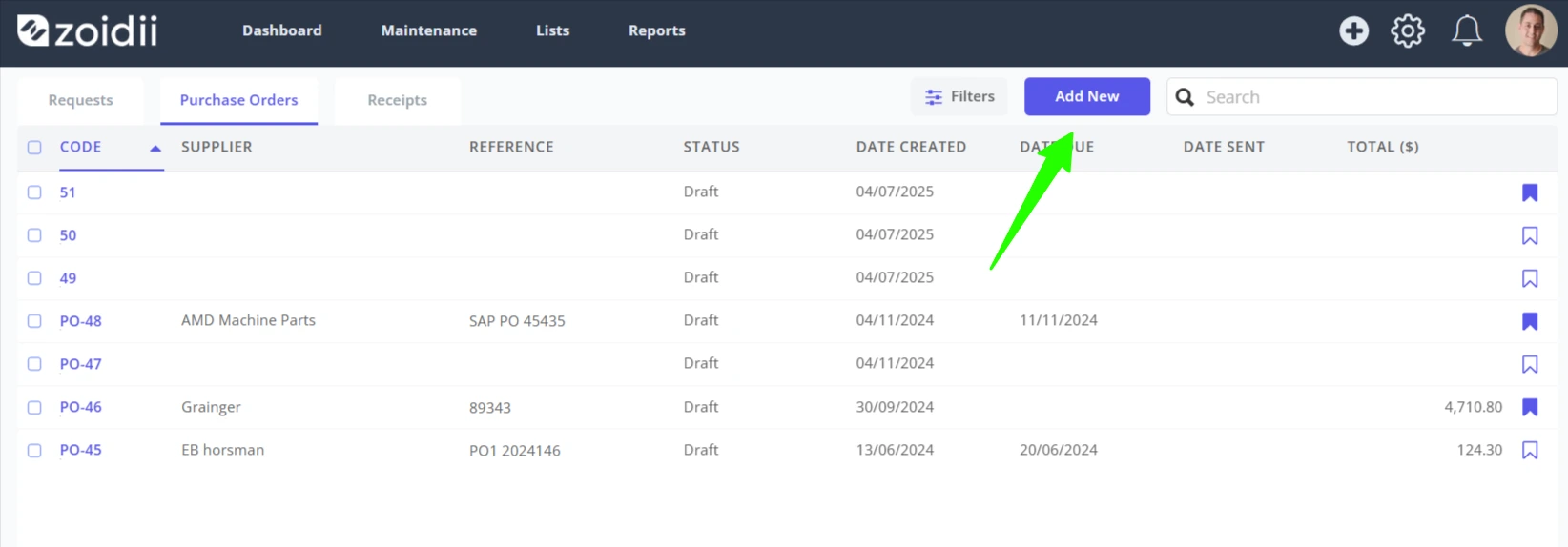
3. Click Add New
4. In the New Purchase Order popup window, select the supplier from the dropdown
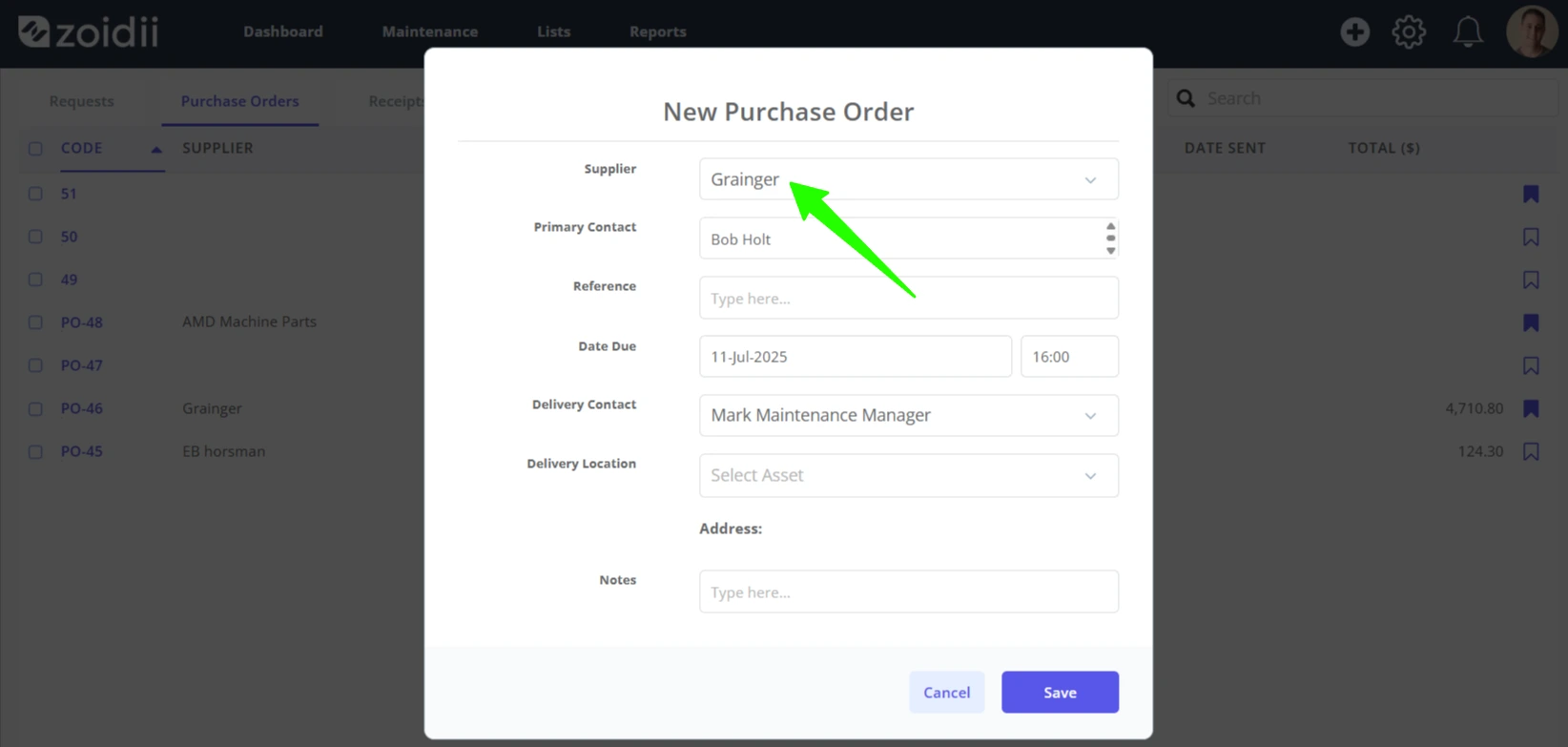
5. If the supplier has an assigned supplier contact, it will be automatically added to the Supplier Contact field. The supplier contact can be overridden if needed.
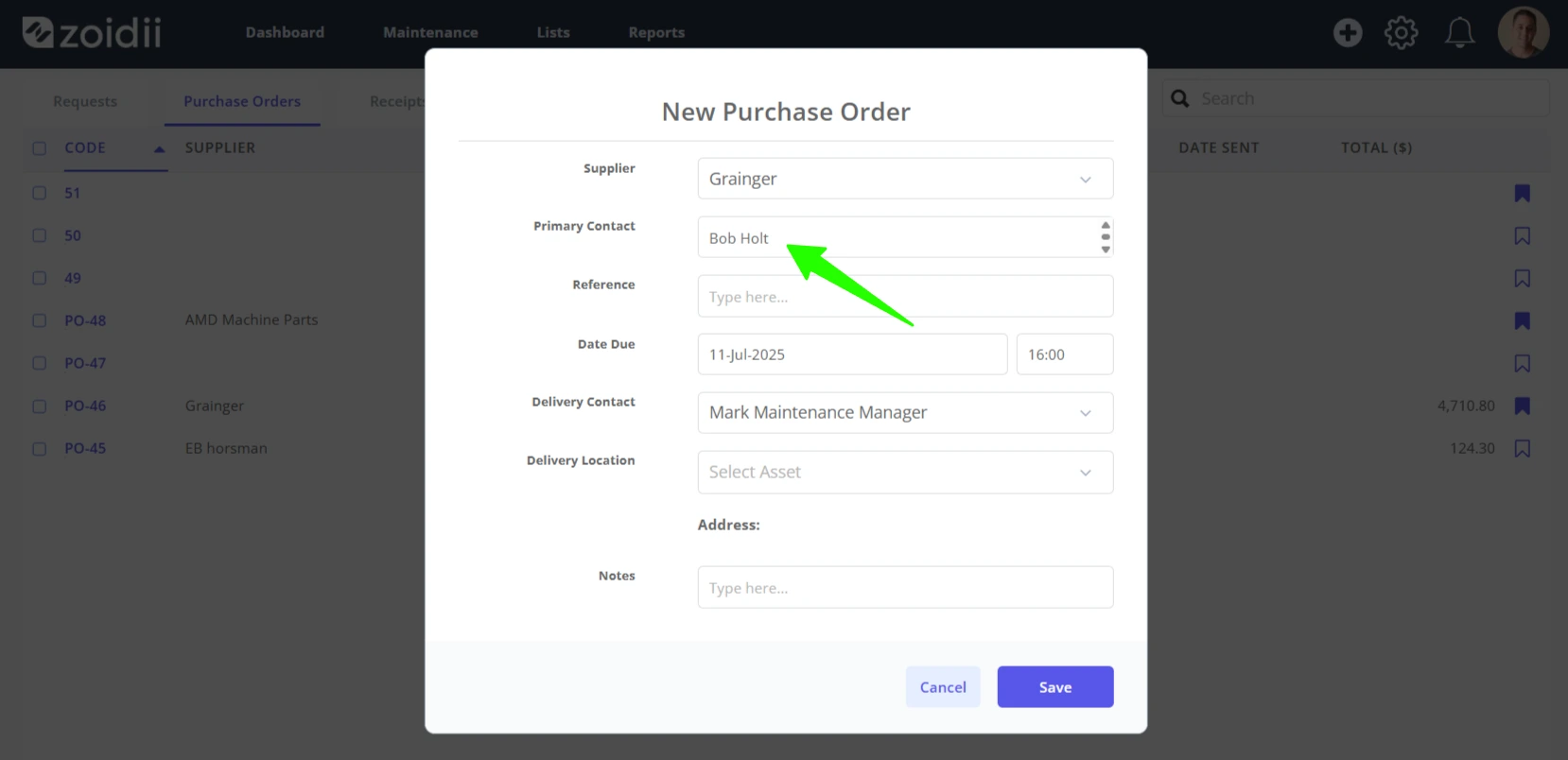
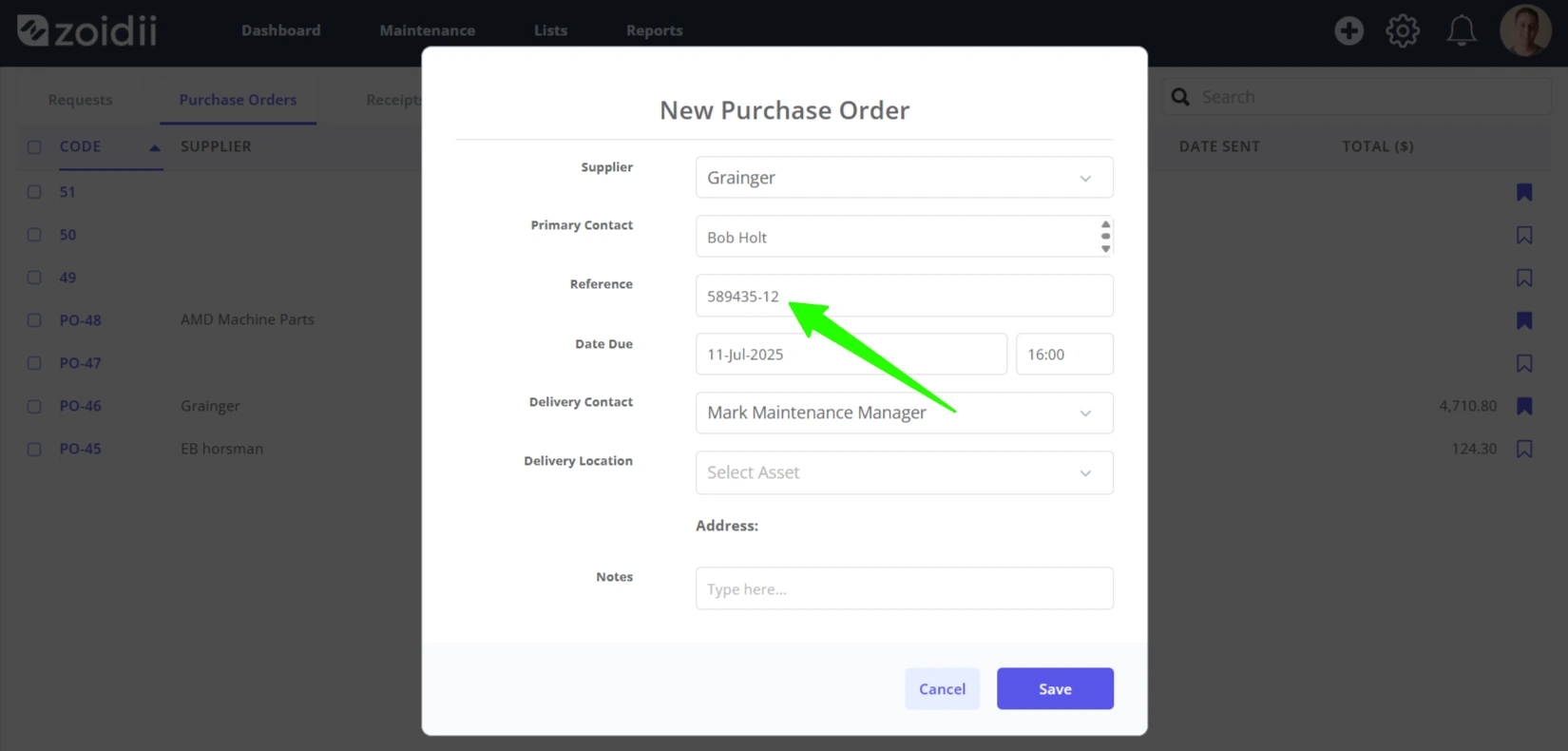
6. Fill in a Reference number if needed
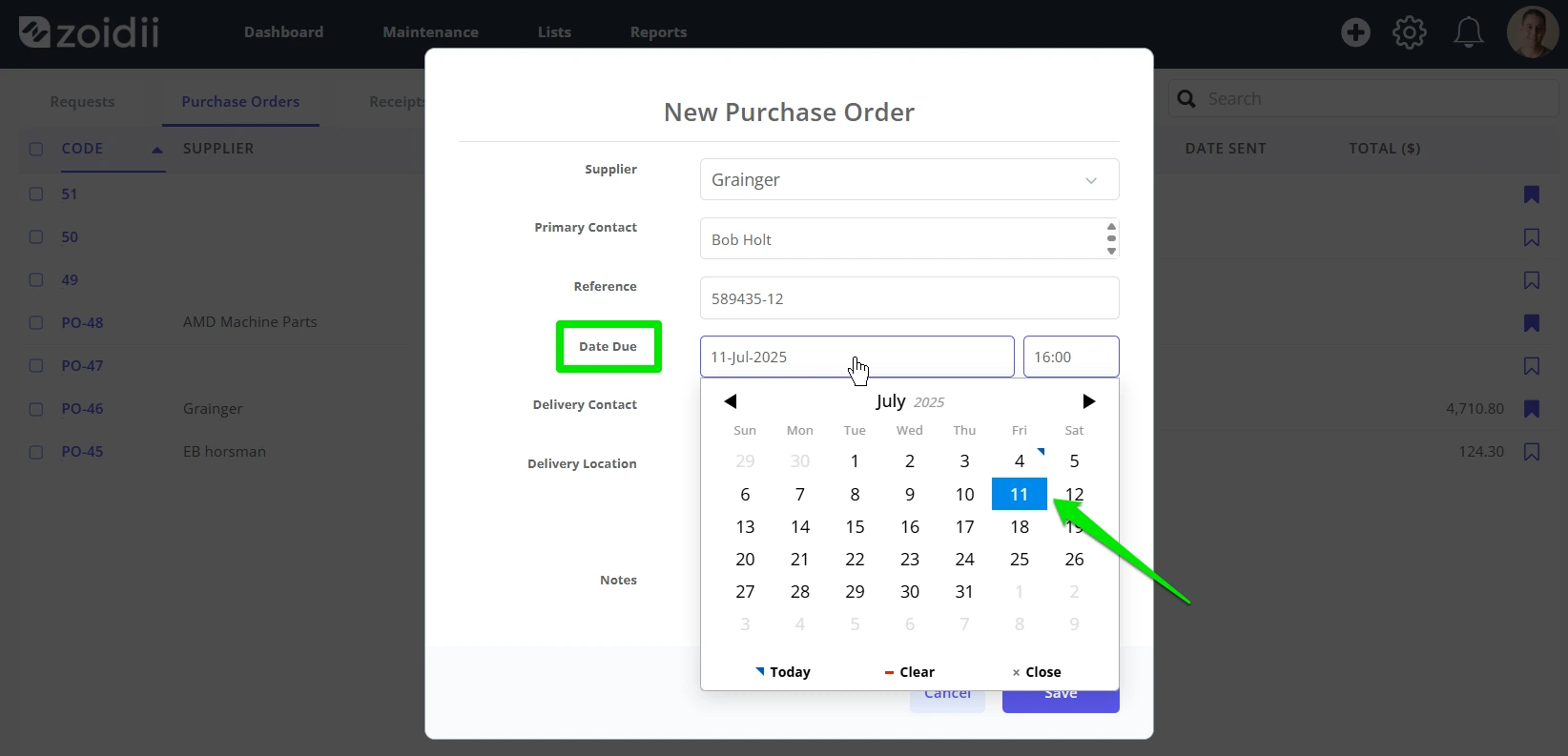
7. Add the expected Date due and time
8. By default, the current user is preloaded into the Delivery Contact field.
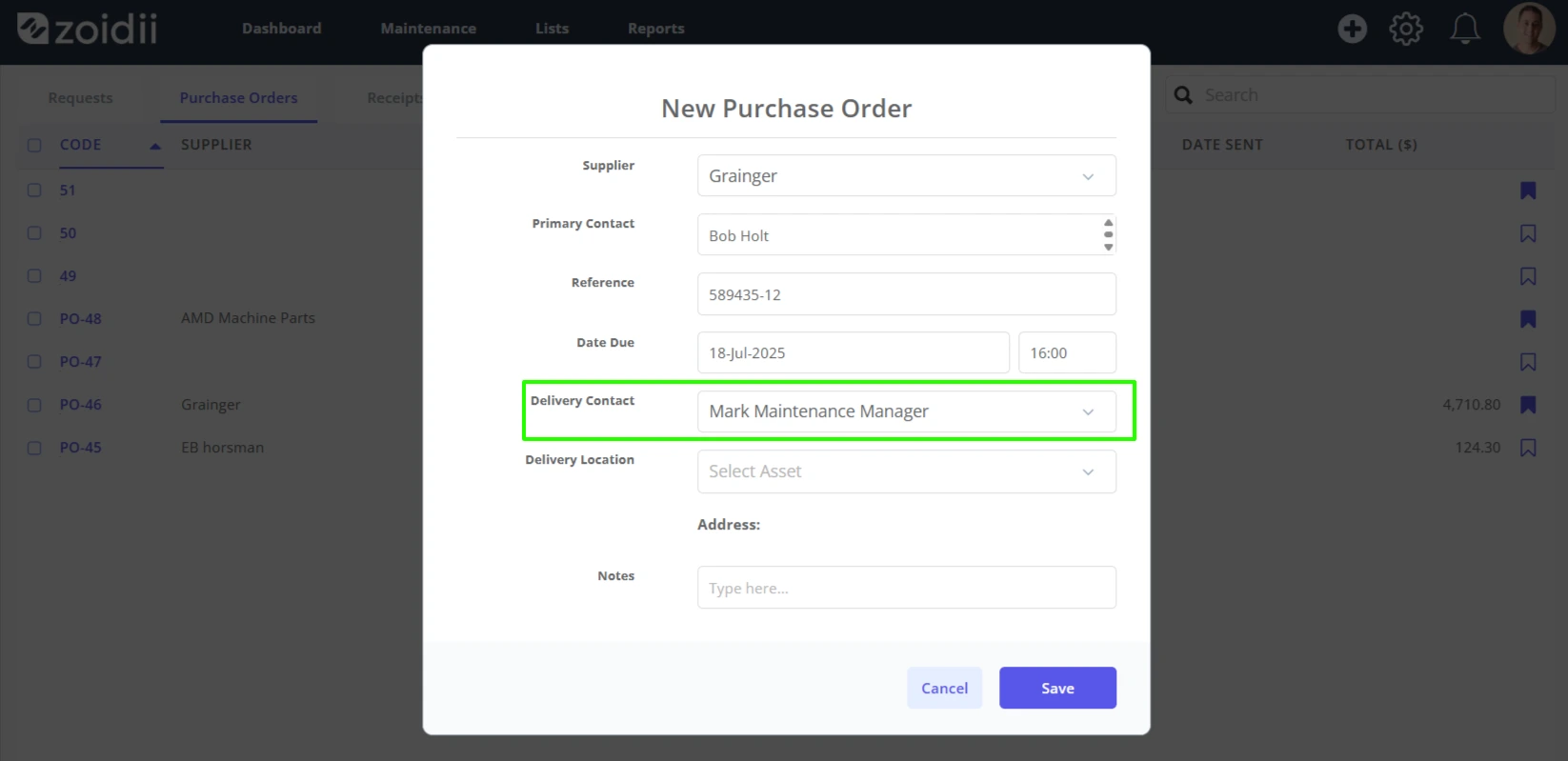
9. Change the delivery contact if needed by selecting another user from the dropdown list
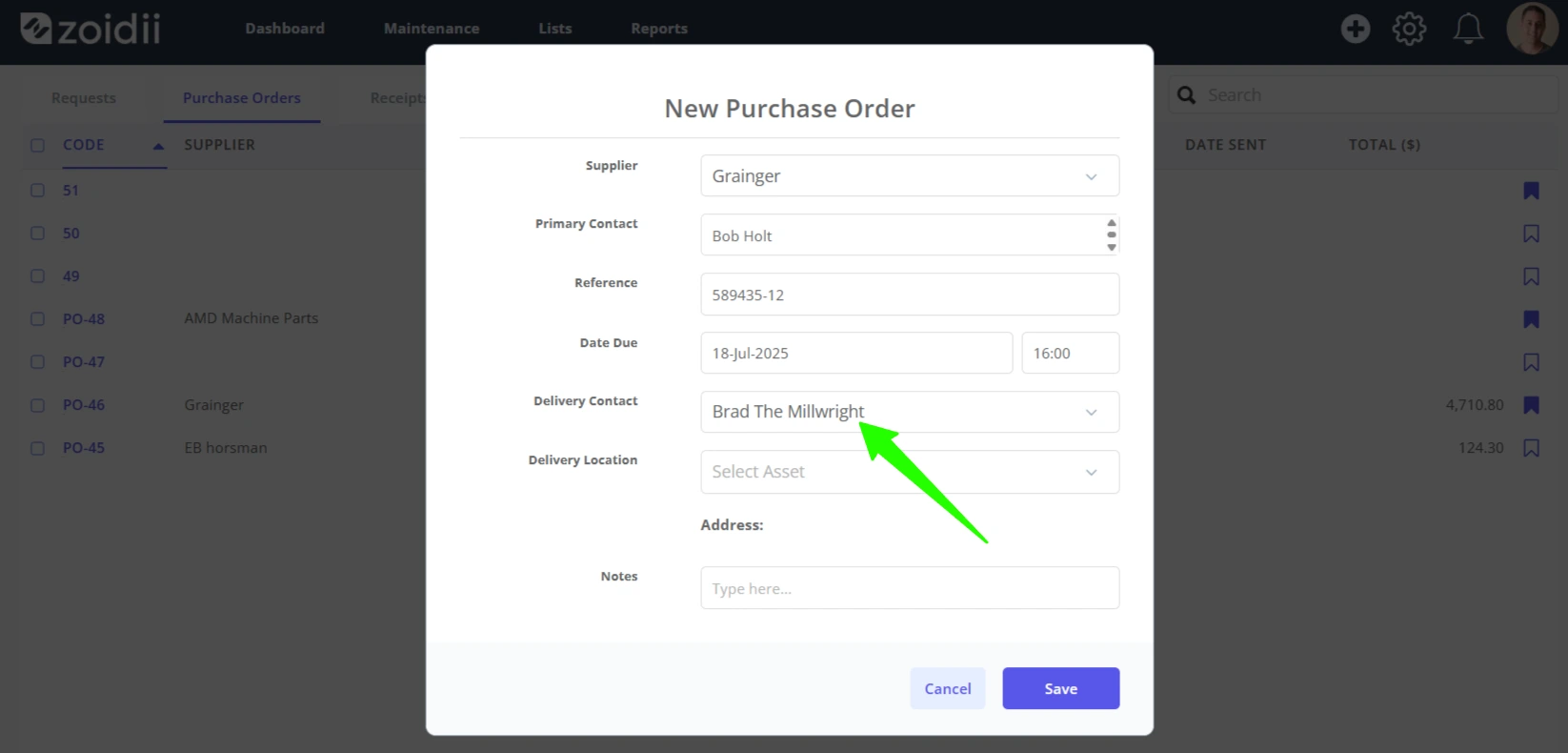
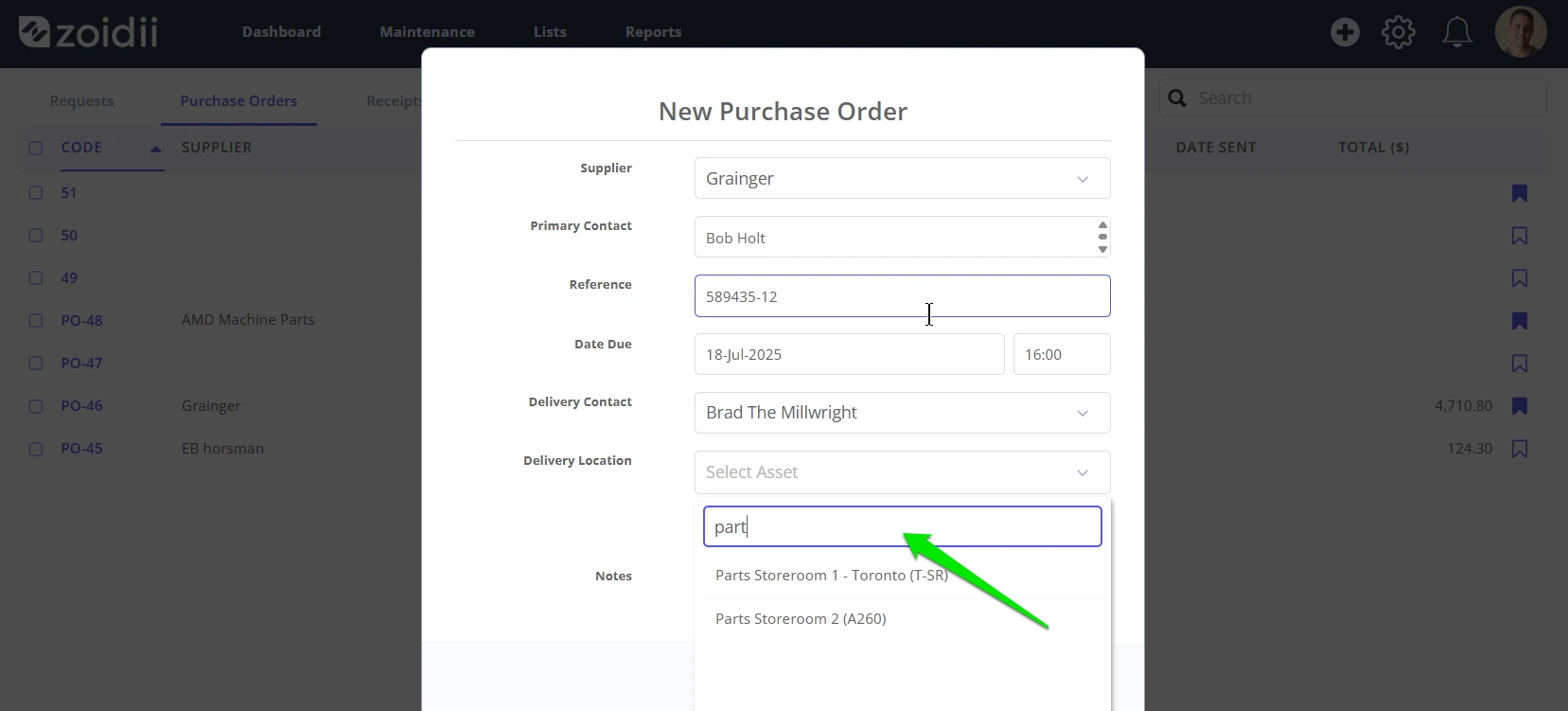
10. Select the Delivery Location from the asset dropdown
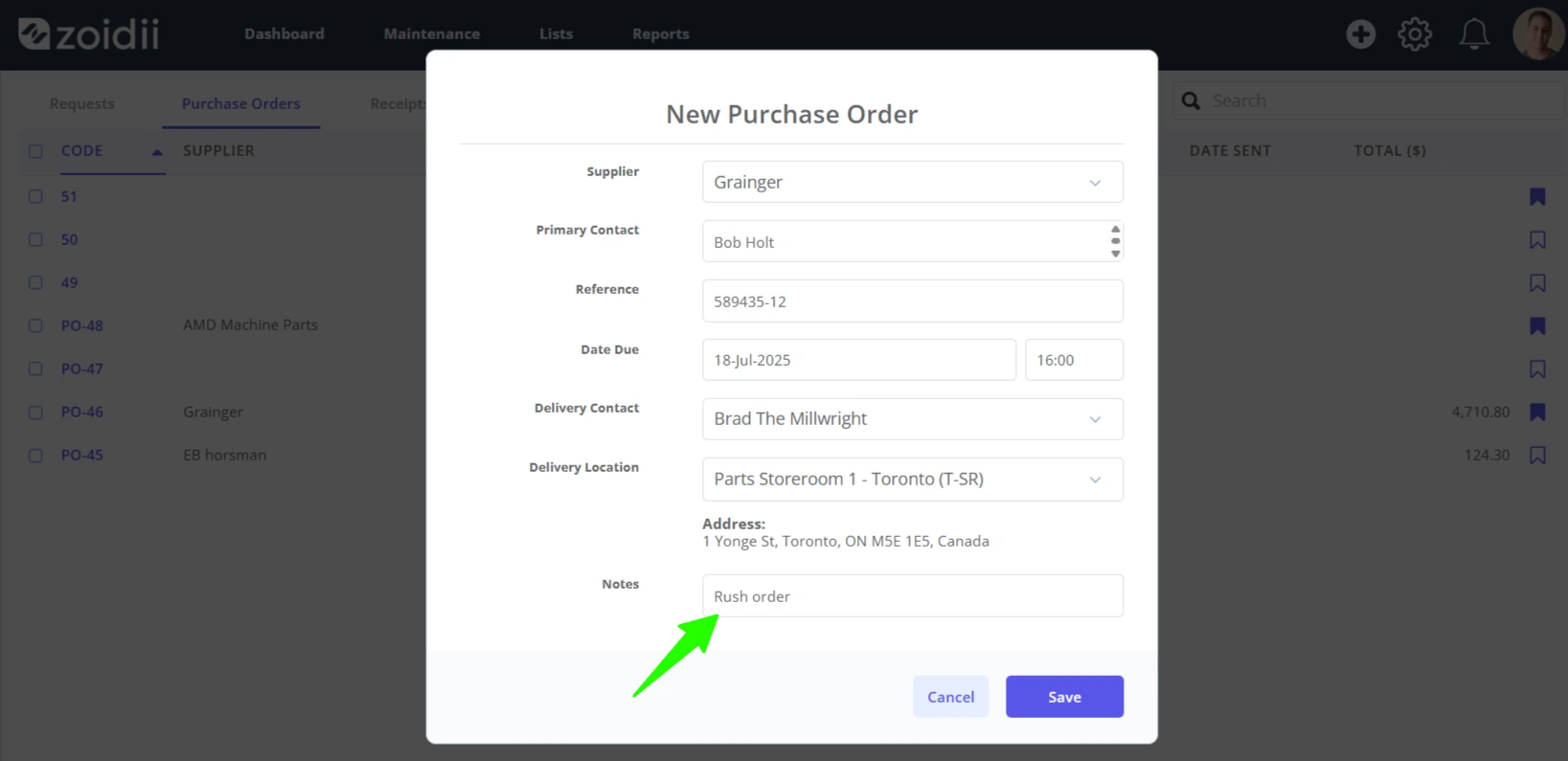
11. Add Notes to Vendor if needed
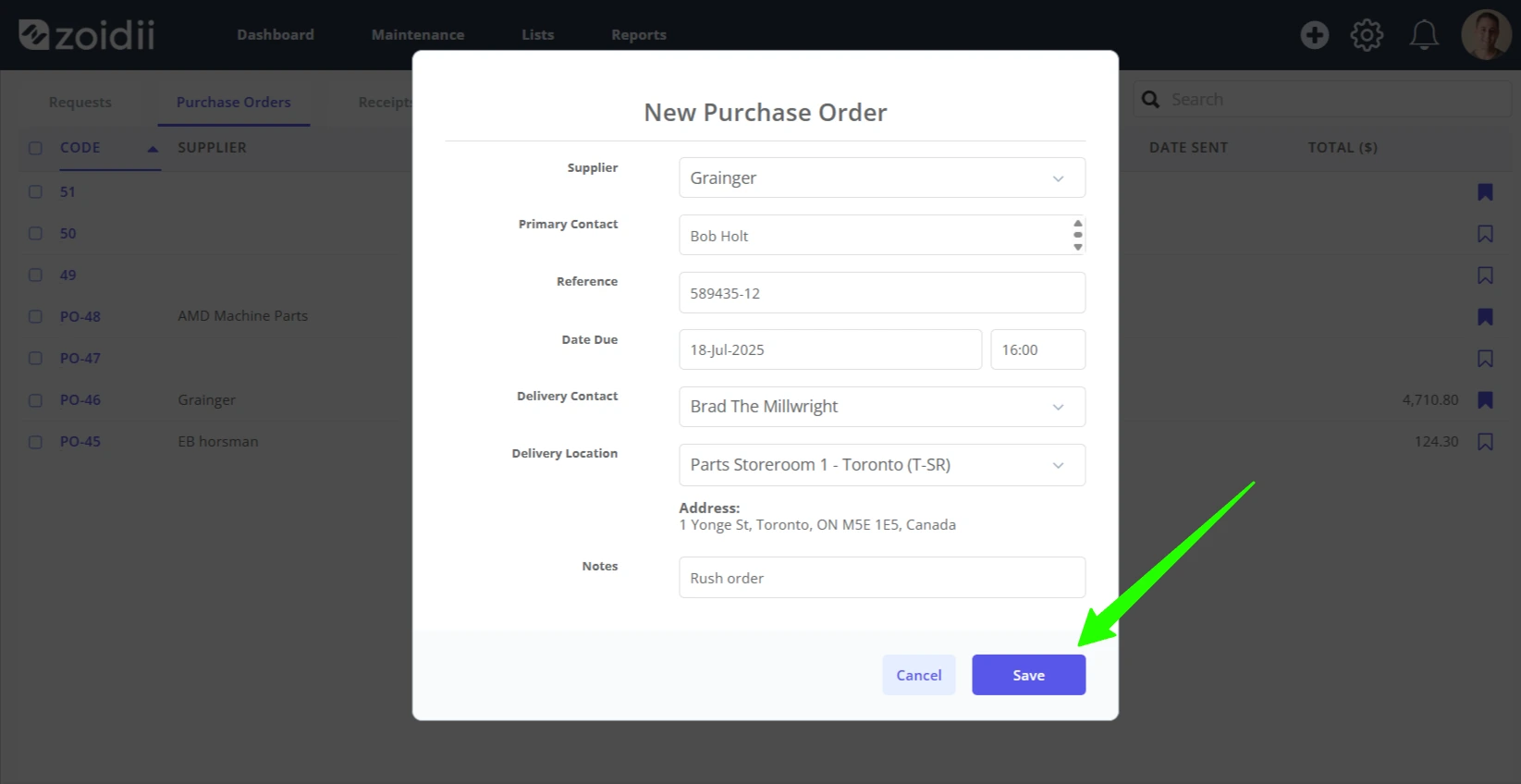
13. Click Save to save the new purchase order and start adding purchase order line items
14. Proceed to the Add Purchase Order Line Items procedure