Background
Cloning an asset or asset hierarchy can speed up the configuration process significantly. Cloning is ideal when the assets or asset hierarchy is like for like. For example, copying a burger franchise as each location is identical with like-for-like equipment.Procedure
1. Navigate to the asset screen and check the checkbox for the asset to be cloned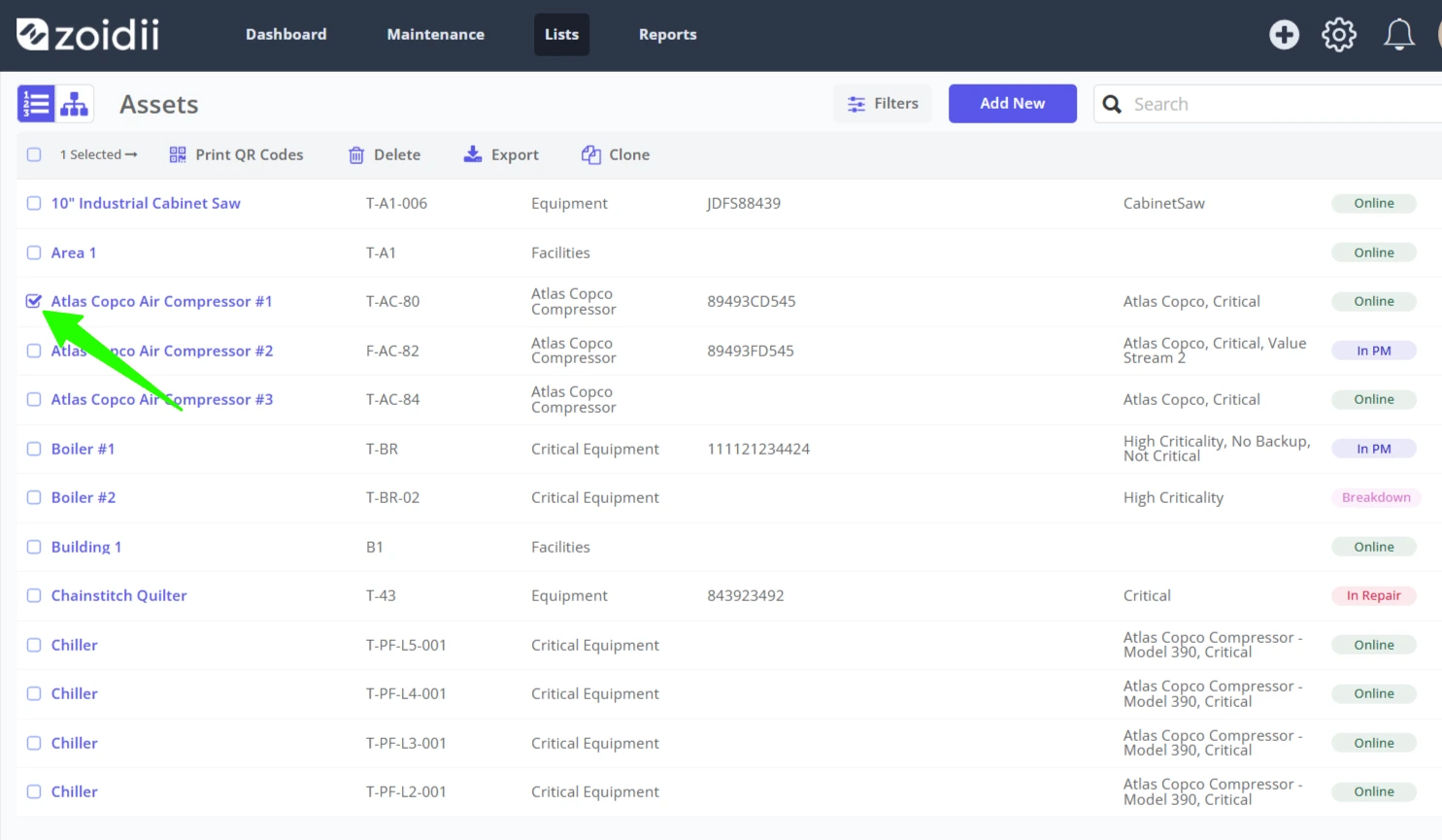
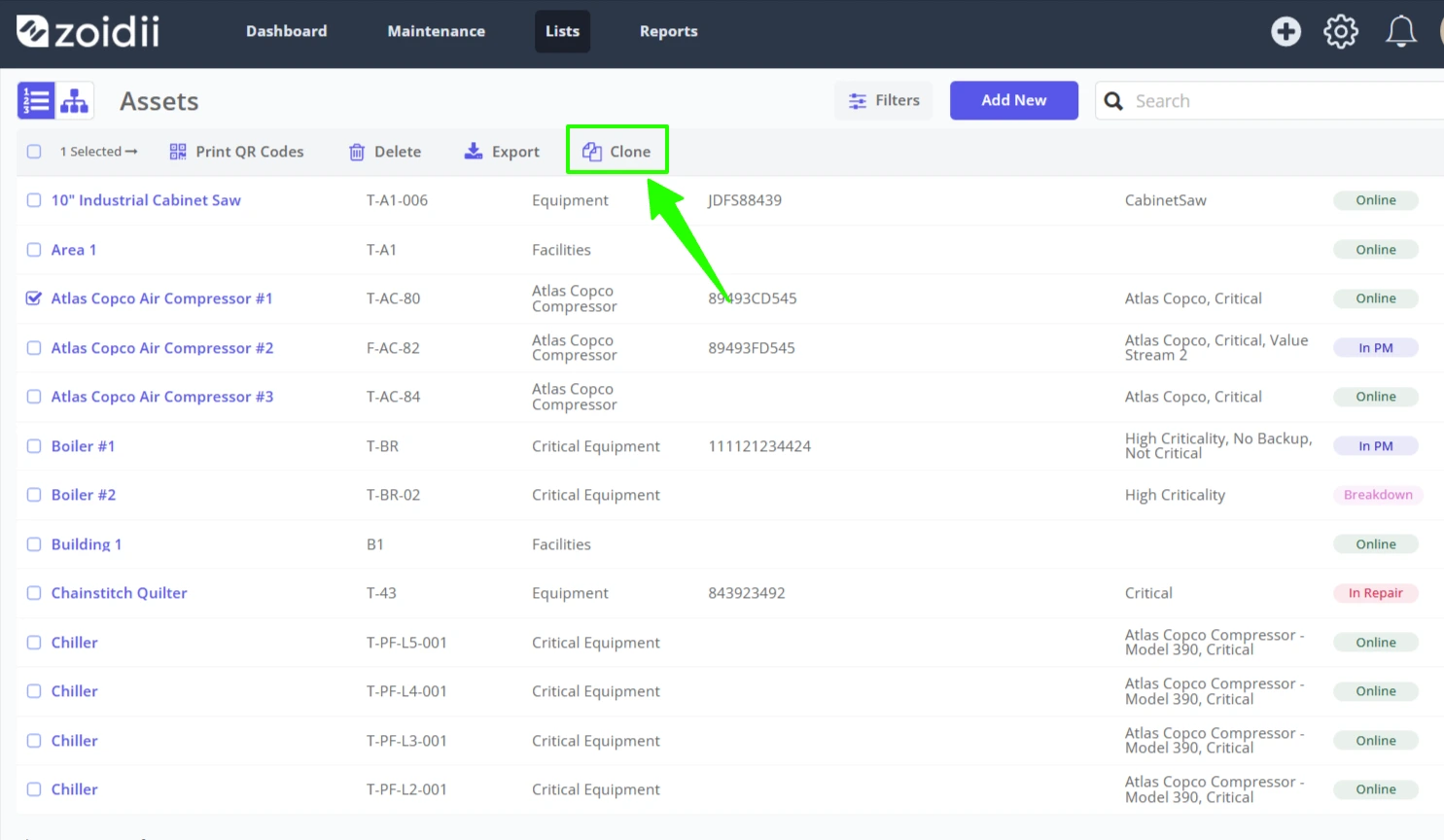
2. Click Clone
3. Change the asset name and code (this can also be changed after the asset is cloned).
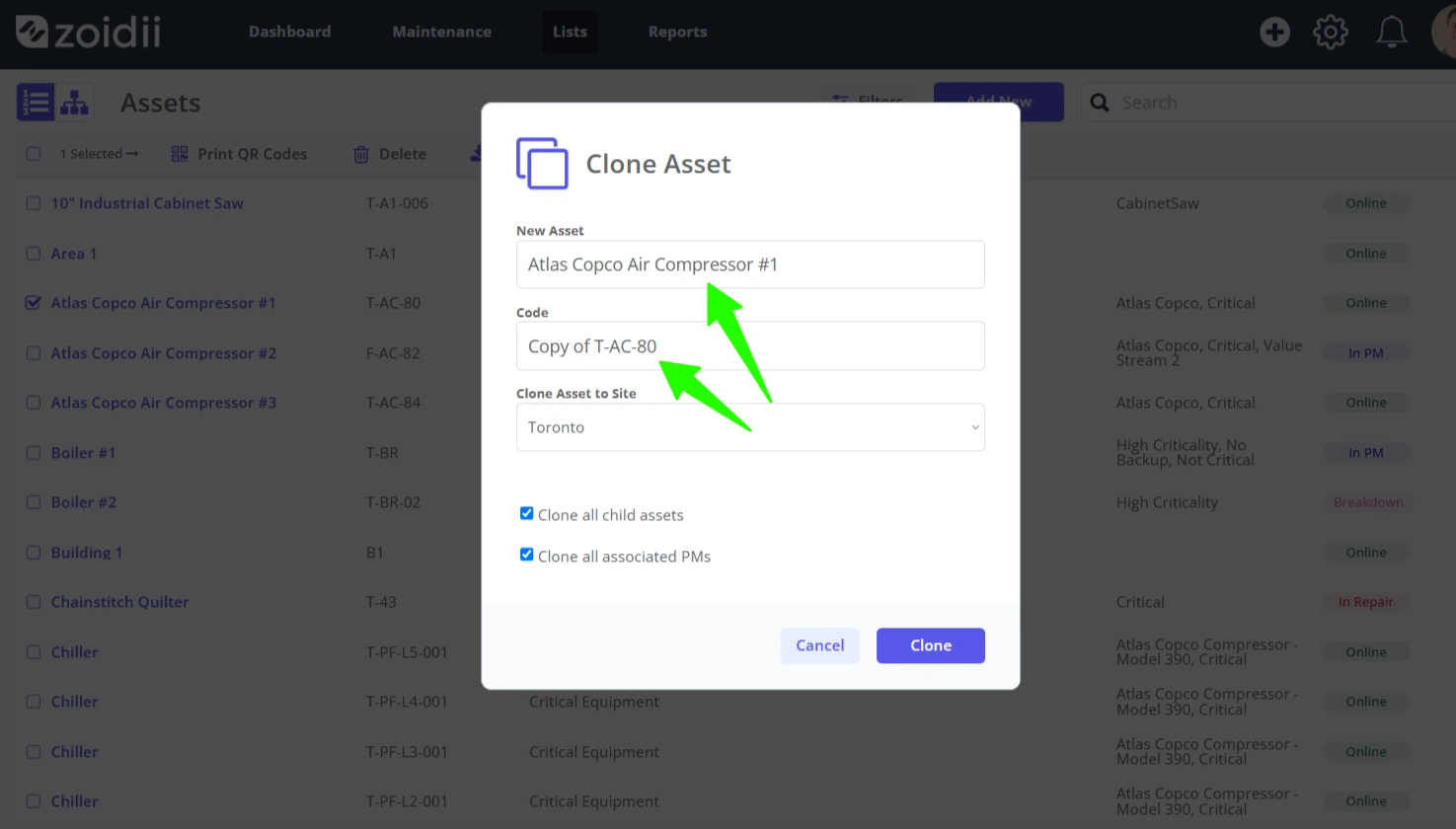
4. Select the Site in which the new cloned asset will be located
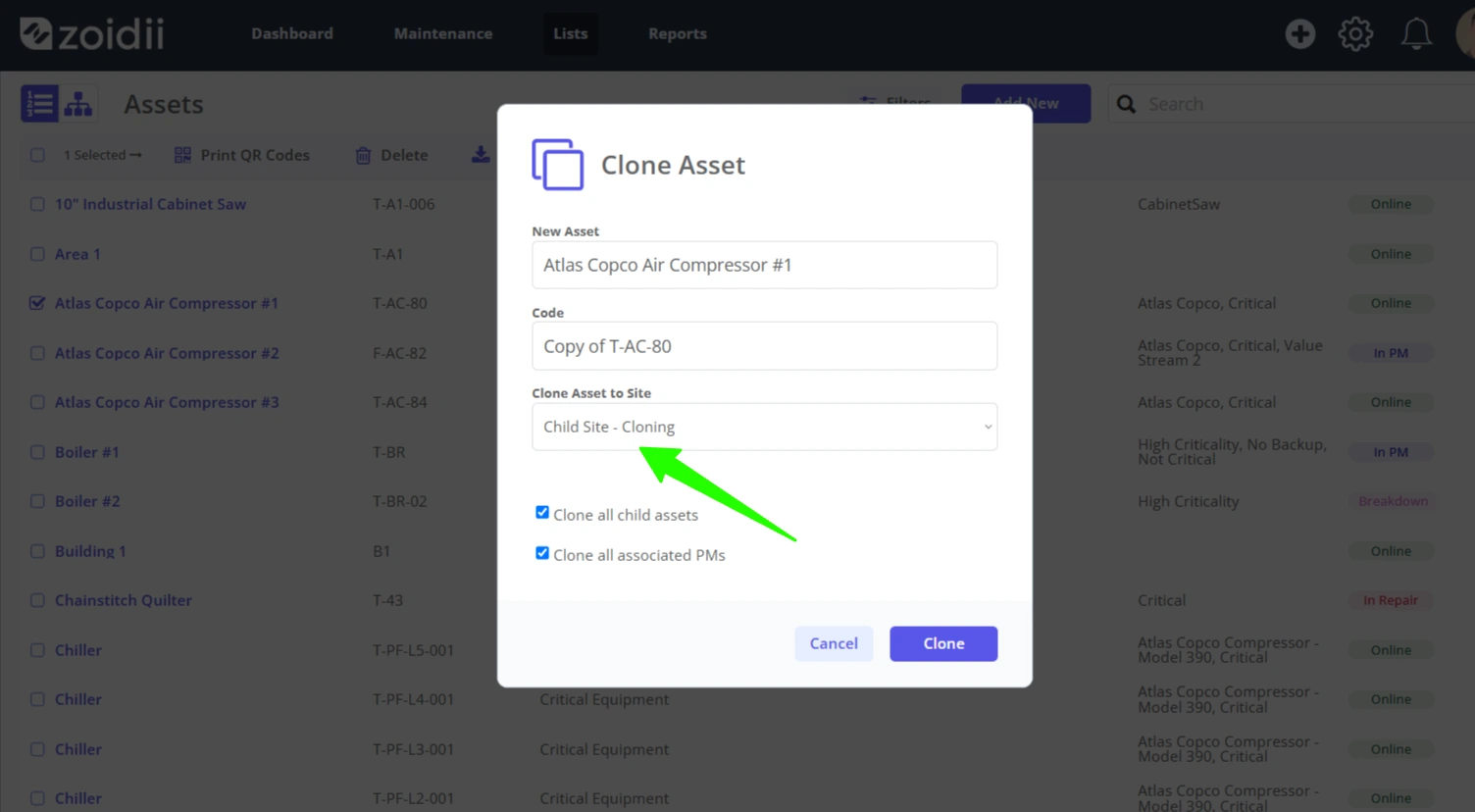
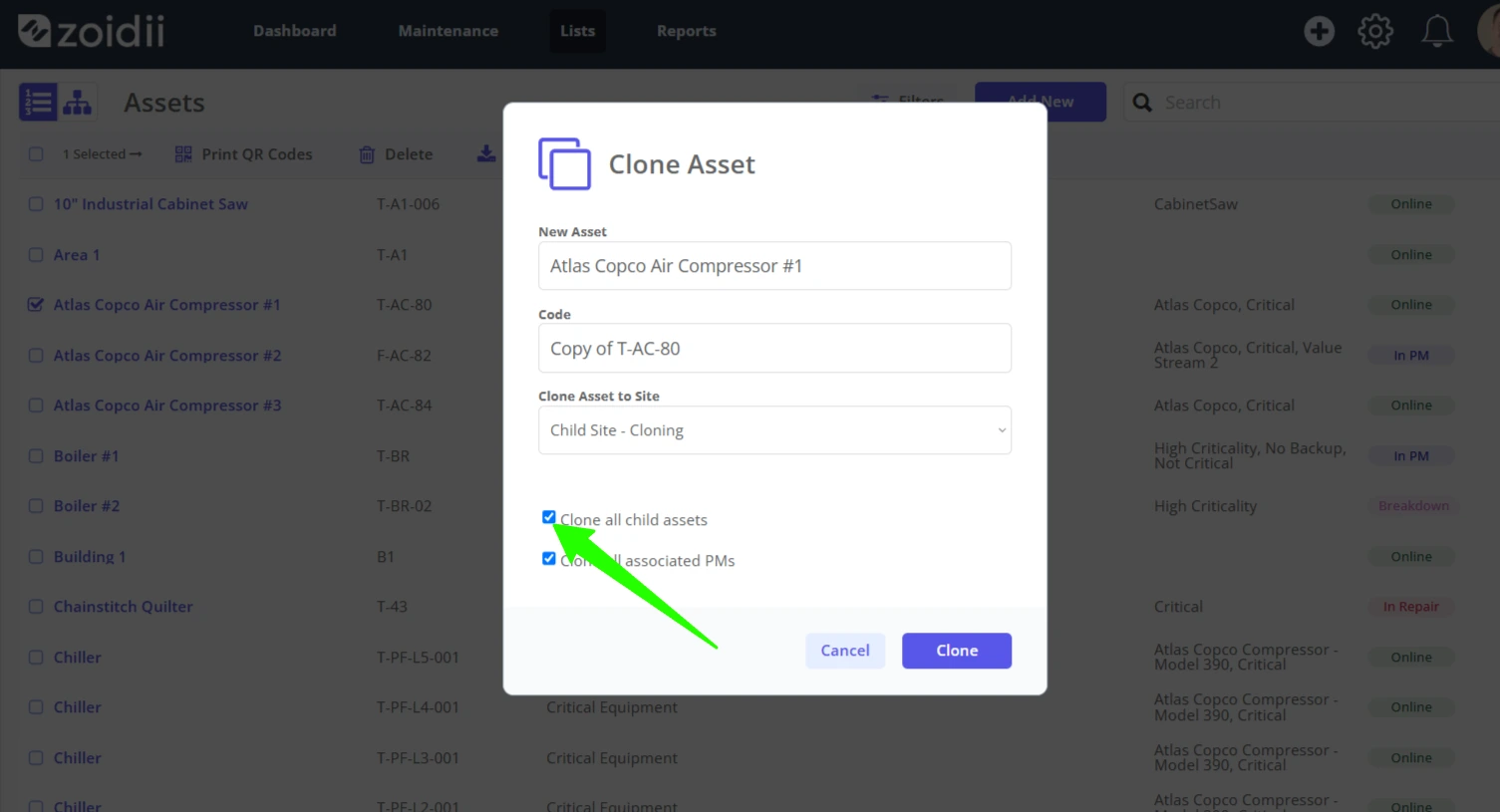
5. To include all child assets in the cloning, check the Clone all child assets checkbox
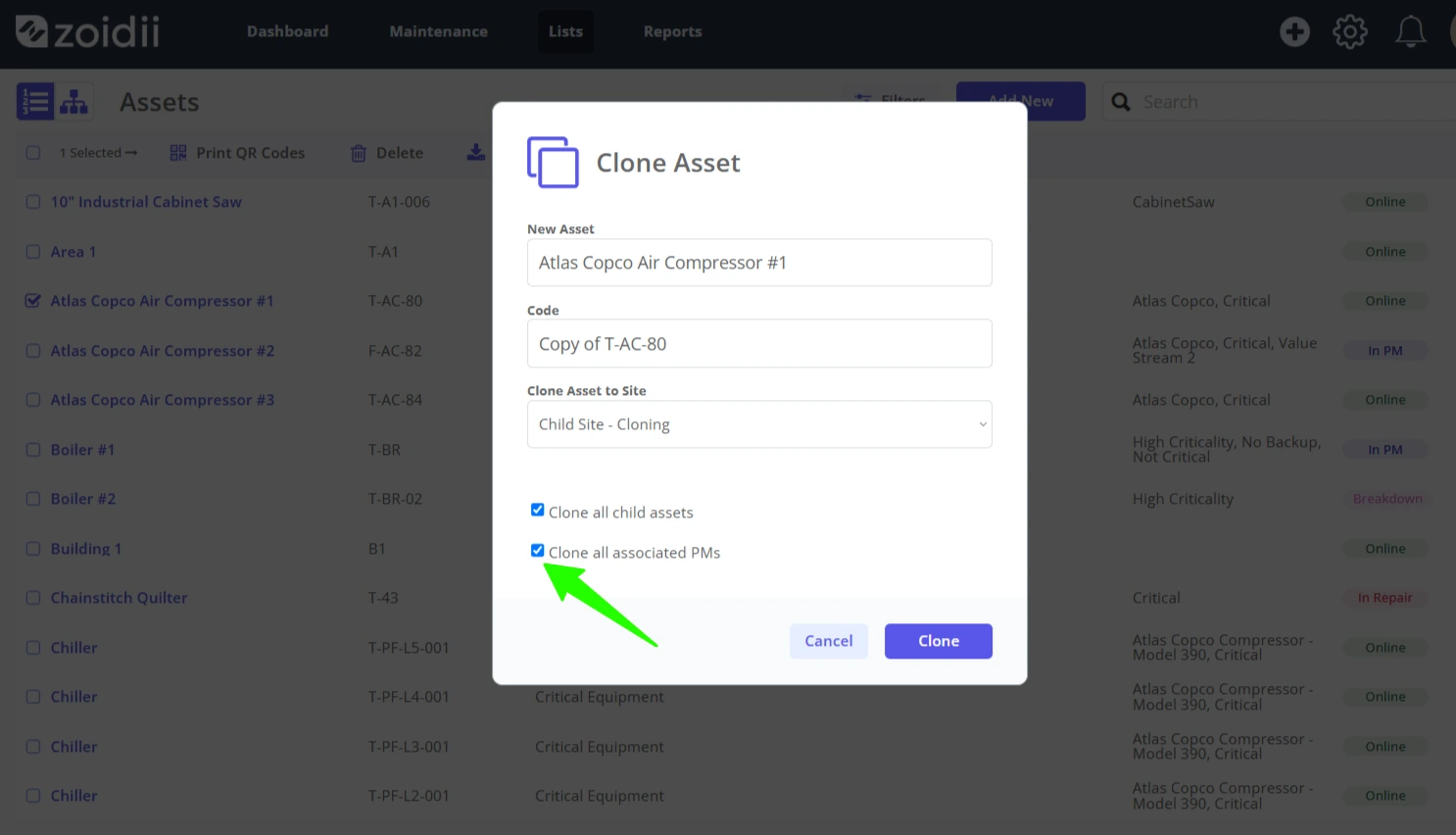
6. To clone all the associated PMs, check Clone all associated PMs checkbox
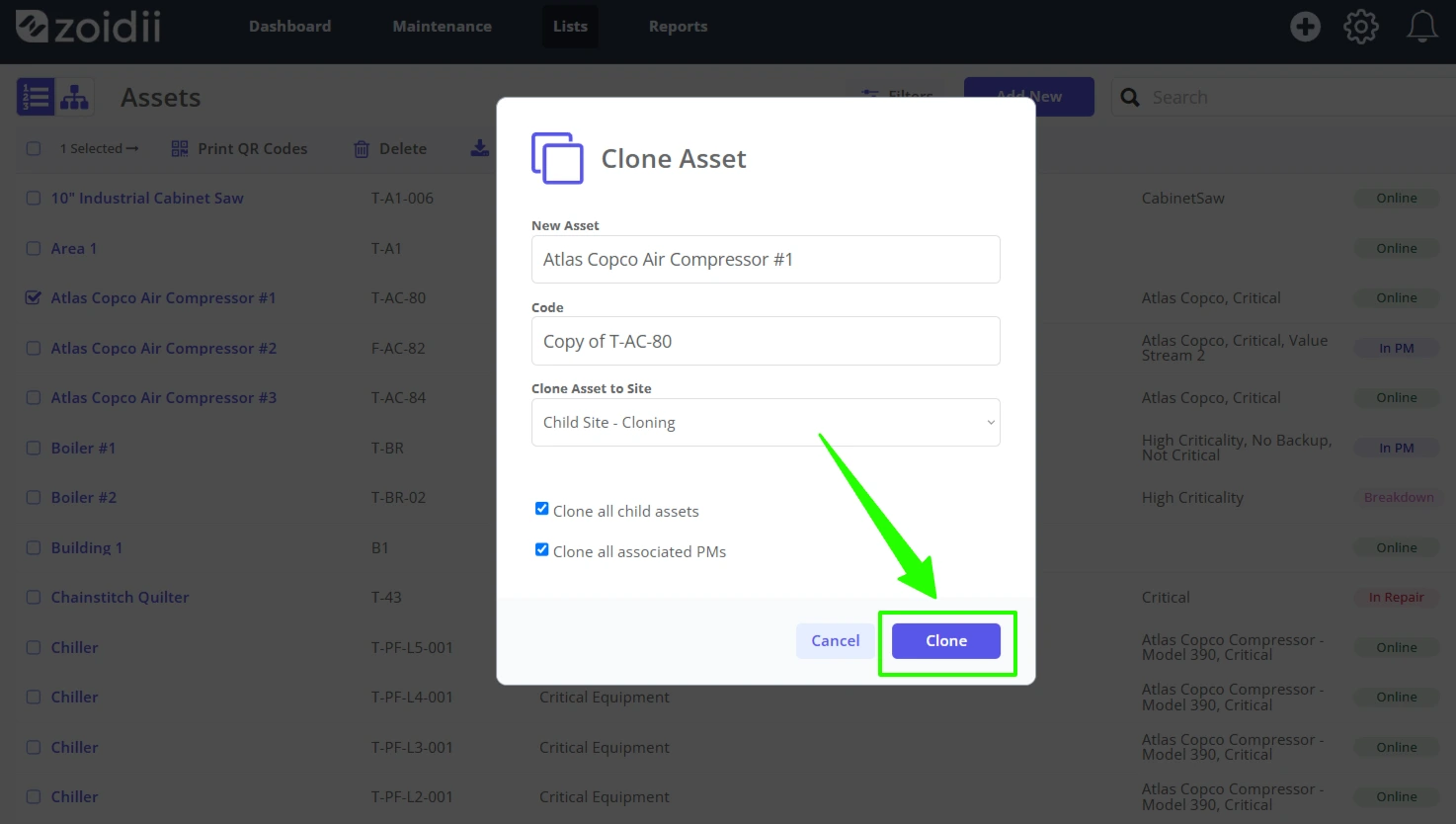
7. Click Clone to complete the action
8. If the asset name and code were not changed in Step 3, the cloned asset will carry the same name and code as the original asset, however, the Copy of will be added to the code. Search Copy of on the asset list to locate the clone. If the name and code were changed in Step 3, search the new asset name or code.
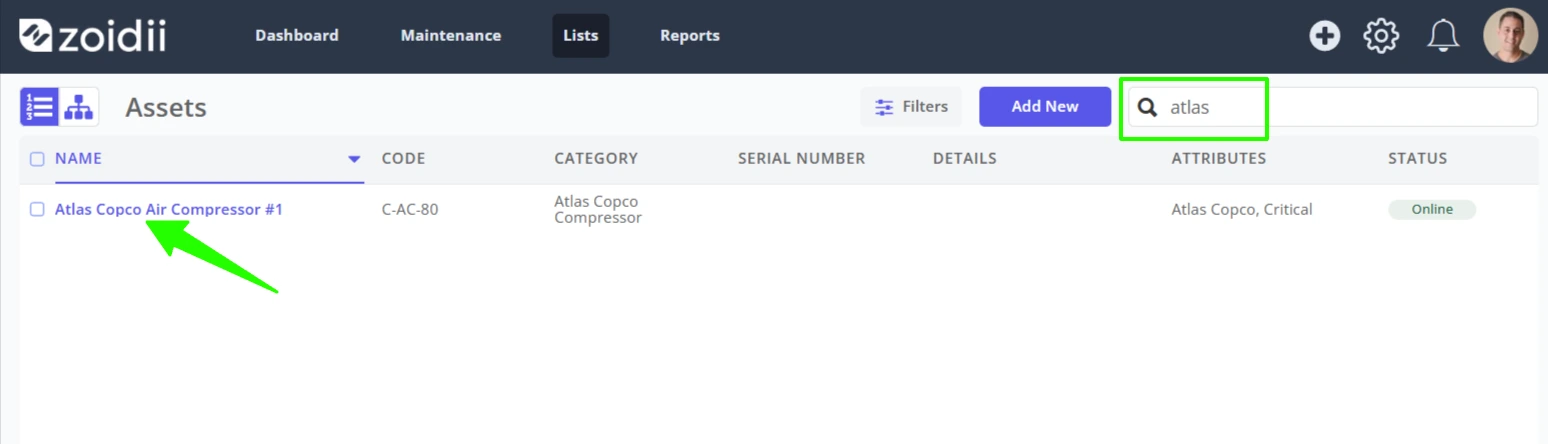
9. Click to open the asset record. On the asset record, navigate to the Asset Details tab and change the asset name, code, parent asset, barcode, and serial number as needed for the new clone.
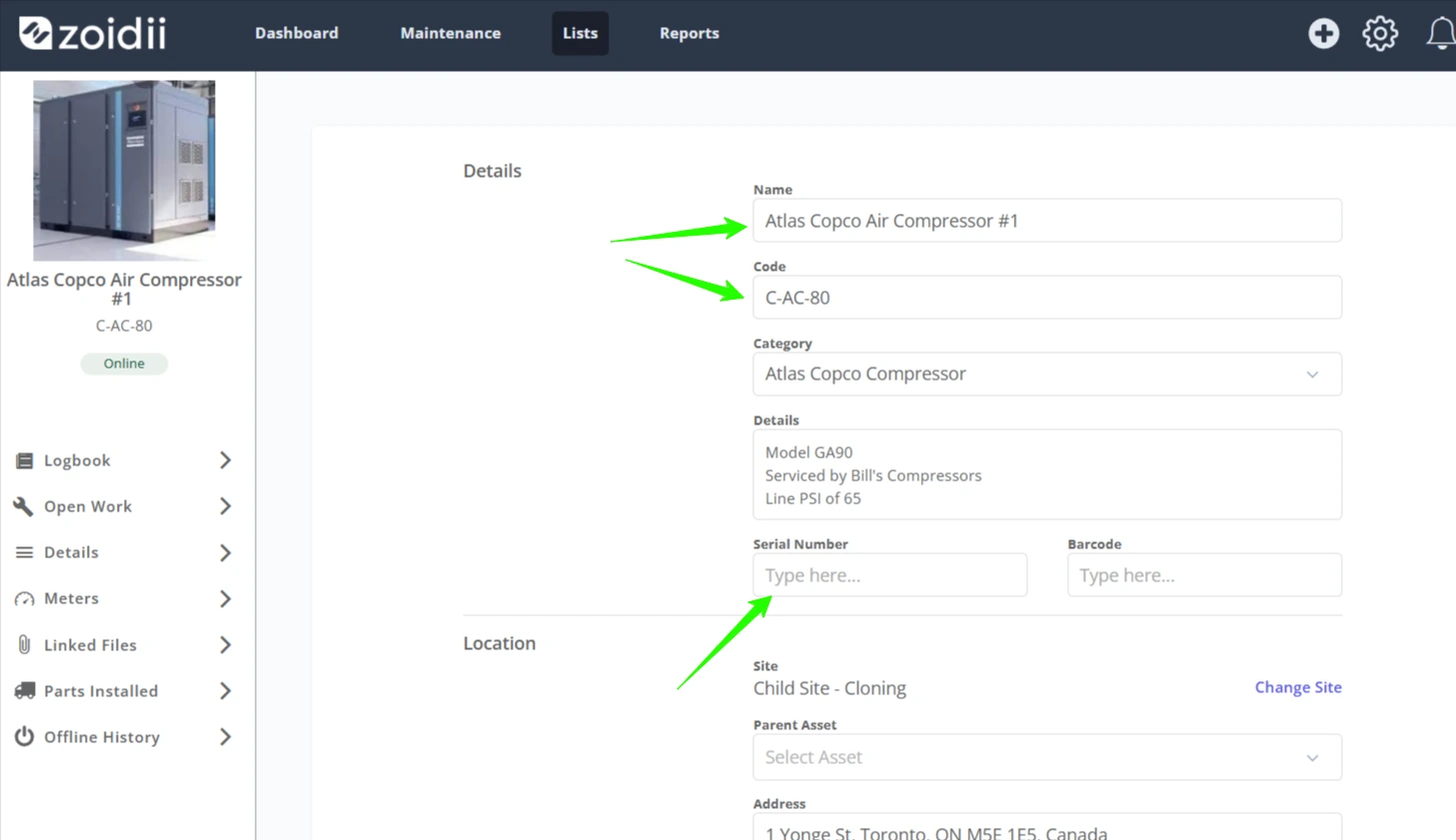
10. Repeat step 9 for any child asset clones.
Update All Cloned PMs
If the Clone all associated PMs checkbox was checked in step 5 above, the cloned PMs need to be cleaned up and activated.
11. Navigate to the PM screen. As the cloned PMs will be assigned the next PM codes, they will show up last on the list. You can order the PM Code column in descending order to view it without having to search too hard for them.
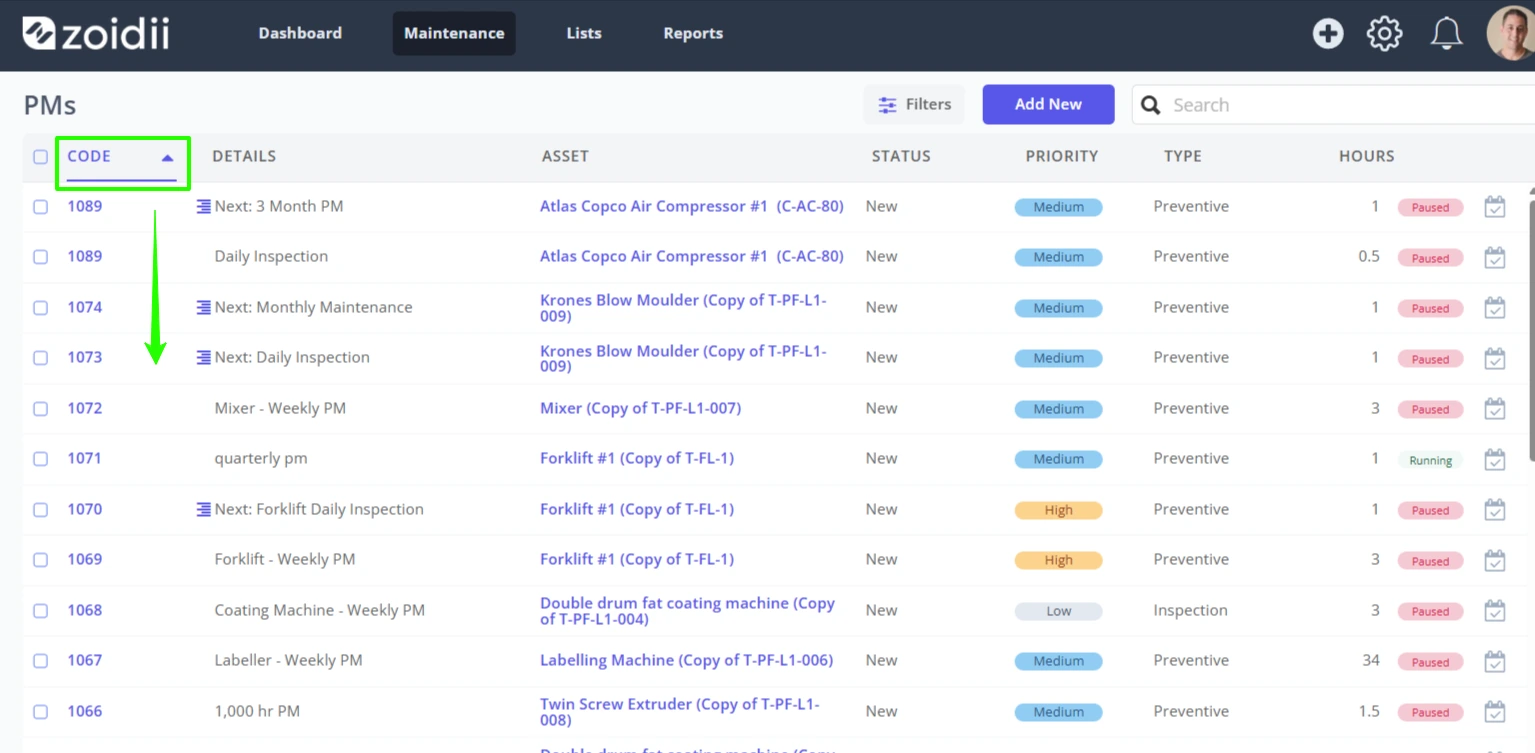
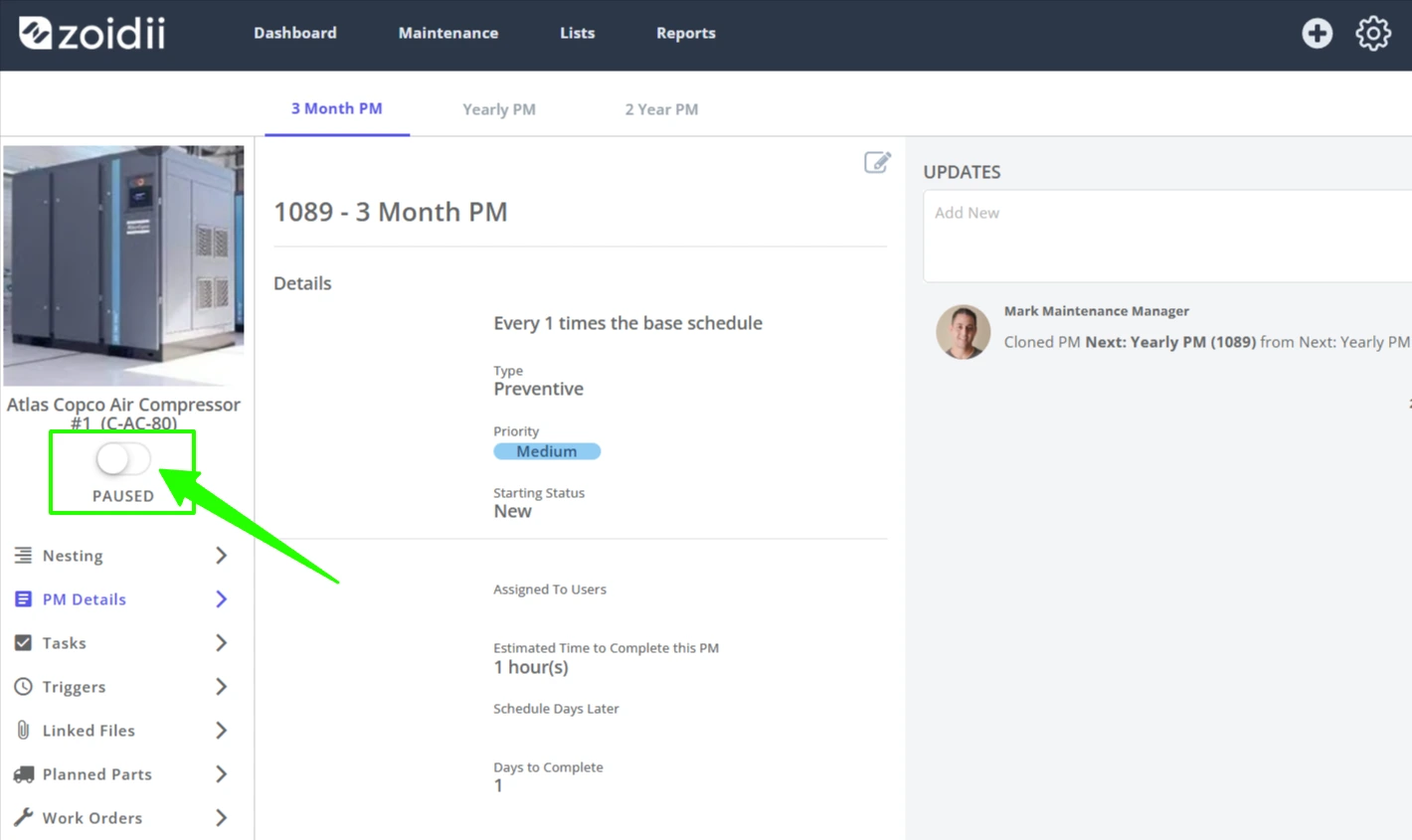
12. The cloned PMs are automatically put into the Paused state so system administrators can review the PM, adjust triggers accordingly etc.
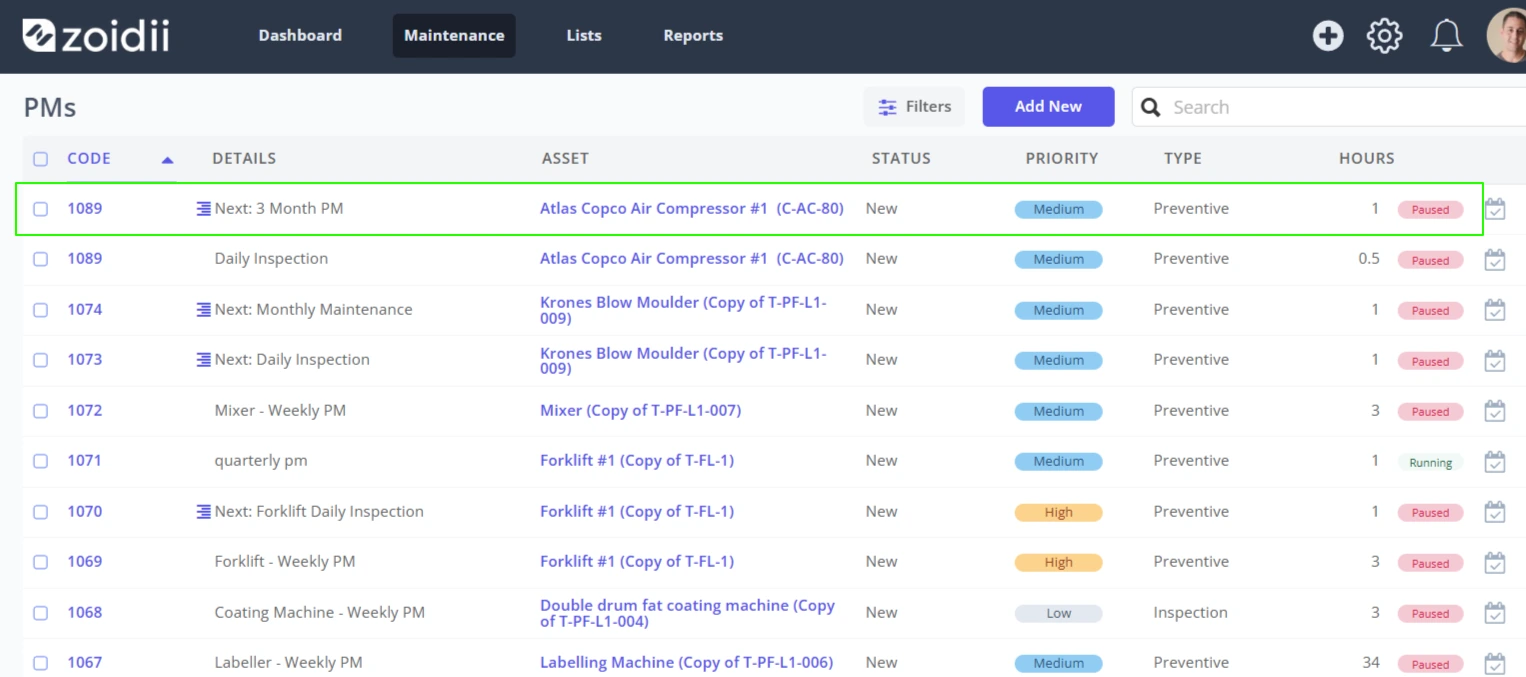
13. Once the PM is reviewed and verified correct, click the toggle to activate