Background
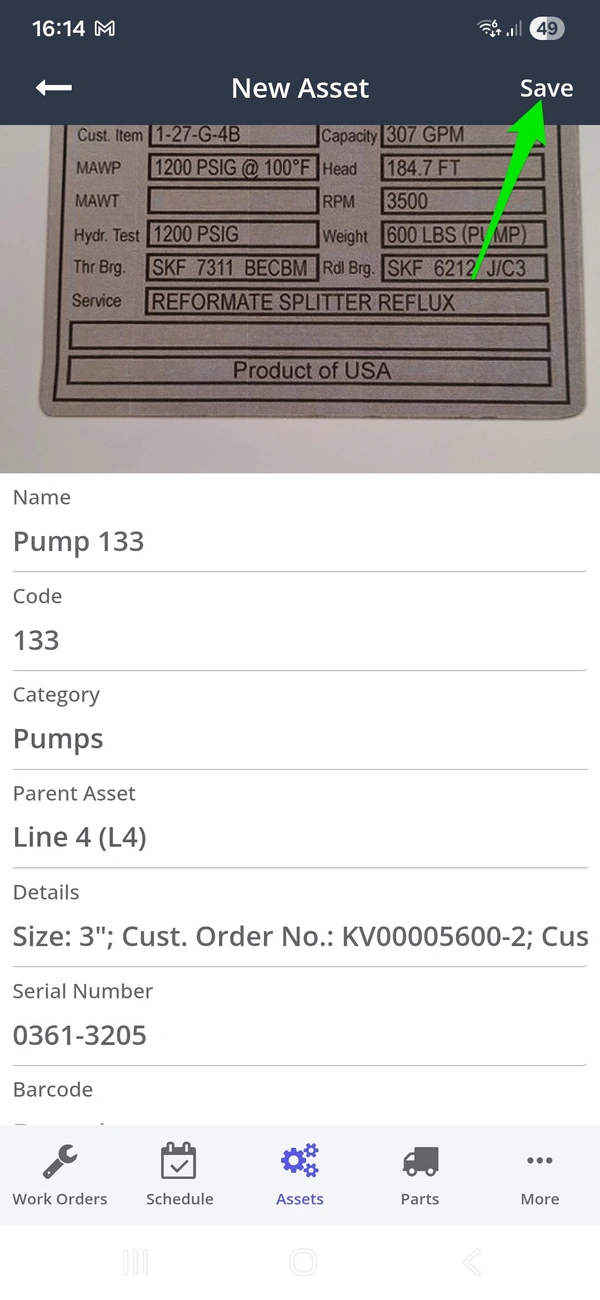
Photo to Asset lets you digitize equipment in seconds using your phone. Simply take a photo of the asset’s nameplate, tag, or VIN plate, and the system extracts key details such as the asset name, make, model, serial number, and manufacturing date.Confirm or edit the details, tap save, and your asset is securely stored in your CMMS.
Video Procedure
Watch the video hereProcedure
1. To access Photo to Asset, navigate to the Asset screen on your mobile device. Click Add New and click the AI Add button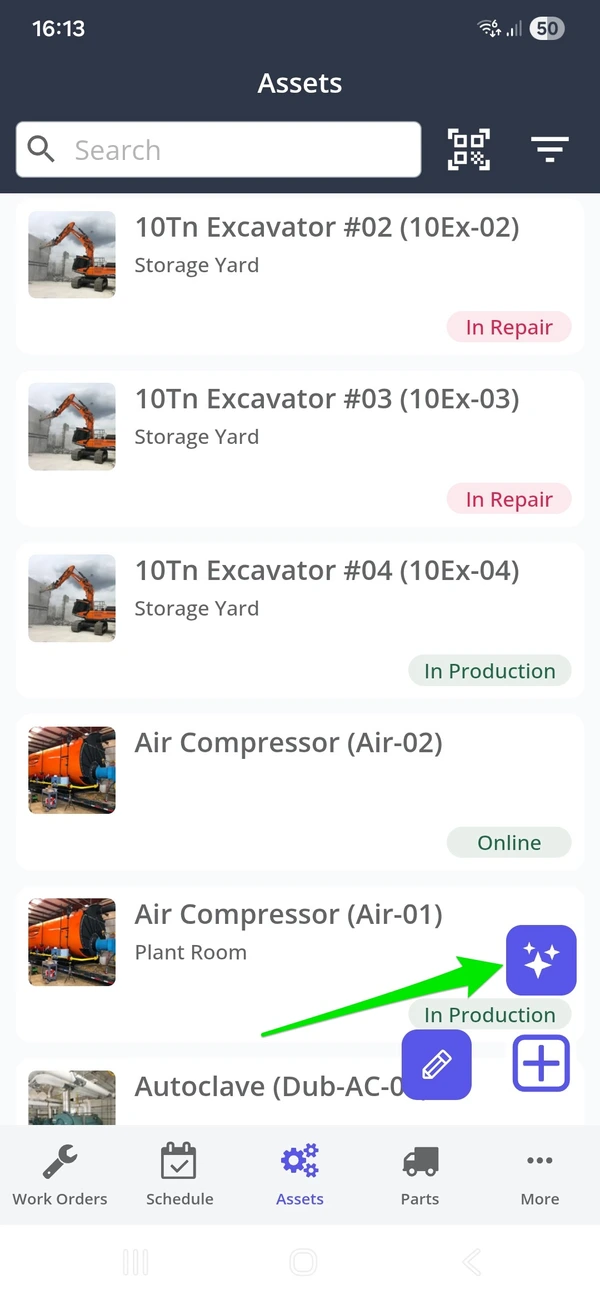
2. Snap a photo of the asset nameplate or the asset itself, and the AI tool starts extracting information from the image.
Pro Tip - To capture the maximum amount of information, snap a photo of the asset name plate.
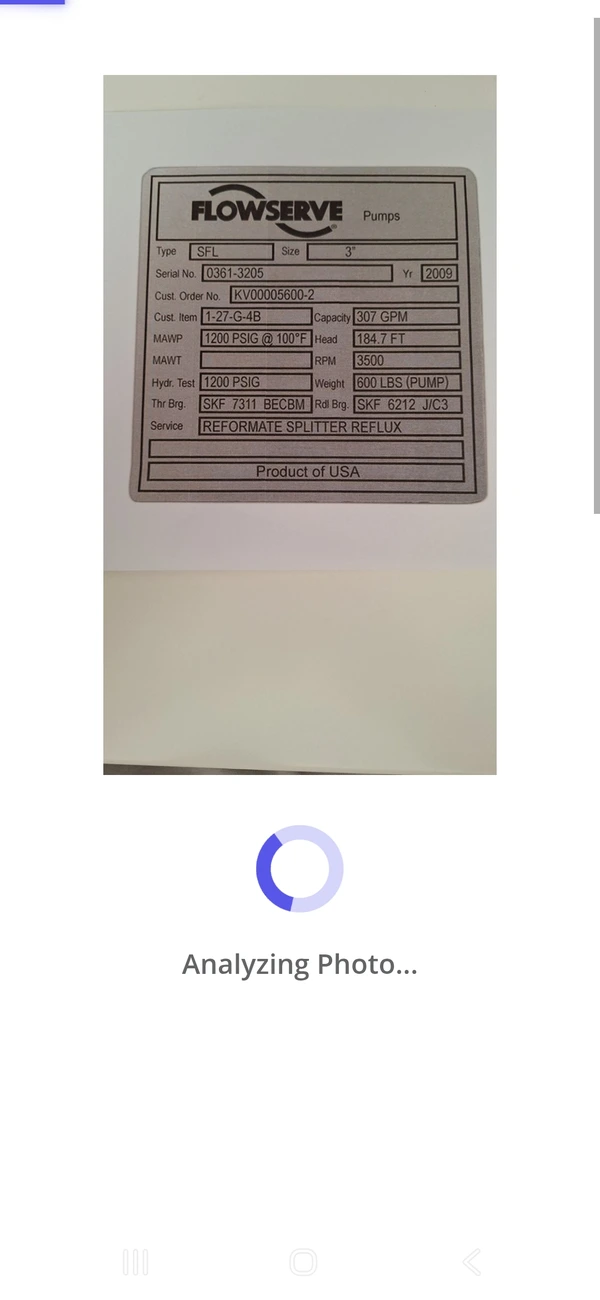
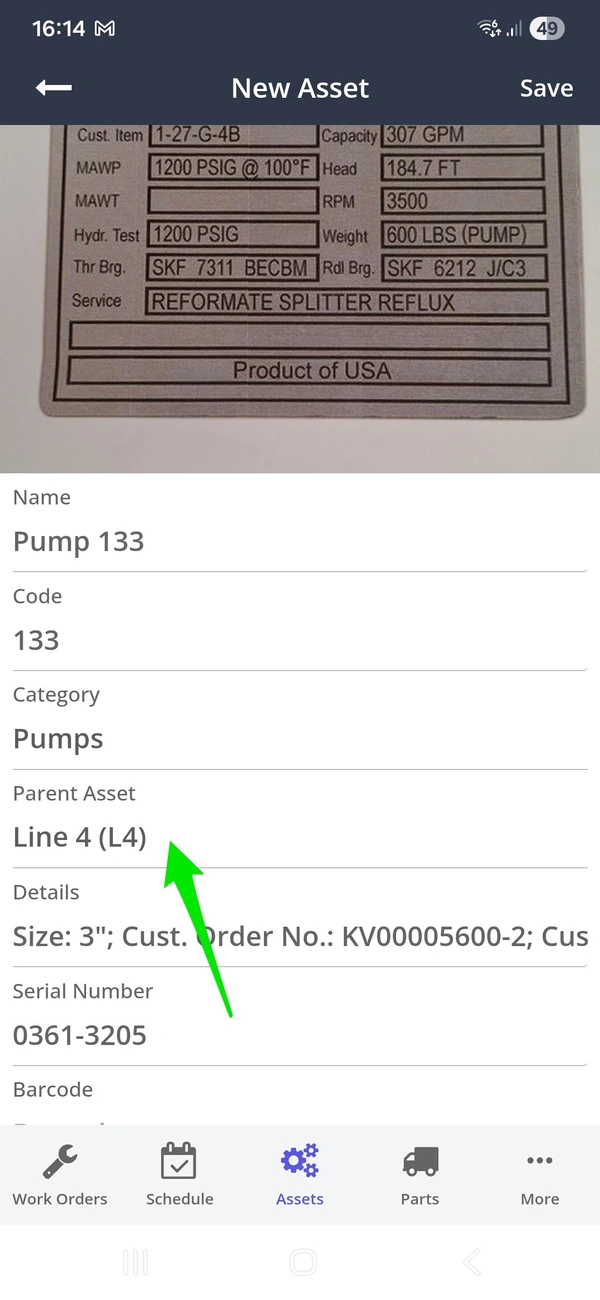
3. Zoidii's AI tool returns the asset information. Make any changes as needed.
Notes:
- Asset Category - If the asset category extracted from the image exists in the system, it will be selected from the list. If it does not exist, the AI tool will create the category in your CMMS and then select from the list.
- Asset Attributes - If the make and model extracted from the image exist in the system as attributes, they will be selected from the list. If they do not exist, the AI tool will create the attributes in your CMMS and then select from the list.
- Additional Data - any additional data extracted from the image that cannot be assigned to a designated field in Zoidii is added to the asset details field
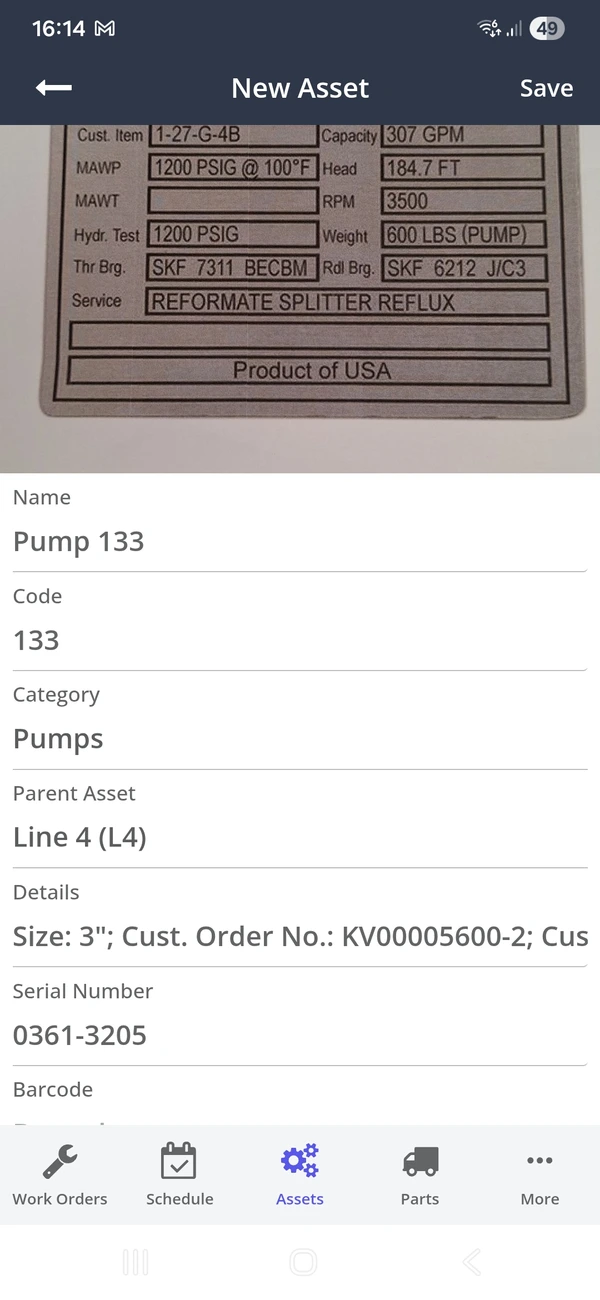
4. Assign the asset to a parent location
5. Click Save to add the asset to your CMMS