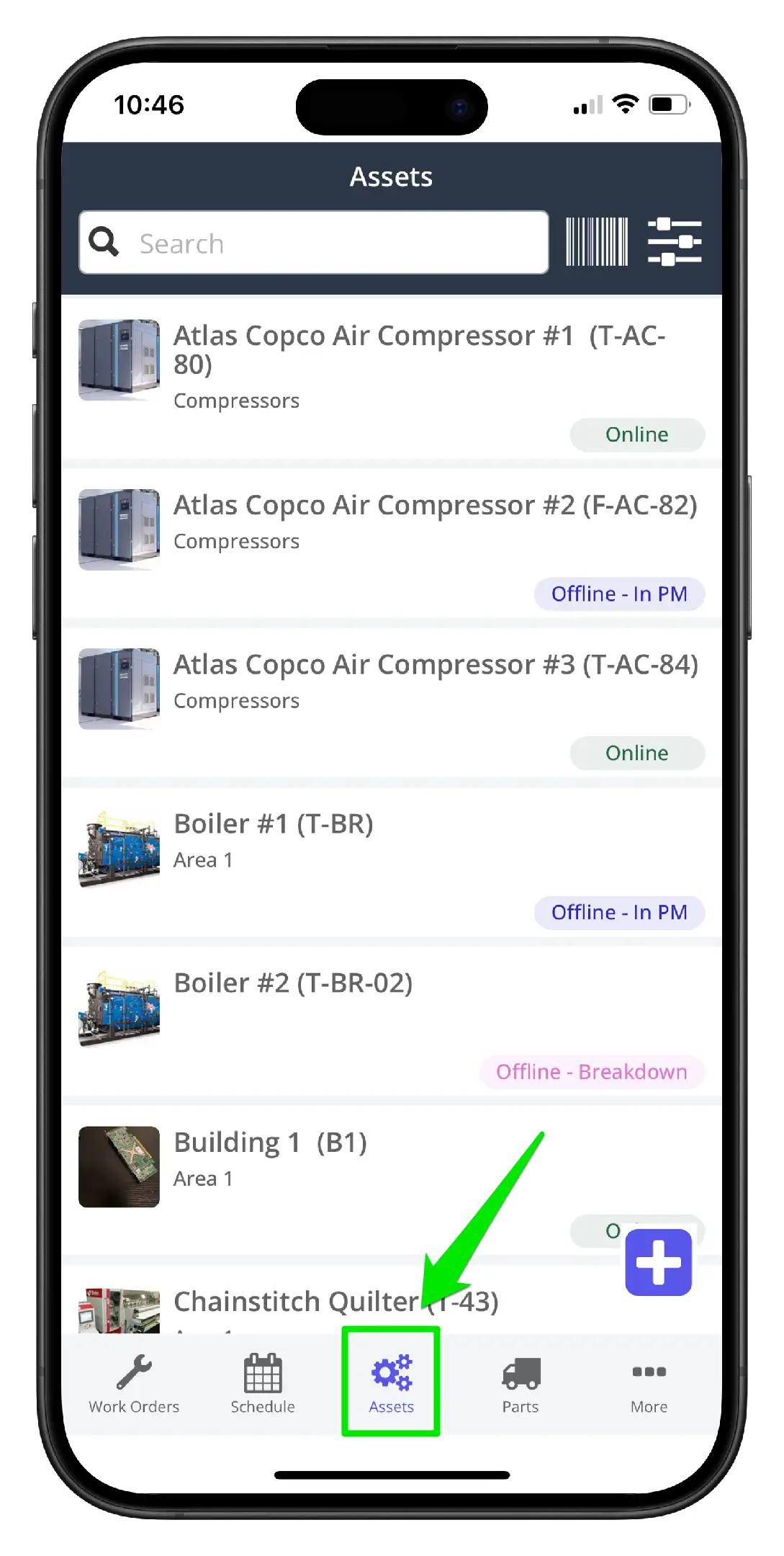
1. Navigate to the Assets page on mobile.
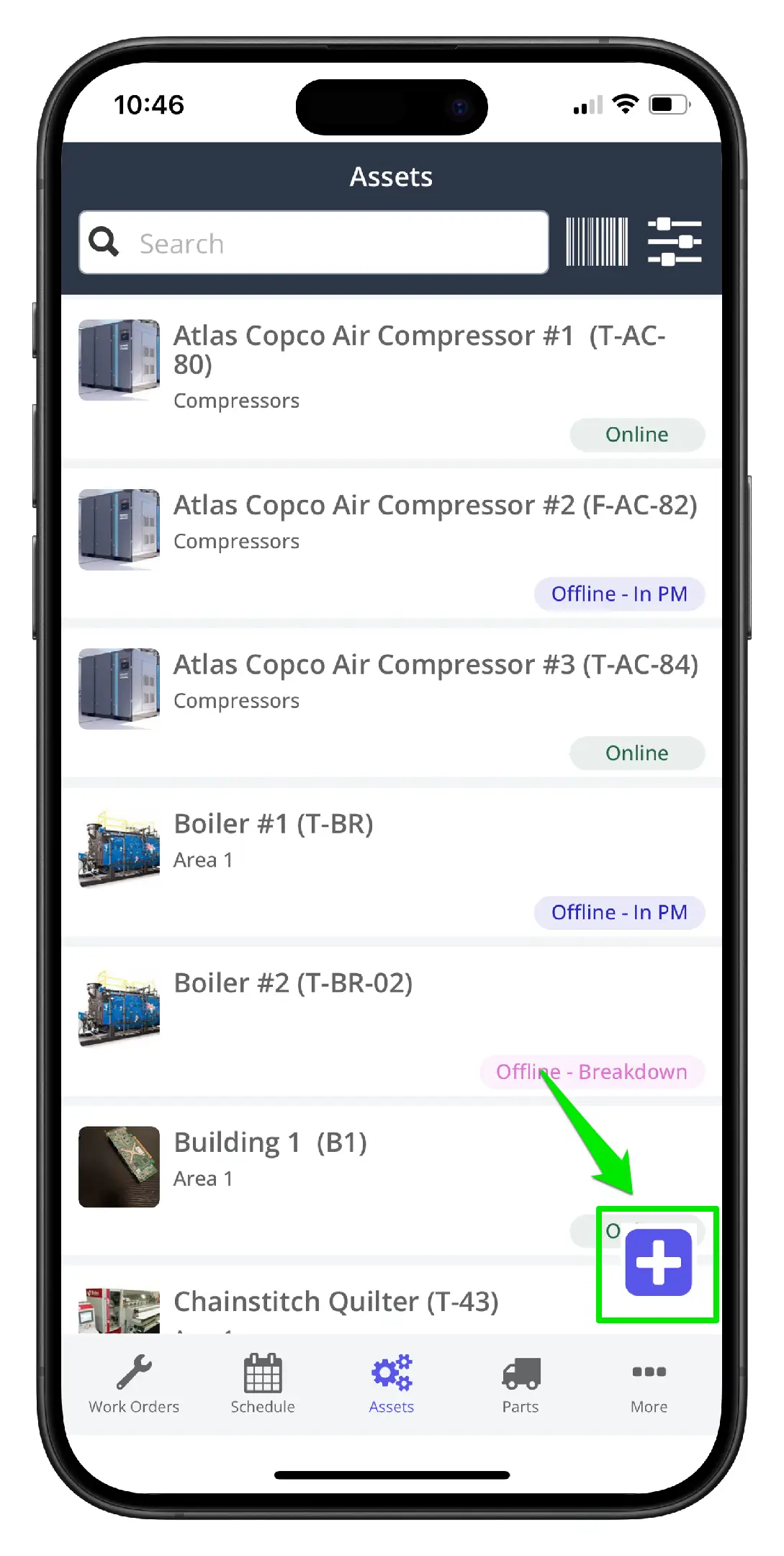
2. Click the Add New icon on the bottom right-hand side
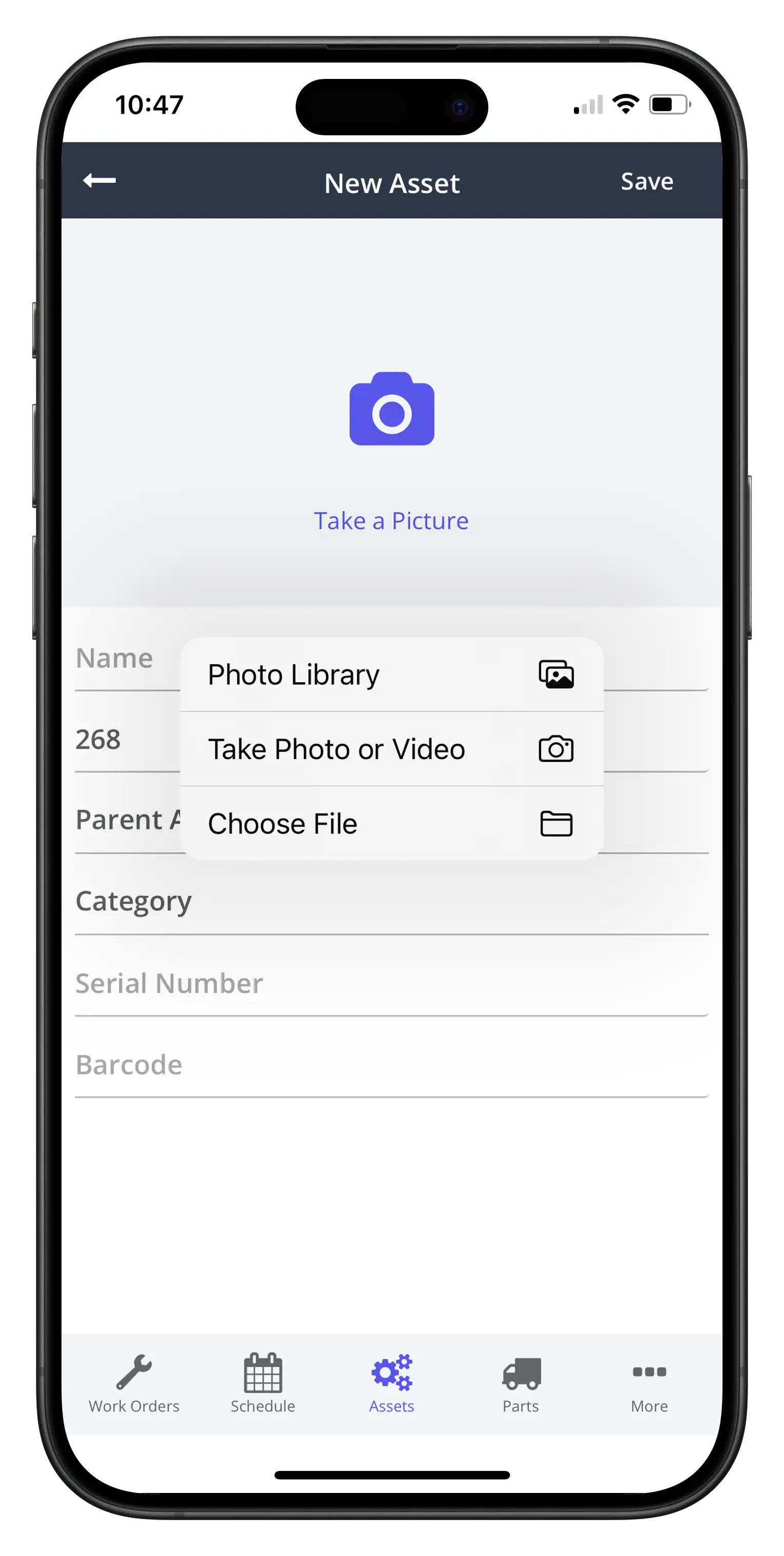
3. Click Take a Picture to add an image of the asset
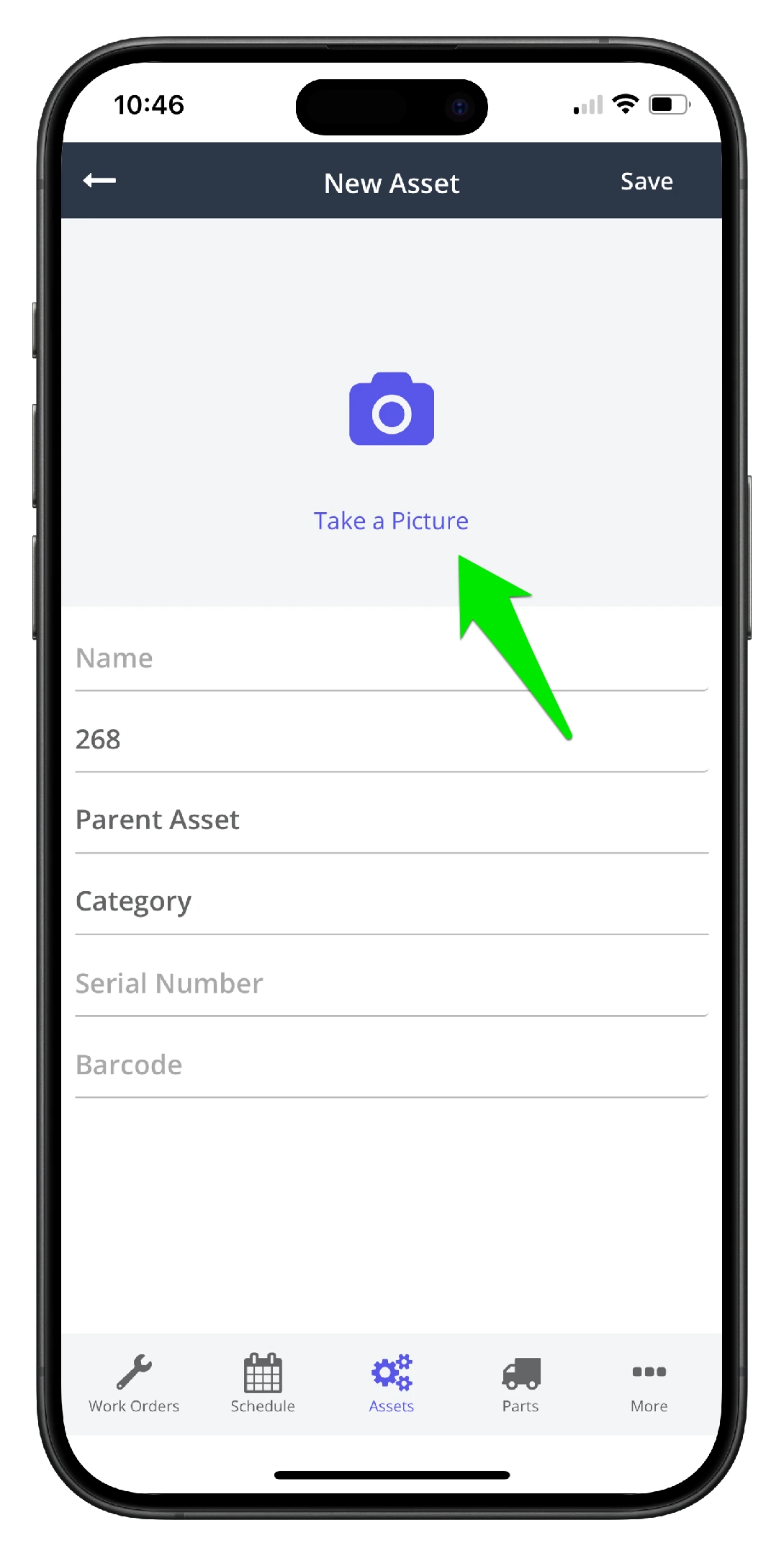
4. You can either take a photo of the asset or choose an image from your phone memory
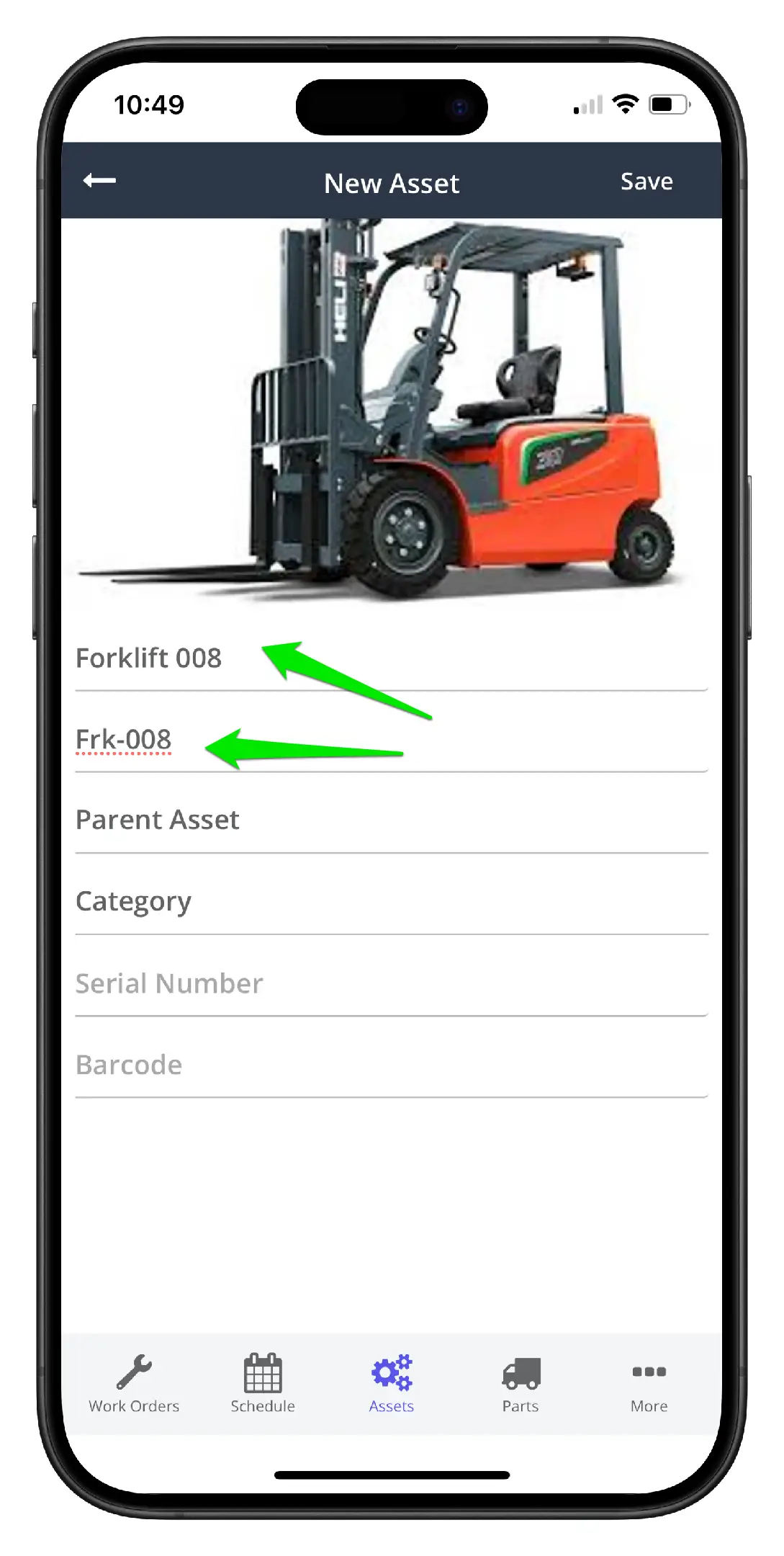
5. Add the asset Name and Code. When reading the code, users should know exactly what the asset is and where it is in the facility
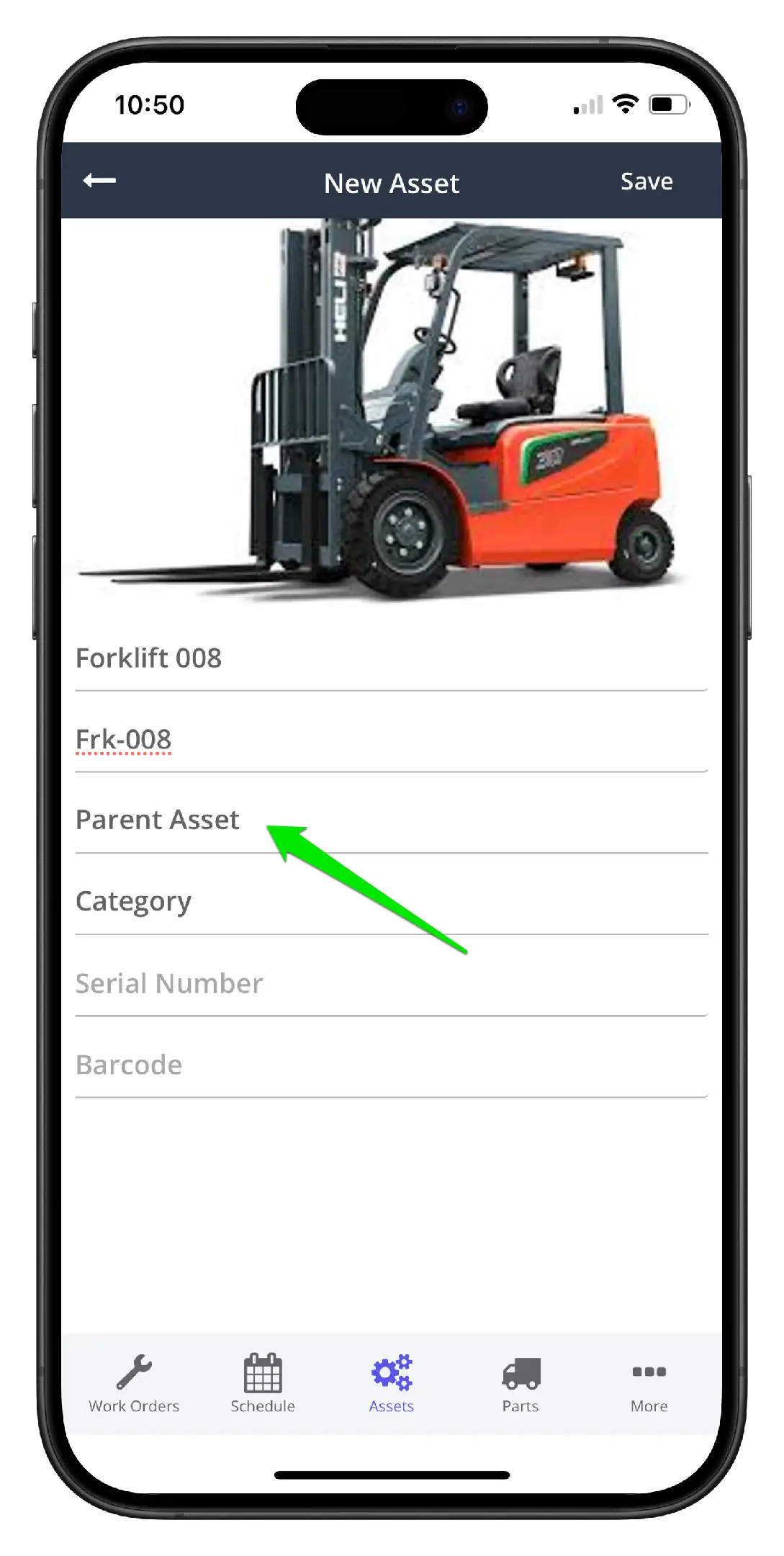
6. Click Parent Asset to assign the asset to a parent asset
7. Select the parent asset from the list of assets
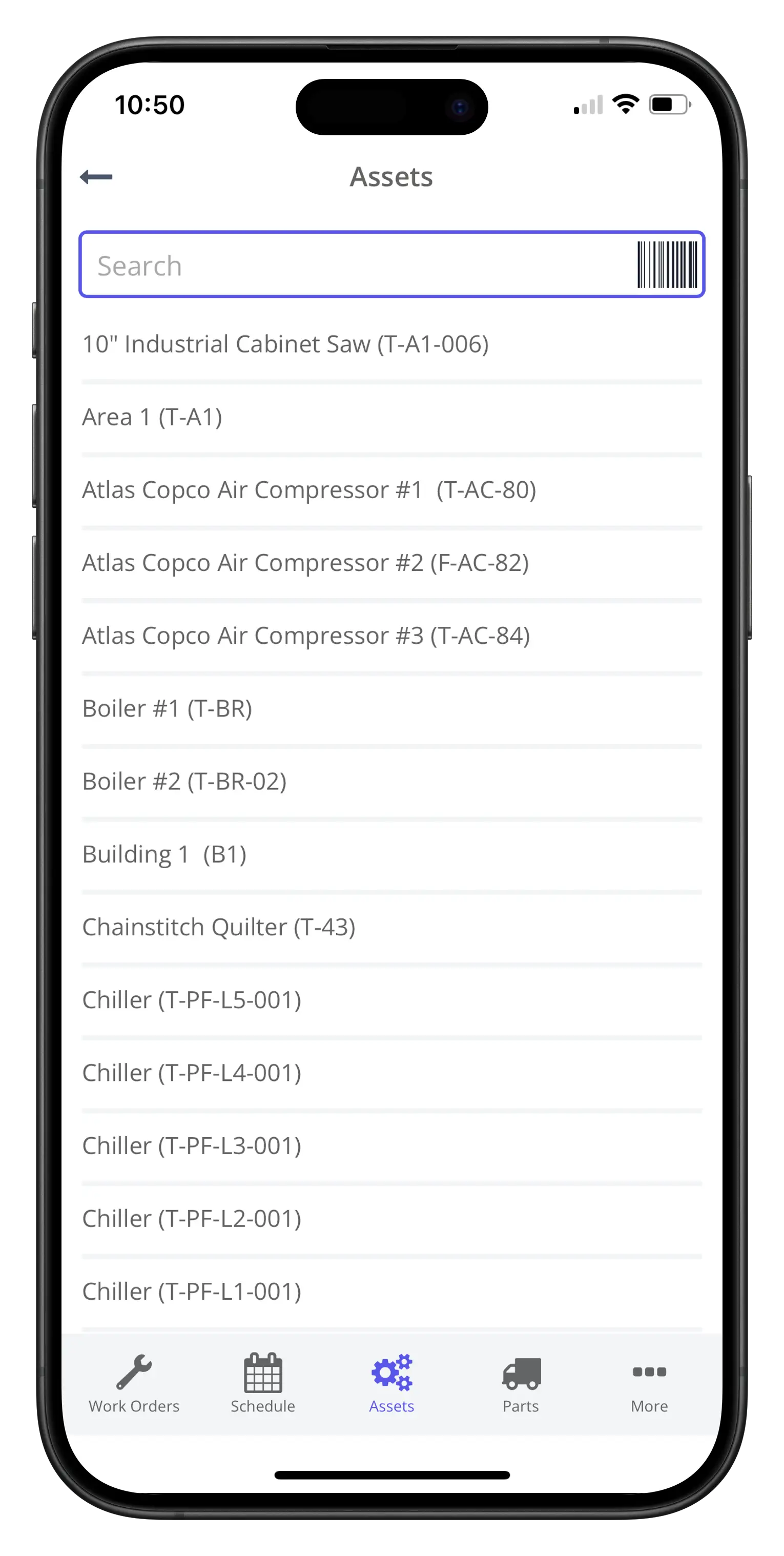
8. Or use the search or QR code scanner to find the parent asset quickly
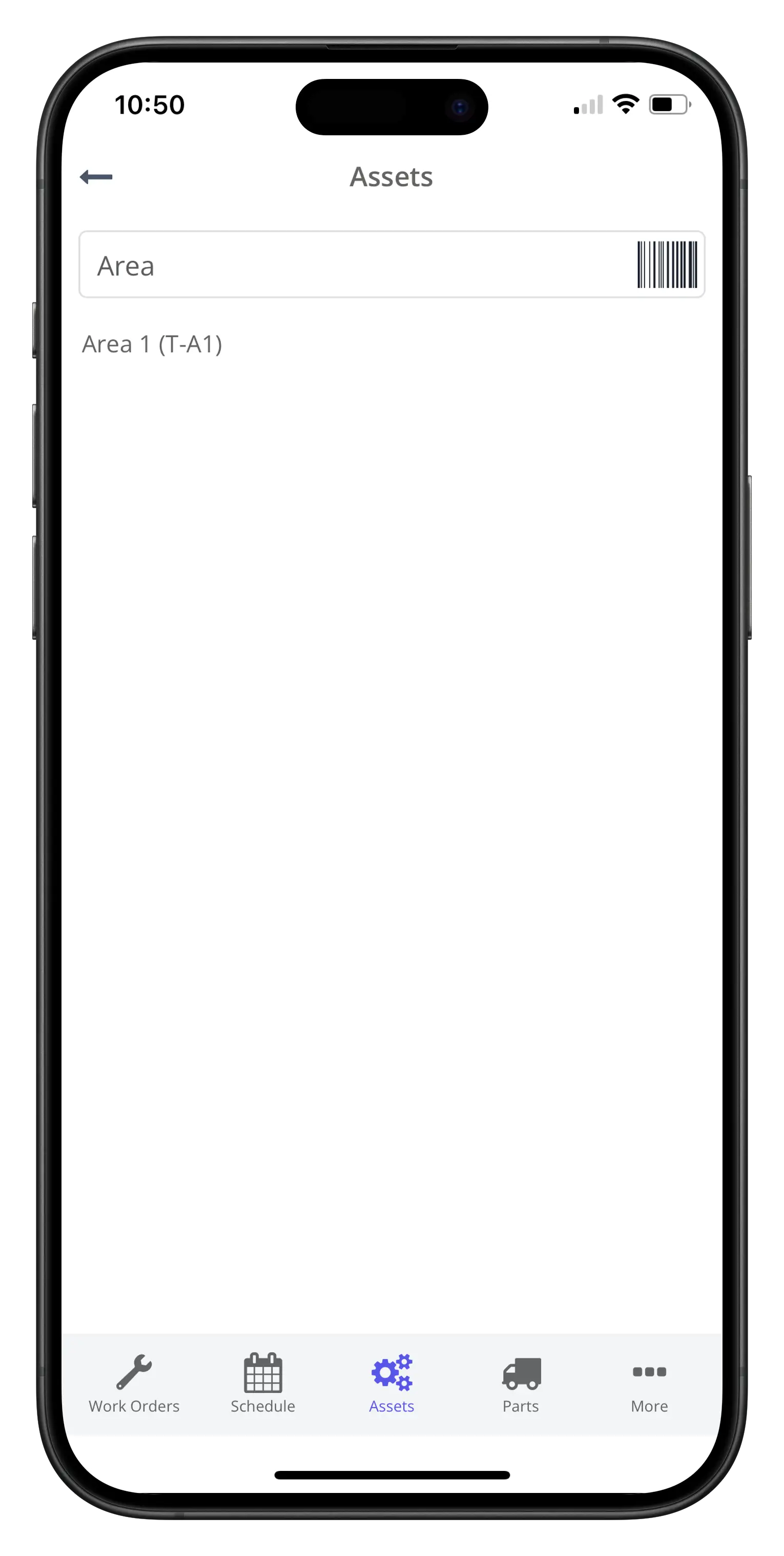
9. Repeat the process for the asset category. Assign the asset category from the Asset Category dropdown. If a suitable category does not exist, create a new category as per the Add/Edit Asset Categories procedure.
Add a Serial Number and Barcode for the asset if needed. Note the barcode cannot be scanned with the mobile app.
10. Click Save when done
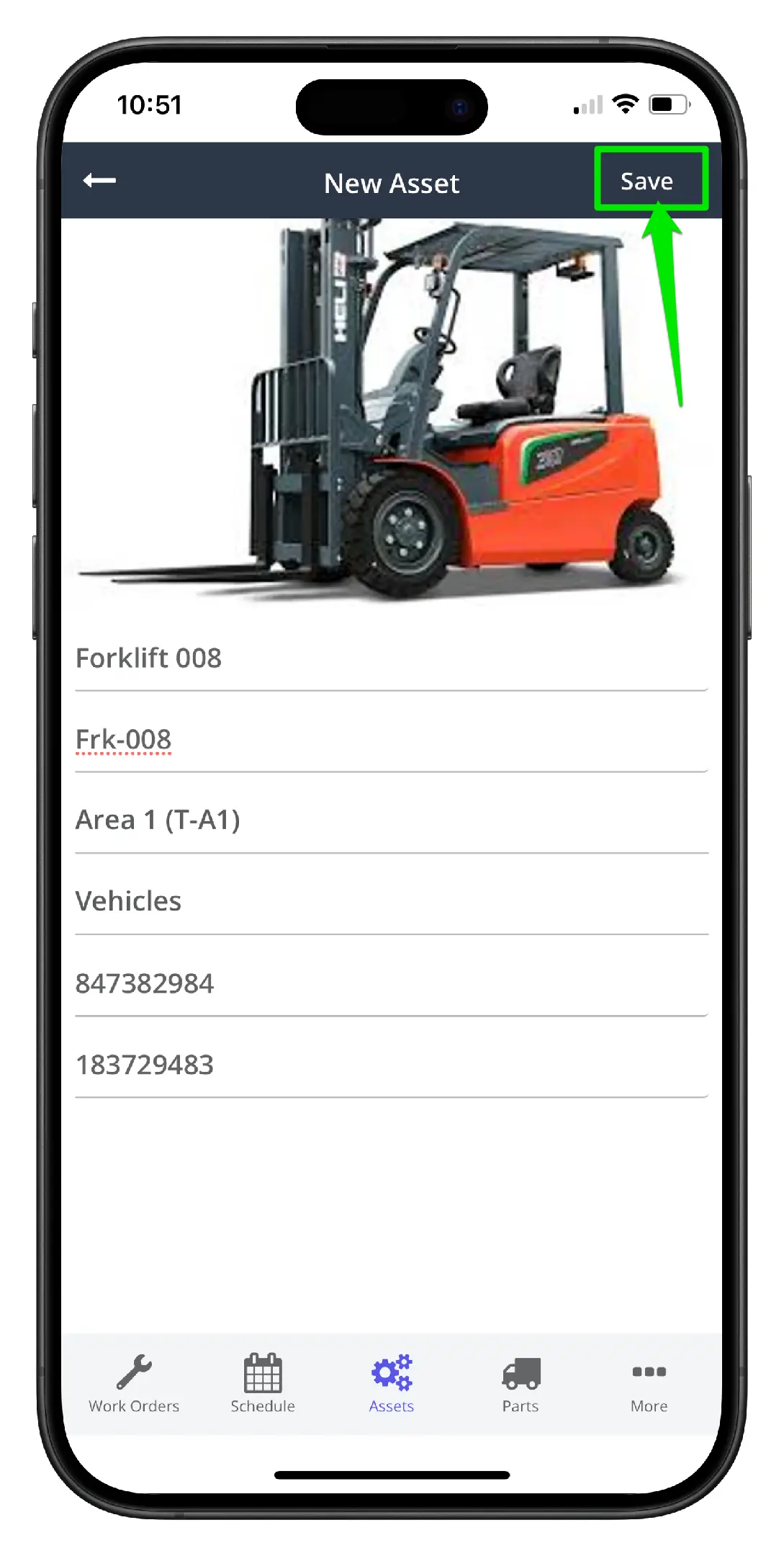
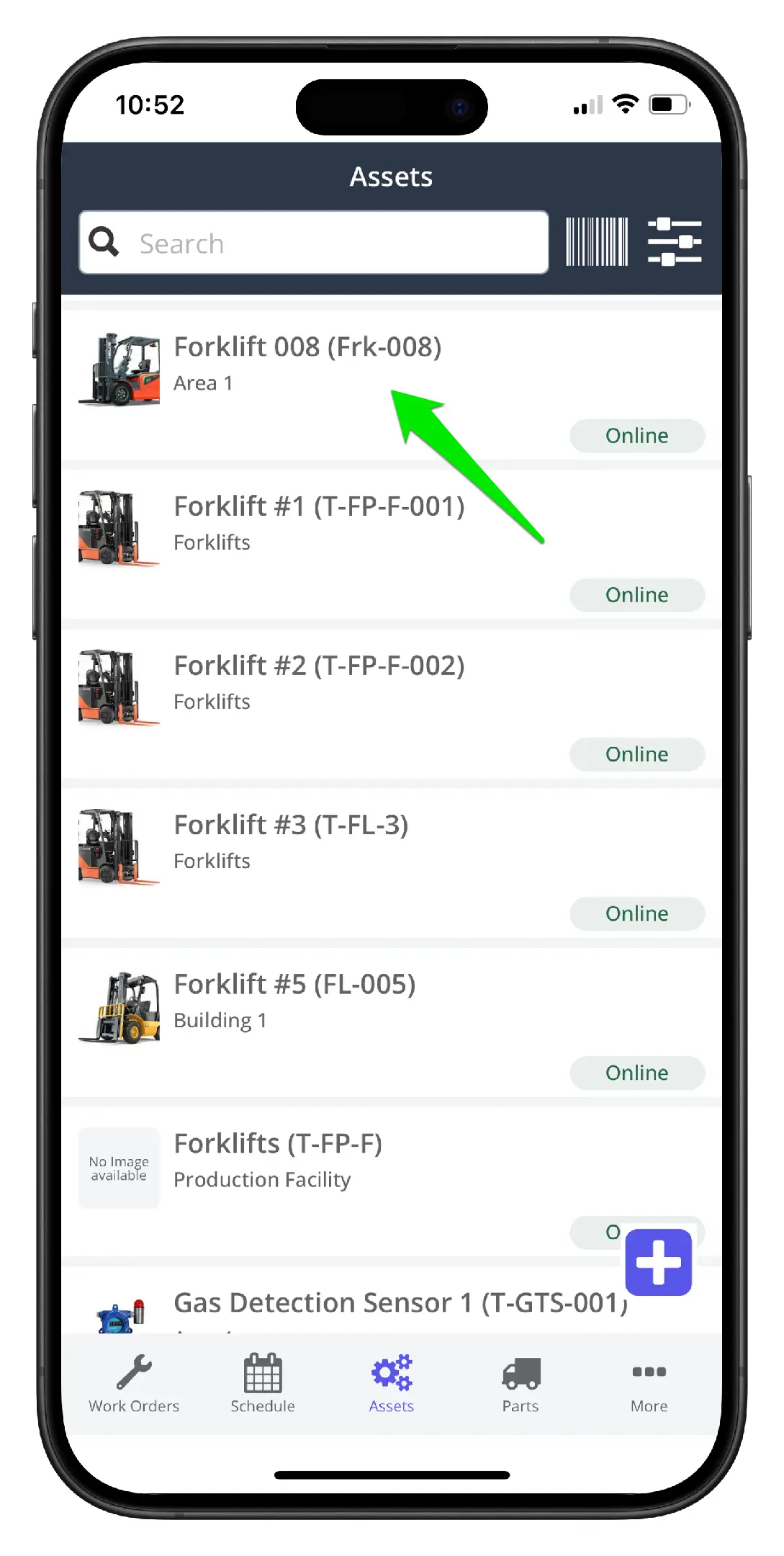
11. Find the asset in the asset list to check your work