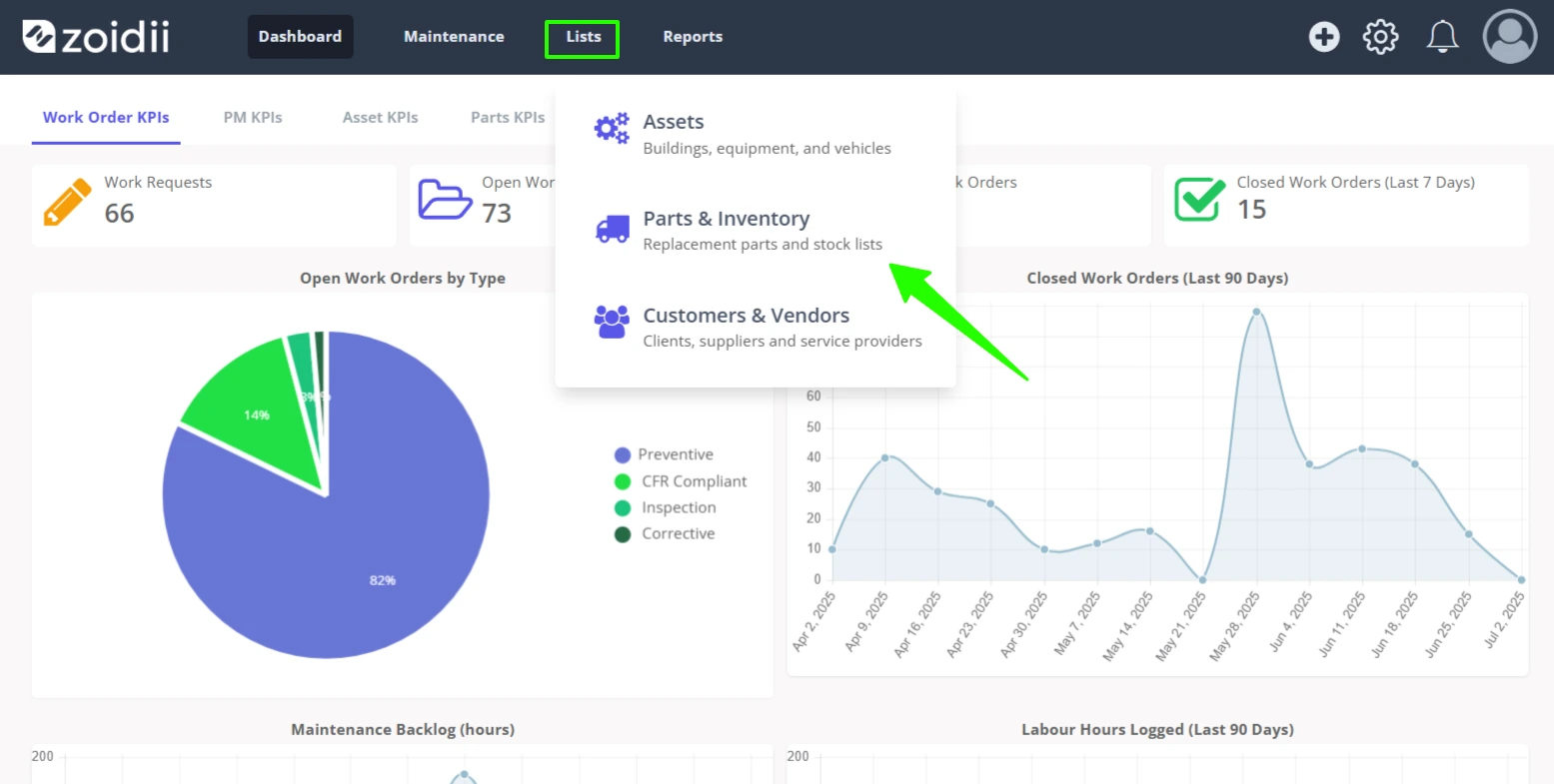
1. Click Lists from the top navigation bar, and click Parts & Inventory
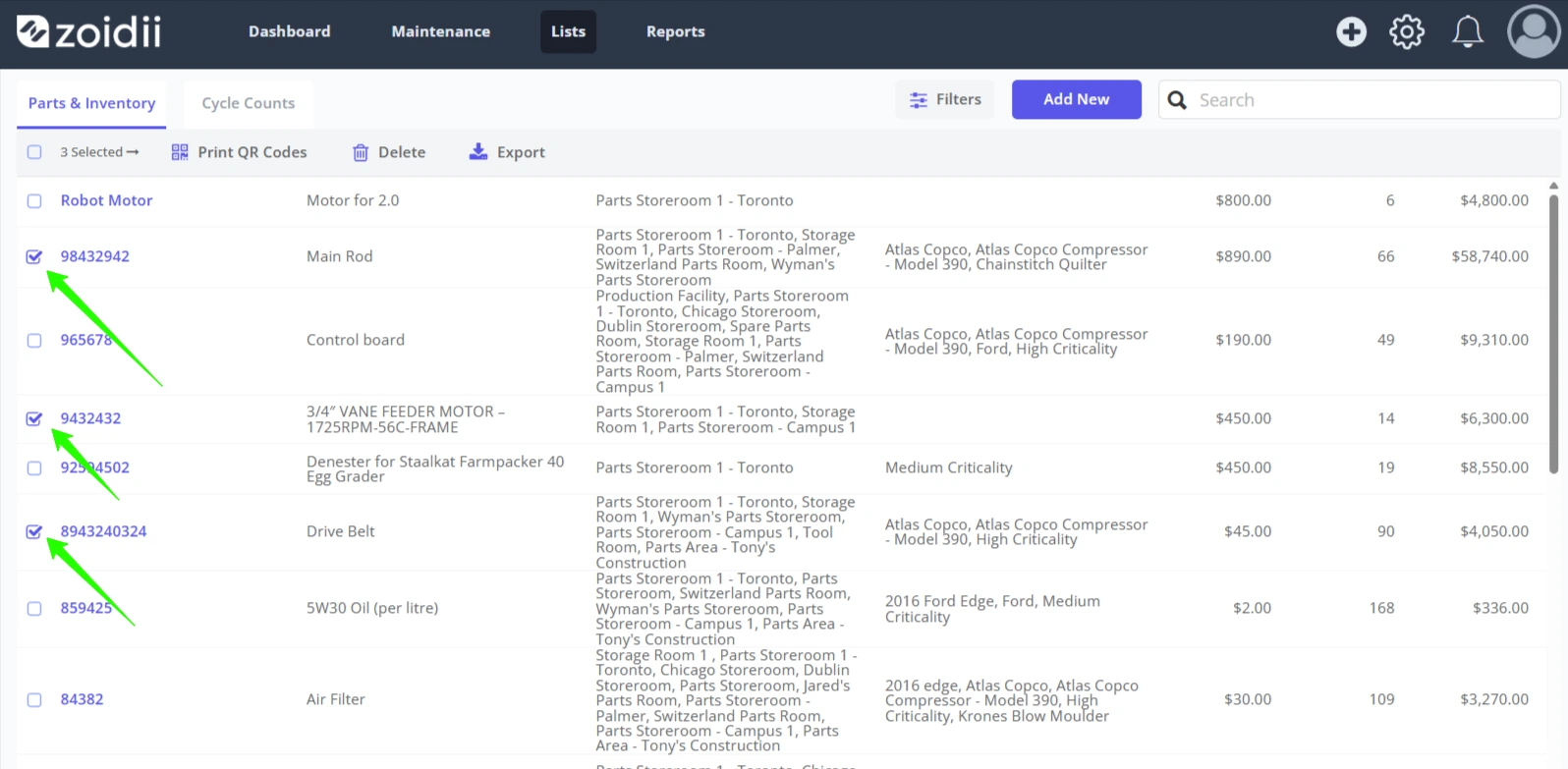
2. In the parts list, check the checkbox on the asset line item to print a QR code for that part
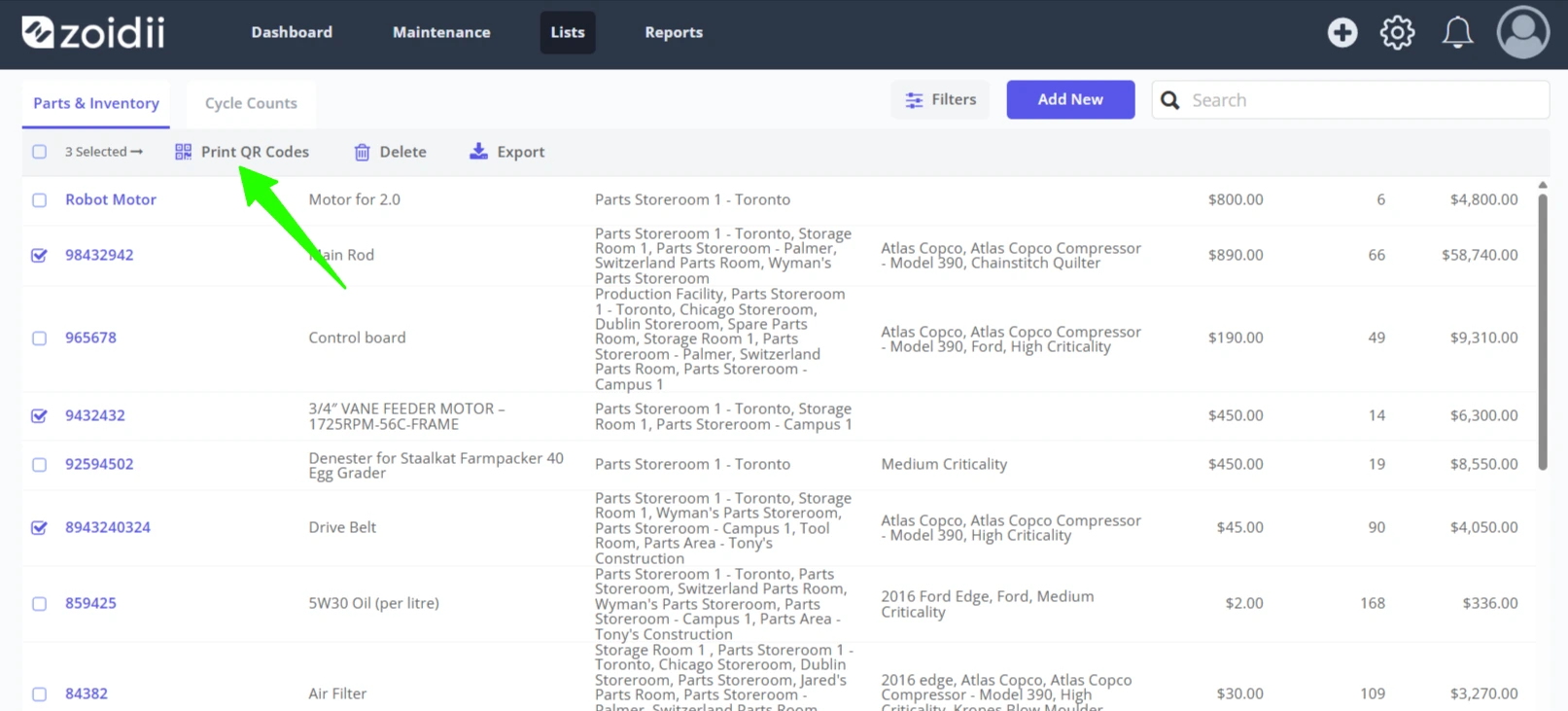
3. In this example, 3 parts have been selected. Click Print QR Codes
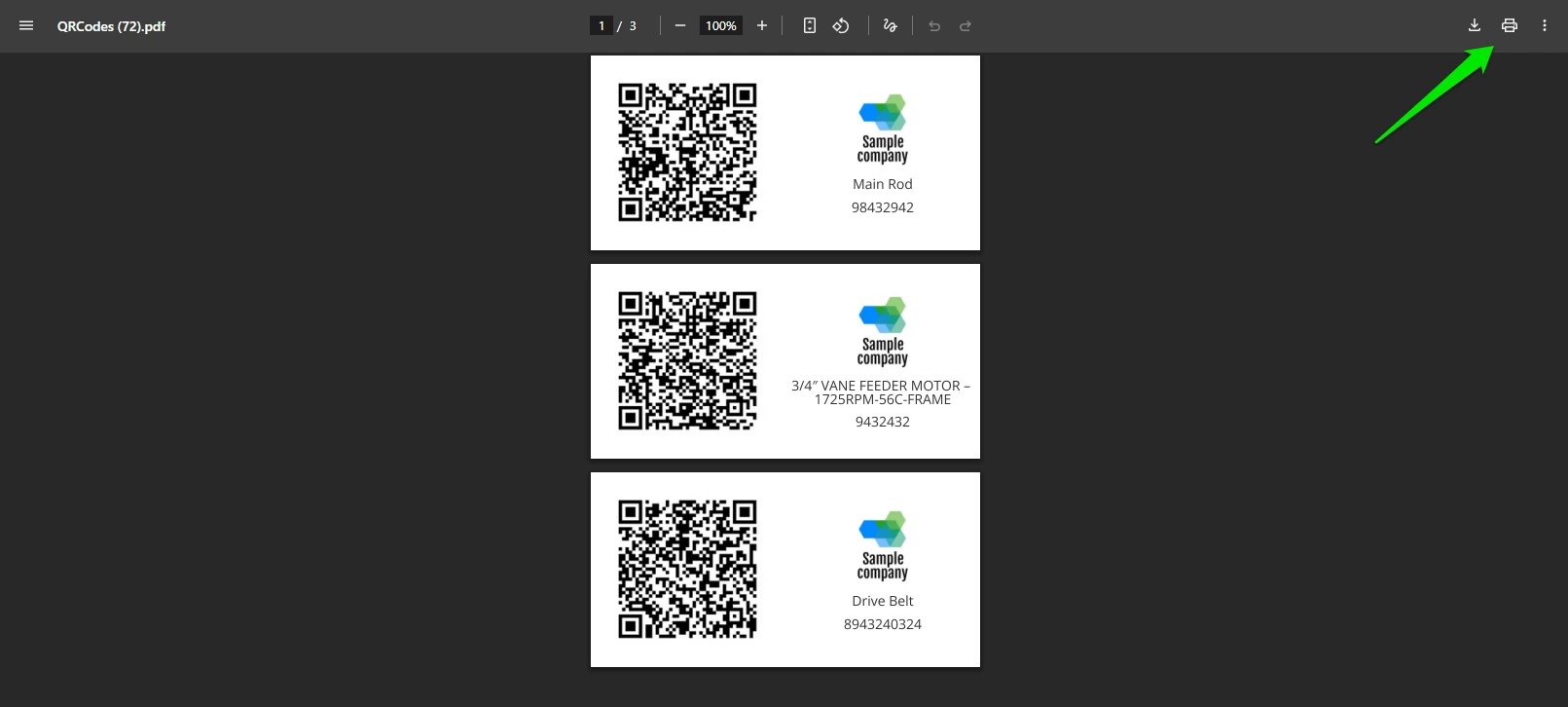
4. Click Print. The QR codes are outputted in PDF format to the downloads folder on your computer.
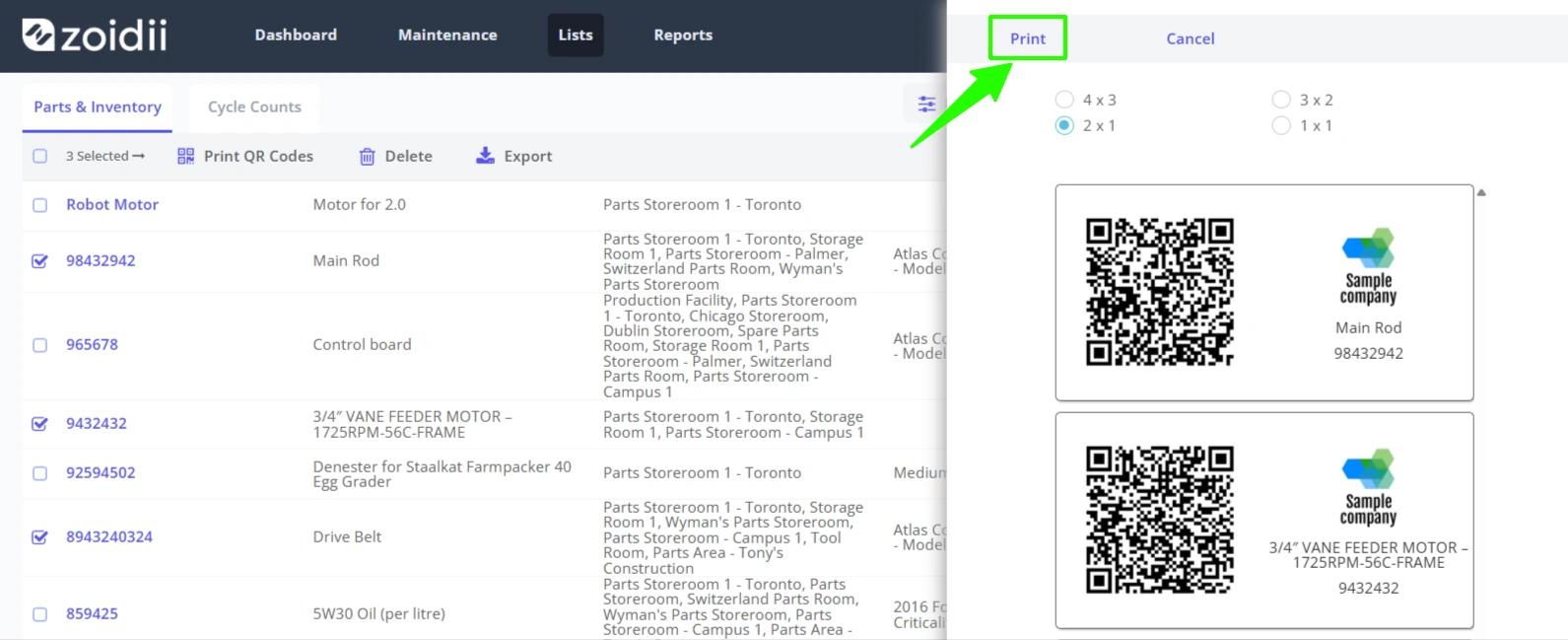
5. Click Print