Background
Unwanted parts storage locations are "soft-deleted" in the database. This means you will still see any history associated with the parts storage location in the parts history tab, on work order records, on reports etc.
Procedure
1. Click Lists from the top navigation bar, and click Parts & Inventory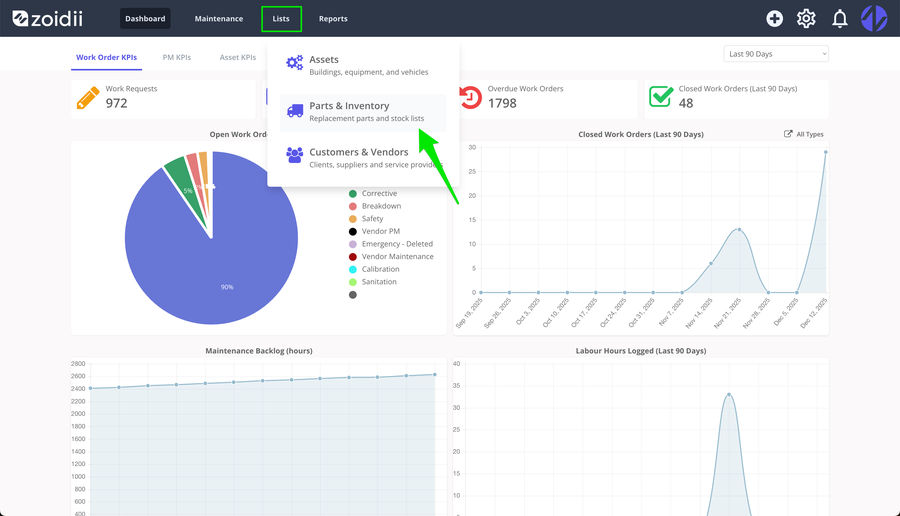
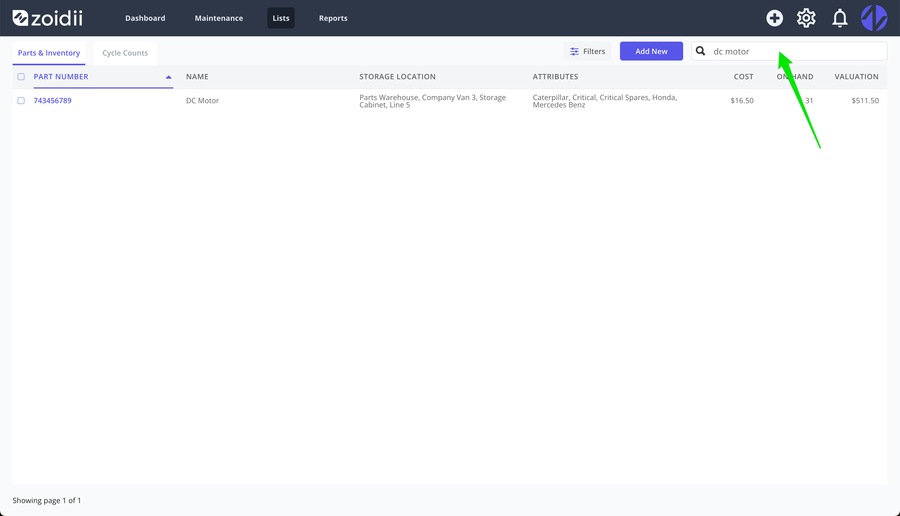
2. Find the part using the search feature
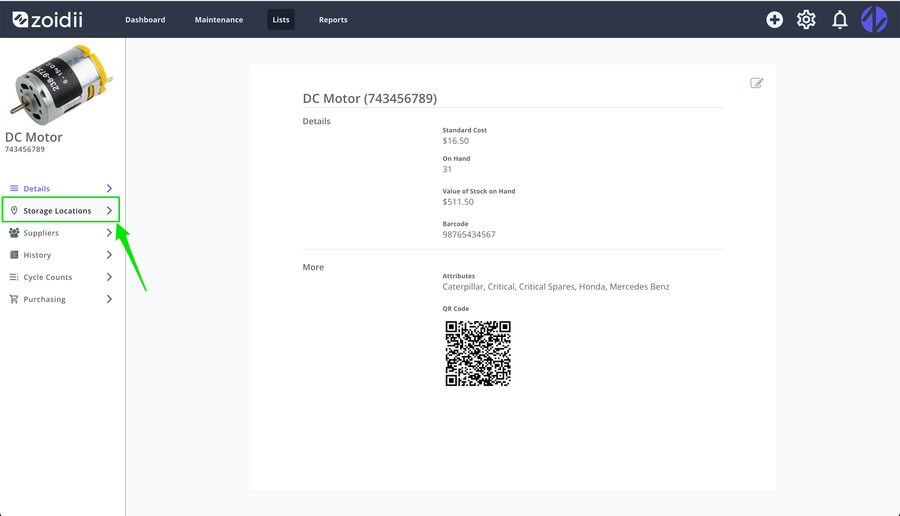
3. Open the part record and navigate to the Storage Locations tab
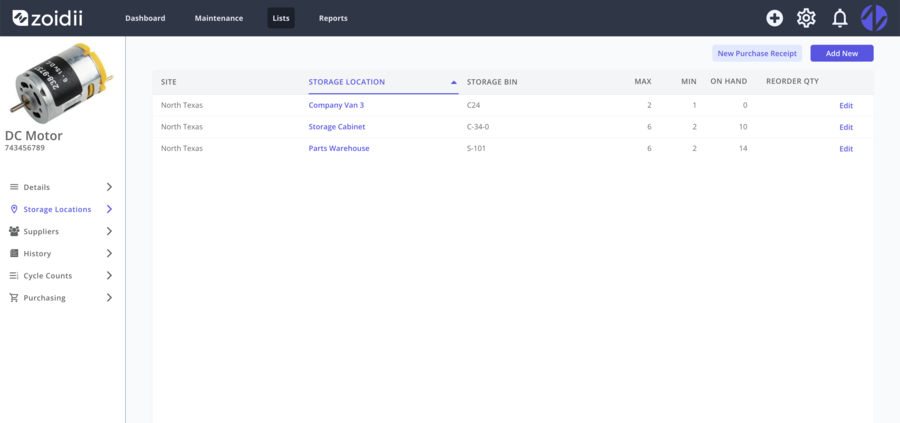
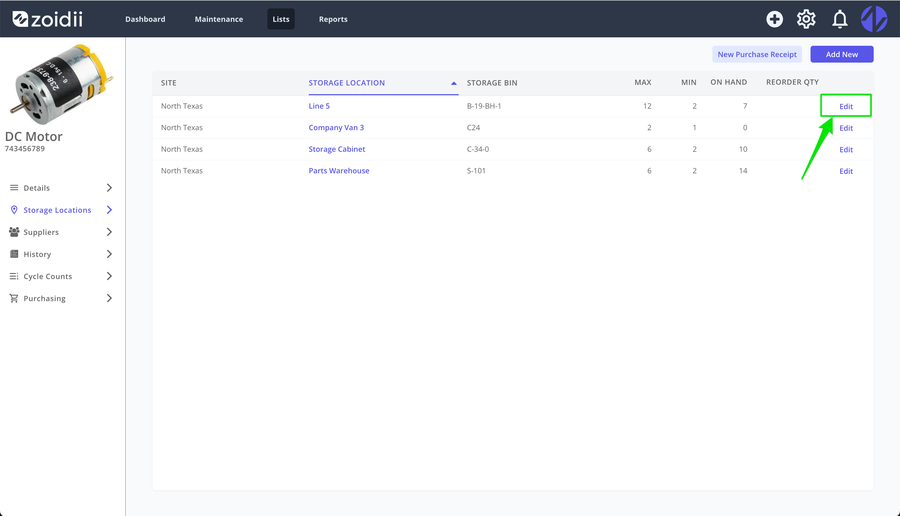
4. Click Edit opposite the line item to be retired
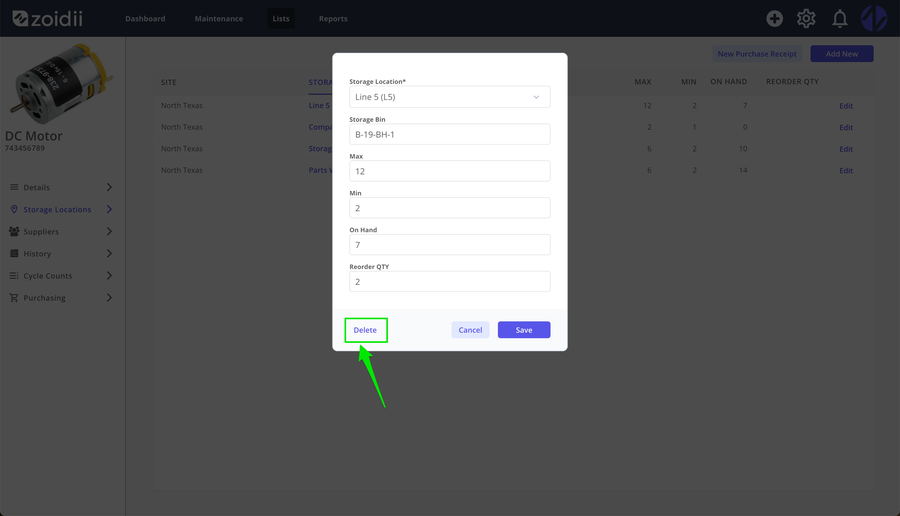
5. Click Delete
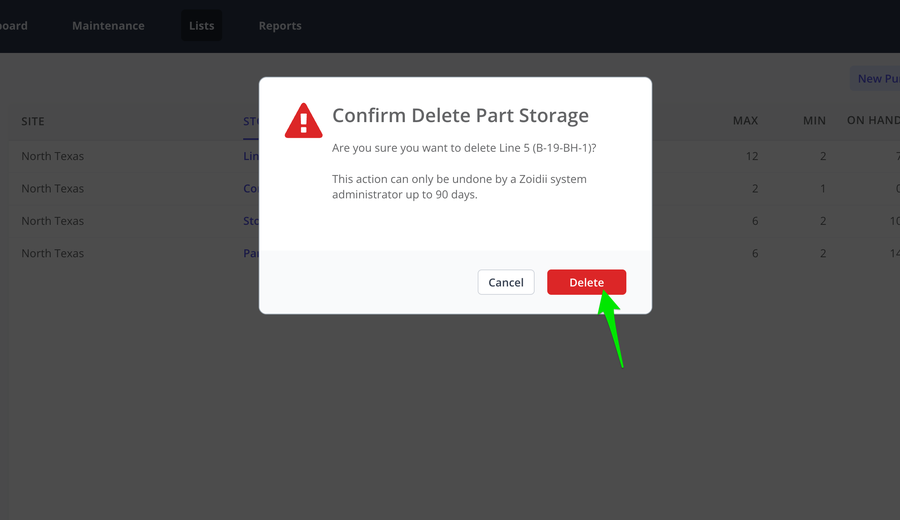
6. Click the red Delete button to confirm.
7. Verify your work in the part - storage locations tab. Deletion can be reversed if needed by contacting Zoidii technical support.