Background
Meter readings are used to track equipment parameters such as hours, cycles, pressure etc. In addition, preventive maintenance can fire based on meter based triggers. When the meter hits a certain threshold, the PM is triggered. There are a number of ways to log meter readings in Zoidii mobile cmms.
- In the asset record
- In the work order task
1. Log a Meter Reading via the Asset Record
1. Open the mobile app and navigate to the asset screen
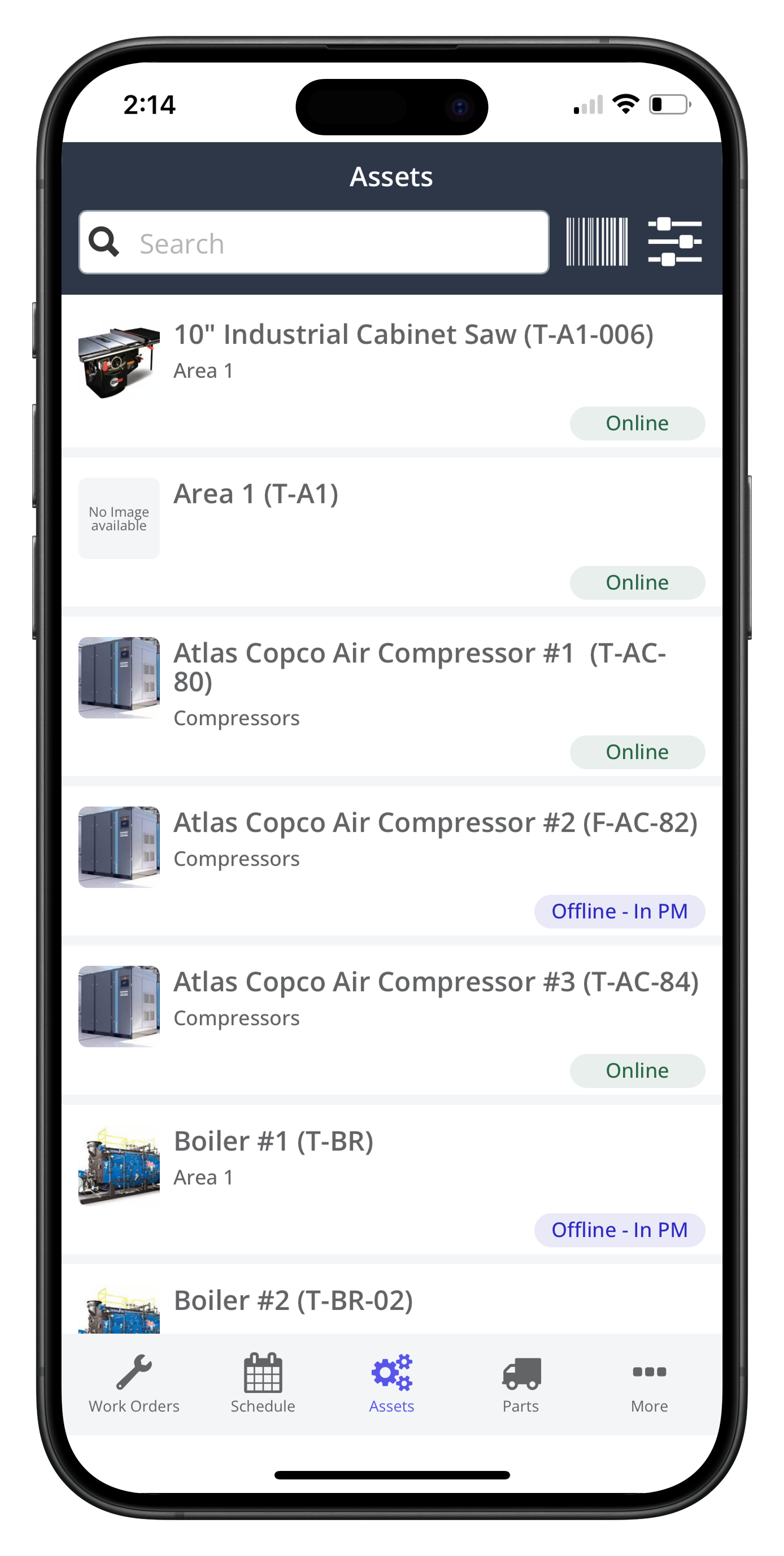
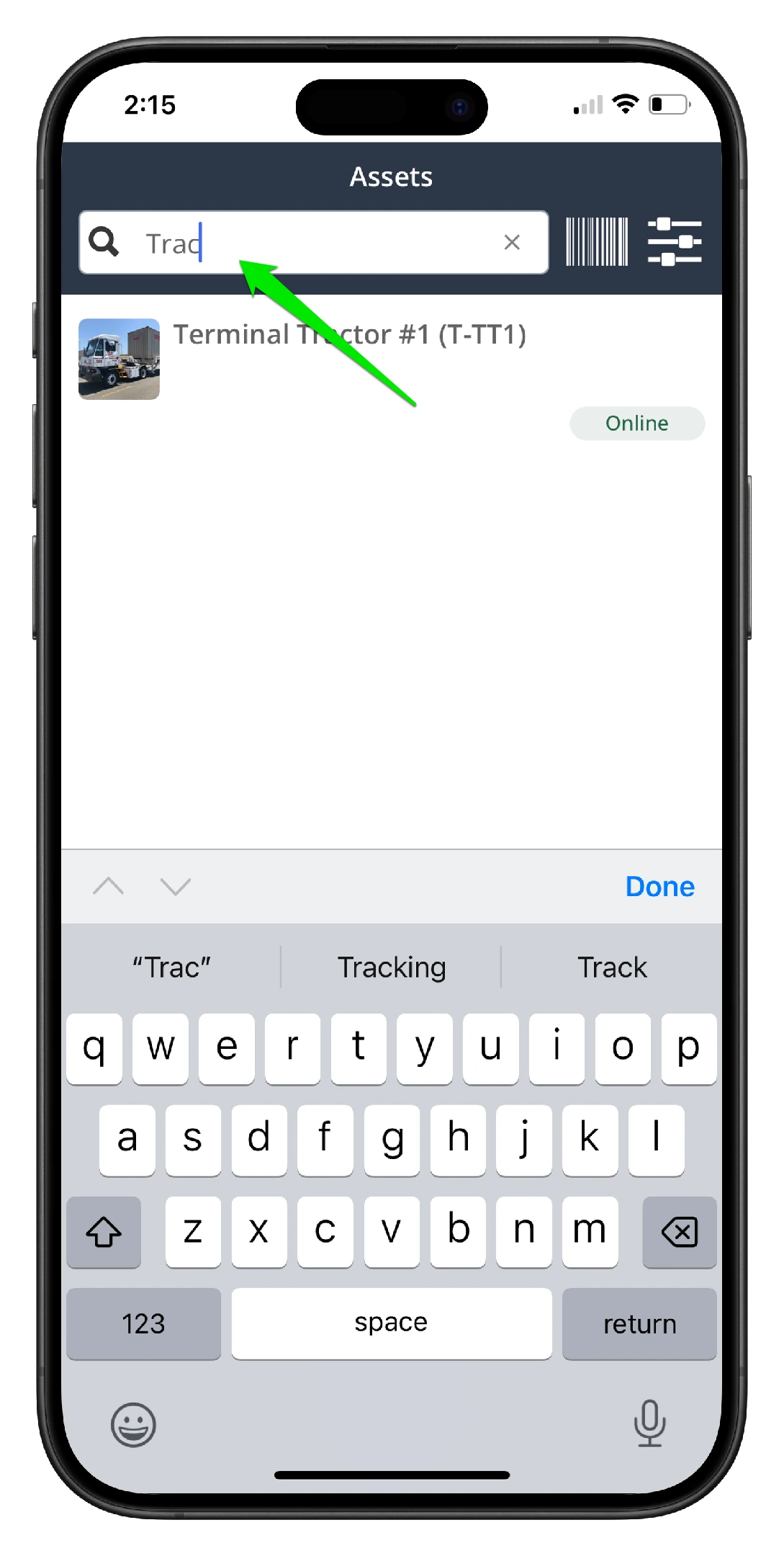
2. Use the search functionality to find the asset quickly
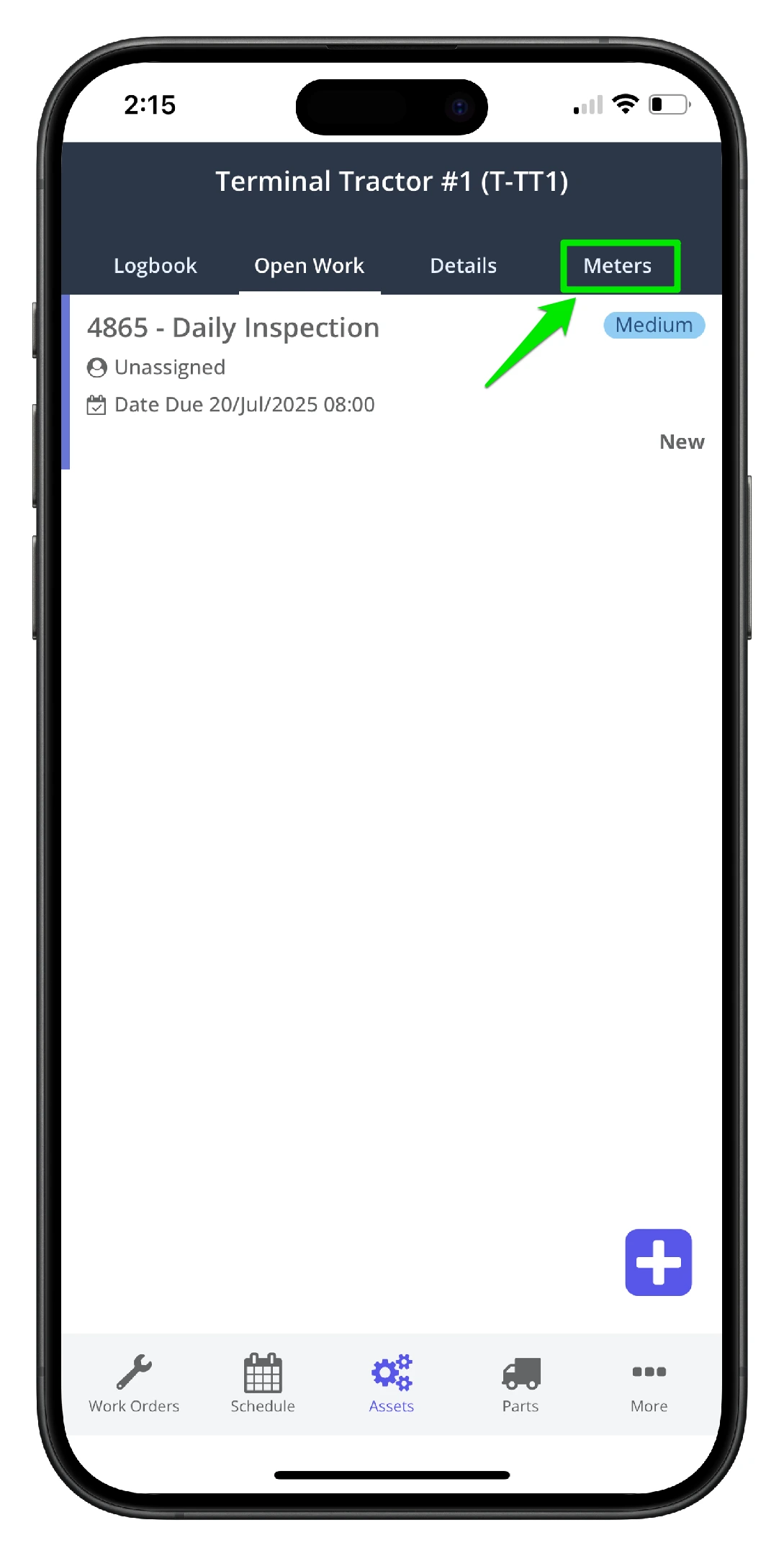
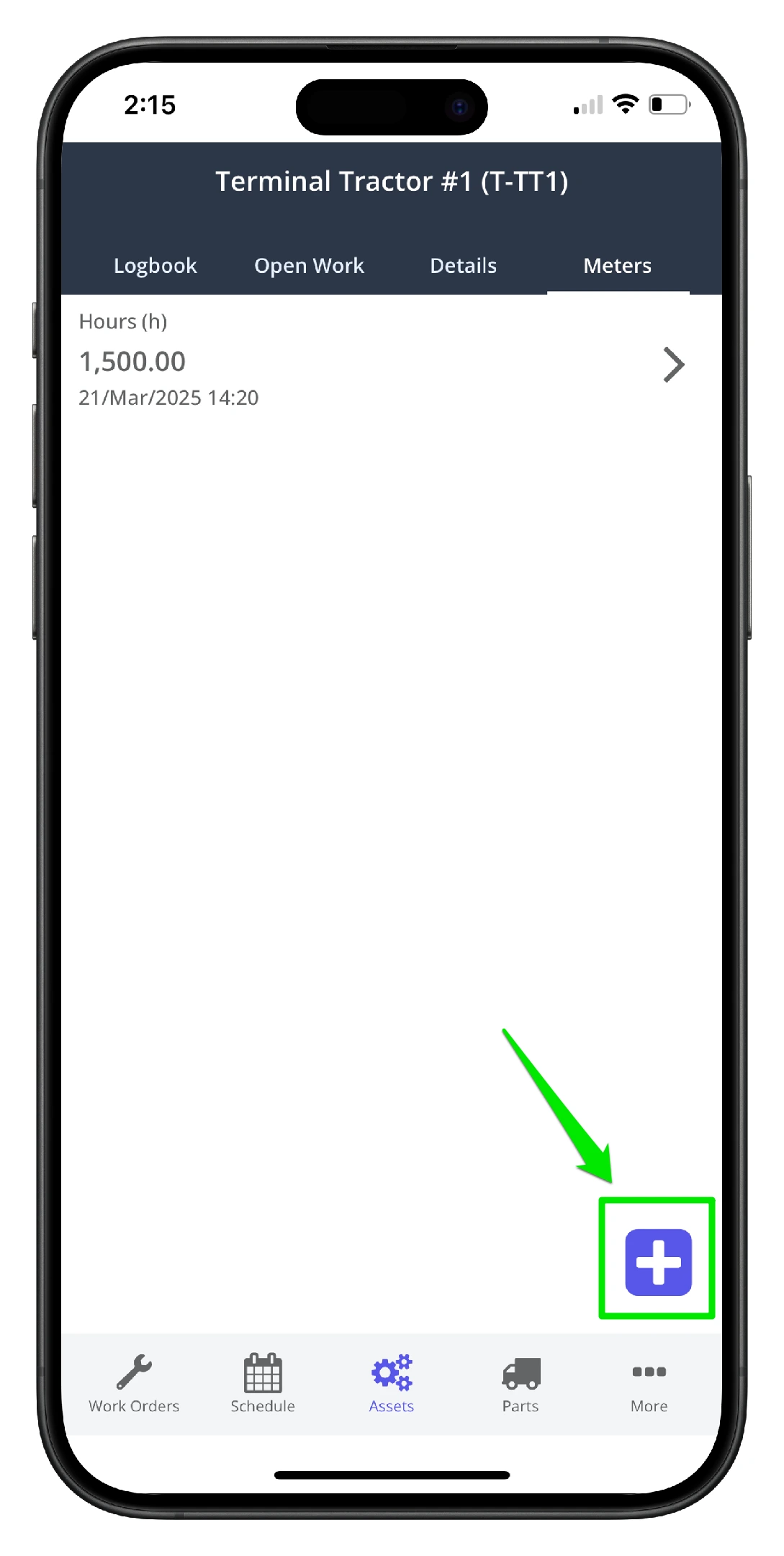
3. In the asset record, select the Meters tab
4. Click the Add New icon on the lower right hand side
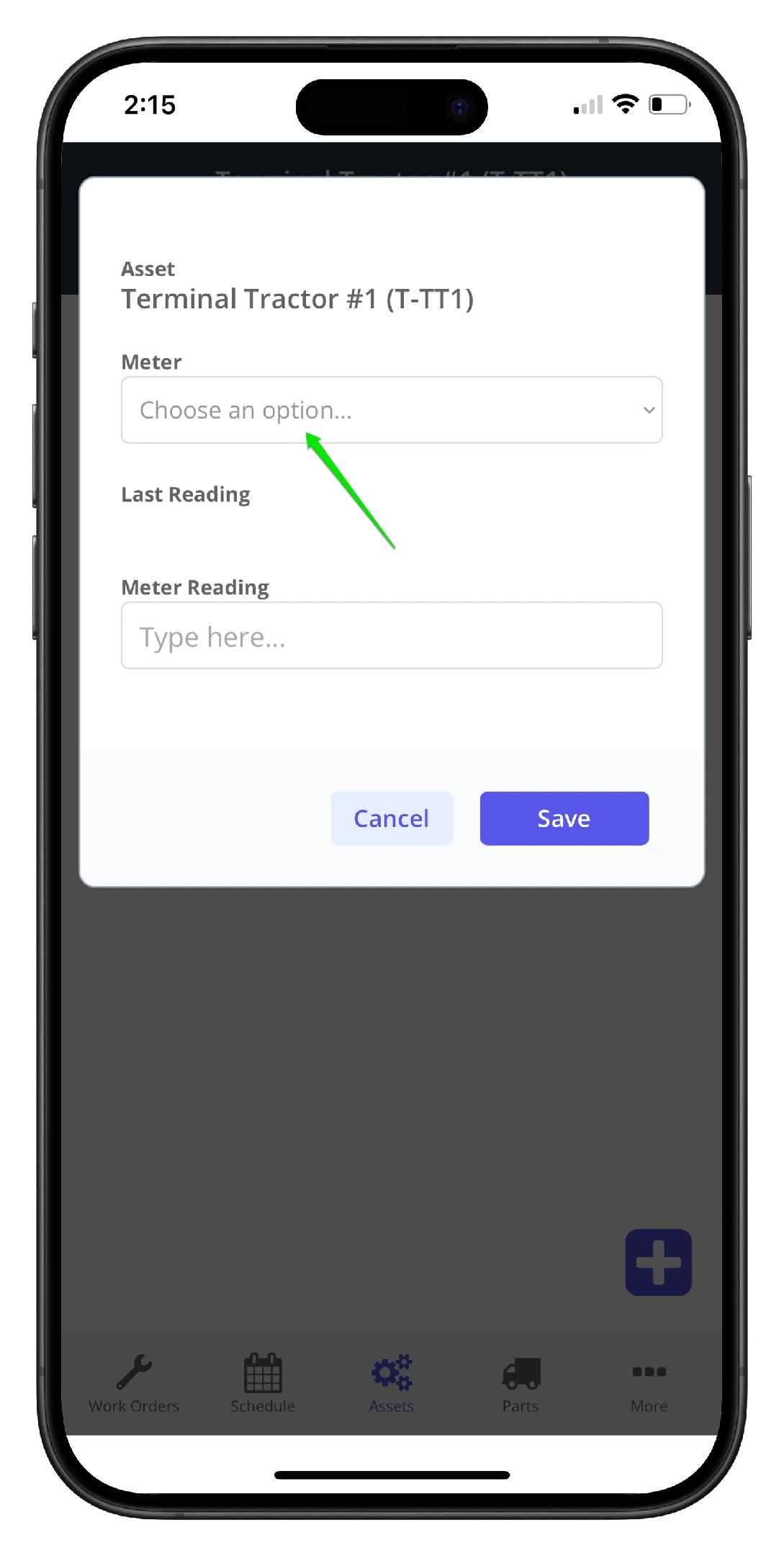
5. Click the Meter Type dropdown to select the meter type
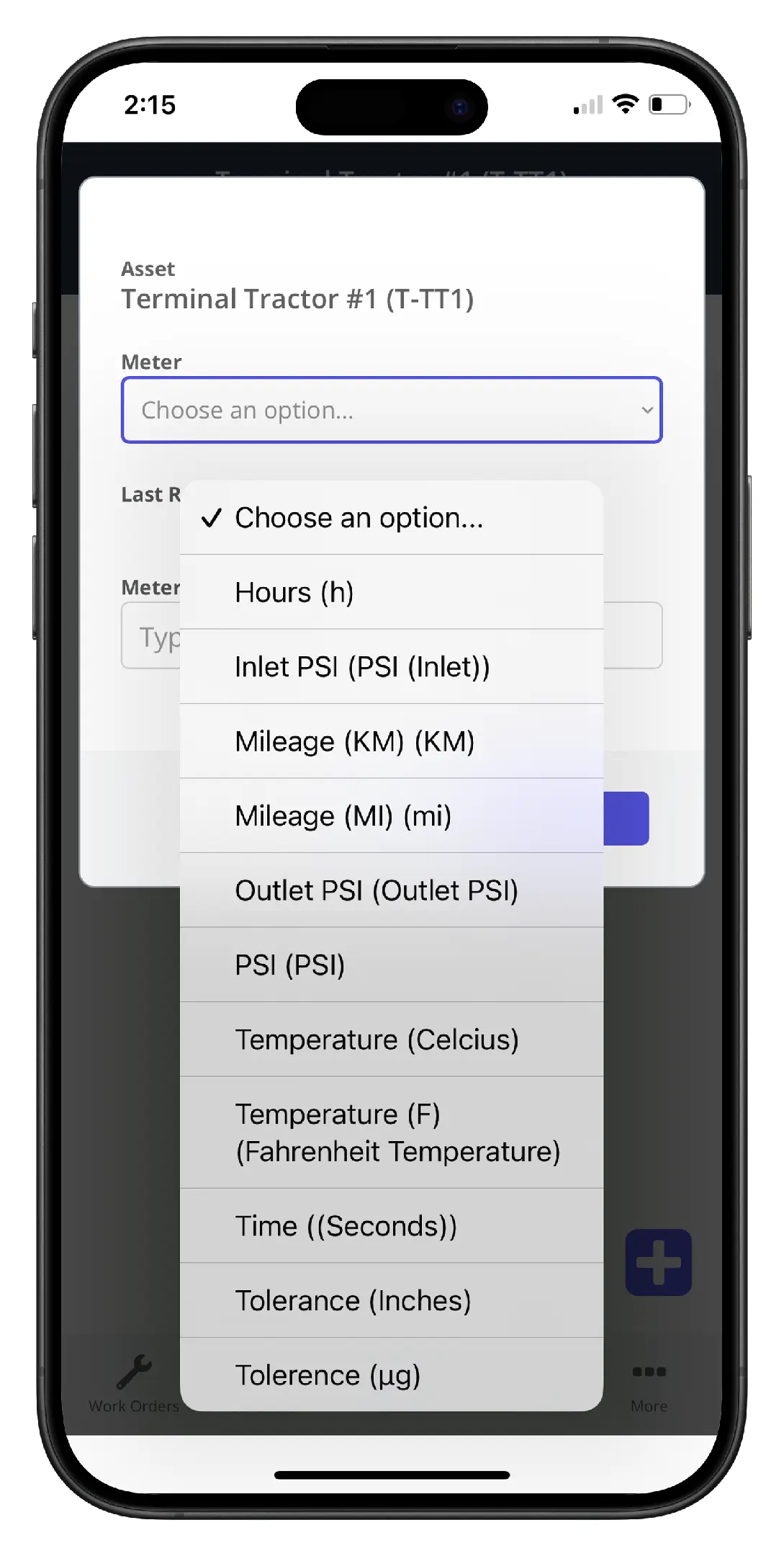
6. Select the meter type from the list
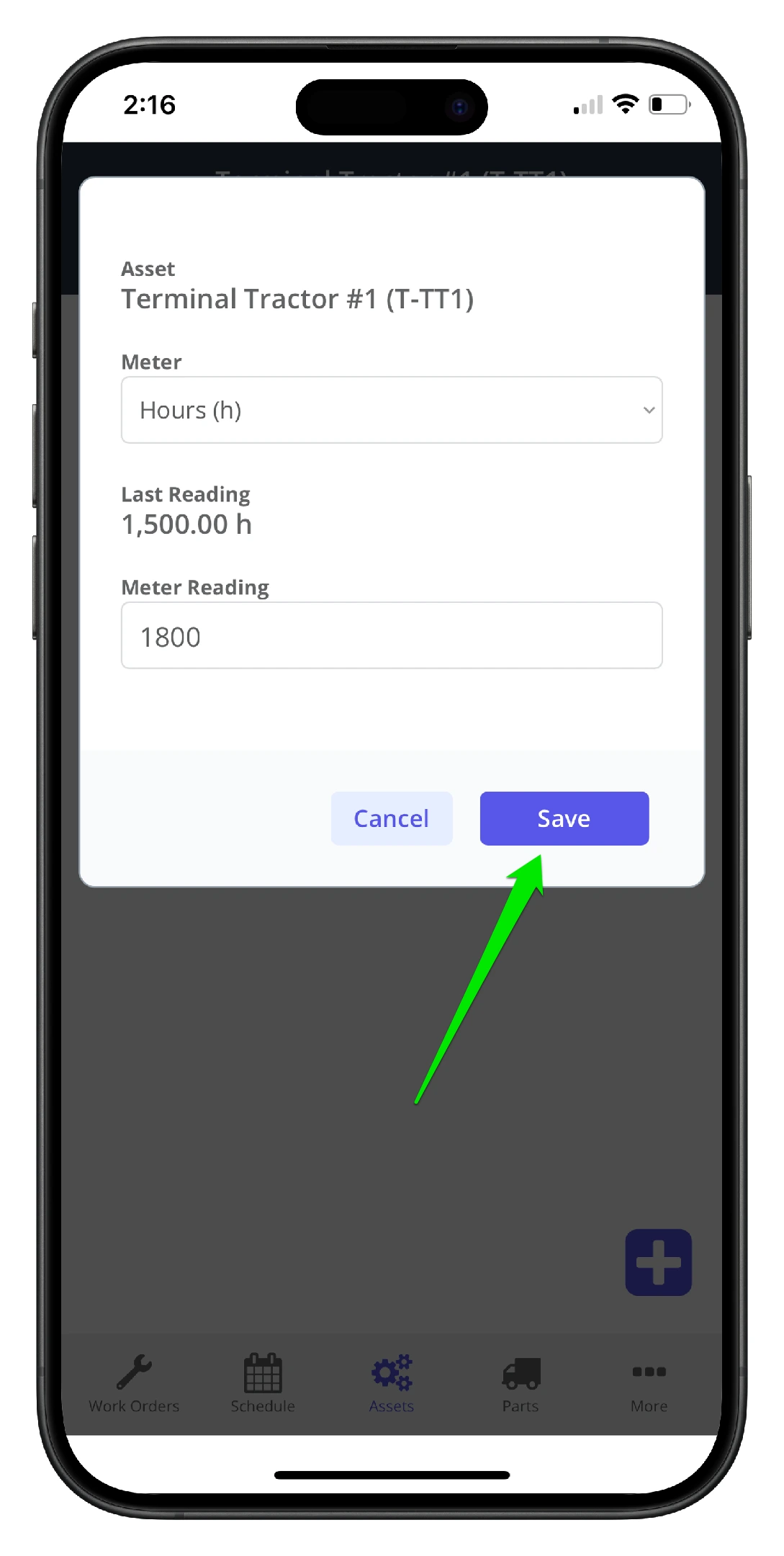
7. Add the meter value and click Save
8. If the meter logged would trigger a PM, the user is prompted to verify the reading
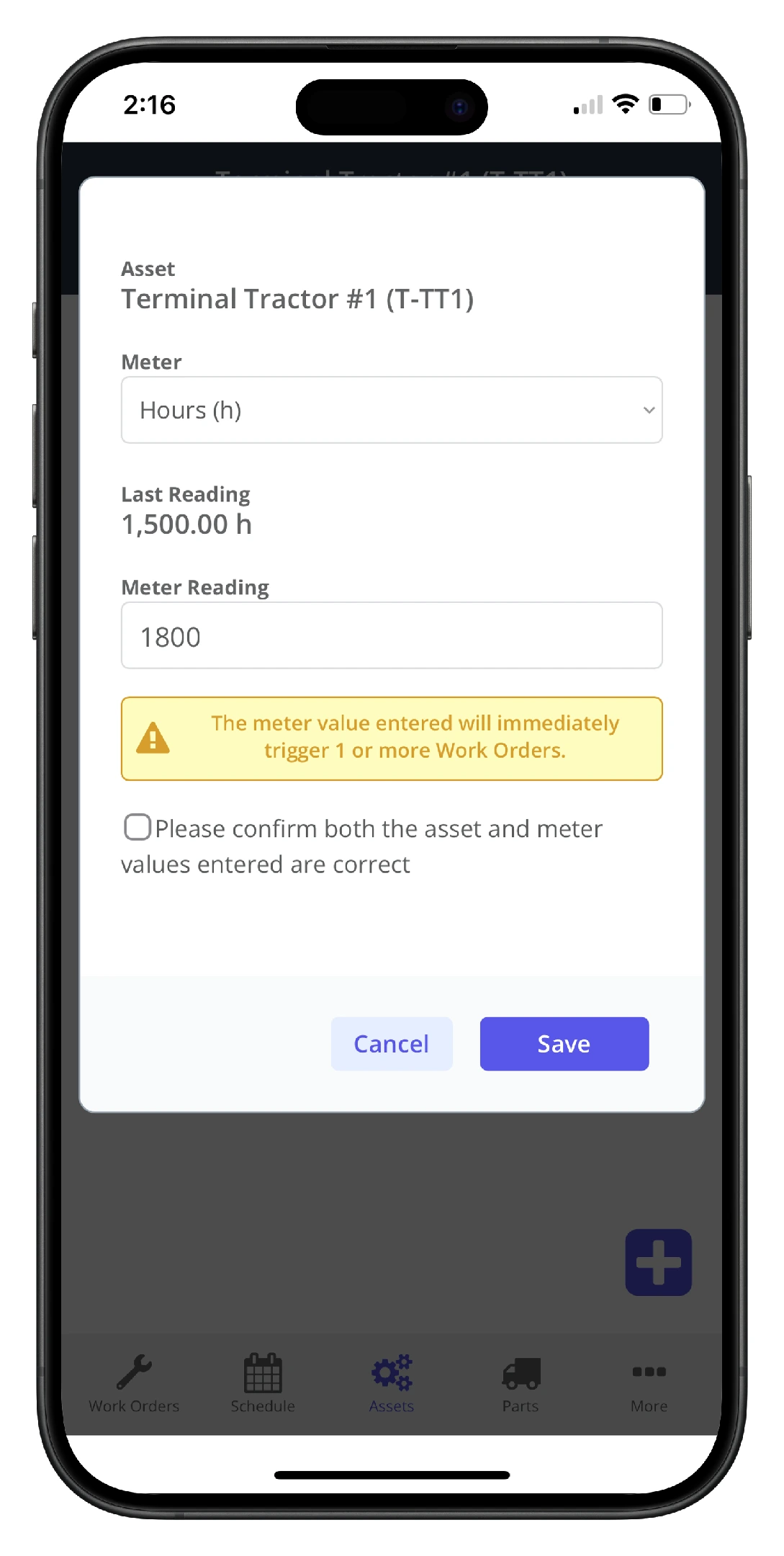
9. The meter is logged against the asset.
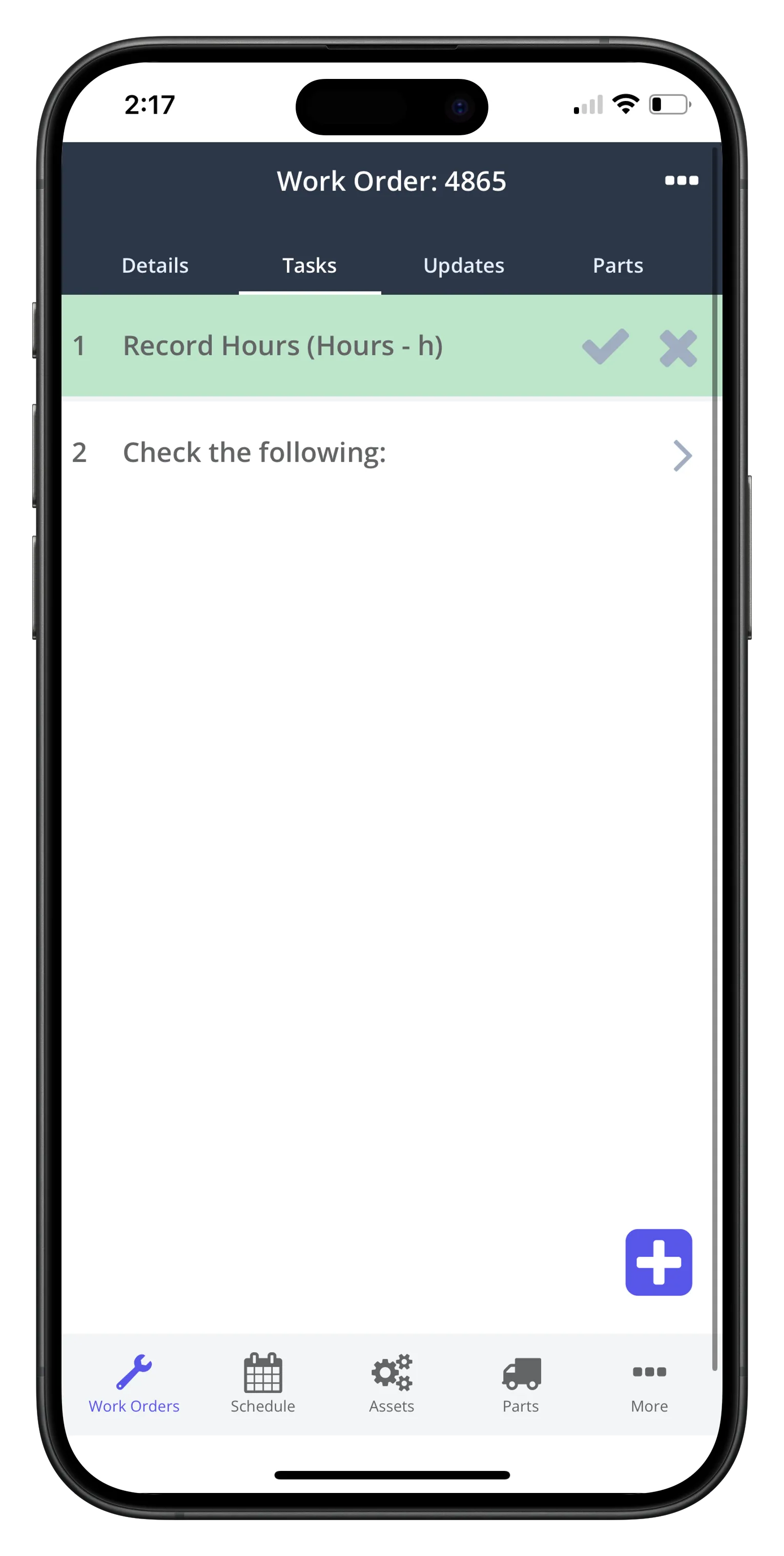
2. Log a Meter Reading via the Work Order Task
1. Open the work order Tasks tab, and click the Task Meter Reading
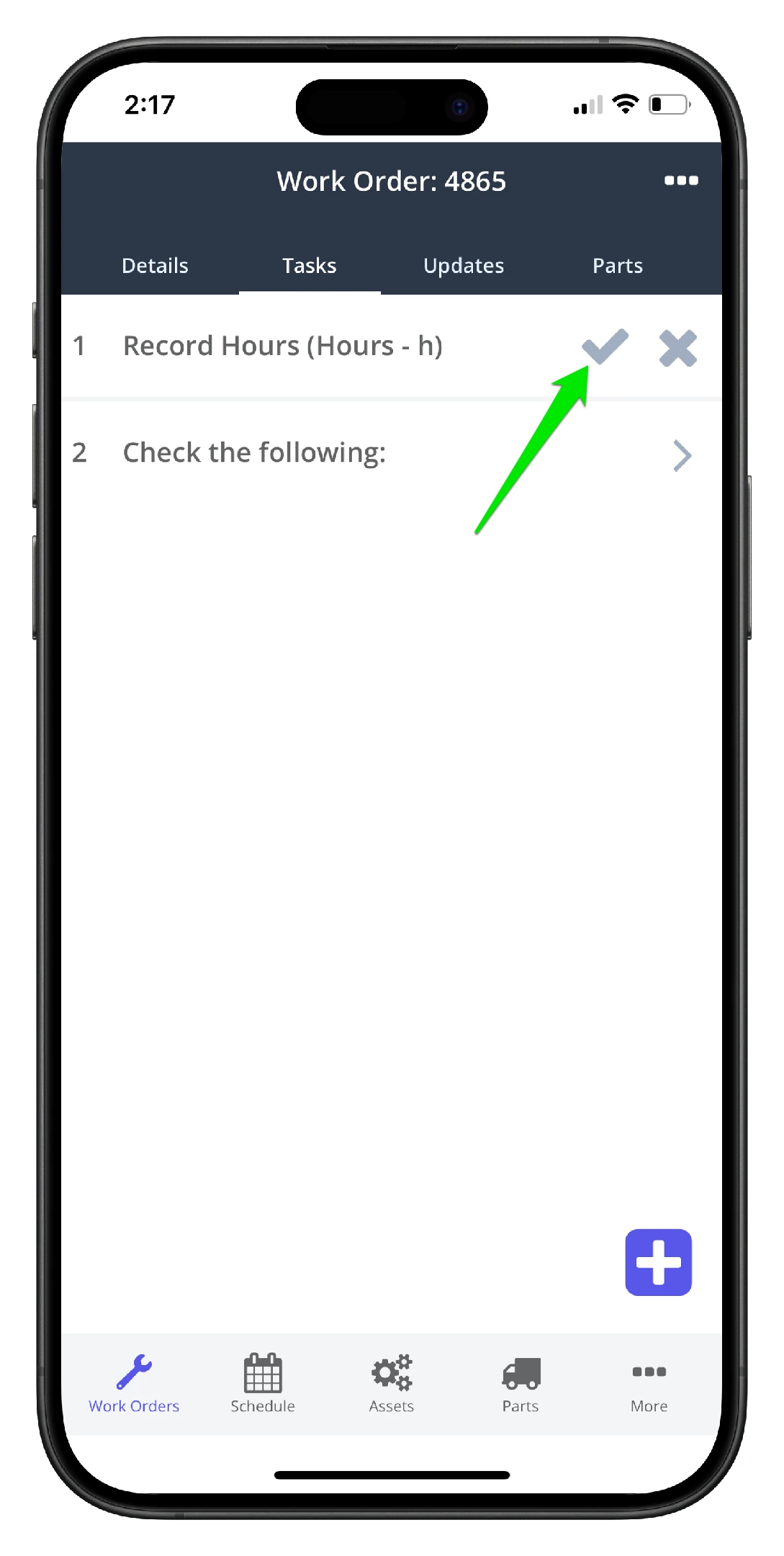
2. Add the meter reading in the popup window and click Save New. Like in step #8 above, if the meter logged would trigger a PM, the user is prompted to verify the reading.
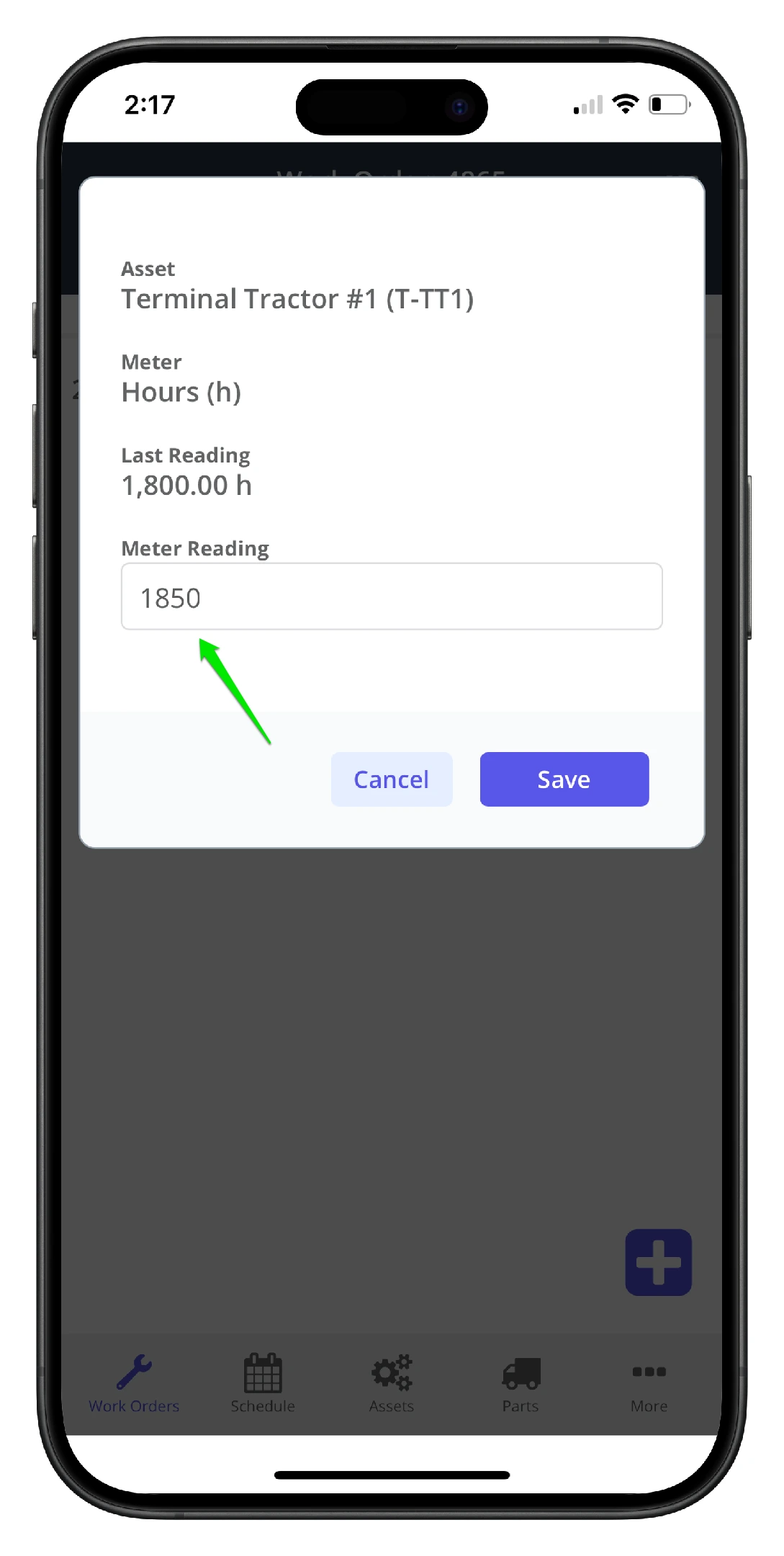
3. The meter is logged and the task is signed off as Done