It's possible to receive two parts of related notifications from Zoidii:
- When the part stock level has breached minimum levels, the system emails the low stock information to the relevant folks.
- When a user submits a parts room request. This is useful when the parts store room is manned. The parts clerk can pull the parts from inventory and have them ready for the technician when they arrive.
Prerequisites
Email notifications
- Users must have a valid email address associated with their account
- Turn on email notifications in account settings.
- Users must have a mobile device with the Zoidii app installed. Users must also configure their mobile app settings as per the Turn on Push Notifications procedure.
- Turn on push notifications in account settings.
1. Parts Low Notifications
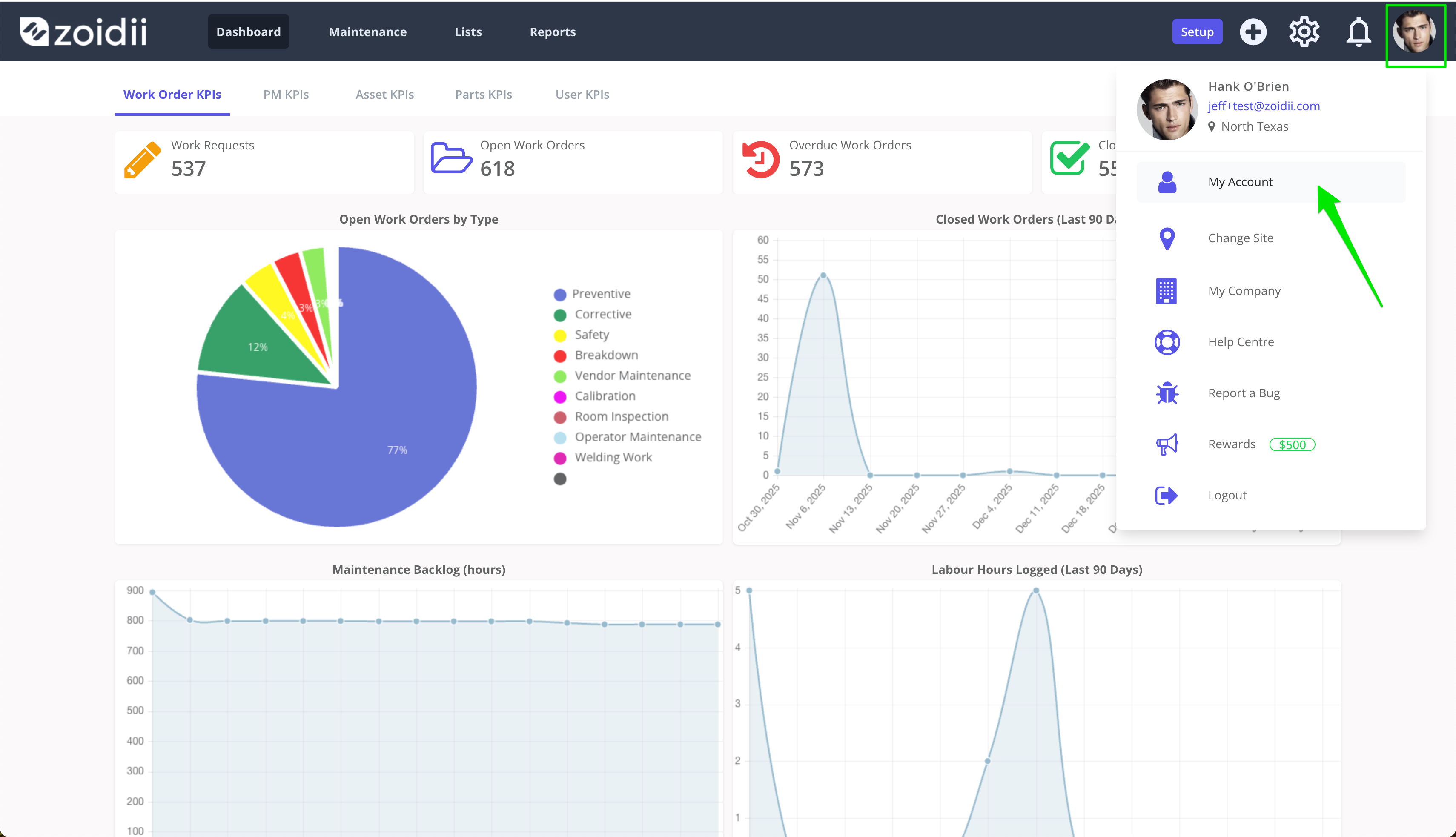
1. In the Top Menu bar, click the user profile image or avatar, and select My Account
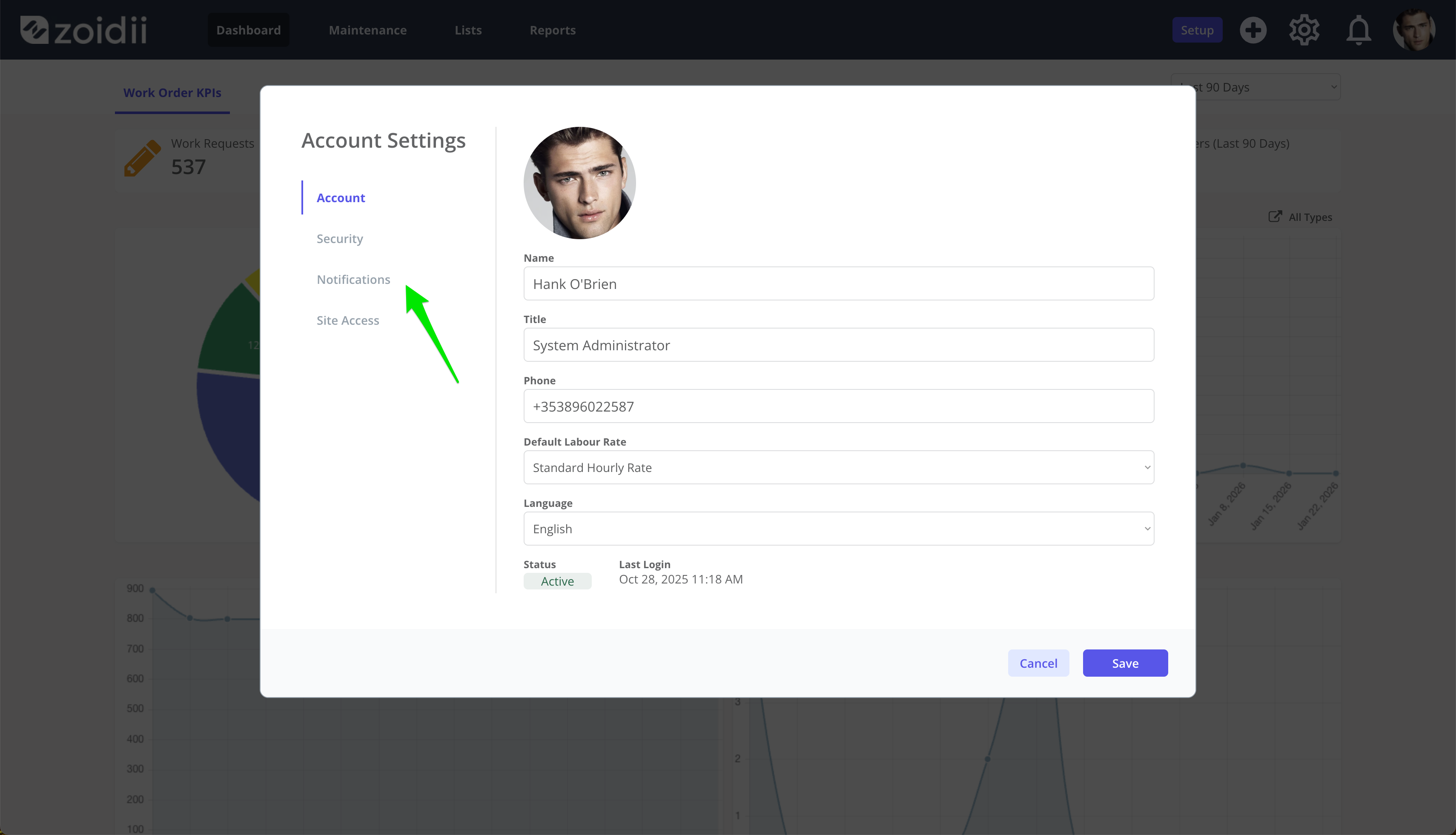
2. Select the Notifications tab
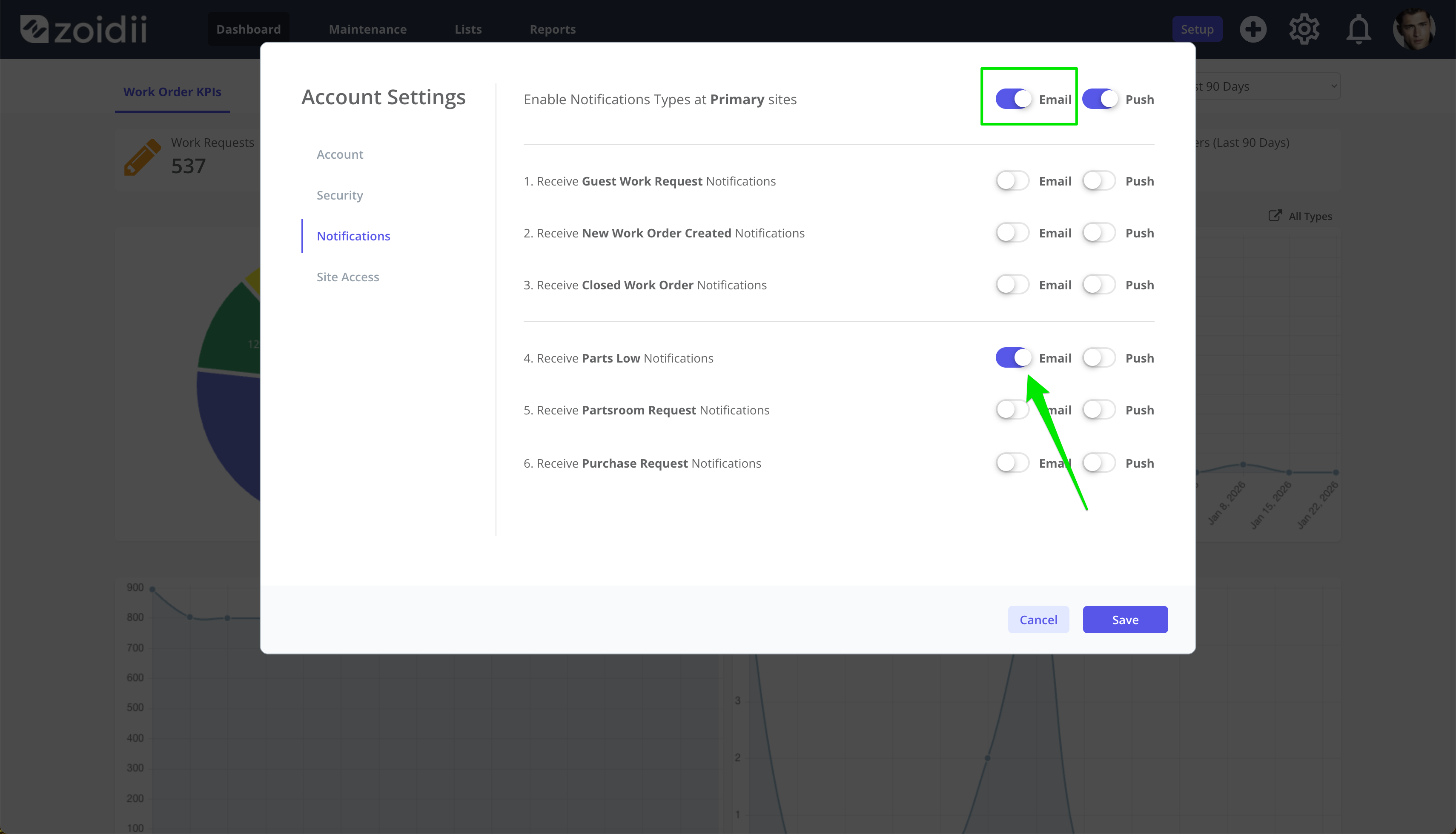
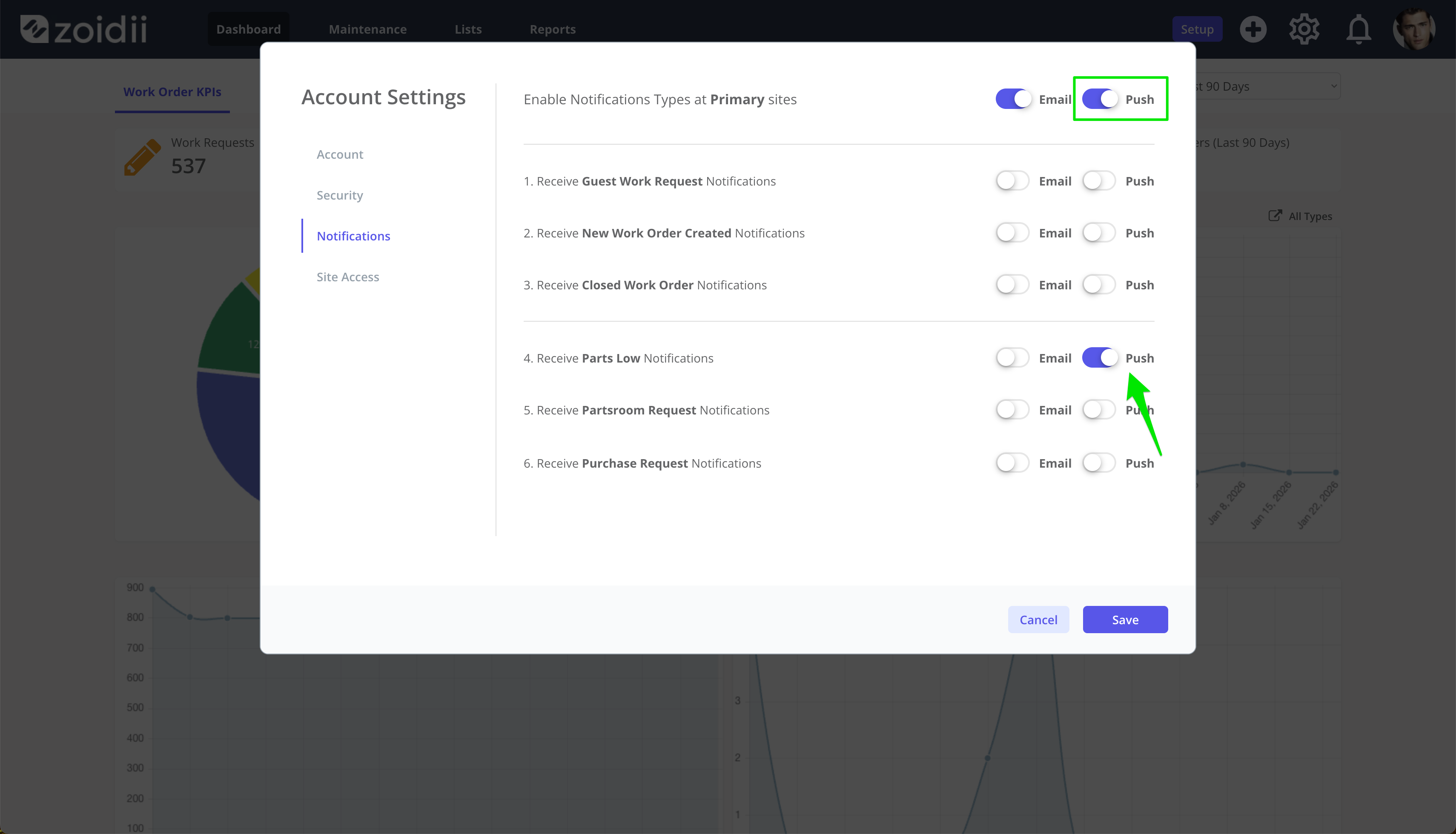
3. Toggle Enable Email Notifications and Enable Parts Low Notifications to On
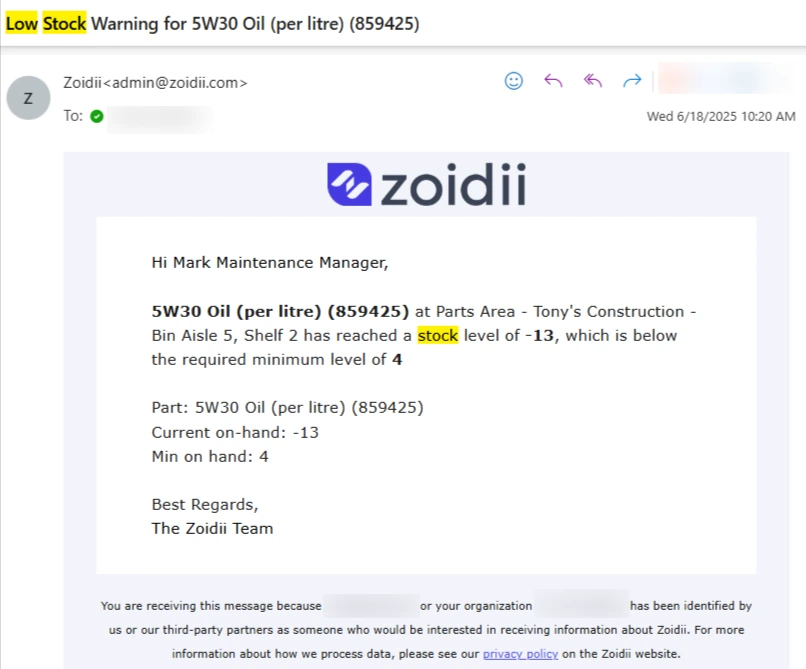
4. You will now receive parts low stock warnings like this whenever minimum stock levels are breached.
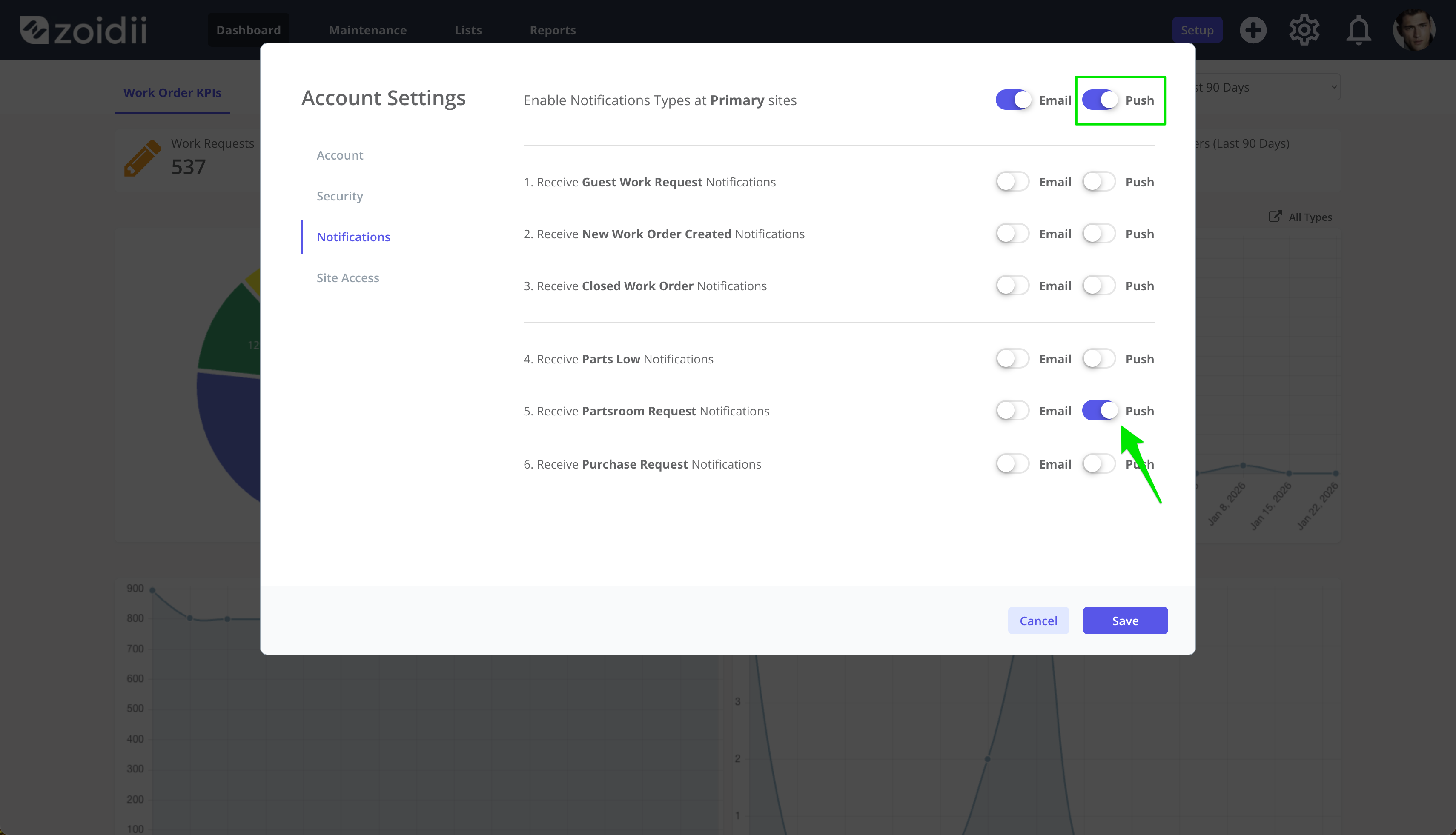
4. If you prefer push notifications, turn ON the Parts Low Push toggle. To ensure you have the correct PUSH configuration on your mobile device, be sure to read the push notifications help procedure.
Enable Parts Room Requests
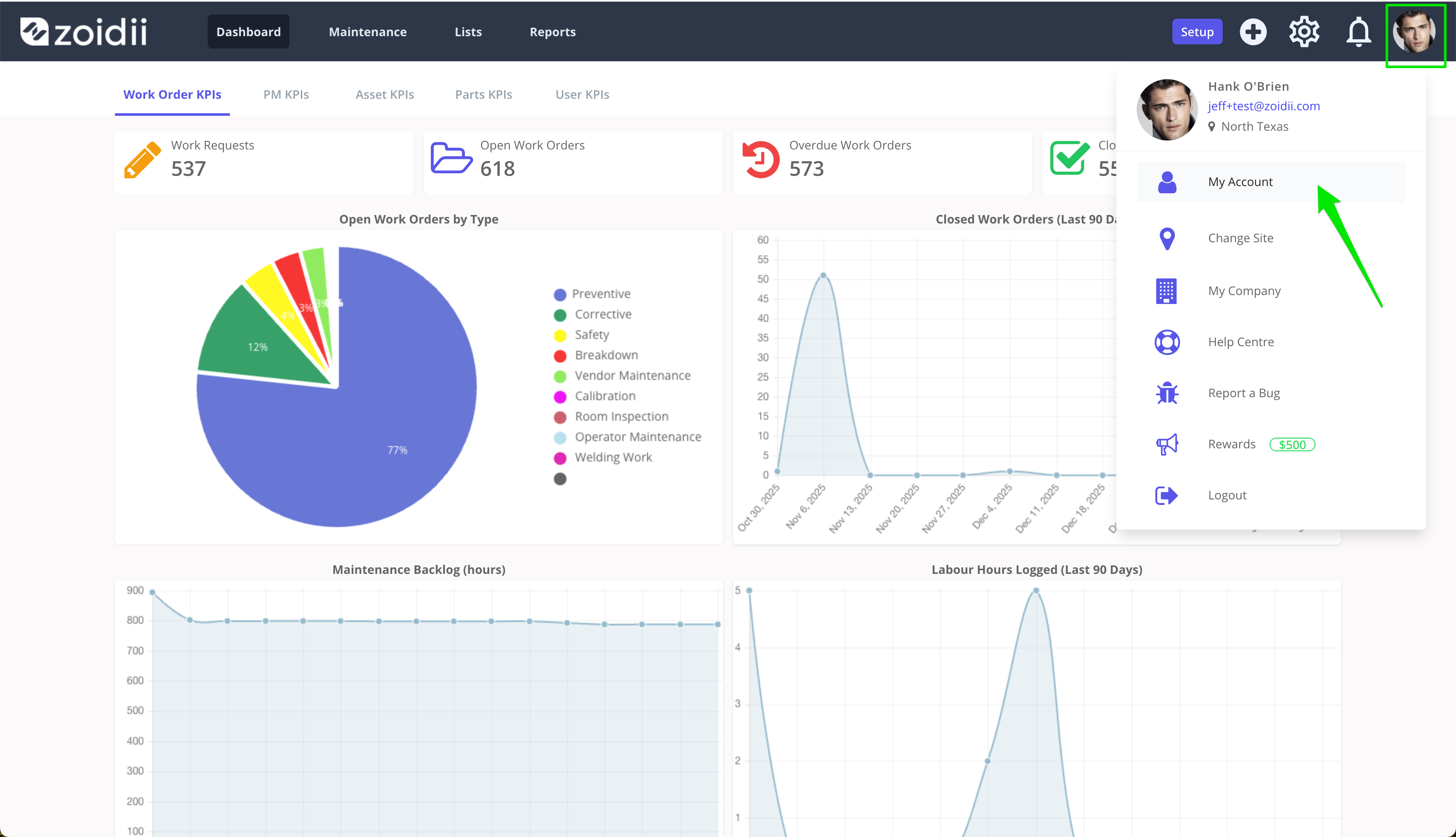
1. In the Top Menu bar, click the user profile image or avatar, and select My Account
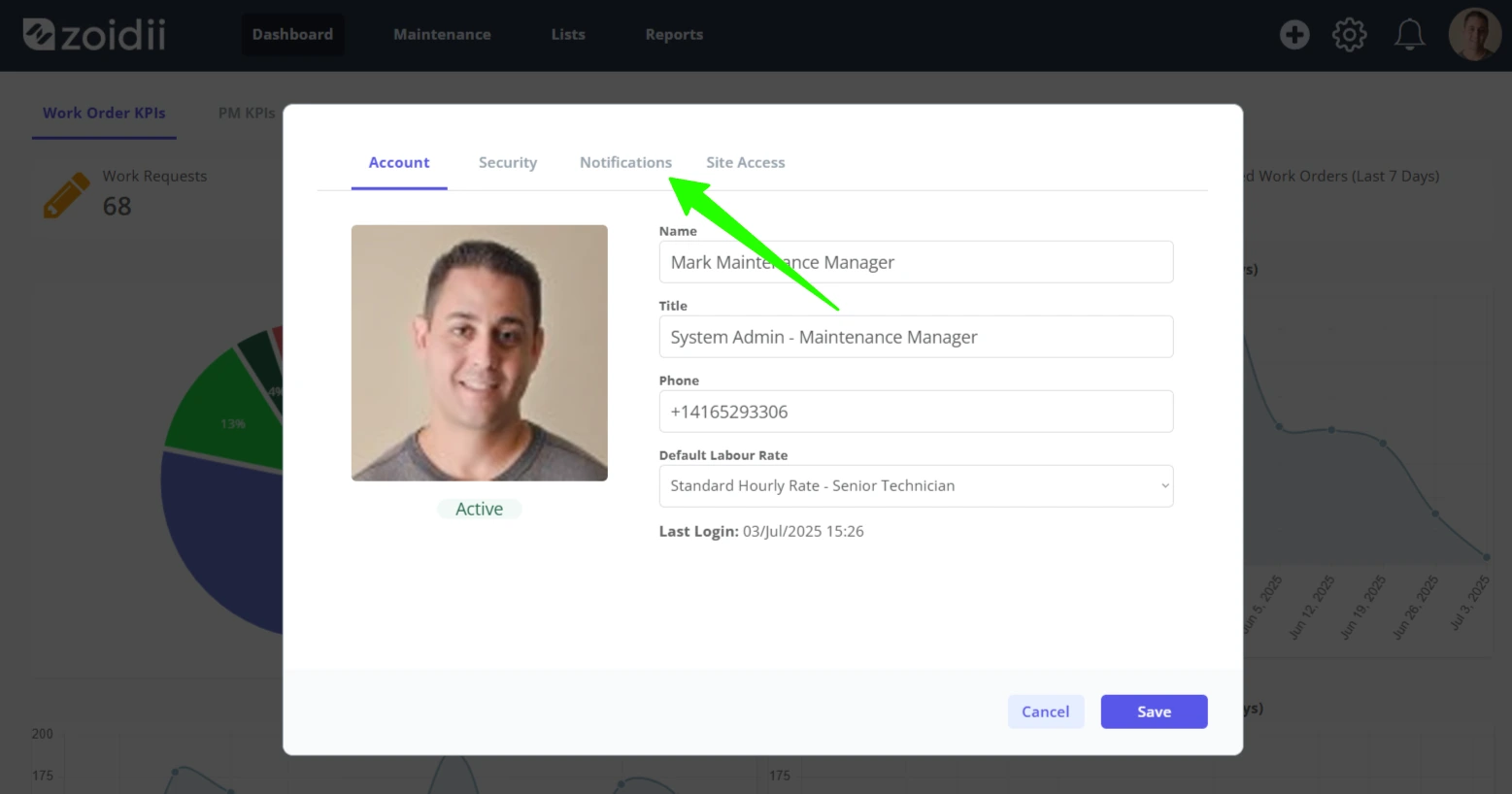
2. Select the Notifications tab
3. Toggle Enable Email Notifications and Enable Partsroom Request
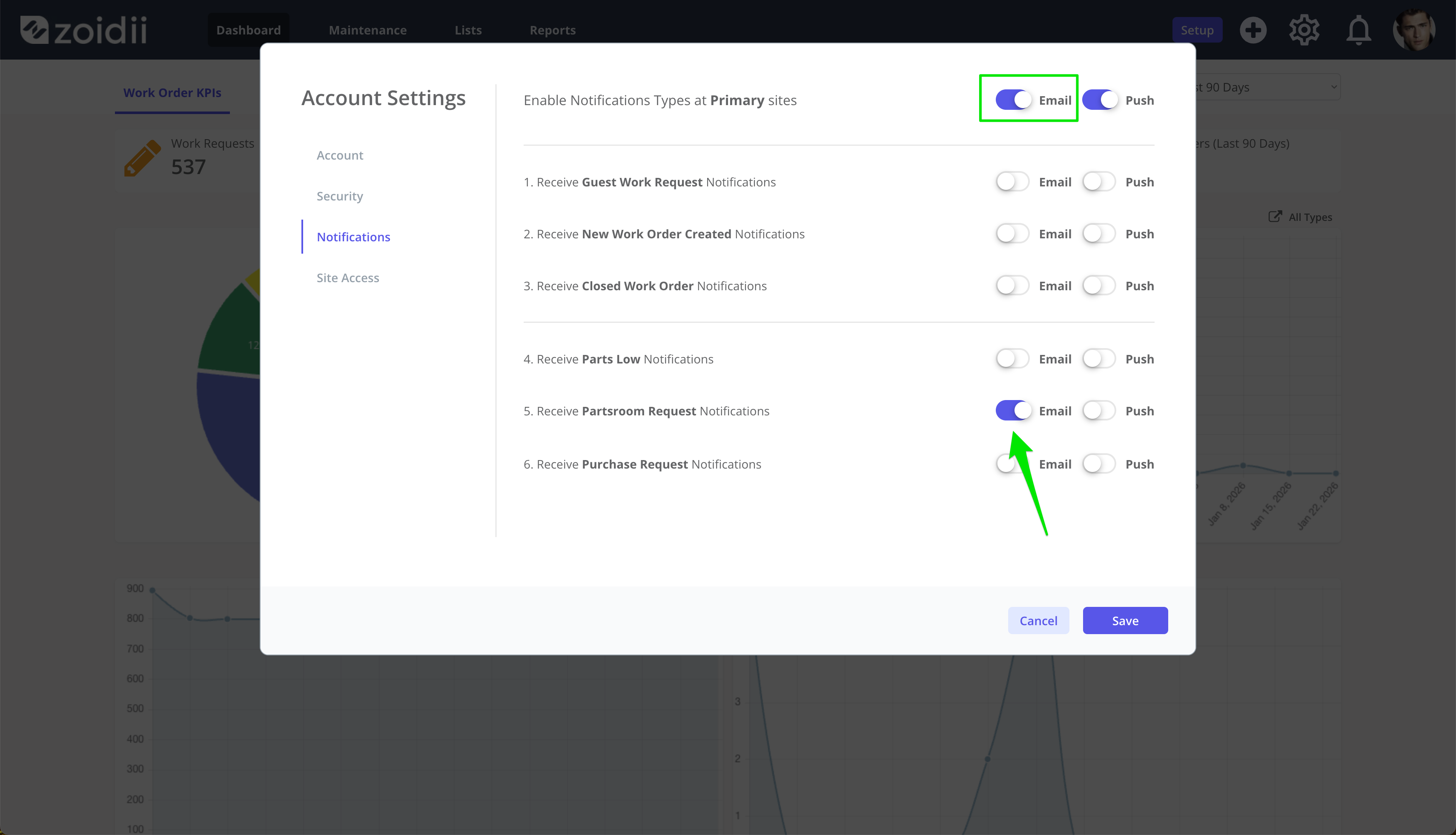
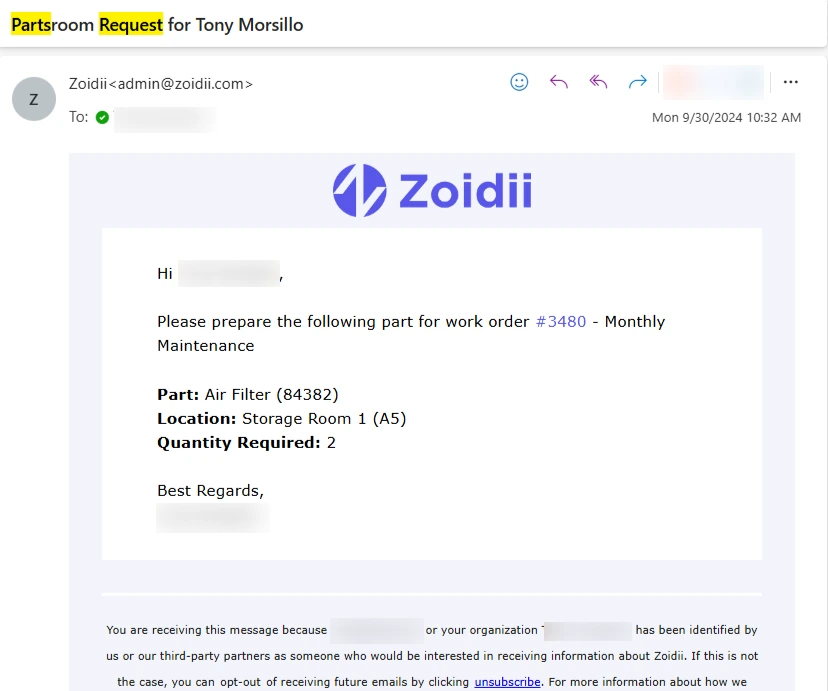
You will now receive notifications when a user requests a part from the parts storeroom.
4. If you prefer push notifications, turn ON the Partsroom Request Push toggle. To ensure you have the correct PUSH configuration on your mobile device, be sure to read the push notifications help procedure.