Background
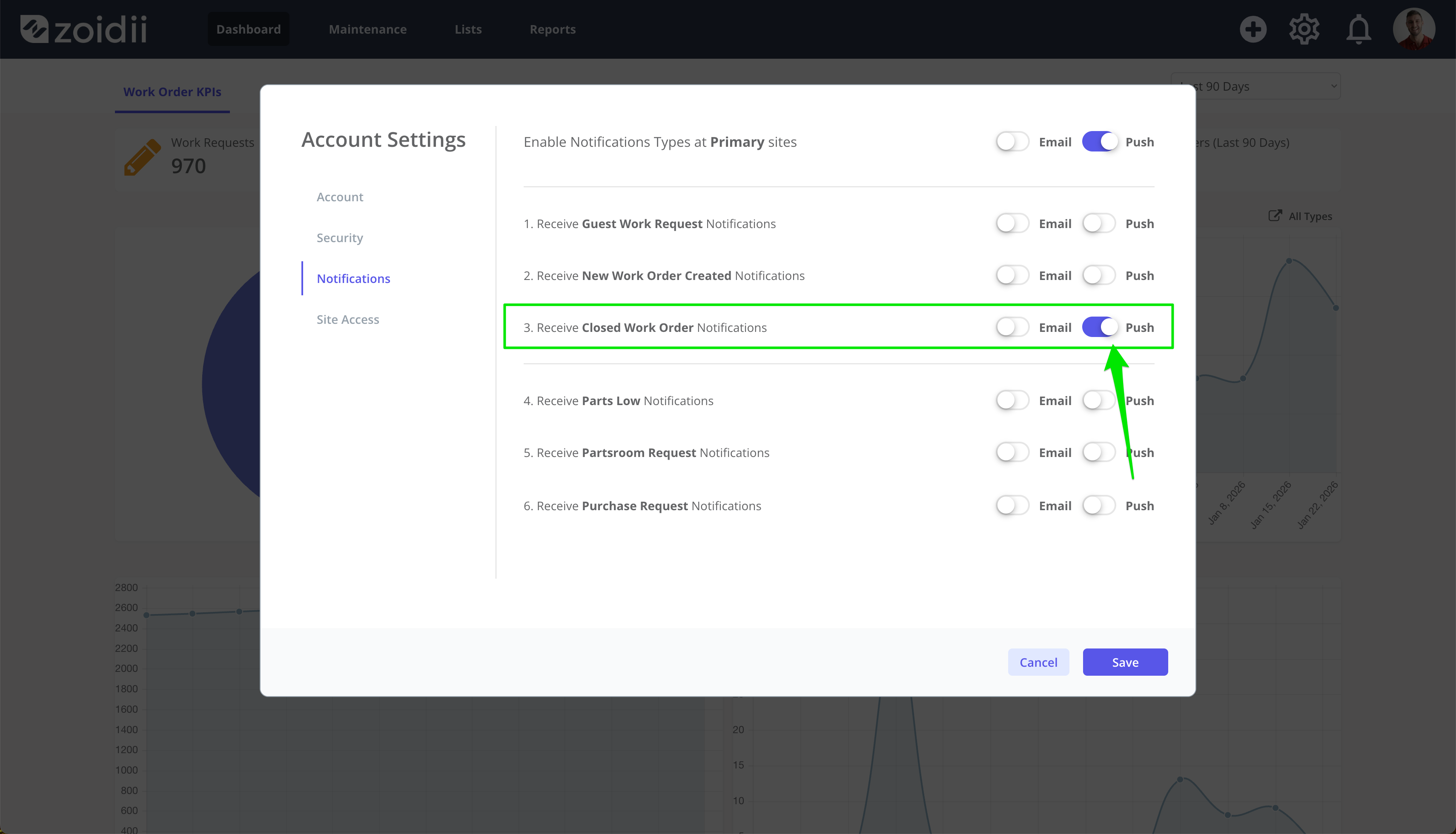
Zoidii sends updates via email or push notifications on mobile devices, so users must have a valid email address or mobile device to get those system notifications. Many notifications are opt-in and only sent to those users who have opted in.
Prerequisites
Email notifications
- Users must have a valid email address associated with their account
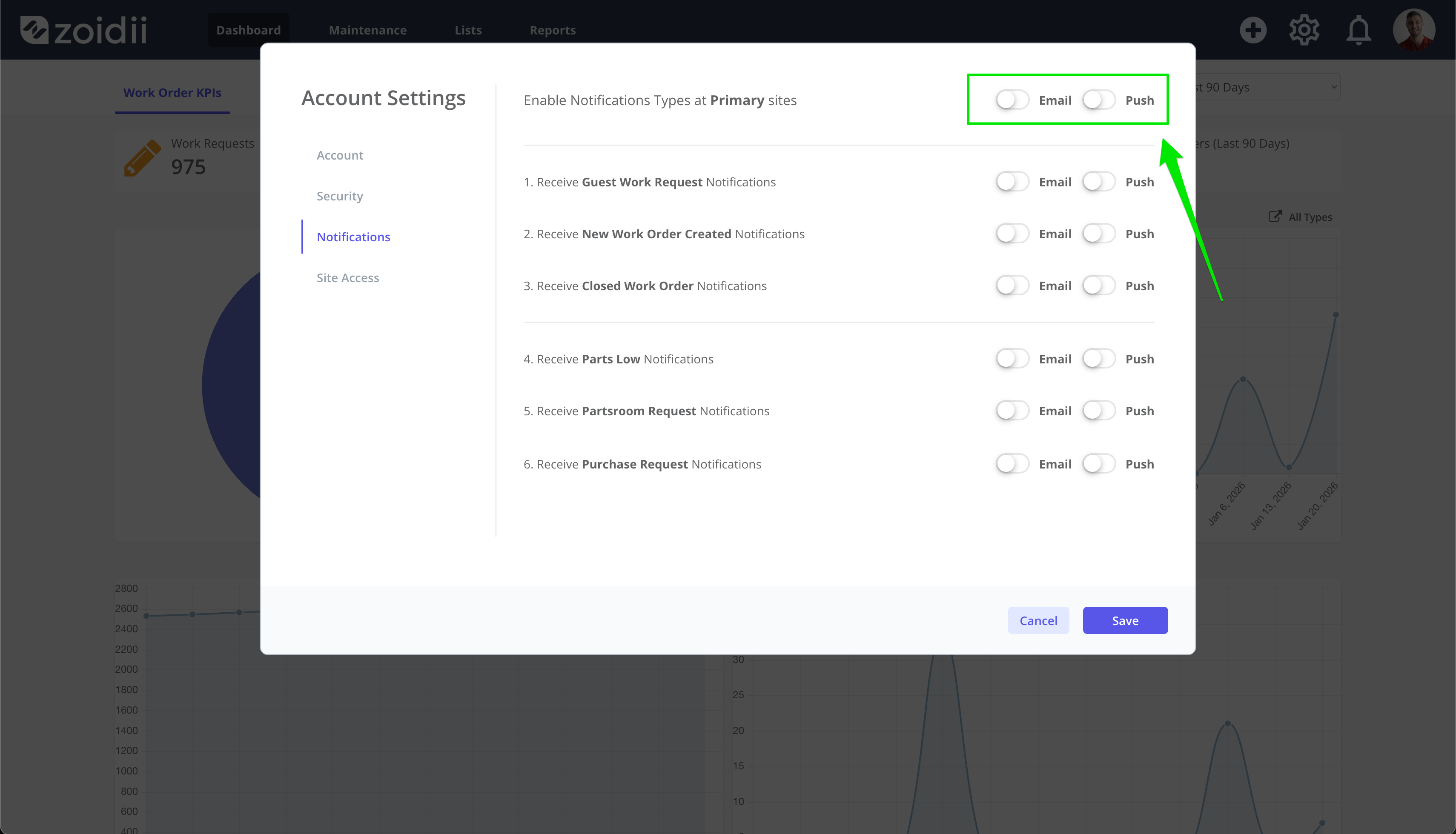
- Turn on email notifications in account settings.
Push Notifications
- Users must have a mobile device with the Zoidii app installed. Users must also configure their mobile app settings as per the Turn on Push Notifications procedure.
- Turn on push notifications in account settings.
Work Order Notifications
- Guest work requests - Opt in via setting as per #2 below
- New work orders - Opt in via setting as per #3 below
- Assigned work orders - Automatic to all users or teams assigned work (assuming they have email or push notifications turned on)
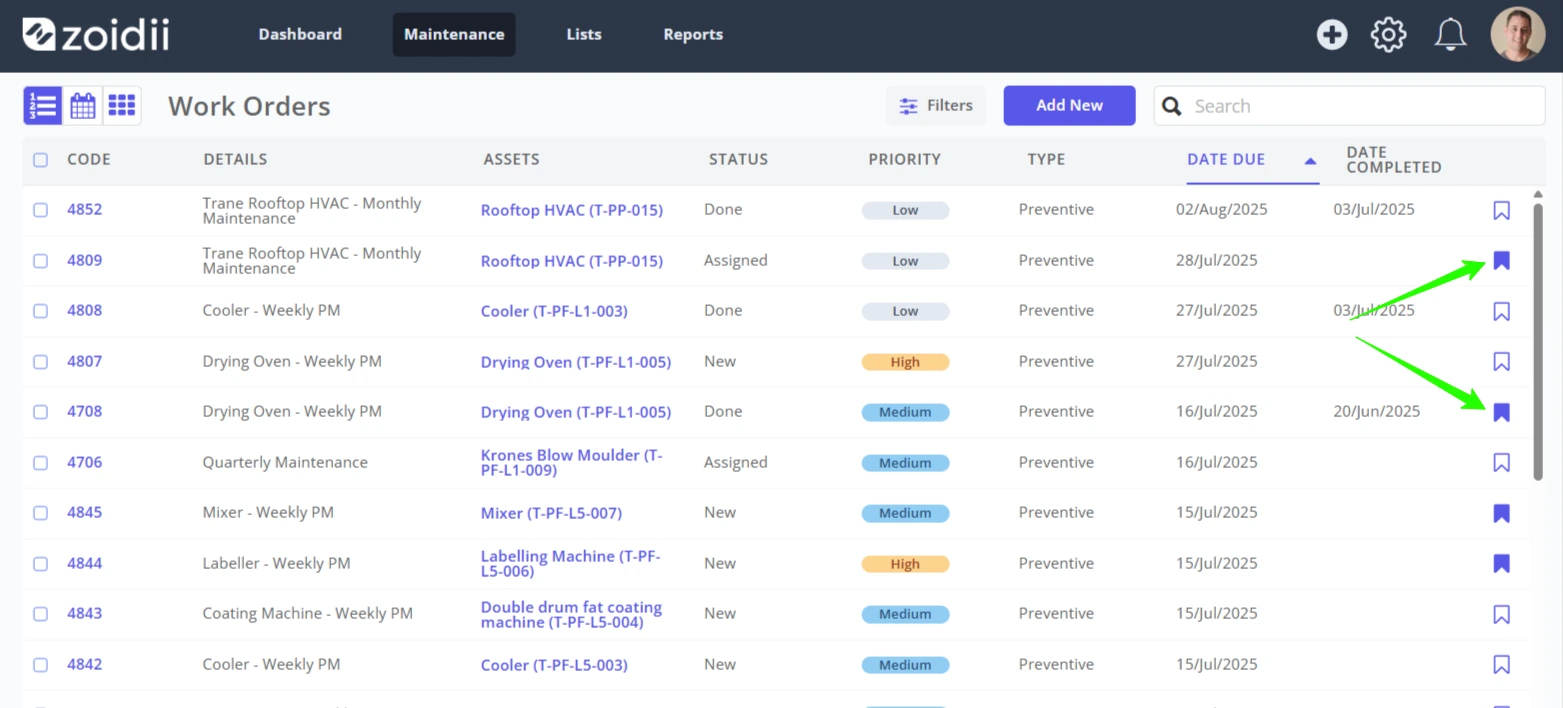
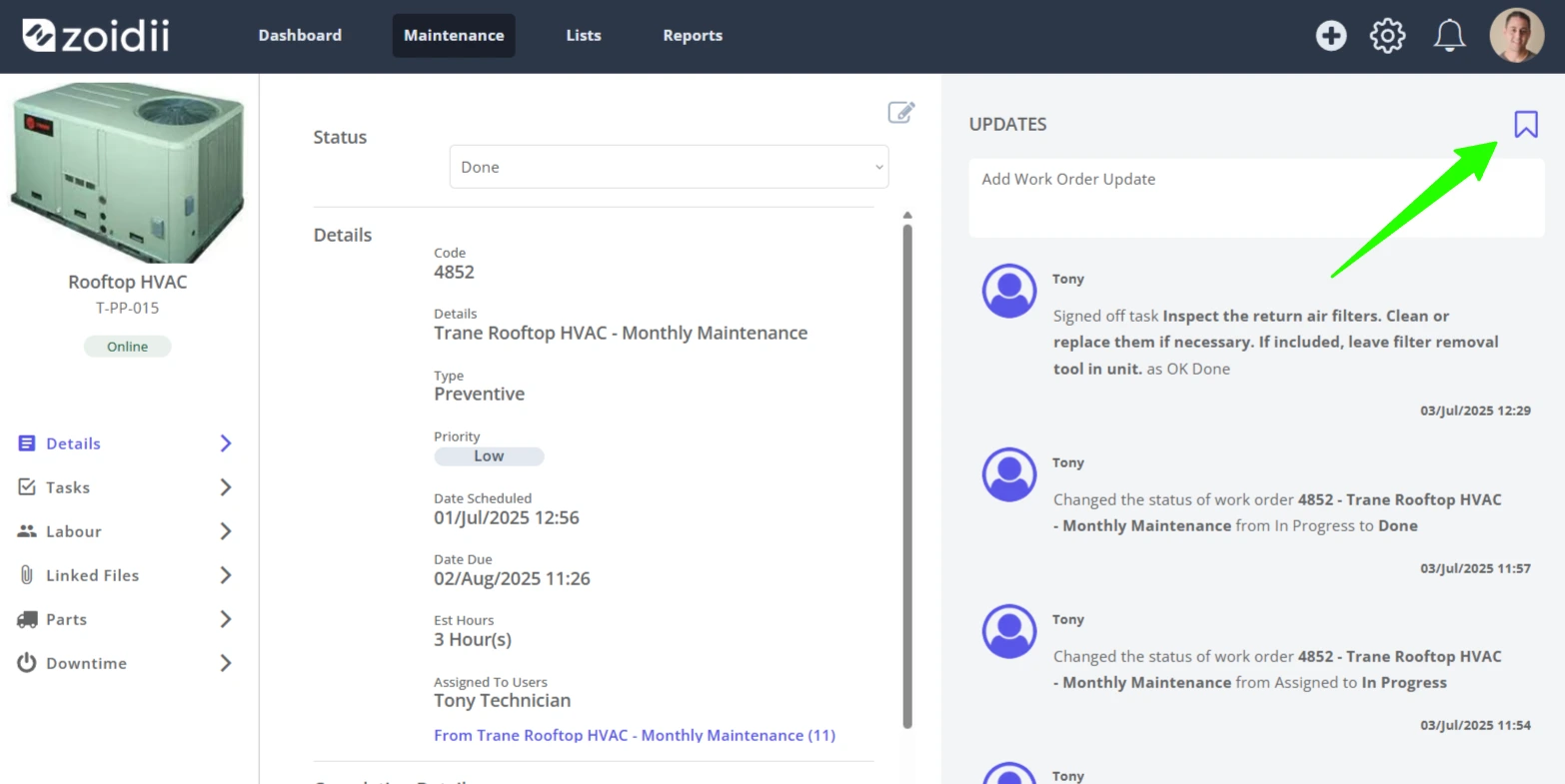
- Work order status changes - Opt in on a per-work-order basis by bookmarking the work order as per #1 below
- Closed work orders - Opt in via setting as per #4 below
Scenarios
- A maintenance manager wants to see all new work requests and work orders created in the system - toggle on the settings in sections #2 & #3 below.
- A production manager doesn't want to be bombarded with notifications, but just wants updates on particular work orders - opt in by bookmarking the relevant work orders as per #1 below.
- A maintenance supervisor wants to see all closed work order notifications - toggle on the settings in section #4 below
- The maintenance supervisor is getting too many updates and wants to see certain work orders only - opt in by bookmarking the relevant work orders as per #1 below.
1. Opt-in to Receive Work Order Updates
1. To receive notifications regarding a particular work order, navigate to the Work Order List view, and bookmark the work orders to receive update notifications.
2. Alternatively, open the work order and click the Bookmark Icon on the top right-hand side of the work order record
2. Guest Request Notifications
Guest Work Request Workflow
New work requests are submitted by guest users of the system through the guest portal.- Guest User - Receives notifications when the work request is received, updated as it is processed, and closed.
- Everyone else - Users must opt-in to receive these guest request emails as follows
Procedure
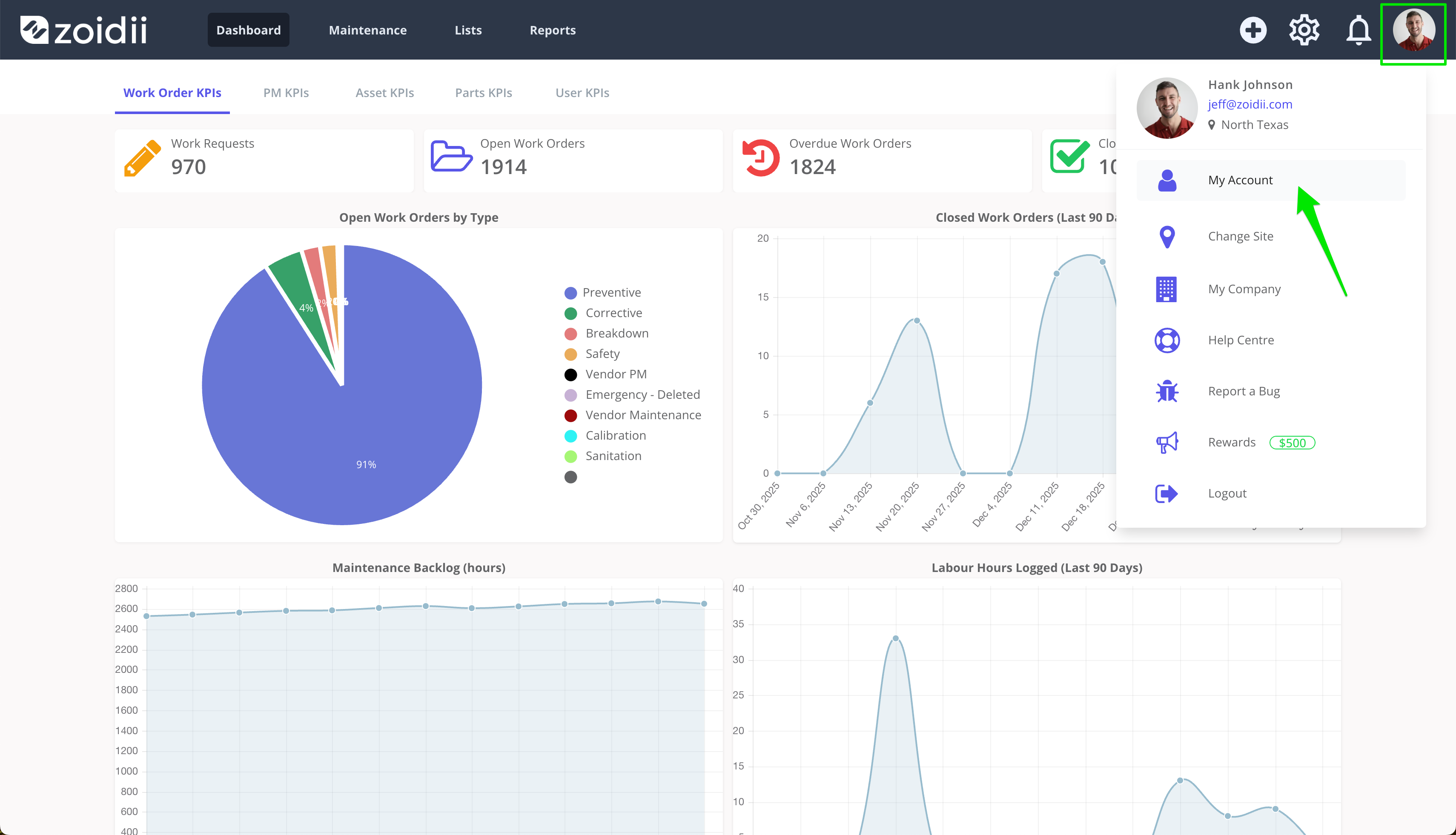
1. In the Top Menu bar, click the user profile image or avatar, and select My Account
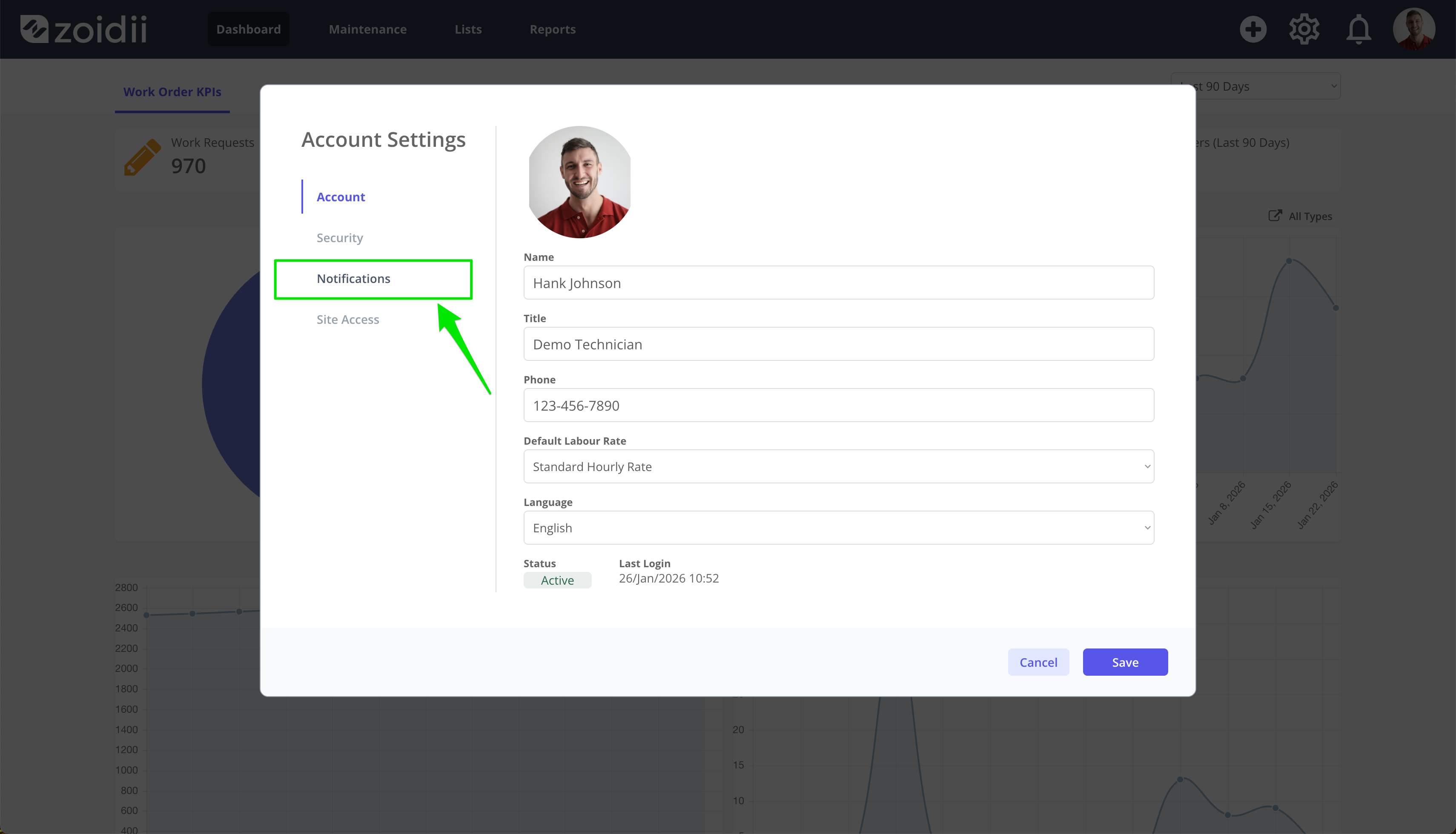
2. Select the Notifications tab
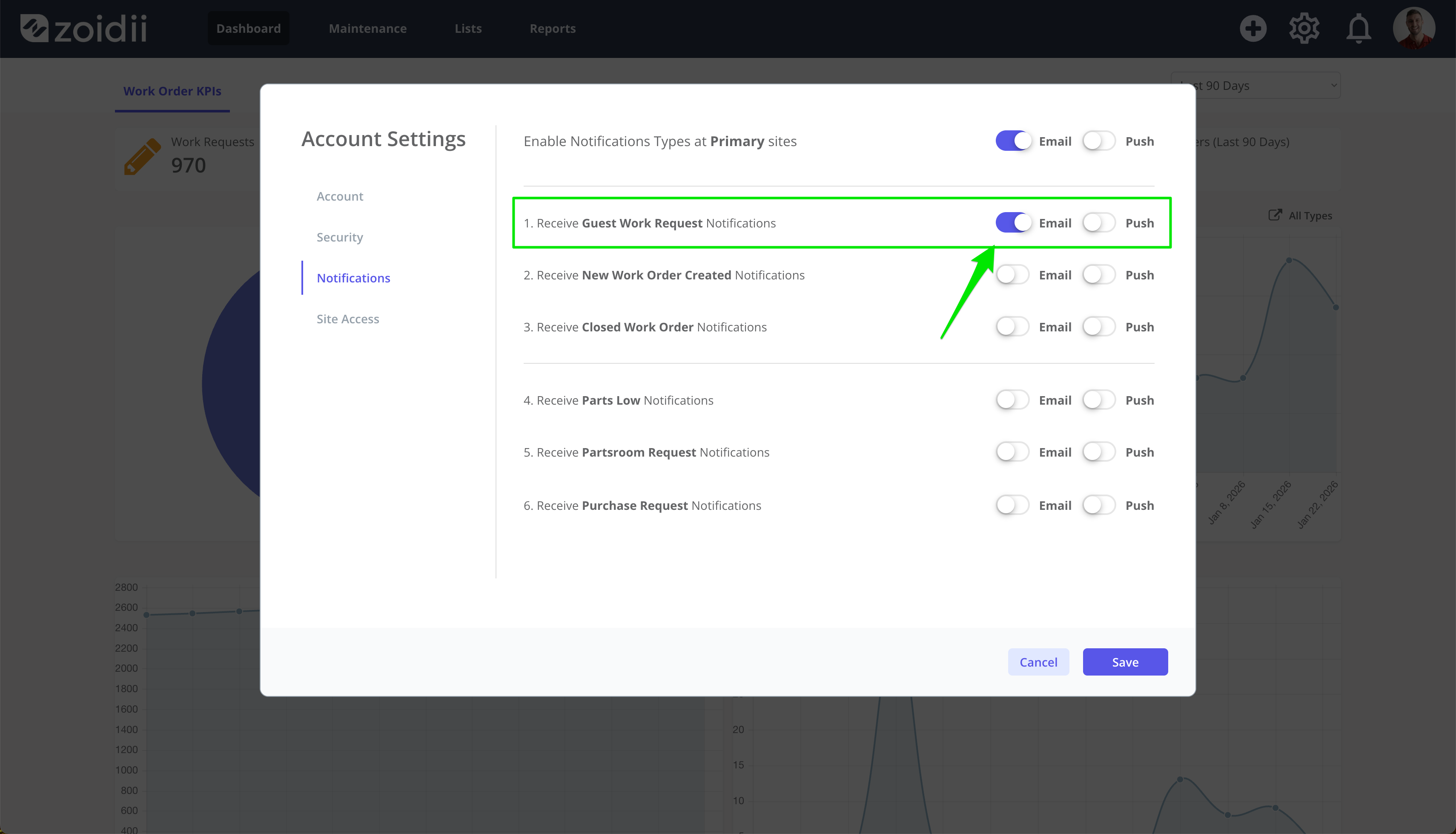
3. Toggle Enable Email Notifications and Enable Guest Notifications to On
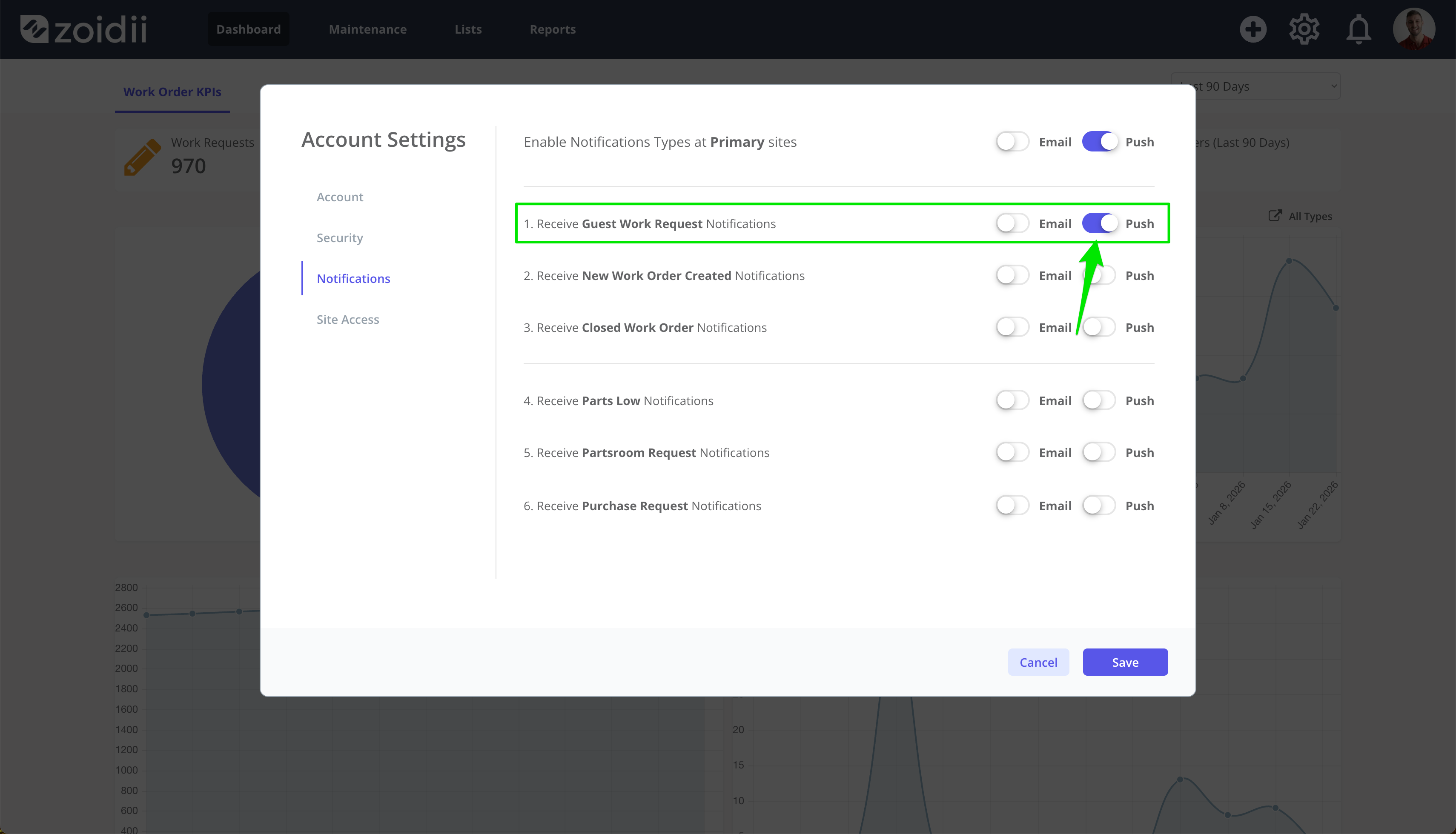
4. If you prefer push notifications, turn ON the Receive Guest Notifications Push toggle. To ensure you have the correct PUSH configuration on your mobile device, be sure to read the push notifications help procedure.
3. Receive New Work Order Notifications
New Work Order Flow
New work orders are submitted by logged-in users in the system. For example, a technician creates a work order for something they have started working on.- All users must opt in to receive New Work Order Notifications from logged-in users
Procedure
1. In the Top Menu bar, click the user profile image or avatar, and select My Account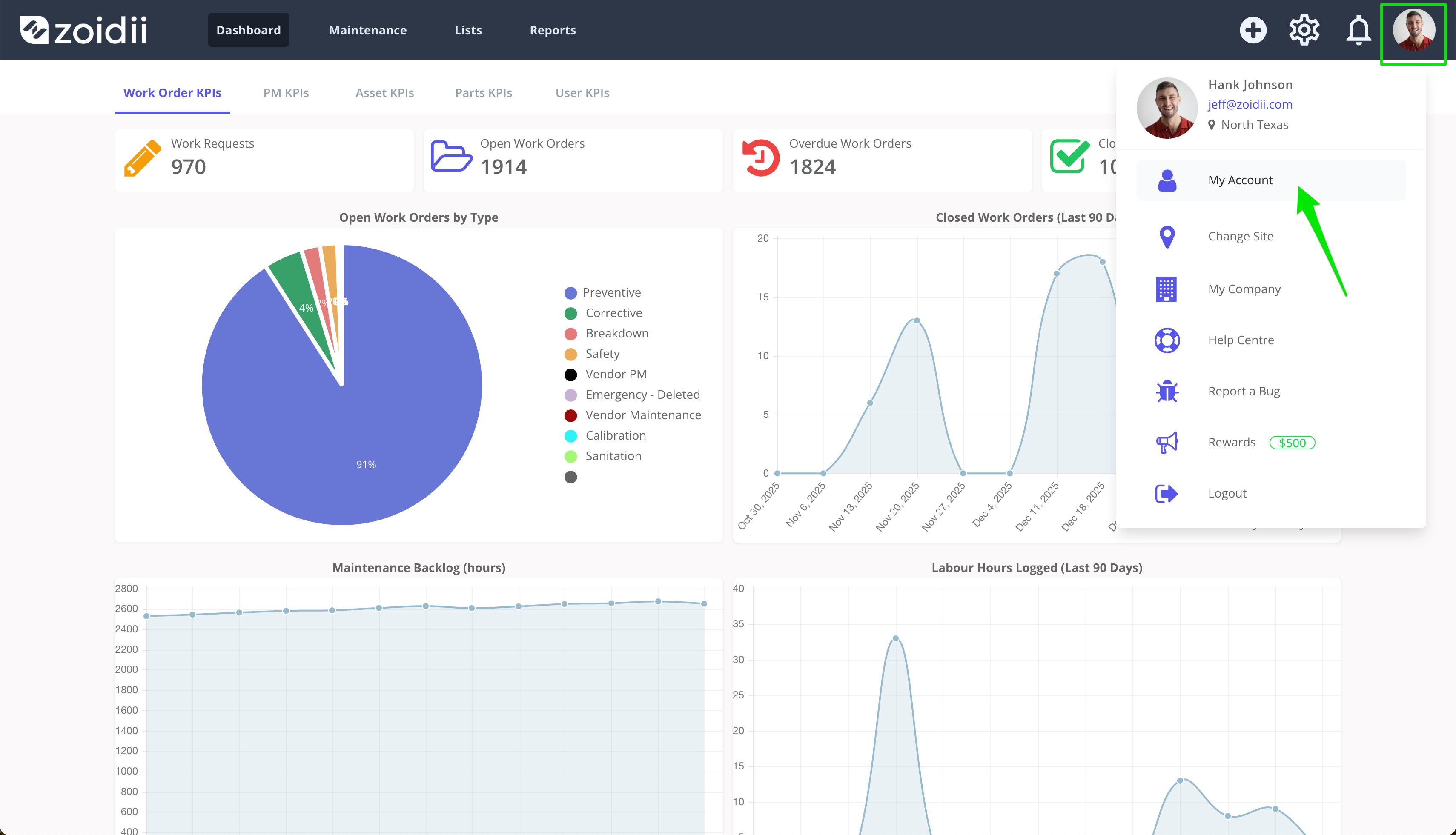
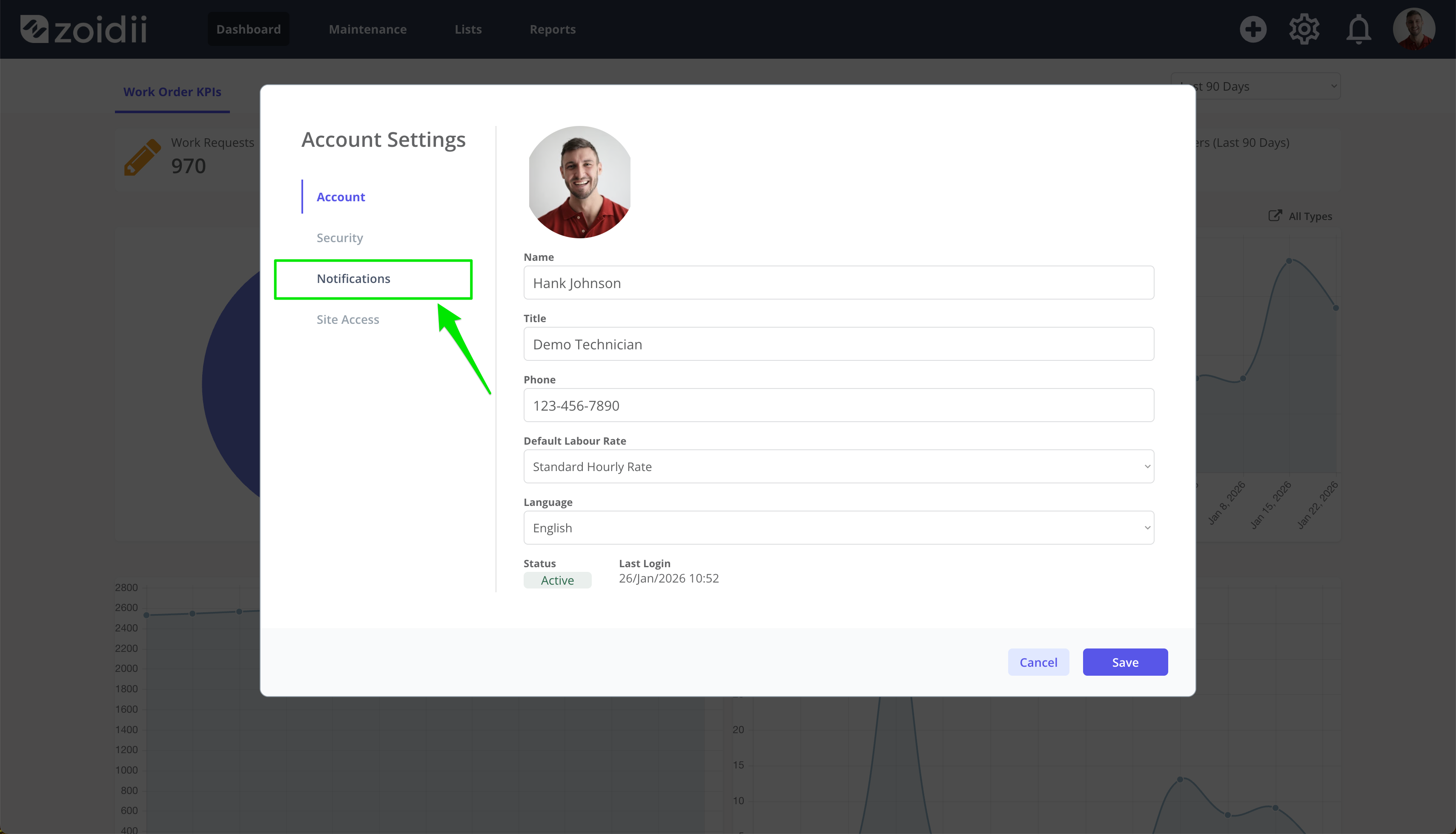
2. Select the Notifications tab
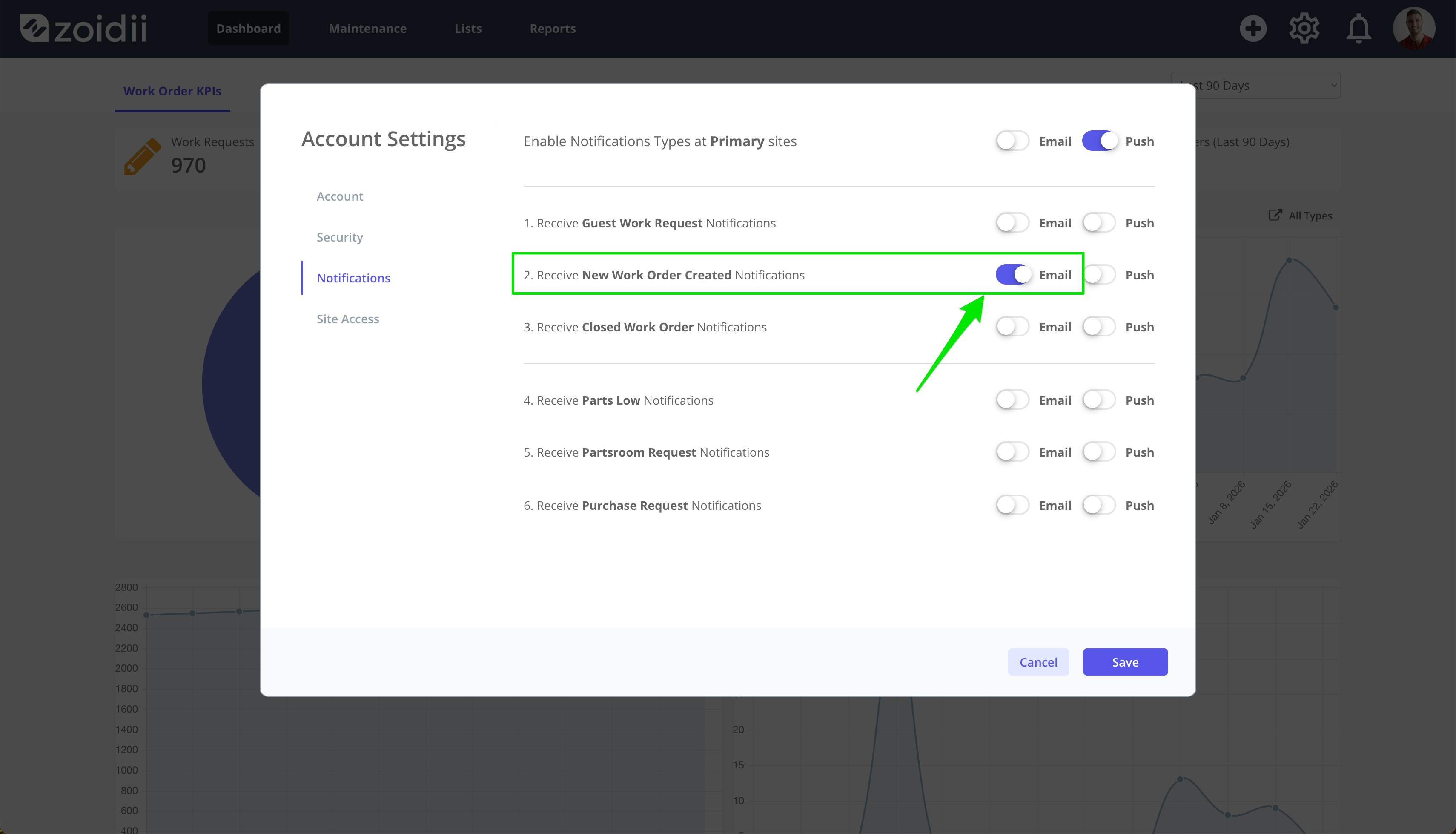
3. Toggle Enable Email Notifications and New Work Order Notifications to On
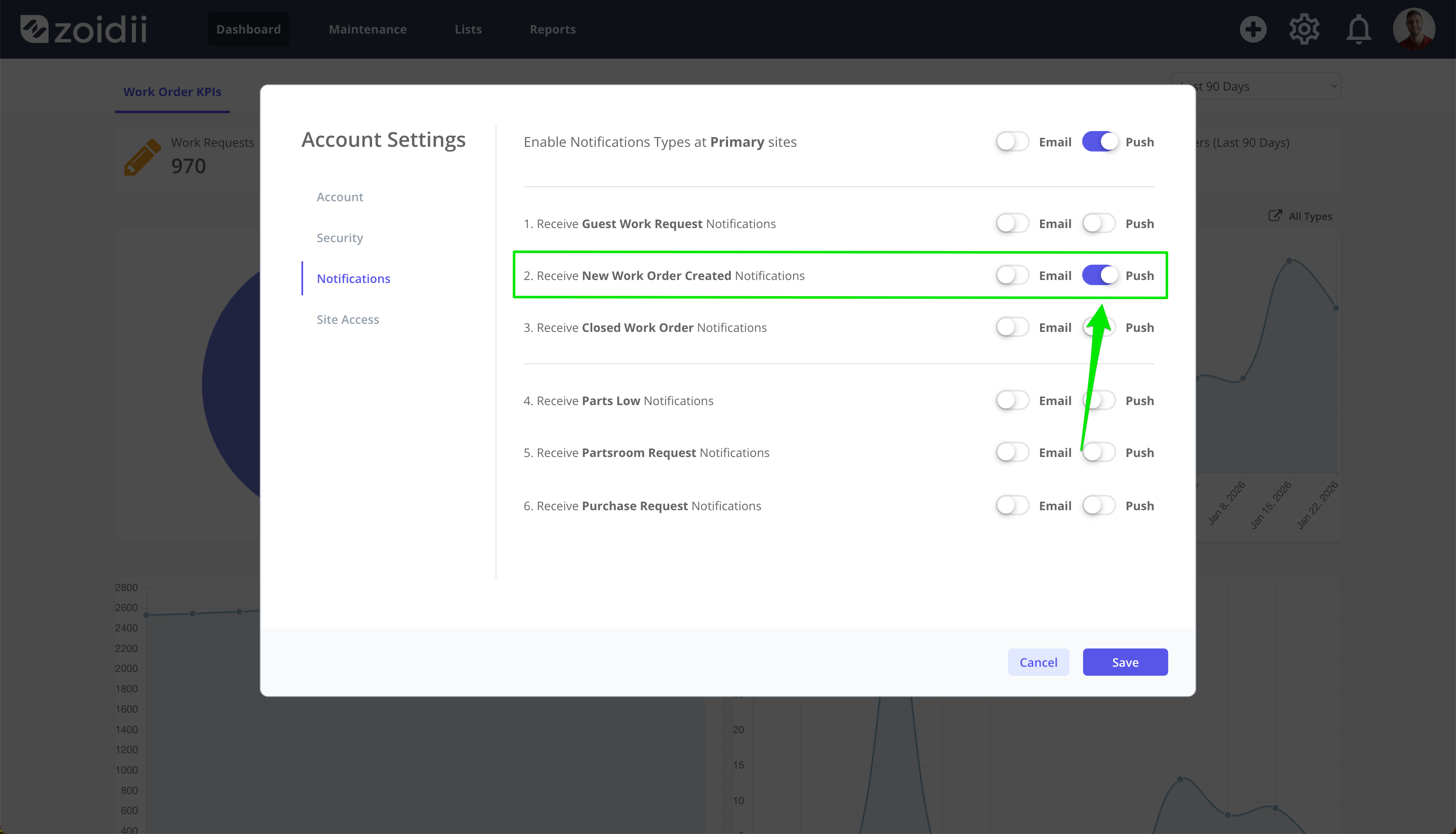
4. If you prefer push notifications, turn ON the Receive New Notifications Push toggle. To ensure you have the correct PUSH configuration on your mobile device, be sure to read the push notifications help procedure.
4. Receive Closed Work Order Notifications
Closed Work Order Flow
When any user closes any work order.- All users must opt in to receive Closed Work Order Notifications from logged-in users
- User that have bookmarked a particular work order as per #1 above will get the closed work order notification when it is done
Procedure
1. In the Top Menu bar, click the user profile image or avatar, and select My Account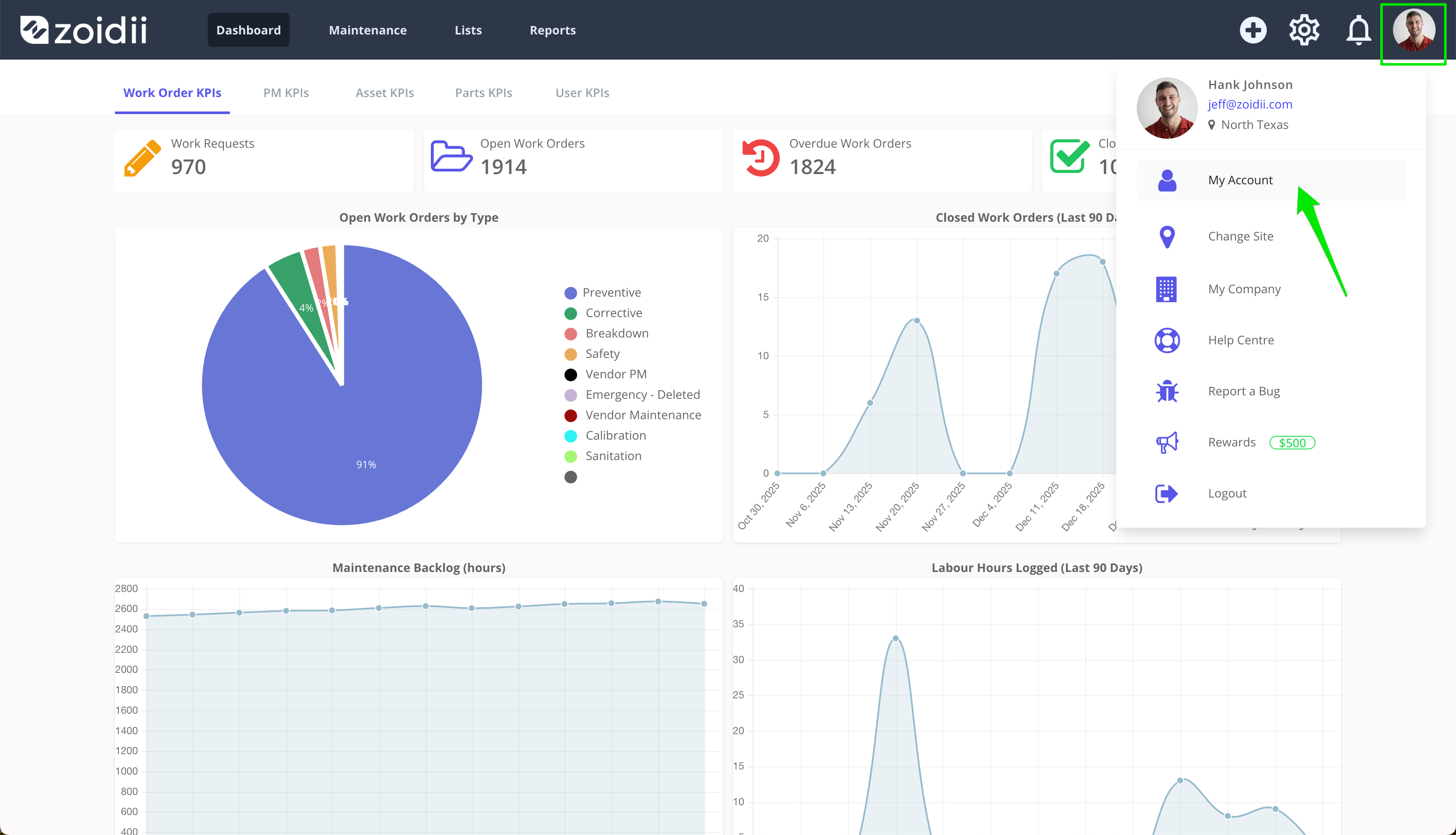
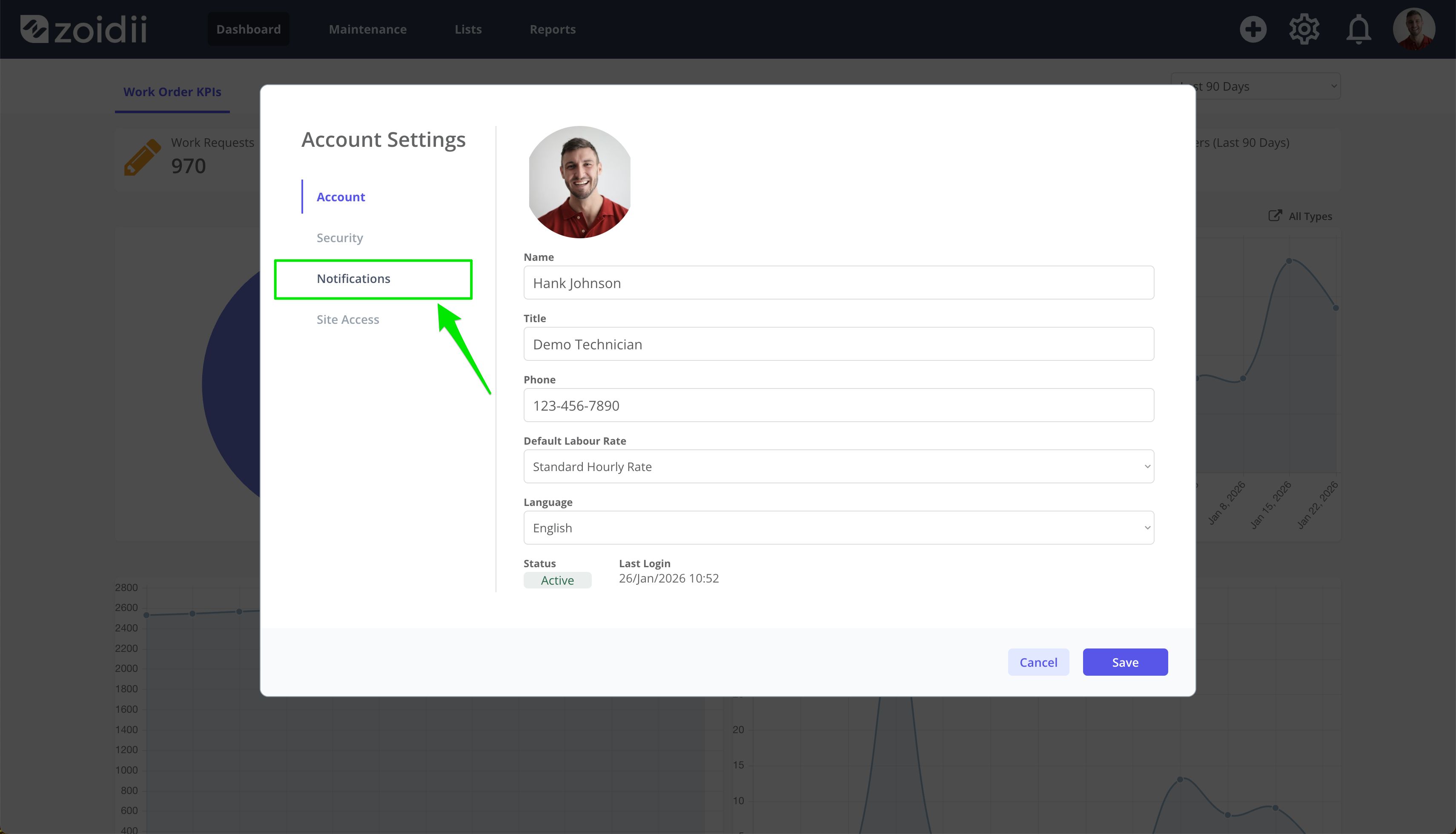
2. Select the Notifications tab
3. Toggle Enable Email Notifications and Closed Work Order Notifications to On
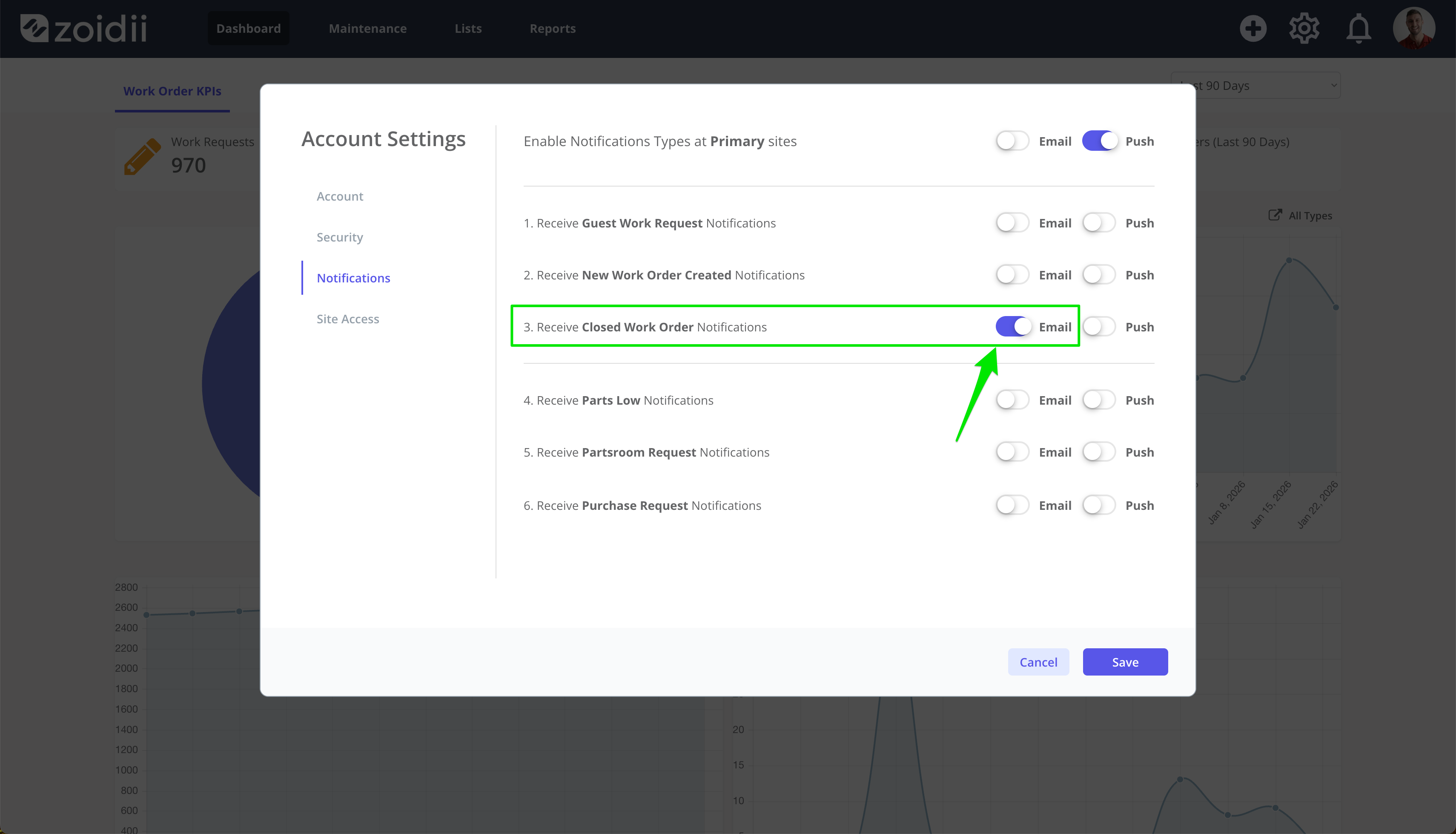
4. If you prefer push notifications, turn ON the Receive New Notifications Push toggle. To ensure you have the correct PUSH configuration on your mobile device, be sure to read the push notifications help procedure.