Background
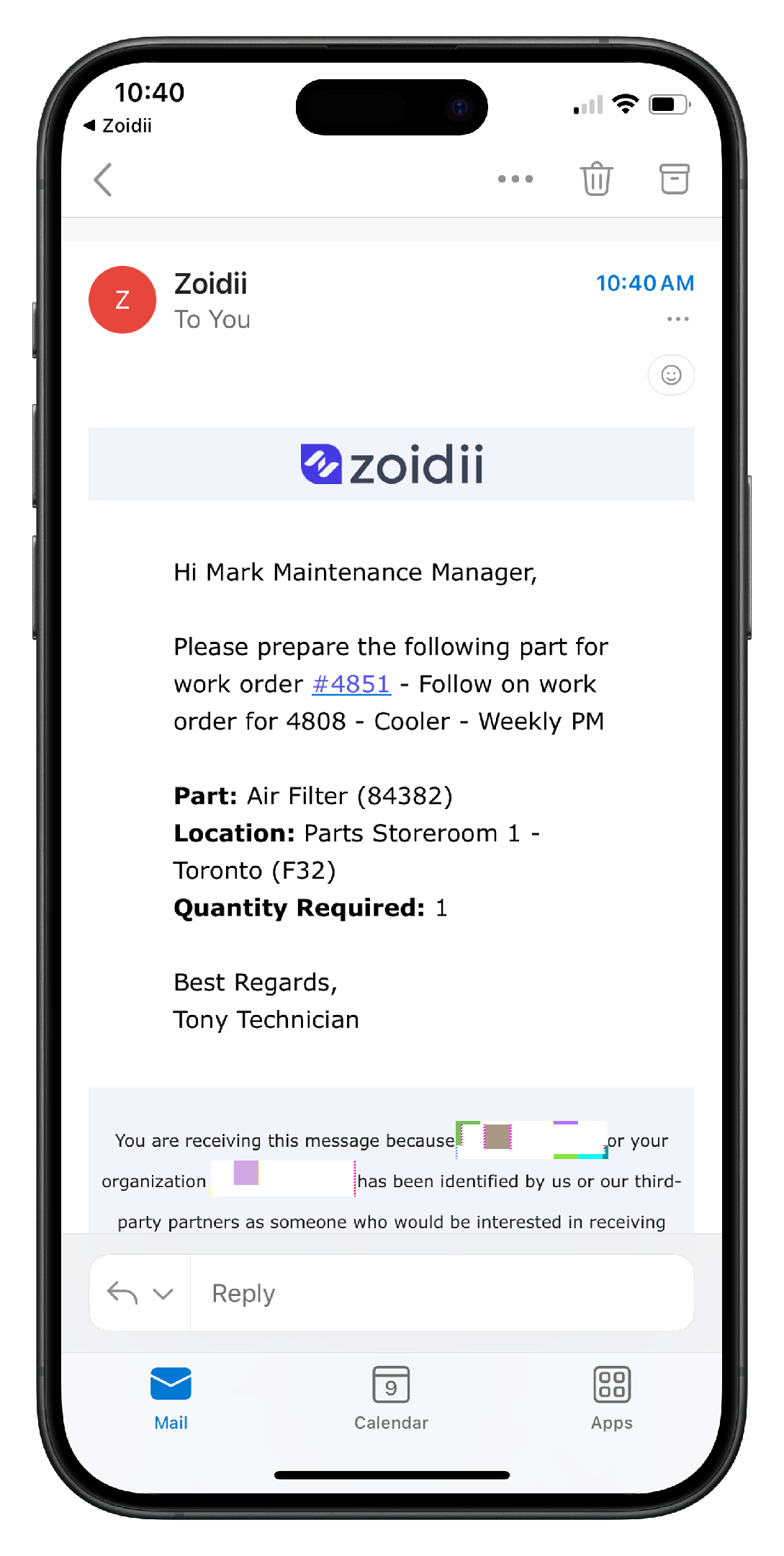
Users can send part requests to manned parts warehouses to minimize wait times. When the parts room request is created and added to the work order, a notification email is sent to the relevant parts room folks.
Procedure
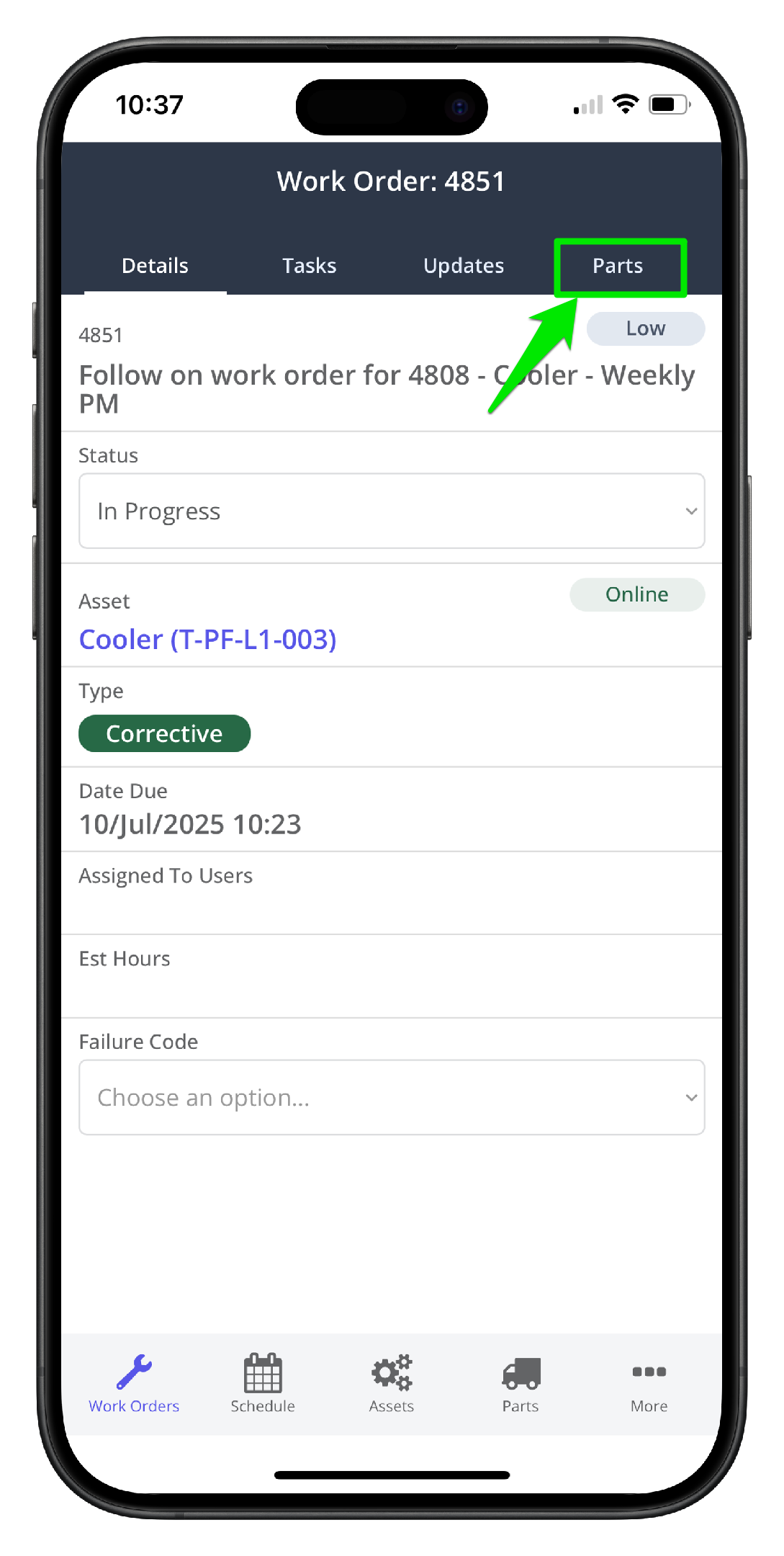
1. Open the work order and navigate to the work order Parts tab
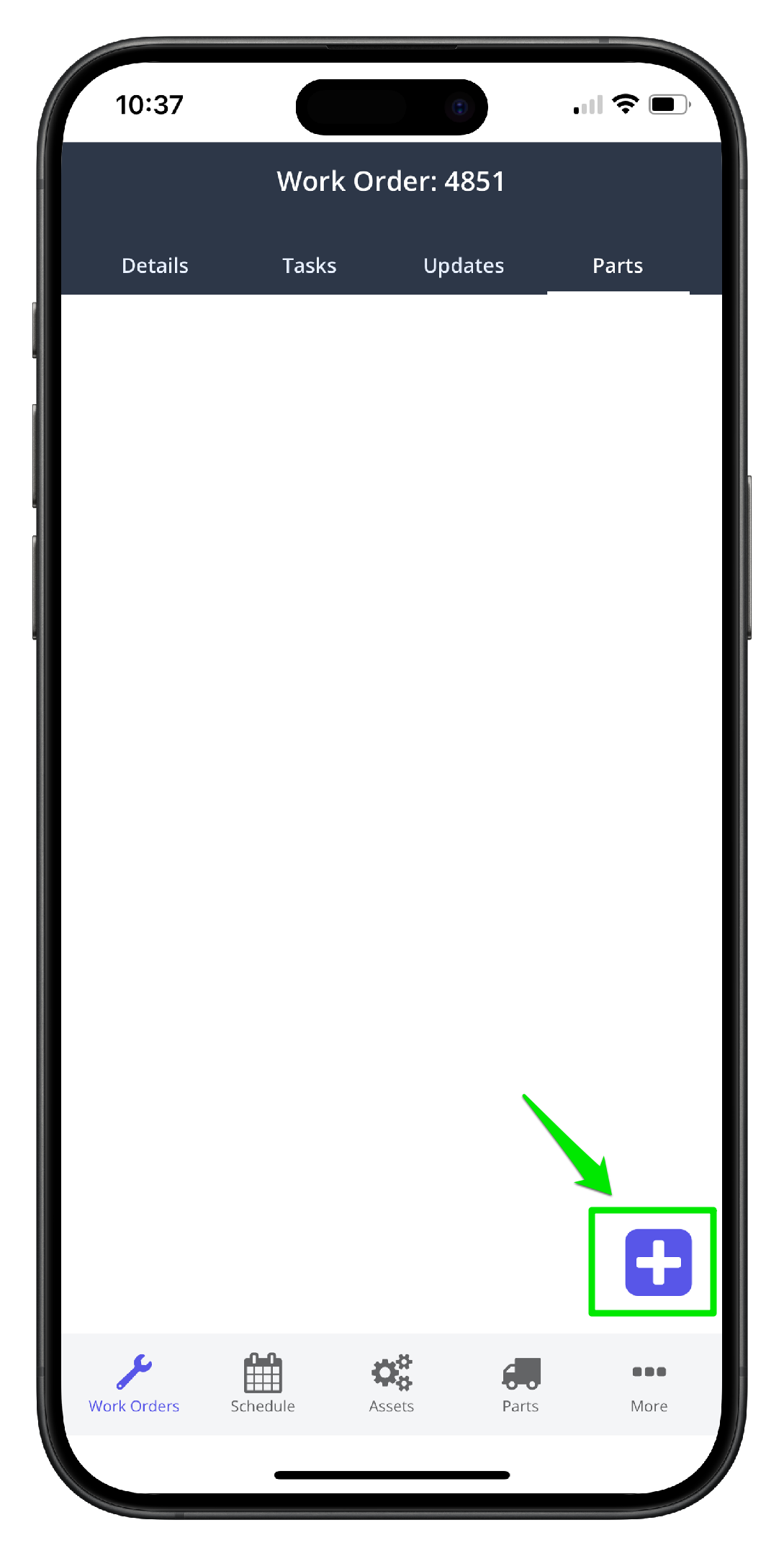
2. Click the Add New icon on the parts page
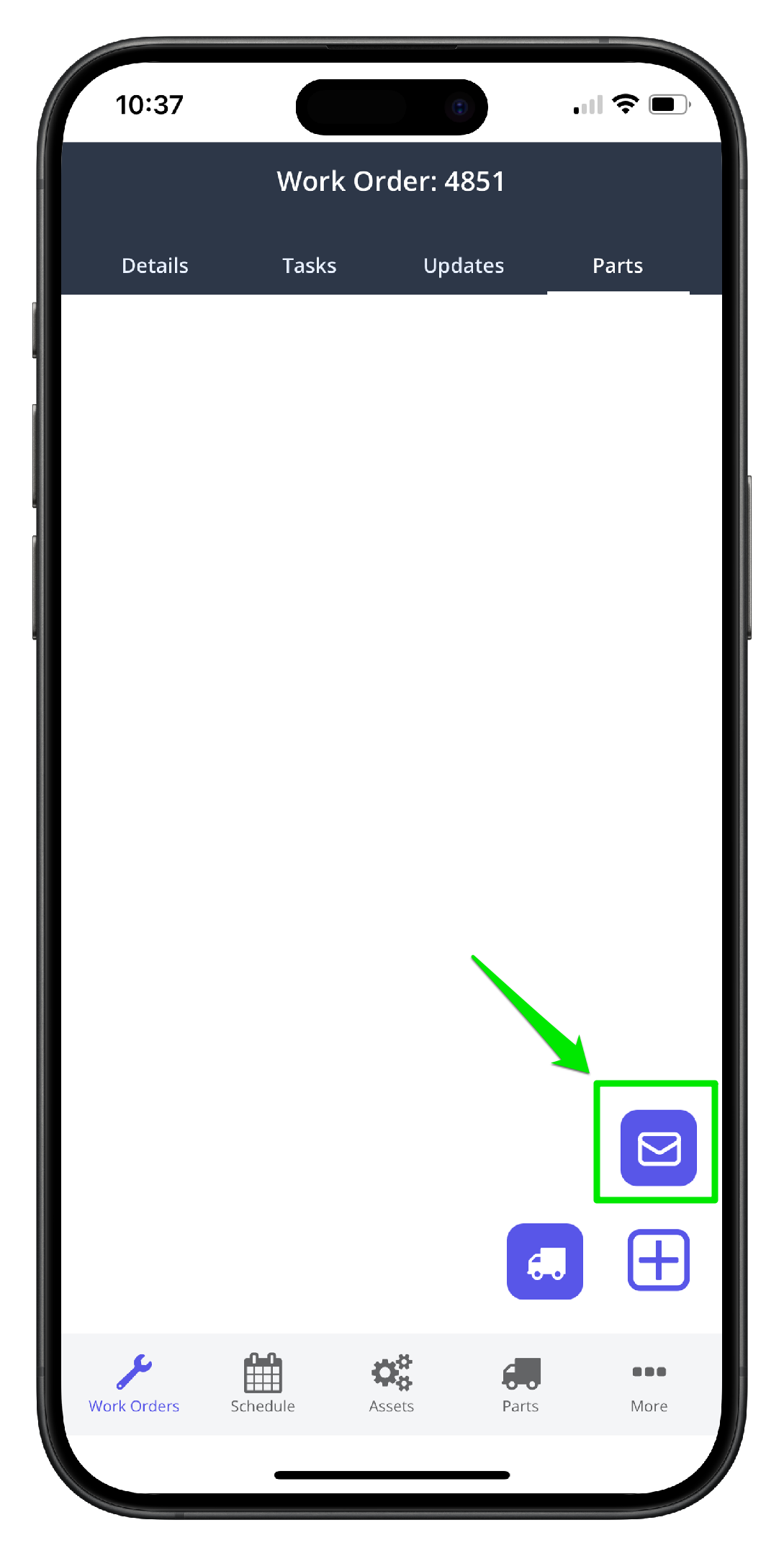
3. Click the Parts Room Request Icon
4. Use the search function to find the part quickly
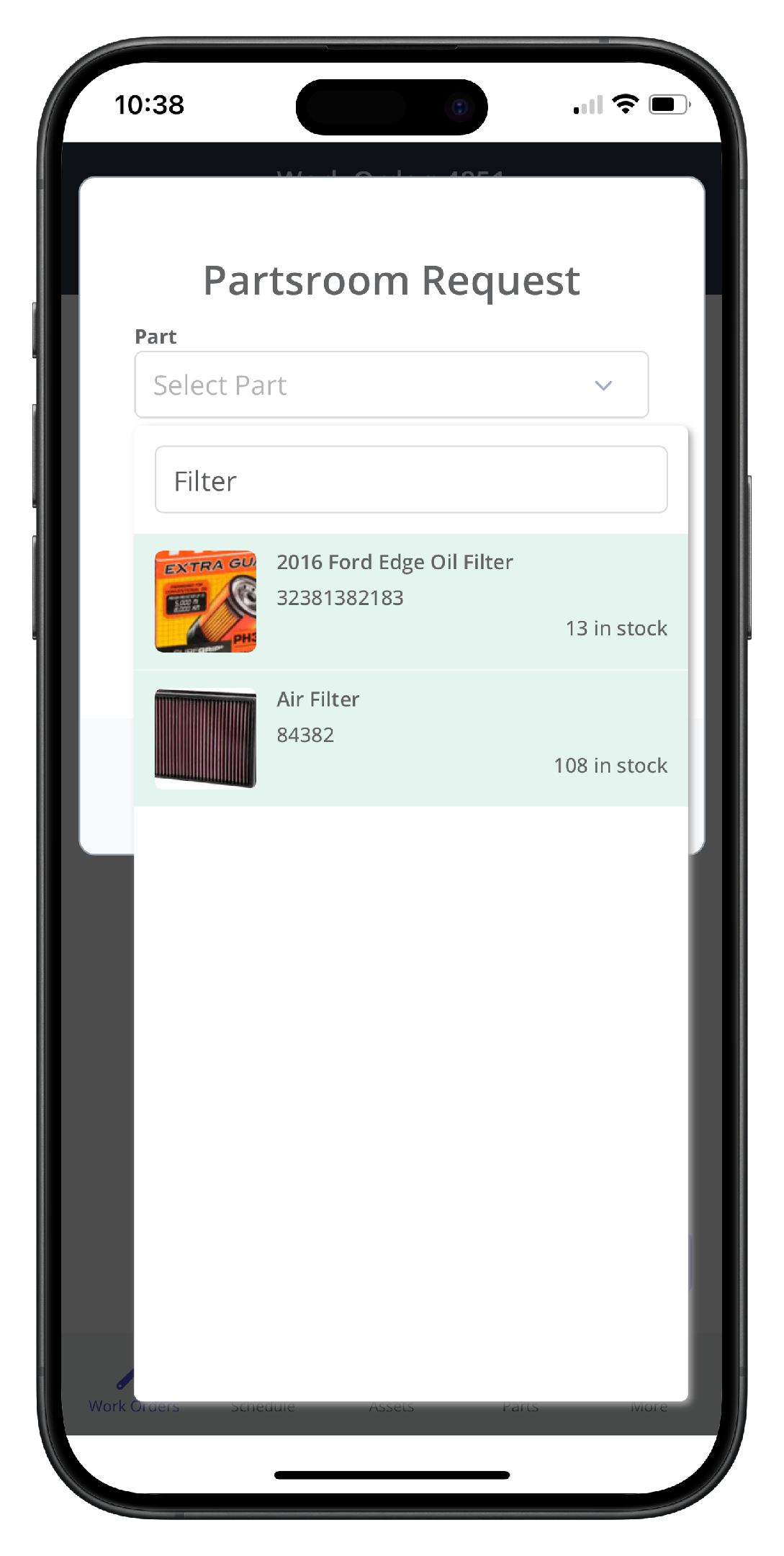
5. Click the parts Storage Location to choose a list of available parts locations
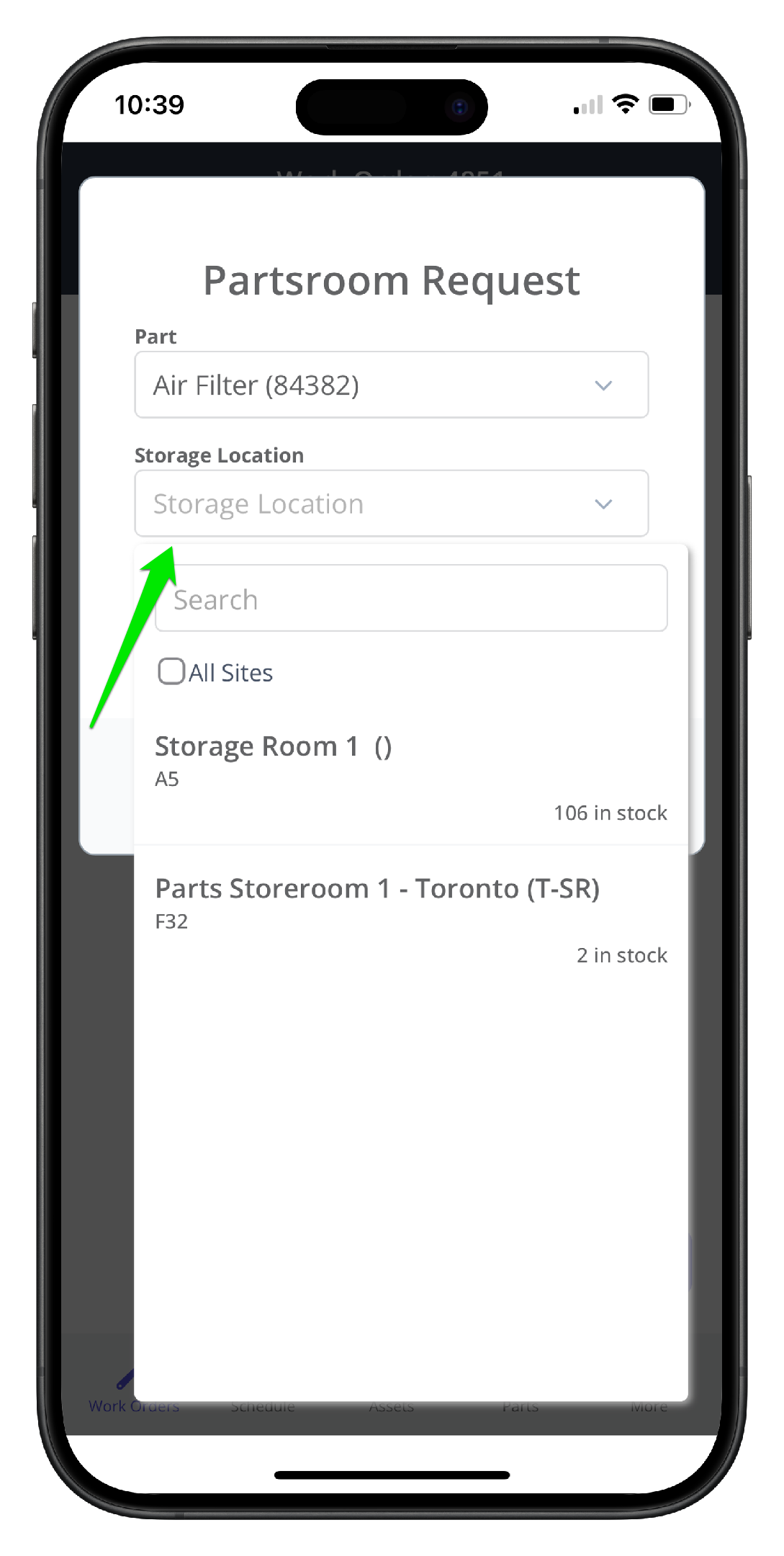
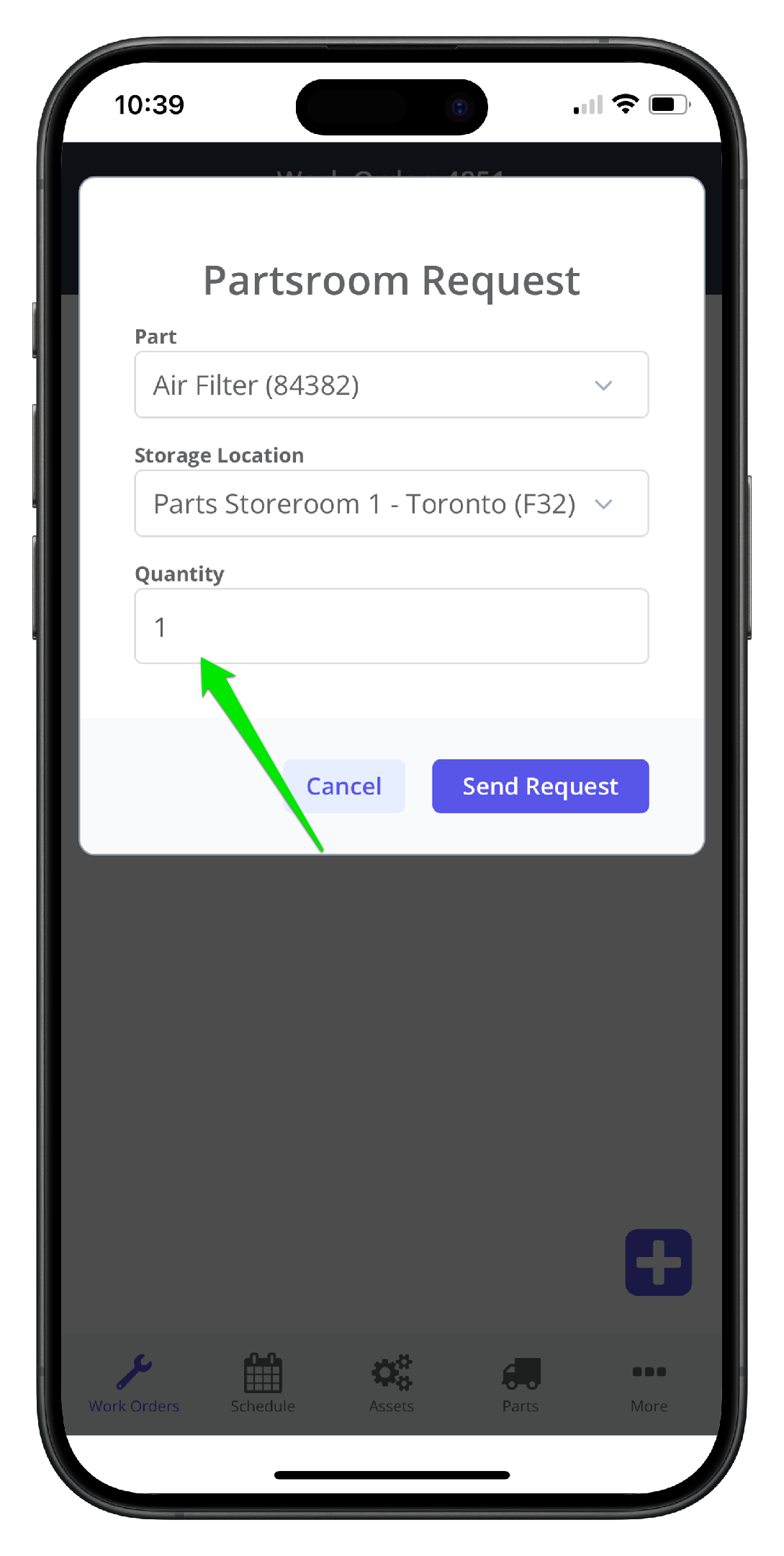
6. Add the Quantity Required. This is the quantity you want the parts room folks to pull from stock for you.
7. Click Send Request
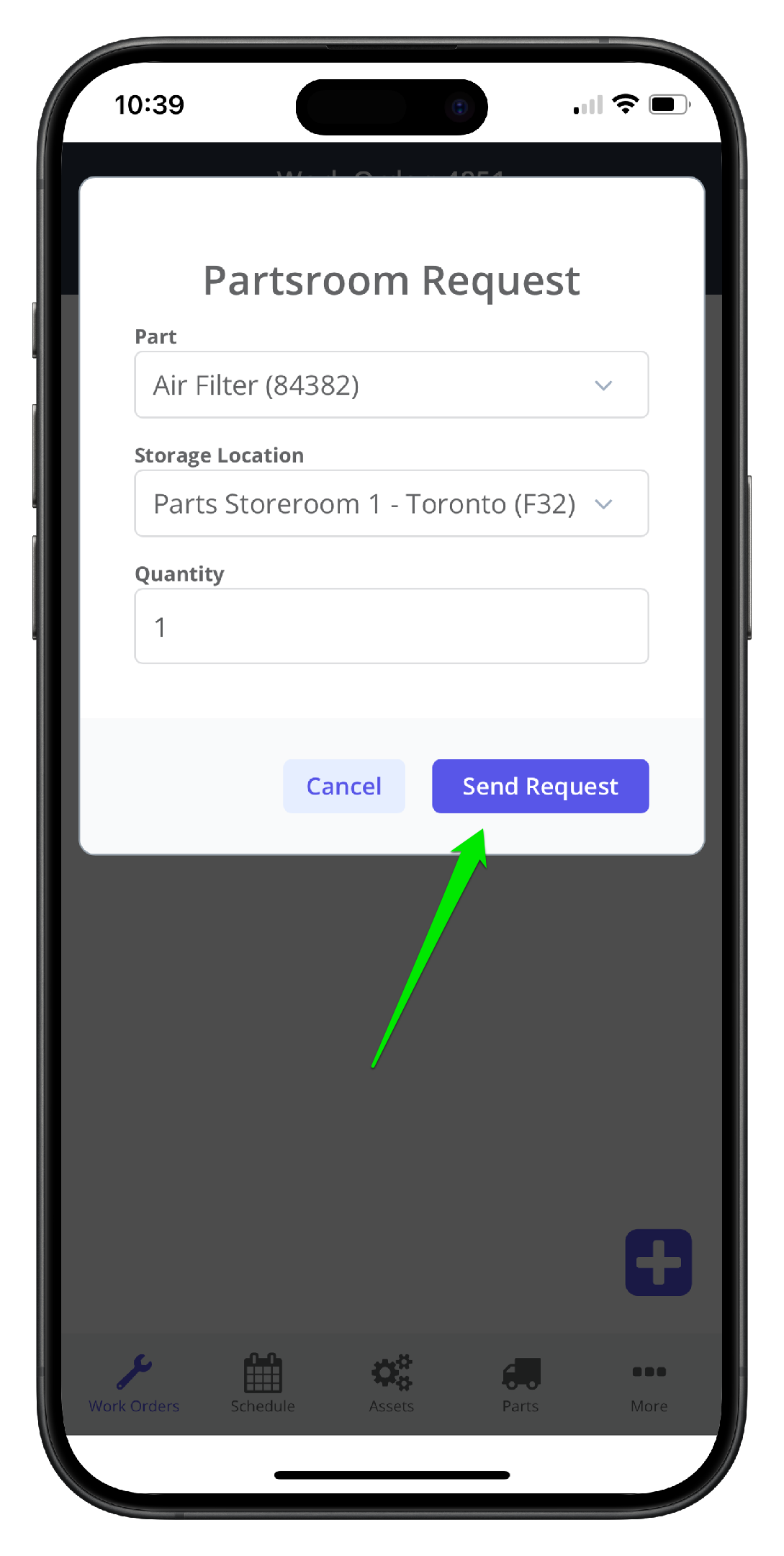
8. When Send Request is clicked, two things happen:
- The end users with parts room request notifications turned ON will receive an email detailing the request:
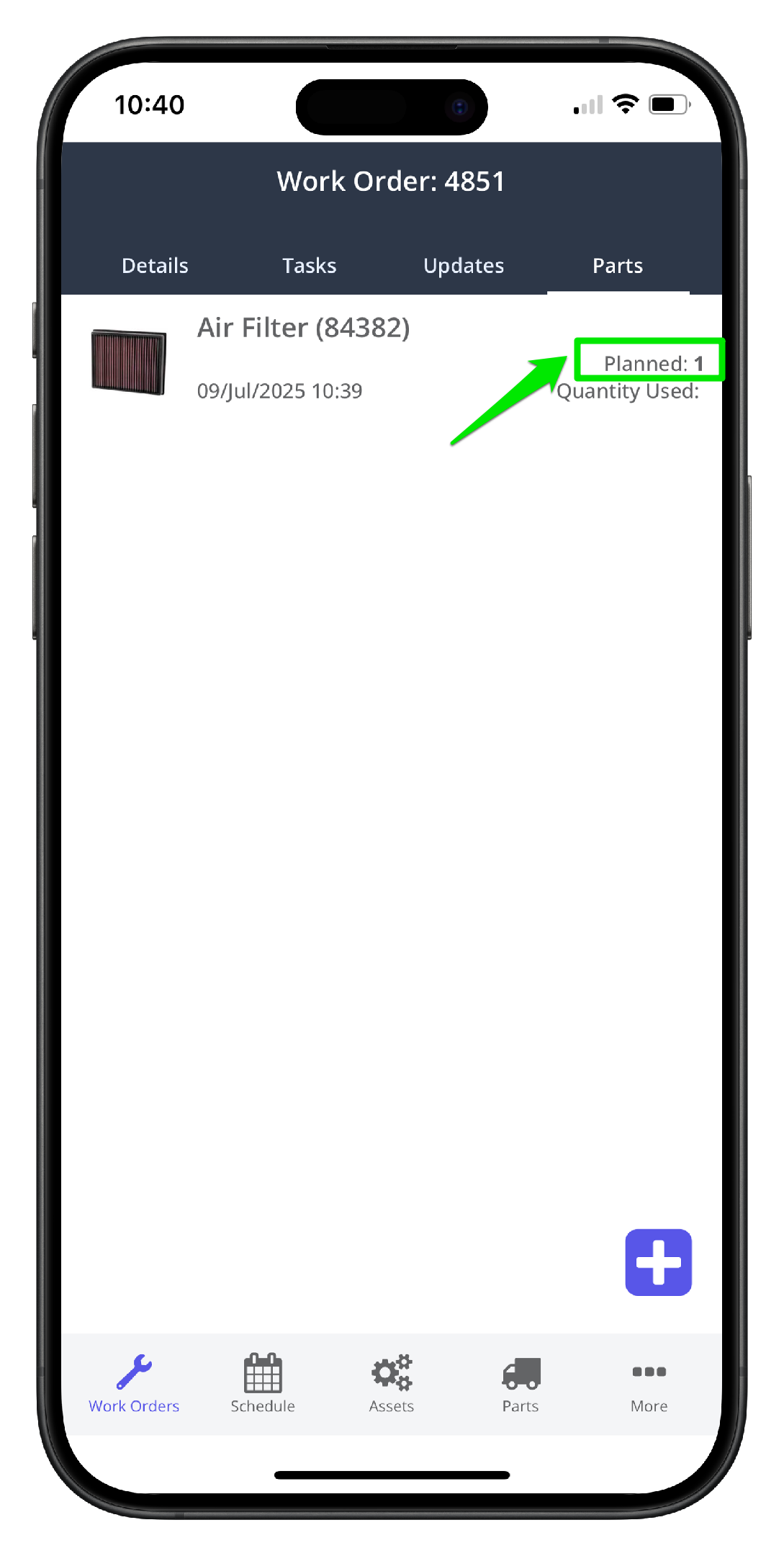
2. The part is added to the work order with the planned quantity field filled. The part is not yet consumed until part is clicked and the quantity used is filled in.