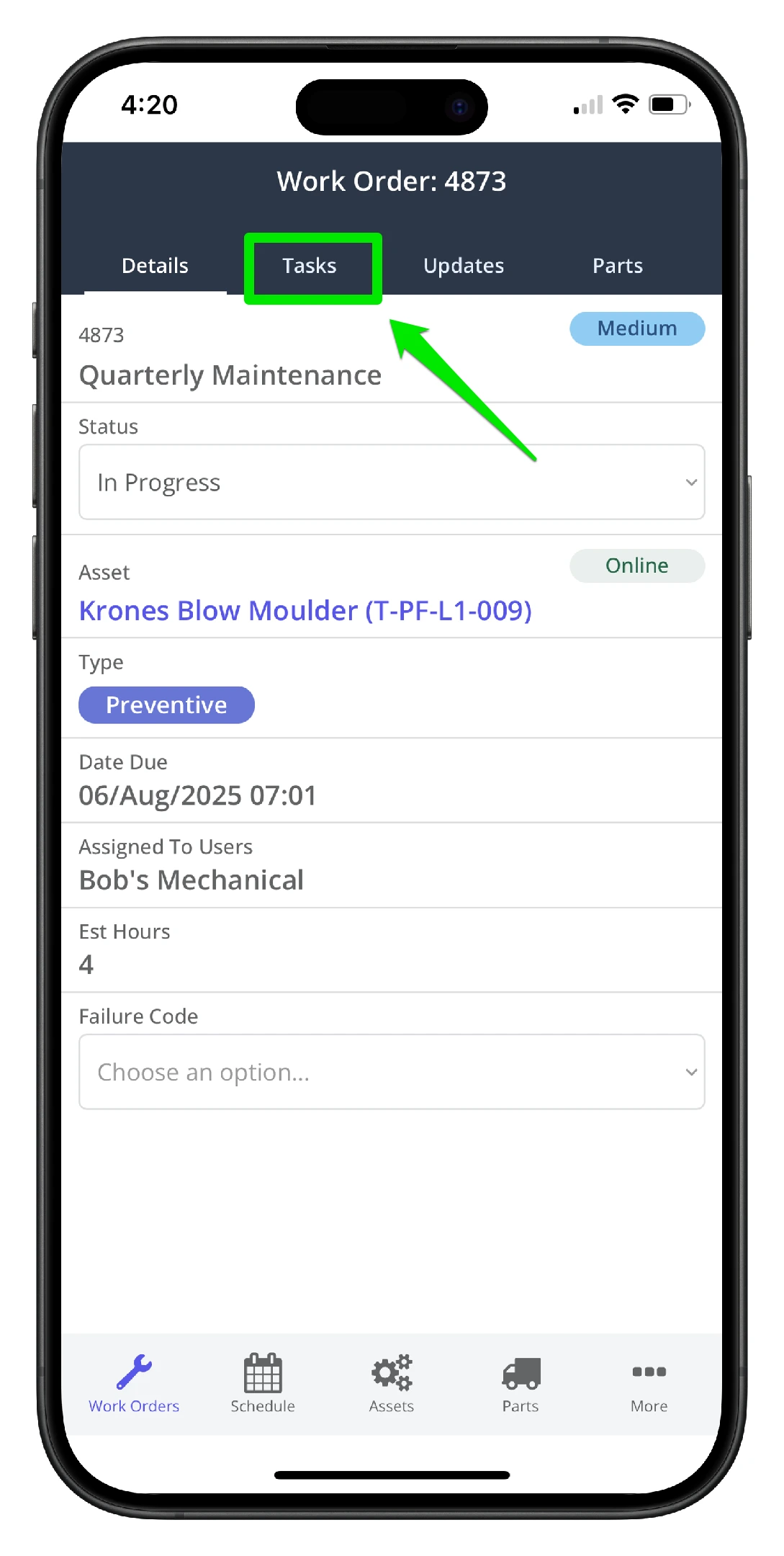
1. Navigate to the Tasks tab
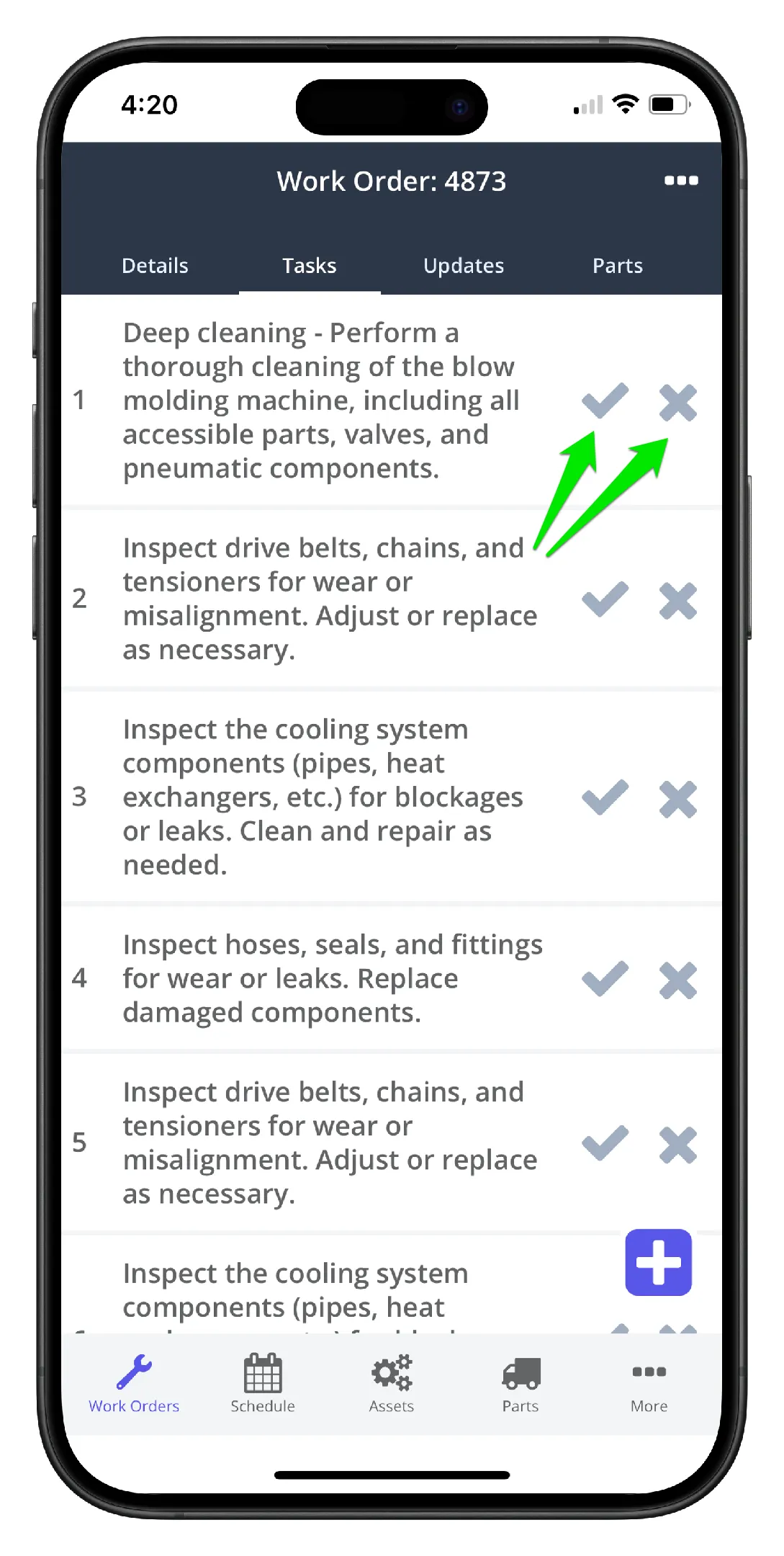
2. If the task is done, or has passed the inspection, click the Tick icon. If the task is to be skipped, or has failed the inspection, click the X icon.
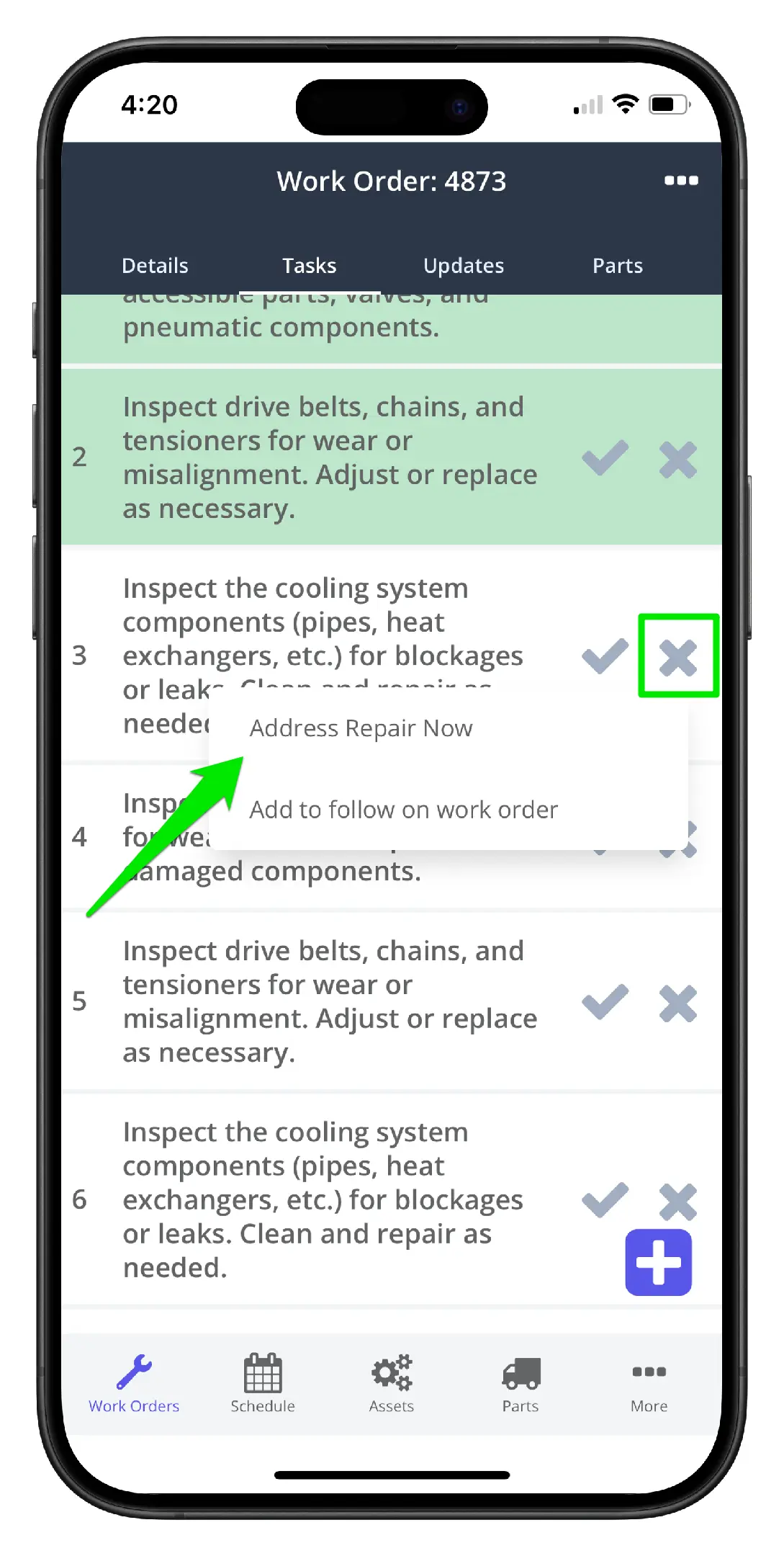
3. Tasks 1&2 are highlighted green when the task is signed off as Done/Passed. For this example, the cooling system has a small leak in the pipe. The X is clicked and the task is marked as not done/failed. The technician has 2 choices - address the issue now, or add the issue to a follow on work order to be addressed later.
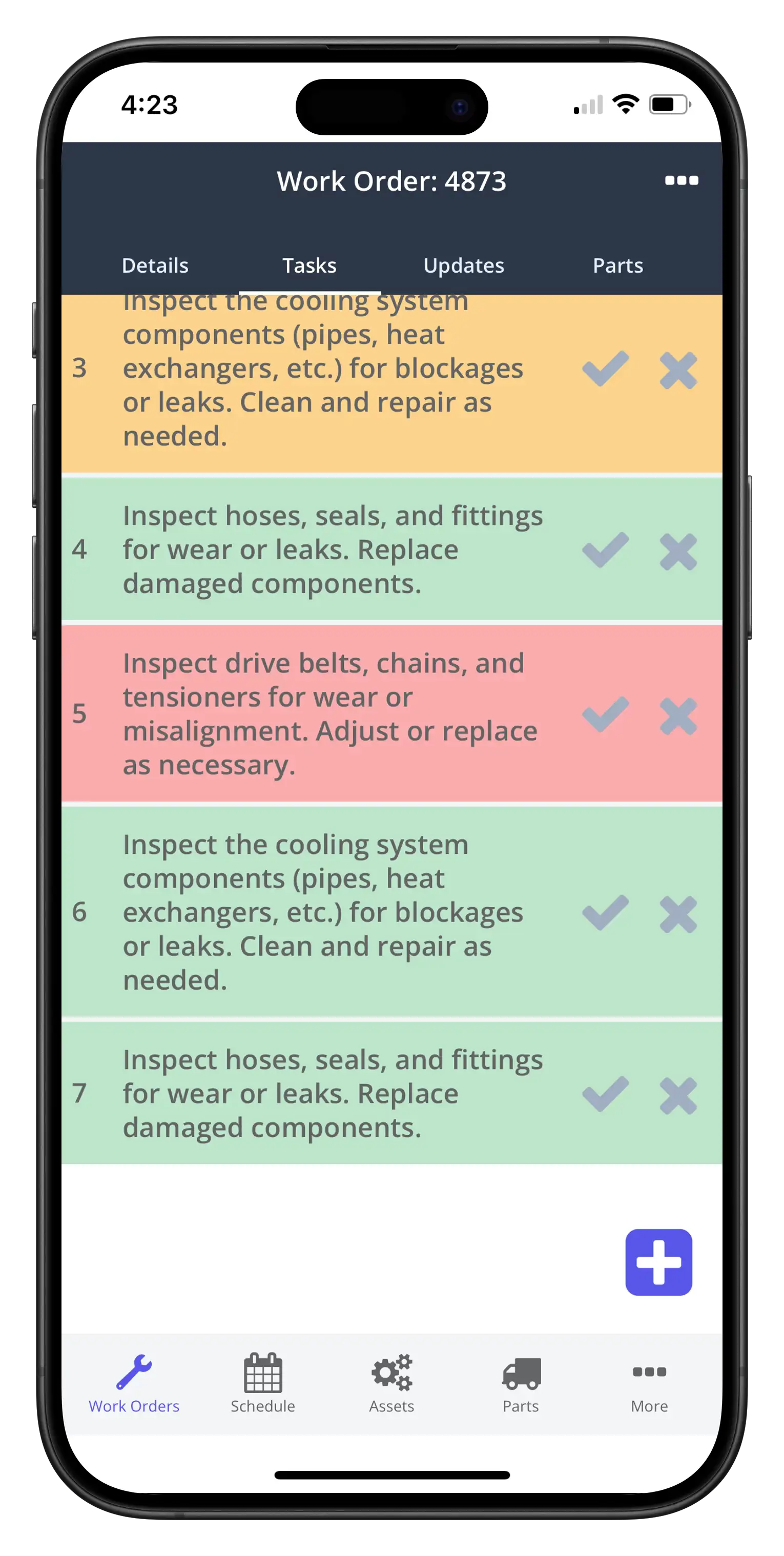
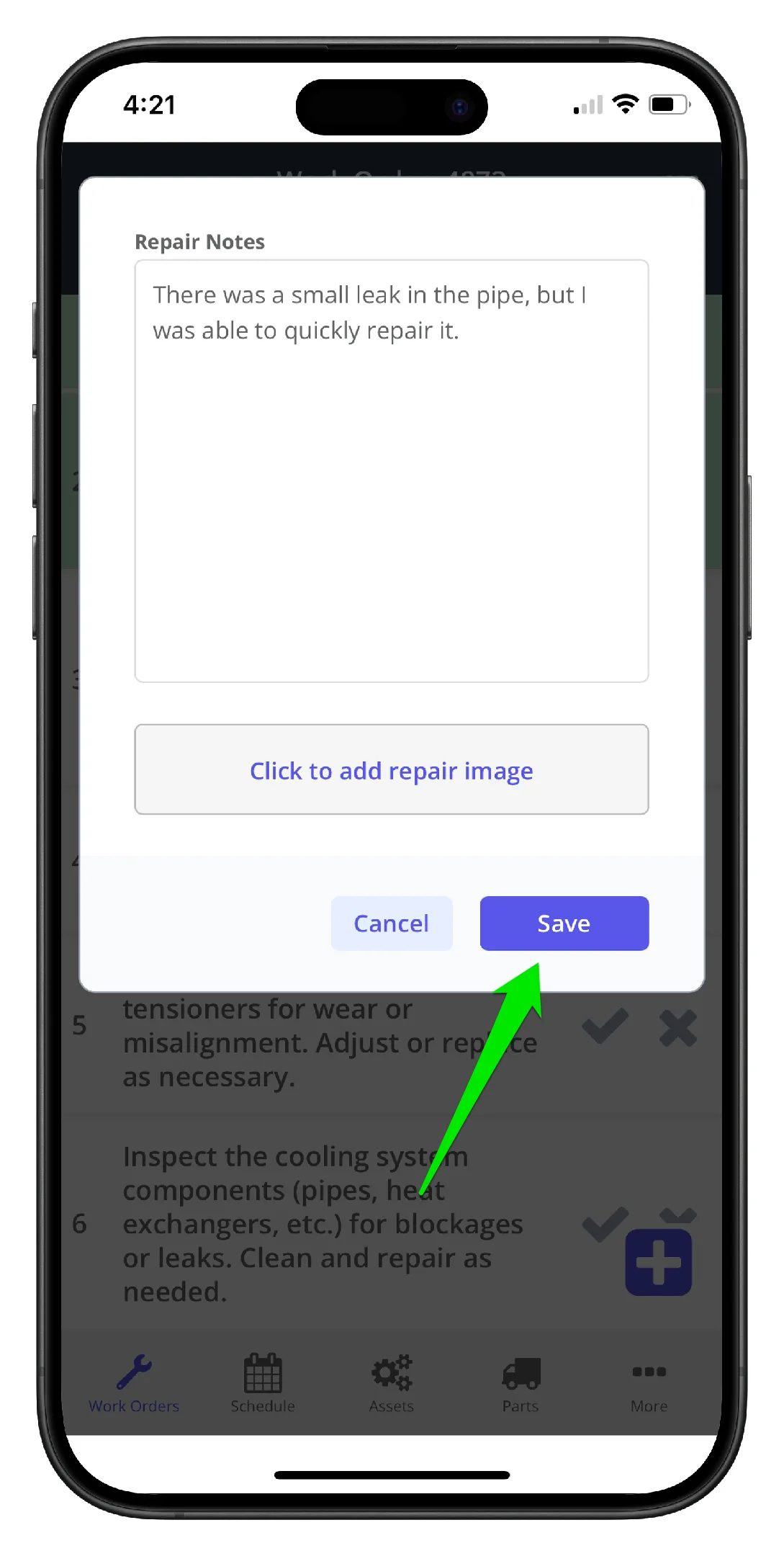
4. For this example, it was a simple repair, so the technician selects Address now and proceeds with the fix. Add a comment in the popup window and click Save when done
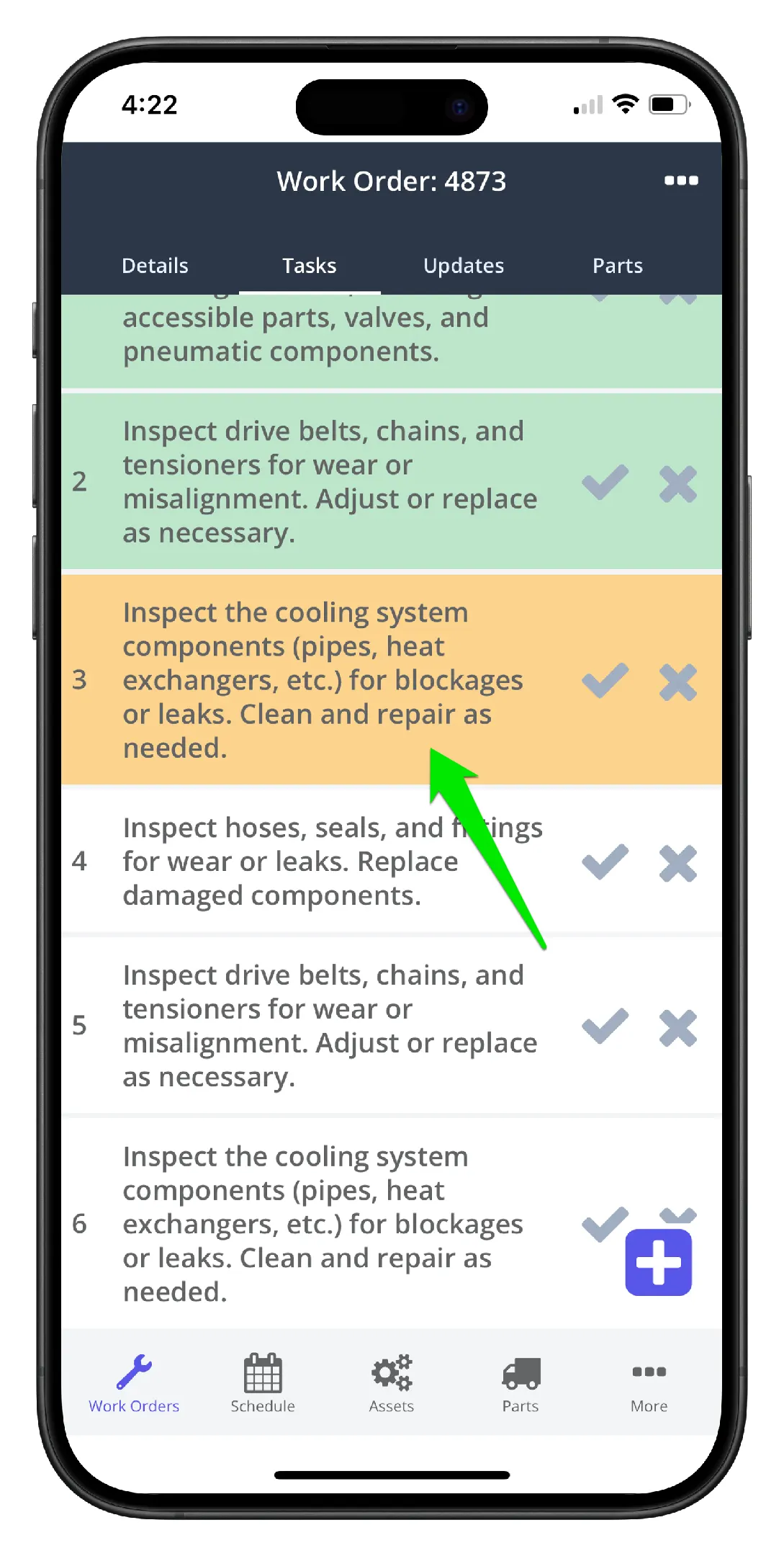
5. The task is marked failed but addressed
6. In the next example, the task is marked failed/not complete as there are no replacement belts in stock. The technician chooses to add the issue to a follow on work order
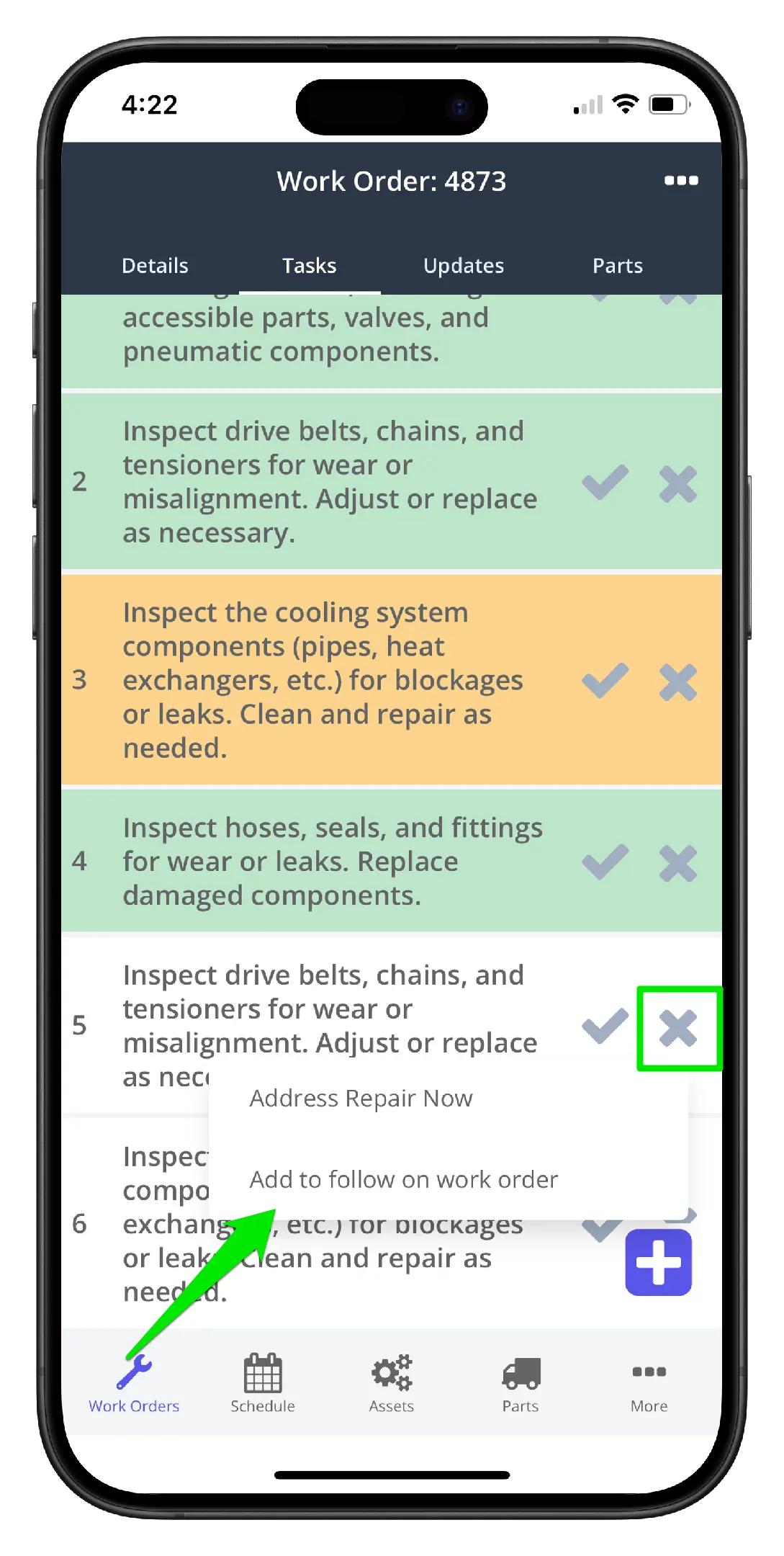
Note:- The follow on work order is not created until the work order is marked as Done
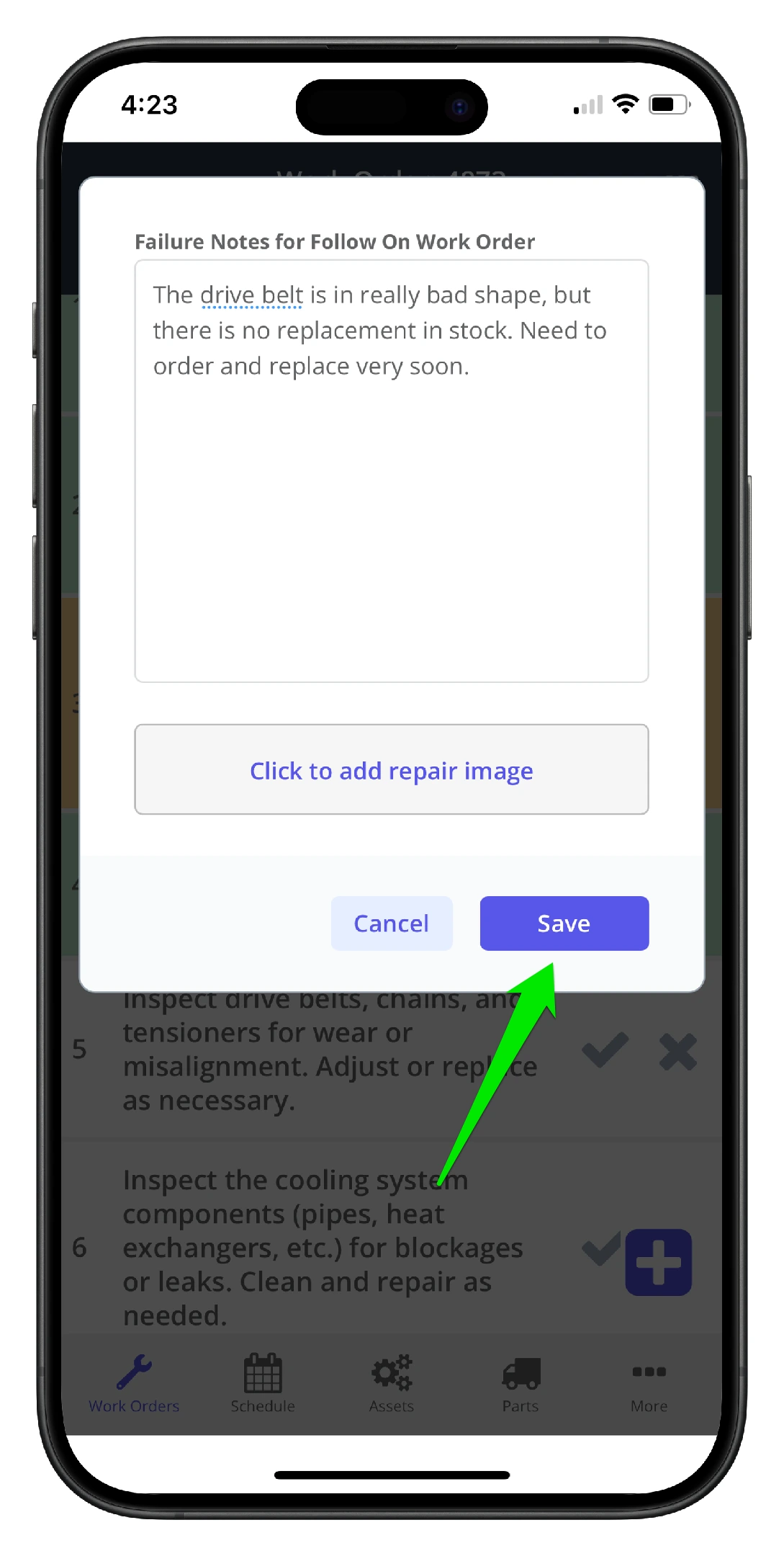
7. Add a comment to the failure notes and click Save. This comment will appear on the task line item in the follow on work order
8. Repeat the process until all work order tasks are complete