

The best practice is to consume parts in a work order when they are used. If you adjust the stock on hand, there is no record of the part used in a repair.
When parts are added to work orders, they are automatically depleted from stock, and consumed on the work order asset.
Procedure
1. Open the work order and navigate to the work order Parts tab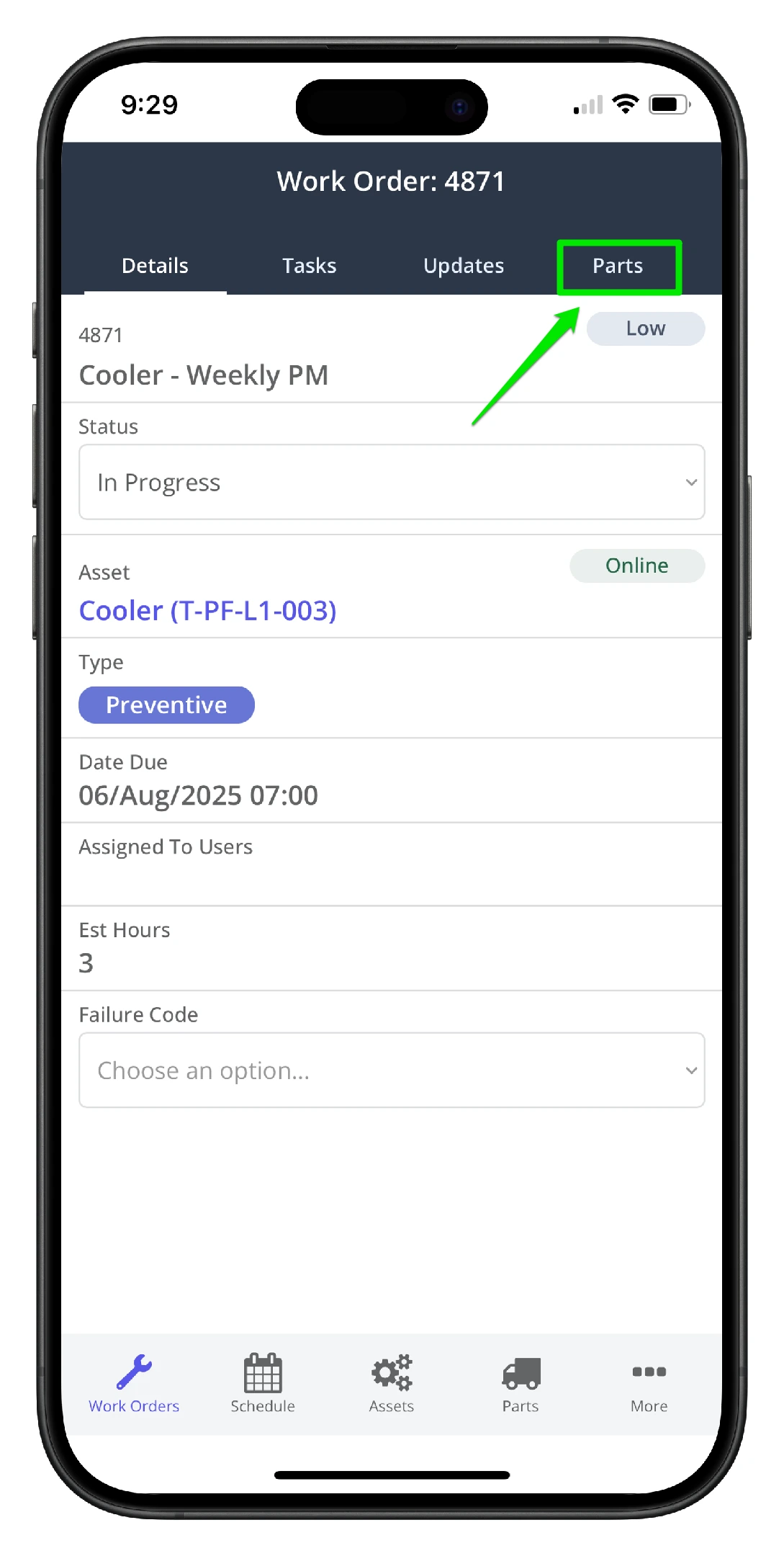
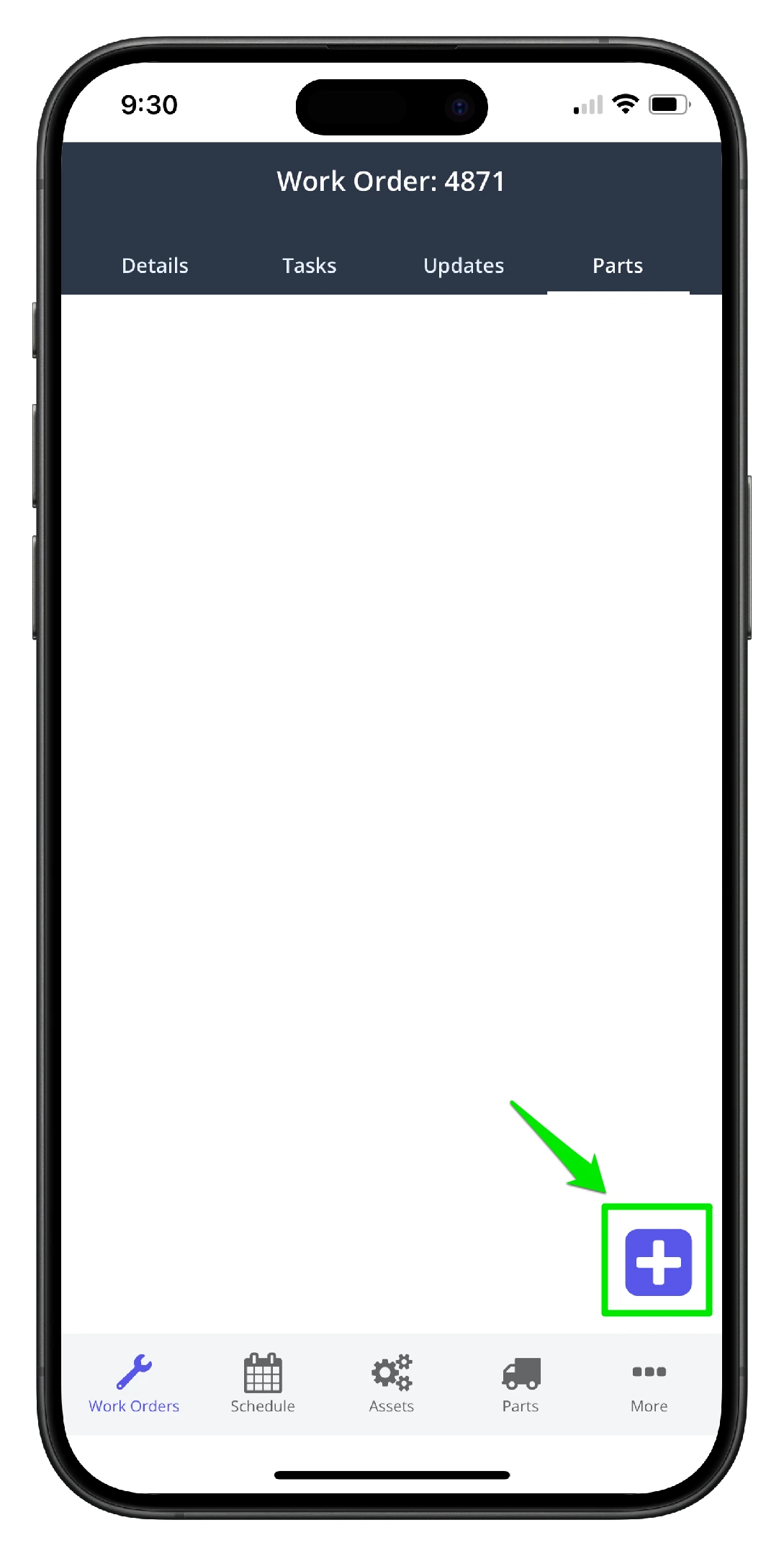
2. Click the Add New icon on the parts page
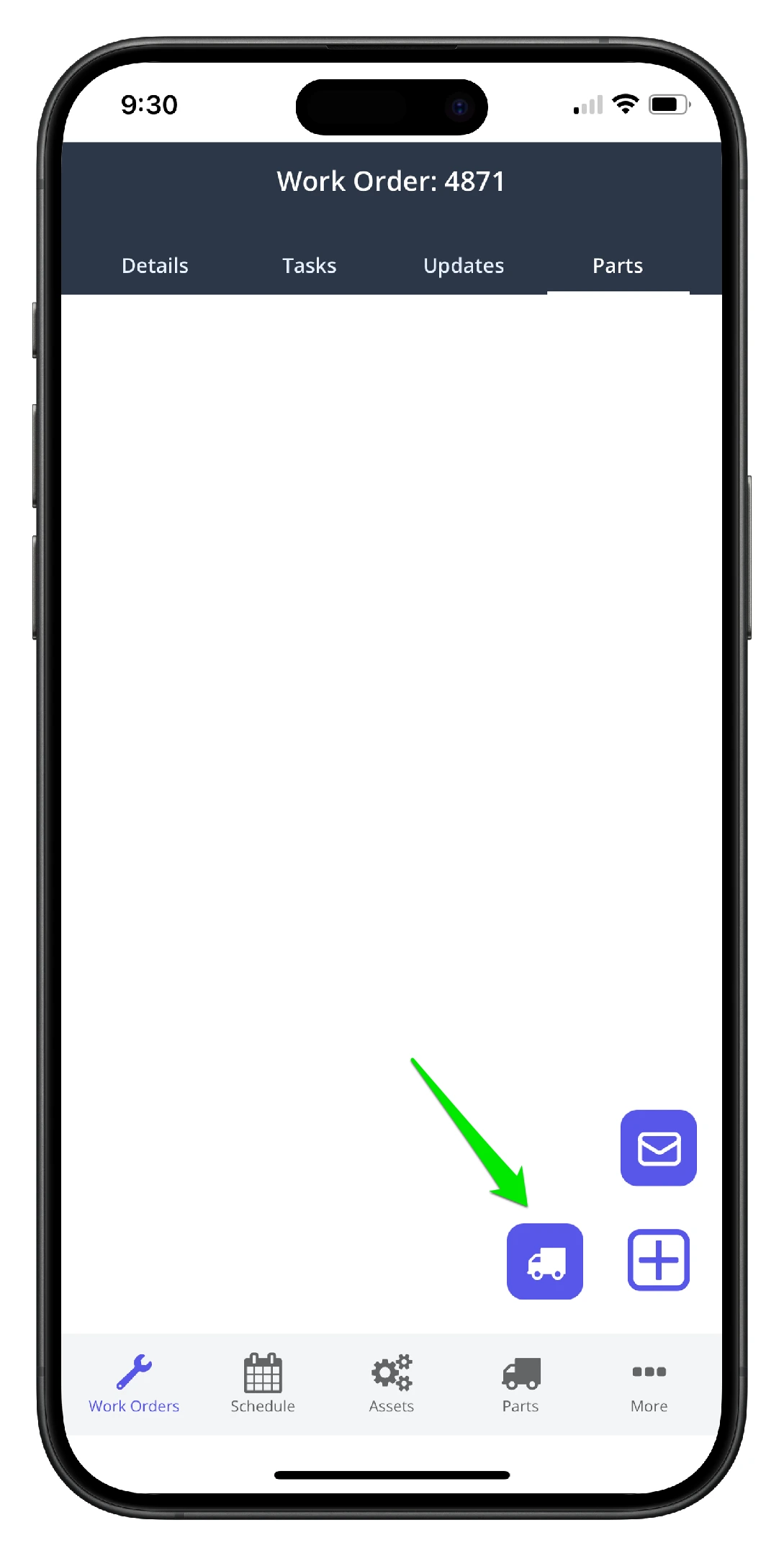
3. Click the Add Part icon to consume a new part on the work order. (Choose the parts room request icon to send a notification to the parts room to prep a part. See - the Create a parts room request procedure for more information).
4. The parts highlighted in green at the top are linked to the asset via attributes
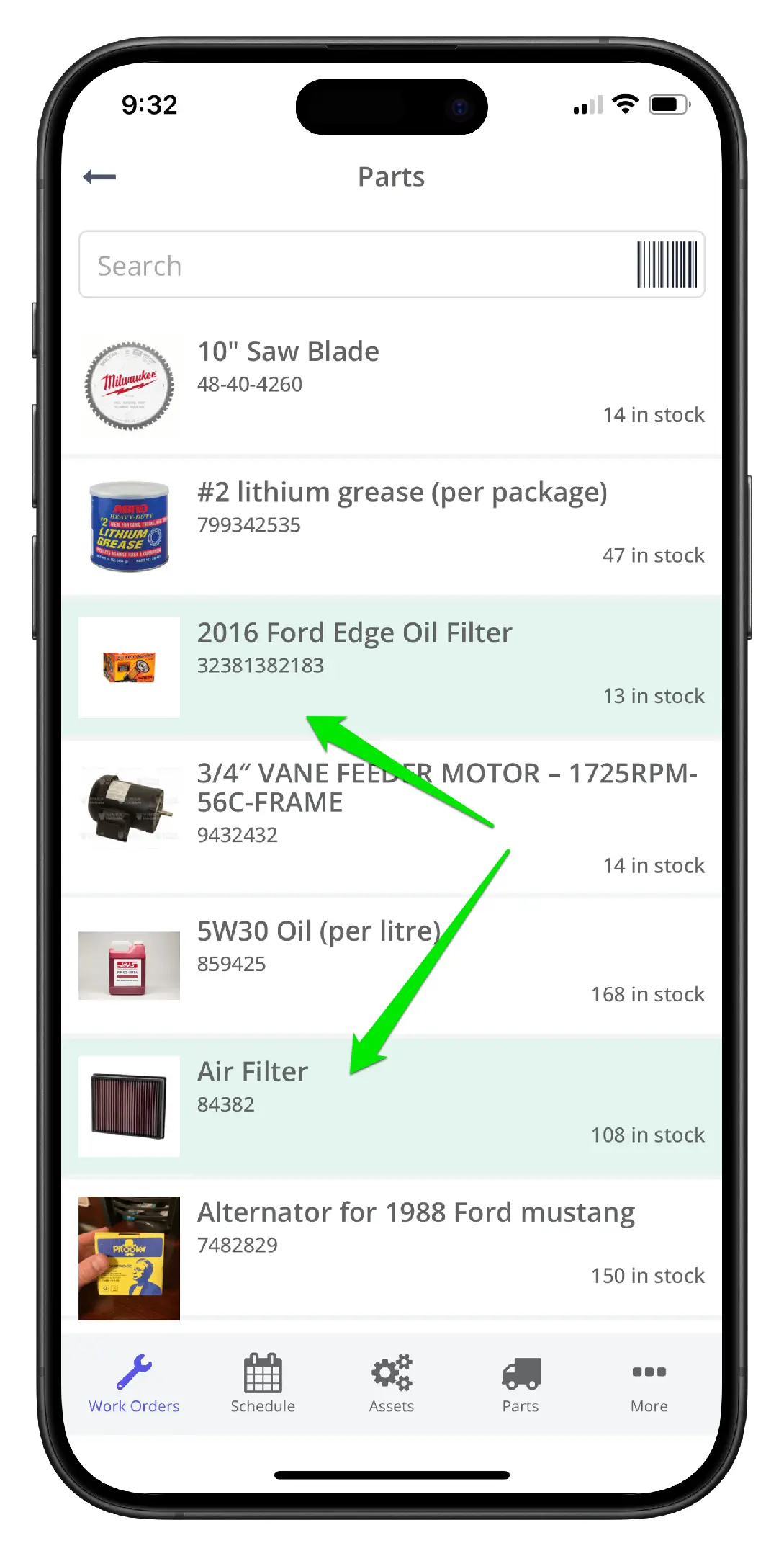
5. Click the scanner icon to scan the QR code to add the part to the work order
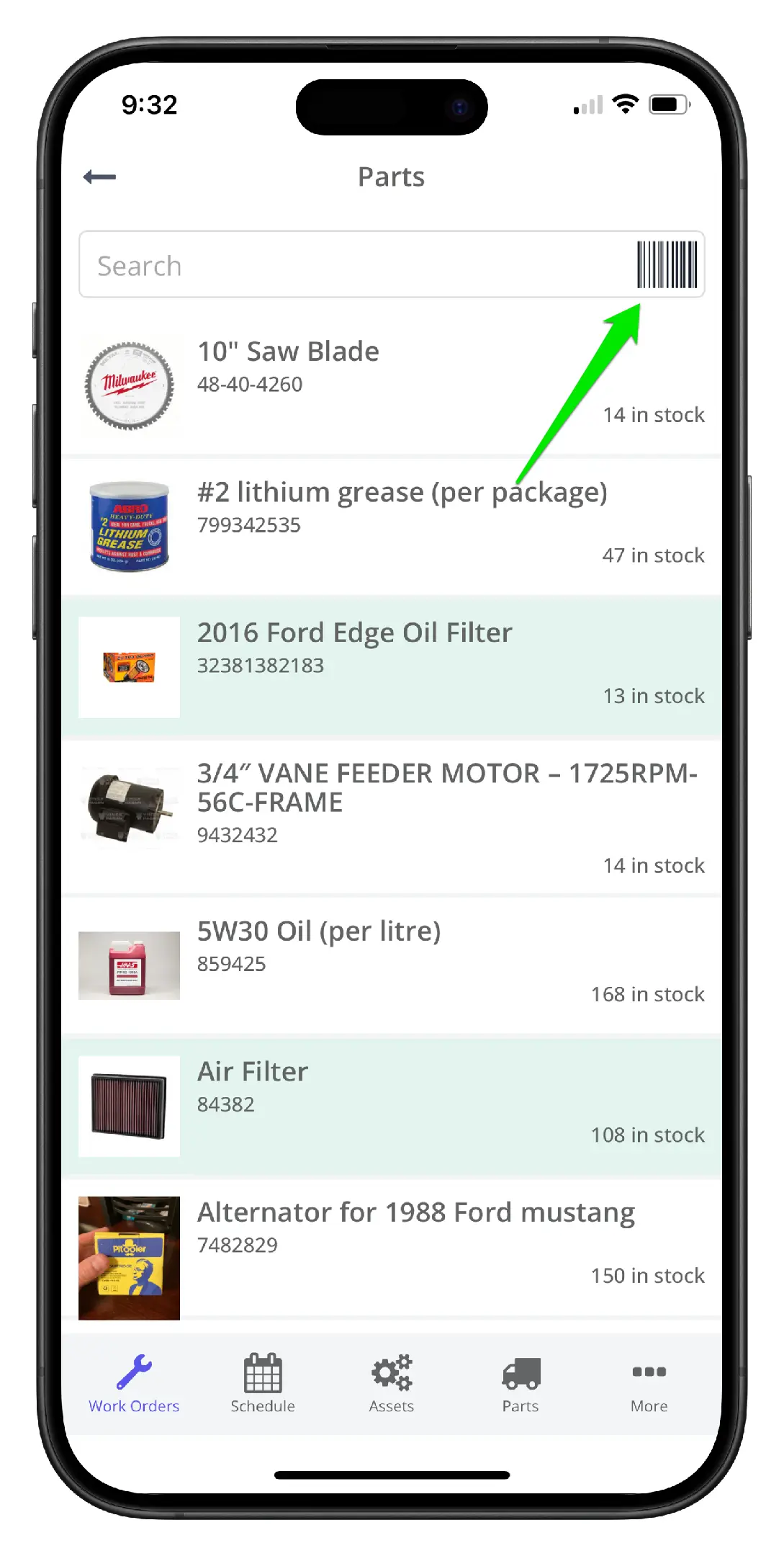
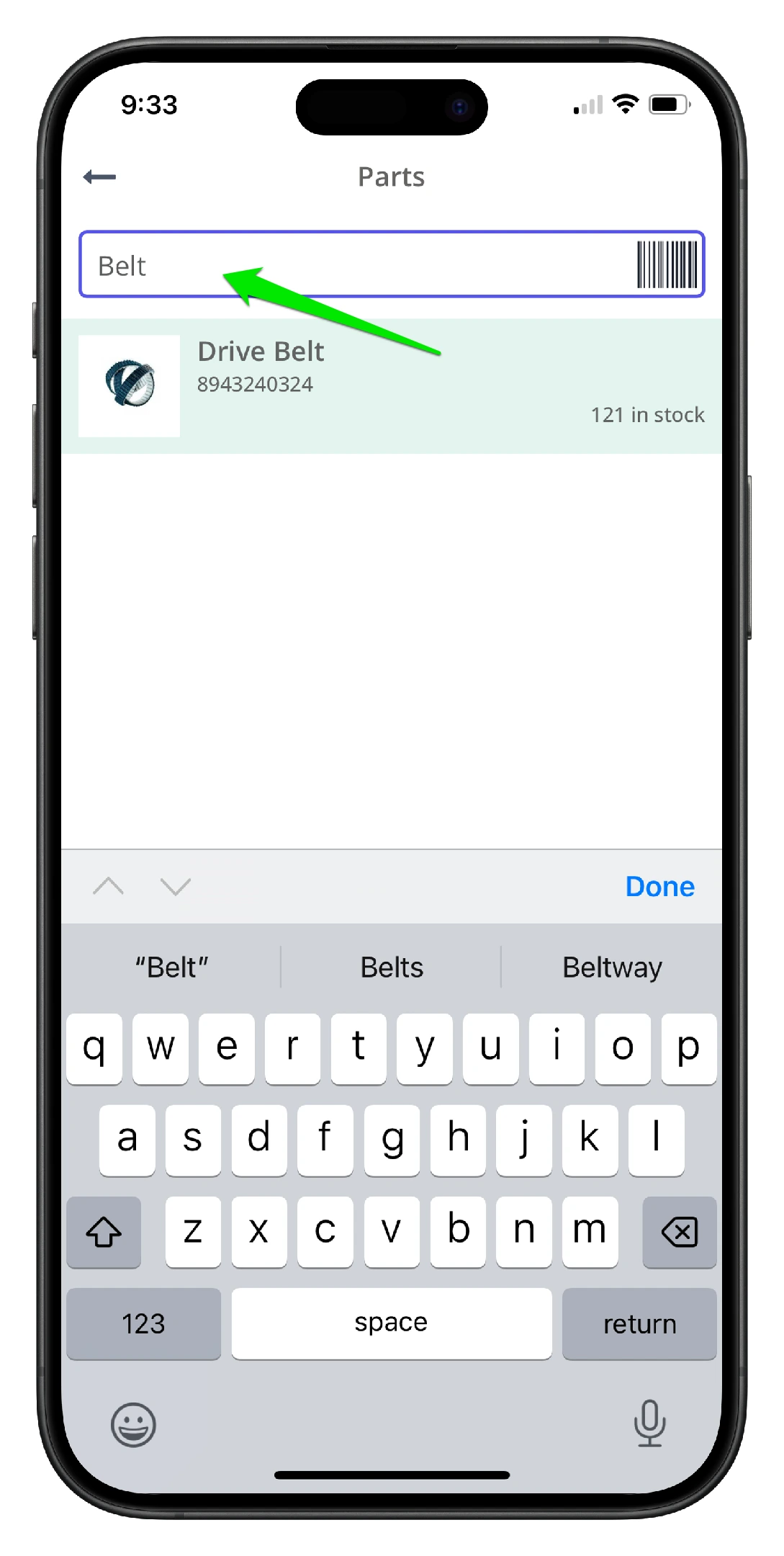
6. Or use the search function to find the part quickly
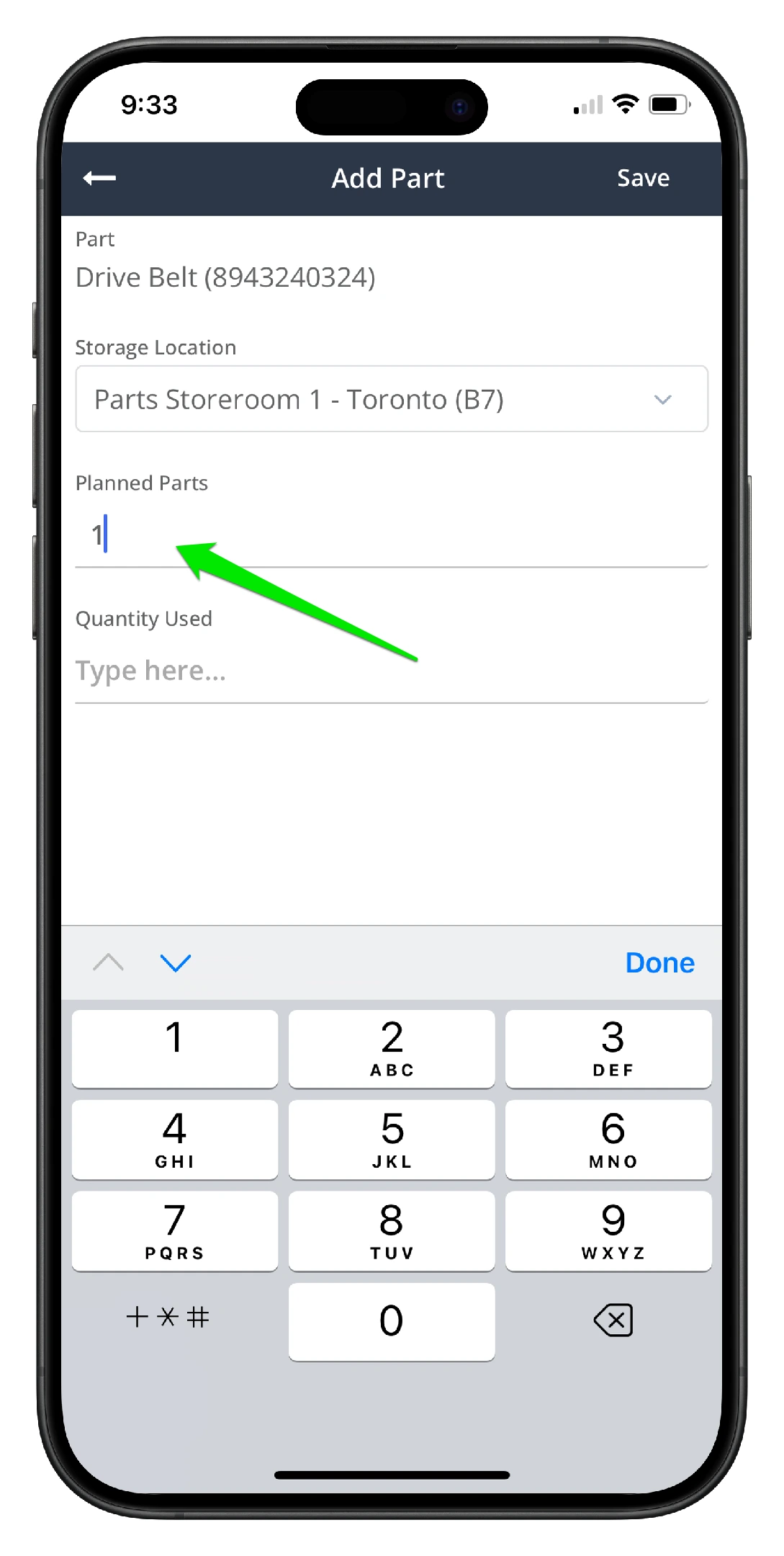
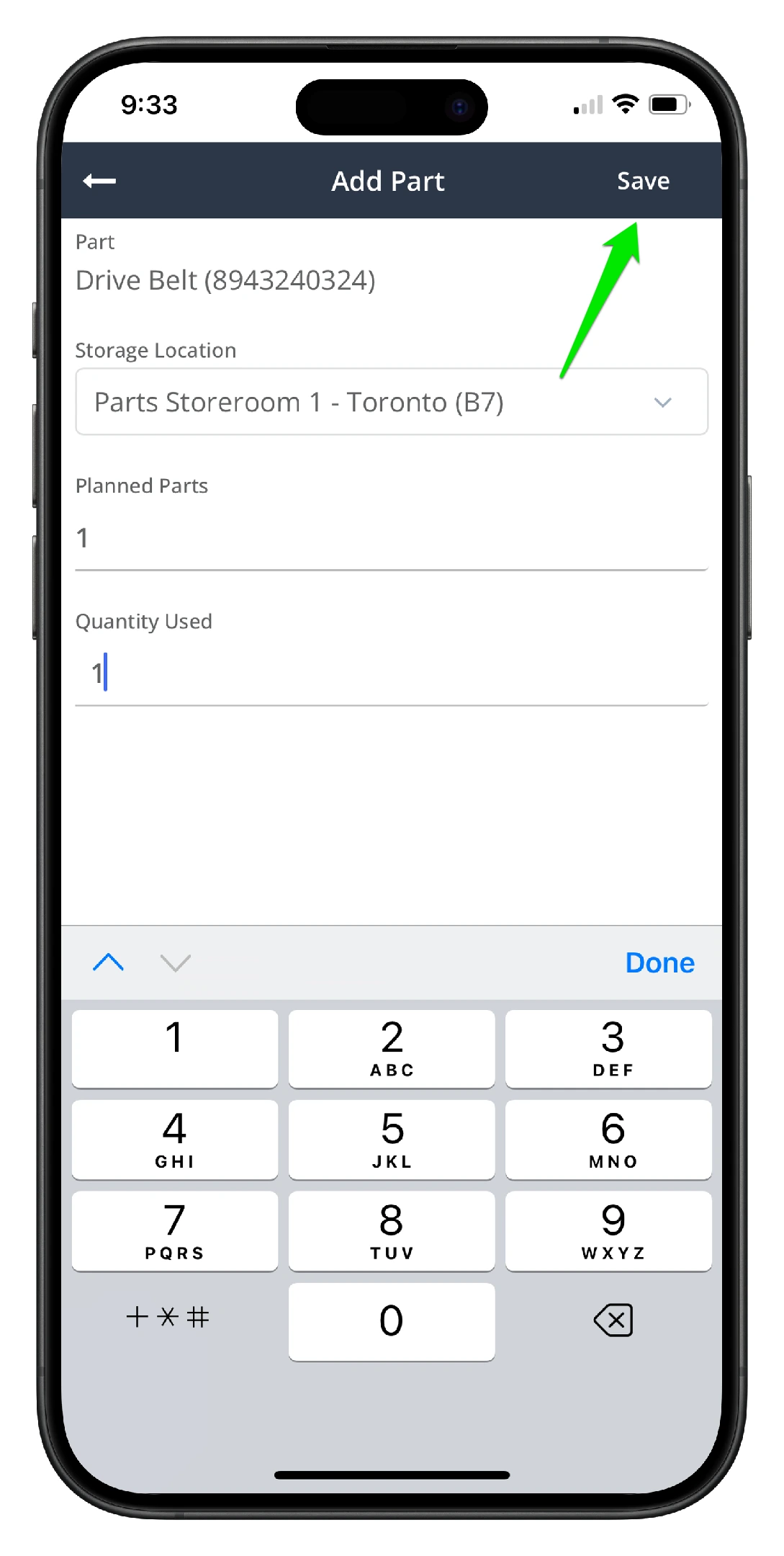
7. Add the planned quantity for the work order. In this case, it's a breakdown work order so planned is zero
8. Add the Quantity Used
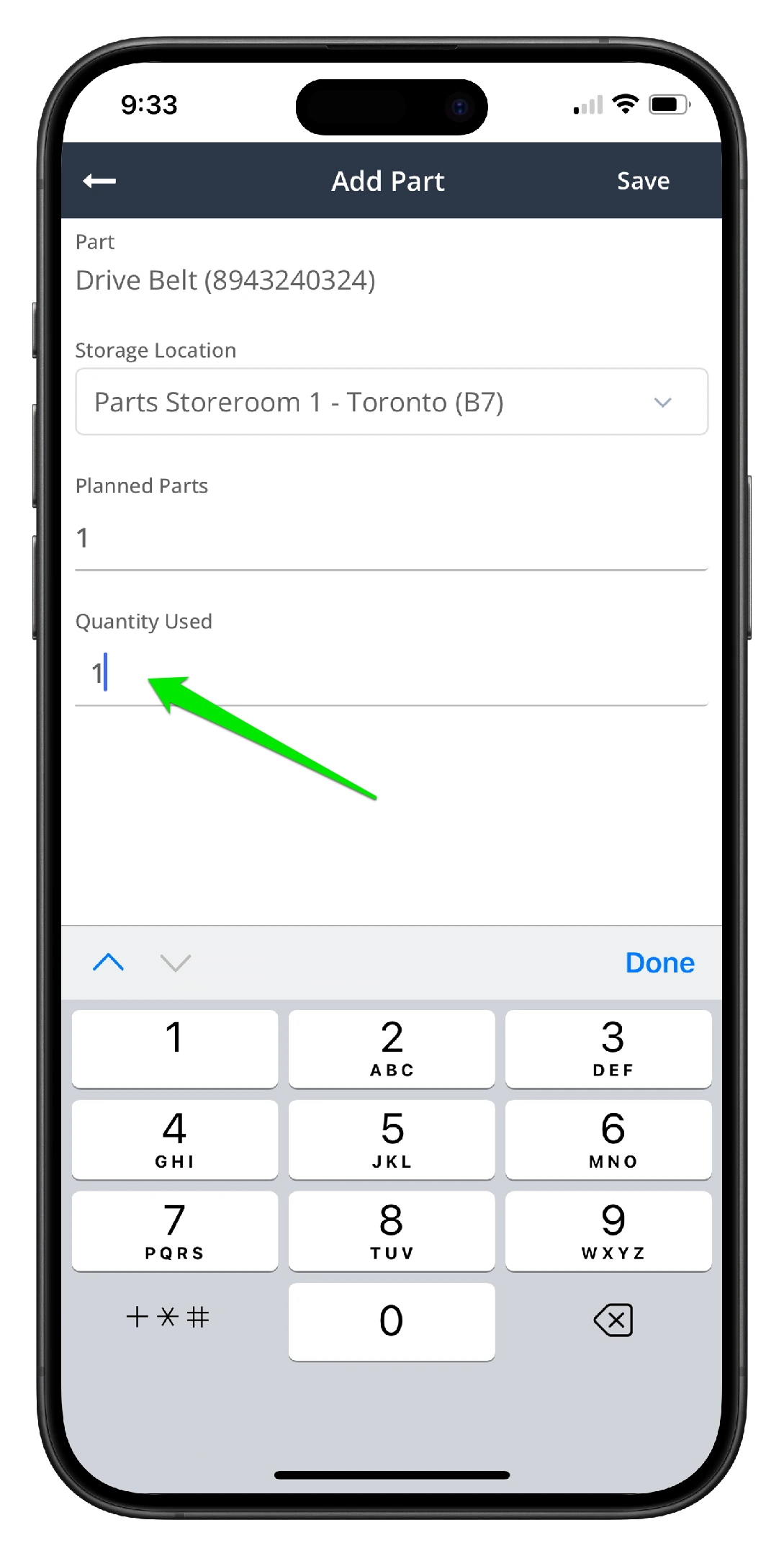
9. Click Save. Once the save button is clicked, the amount of available stock for that stock item is depleted by the quantity used.
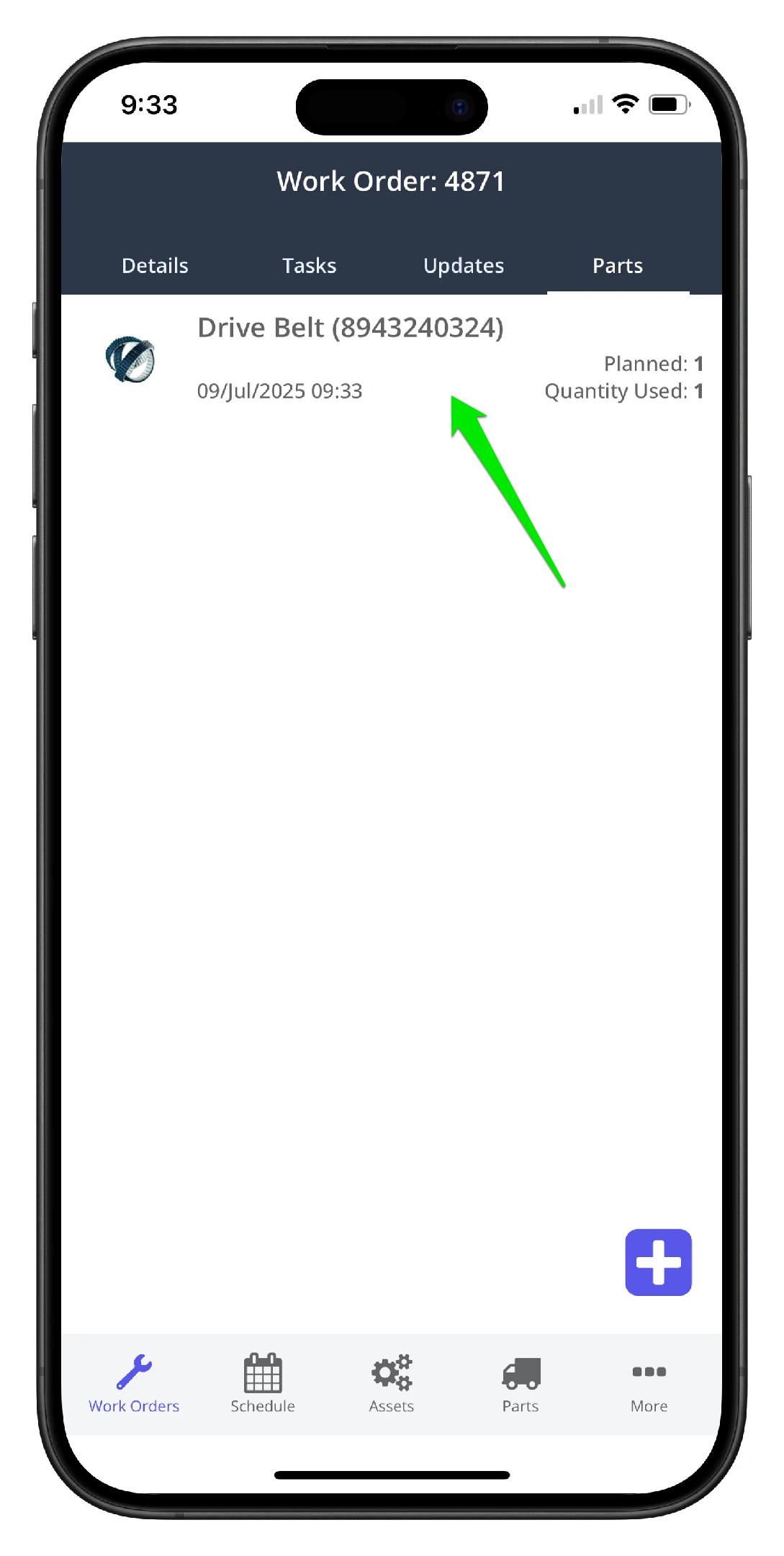
10. The part is now consumed on the work order and depleted from stock
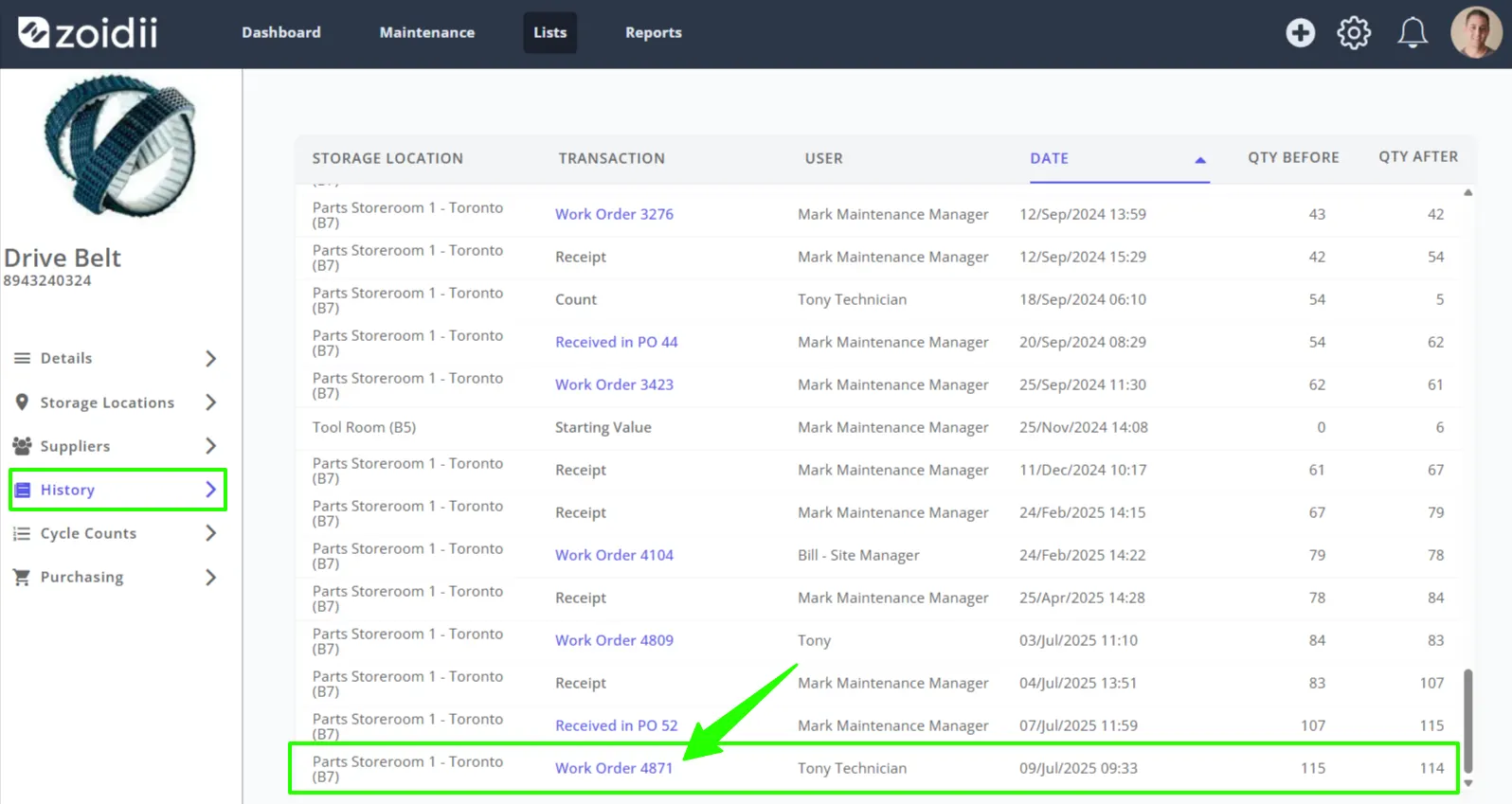
11.1. The transaction is recorded in the Parts - History tab
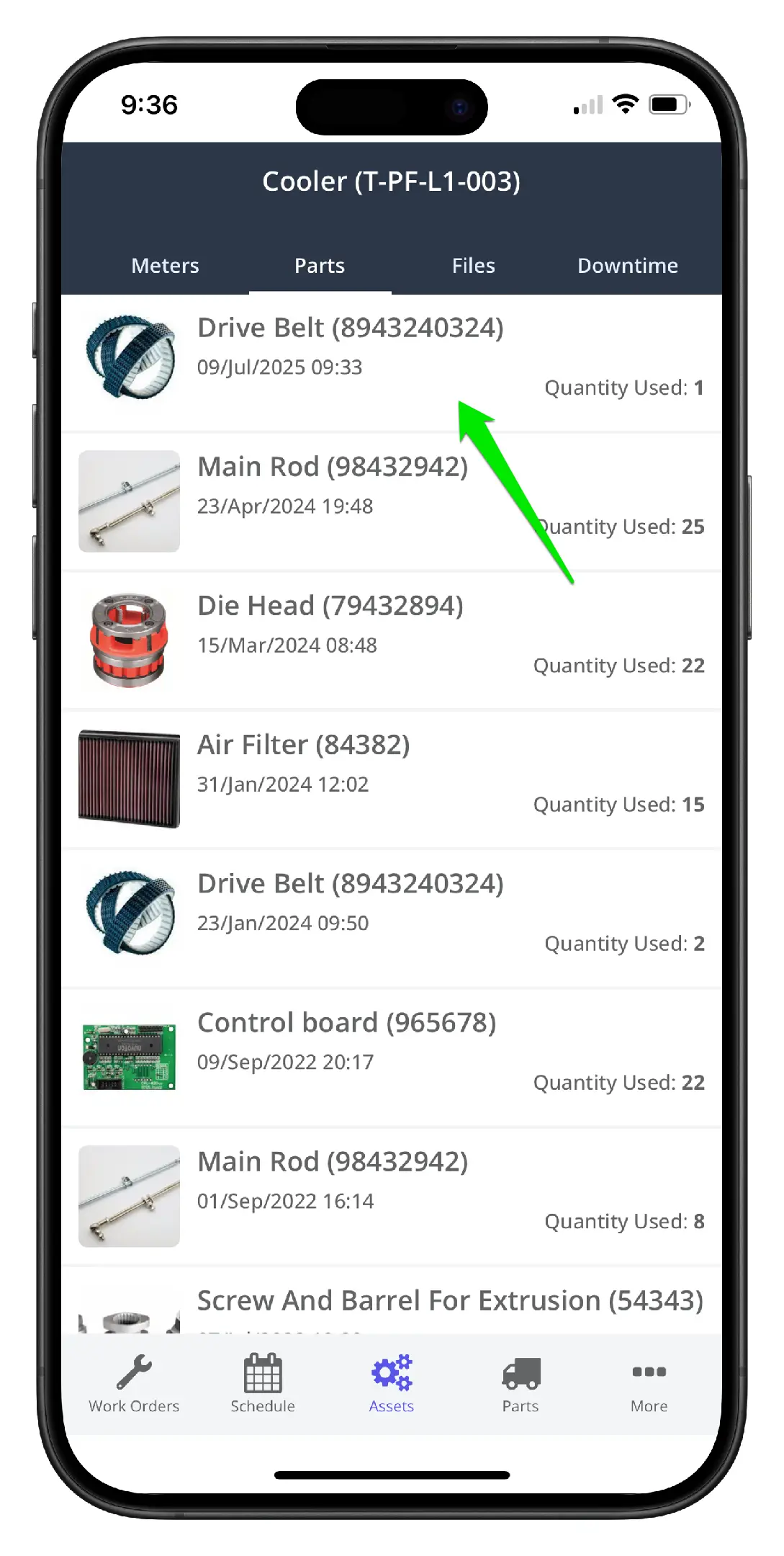
12. The Asset - Parts Used tab also shows a transaction record.
13. Repeat the process for all other parts consumed during the work order