

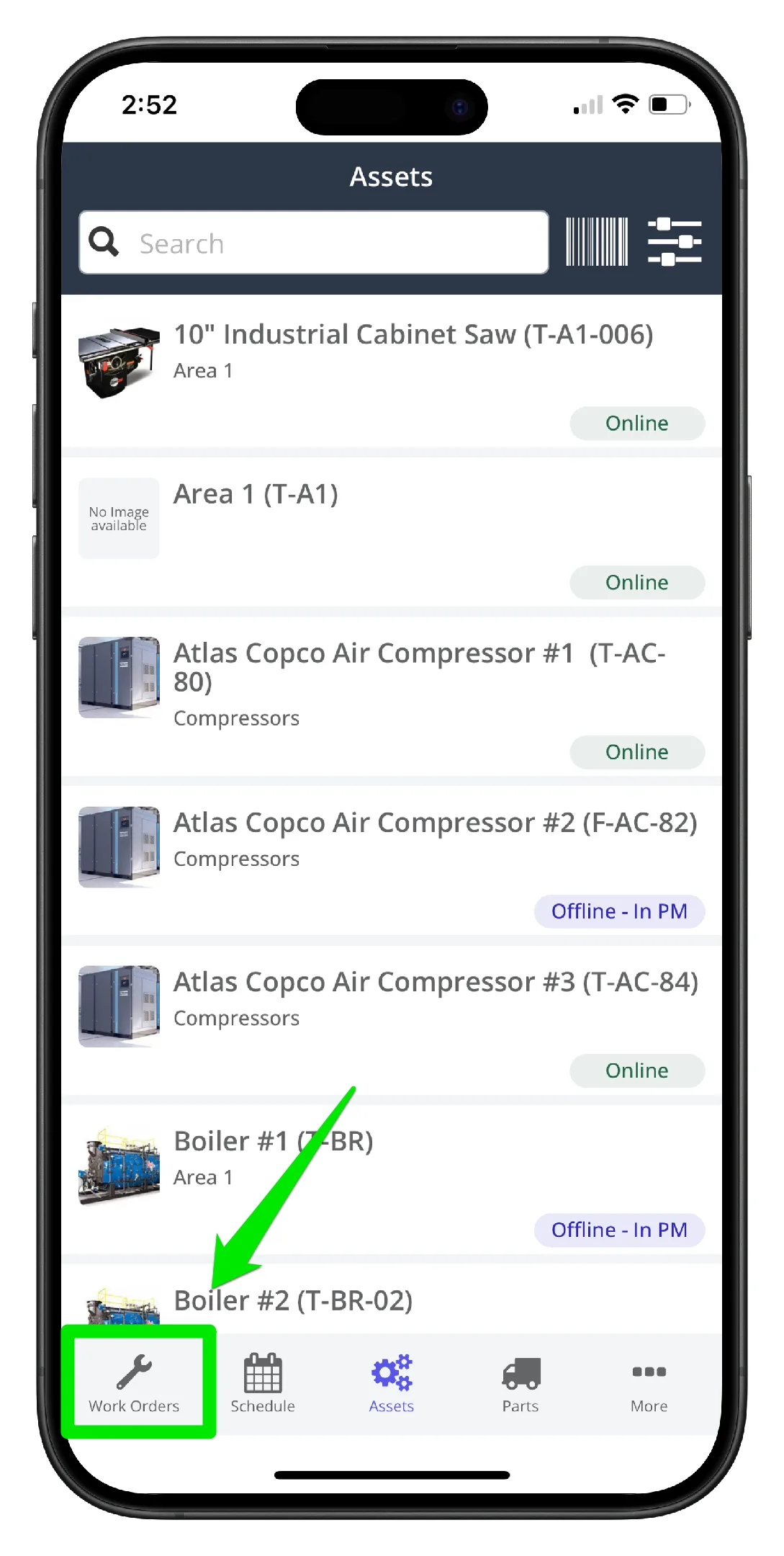
1. Open the mobile app and select Work Orders in the main menu
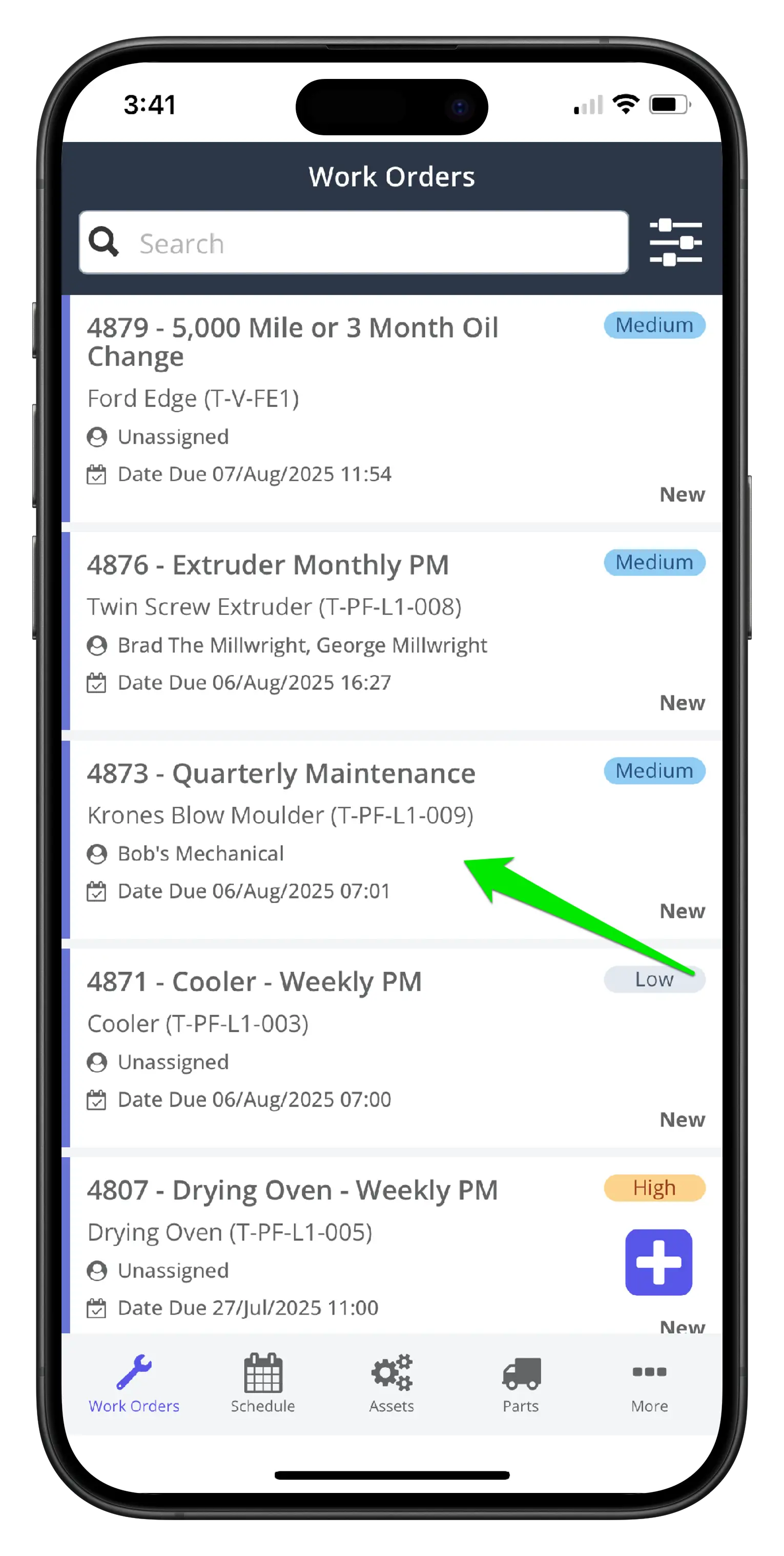
2. Select the work order from the list. Use the search function or filtering to locate the work order faster
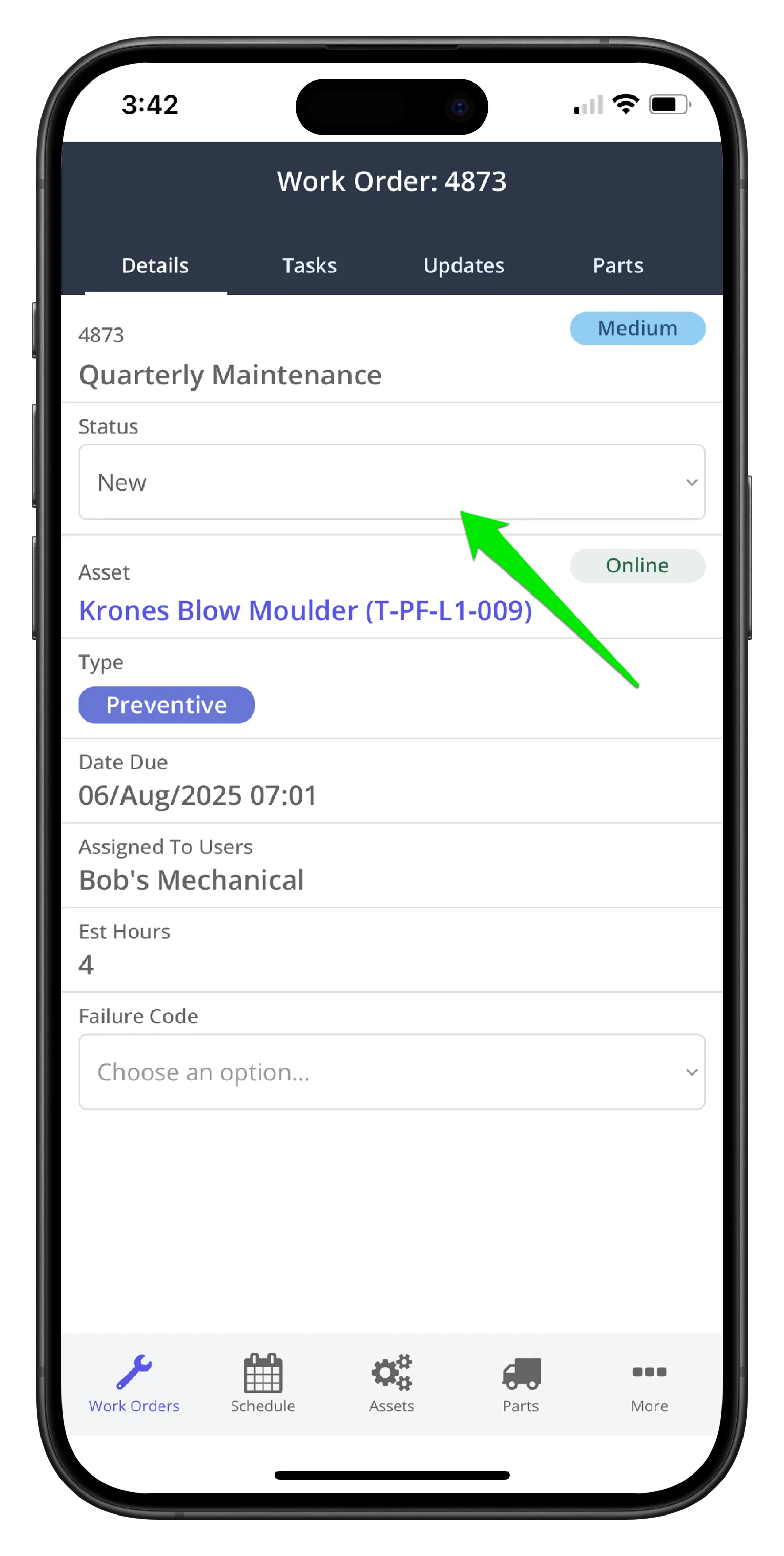
3. Click the work order status dropdown to start the work
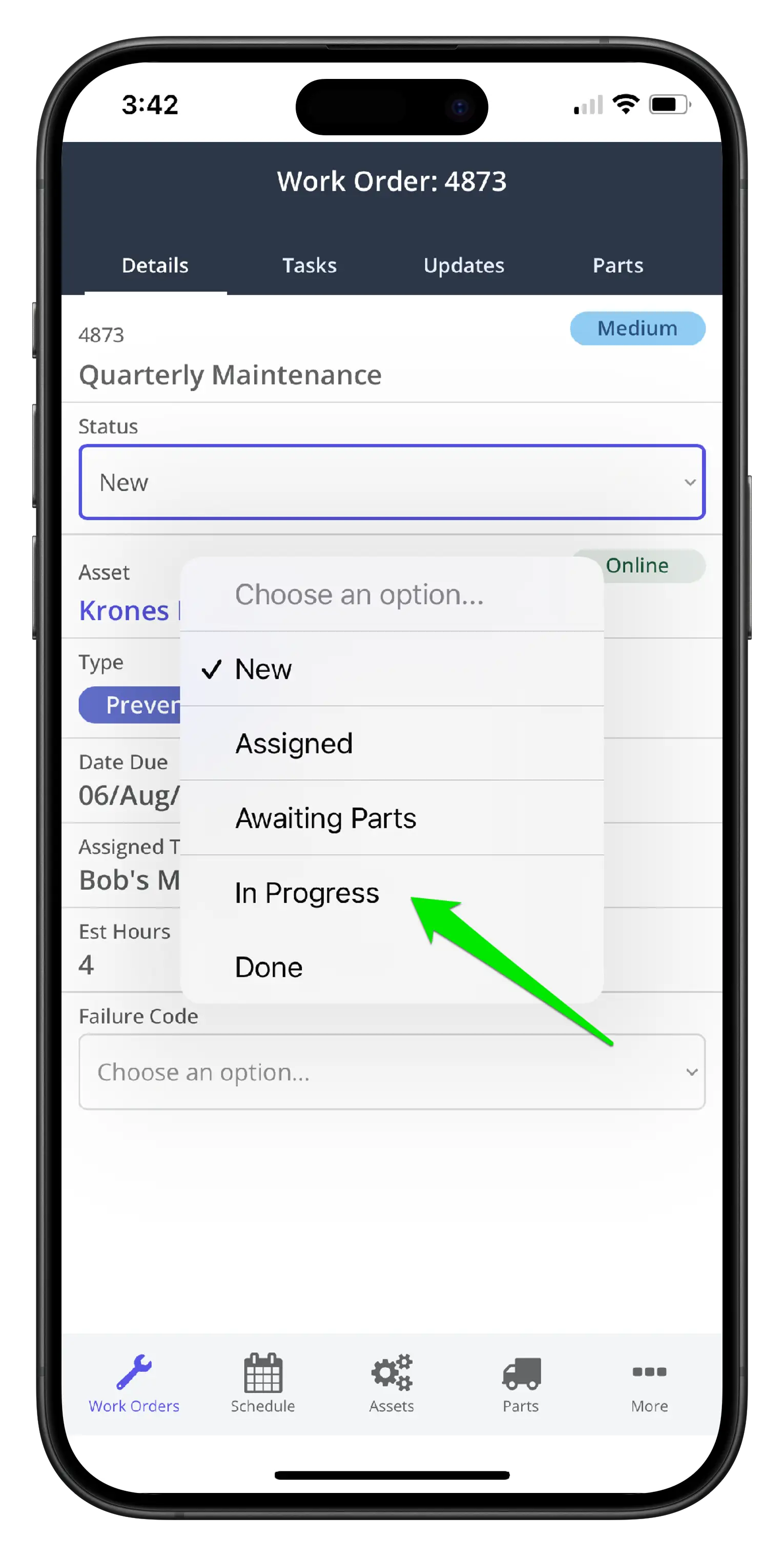
4. Set the work order to work in progress
Next Steps
- Signed off all tasks as per the Complete Work Order Tasks procedure
- Add repair notes as per Add Repair Notes, Files or Images to a Work Order on Mobile
- Add parts to the work order as per Add Parts to a Work Order procedure
- Add labour to the work order as per the Add Labour Hours to a Work Order on Mobile procedure