Background
Assign a user to the work order when you want them to do the work. Tag the user to the work order when you want to highlight something related to the work orderWhen a user is tagged on a work order, three things happen:
- They will see their name in the work order updates section of the work order
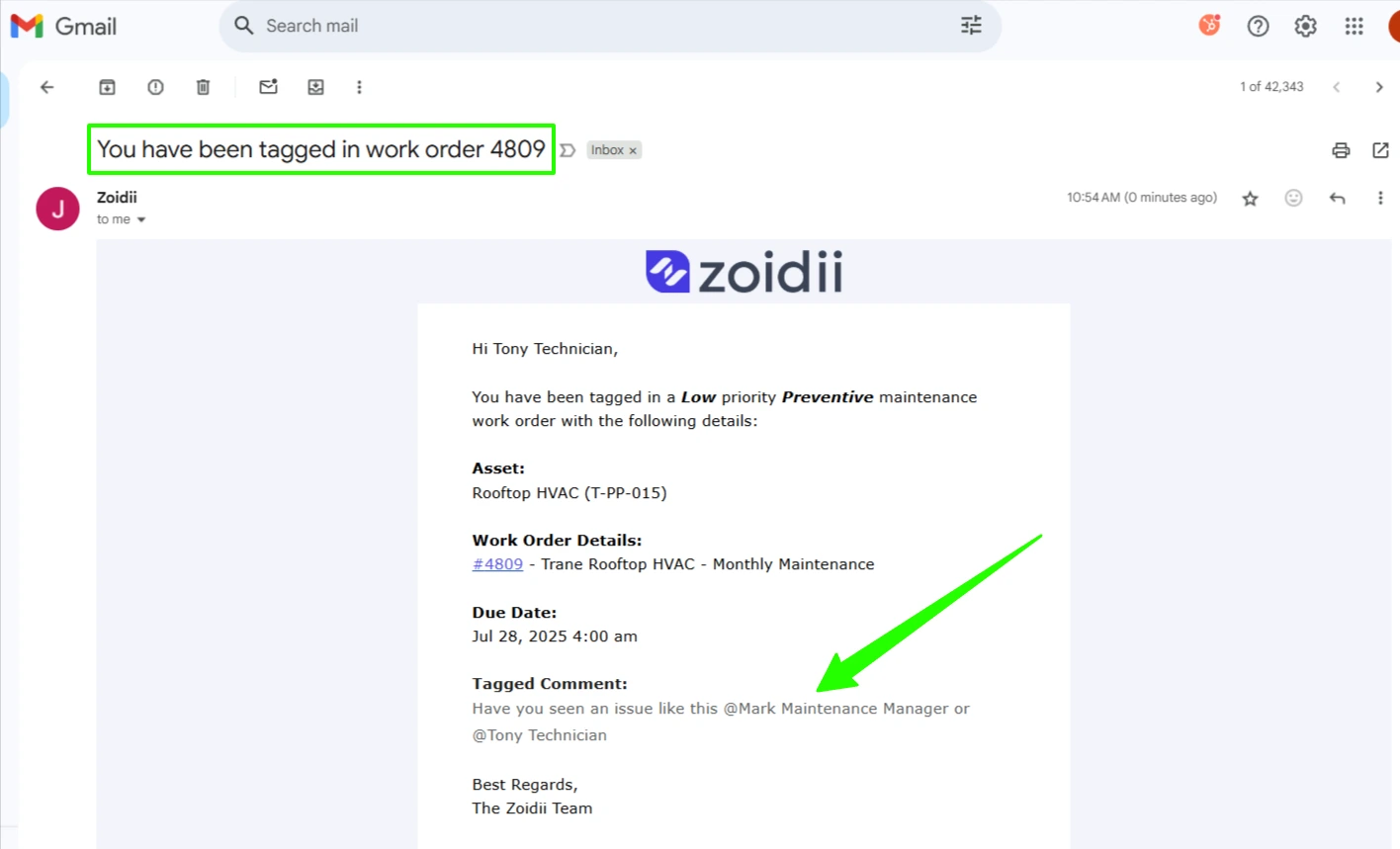
- They will get a notification email
- They will be added to the list of users following the work order. See section #2 of work order system notifications procedure.
- Any active users with technicians, site supervisors, or system administrator roles
- Any inactive users with technicians, site supervisors, or system administrator roles
- The guest user that submitted the ticket
Procedure
1. Open a work order and click Add Work Order Update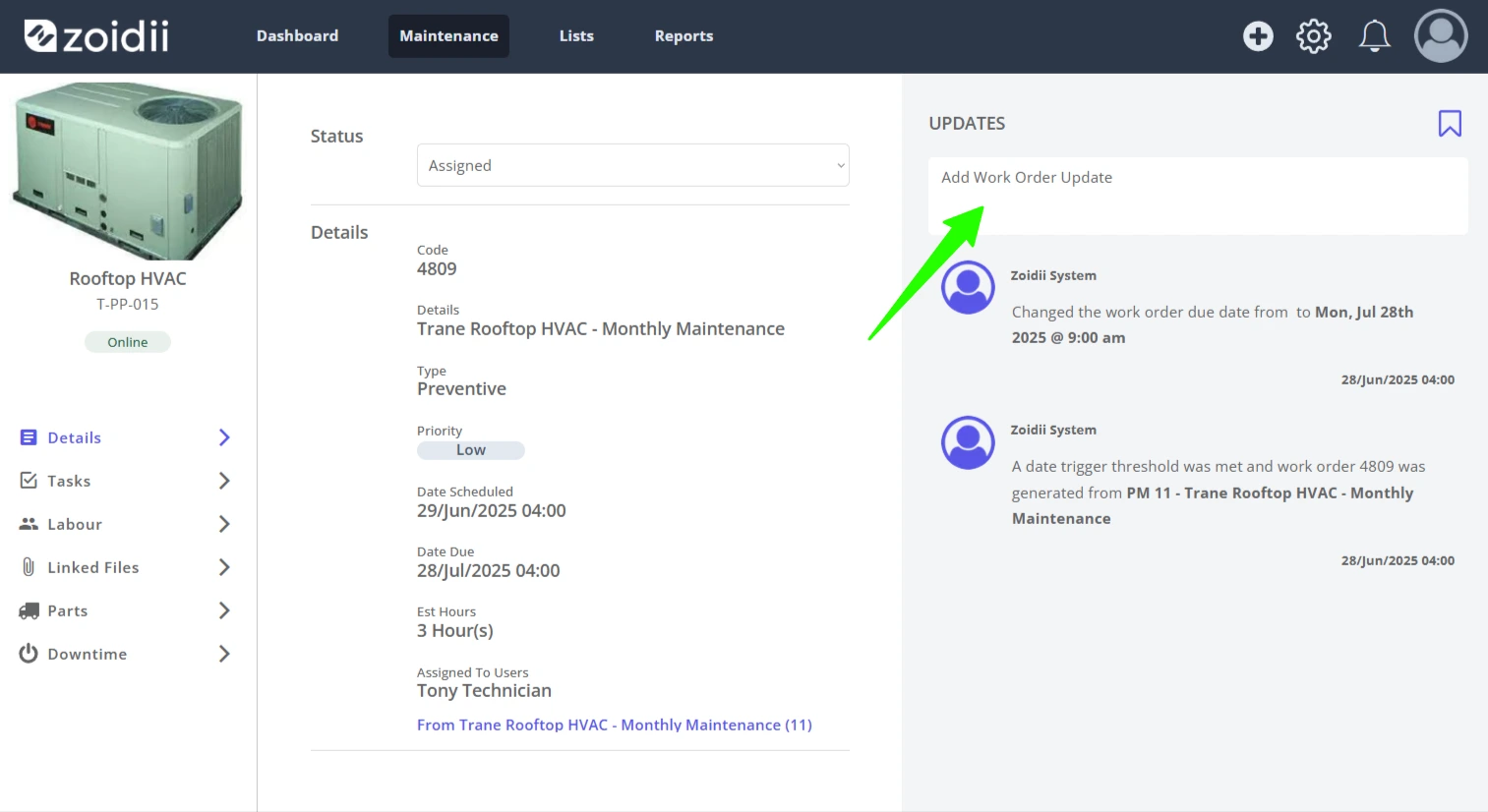
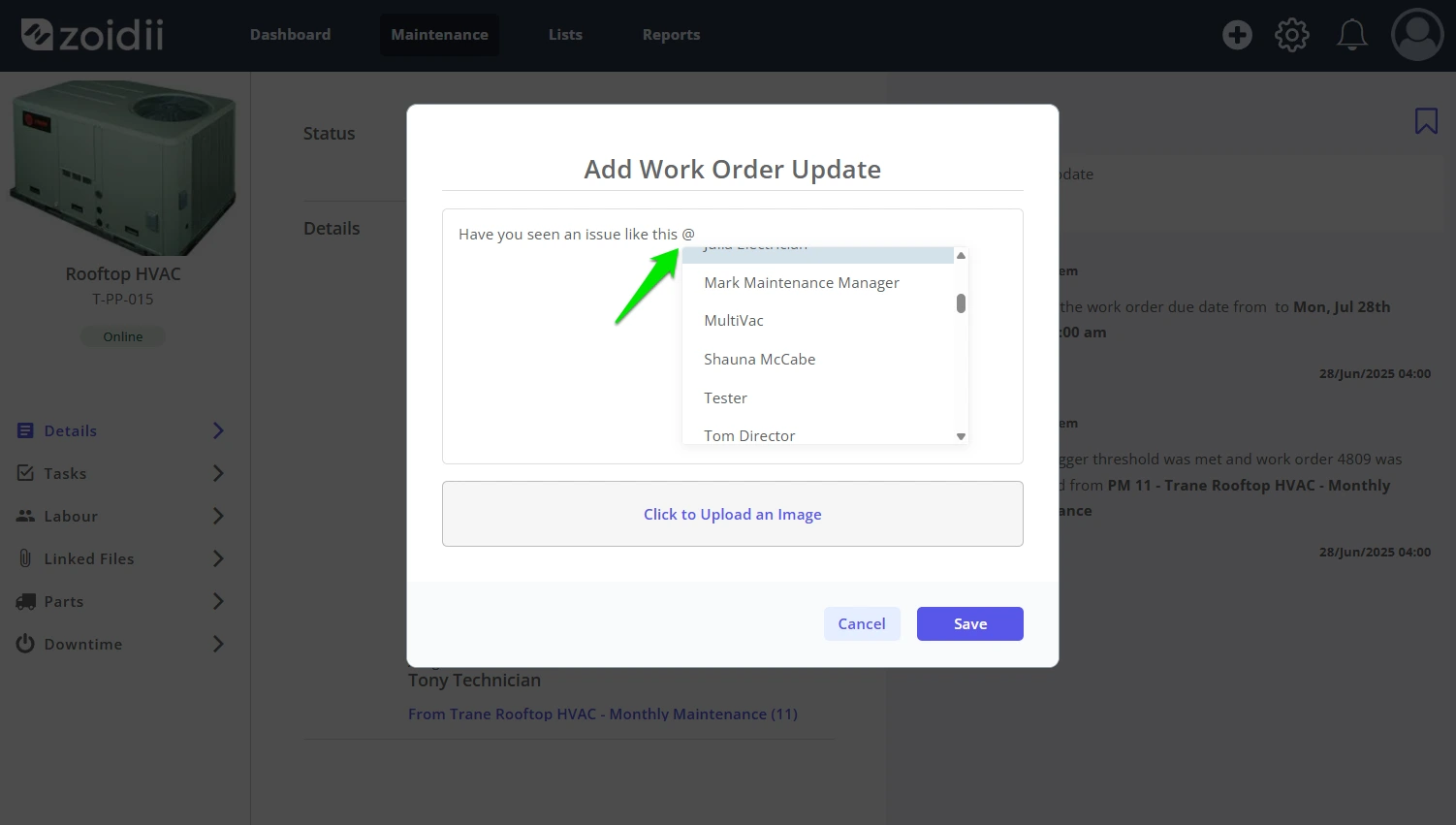
2. Type the @ symbol to tag a user. Type more of the user's name to round the list down. The user list includes all active and inactive users in the CMMS plus the guest user that raised the work request.
Note:- Users with multi-site CMMS can only tag users at their site.
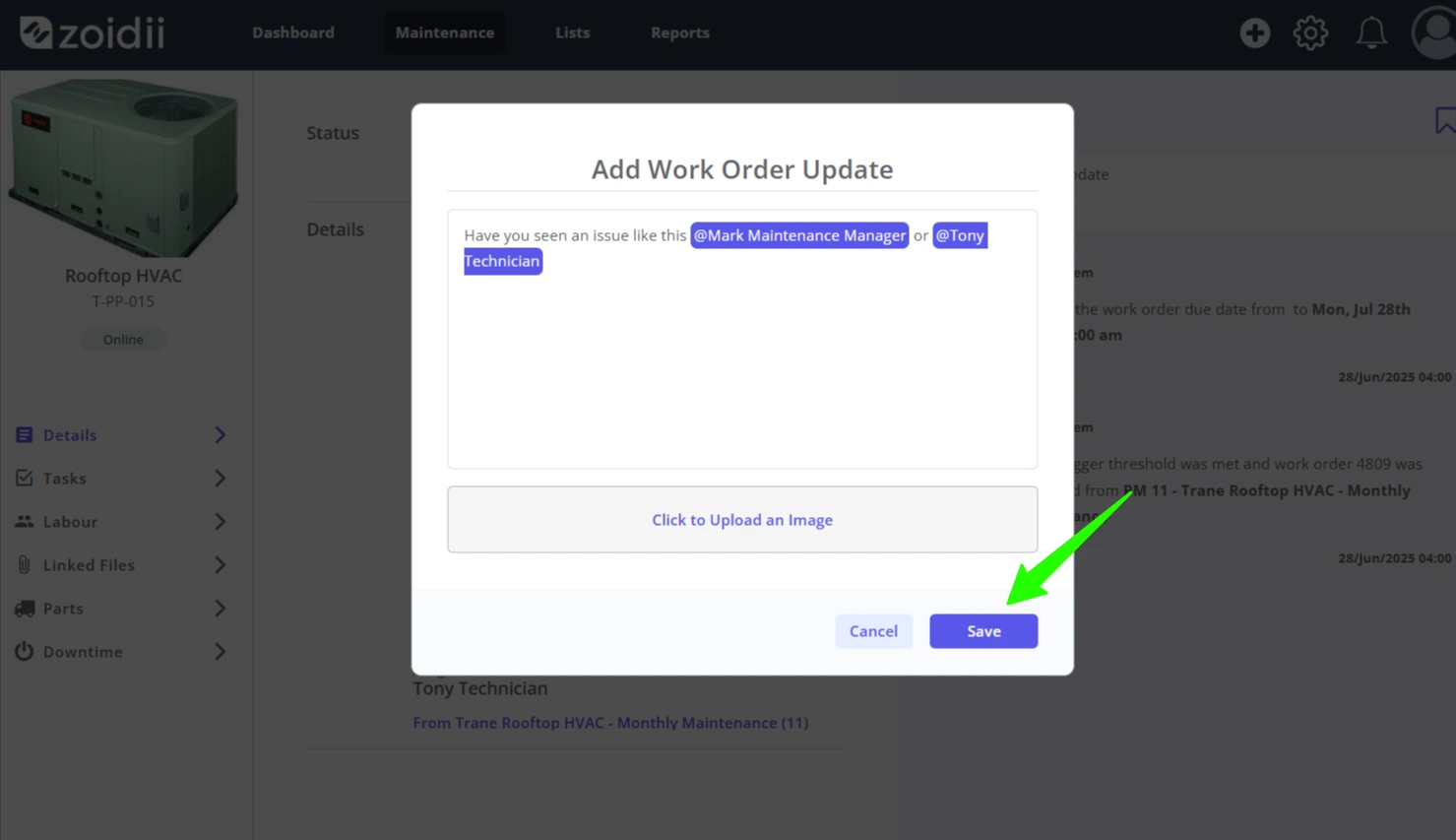
3. Tag as many users as needed. Click Save when done.
4. The tagged users are visible in the work order updates feed
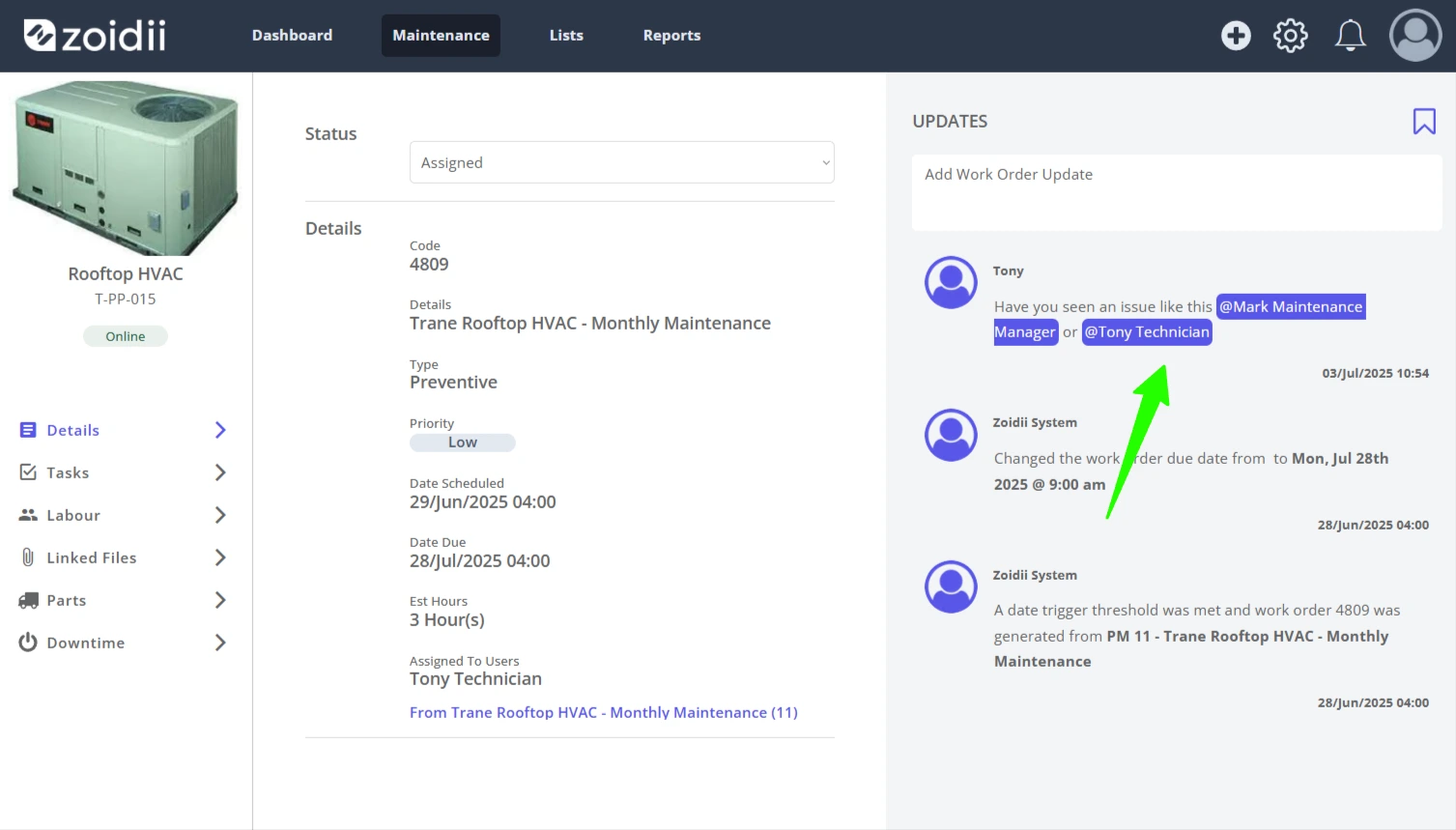
5. The tagged users are added to the work order following list. They also get the tagged email notification as follows: