

Background
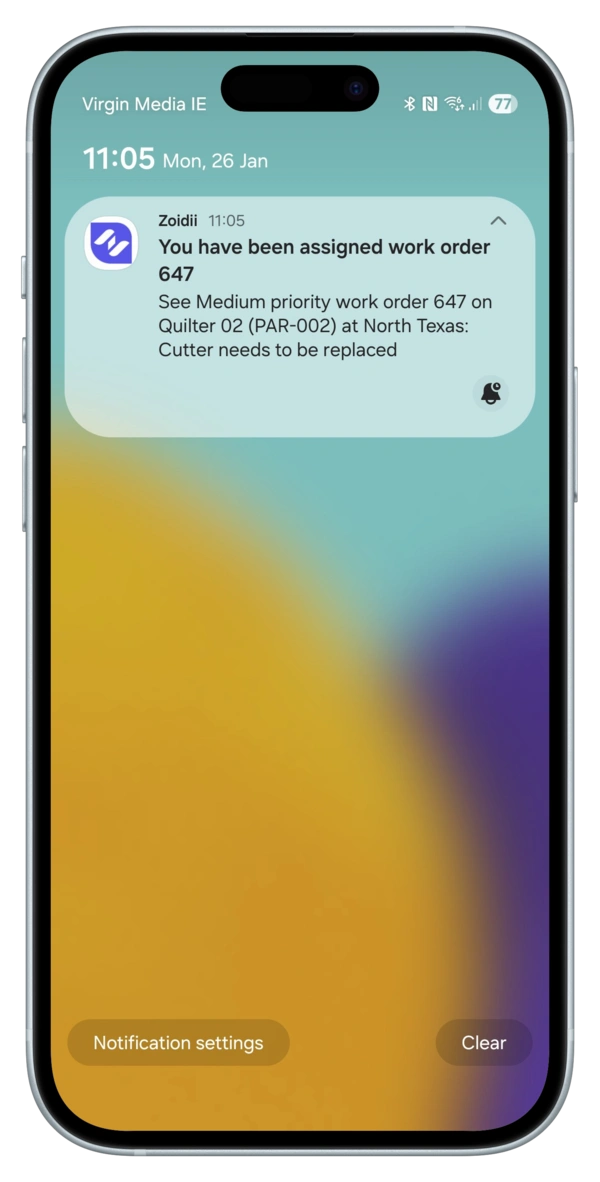
Push notifications are real-time alerts on mobile devices. They are delivered instantly to a user’s mobile device and appear on the lock screen or as in-app alerts, making them hard to miss and ideal for time-sensitive updates like urgent work orders or asset failures. They require minimal effort to read and prompt immediate action. In addition, they don't clog up end users' email inboxes.
Push notifications are only available with the Zoidii mobile app downloaded from the Apple or Android app stores.
Prerequisite
Download and install the Zoidii app from either the Apple or Android app stores.
Procedure
To enable push notifications, users must make configuration changes in both the Zoidii app and their mobile device settings. Please remember to follow the following 3 steps:
- Configure the app for push notifications
- Enable notifications from Zoidii in your mobile device settings section
- Login or re-login into the Zoidii App on your Phone. This is required to capture your mobile device's ID.
Part 1 - Configure Zoidii App for Push Notifications
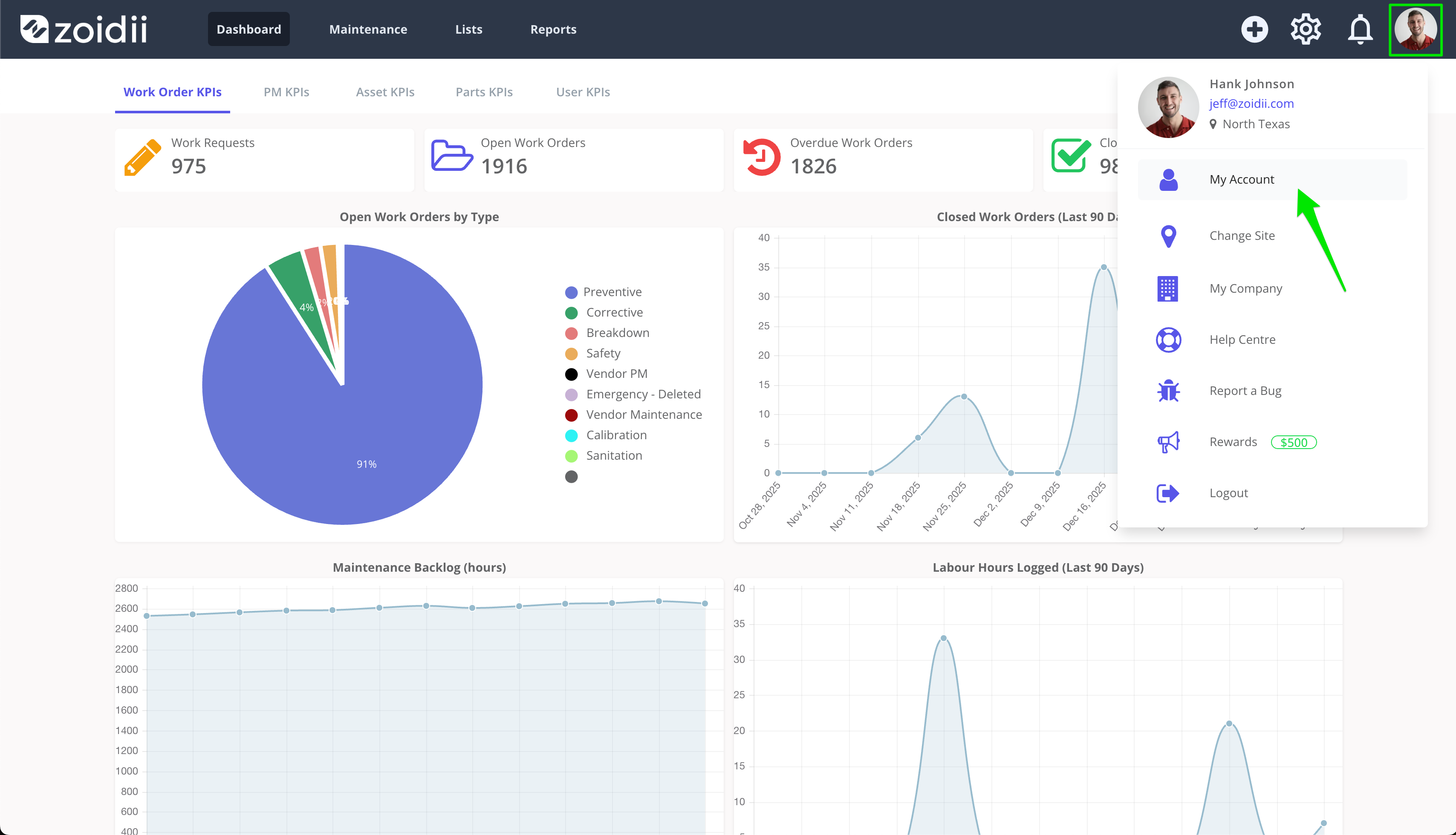
1. Navigate to My Account in the top right-hand side of the web app.
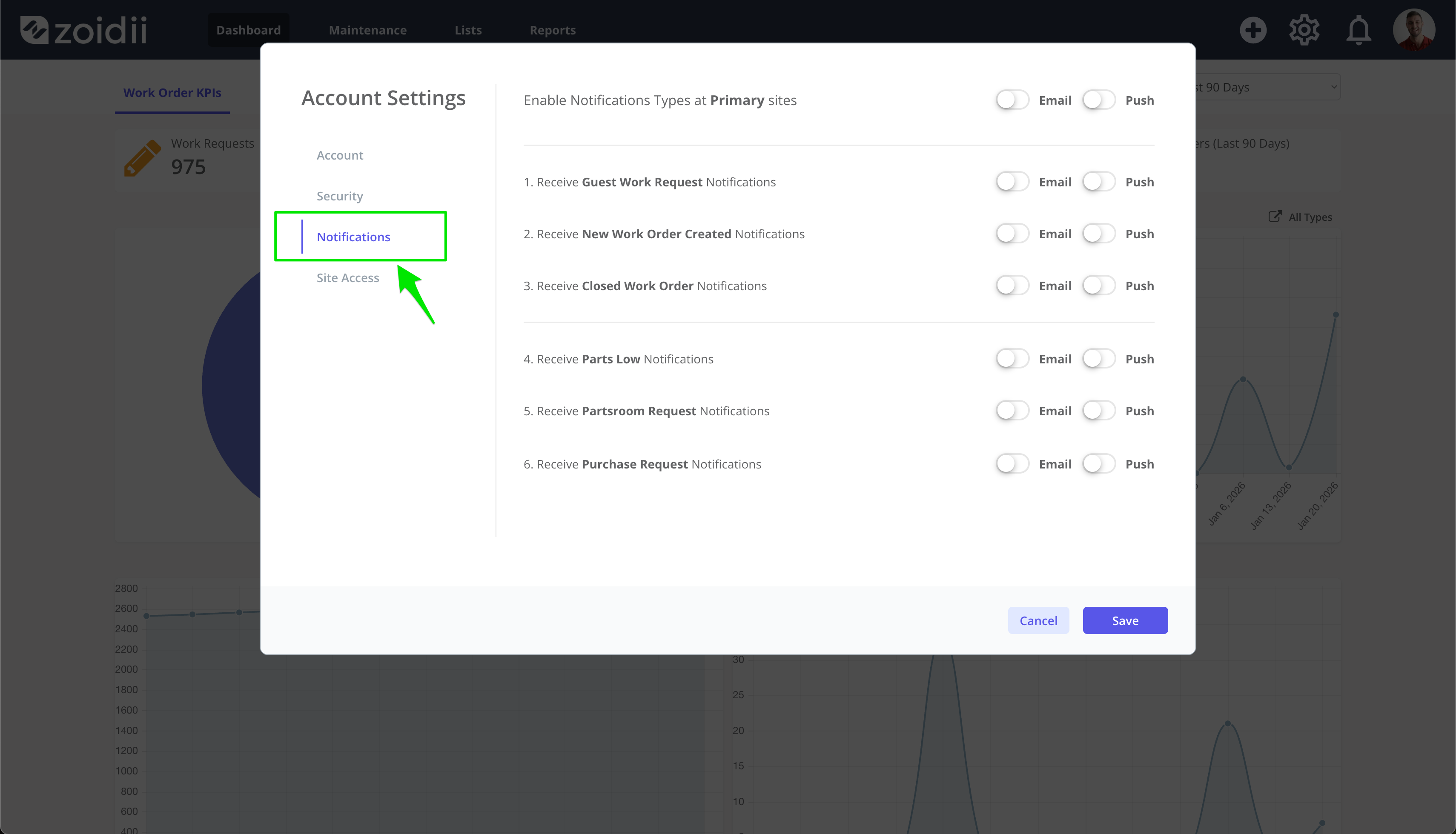
2. Click Notifications in the left menu
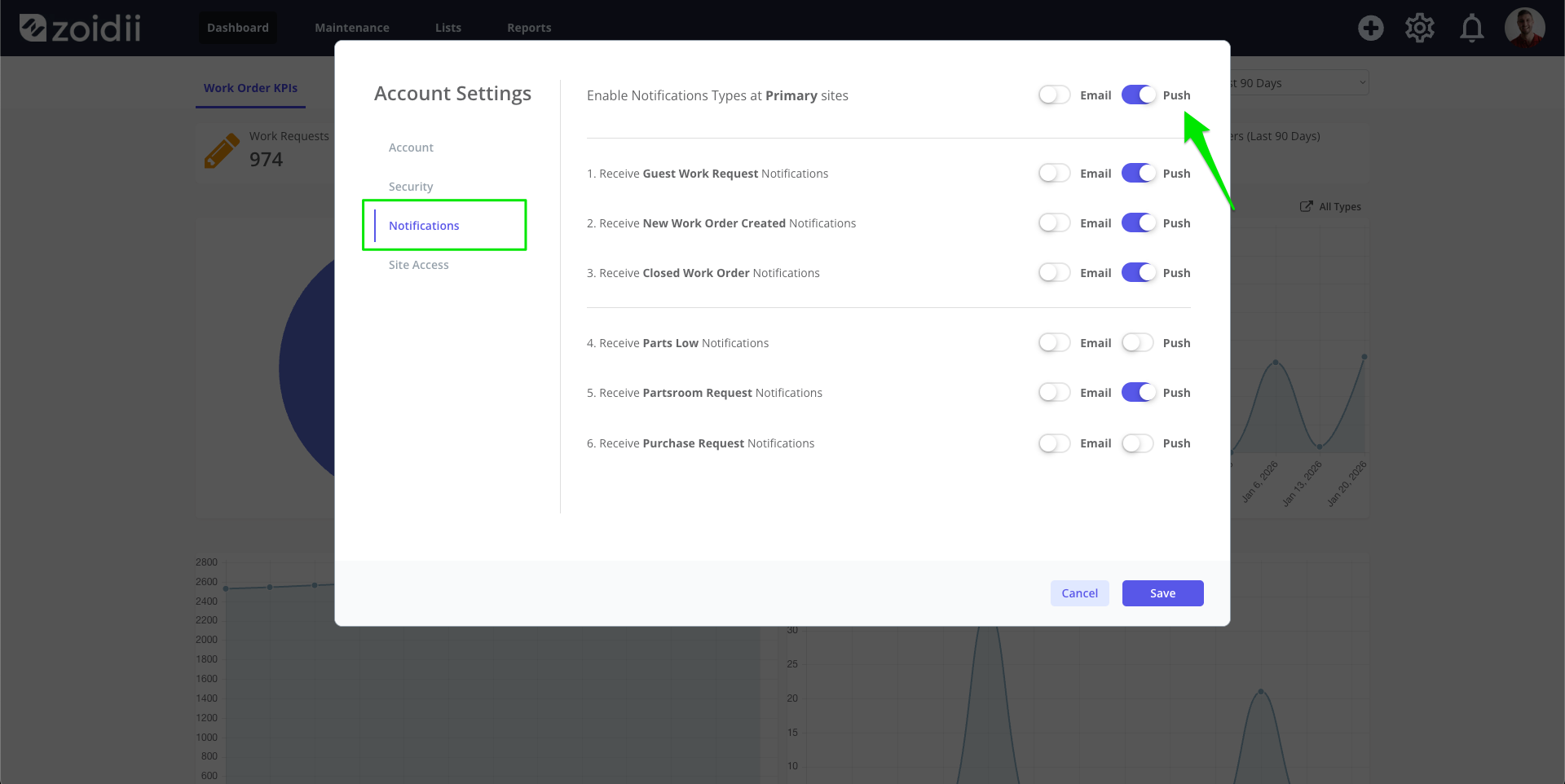
3. Turn on the relevant push notifications for your role
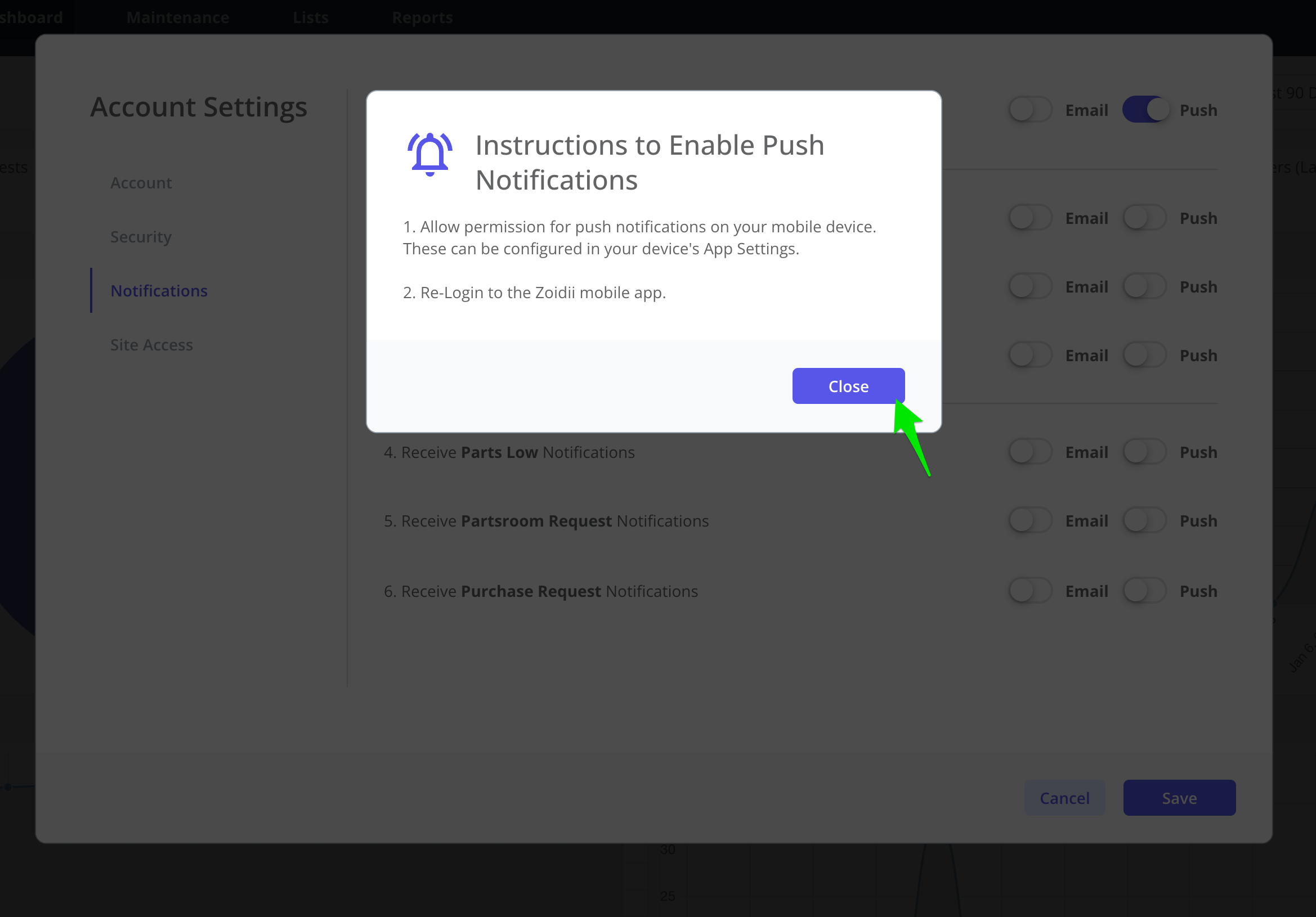
4. The system will prompt you to complete the process on your mobile device. Click Close when done
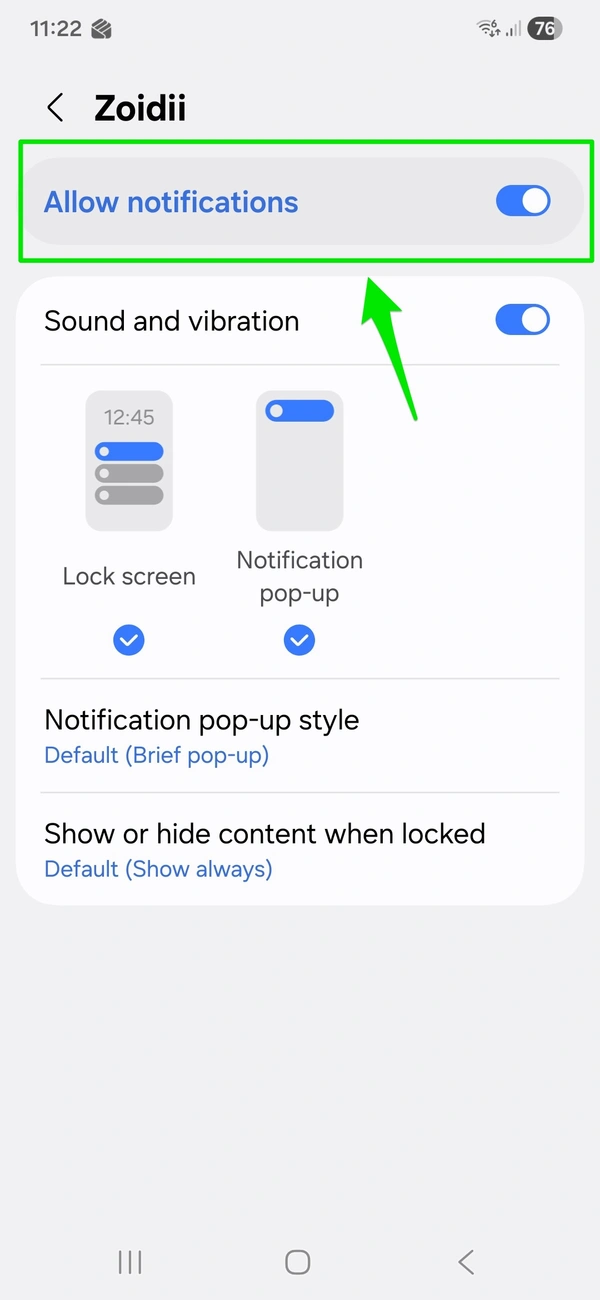
Part 2 - Configure Your Mobile Device for Push Notifications
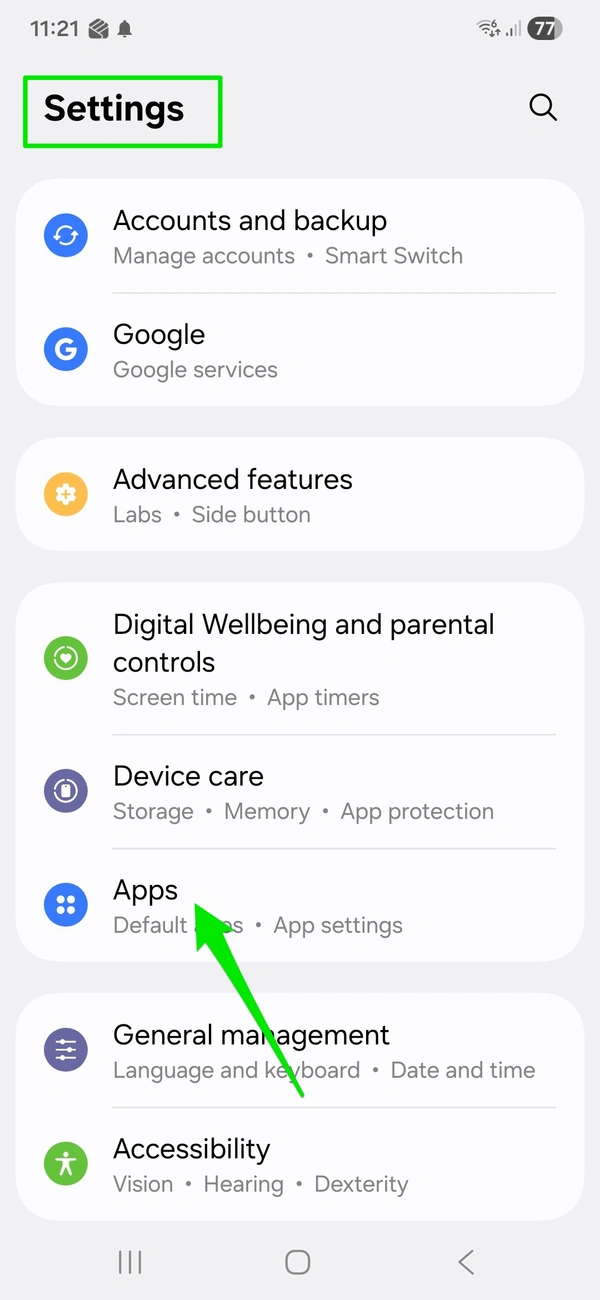
1. Open the Settings section of your mobile device, and scroll down to Apps
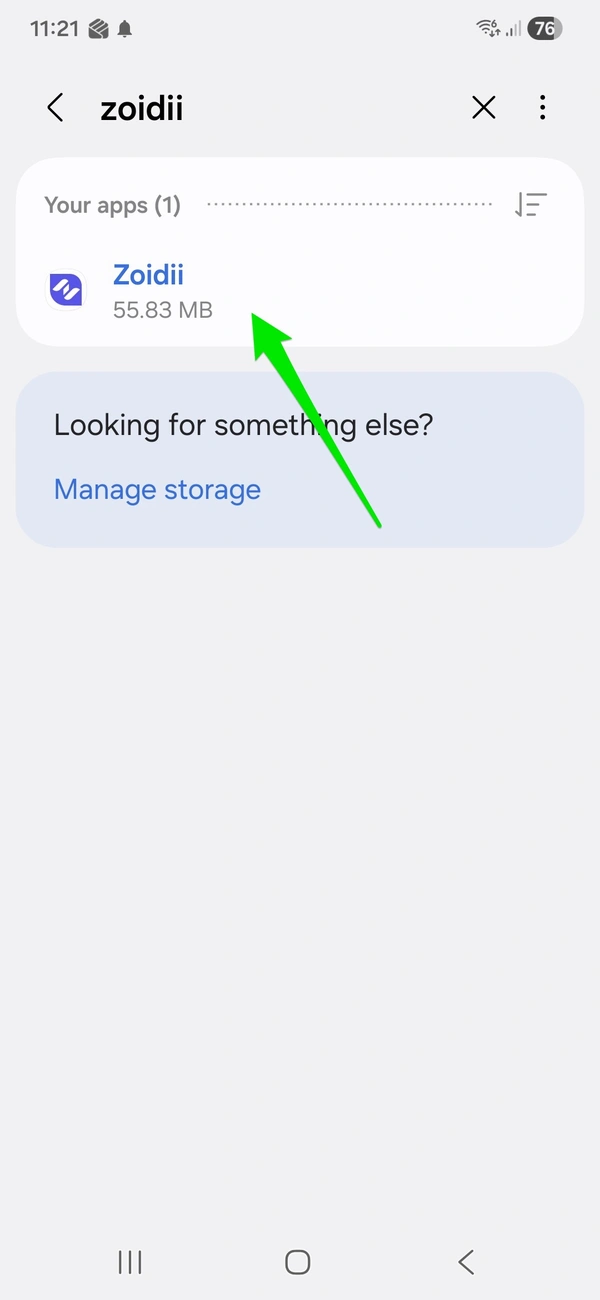
2. Search for the Zoidii app, and click to open the app settings
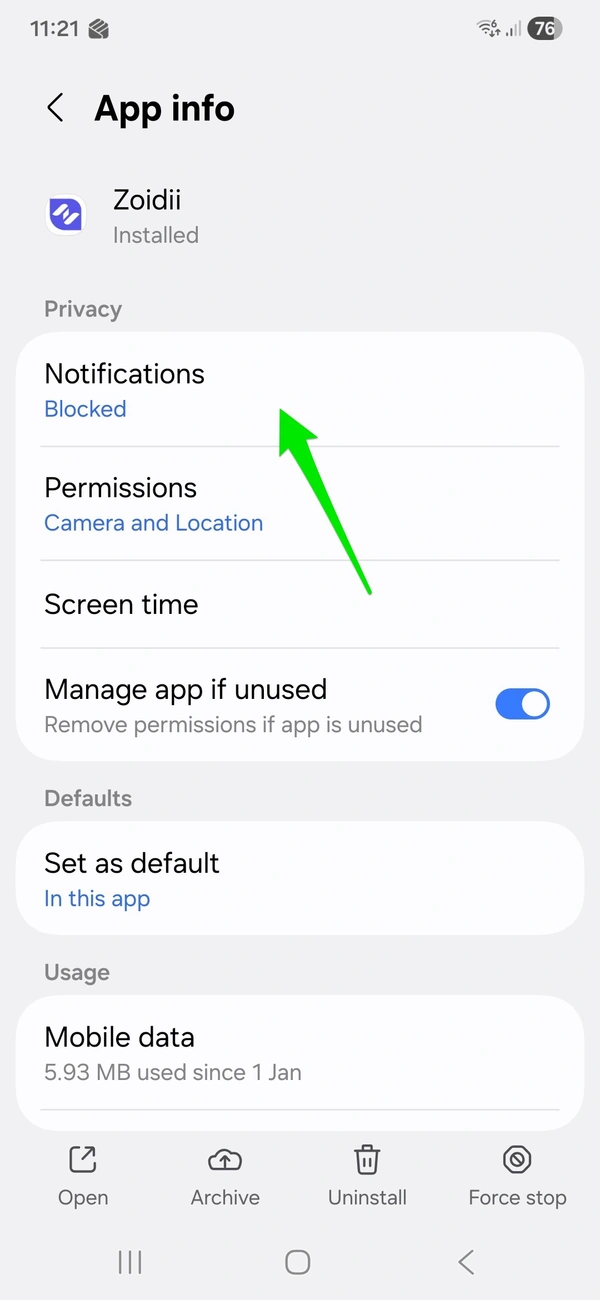
3. Click Notifications
4. Toggle Notifications to ON
Part 3 - Login into the Zoidii App
1. Open the Zoidii App and login / re-login.