Background
- By default, when the work order screen is loaded, it shows all open work orders and any work orders closed this week
- The filtering can be applied to the List or Kanban work order views.
Procedure
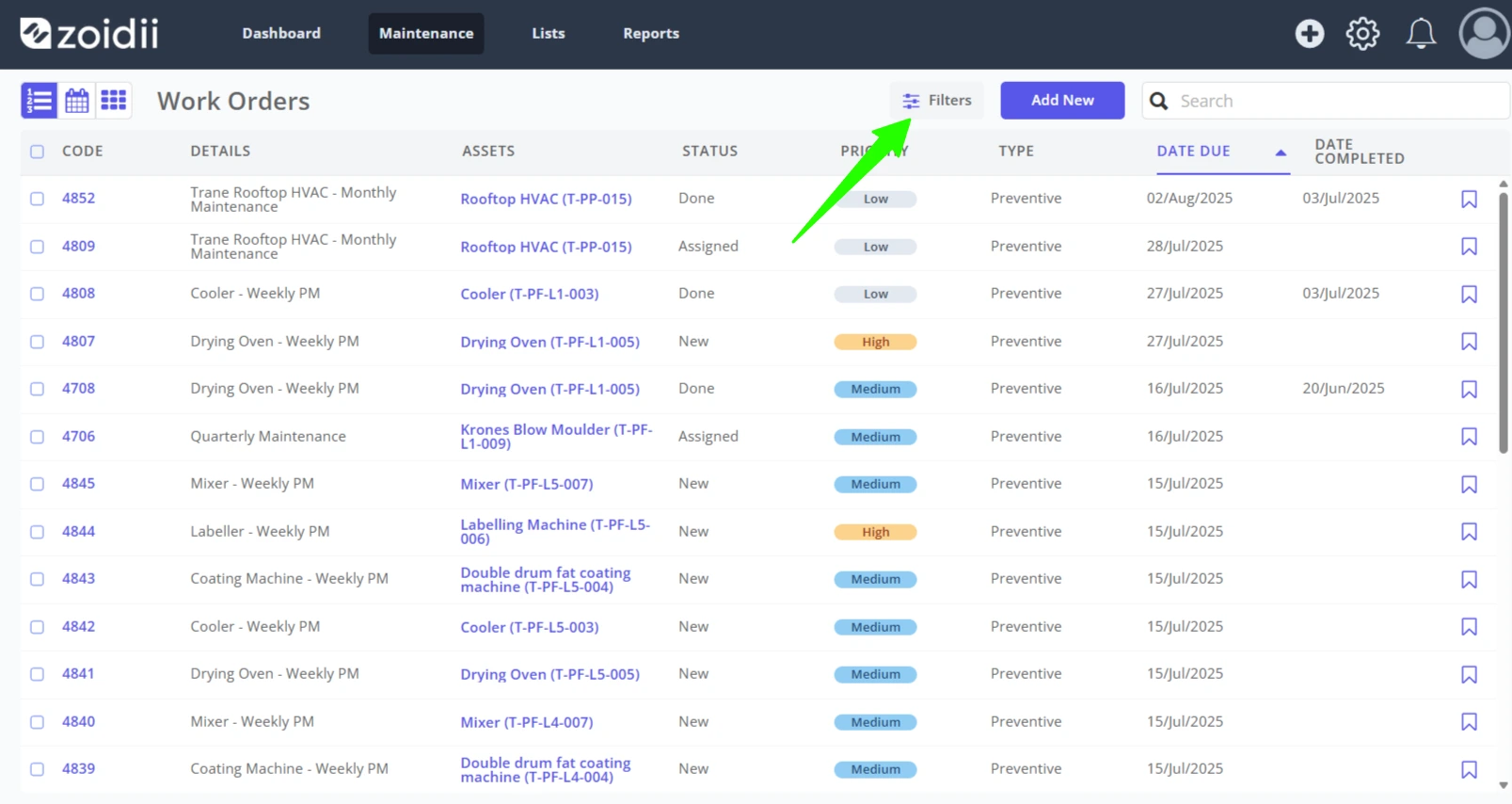
1. Navigate to the work order screen and click Filters
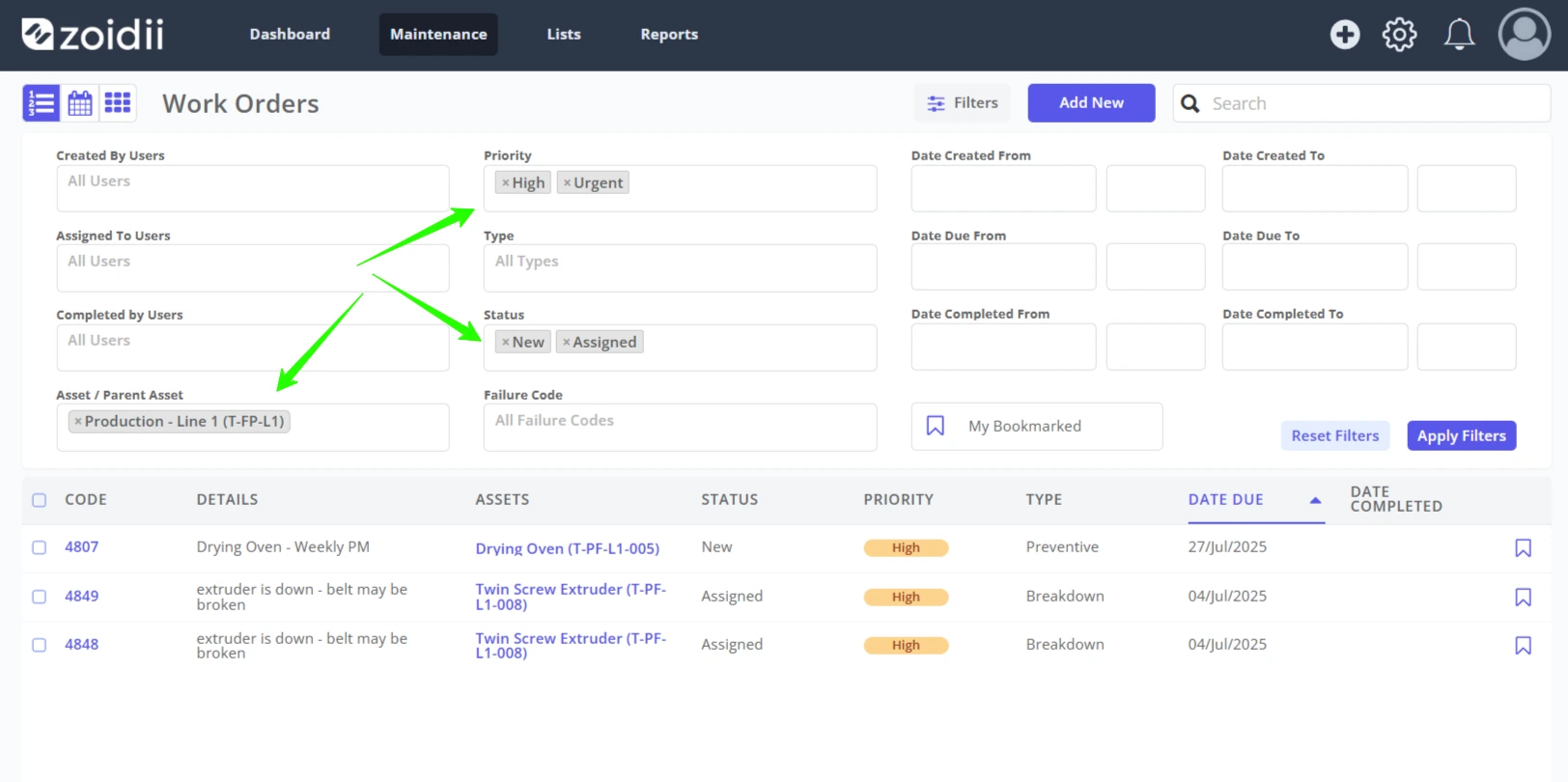
2. Configure the filters as needed. If you filter by a Parent Asset (Production - Line 1 in this case), it will also show work orders for all the Child Assets (e.g. Drying Oven, Twin Screw Extruder).
3. Click Apply filters
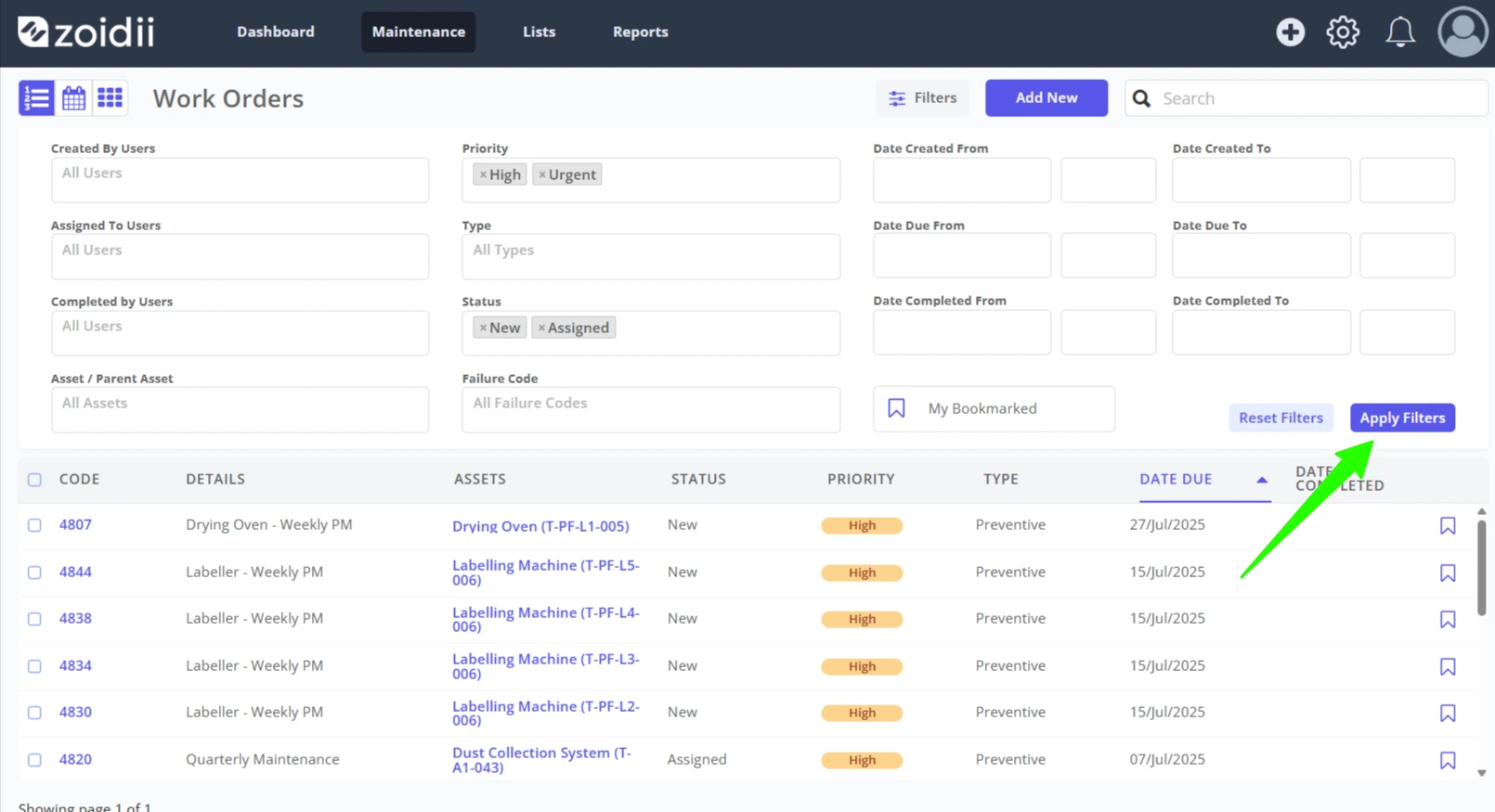
4. Click Apply Filters again if further filters are added or removed.
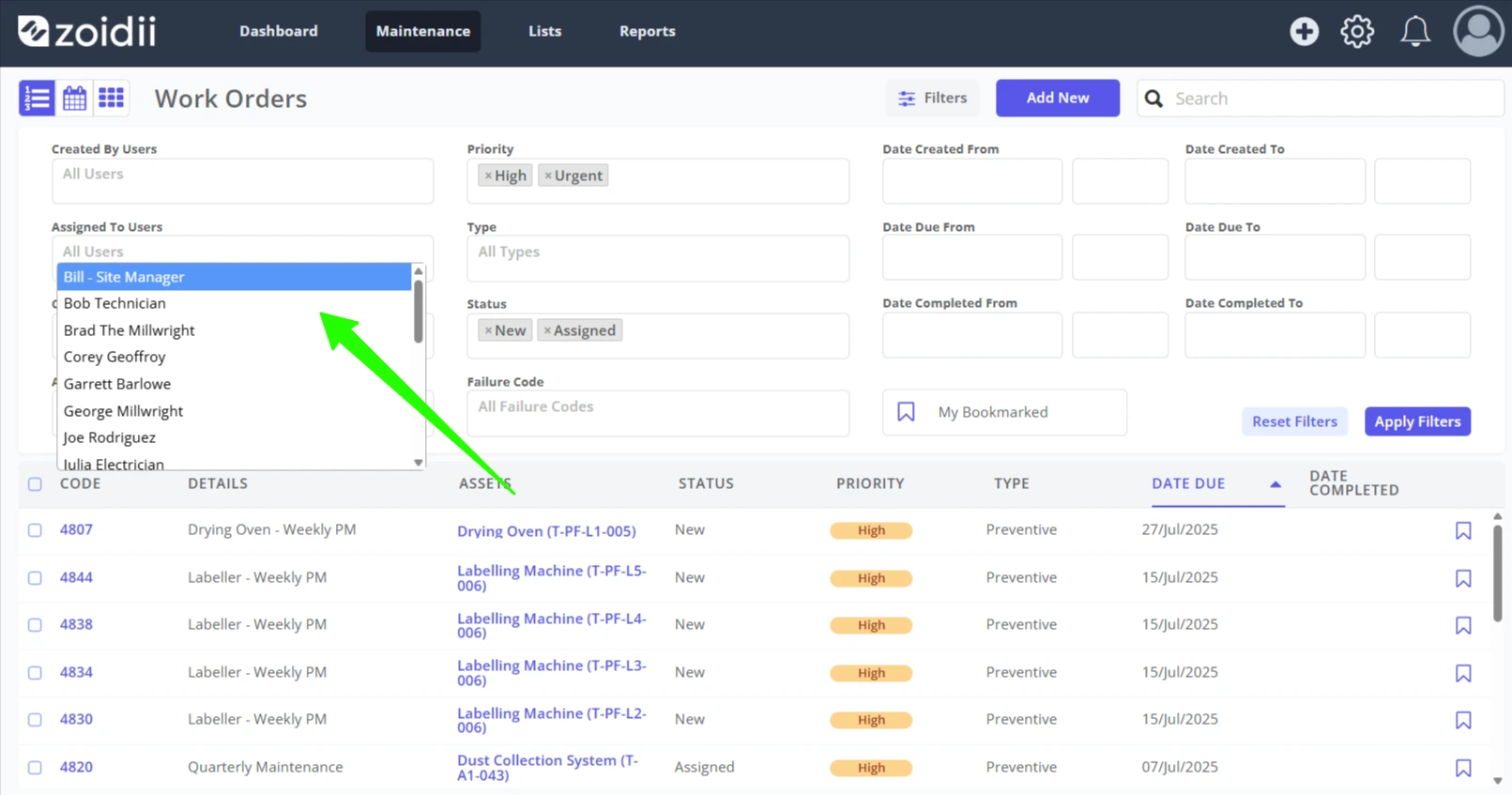
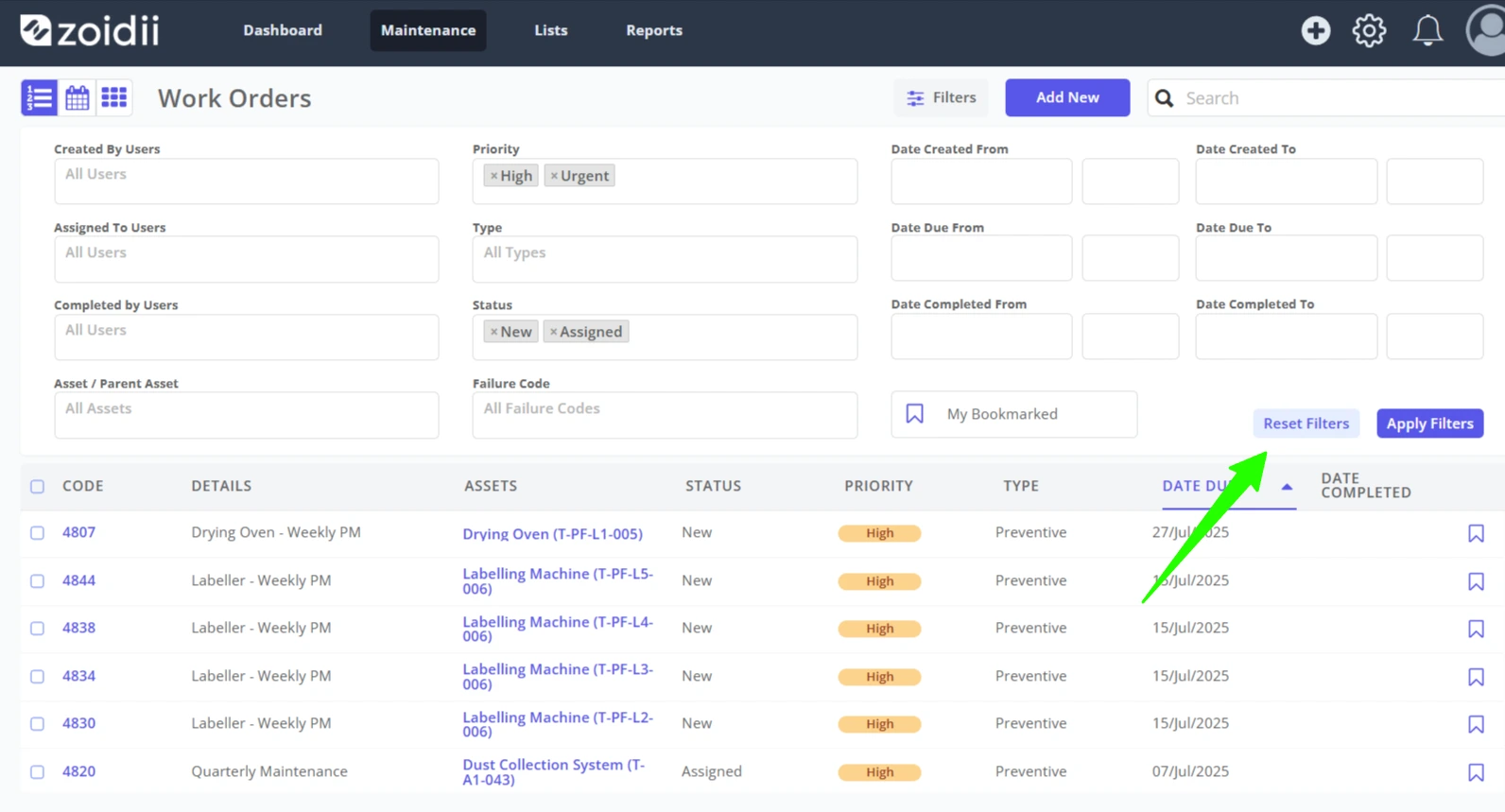
5. Click Reset Filters to remove all filters.