

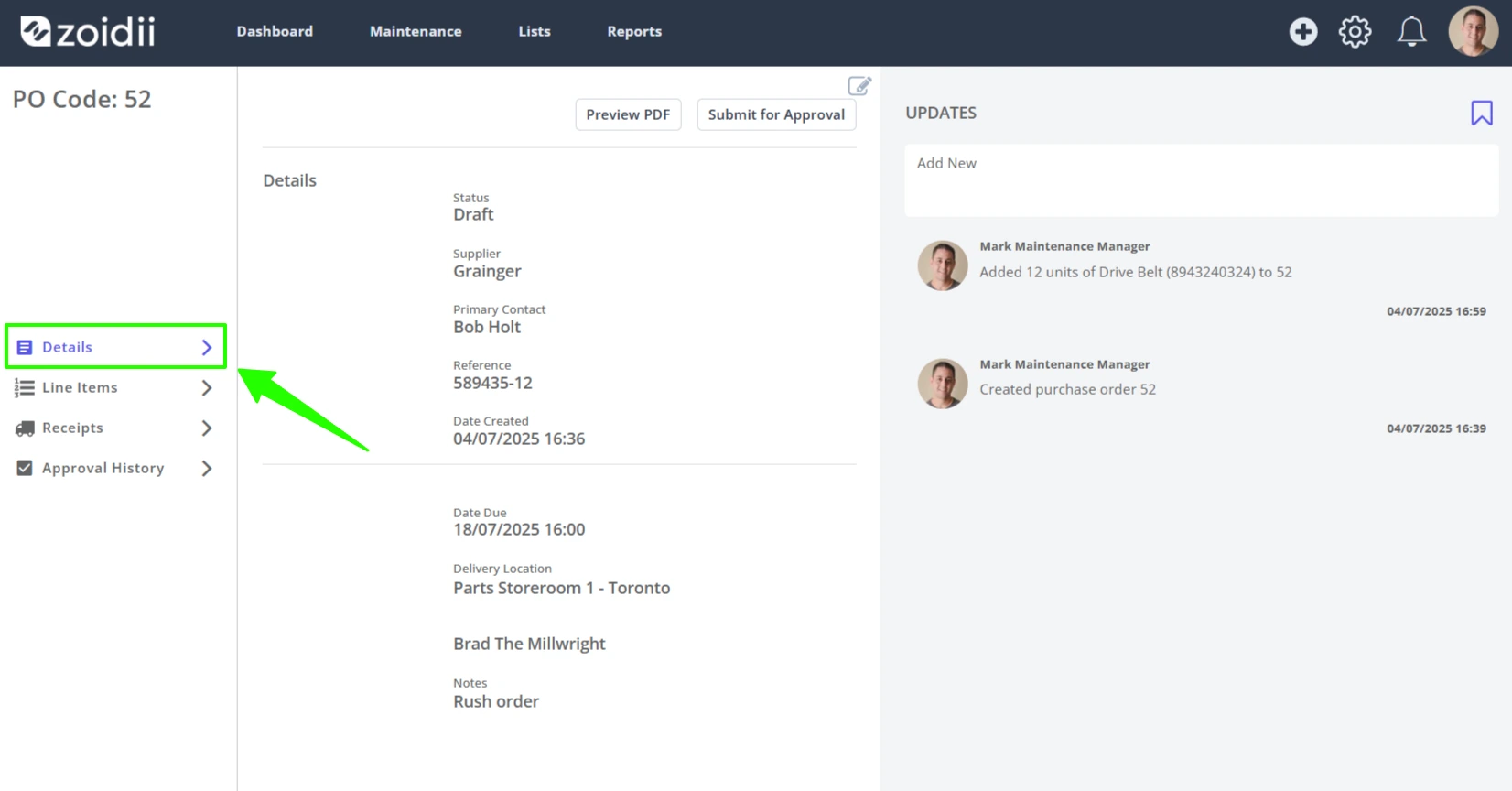
1. Open the purchase order on the Details Tab
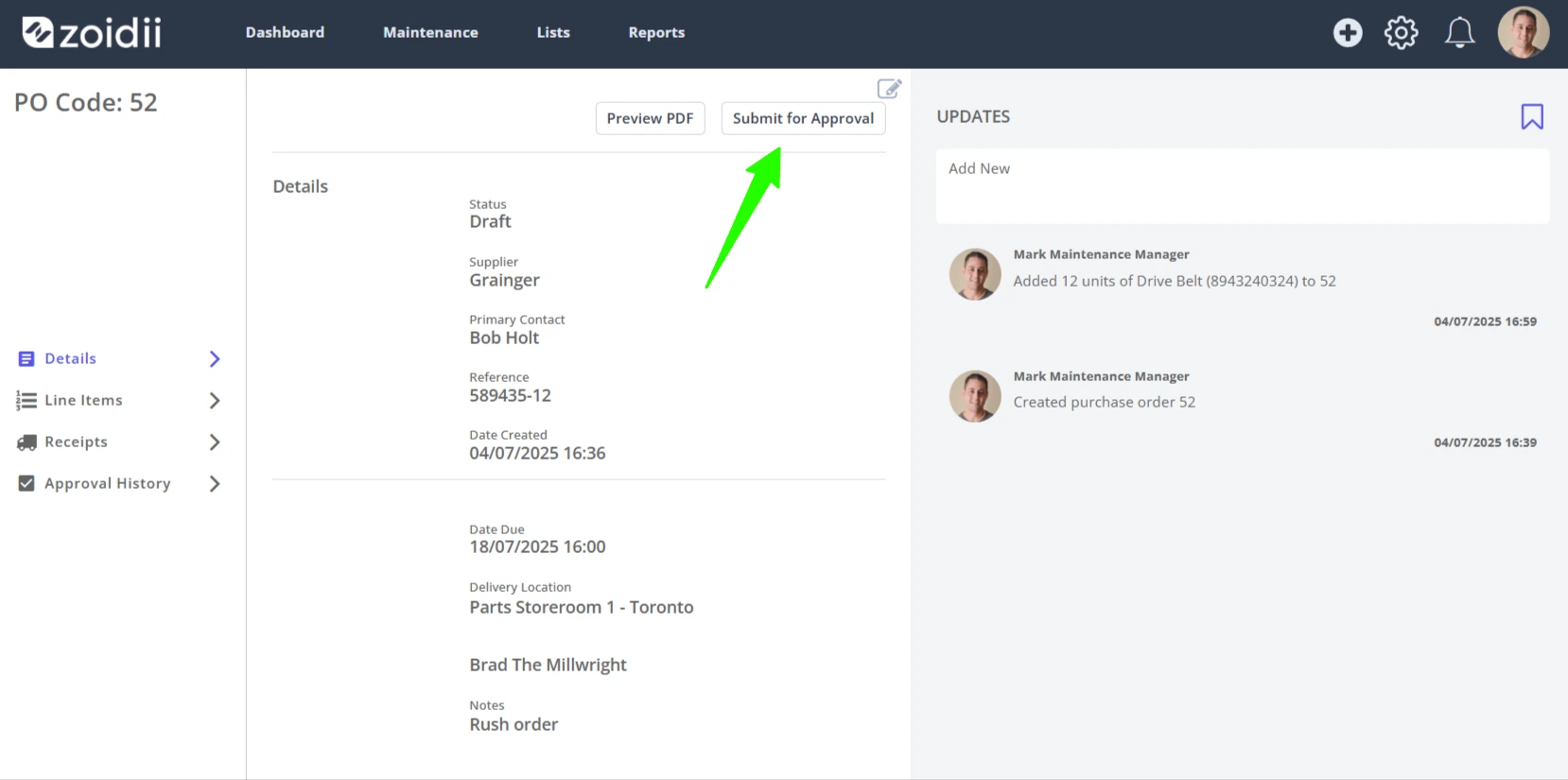
2. Click Submit for Approval
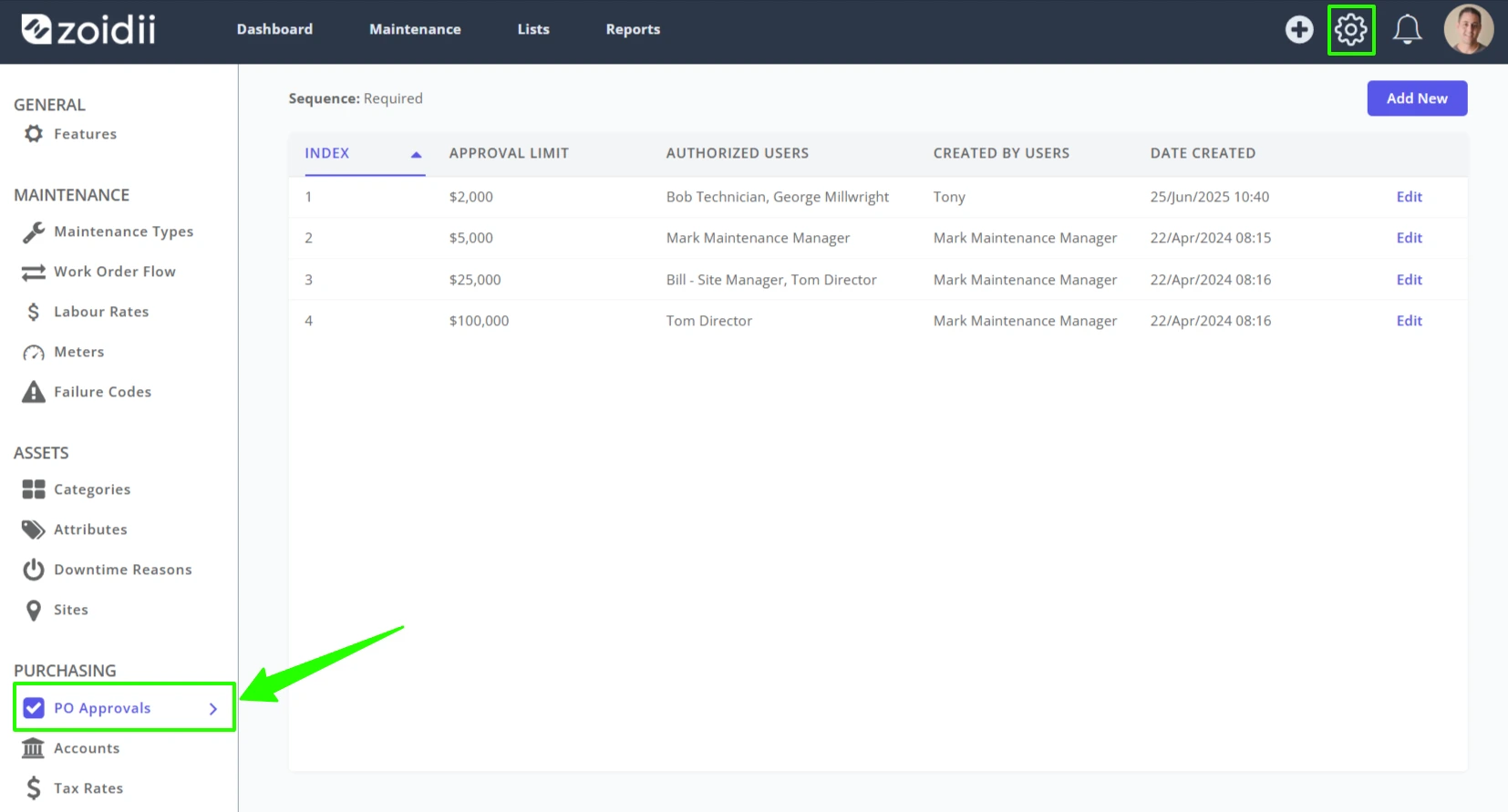
3. The purchase order will enter the PO approvals workflow for your company. This is configured by system administrators in the Settings - PO Approvals section of the CMMS. See Configure Purchase Order Approval Levels for more information.
4. At each approval level, the user clicks Approve to advance the purchase order.
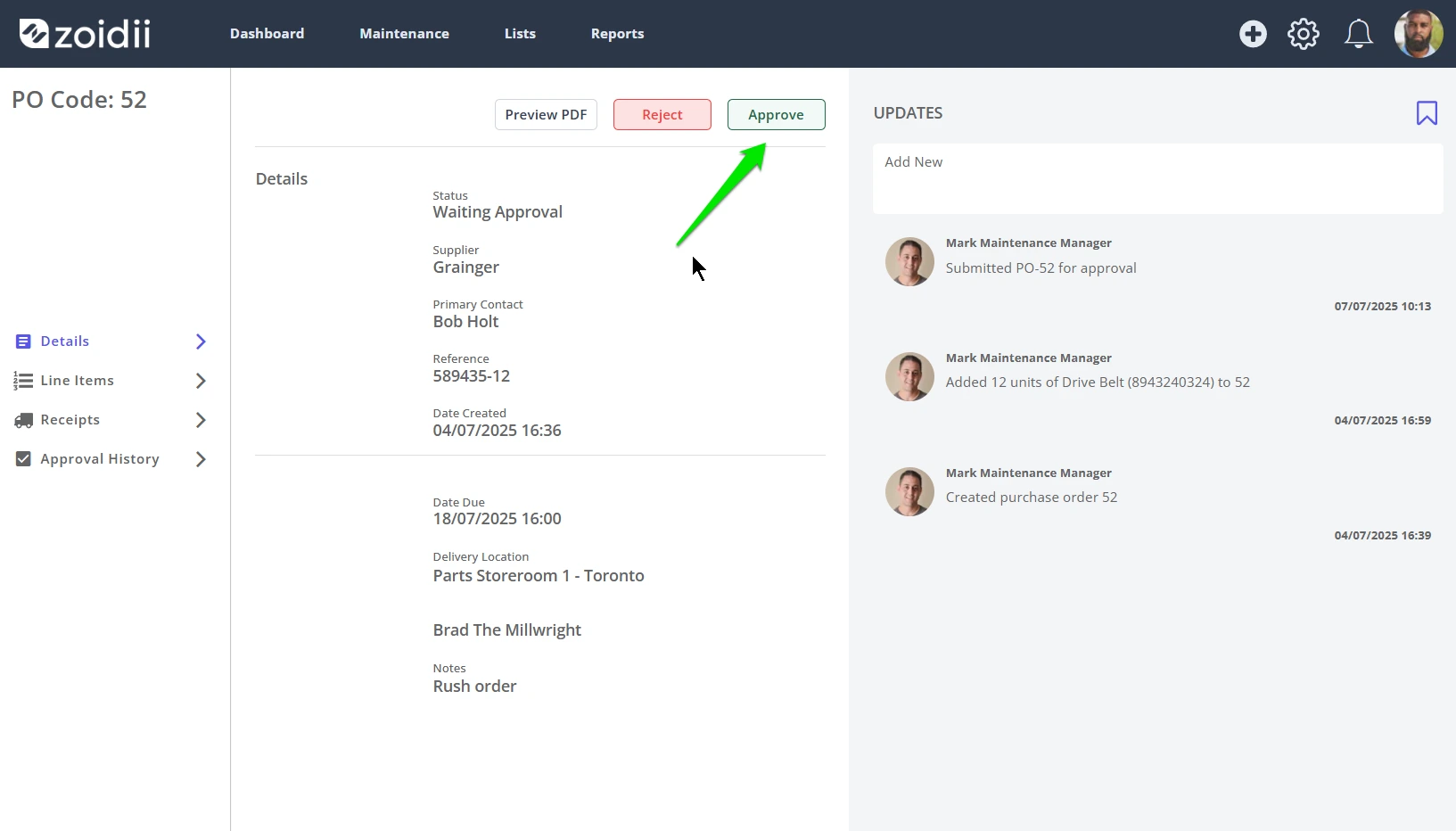
5. When the purchase order total value meets the approval limit threshold, the purchase order is marked as Approved.
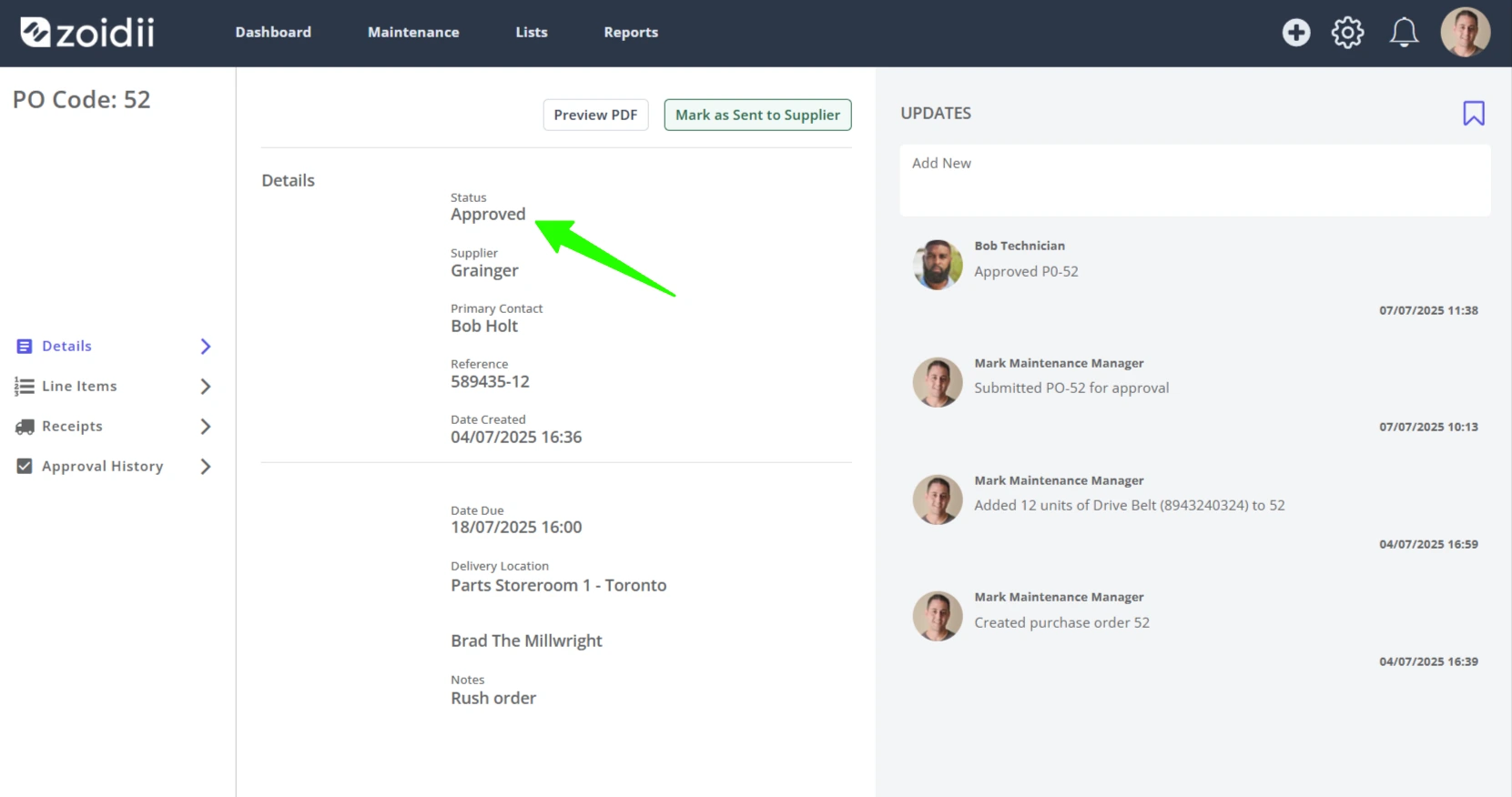
6. The purchase order can now be sent to the supplier.