

Prerequisites
- A work order exists in the system as per the Create a Work Order procedure
- All tasks have been signed off as per the Complete Work Order Tasks procedure
- All repair notes have been added as per Add Repair Notes, Files or Images to a Work Order on Mobile
- All parts have been consumed on the work order as per Add Parts to a Work Order procedure
Procedure
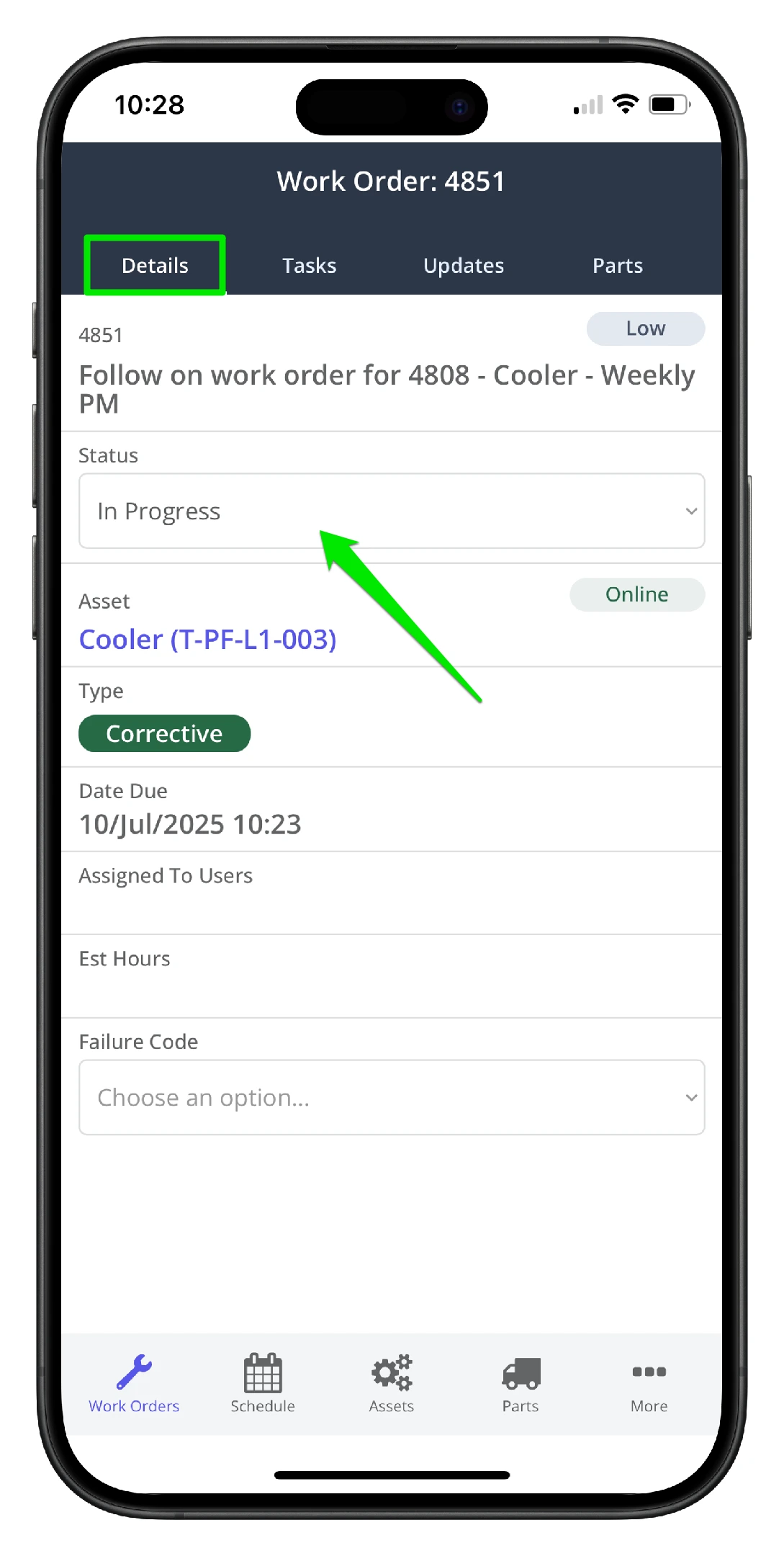
1. Open the work order Details tab and click the Status dropdown
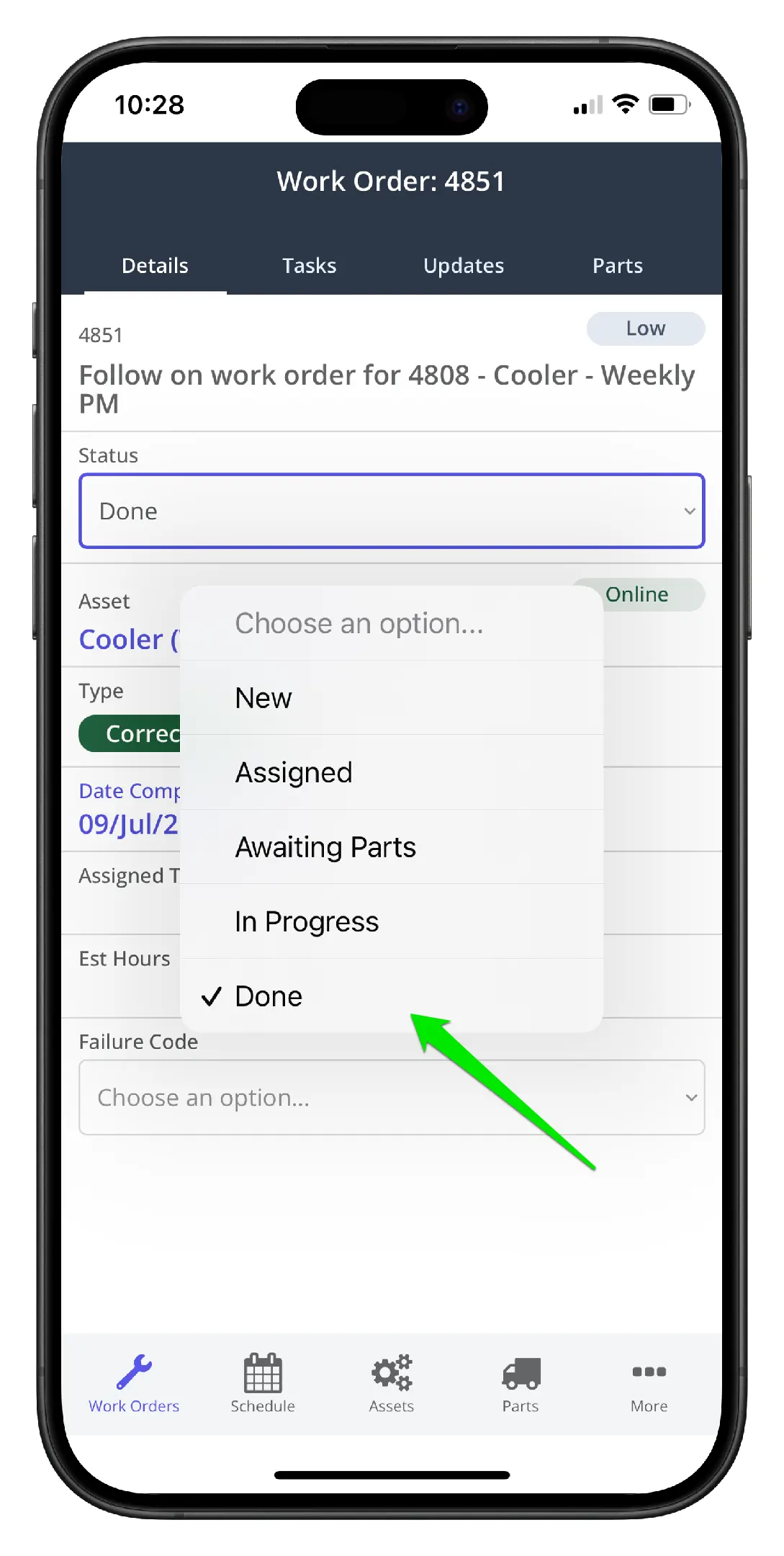
2. Set the work order to "Done", or the equivalent Done state in your CMMS
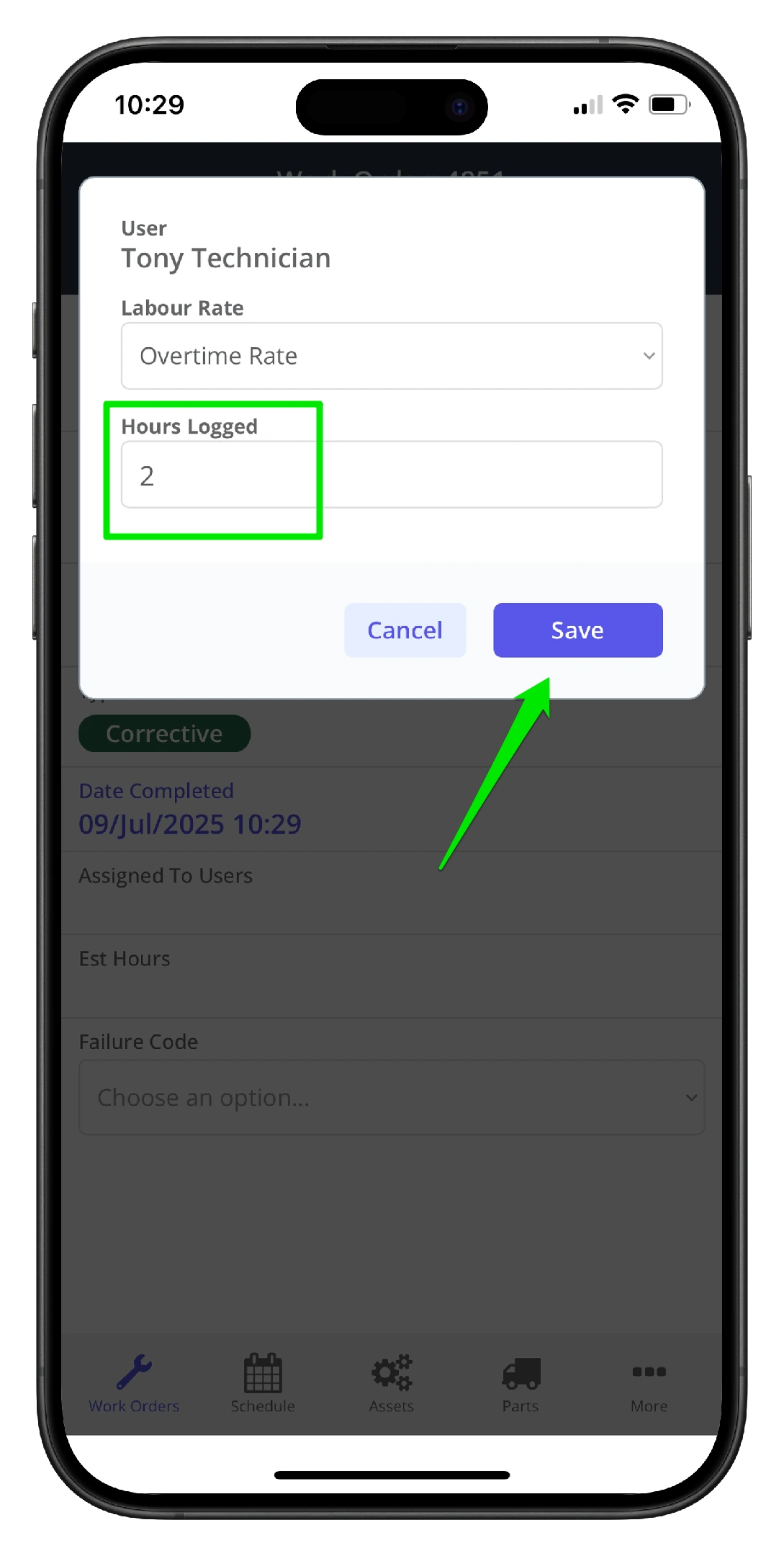
3. Confirm your labour hours by adding or adjusting the Hours Worked field. Click Save when done
4. The work order is set to the Done state.
Note: Other system users can log their labour hours in the Labour tab of the work order as per the Add Labour Hours to a Work Order procedure on the web app, or the Add Labour Hours to a Work Order on Mobile