Background
When assigning work to third parties, they should be added as users to the CMMS. There are two options:1. Add the vendor as an active user in Zoidii giving the vendor full access to the CMMS to log in and complete the work. This method is recommended for third-party vendors that are regularly onsite.
2. Add the vendor as an inactive user in Zoidii, automatically notify them when the work is due, but complete the work in the CMMS on their behalf. This method is recommended when you use a large number of third-party vendors that are rarely onsite.
Option 1: Add the third-party service provider as an Active User
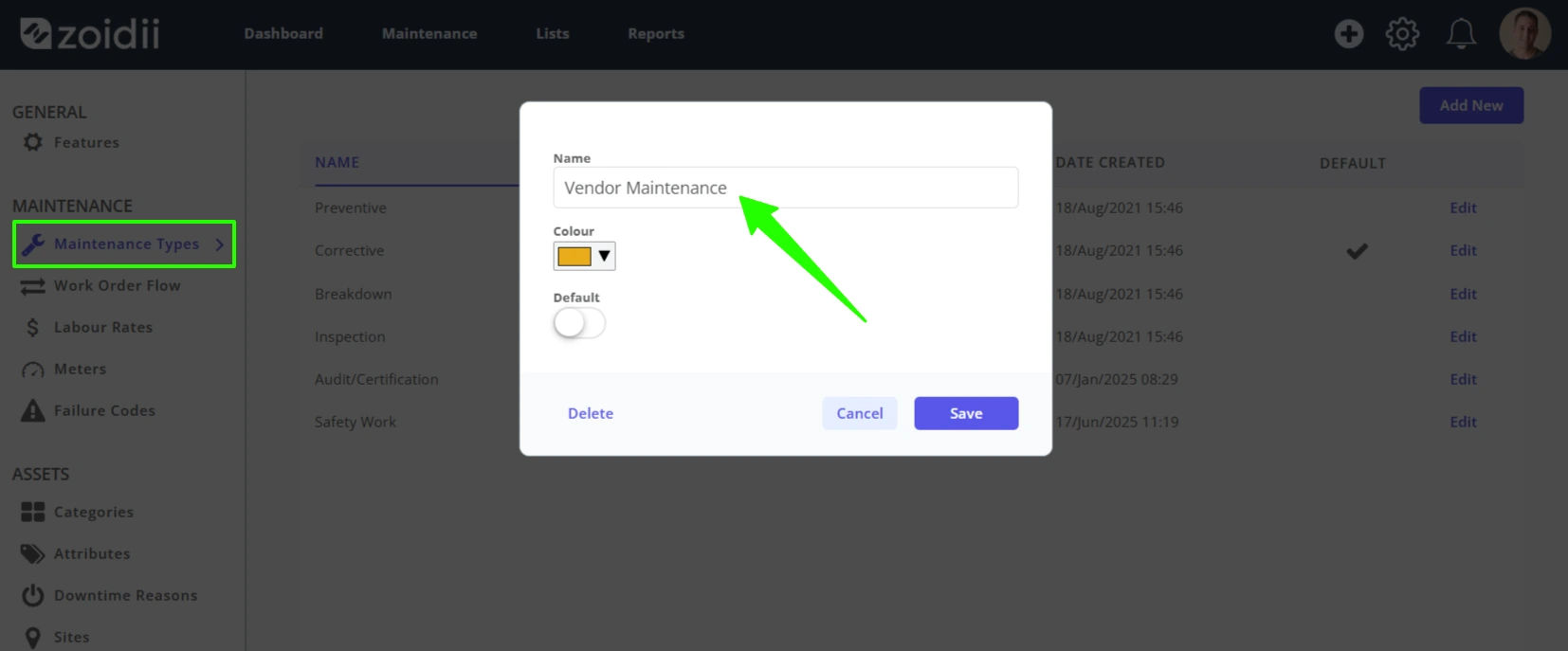
1. To distinguish maintenance work that is typically outsourced to a third-party vendor from maintenance work done in-house, Zoidii recommends adding a new maintenance type for the outsourced work. Navigate to System Settings and create a new maintenance type as follows:
2. Add the third-party service provider as per the Create a User procedure. They will receive an email with their login credentials.
3. Assign the third-party service provider PMs or work orders just like a regular employee.
4. When assigned work, the third-party service provider can then log into the CMMS and complete the work just like a regular employee.
Option 2: Add the third-party service provider as an Inactive User
Note:- this option is quite extensive. It is not necessary to complete all the tasks, however, completing all the tasks does ensure the data in the CMMS is 100% accurate.
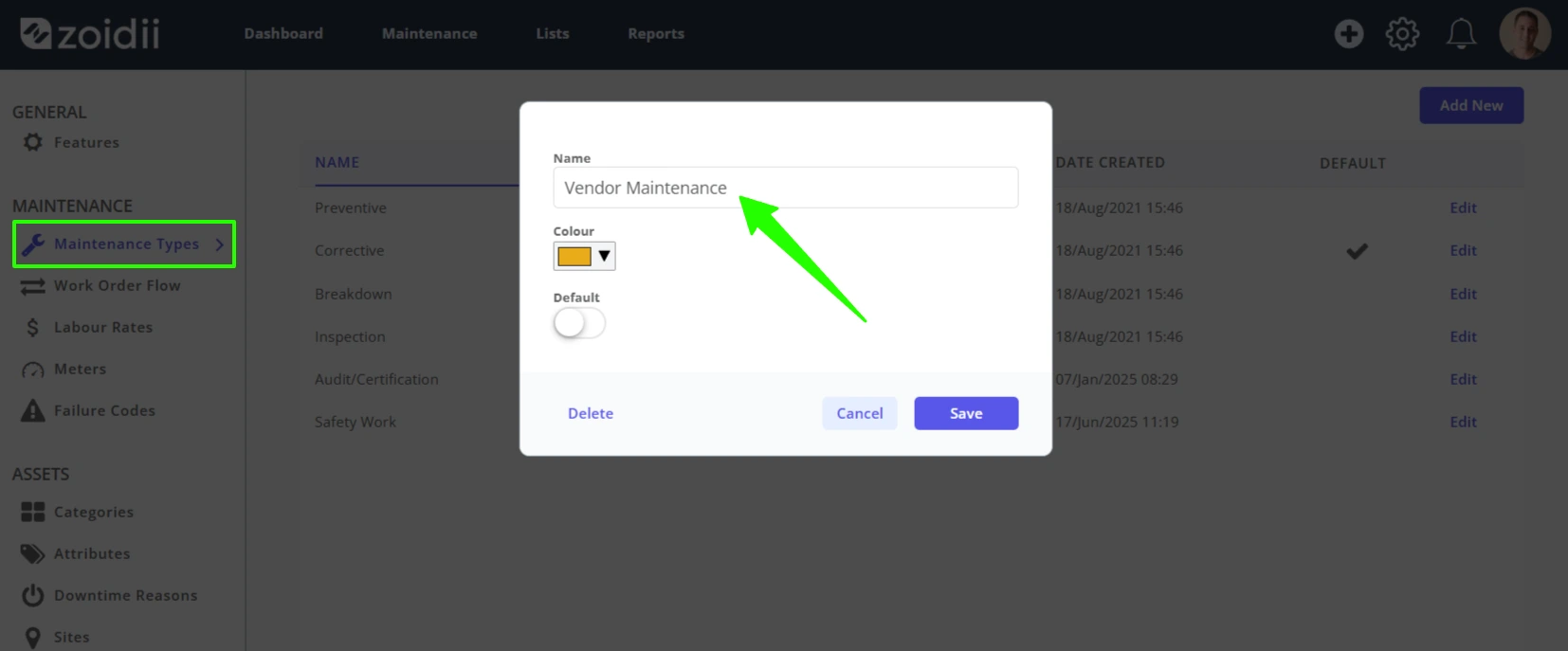
1. To distinguish maintenance work that is typically outsourced to a third-party vendor from maintenance work done in-house, Zoidii recommends adding a new maintenance type for the outsourced work. Navigate to System Settings and create a new maintenance type as follows:
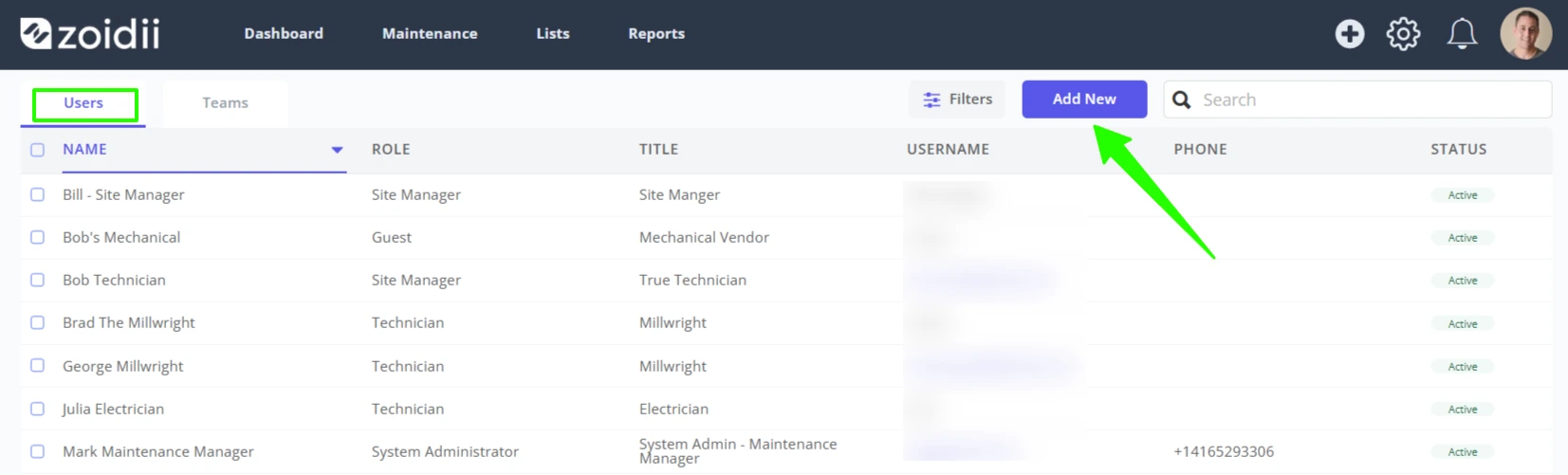
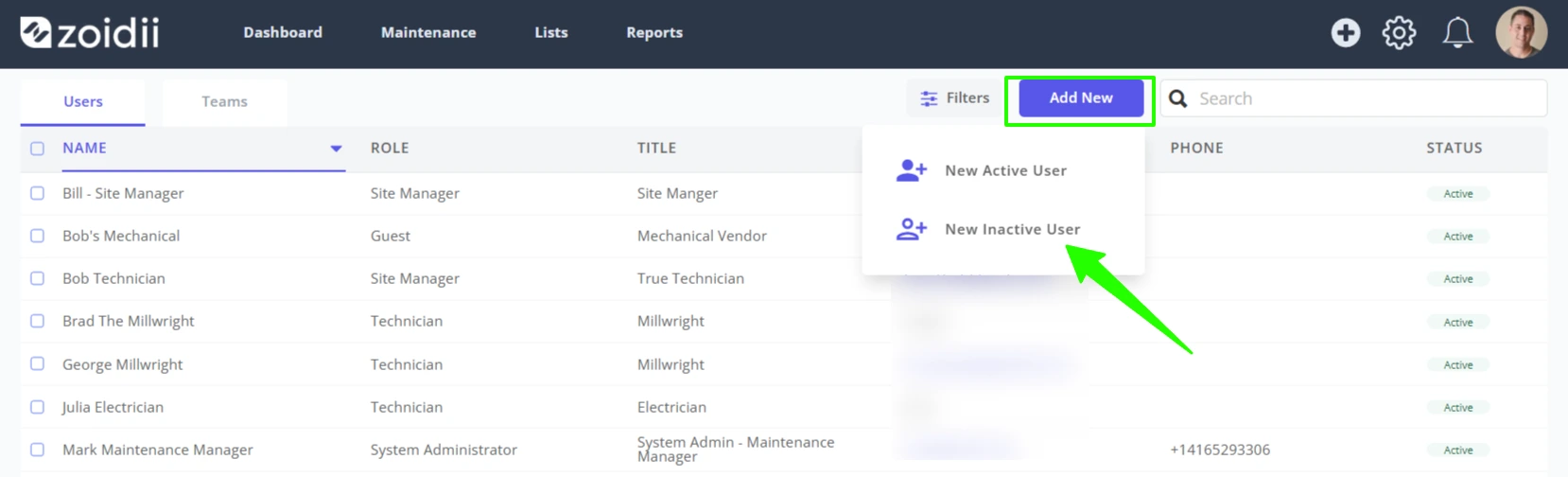
2. Next, create the inactive user. Navigate to the Users screen and click Add New
3. Select New Inactive User
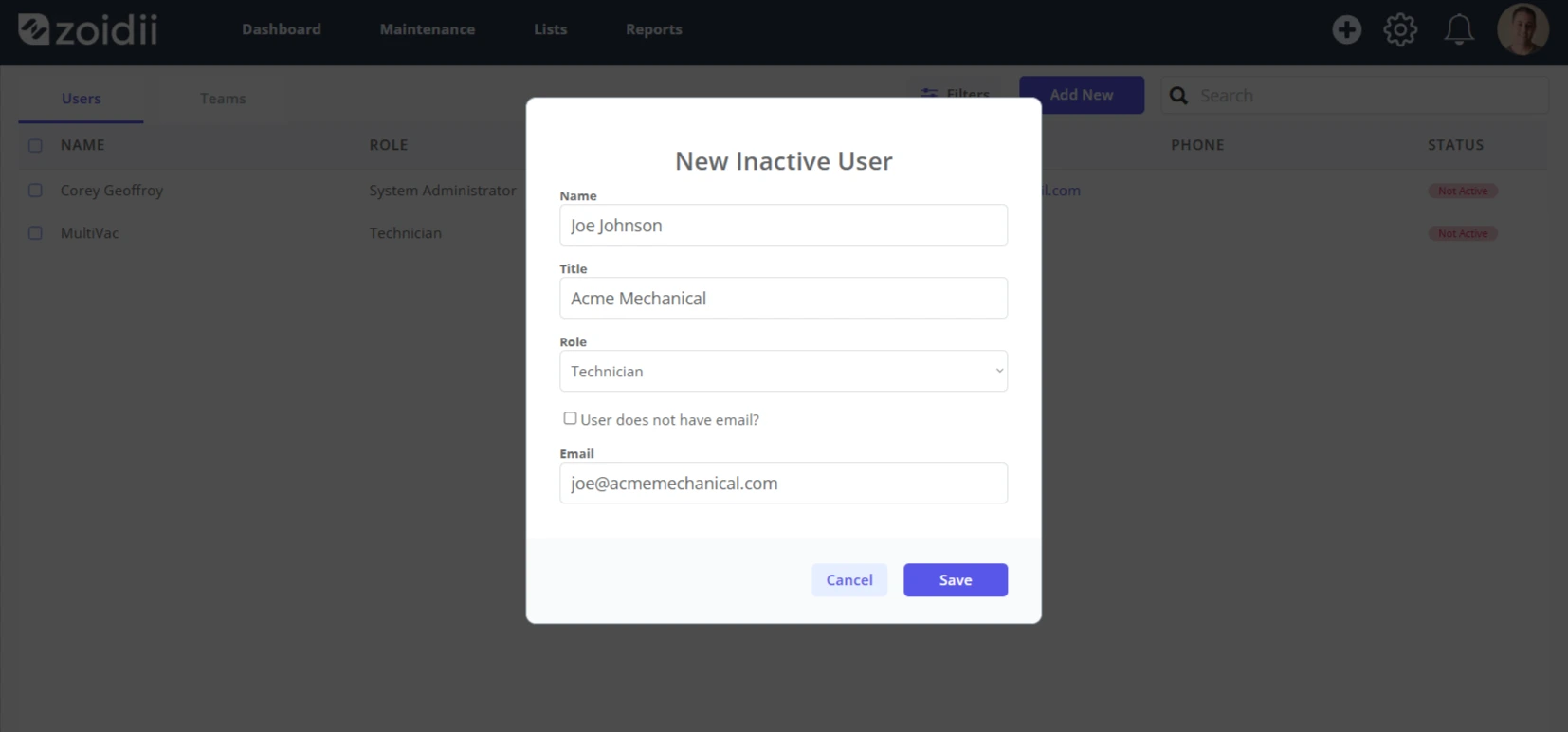
4. Fill in the details for the third-party service provider. Click Save when done.
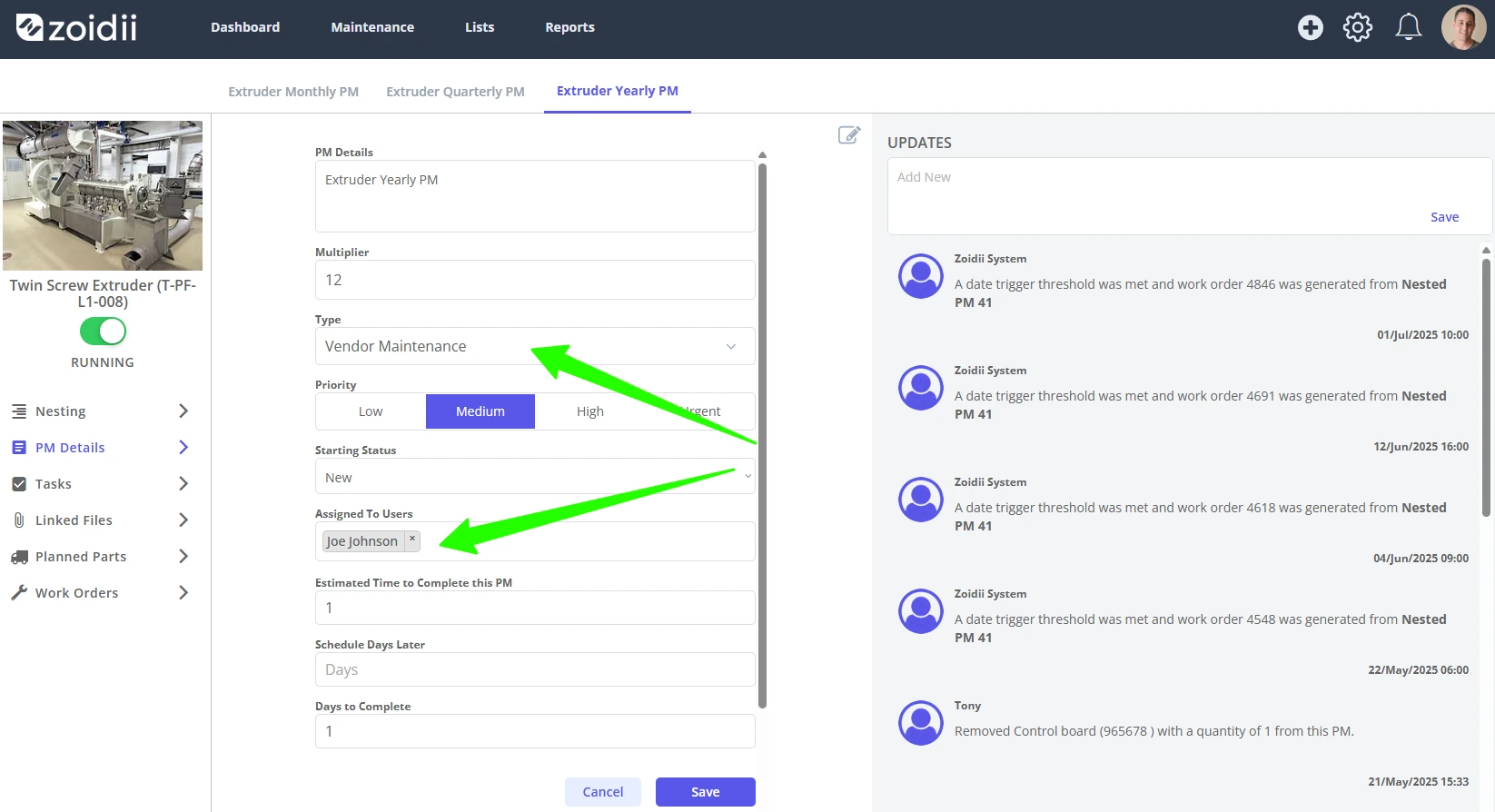
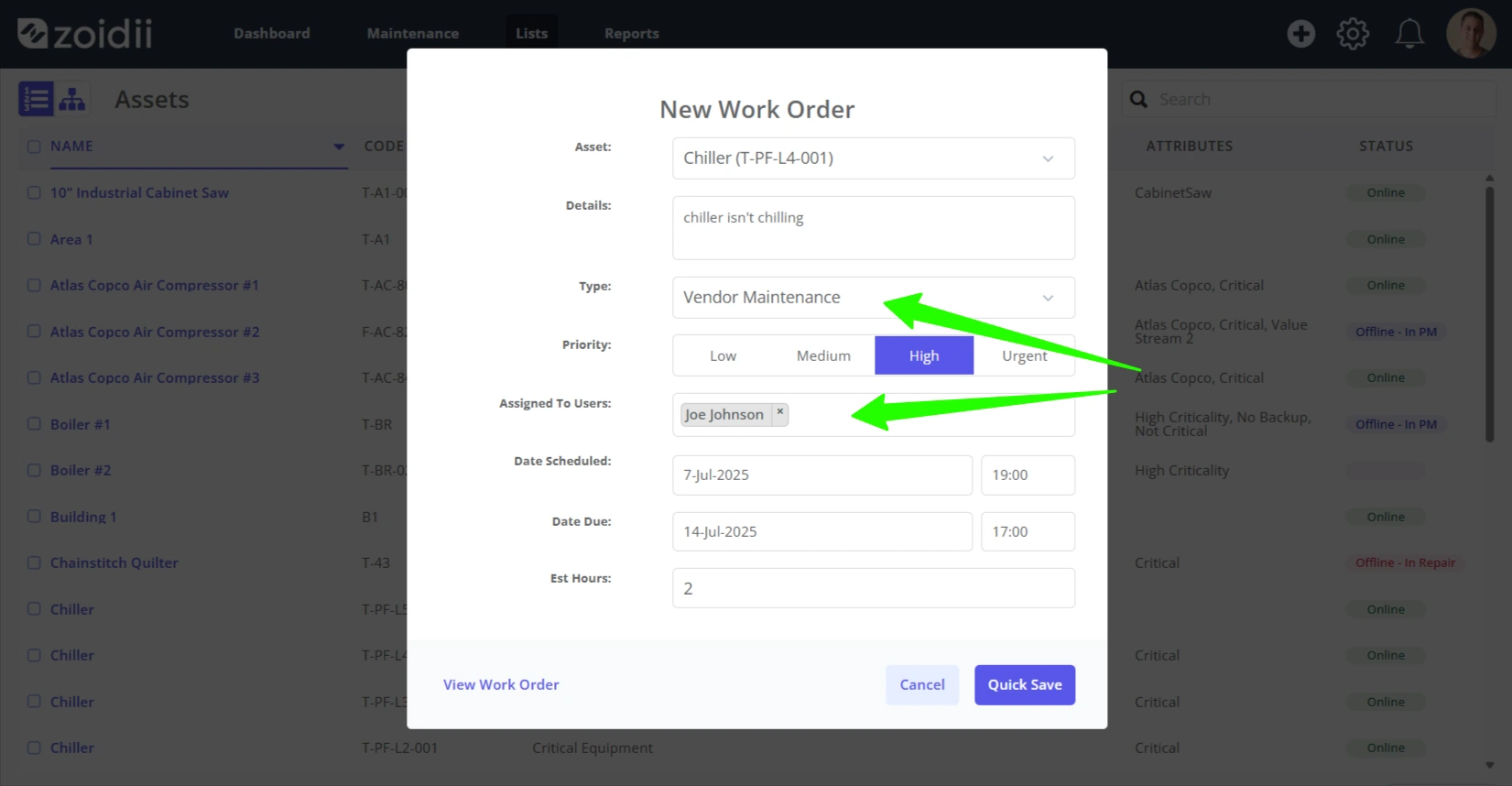
5. The third-party service provider can now be assigned PMs and work orders as follows:
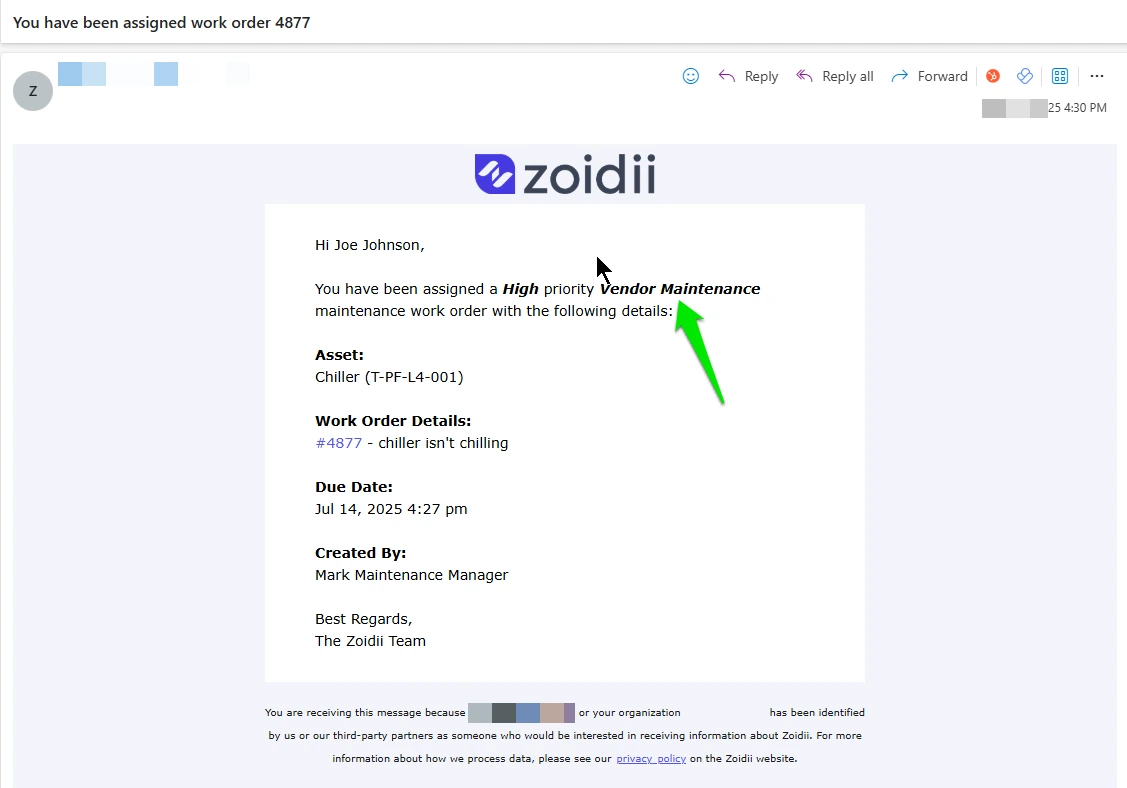
6. The third-party service provider will receive an email when they are assigned any work as follows:
7. As they do not have access to the CMMS software when they complete the work, you must sign off the work in their name. Close the work order in your name
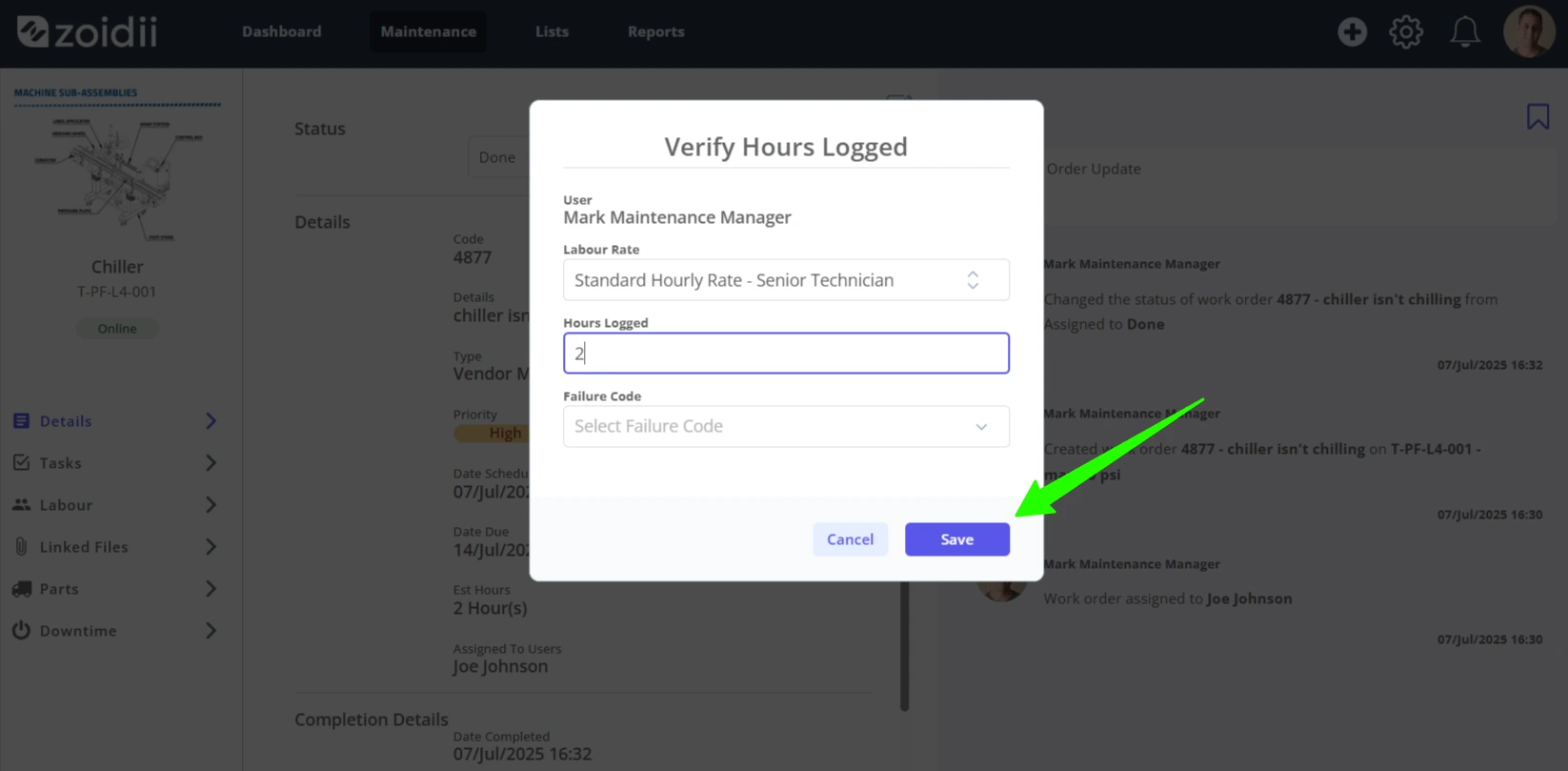
8. Click the Edit icon
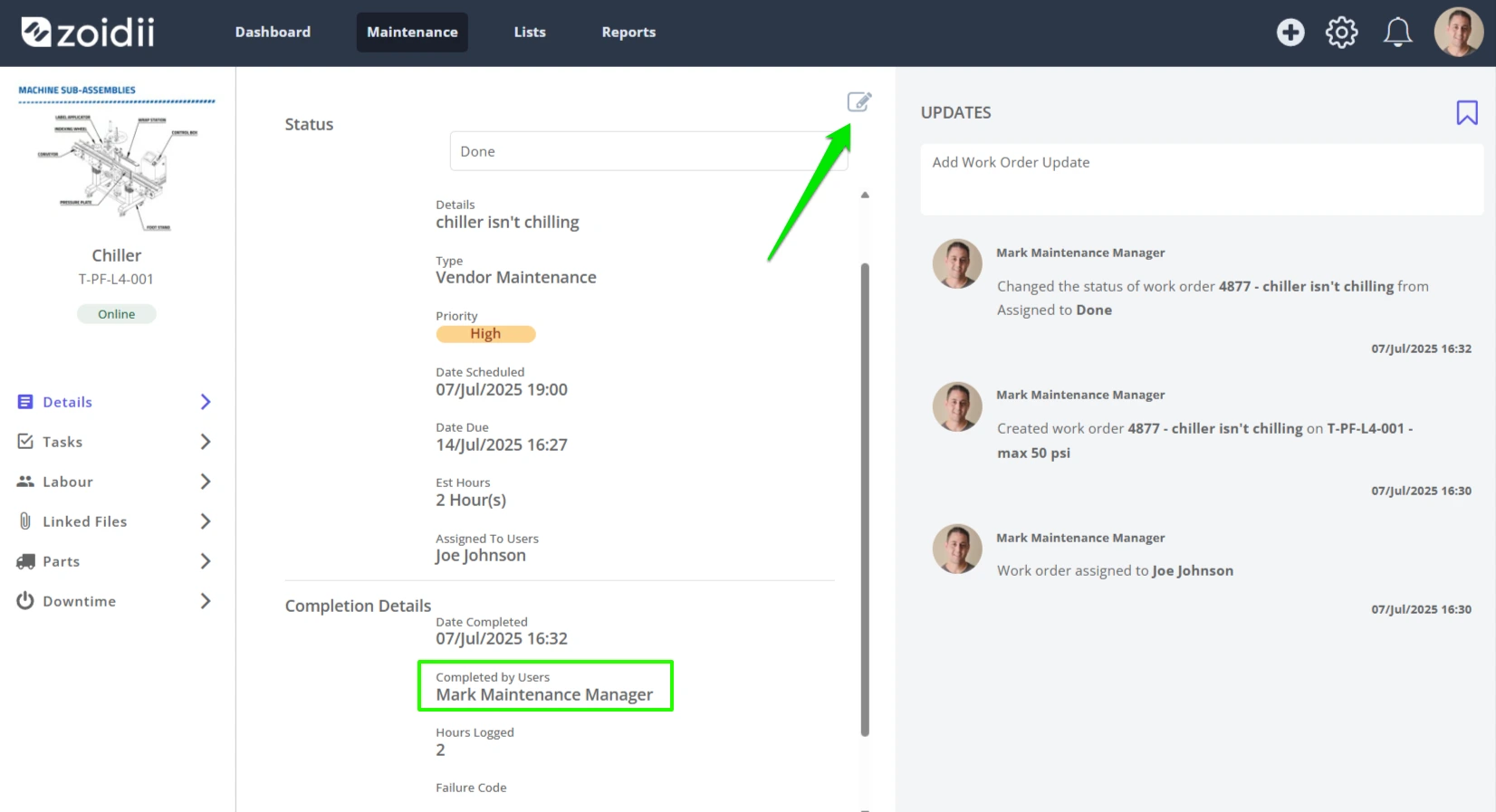
9. Swap in the vendor as the Completed by User, and click Save
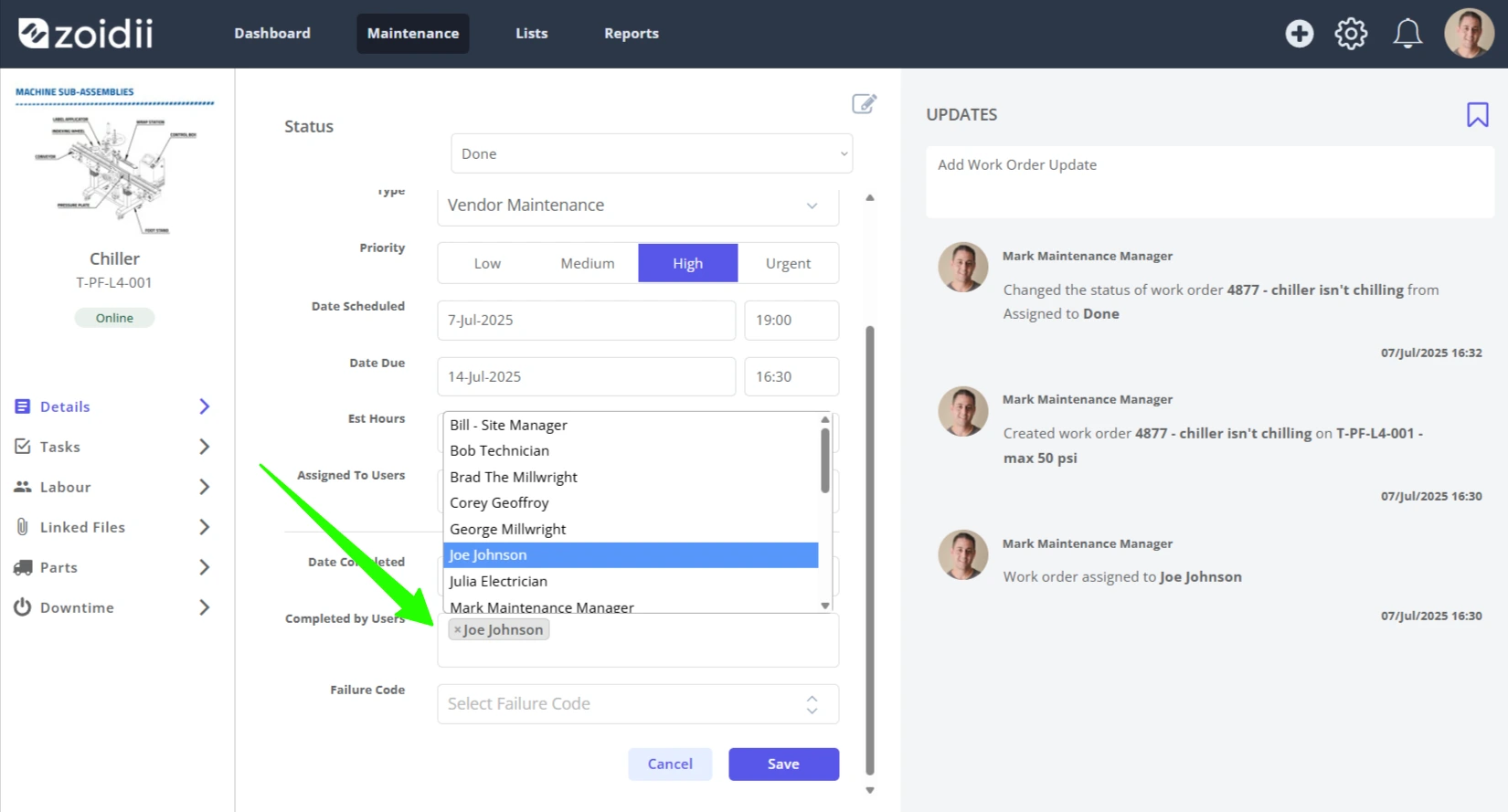
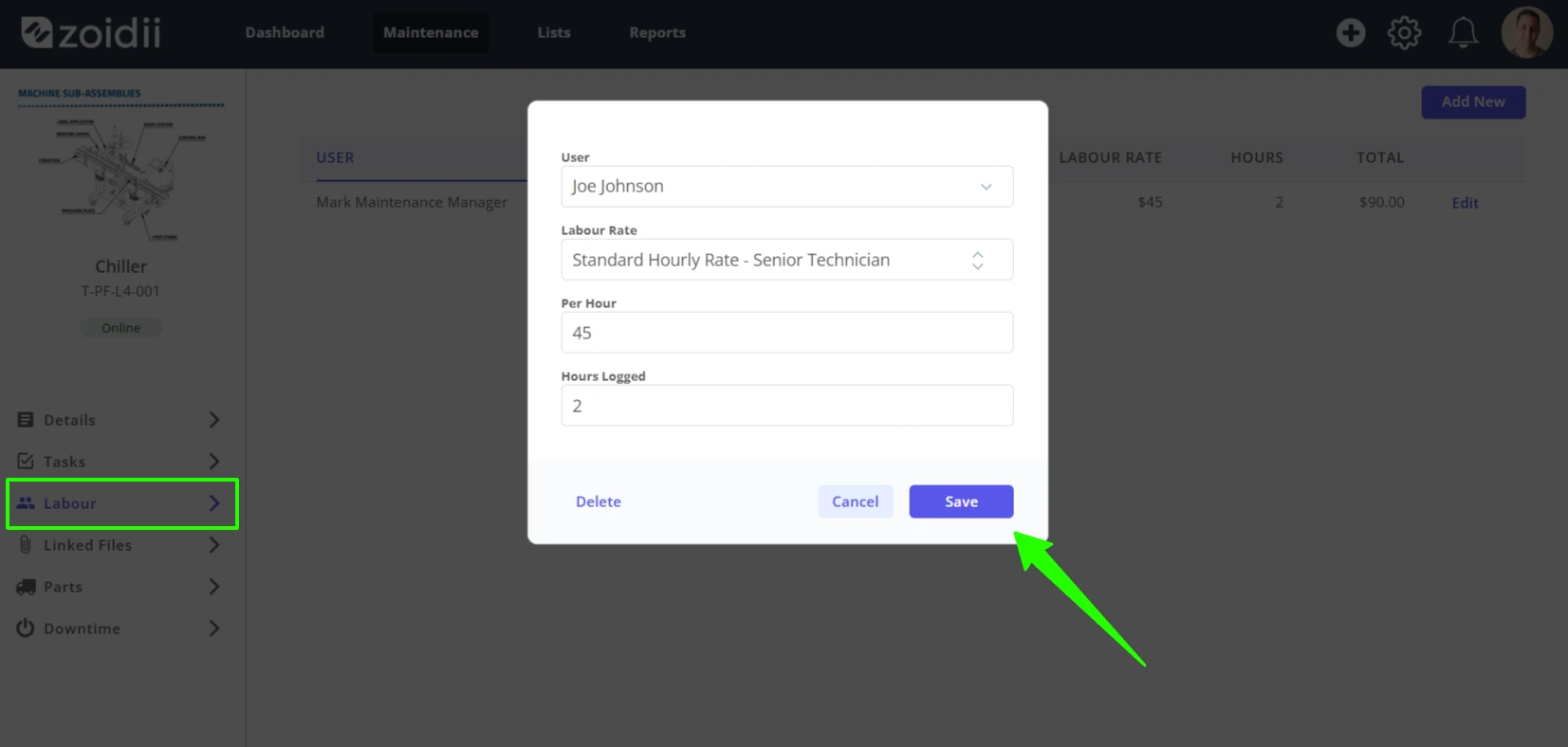
10. Navigate to the Labour tab and add the labour hours for the vendor
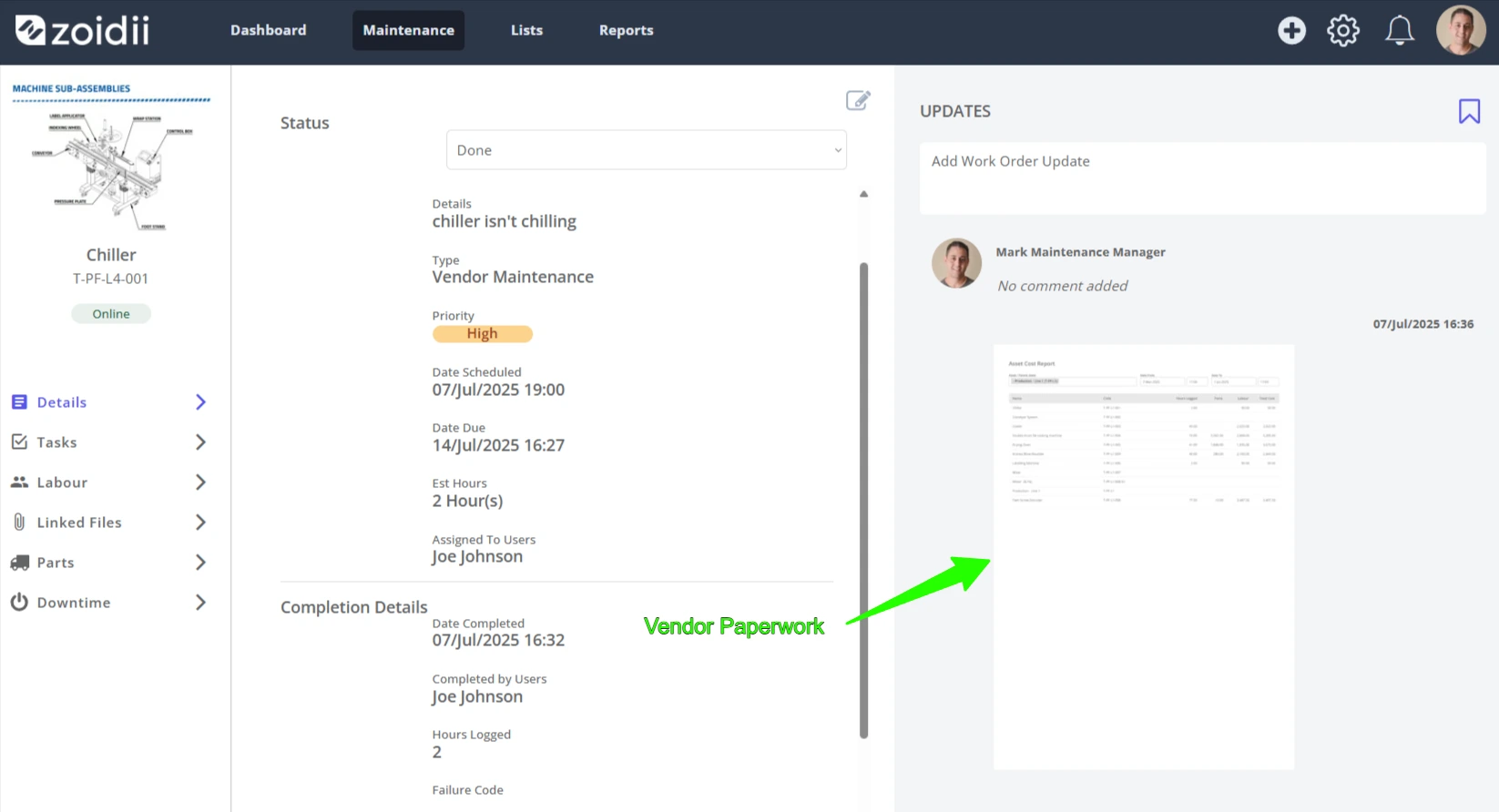
11. If the vendor provides their own paperwork when the job is done, you could also upload the report to the Updates section of the work order: