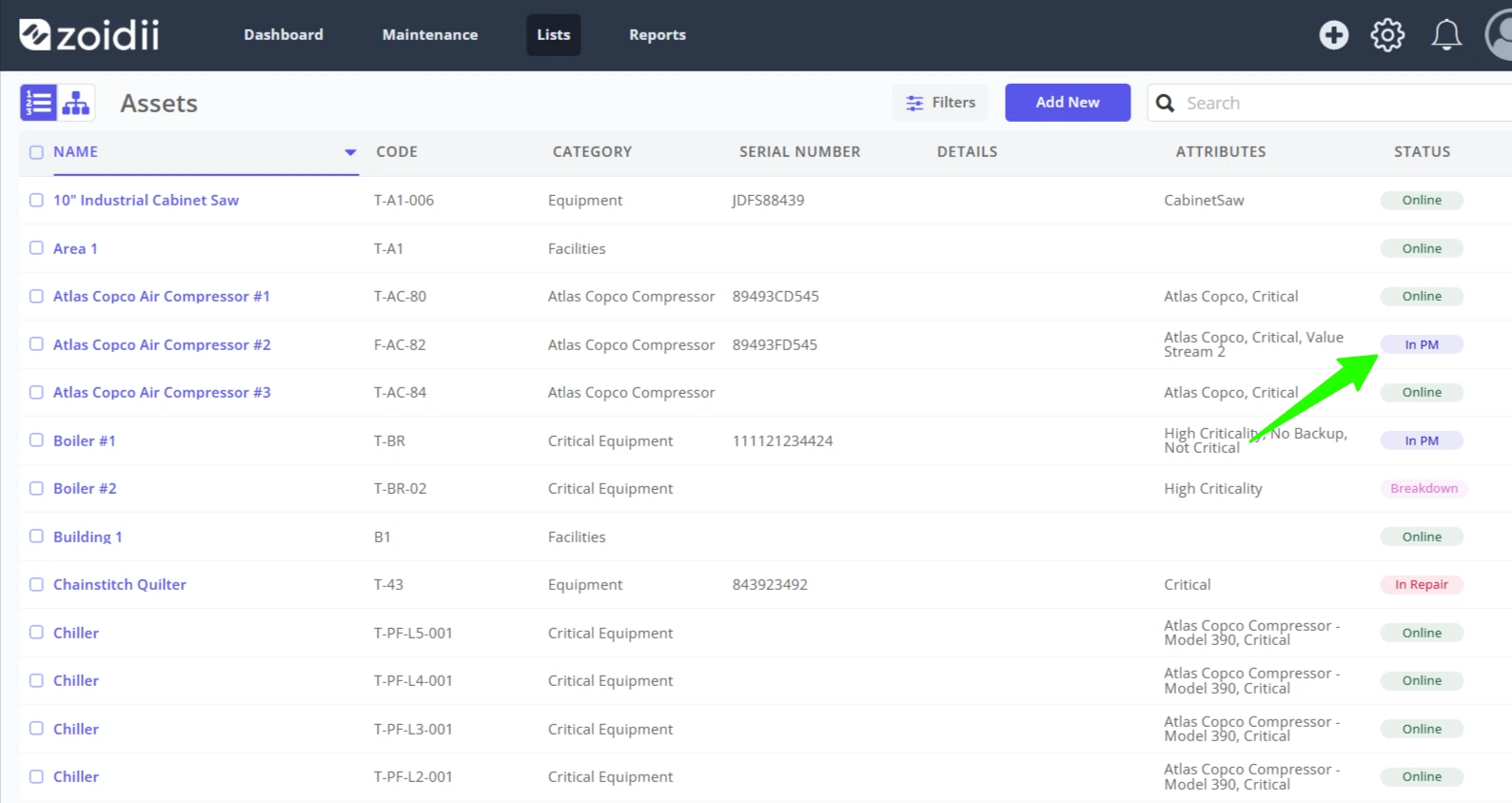
Background
Equipment downtime occurs when an asset is unable to perform its function. During this time, the asset is considered "non-operational" or "offline". An asset may be offline for a number of reasons, including PM, repair, or overhaul. Most maintenance operations are measured on unplanned downtime. Uptime occurs when the asset is "online" or "operational", and available to perform its function.
The offline/online feature in Zoidii has a number of functions:
- It helps measure equipment uptime or downtime
- It can be used as a visual aid to see what assets are non-operational at any moment in time
Online
- In Production / Operational
- On Standby (could be used for an asset waiting to go into the field)
- In Repair
- Overhaul (specifying long-term repair)
- Out of control (this could be used to specify process-related downtime such as contamination on the line)
- Environmental (the asset cannot perform its function due to bad weather, for example)
Procedure
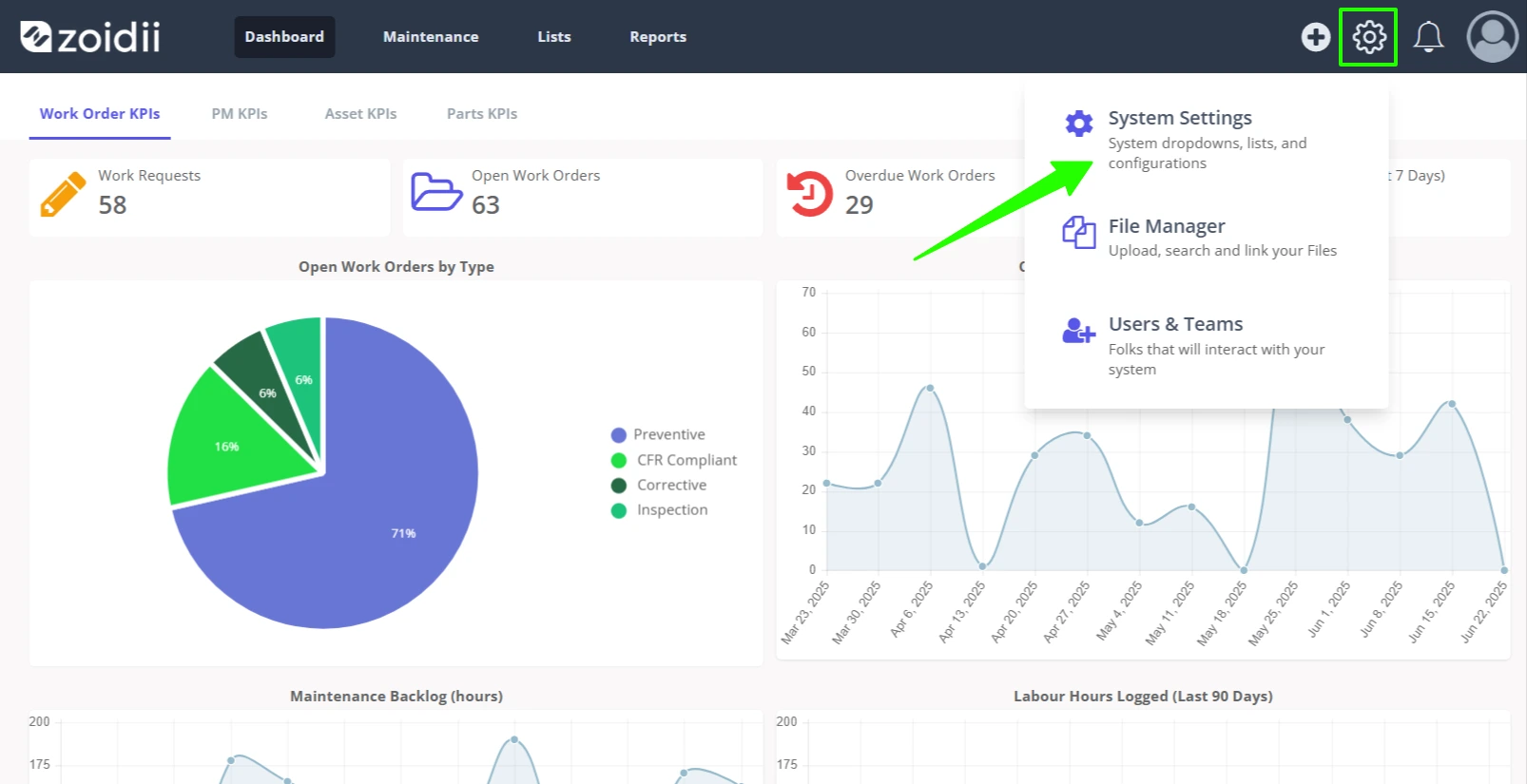
1. In the top navigation bar, click the Settings icon. Then select System Settings
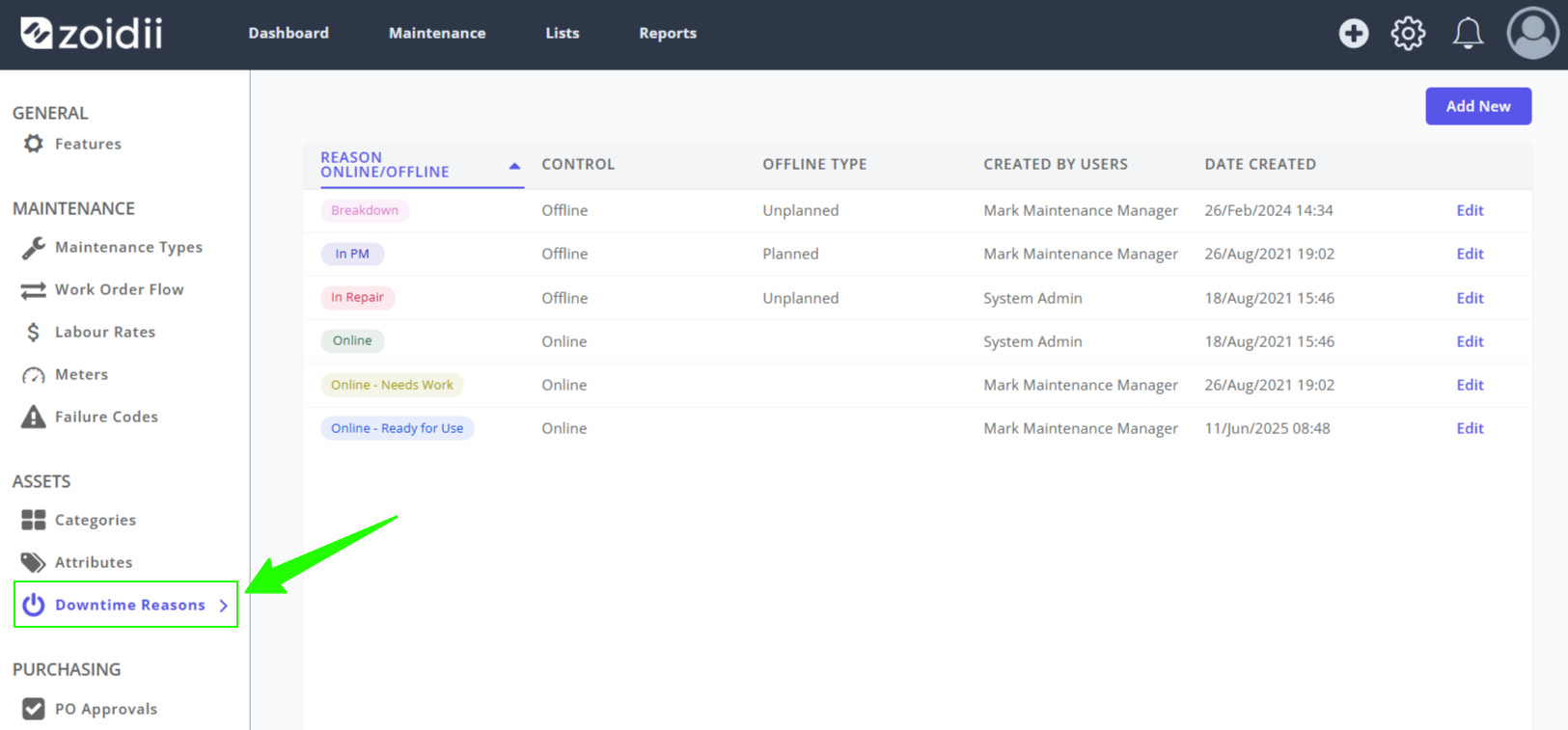
2. In the setting screen, click Downtime Reasons
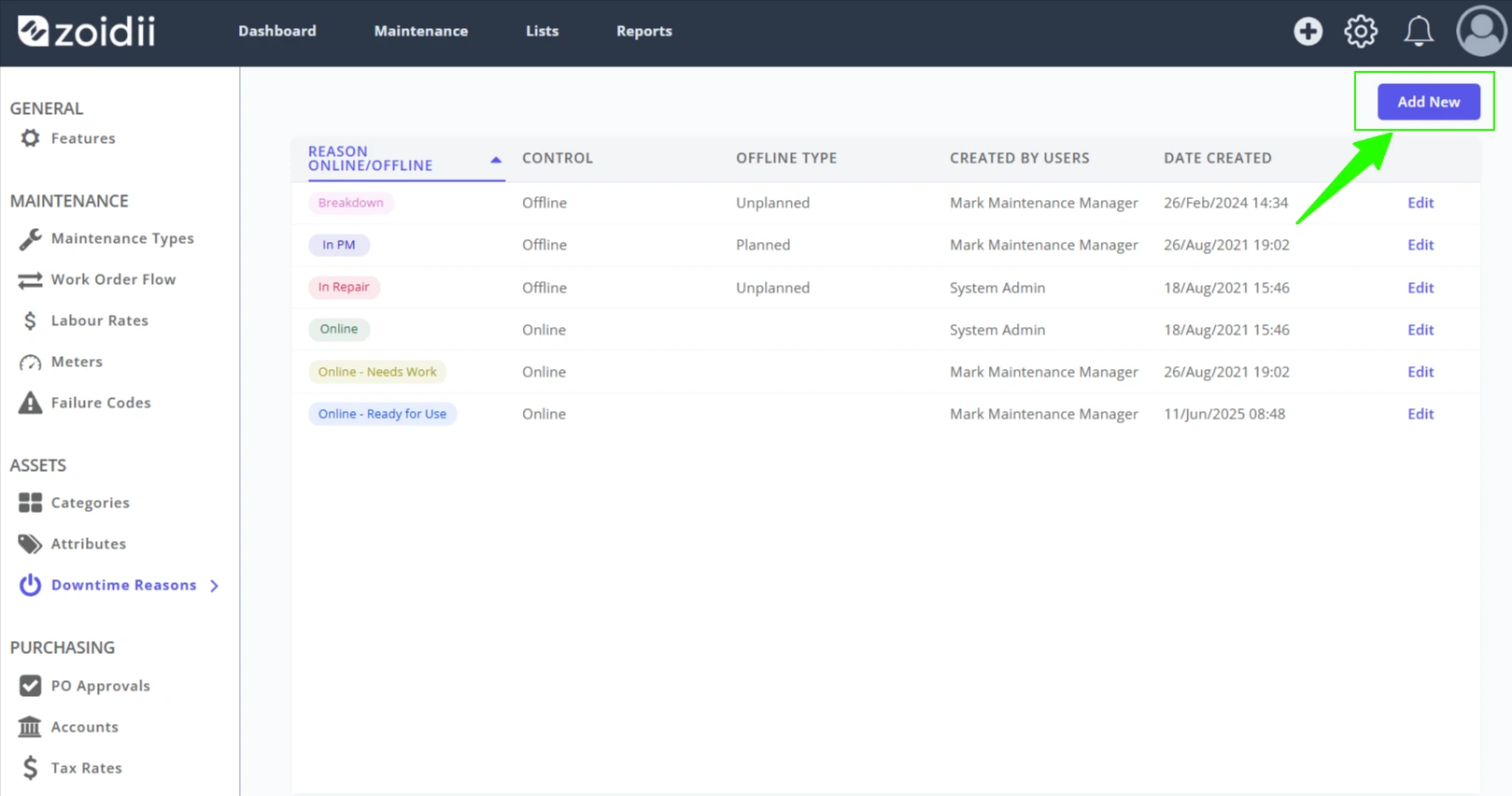
3. To add a new online or offline reason, click Add New
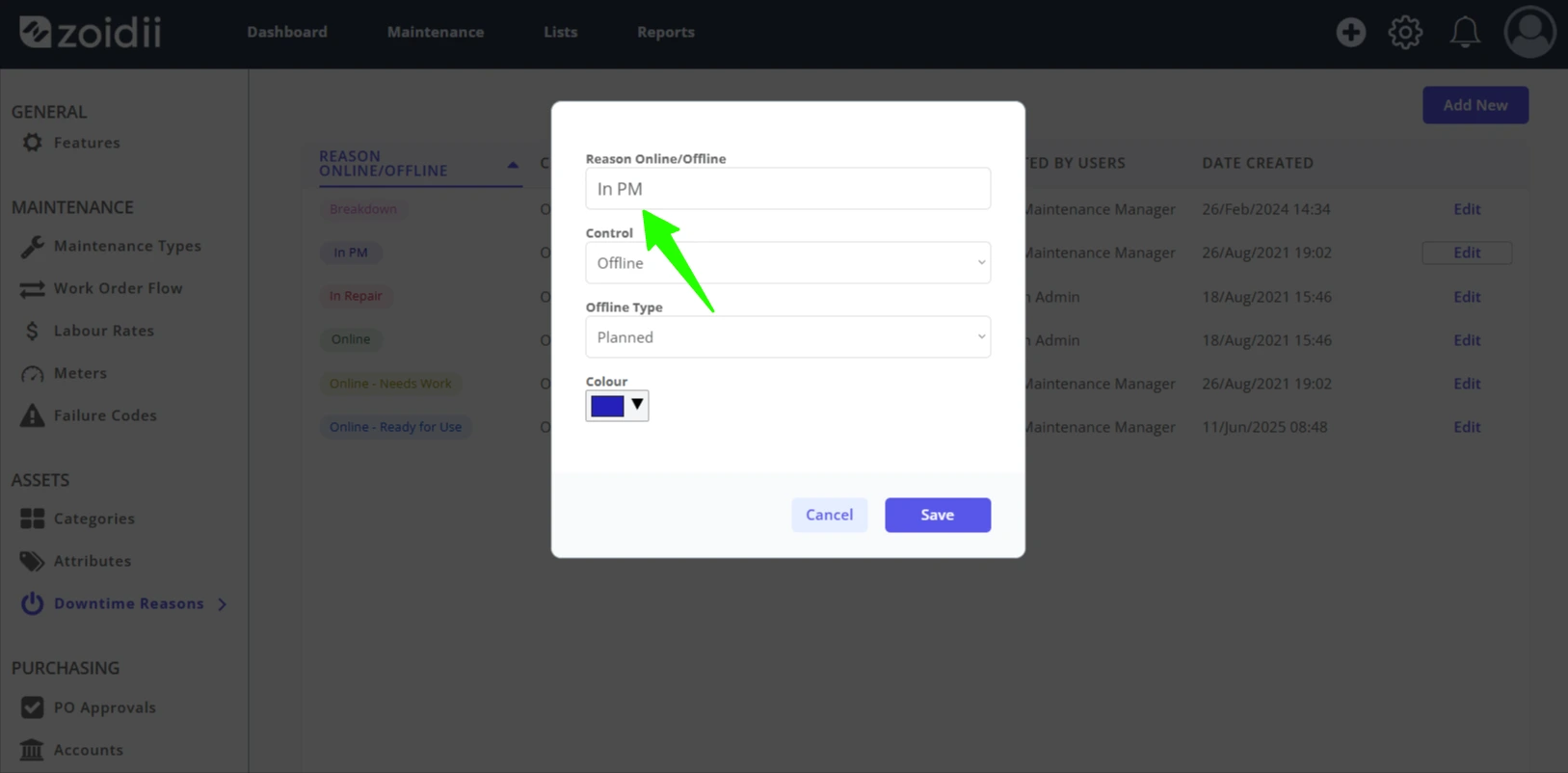
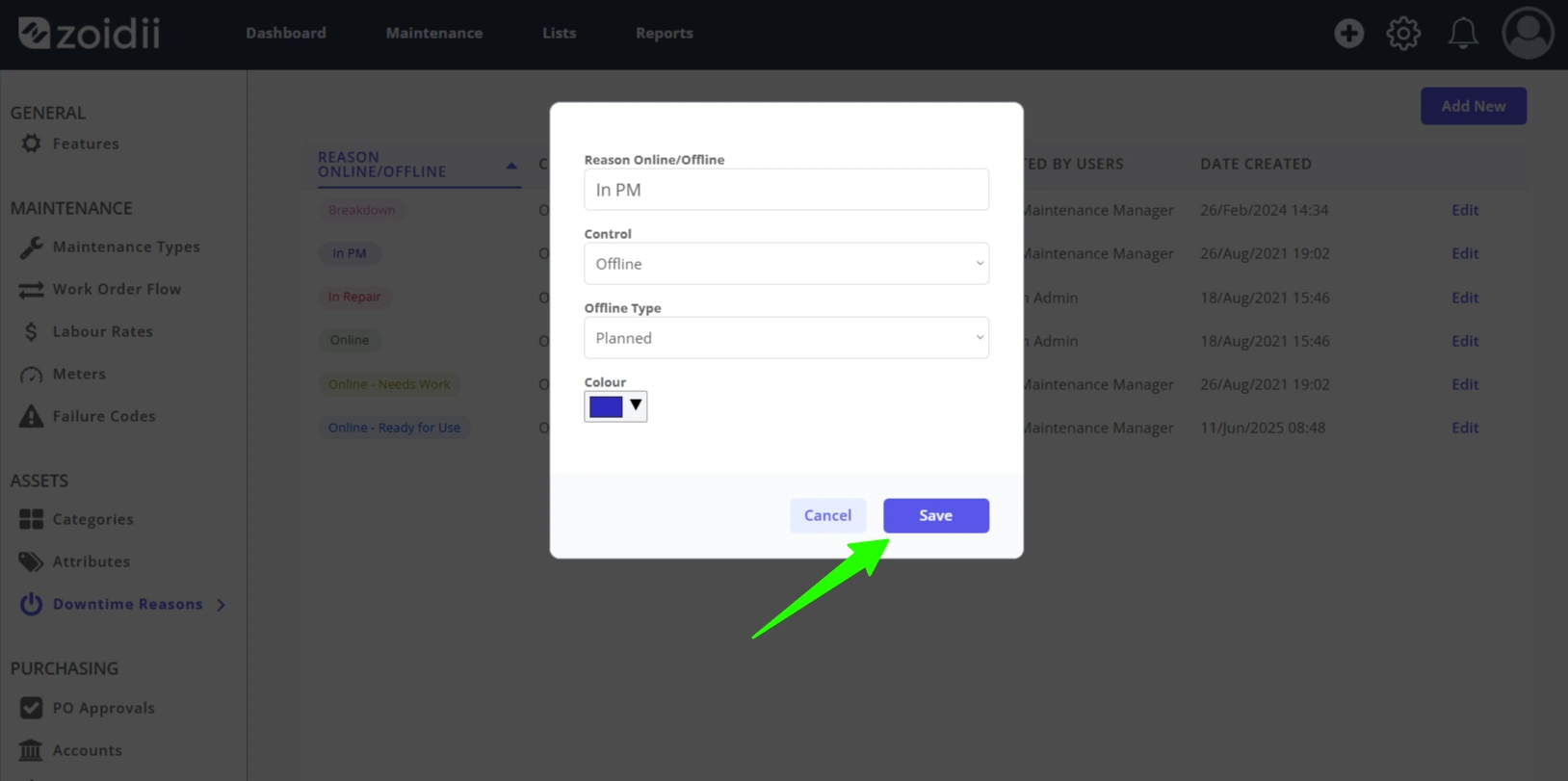
3. Add the new Reason
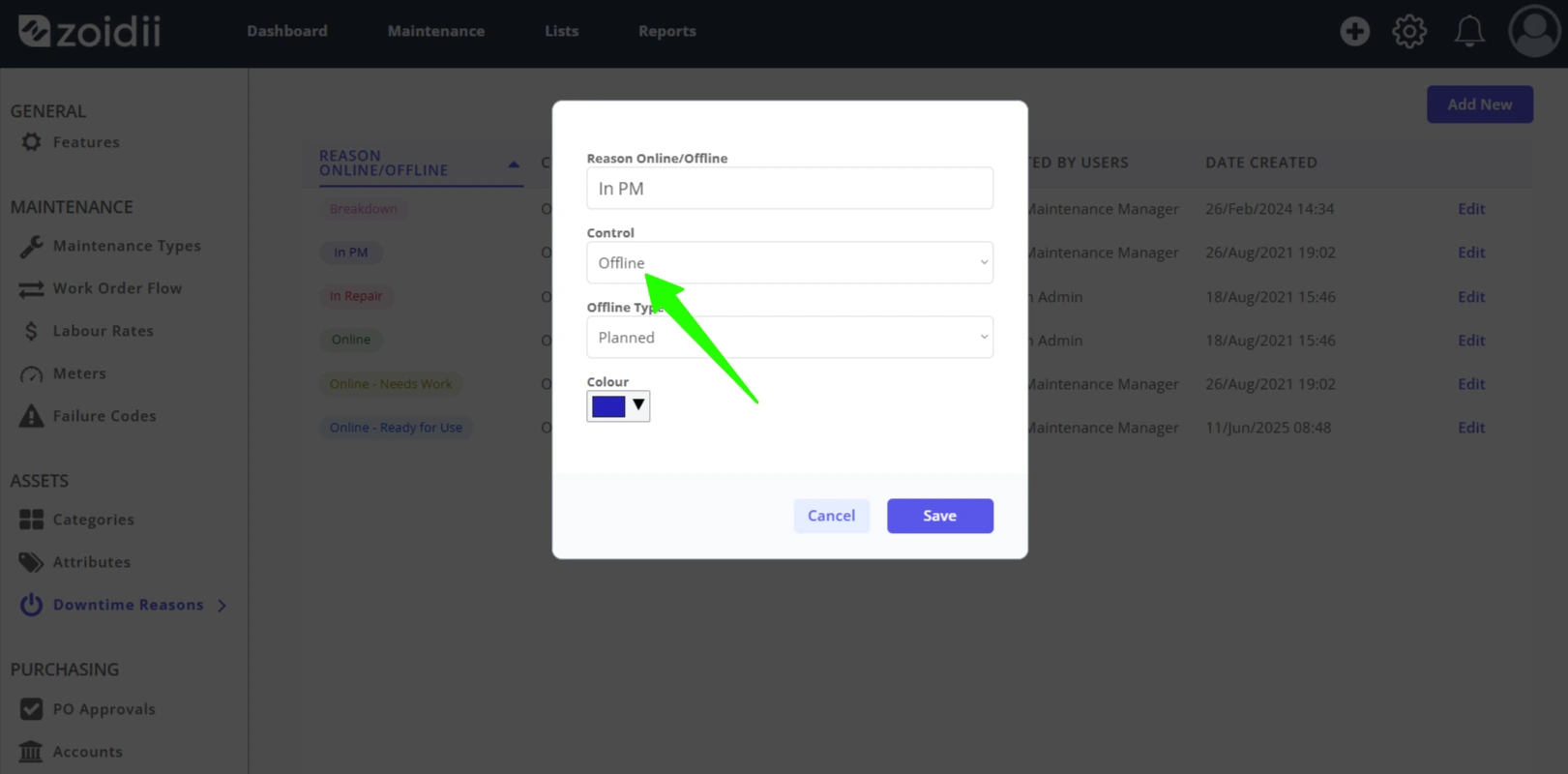
4. Set the Control State. The control is either offline or online. This determines whether the new reason added starts or stops the downtime clock.
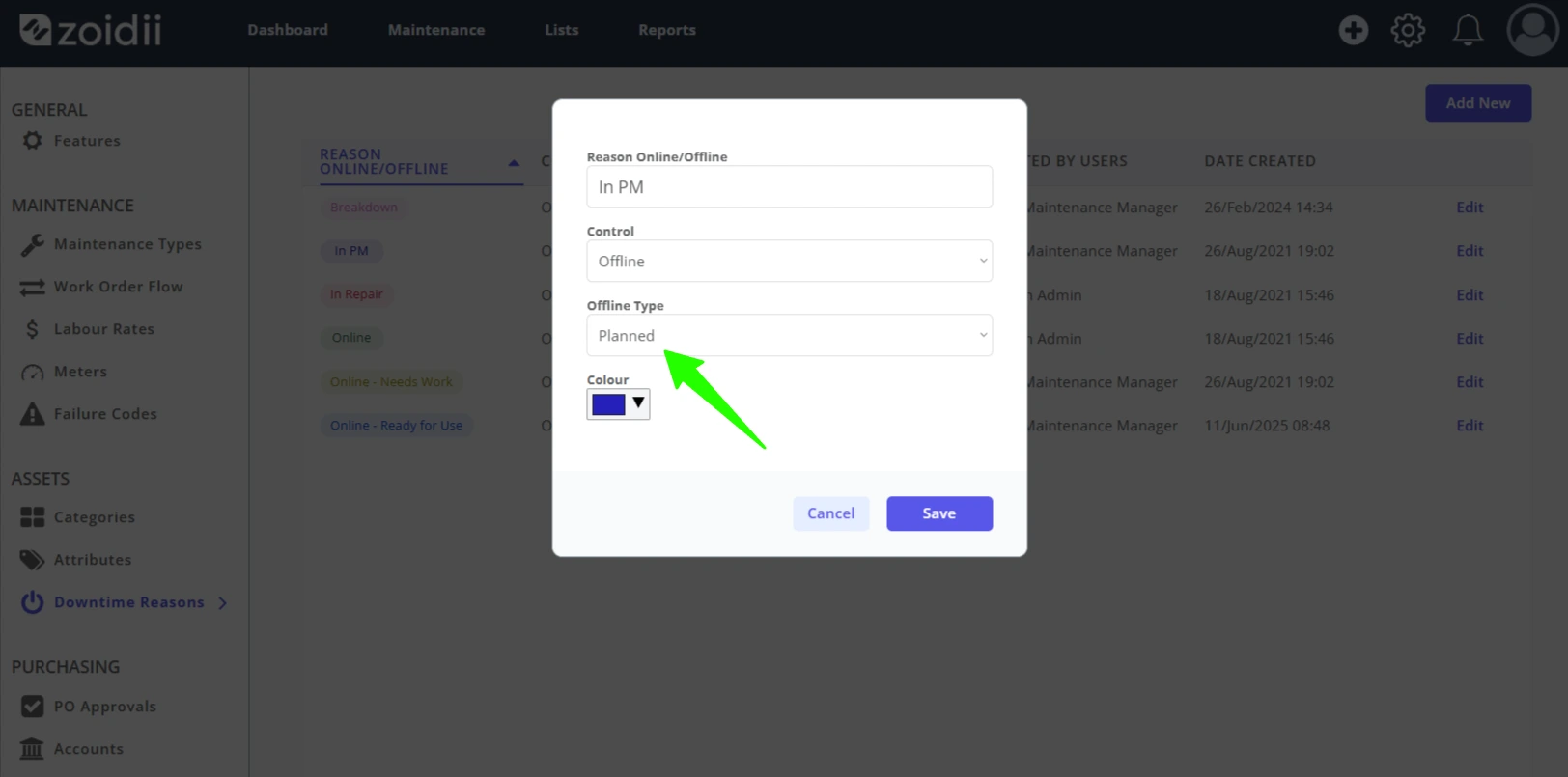
5. For offline states only, set the offline type as Planned or Unplanned for offline states. In this example, PM work is planned downtime
6. Set the Color for the new state. Colors to make it easier to see assets in the various downtime states
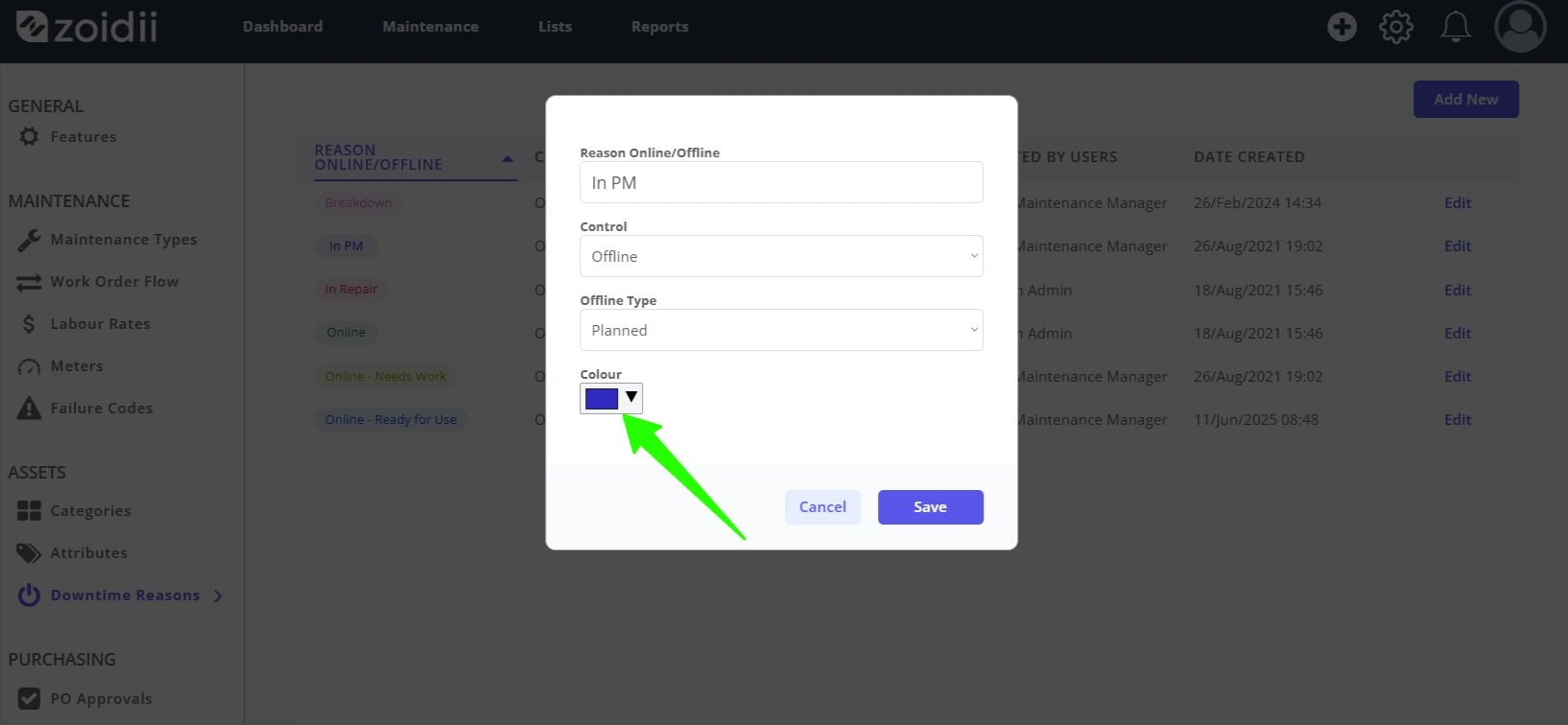
7. Click Save when done
8. The new In PM status is now available in the list for selection
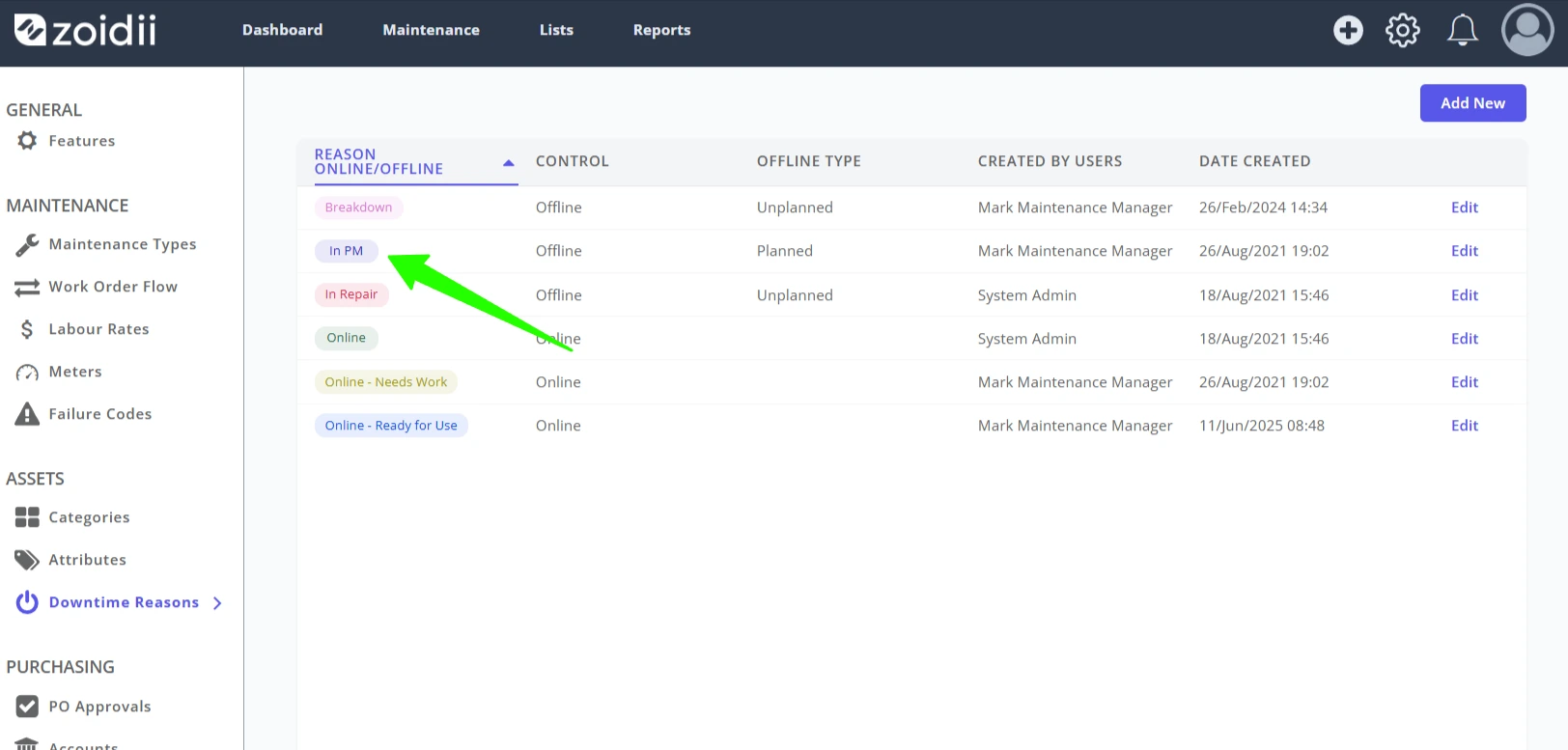
9. CMMS users can now set the asset to In PM on the asset list or asset record screens.